

- Name MultiMail - Multi-Account Email Client
- Category Productivity
- Developer Wuxxu
- Available on PC
- OS Windows 10 version 16299.0 or higher
- languages English (United States)
A Versatile Multi-Email Client for Windows: MultiMail
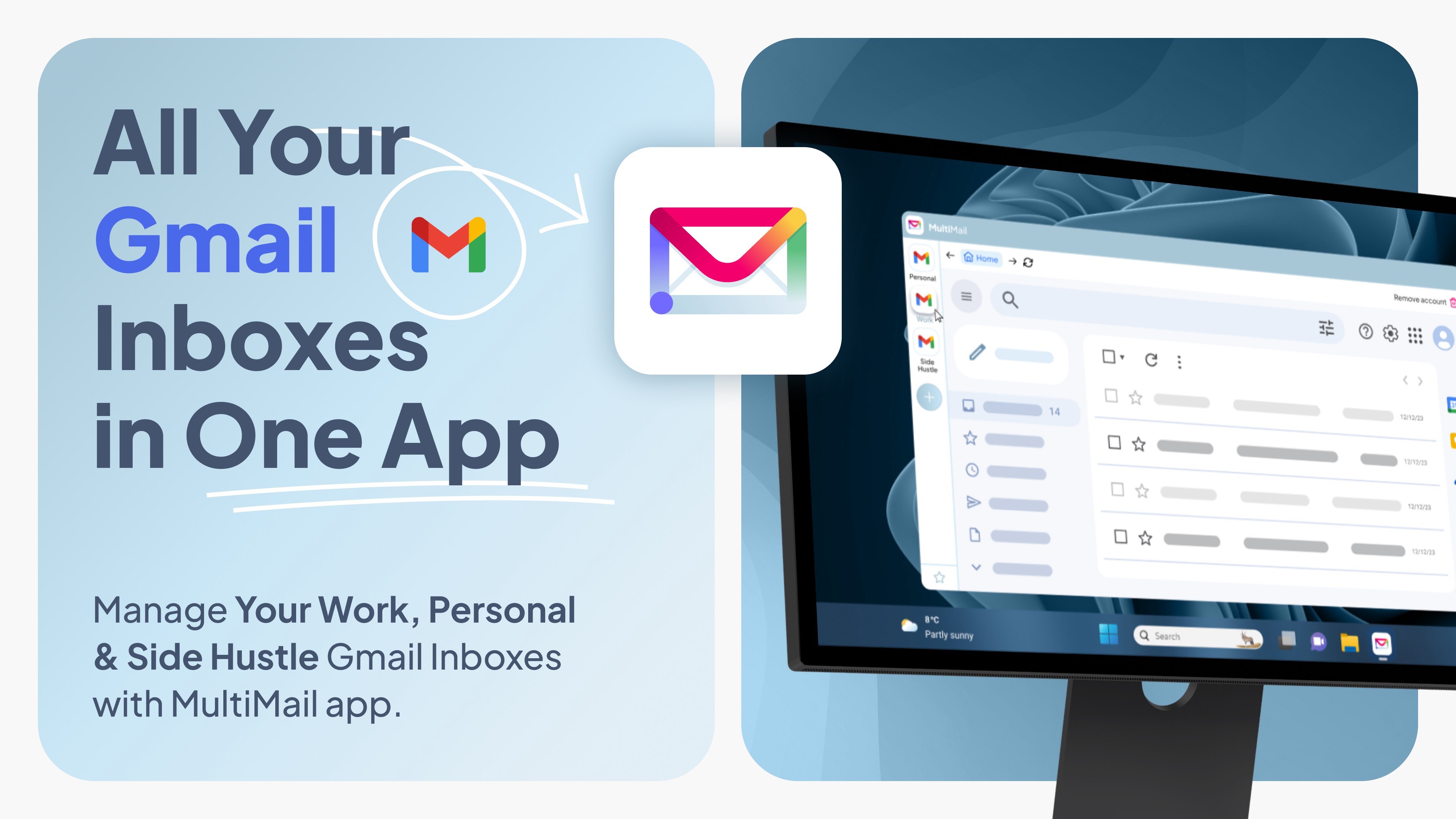
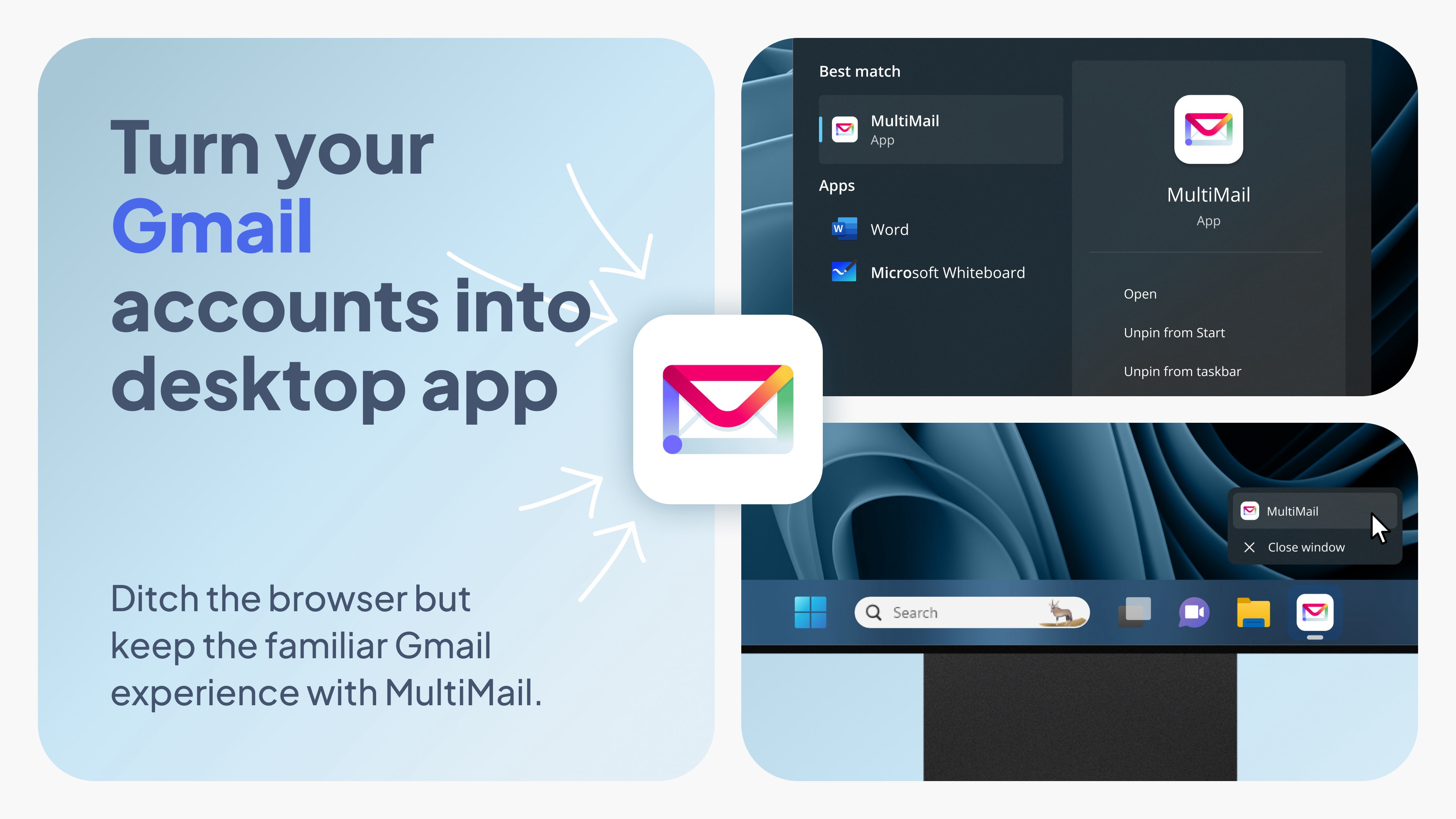
Imagine managing all your email accounts seamlessly within a unified workspace—MultiMail steps into this scene as a dedicated Windows application designed to simplify multi-account email management with efficiency and clarity.
Introduction: A Fresh Approach to Email Management
In today's fast-paced digital world, juggling multiple email accounts can feel like trying to keep several plates spinning at once—distracting, cluttered, and exhausting. MultiMail by Wuxxu offers a breath of fresh air, aiming to streamline your email workflow by bringing all your accounts into a single, intuitive interface. Unlike browser-based solutions or generic mail clients, this app emphasizes multi-account handling with a focus on reducing cognitive load and improving productivity—perfect for busy professionals, remote workers, or anyone overwhelmed by email clutter.
Core Features That Make a Difference
Unified Multi-Account Dashboard
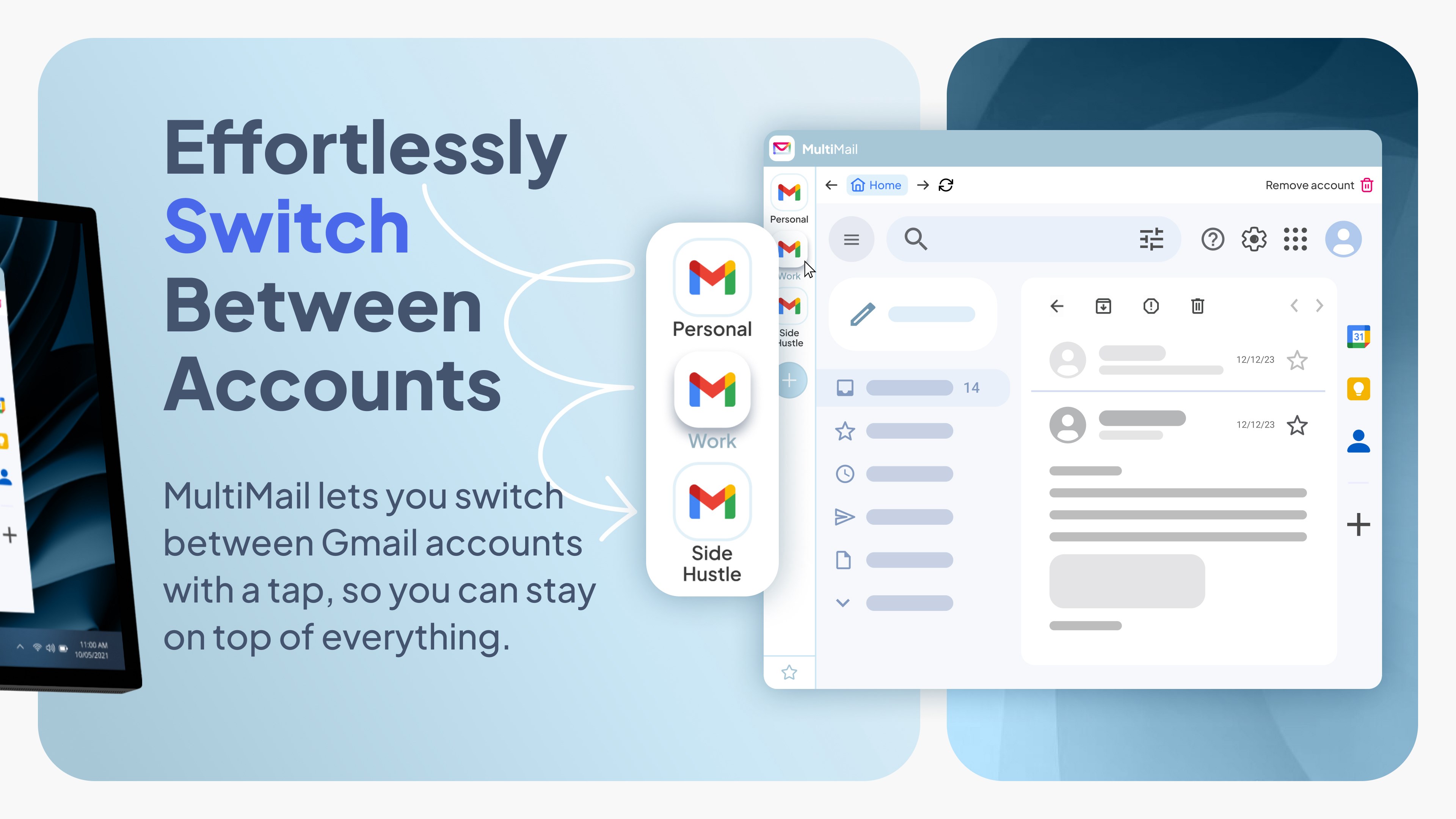
The centerpiece of MultiMail is its ability to aggregate multiple email accounts—Gmail, Outlook, Yahoo, and more—into a single dashboard. Imagine your inboxes as busy train stations converging into one smooth-running terminal. Users can switch seamlessly between accounts, view consolidated notifications, or focus on individual accounts when needed. The interface intelligently categorizes emails, helping users prioritize and respond efficiently without toggling between different apps.
Smart Filtering & Custom Labels
Beyond basic email viewing, MultiMail offers advanced filtering options that automatically sort incoming messages based on sender, keywords, or account. Picture a helpful assistant that pre-sorts your mail, so your inbox stays tidy and relevant. Custom labels enable further organization, making it easier to locate important messages later. These features reduce the cognitive burden of managing multiple accounts and prevent the dreaded email overload.
Secure & Privacy-Focused Design
Security is often a concern with third-party email clients, and MultiMail addresses this by prioritizing user privacy. It adheres to standard security protocols, and its local account management means emails are not stored on external servers—offering peace of mind for sensitive communication. Its straightforward setup process and straightforward permissions make it accessible for users wary of complex configurations.
Seamless User Experience & Design Elegance
The user interface of MultiMail strikes a balance between simplicity and functionality, reminiscent of a well-organized digital workspace. With a clean layout, clear icons, and minimal clutter, the app feels approachable even for beginners. Navigating between accounts and features is fluid, akin to flipping through familiar tabs in a well-designed dashboard—nothing feels sluggish or stuck. The learning curve is gentle; most users can get started in minutes without needing to consult a manual. This ease-of-use is particularly vital in reducing cognitive load, allowing you to focus on your messages rather than battling with the app itself.
Workflow Integration & Unique Advantages
What truly sets MultiMail apart from other email clients is its sharp focus on workflow integration and simplicity. Unlike complex productivity tools packed with features that often bog down the user, MultiMail emphasizes the essentials—speed, clarity, and ease of access. Its multi-account handling is akin to having a personalized command center, effectively reducing the mental effort needed to manage multiple inboxes. This efficient design directly translates into less distraction, fewer missed messages, and a smoother daily workflow. Furthermore, by avoiding feature bloat, it minimizes the cognitive overload that often accompanies feature-rich email clients, making it more accessible and less intimidating for a broad user base.
Final Thoughts & Recommendations
Overall, I recommend MultiMail for anyone seeking a straightforward yet powerful way to manage multiple email accounts on Windows. Its focus on reducing cognitive load, combined with its intuitive interface and unified dashboard, makes it stand out in a crowded field. If you're tired of switching between apps or overwhelmed by cluttered inboxes, MultiMail offers a logical, user-centric solution that complements your workflow without adding layers of complexity. Ideal for busy professionals, digital nomads, or anyone who values clarity and efficiency in their email management. Give it a try—you might find it transforms your email experience from chaos to control.
Pros
- Unified inbox management
- Customizable notification settings
- Supports multiple email protocols
- User-friendly interface
- Security features
Cons
- Limited advanced filtering options
- Occasional sync delays
- Lack of calendar integration
- Limited language options
- Small customization options for themes











