





- Name Mozilla Firefox
- Category Productivity
- Available on PC
- OS Windows 10 version 17763.0 or higher
- languages Afrikaans, Albanian, Arabic, Armenian, Bangla, Basque, Belarusian, Bosnian (Latin), Bulgarian, Catalan, Chinese (Simplified), Chinese (Traditional), Croatian, Czech, Danish, Dutch, English (Canada), English (United Kingdom), English (United States), Estonian, Finnish, French, Galician, Georgian, German, Greek, Gujarati, Hebrew, Hindi, Hungarian, Icelandic, Indonesian, Irish, isiXhosa, Italian, Japanese, Kannada, Kazakh, Khmer, Korean, Latvian, Lithuanian, Macedonian, Malay, Marathi, Nepali, Norwegian (Bokmål), Persian/Farsi, Polish, Portuguese (Brazil), Portuguese (Portugal), Punjabi (India), Romanian, Russian, Sinhala, Slovak, Slovenian, Spanish (Argentina), Spanish (Chile), Spanish (Mexico), Spanish (Spain), Swedish, Tamil, Telugu, Thai, Turkish, Ukrainian, Urdu, Vietnamese, Welsh
Efficient Web Browsing Meets Seamless Workflow with Mozilla Firefox for Windows
Mozilla Firefox for Windows is a time-tested, open-source web browser designed to deliver a secure, customizable, and swift browsing experience. It aims to reimagine how users connect with the web by emphasizing privacy and productivity, making it a reliable companion for both casual surfers and power users alike.
About the App
Developed by Mozilla, a globally recognized organization dedicated to fostering a healthier and more open internet, Firefox for Windows embodies their commitment to privacy-first technology. Available via the Microsoft Store, this version brings the familiar Firefox experience to Windows users, optimized for performance and security.
Main features include:
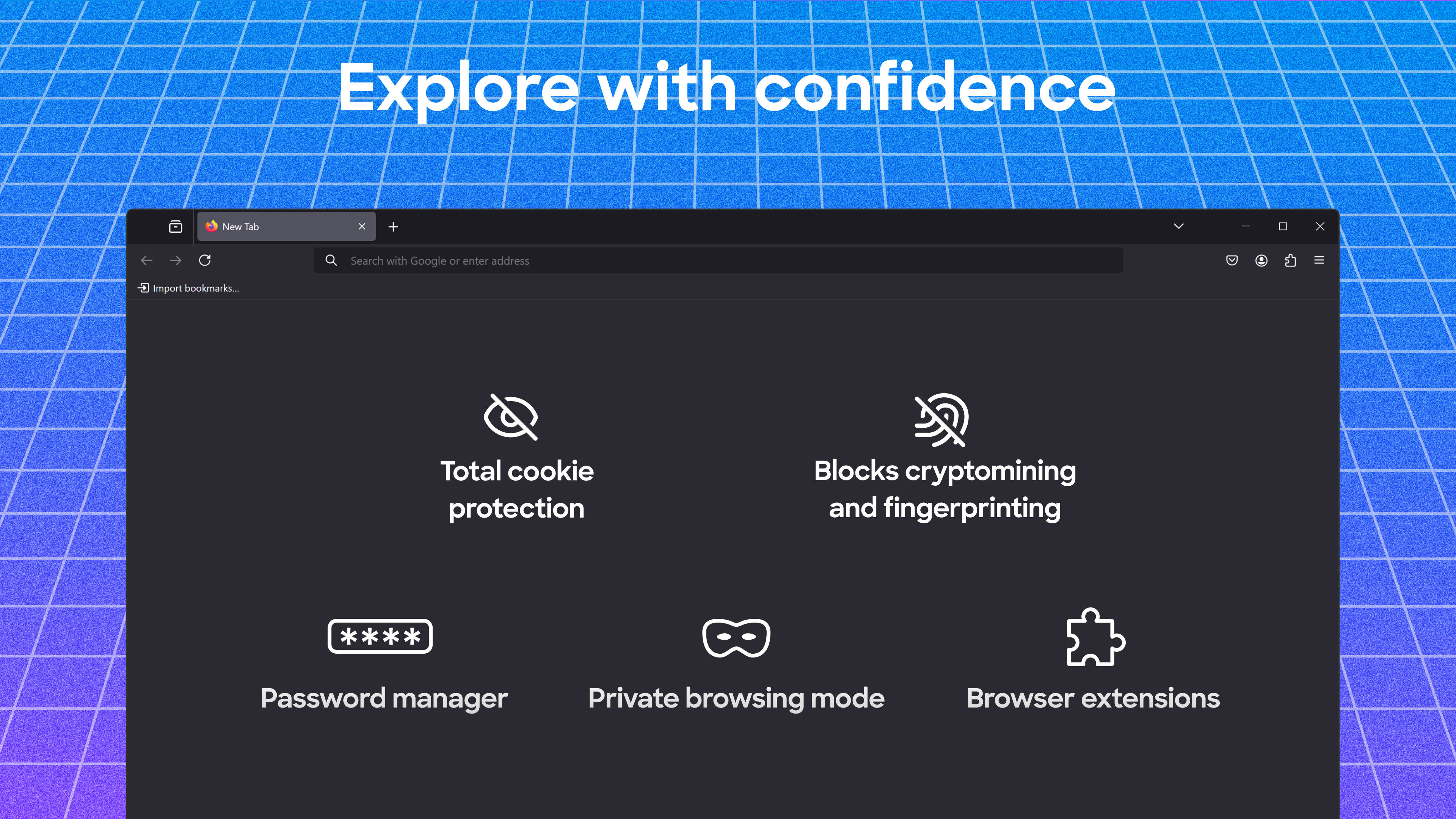
- Enhanced privacy controls with built-in tracking protection
- Customizable interface allowing for tailored workflows
- Integrated performance optimization tools for faster browsing
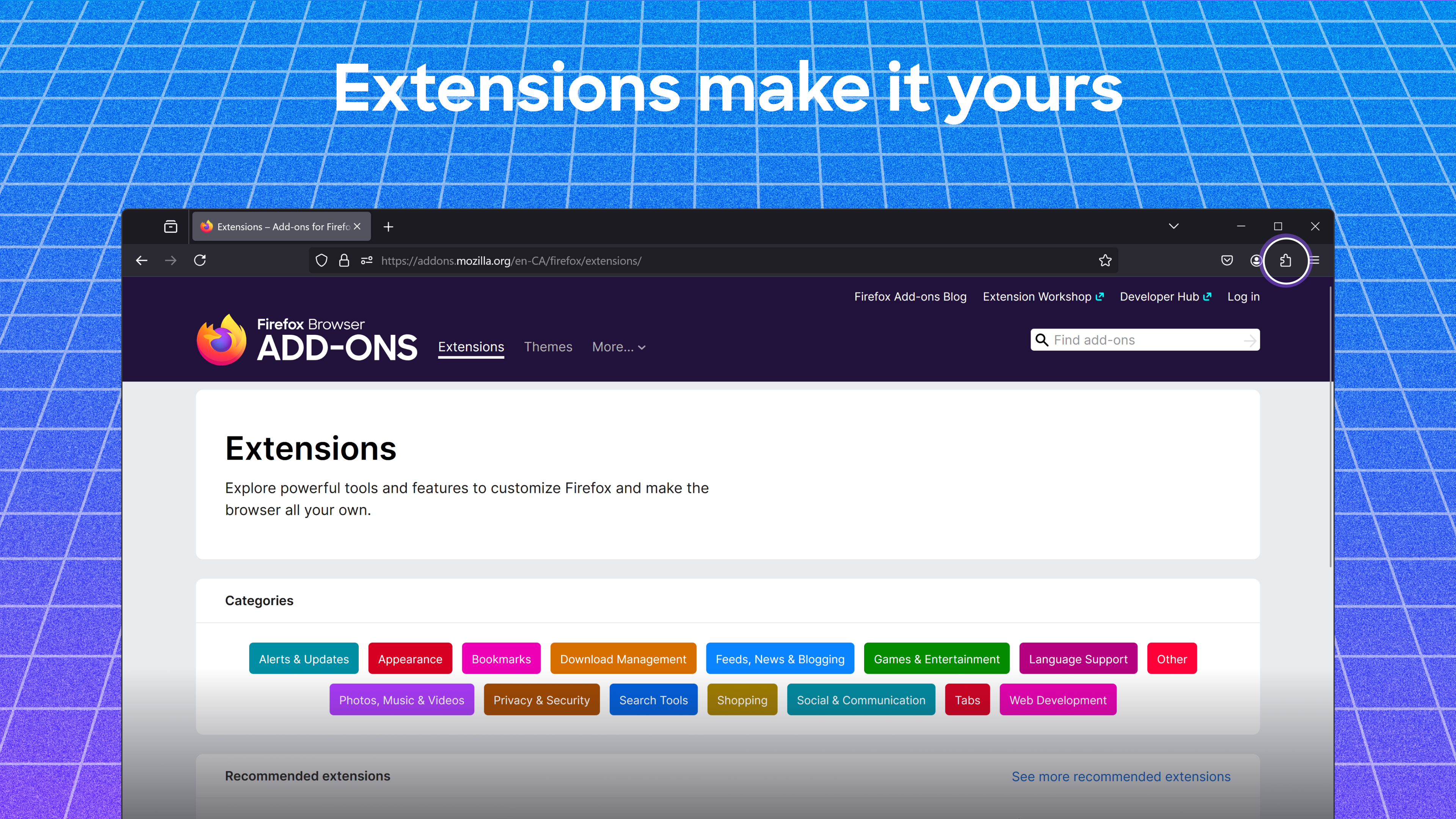
- Robust extension ecosystem to extend functionality
Targeted at users who prioritize privacy, efficiency, and flexibility—ranging from digital professionals to everyday users seeking a secure browsing environment—it caters to individuals looking for a browser that adapts to their needs rather than the other way around.
An Inviting Gateway to Digital Exploration
Imagine sitting down at your desk, ready to dive into your research, work emails, or streaming session—Mozilla Firefox for Windows feels like that trusted companion that's always ready to support your journey. Its interface is clean yet inviting, like a well-organized workspace that encourages smooth workflow. Whether you're juggling multiple tabs or customizing your extensions, Firefox makes navigating the web a pleasant, almost effortless experience. Its design philosophy centers around reducing cognitive load—meaning less mental overhead so you can focus on what matters most: your tasks and curiosity.
Powerful Privacy and Customization for a Tailored Experience
One of Firefox's standout features is its robust privacy protection. Think of it as a digital aura shielding you from invasive trackers and unwanted ads. When browsing, you're in control; the built-in tracking protection automatically blocks a wide range of third-party trackers, conserving bandwidth and speeding up page loads. If you're someone who values security, this feature feels like having a vigilant bodyguard guarding your online presence without interrupting your journey.
The browser's customization options are another highlight. Want a minimalistic look? Or prefer an extension-rich environment akin to a bustling workshop? Firefox adapts seamlessly. Its flexible toolbar and extensive extension library allow you to craft a browsing environment tailored precisely to your workflow, without overwhelming complexity. This level of customization reduces the cognitive effort needed to adapt to new workflows, making your online activities feel more natural and less taxing.
Performance Optimization and User Experience
Firefox for Windows doesn't just talk the talk; it walks the walk with impressive performance metrics. Its streamlined engine ensures rapid page rendering, even when multiple tabs are open—a true boon for multitasking. The interface is intuitive, with a gentle learning curve that doesn't require a steep climb, perfect for both beginners and seasoned users.
Navigation feels smooth, like gliding on glass, thanks to optimized resource management. The interface's layout encourages fluid movement across functions, minimizing distractions and cognitive load—making the browser almost feel like an extension of your thought process rather than a barrier.
Compared to other productivity browsers, Firefox's focus on reducing feature clutter is noticeable. Its core features are presented clearly, with optional extensions acting as modular add-ons. This thoughtful balance allows users to expand capabilities without feeling overwhelmed, a key differentiator that supports sustained, efficient workflows.
Is It Recommended? Absolutely, with Caveats
If you're seeking a browser that prioritizes privacy, customization, and efficiency, Mozilla Firefox for Windows is an excellent choice. Its unique blend of performance and user-centric design makes it suitable for everyday browsing and complex workflows alike. However, if your work heavily relies on proprietary extensions or enterprise-specific integrations, double-check compatibility before committing.
For most users who want a reliable, adaptable, and privacy-conscious browser that helps streamline online activities, Firefox comes highly recommended. Whether you're managing multiple research tabs, engaging in online collaboration, or just browsing casually, it offers a balanced environment that respects your workflow and mental bandwidth. Give it a try—your digital workspace deserves a browser that works as hard as you do.
Pros
- Strong privacy features
- Customizable interface
- Open-source development
- Excellent performance
- Wide extension support
Cons
- Higher RAM usage compared to some browsers
- Occasional compatibility issues with certain websites
- Longer startup times on older hardware
- Delayed rollout of new features compared to competitors
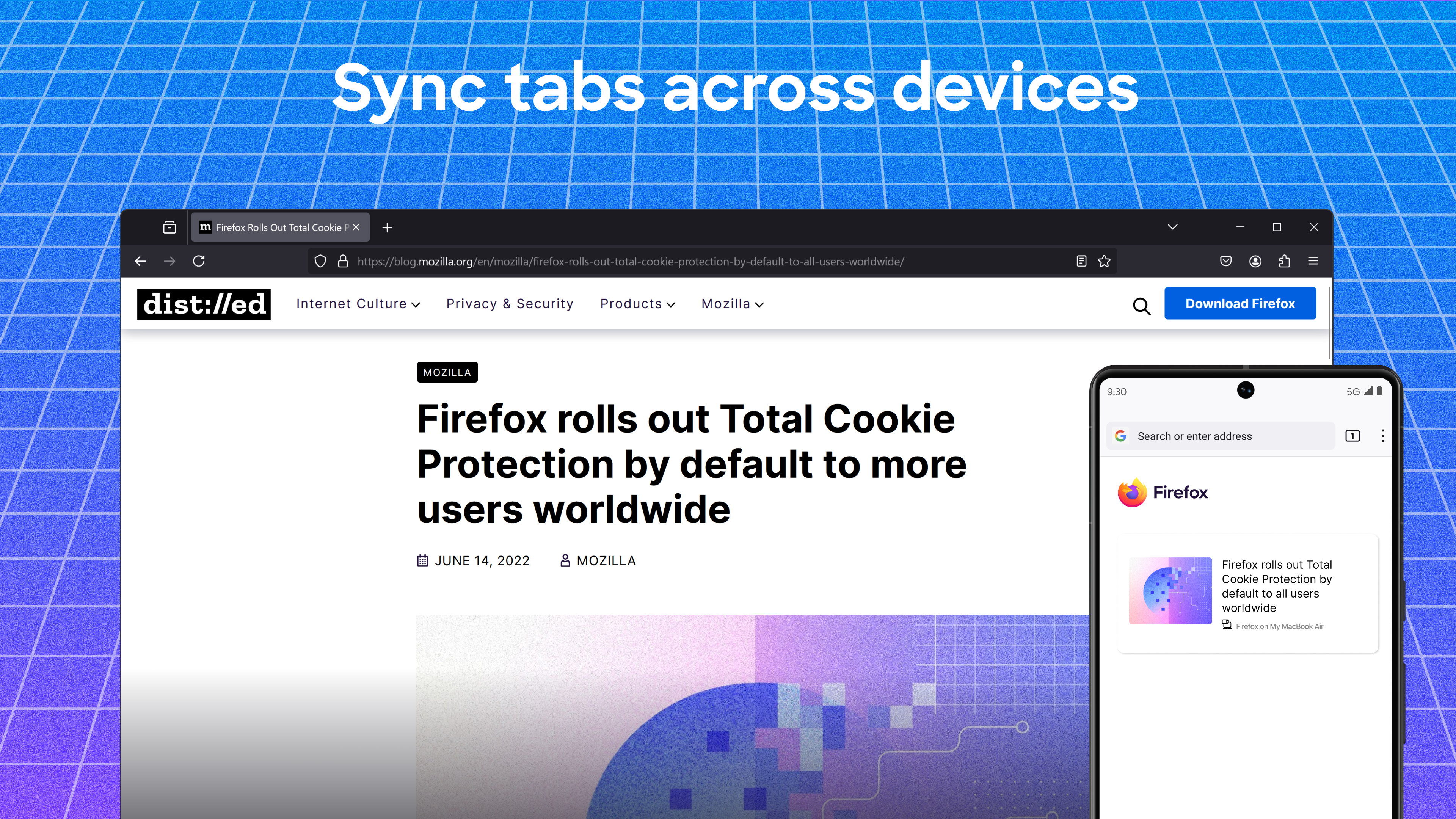
- Default sync service does not support some cloud storage services











