

- Name Microsoft Whiteboard
- Category Productivity
- Developer Microsoft Corporation
- Available on PC, Surface Hub
- OS Windows 10 version 15063.0 or higher
- languages Afrikaans, Albanian, Amharic, Arabic, Azerbaijani, Basque, Bosnian (Latin, Bosnia and Herzegovina), Bulgarian, Catalan, Chinese (Simplified), Chinese (Traditional), Croatian, Czech, Danish, Dutch, English (United Kingdom), English (United States), Estonian, Filipino, Finnish, French, French (Canada), Galician , German, Greek, Hebrew, Hindi, Hungarian, Icelandic, Indonesian, Italian, Japanese, Kannada, Kazakh, Khmer, Korean , Latvian, Lithuanian, Macedonian, Malay, Malayalam, Norwegian (Bokmål), Persian, Polish , Portuguese (Brazil), Portuguese (Portugal), Romanian, Russian, Serbian, Serbian (Latin, Serbia), Slovak, Slovenian (Slovenia), Spanish (Mexico), Spanish (Spain), Swedish, Tamil, Telugu, Thai, Turkish, Ukrainian, Vietnamese
An Accessible Canvas for Collaboration: An Overview of Microsoft Whiteboard for Windows
Microsoft Whiteboard for Windows stands out as a versatile digital workspace designed to streamline collaboration, creativity, and idea sharing in both educational and professional settings. Perfectly integrated into the Microsoft 365 ecosystem, it promises a seamless brainstorming experience on your Windows device.
Meet the Developer: Microsoft Corporation
Developed and published by Microsoft Corporation, this application benefits from the company's extensive expertise in creating reliable, user-friendly productivity tools that integrate effortlessly into daily workflows.
Key Features at a Glance
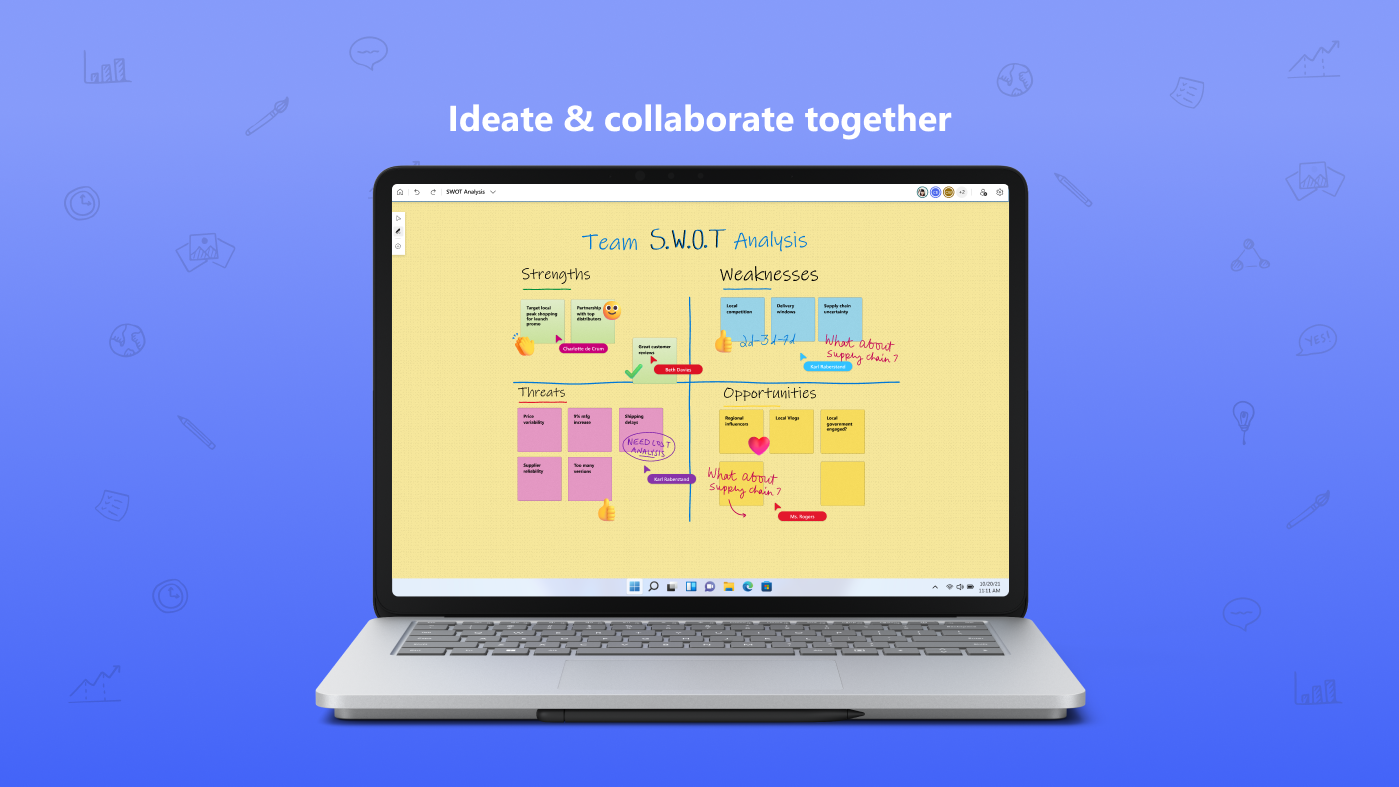
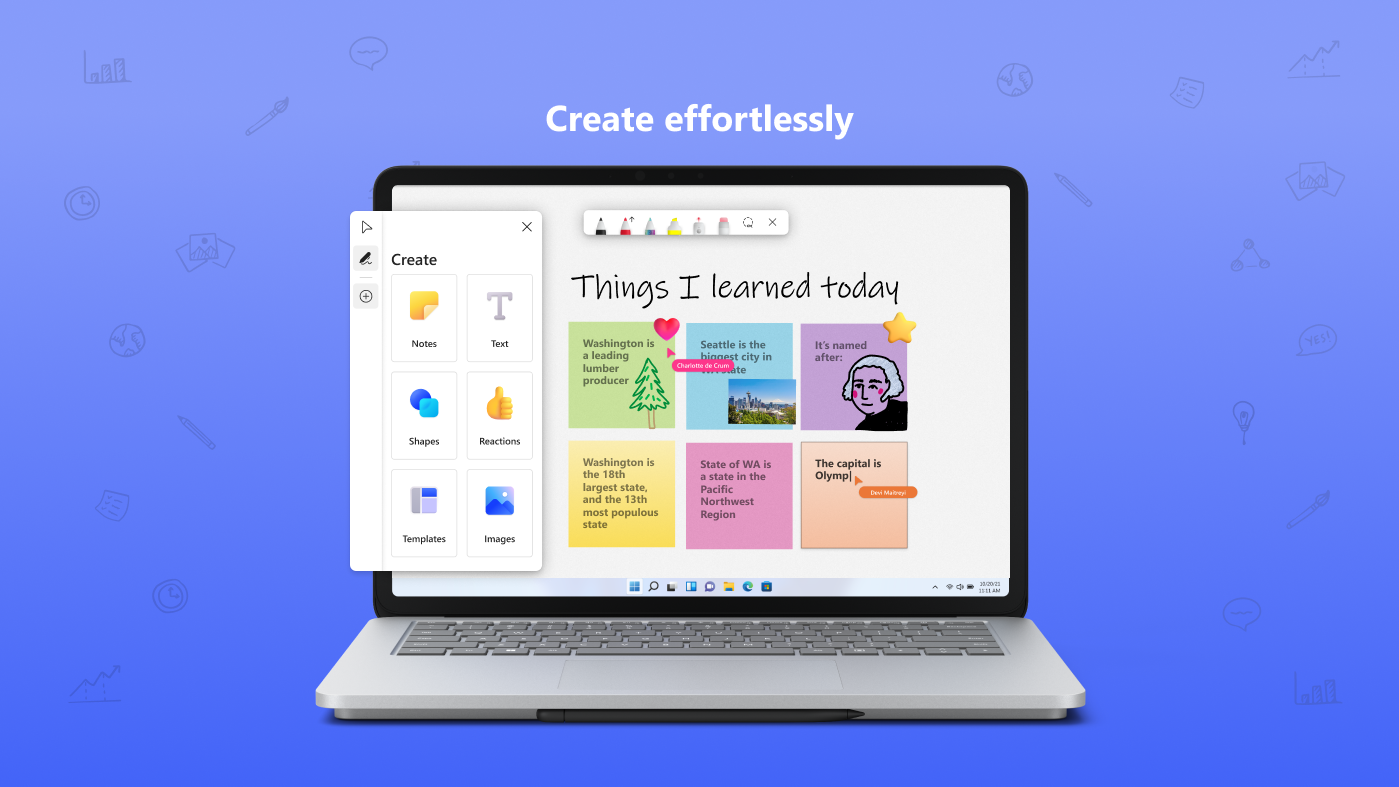
- Real-time Collaborative Whiteboarding: Multiple users can draw, write, and annotate simultaneously, fostering dynamic teamwork.
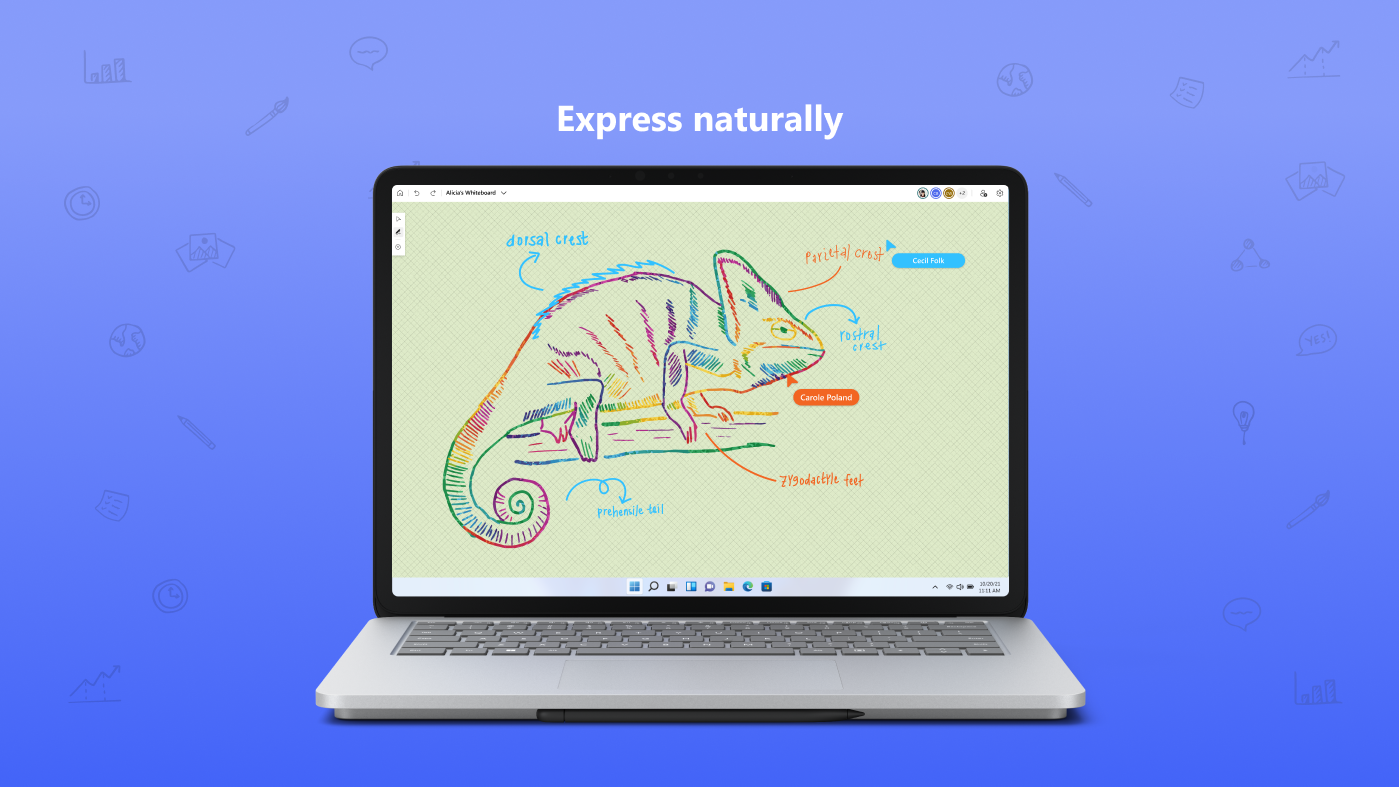
- Intuitive Ink and Shape Recognition: Converts hand-drawn shapes into precise digital figures, reducing cleanup time and enhancing presentation quality.
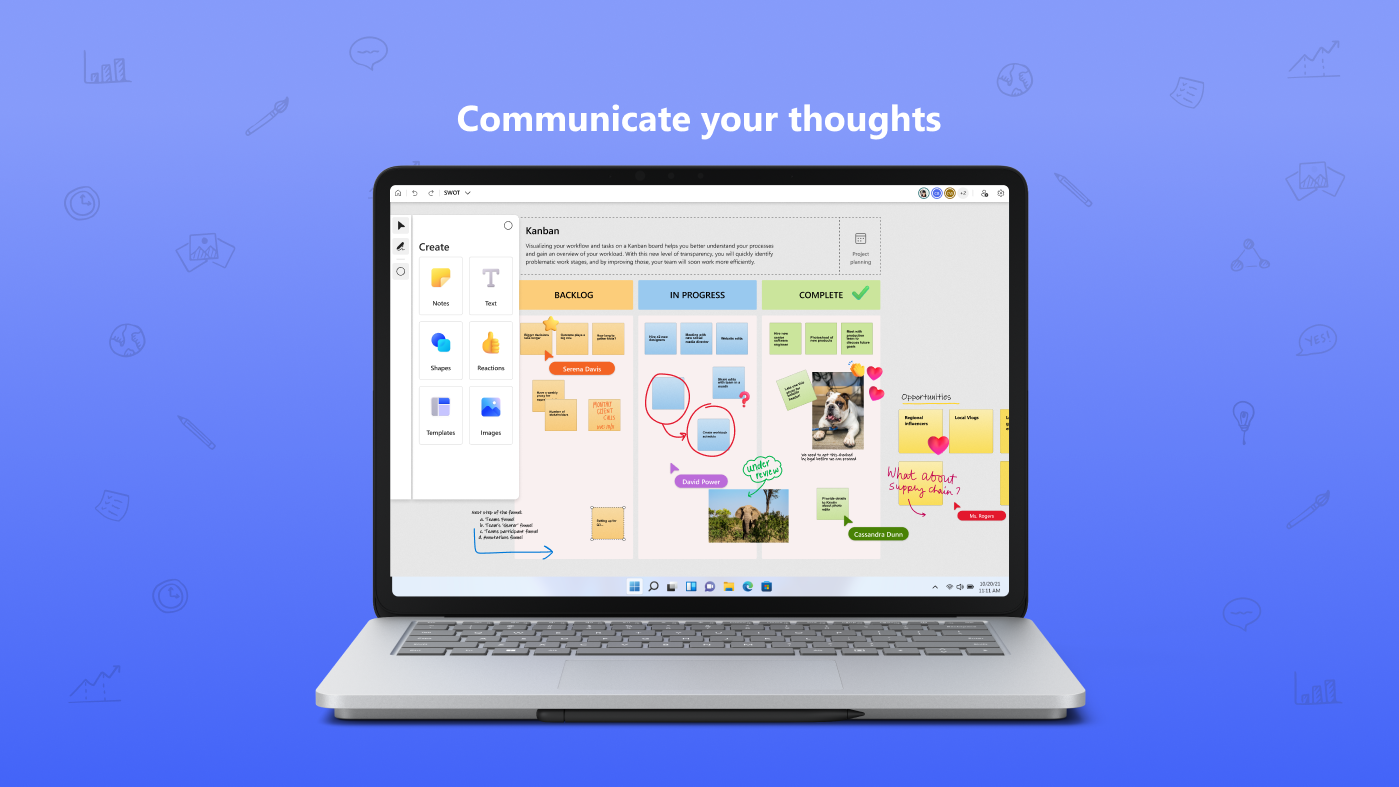
- Embedded Content Support: Easily insert images, notes, sticky notes, and Microsoft 365 files, making the whiteboard a comprehensive digital canvas.
- Cross-Device Synchronization: Seamless sync across Windows PCs, tablets, and other devices ensuring ideas are accessible anytime, anywhere.
A User-Friendly Gateway to Creative Collaboration
Imagine entering a virtual brainstorming room where ideas flow as freely as ink on paper. That's the essence of Microsoft Whiteboard—it transforms mundane meetings into interactive sessions, transforming the traditional whiteboard into a dynamic, digital playground. Whether you're sketching a quick idea or annotating a complex diagram, this tool is like having a blank canvas that never runs out of space, ready to embrace your creativity.
From Drawing to Formal Figures: Shapes and Content Integration
One of the standout features is the intelligent recognition of hand-drawn shapes. Just sketch a circle or arrow, and watch it transform into neat, professional-looking figures. This capability significantly reduces the friction between ideation and presentation—think of it as having a smart assistant that tidies up your rough sketches automatically. Coupled with robust content embedding options—like inserting files or images directly from Microsoft 365—users can craft comprehensive visual narratives without jumping between multiple apps, thereby streamlining workflows.
Smooth Sailing: Interface, Performance, and Learning Curve
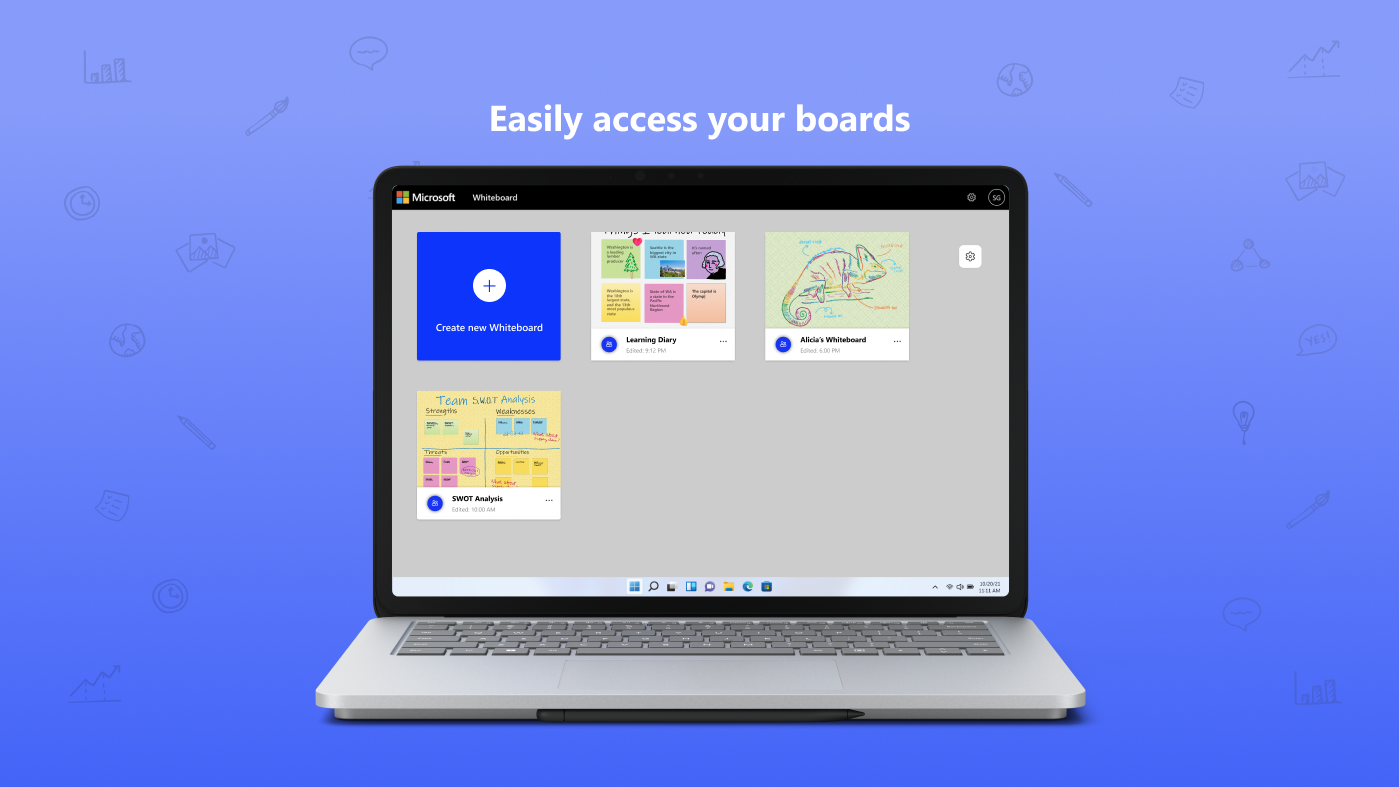
Designed with clarity in mind, the interface resembles an open whiteboard—clean, uncluttered, and inviting. Navigating tools feels natural, akin to picking up a marker and jotting down notes. The app performs smoothly, with minimal lag even during intensive collaborative sessions, thanks to optimized rendering and synchronization algorithms. As for learning curve, users familiar with Microsoft Office products will find themselves comfortable almost instantaneously, while newcomers might appreciate the straightforward layout and context-sensitive help features. Overall, the experience is intuitive, transforming what might seem like a complex digital tool into an accessible workspace suitable for all ages and skill levels.
What Sets It Apart? Workflow Integration & Cognitive Load Reduction
Compared to other productivity apps, Microsoft Whiteboard uniquely excels in workflow integration. It's not merely a drawing tool but a collaborative hub that seamlessly connects with Teams, Outlook, and other Microsoft 365 services. This integration means ideas are not confined to isolated silos—they flow naturally across platforms, reducing the need for manual file exchanges or format conversions. Furthermore, its smart shape recognition and content embedding features lessen cognitive load—users focus on generating ideas rather than wrestling with complex functions. In contrast to feature-heavy counterparts that overwhelm with options, Whiteboard's streamlined design keeps focus on what truly matters: collaboration and clarity.
Final Recommendation: A Must-Have for Modern Teams and Educators
I would highly recommend Microsoft Whiteboard for Windows to teams seeking an efficient, integrated canvas for brainstorming or lesson planning. Its strengths lie in effortless collaboration, smart recognition features, and tight integration with the Microsoft ecosystem. It's particularly suitable for educational settings, small team projects, or any scenario where visual communication accelerates understanding. For those craving a straightforward yet powerful digital whiteboard, this app offers a balanced mix of simplicity and advanced functionality—a true digital partner for your creative and organizational needs.
Pros
- Intuitive and user-friendly interface
- Real-time collaboration capabilities
- Seamless integration with Microsoft 365 tools
- Supports a variety of media types
- Cross-platform availability
Cons
- Limited export options
- Occasional sync delays
- Limited annotation tools compared to dedicated graphic apps
- Some features are locked behind a Microsoft 365 subscription
- Mobile app functionality slightly less comprehensive











