

- Name Microsoft To Do: Lists, Tasks & Reminders
- Category Productivity
- Available on PC, Mobile, Surface Hub
- OS Windows 10 version 17763.0 or higher
- languages Afrikaans, Albanian, Amharic, Arabic, Bangla (Bangladesh), Bangla (India), Basque, Belarusian, Bosnian (Latin), Bulgarian, Catalan, Chinese (Simplified), Chinese (Traditional Chinese), Chinese (Traditional), Croatian, Czech, Danish, Dutch, English, English (United Kingdom), Estonian, Filipino, Finnish, French, French (Canada), Galician, German, Greek, Hausa (Latin), Hebrew, Hindi, Hungarian, Icelandic, Indonesian, Italian, Japanese, Kannada, Kazakh, Khmer, Kiswahili, Korean, Korean , Latvian, Lithuanian, lo, Macedonian, Malay, Malayalam, Norwegian (Bokmål), Persian/Farsi, Polish, Portuguese (Brazil), Portuguese (Portugal), Romanian, Russian, Serbian, Serbian (Cyrillic, Bosnia and Herzegovina), Serbian (Latin, Serbia), Slovak, Slovenian, Spanish, Spanish (Mexico), Spanish (Spain), Swedish, Tamil, Telugu, Thai, Turkish, Ukrainian, Uzbek, Valencian, Vietnamese
A Streamlined To-Do Companion for Windows: Microsoft To Do
Microsoft To Do is a thoughtfully designed task management app that seamlessly integrates into Windows, offering a clean and efficient way to organize your everyday tasks and reminders. Developed by Microsoft Corporation, this app aims to bring clarity and focus to your busy life with a user-friendly experience that tackles the chaos of task overload.
Core Features That Make a Difference
1. Intelligent List & Task Organization
At its heart, Microsoft To Do excels in helping you categorize tasks into customizable lists—think of them as digital desks where your chores, work priorities, or grocery errands each have their dedicated space. Thanks to features like recurring reminders and subtasks, you can break down complex projects into manageable steps, making the mountain of responsibilities feel more like a gentle hill.
2. Seamless Integration & Workflow Syncing
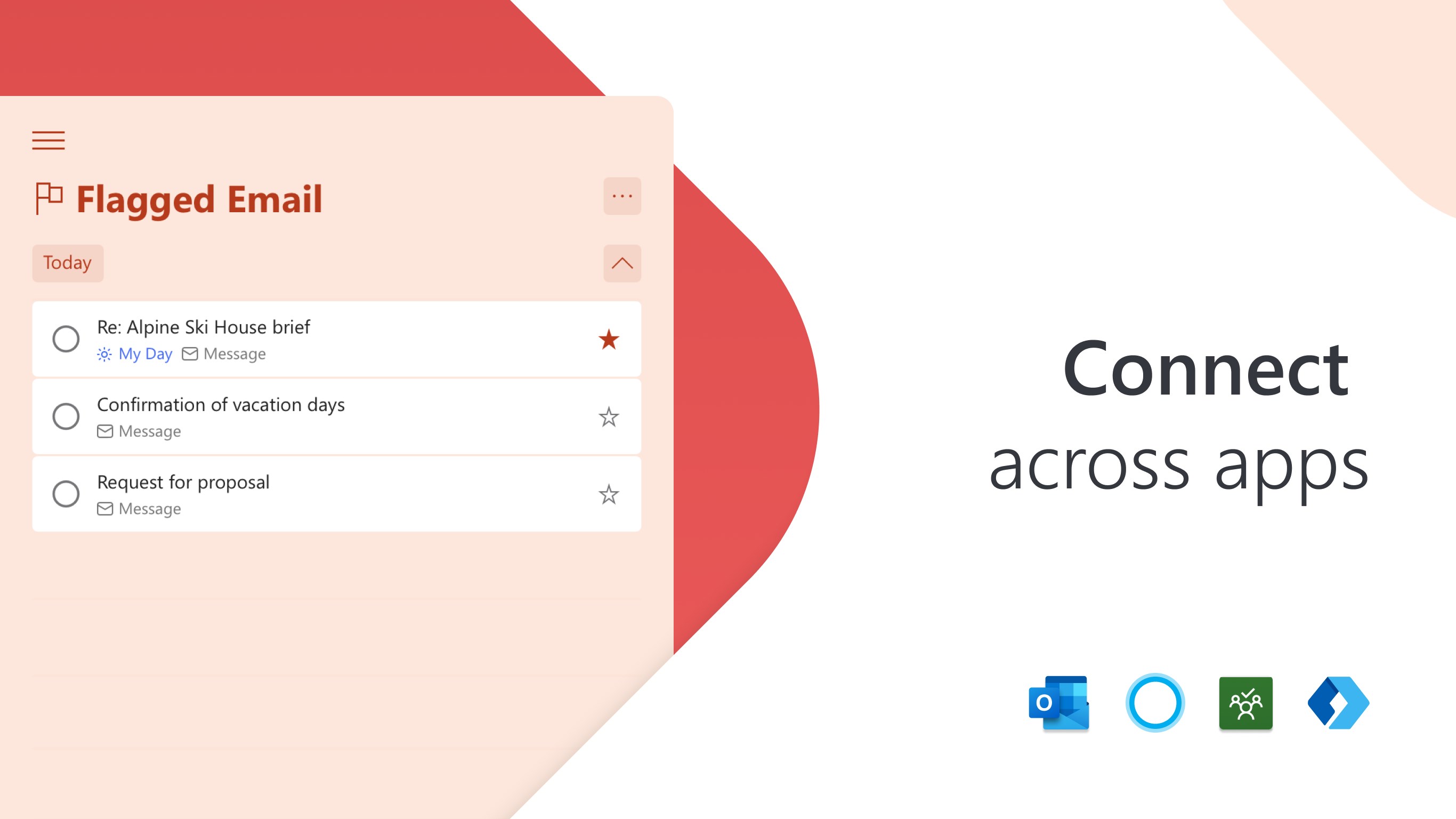
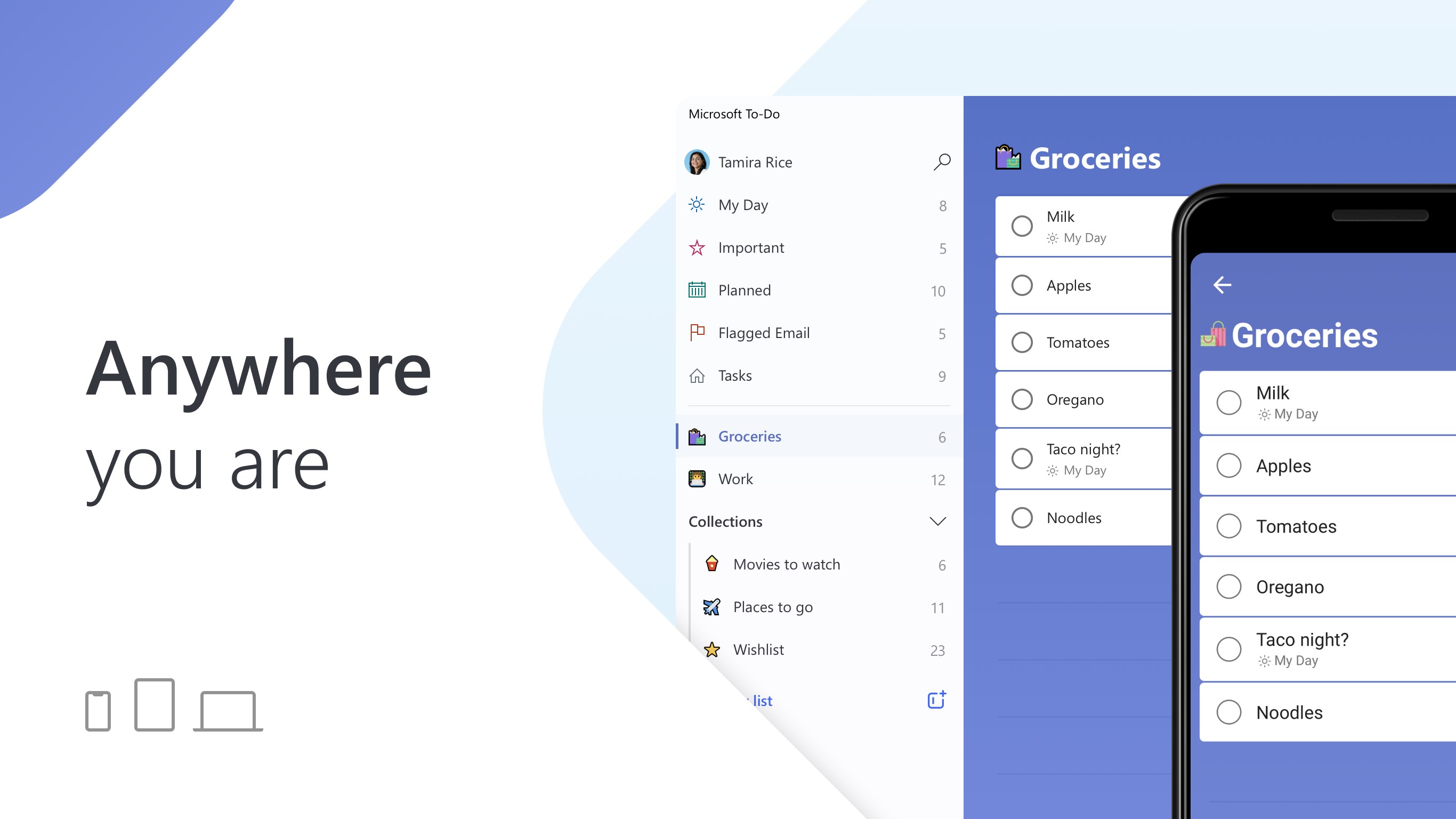
One of the app's shining strengths is its effortless syncing across devices. Whether on your Windows PC, mobile, or via Microsoft 365 integration, your tasks stay updated everywhere, so you're never out of touch with your schedule. It integrates well with Outlook Tasks and Microsoft Teams, turning your task list into a hub that complements your existing workflow rather than adding complexity.
3. Focus Mode & Personalization
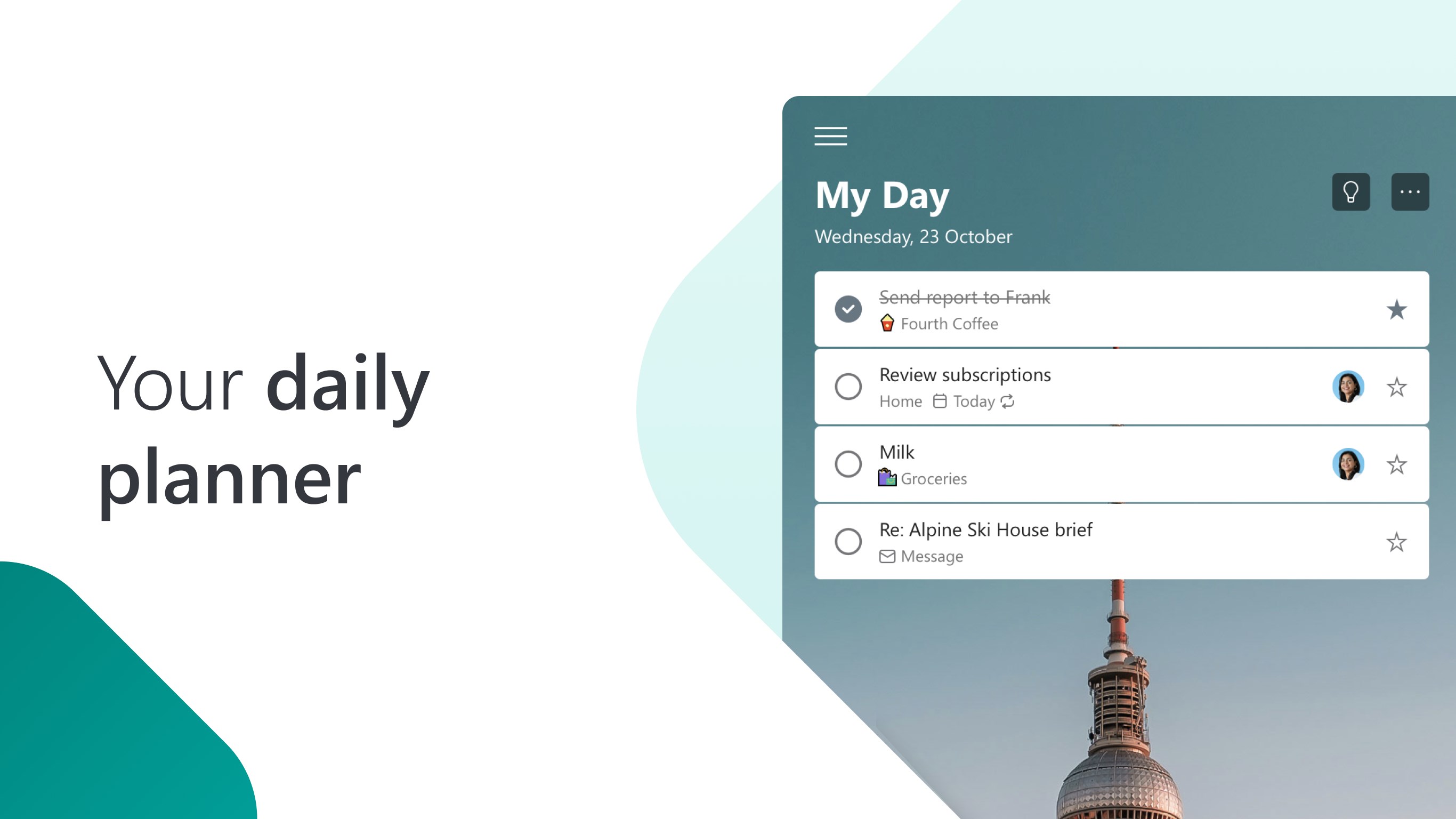
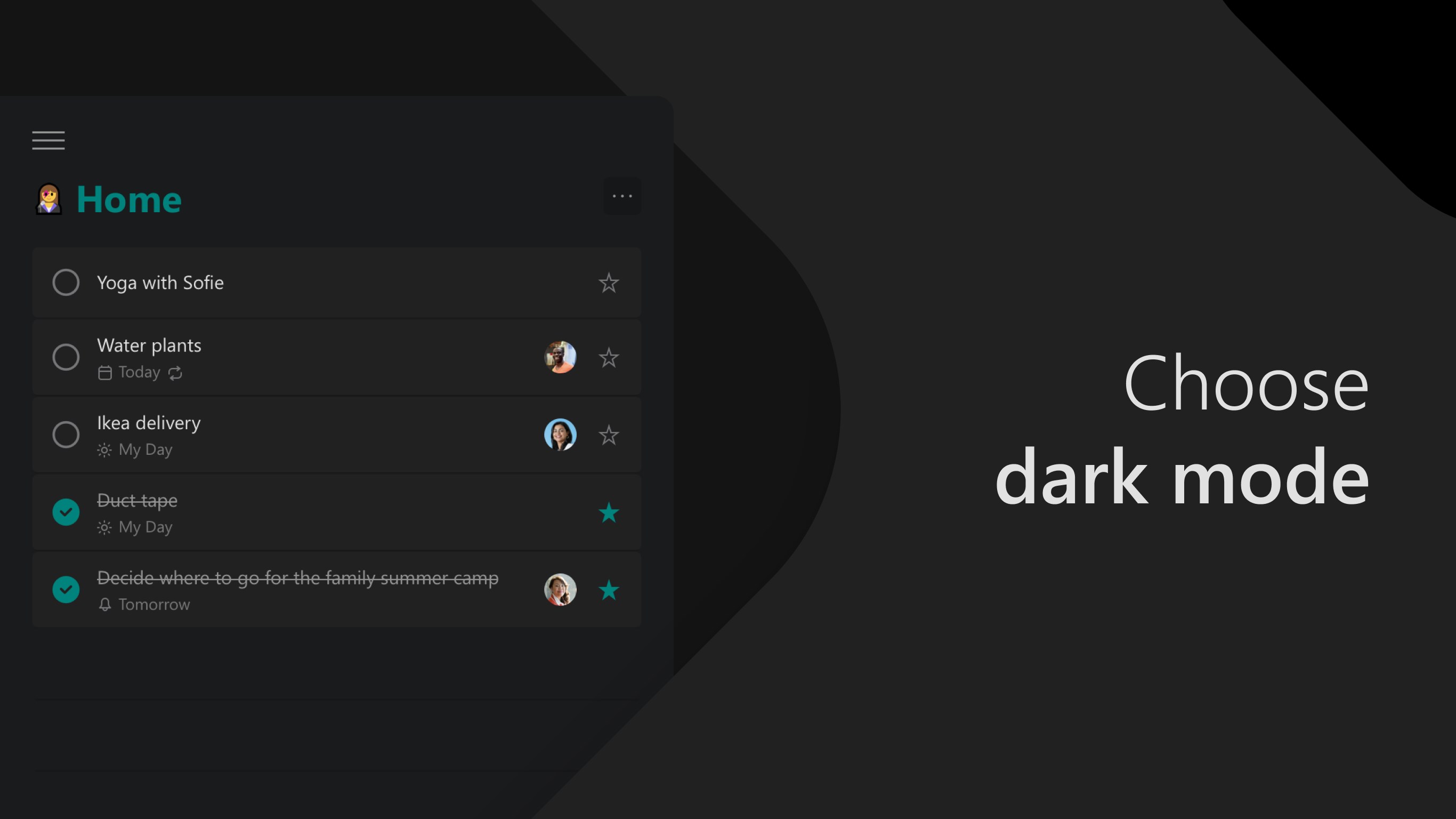
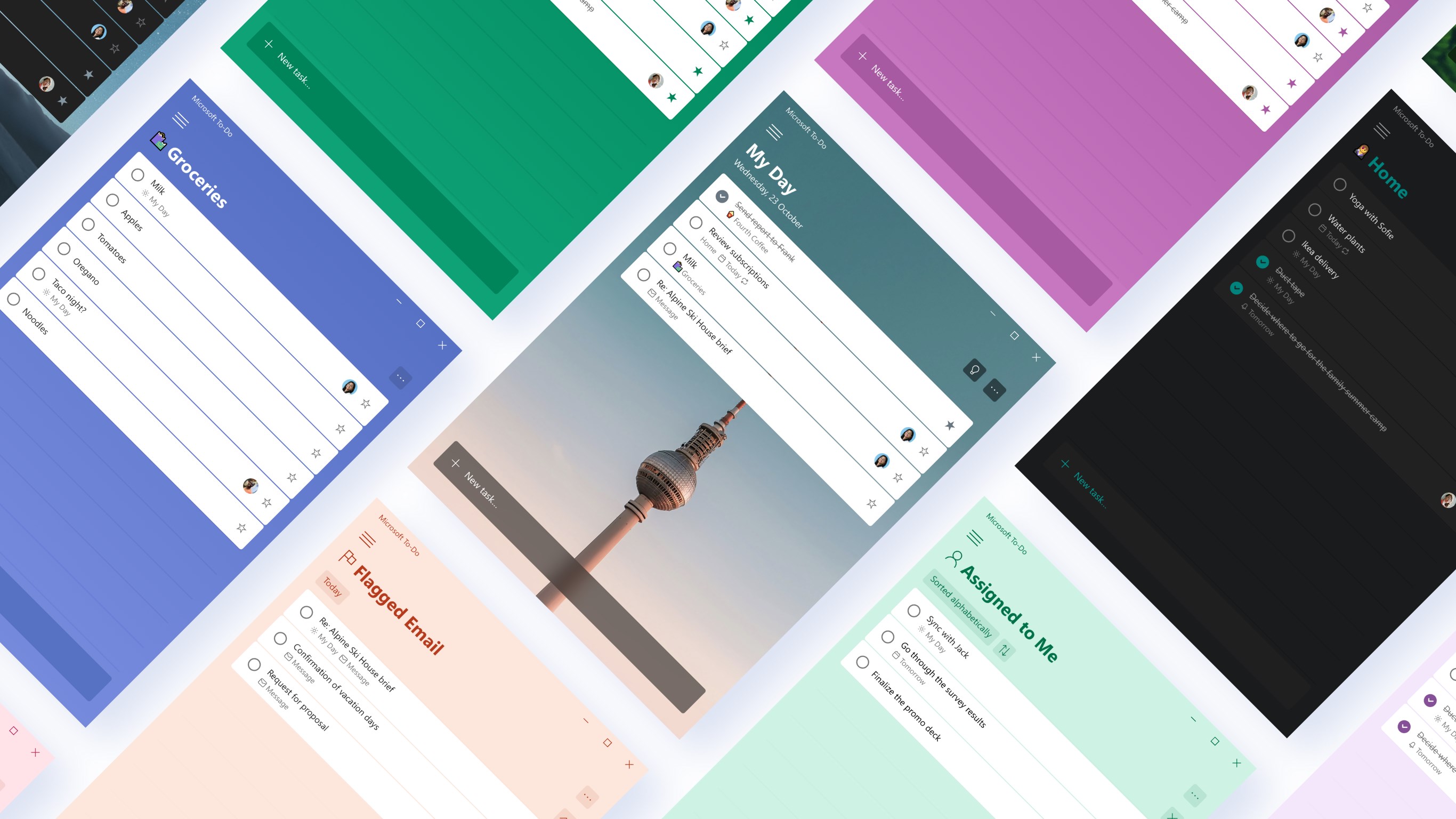
Microsoft To Do's “My Day” feature acts like a personal assistant that helps you prioritize daily tasks without the clutter. The app also offers customization options—changing themes, setting prioritized flags, or marking tasks importance—allowing users to tailor the environment to their work style, reducing cognitive overload by highlighting what truly matters today.
A User-Friendly Experience: Design and Usability
The interface of Microsoft To Do is akin to a minimalistic smartwatch—sleek, modern, and intuitive. Navigation is smooth, with a sidebar for easy access to different lists and a clean task view that makes finding your priorities a breeze. On Windows, the app leverages familiar gestures and shortcuts, so new users can quickly pick up the ropes without feeling overwhelmed. The learning curve is gentle; even beginners can start creating lists and reminders in minutes.
What Sets Microsoft To Do Apart from Its Competitors?
Unlike many productivity apps that burden users with feature bloat, Microsoft To Do emphasizes workflow efficiency and clarity. Its unique selling point is how it reduces cognitive load—it avoids overwhelming users with options and instead provides focused tools like “My Day”, which prompts users to prioritize without distraction. This approach turns task management from a daunting chore into a calm, controlled process. Moreover, its deep integration within the Microsoft ecosystem ensures that users who rely on Office tools experience a seamless transition from email and calendar to task planning, creating a cohesive digital workspace.
Recommendation and Usage Scenarios
I would recommend Microsoft To Do for professionals, students, or anyone seeking a straightforward yet powerful task organizer. If you value harmony with existing Microsoft products and prefer an app that emphasizes simplicity over complication, this is an excellent choice. Its focus on workflow integration and reducing mental clutter makes it especially suitable for busy individuals managing multiple projects daily.
In summary, Microsoft To Do isn't just another to-do list; it's like a calm, digital assistant designed to turn chaos into order—a reliable partner that respects your time and mental space. Whether you're orchestrating a team project or juggling daily chores, this app supports you without adding unnecessary complexity. Give it a try, and you'll likely find your to-do list feeling a lot more manageable and less intimidating.
Pros
- Intuitive User Interface
- Syncs Seamlessly Across Devices
- Effective Reminders and Due Dates
- Integration with Microsoft Ecosystem
- Features for Sharing and Collaboration
Cons
- Limited Customization Options
- No Natural Language Input for Tasks
- Basic Free Version Without Advanced Features
- Limited Offline Functionality
- Occasional Sync Delays











