






- Name Microsoft Journal
- Category Productivity
- Available on PC
- OS Windows 10 version 19042.0 or higher
- Memory 4 GB
- languages Chinese (Simplified), Chinese (Traditional Chinese), Chinese (Traditional), Dutch, English, English (United Kingdom), English (United States), French, French (Canada), German, Italian, Japanese, Korean, Korean , Portuguese, Portuguese (Brazil), Russian, Spanish, Spanish (Mexico), Spanish (Spain), Turkish
A Sleek and Efficient Companion for Windows Journal Enthusiasts
Microsoft Journal for Windows emerges as an intuitive and thoughtfully designed digital note-taking and journaling app, tailored to streamline your workflow and elevate your productivity experience. Crafted by the trusted Microsoft Corporation, this app aims to seamlessly integrate note management with your daily tasks — all wrapped in a visually appealing interface that feels both familiar and refreshingly modern.
Introducing the Core Strengths
This application stands out with a combination of robust features and user-centric design. Its key highlights include:
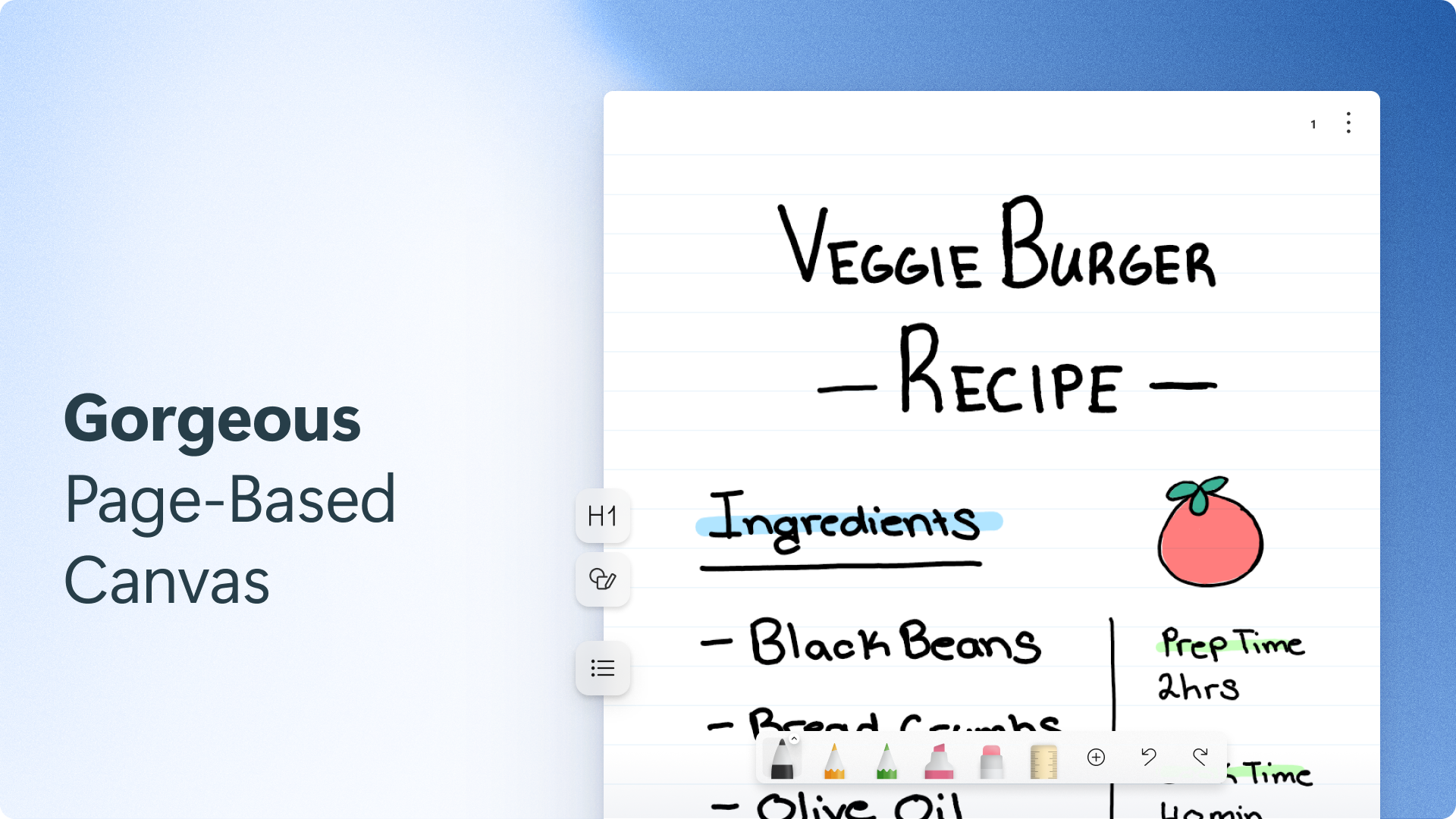
- Natural Handwriting & Ink Support: Emulating the feel of pen and paper, it offers superior handwriting recognition, perfect for those who prefer sketching ideas or jotting notes freeform.
- Intuitive Workspace Organization: Users can easily categorize, link, and search notes, making information retrieval quick and effortless.
- Seamless Integration with Windows Ecosystem: It syncs effortlessly with other Microsoft services, enhancing your workflow across devices and applications.
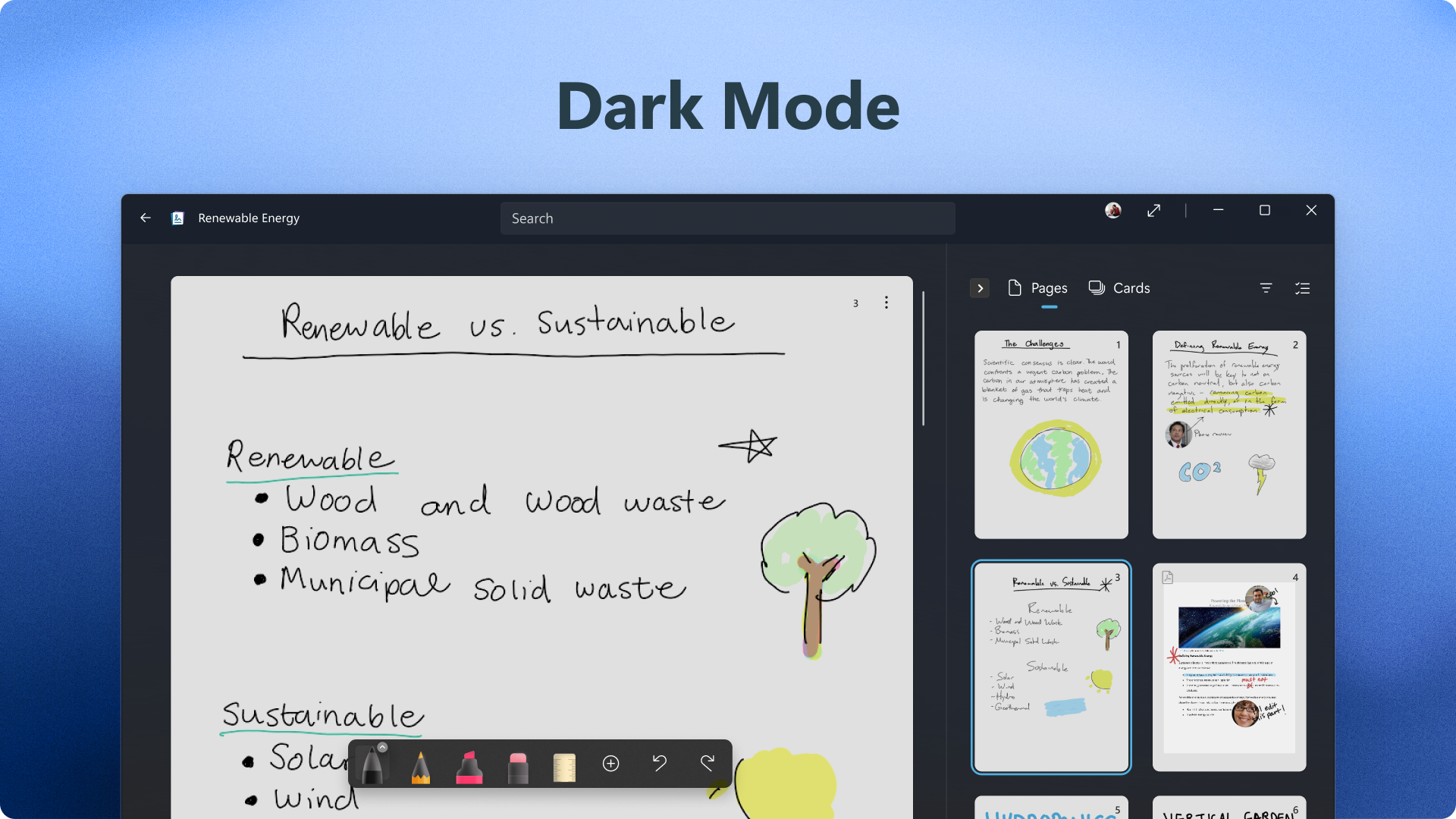
- Focus Mode & Distraction-Free Interface: Designed to foster concentration, it minimizes clutter, enabling deep work sessions.
Embarking on a Journey Through the Features
Natural Handwritten Notes and Ink Experience
Imagine holding a pen, feeling that satisfying scratch on paper as you jot down sudden ideas or doodle diagrams. Microsoft Journal transforms your touchscreen into a canvas where handwriting feels fluid and natural. Its advanced recognition engine translates your scribbles into searchable text—much like a personal secretary that understands your shorthand. Whether you're sketching a quick diagram or writing lengthy notes, the app responds with minimal lag, making your creative flow uninterrupted.
Organized and Connected Workspace
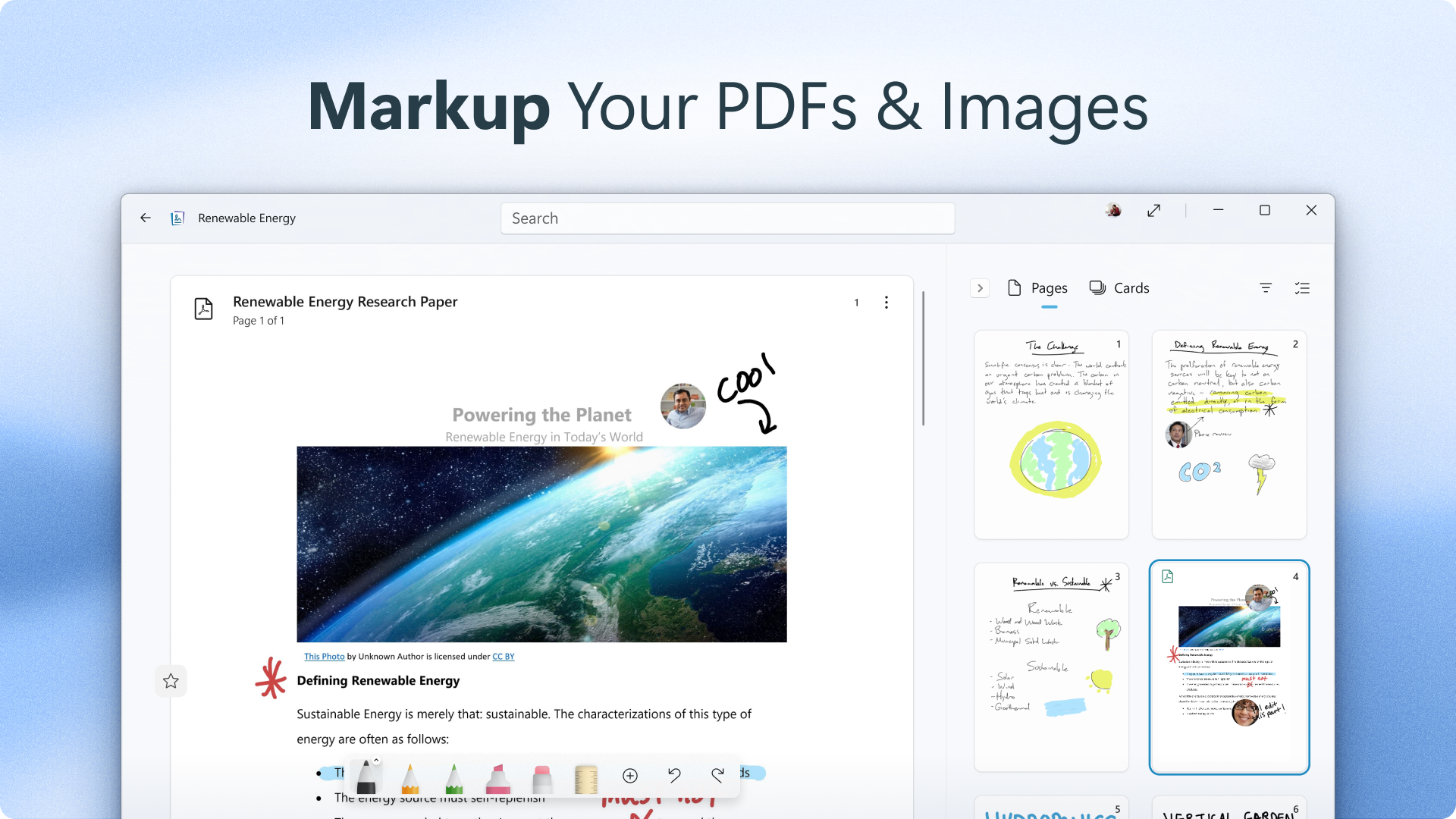
Once your notes are on the canvas, organization is just a few clicks away. You can categorize notes into folders, link related entries, or even embed multimedia. The search feature is swift, letting you locate specific information through keywords or handwriting recognition—think of your digital notebook as a well-indexed library where every ‘book' is just a search away. This interconnected workspace boosts efficiency, reducing time spent hunting for data and allowing more focus on the task at hand.
Deep Integration and Distraction-Free Mode
What truly elevates Microsoft Journal is its seamless integration with the Windows ecosystem. It syncs effortlessly with OneDrive, making your notes accessible across devices, which is ideal for on-the-go productivity. The Focus Mode provides a clean, minimalistic interface that eliminates unnecessary distractions—like sitting alone at a tidy desk—that's perfect for concentrated work or brainstorming sessions. Plus, the app's compatibility with pen input on compatible devices adds a layer of tactile pleasure reminiscent of writing on paper.
User Experience and Differentiation
From a usability perspective, Microsoft Journal shines with its straightforward onboarding process and low learning curve. New users can quickly grasp how to create, organize, and locate their notes thanks to an interface that feels both familiar and thoughtfully crafted for touch interactions. Its fluid handwriting recognition and minimalistic design collectively contribute to a reduced cognitive load—users spend less mental energy deciphering complex features and more on capturing ideas. Unlike many productivity apps stuffed with features that can overwhelm, Journal's streamlined approach emphasizes workflow integration and ease of use, making it an ideal tool for those seeking efficiency without cognitive fatigue.
Final Thoughts and Recommendations
Microsoft Journal offers a compelling blend of simplicity, power, and seamless integration that makes it stand out among digital journaling and note-taking applications. If your daily routine involves a mix of handwritten notes, sketches, and digital organization—especially within the Microsoft ecosystem—this app is a valuable addition. I recommend it to students, professionals, and creatives who appreciate the tactile feel of handwriting combined with the convenience of digital workflows. For users primarily looking for complex project management features, it may lack some advanced options; however, for those who prioritize clarity and workflow efficiency, this app delivers effectively and elegantly.
Pros
- Intuitive and seamless handwriting experience
- Integration with Microsoft ecosystem
- Customizable pen options and stroke recognition
- Cloud storage support for accessibility
- User-friendly interface with minimal distractions
Cons
- Limited export options
- Occasional lag during handwriting input
- Restricted range of drawing tools compared to dedicated drawing apps
- Difficulty in organizing large notes collections
- Limited language support for handwriting recognition











