

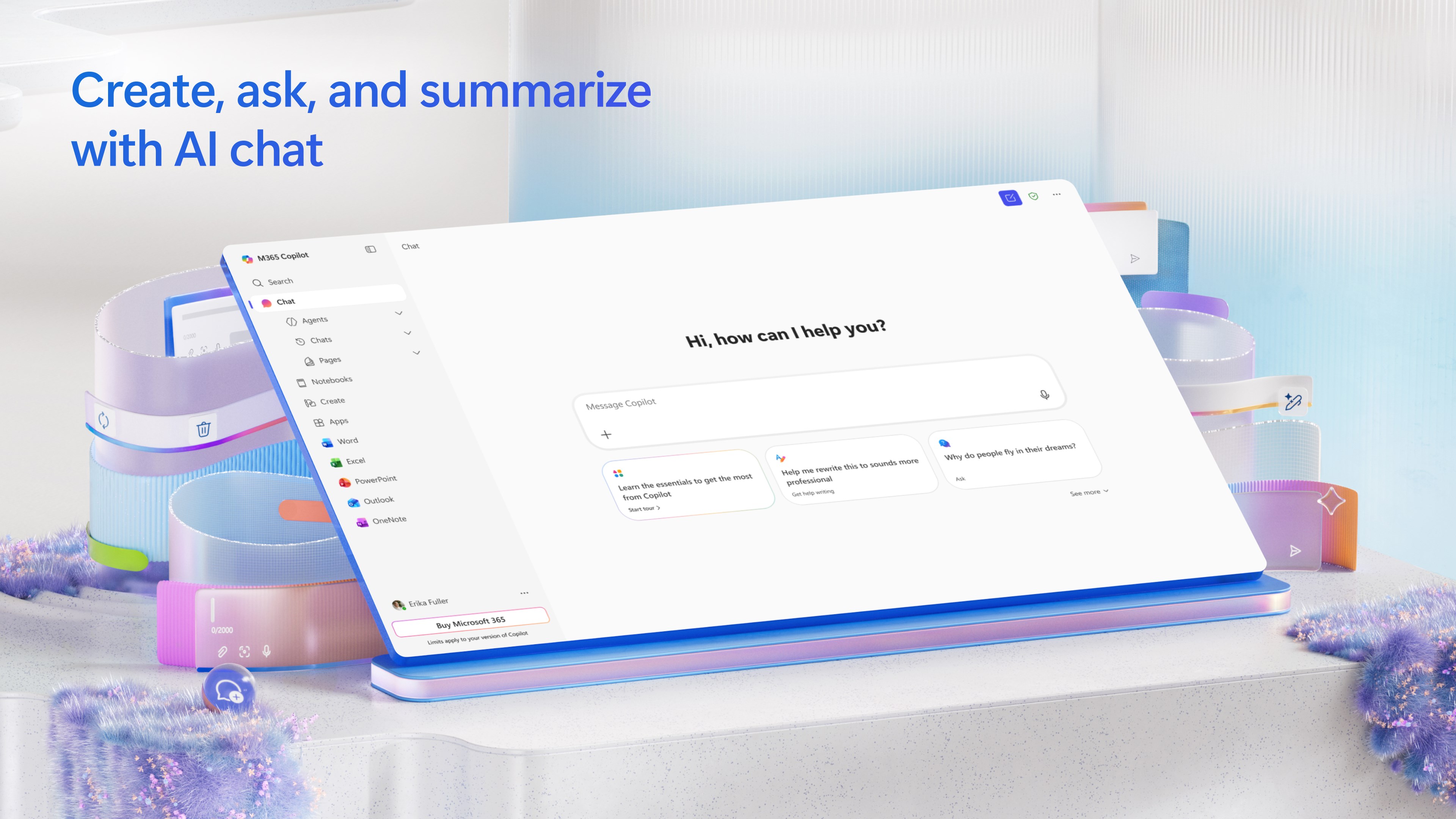
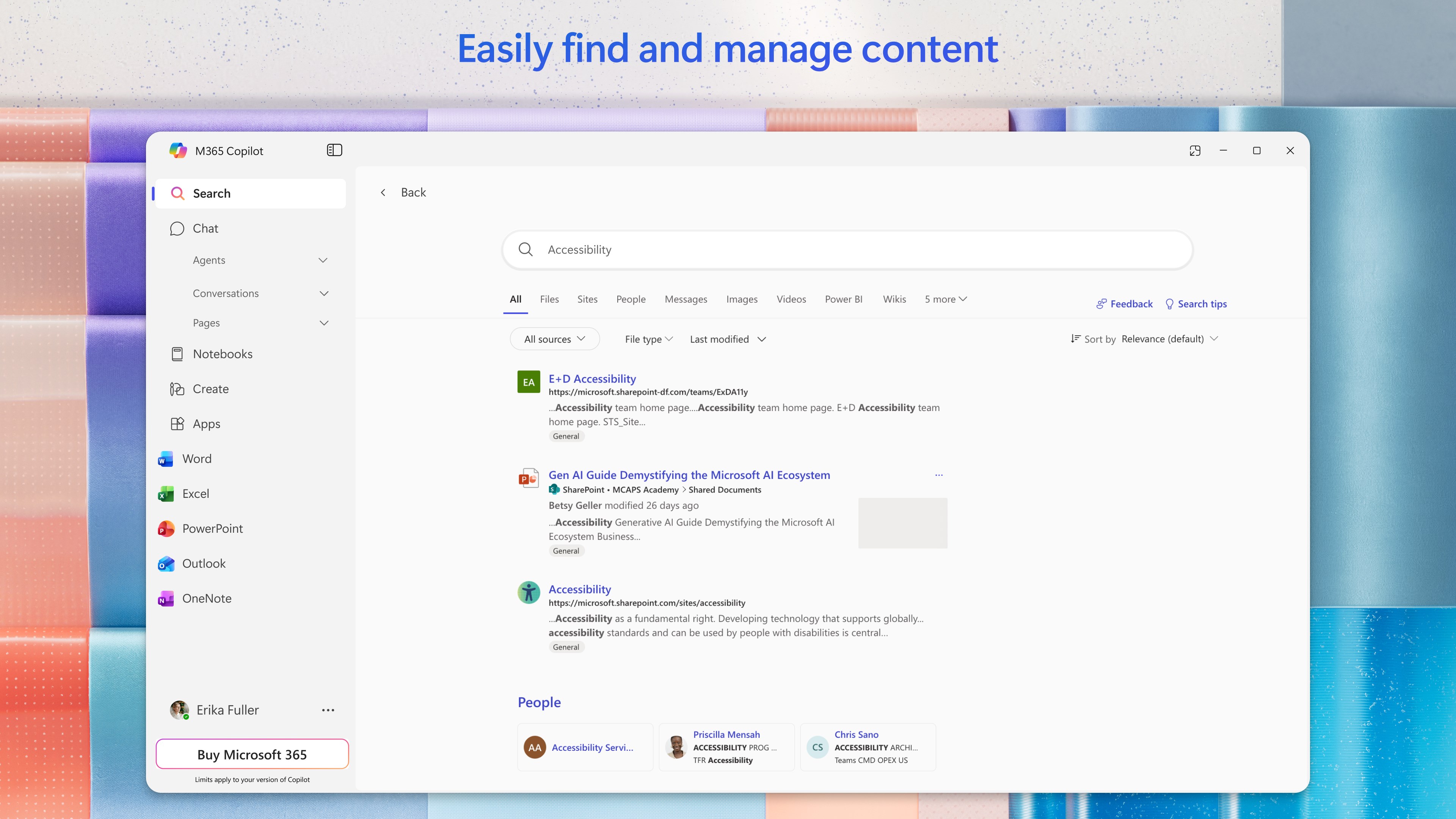
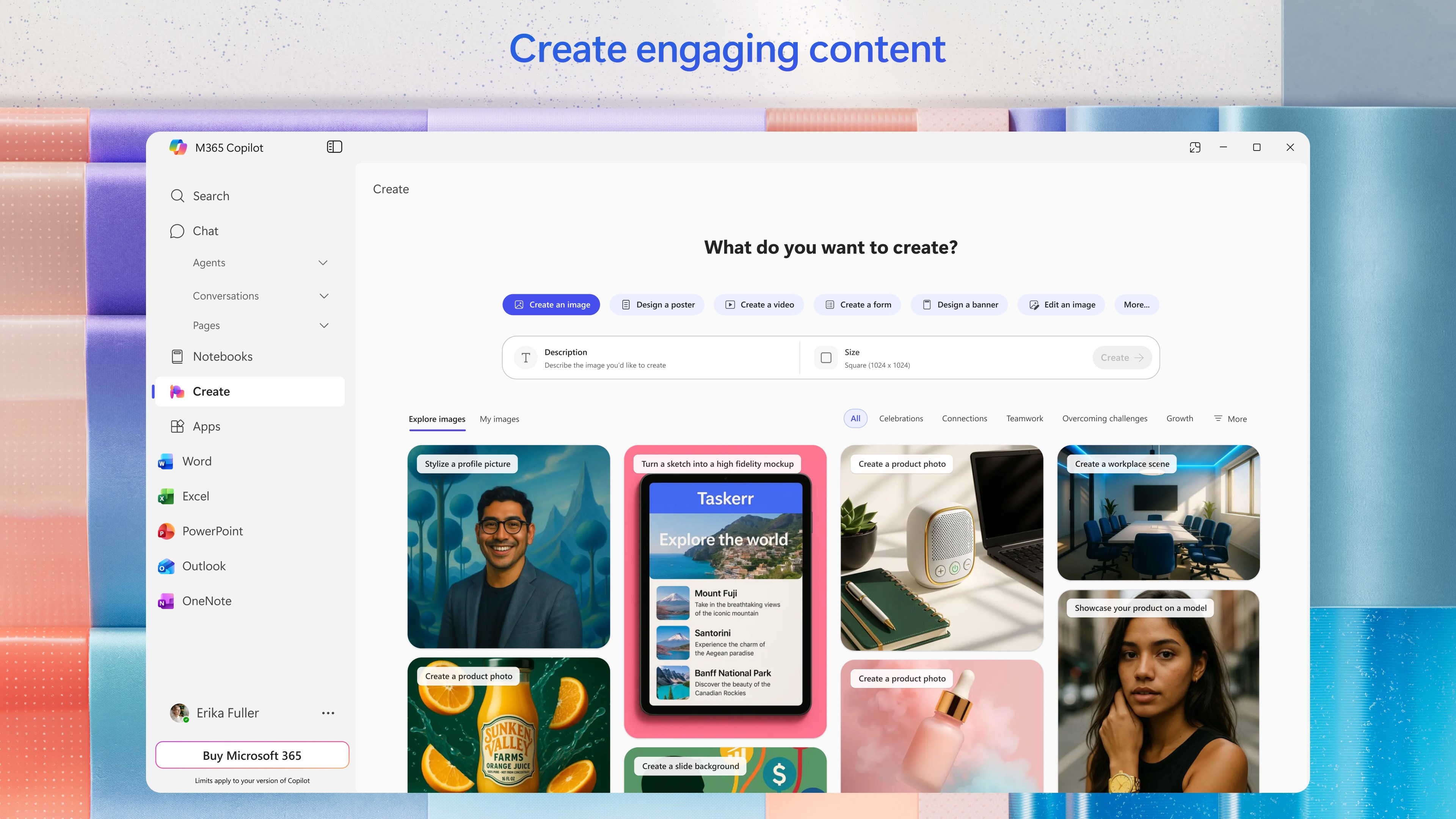
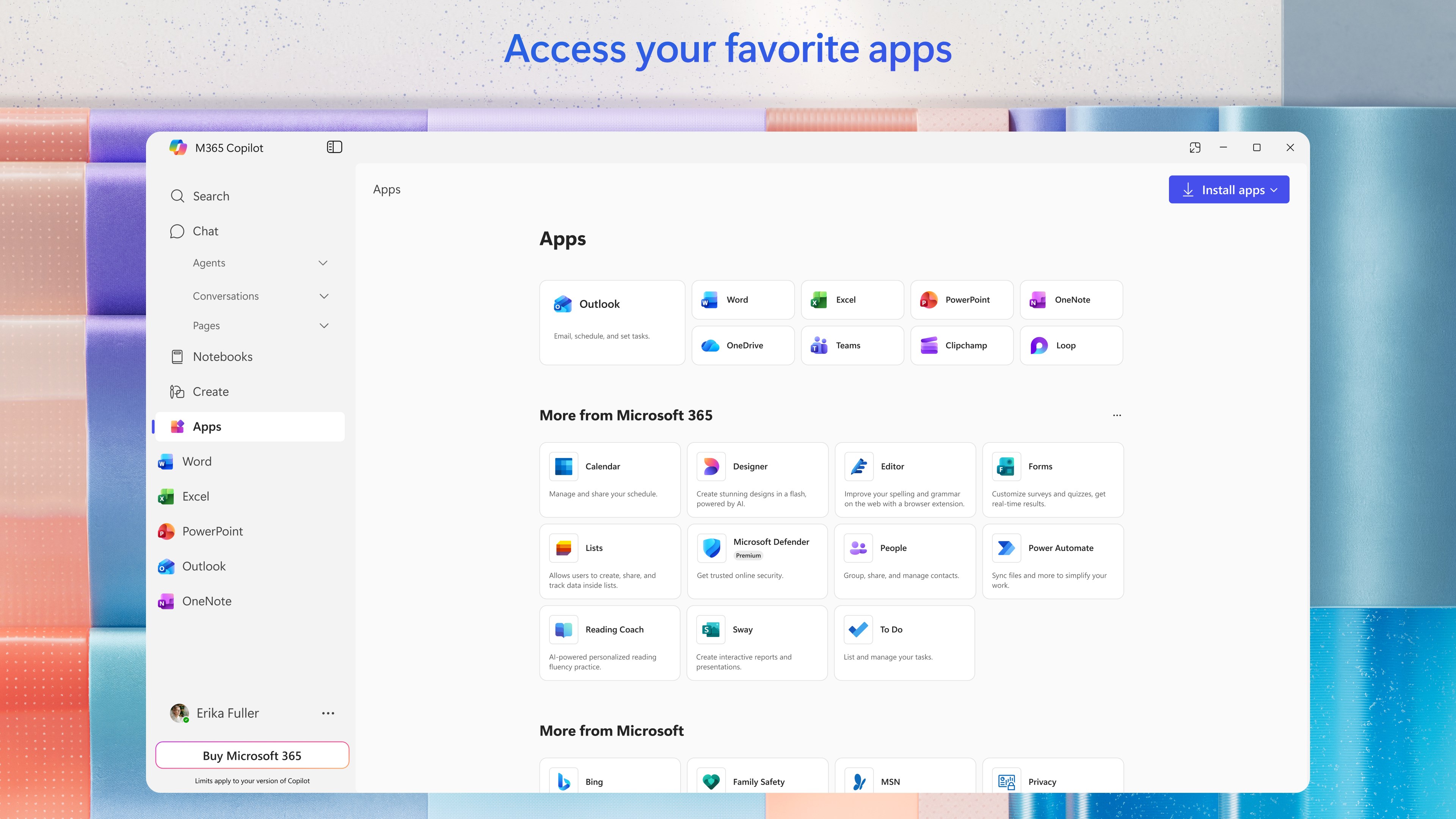
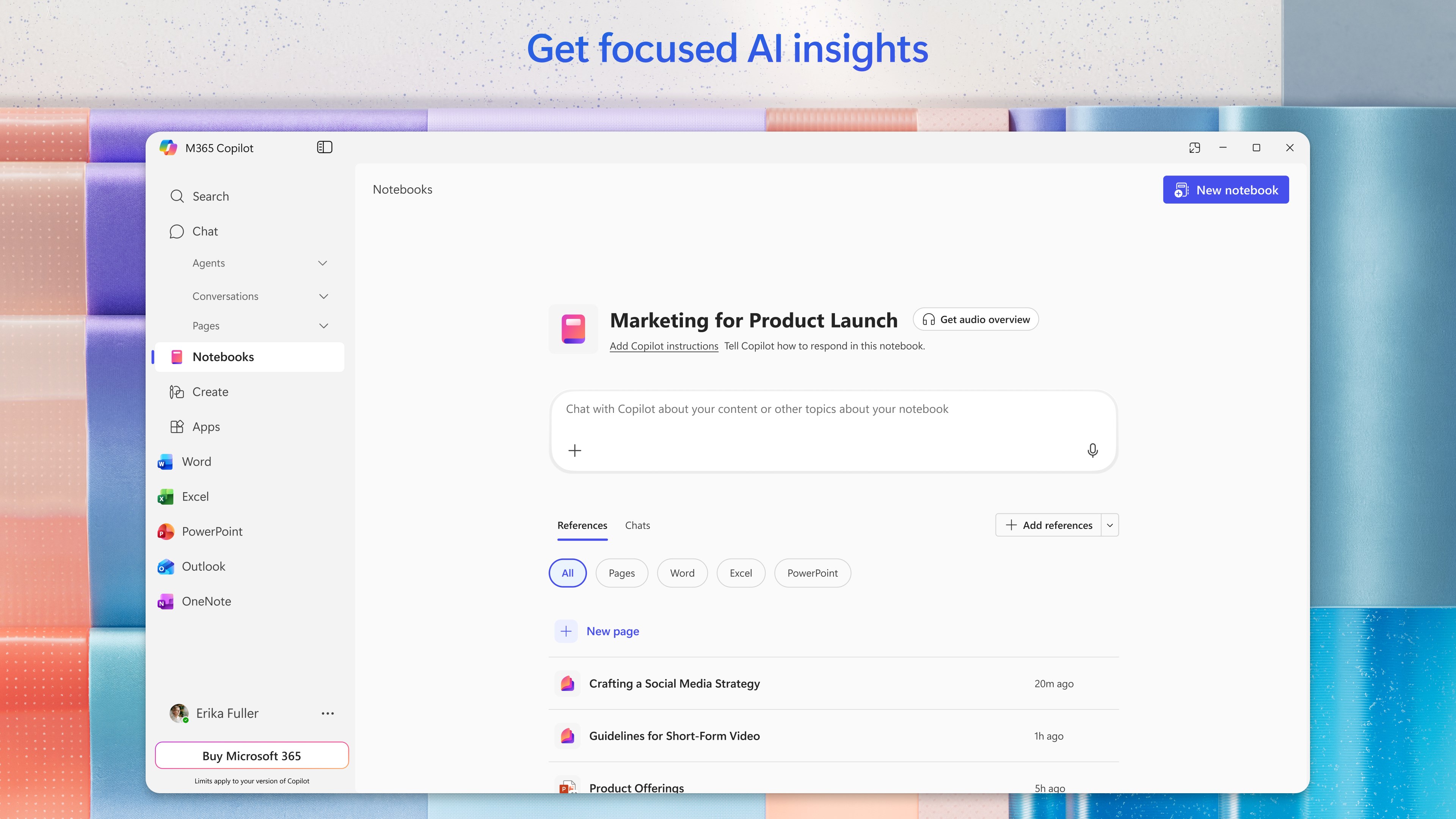
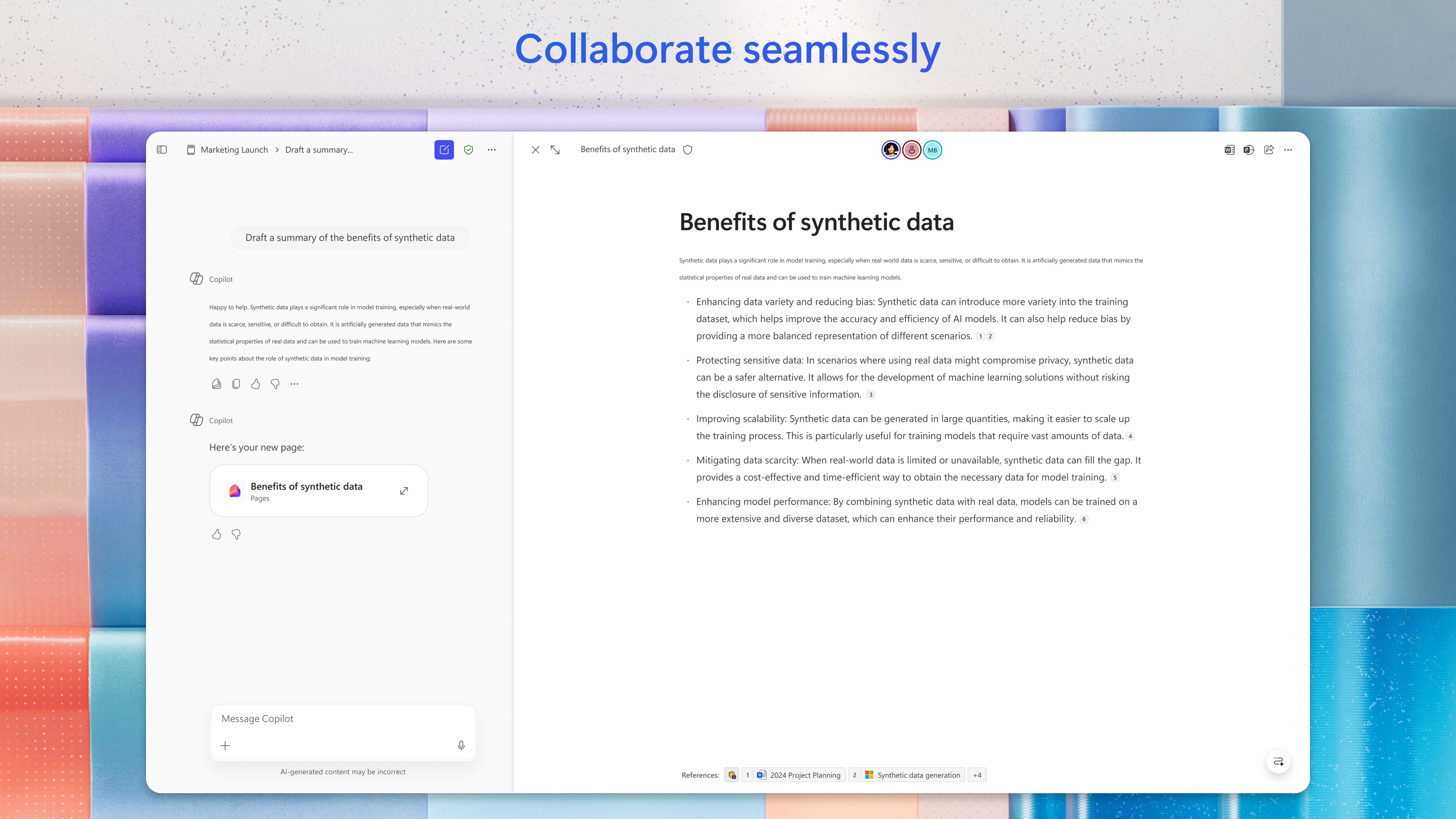
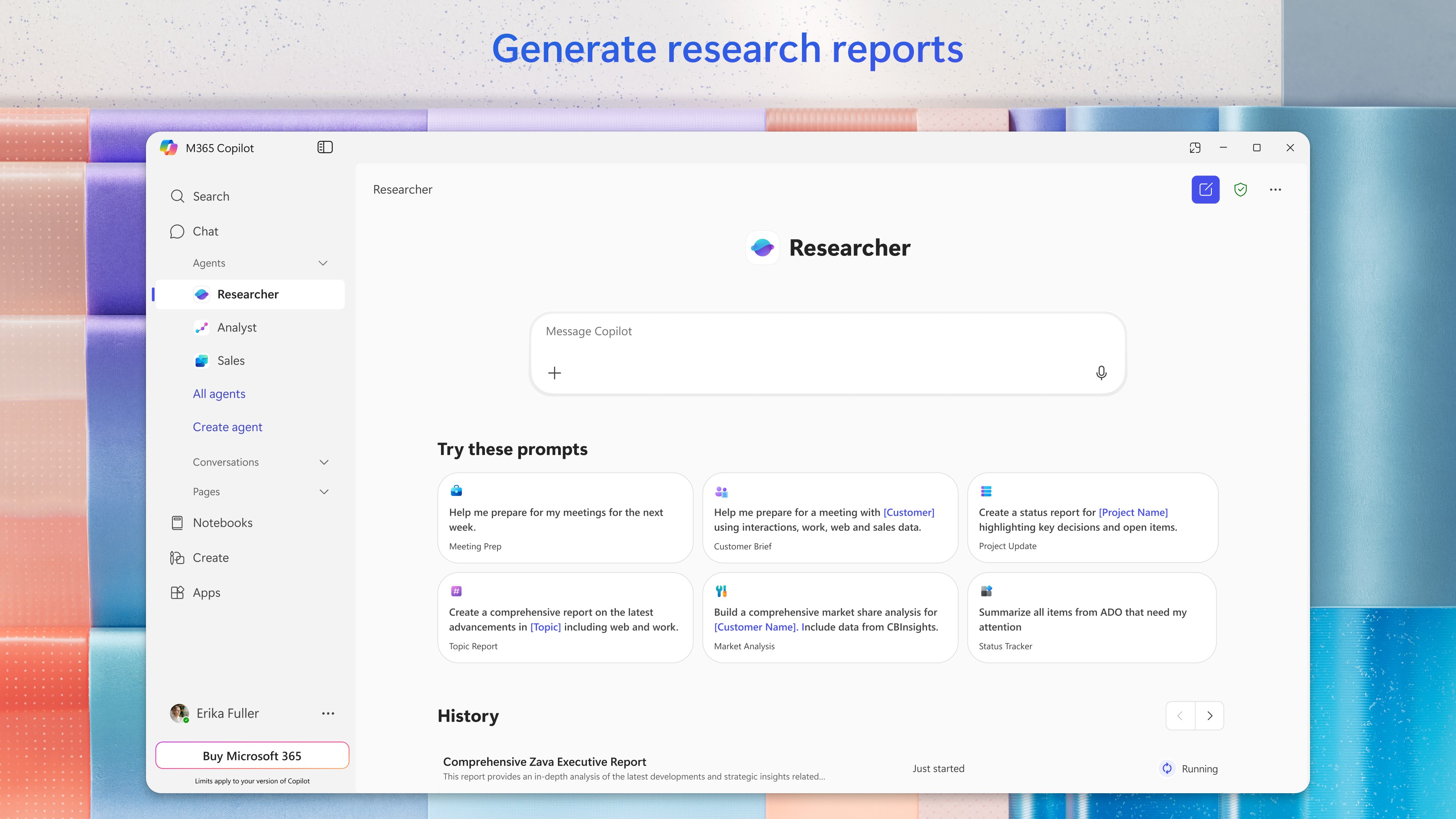
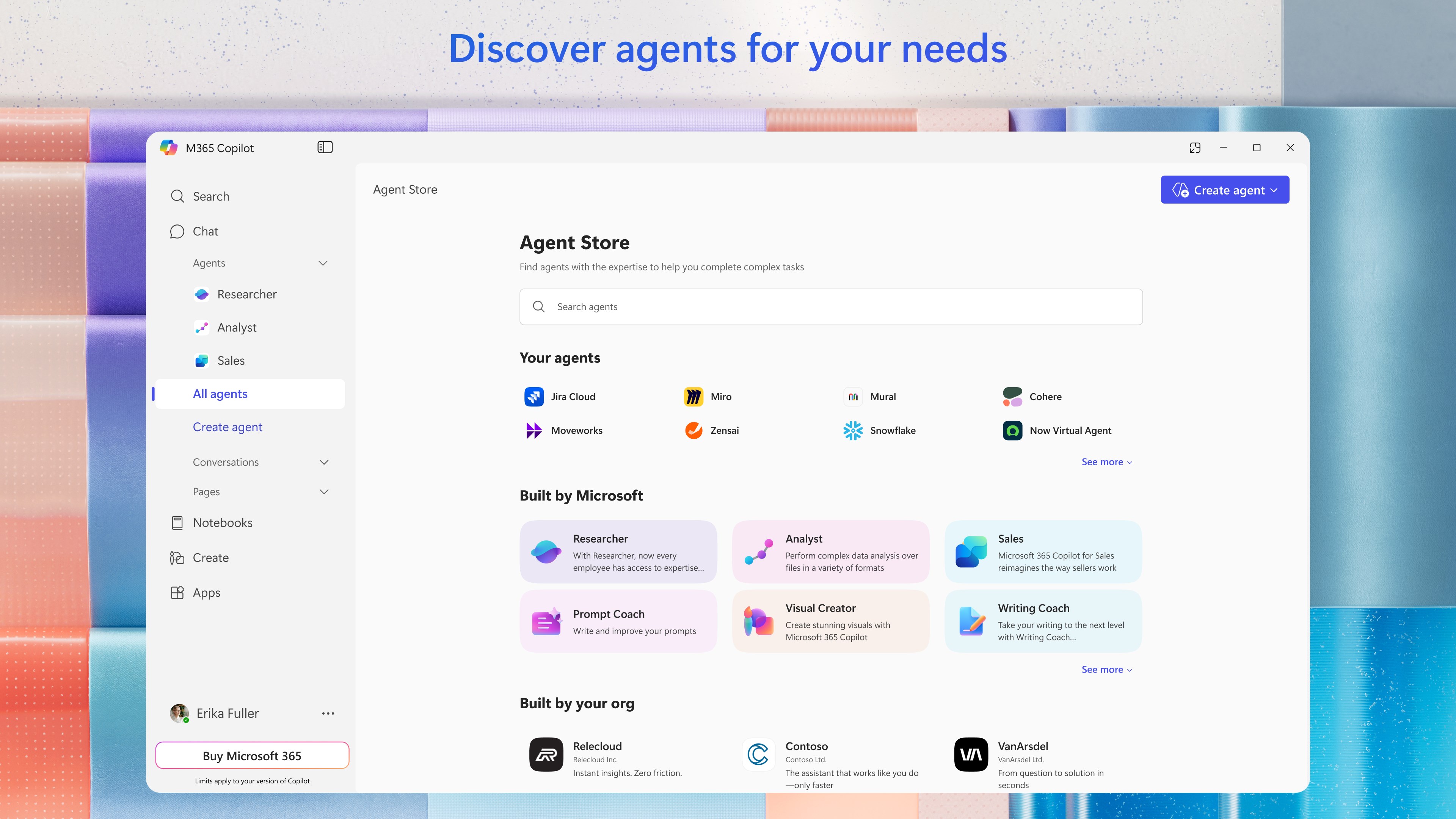
- Name Microsoft 365 Copilot
- Category Productivity
- Available on PC, Mobile, Surface Hub, HoloLens
- OS Windows 10 version 18362.0 or higher
- languages Afrikaans, Albanian, Amharic, Arabic, Armenian, Assamese, Azerbaijani (Latin), Bangla (India), Basque, Belarusian, Bosnian (Latin), Bulgarian, Catalan, Chinese (Simplified), Chinese (Traditional Chinese), Croatian, Czech, Danish, Dari, Dutch, English (Canada), English (United Kingdom), English (United States), Estonian, Filipino, Finnish, French, French (Canada), Galician, Georgian, German, Greek, Gujarati, Hausa (Latin), Hebrew, Hindi, Hungarian, Icelandic, Igbo, Indonesian, Irish, Italian, Japanese, Kannada, Kazakh, Khmer, Kiswahili, Konkani, Korean, Kyrgyz, Latvian, Lithuanian, lo, Luxembourgish, Macedonian, Malay, Malayalam, Maltese, Maori, Marathi, Mongolian (Mongolia), Nepali, Norwegian (Bokmål), Odia, Persian/Farsi, Polish, Portuguese (Brazil), Portuguese (Portugal), Punjabi, Quechua, Romanian, Russian, Scottish Gaelic, Serbian, Serbian (Cyrillic, Bosnia and Herzegovina), Serbian (Latin, Serbia), Sindhi, Sinhala, Slovak, Slovenian, Spanish, Spanish (Mexico), Swedish, Tamil, Tatar, Telugu, Thai, Turkish, Turkmen, Ukrainian, Urdu, Uyghur, Uzbek, Valencian, Vietnamese, Welsh
A New Era of Productivity: Microsoft 365 Copilot for Windows
Imagine having an intelligent co-worker right by your side, seamlessly blending AI-driven insights with your daily workflows. That's what Microsoft 365 Copilot for Windows promises—a game-changing assistant designed to elevate your productivity through smarter, more efficient tasks.
About This App
Microsoft 365 Copilot for Windows is an intelligent AI-powered assistant integrated directly into the Windows environment. Developed by the renowned Microsoft Corporation, this app aims to revolutionize how users interact with their Office applications by providing real-time assistance, smart content creation, and workflow automations. It's designed to serve busy professionals, students, and enterprise teams looking to streamline their daily tasks without the complexity of traditional productivity tools.
Key features include natural language query handling, content summarization across Office apps, and contextual task automation, all seamlessly embedded into your Windows experience. Whether it's drafting documents, analyzing data, or managing schedules, Copilot aims to act as your digital co-pilot—smart, unobtrusive, and always ready to assist.
Intelligent Assistance at Your Fingertips
Getting started with Microsoft 365 Copilot feels like inviting a knowledgeable assistant into your workspace. Its core strength lies in its ability to understand context and provide relevant suggestions, thus turning complex chores into simple commands. For example, drafting a report becomes a matter of asking, “Summarize the key points from last week's meeting,” and voilà—your document is synthesized effortlessly. This conversational approach makes task delegation feel more natural than ever, reducing the cognitive load and letting you focus on what truly matters.
Contextual Content Creation and Summarization
This feature shines brightest when working across multiple Microsoft 365 apps. It intelligently pulls data from emails, Teams conversations, or spreadsheets to generate summaries or draft content, effectively acting as a bridge between scattered information sources. The AI's ability to comprehend context ensures that the outputs are relevant and tailored, saving users hours of manual compilation. Compared to conventional productivity tools that rely heavily on manual input, Copilot's natural language processing makes content generation feel like a conversation with an expert rather than a tedious chore.
Workflow Automation and Smart Commands
Another standout aspect is the app's knack for automating routine workflows. Whether you're scheduling meetings, setting up email templates, or managing project updates, Copilot translates simple commands into structured actions. Its integration with Windows also means you can trigger tasks directly from your desktop, making it an intuitive extension of your existing system. This approach reduces the need to juggle multiple apps or memorize complex sequences, significantly improving efficiency without adding feature complexity.
User Experience: Smooth, Intuitive, and Efficient
The interface of Microsoft 365 Copilot for Windows is clean and minimally invasive—a subtle yet powerful tool tucked in your system tray. The onboarding process is straightforward, with guided prompts that help new users understand how to leverage its capabilities quickly. Once set up, interactions feel fluid—typed or spoken commands are recognized accurately, and responses are prompt, mimicking a natural-to-manage dialogue. Navigation is intuitive, and even non-technical users can harness its power after a brief familiarization period, making it accessible for a broad user base.
In terms of workflow integration, Copilot excels at reducing unnecessary cognitive effort. Instead of toggling between multiple apps or manually organizing information, users can perform complex tasks with simple prompts. This feature effectively lowers cognitive load while maintaining robust functionality, a balance often missed by traditional productivity apps that prioritize feature quantity over usability.
Unique Selling Points: Workflow Integration & Cognitive Load Relief
While many productivity applications offer automation or AI features, Microsoft 365 Copilot for Windows distinguishes itself by prioritizing seamless workflow integration and simplicity. Its ability to interpret natural language commands within the familiar Windows environment means users spend less time learning new interfaces or managing complex settings. It acts like a silent partner, enhancing existing workflows without overwhelming users with options.
This focus on reducing cognitive burden—by simplifying task execution and automating routine processes—sets Copilot apart from feature-rich but often cumbersome competitors. Instead of adding layers of complexity, it smartly integrates AI assistance into the fabric of everyday desktop activities, making productivity feel effortless rather than overwhelming.
Final Verdict and Recommendations
Microsoft 365 Copilot for Windows offers a promising glimpse into the future of productivity, especially for users seeking to streamline their workflows without sacrificing ease of use. Its intelligent content assistance and workflow automation are the two most compelling features that truly stand out, transforming the way users interact with their digital tasks. For enterprise teams, professionals, or students eager to make their daily routines more efficient, this app is worth exploring.
Given its intuitive design and impactful capabilities, I would recommend trying it out if you often find yourself juggling multiple applications or overwhelmed by complex workflows. While it is still evolving and may require some adjustments for optimal use, its potential to reduce mental clutter makes it a valuable addition to your digital toolkit. As it matures, Microsoft 365 Copilot for Windows is poised to become an indispensable assistant—not just a tool.
Pros
- Enhances productivity with intelligent document suggestions
- Seamlessly integrates with Microsoft Office apps
- Utilizes advanced AI to generate context-aware content
- Reduces manual effort through automation features
- Supports collaboration by providing real-time suggestions
Cons
- May occasionally generate inaccurate or irrelevant suggestions
- Requires a stable internet connection for optimal performance
- Some features might be limited to enterprise or subscription tiers
- Learning curve for new users to fully leverage AI capabilities
- Privacy concerns due to data processing in cloud servers











