

- Name Lenovo Pen Settings
- Category Productivity
- Available on PC
- OS Windows 10 version 18362.0 or higher
- languages Arabic (United Arab Emirates), Chinese (Simplified), Chinese (Traditional Chinese), Czech, Danish, Dutch, English (United States), Finnish, French, German, Greek, Hungarian, Italian, Japanese, Korean , Norwegian (Bokmål), Polish , Portuguese (Brazil), Russian, Slovak, Spanish (Spain), Swedish, Turkish, Ukrainian
Lenovo Pen Settings for Windows: A Highly Focused, User-Centric Pen Configuration Tool
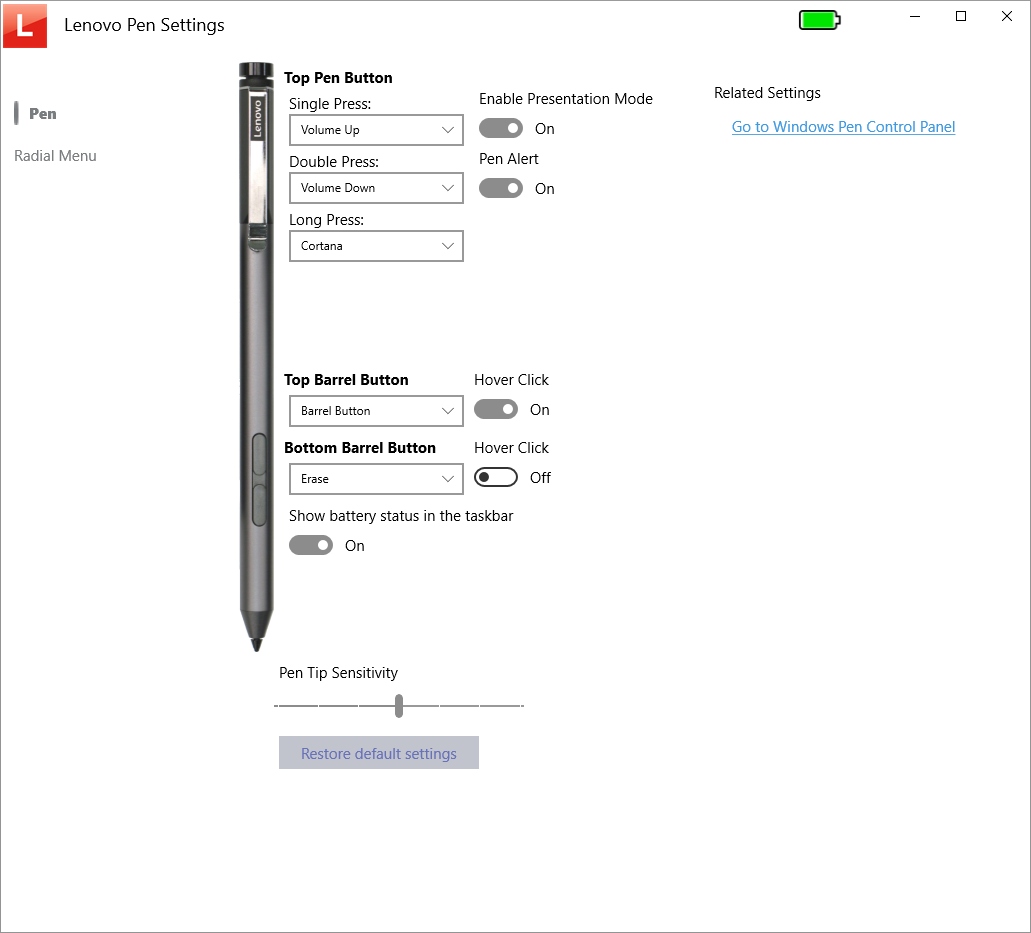
Lenovo Pen Settings for Windows, developed by Wacom Technology Corp., is an intuitive application designed to streamline pen customization on Windows devices, offering tailored experiences for digital artistry, note-taking, and productivity enhancement. Its core mission is to reduce cognitive load by providing a direct, easy-to-navigate interface that minimizes the hassle of complex configurations.
Introduction: Elevate Your Pen Experience with Precision and Ease
Imagine this: you're deep into a creative project or sketching out an important note when suddenly, the pen's sensitivity or button behavior doesn't quite match your workflow. Frustrating, right? Lenovo Pen Settings steps in like a trusted ally, transforming your pen into a finely tuned instrument that responds exactly as you need. Its purpose is straightforward yet powerful: to give users immediate control over pen behaviors—be it pressure sensitivity, button functions, or calibration—without the clutter of unnecessary complexity. This app isn't about overloading you with features; it's about bringing clarity and precision, making you wonder how you ever worked without it.
Streamlined Customization for Precise Control
Intuitive Interface and Configuration Ease
The app's design mimics a sleek control panel—clean, minimalistic, yet packed with all the essential dials. Navigating through options like pressure sensitivity adjustment, button remapping, and calibration is seamless. Users can quickly get lost in a maze of complex menus or, better yet, they don't have to. The interface emphasizes clarity, allowing even novices to adapt swiftly. The process flows logically: select your device, tweak your settings, and see the changes in real-time. This immediacy reduces guesswork and fosters a sense of direct control.
Performance and User Experience
In practice, the application is light on resources and remarkably responsive. Changes made within the app reflect instantly on the pen's performance, offering a smooth, frustration-free experience. Its learning curve is gentle—new users find it straightforward, while seasoned artists appreciate the depth of customization available. The app feels like a personal tuner for your pen, delivering a fluid experience akin to tuning a musical instrument—precision matters, and this tool delivers just that.
Unique Edge: Workflow Integration and Cognitive Load Reduction
Unlike many generic pen configuration tools, Lenovo Pen Settings prioritize seamless workflow integration. It's like fitting a custom piece into a puzzle rather than forcing a piece that's the wrong shape. For instance, the ability to assign complex multi-function buttons with simple, contextually relevant commands minimizes the mental juggling often required in creative tasks. This focus directly contributes to reducing cognitive load—users spend less time figuring out how to make their tools work and more time creating. Furthermore, its targeted features are purpose-built; instead of bloated options that distract or confuse, it offers a handful of thoughtfully engineered controls that significantly enhance productivity and creative fluidity.
Conclusion: A Practical Tool Worth Adding to Your Digital Toolkit
I would recommend Lenovo Pen Settings for Windows to anyone who values precision and simplicity in their digital pen experience—whether you're a professional artist, a student, or a casual note-taker. Its straightforward setup, real-time responsiveness, and focus on workflow efficiency make it a standout among similar applications. For those looking to refine their pen's behavior without wading through a swamp of unnecessary features, this app provides a clear, focused path. Think of it as customizing your pen like tuning a high-performance vehicle—small adjustments lead to significantly better experiences. Give it a try, and you may find your creative or productive potential unlocked in ways you hadn't anticipated.
Pros
- Intuitive interface for quick pen configuration
- Seamless integration with Windows OS
- Personalized pen sensitivity adjustments
- Helpful troubleshooting tools
- Automatic detection of connected pens
Cons
- Limited customization options for advanced users
- Occasional lag when applying new settings
- Inconsistent recognition of pens on some models
- Limited language options for international users
- Lack of detailed user guides within the app











