
- Name KDE Connect
- Category Productivity
- Available on PC
- OS Windows 10 version 14316.0 or higher
- Mouse Integrated Mouse
- Keyboard Not specified
- languages English (United States)
Seamless Device Integration with KDE Connect for Windows
Imagine a world where your smartphone and PC speak the same language, effortlessly syncing notifications, files, and controls — KDE Connect for Windows brings this vision closer to reality. Developed by KDE e.V., this application transforms your Windows device into an extension of your mobile ecosystem, reducing the frustration of juggling multiple devices and enhancing workflow efficiency.
Core Features That Make a Difference
Unified Notifications and Media Controls
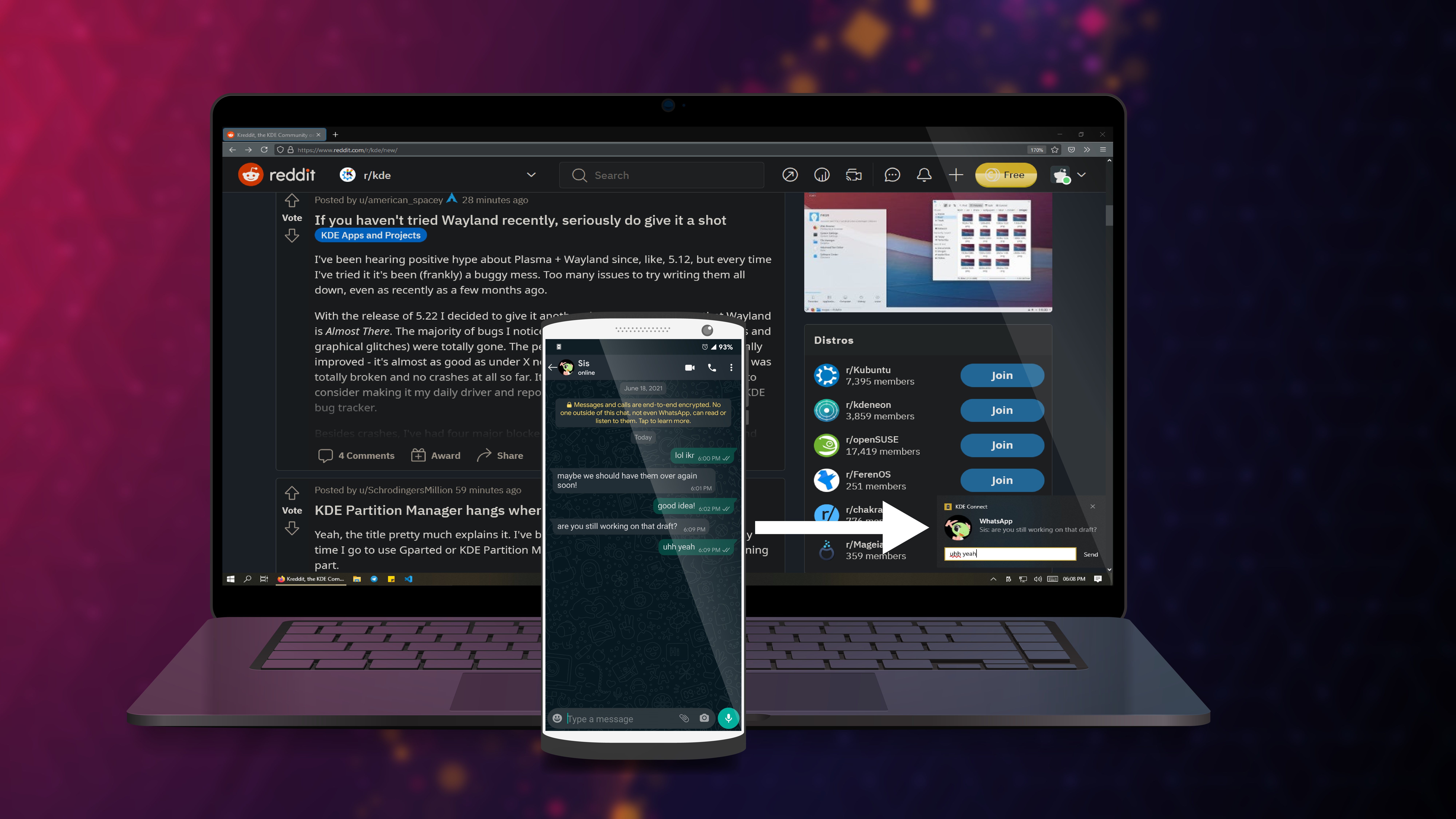
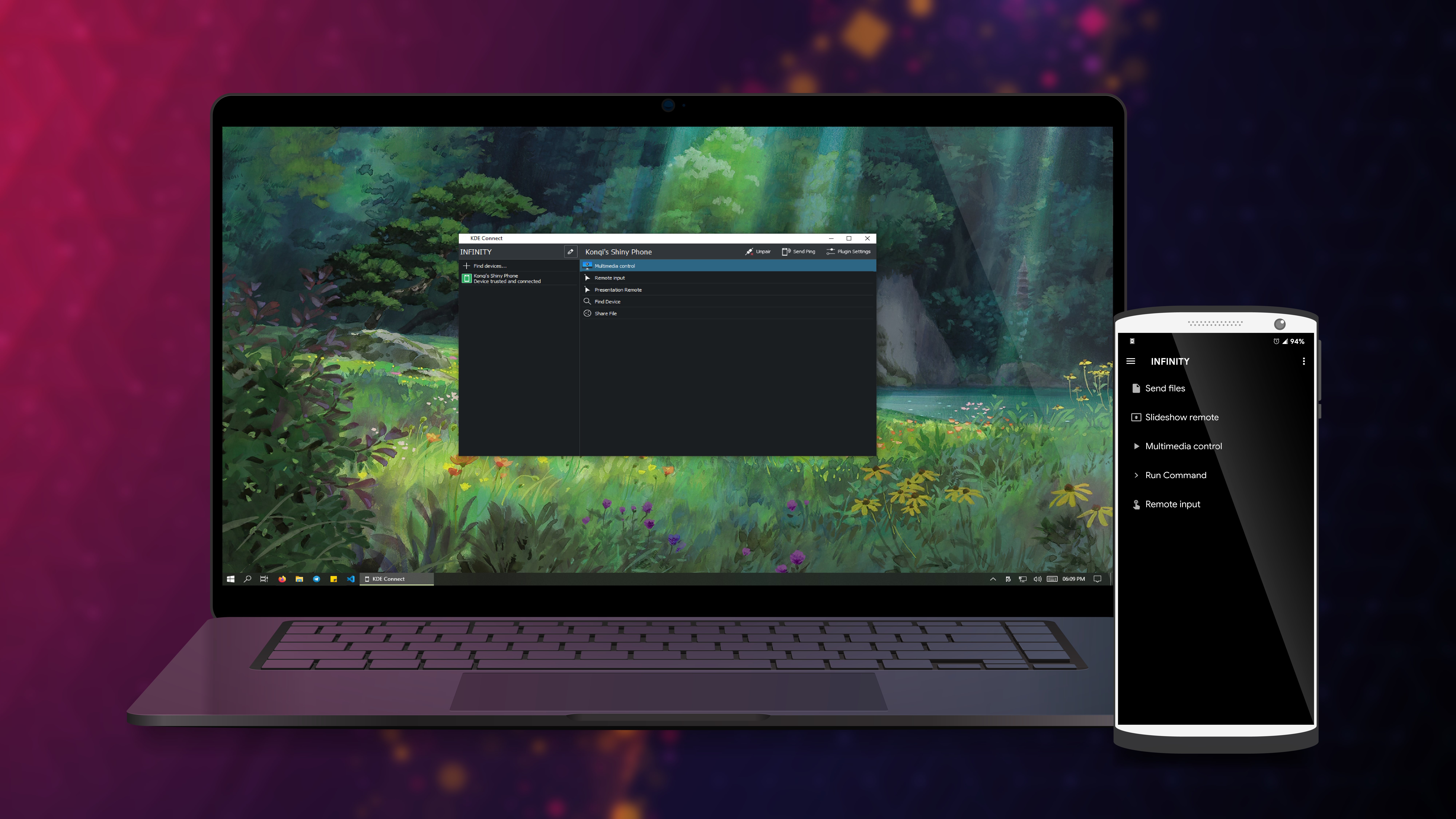
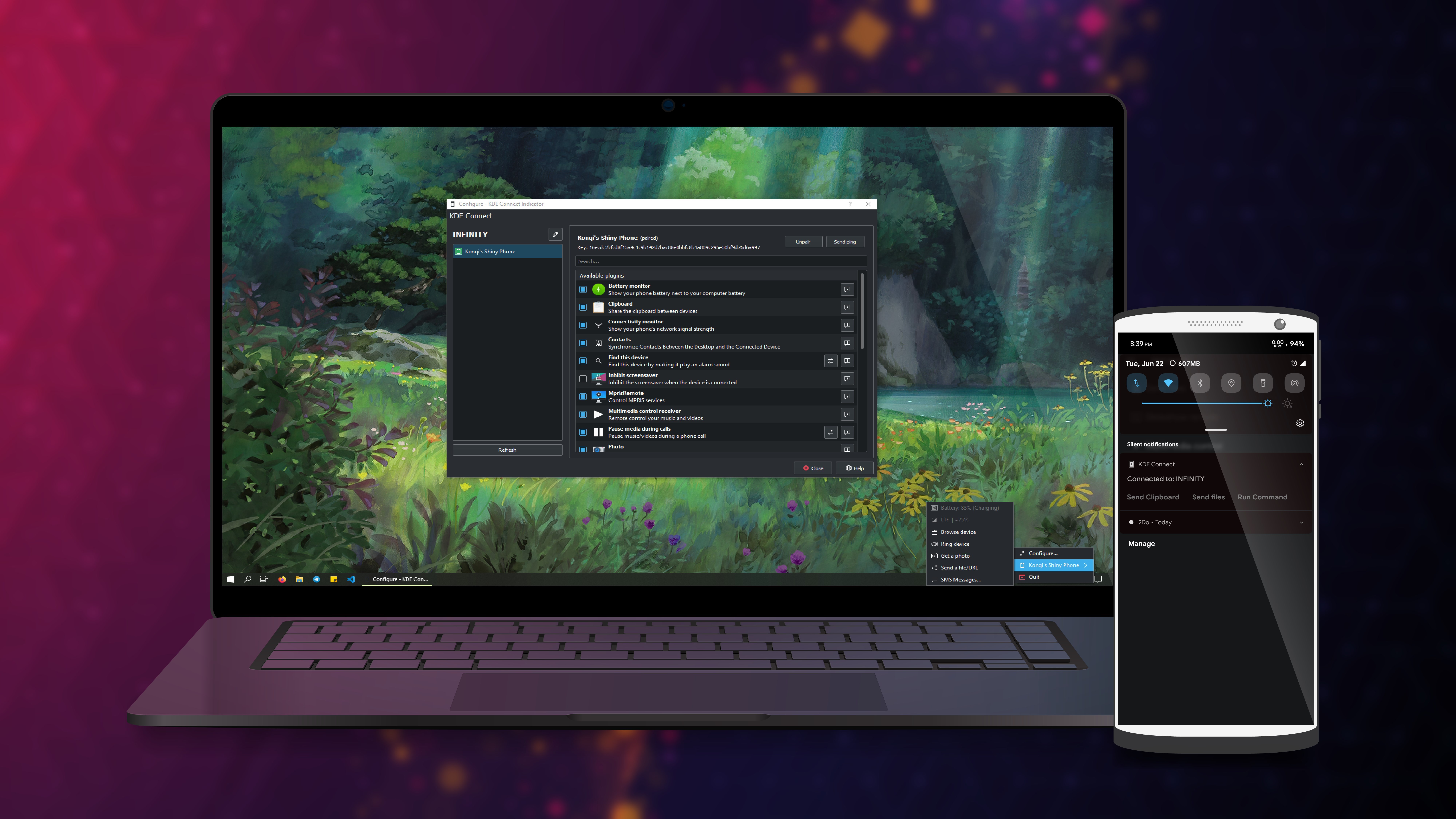
At the heart of KDE Connect lies its ability to mirror your smartphone notifications directly onto your Windows desktop. No more constantly reaching for your phone to check who just texted or an urgent email alert—it's all front and center on your screen. Additionally, the app enables media control functionalities, allowing you to play, pause, or skip songs from your PC using your phone, streamlining your multimedia experience without switching devices.
File Sharing and Remote Input Convenience
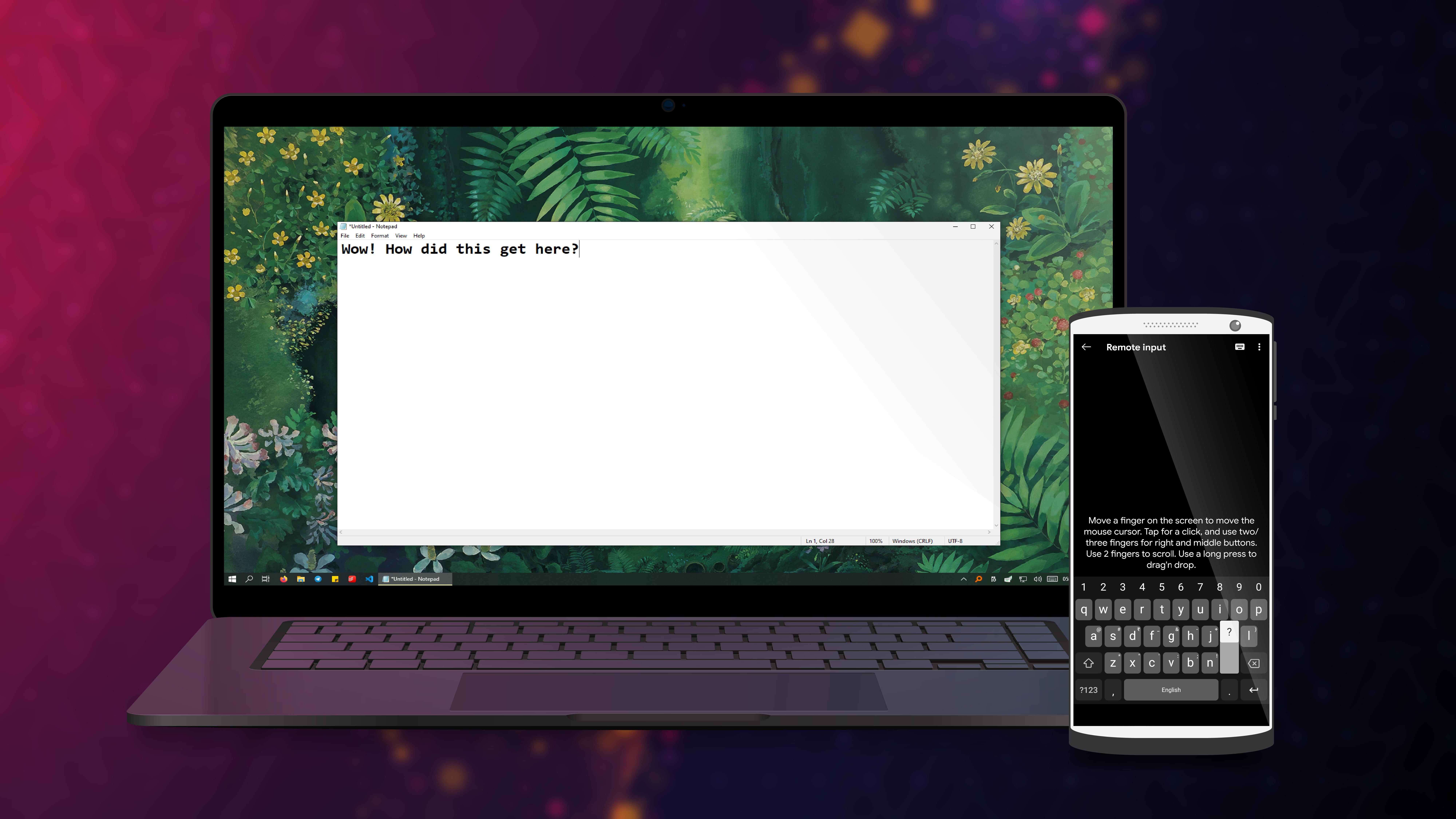
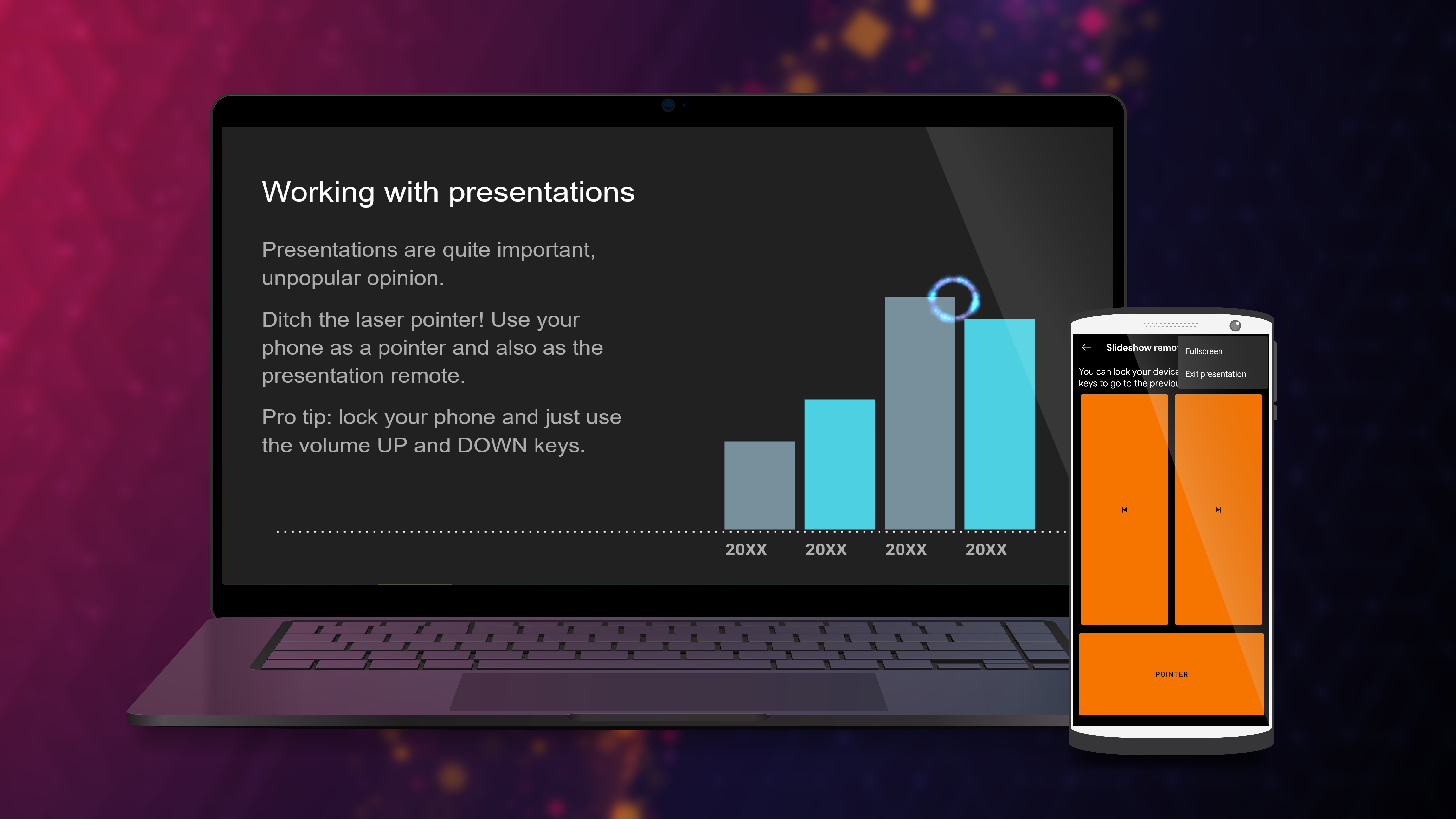
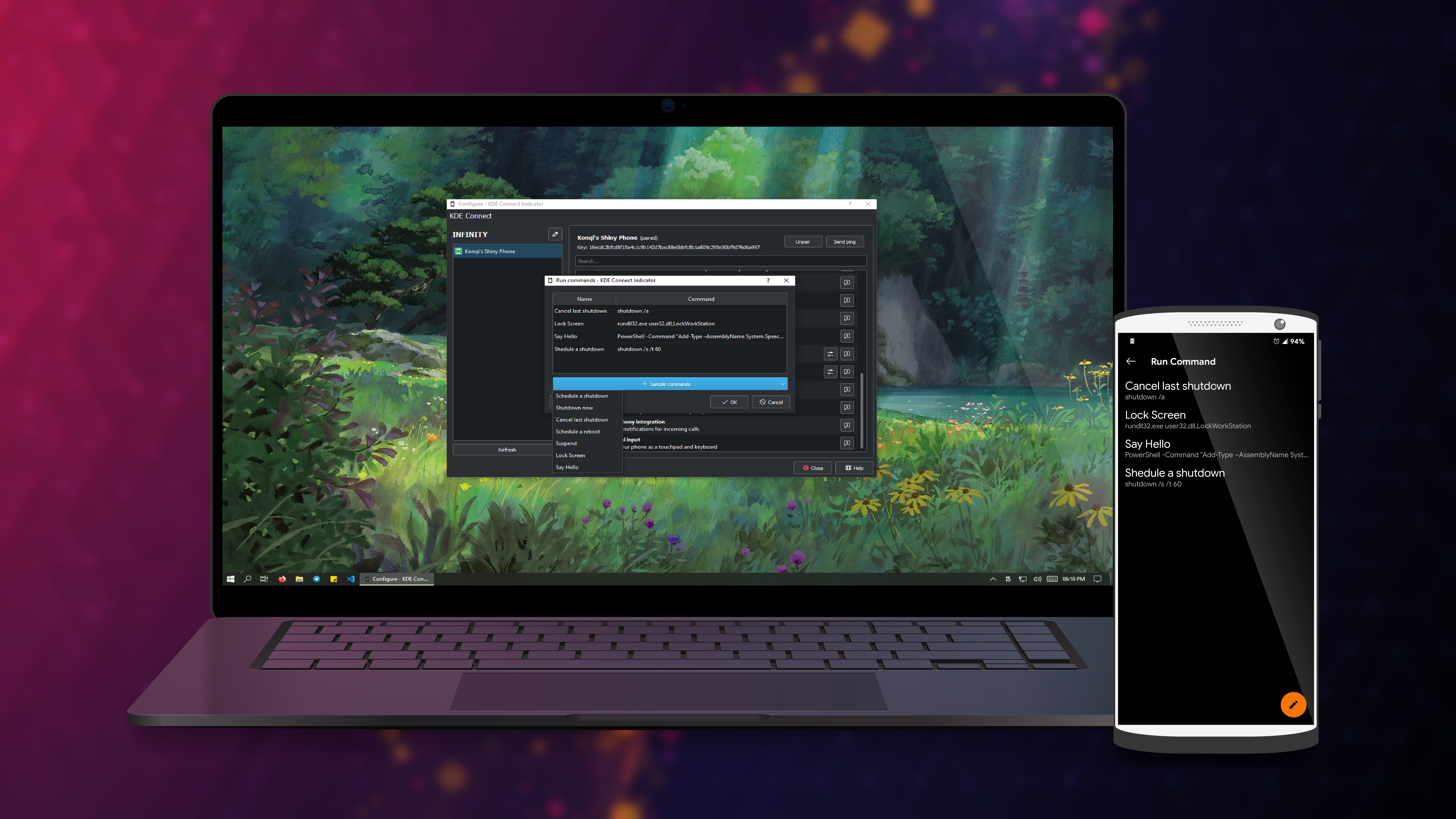
Another standout is the seamless file-sharing capability. Drag and drop files from your phone to your PC or vice versa with minimal fuss, bypassing cloud upload delays. Plus, KDE Connect acts as a remote keyboard and mouse for your Windows, turning your phone into a touchpad — perfect for presentations or a quick system navigation when your traditional peripherals are out of reach.
Scene-Optimized User Experience
The interface design is clean and intuitive, reminiscent of KDE's signature aesthetic but optimized for Windows. The app's responsiveness is commendable; interactions feel fluid, and transitions are smooth, making setup and daily use almost effortless. For newcomers, the learning curve is gentle due to straightforward menus and contextual prompts, turning what could be a complex integration into a familiar, user-friendly experience.
How KDE Connect Stands Out Among Productivity Tools
Unlike many third-party device synchronization tools cluttered with features and complicated workflows, KDE Connect's brilliance lies in its simplicity and focus on workflow integration rather than mere gimmicks. Its primary advantage is how it minimizes cognitive load — users can effortlessly access notifications, control media, and transfer files without opening multiple apps or toggling between devices. This streamlined approach is akin to a well-designed traffic junction — everything is where it should be, reducing unnecessary mental overhead.
Additionally, the app excels at reducing feature complexity that often bogs down similar applications. It offers just enough functionality to enhance productivity without overwhelming users, making it ideal for both casual users and tech-savvy professionals seeking a reliable adjunct to their device ecosystem.
Recommendations and Usage Tips
I would recommend KDE Connect for Windows to anyone looking for an integrated, fuss-free way to connect their smartphones and PCs. Whether you're a student juggling lectures and notes, a professional managing notifications, or a casual user wanting better multimedia control, this app simplifies your digital interactions. For optimal experience, ensure both your phone and Windows PC are connected to the same Wi-Fi network, and spend some time customizing notifications and permissions to suit your workflow.
In summary, KDE Connect for Windows stands out as a practical, streamlined solution that enhances device integration with minimal distraction. Its focus on reducing cognitive load while delivering core functionalities makes it a valuable addition to your productivity toolkit — a true friend in digital multitasking.
Pros
- Seamless device integration
- Low latency communication
- Open-source foundation
- Wireless connectivity support
- Cross-platform compatibility
Cons
- Initial setup can be complex for new users
- Limited documentation on advanced features
- Occasional connection instability
- Restricted features on certain Linux distributions
- UI design could be more intuitive











