

- Name iLovePDF: PDF Reader and Editor
- Category Productivity
- Developer ILOVEPDF S.L.
- Available on PC
- OS Windows 10 version 17763.0 or higher
- Keyboard Integrated Keyboard
- Mouse Integrated Mouse
- Memory 300 MB
- languages Spanish (Spain)
Unveiling iLovePDF for Windows: A Practical Tool for PDF Mastery
Imagine having a reliable, all-in-one companion for your PDF needs right on your Windows desktop—streamlined, intuitive, and designed to make your document workflows smoother. That's exactly what iLovePDF aims to deliver. Developed by ILovePDF S.L., this application stands out in the productivity realm by offering comprehensive features wrapped in a user-friendly interface, transforming complex PDF tasks into simple, manageable actions. Whether you're a student, professional, or casual user, this tool promises to be your go-to for editing, converting, and organizing PDFs effortlessly.
Core Features That Make a Difference
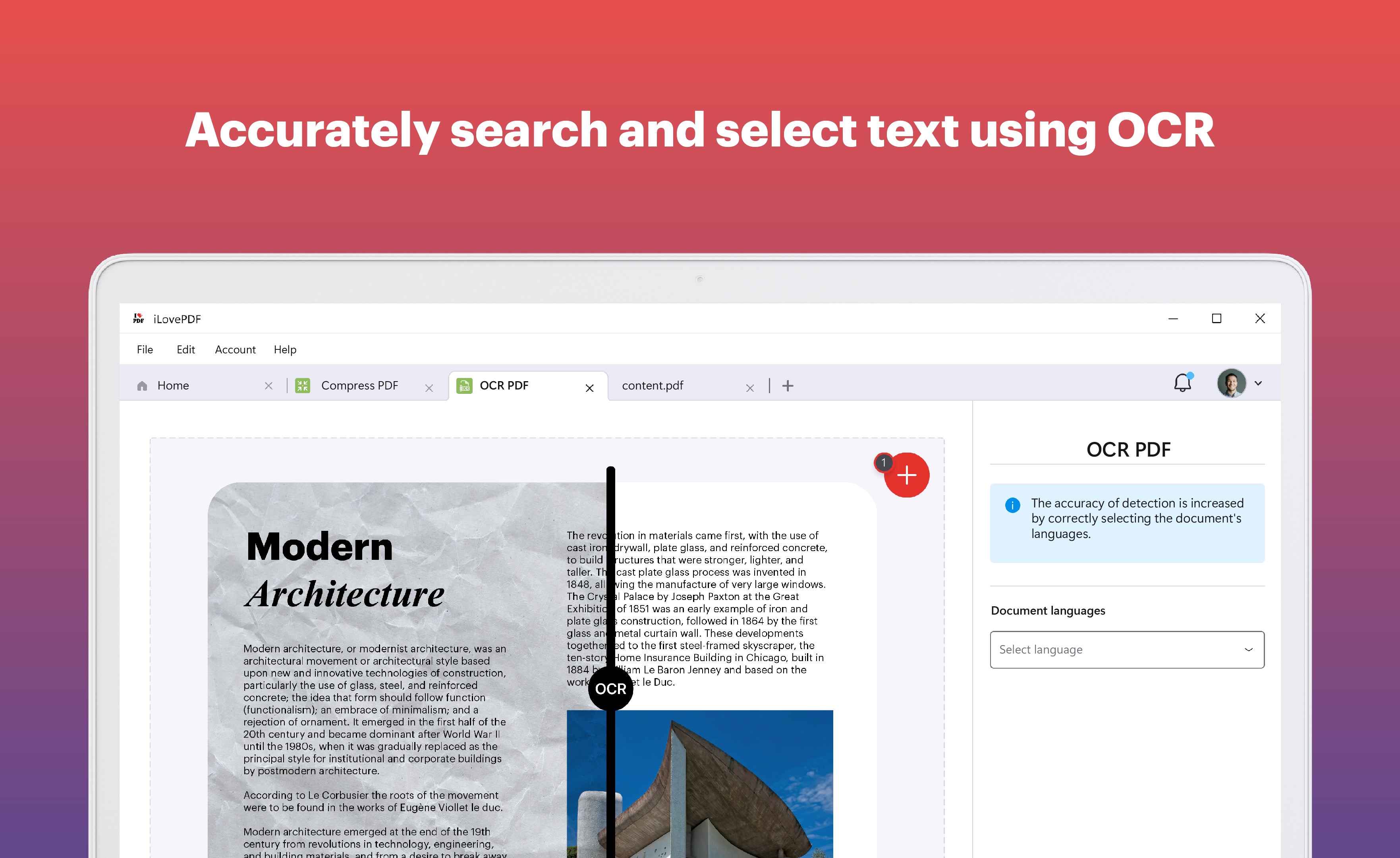
At the heart of iLovePDF for Windows are features tailored to eliminate the frustration often associated with PDF management. Its primary strengths lie in four key functions:
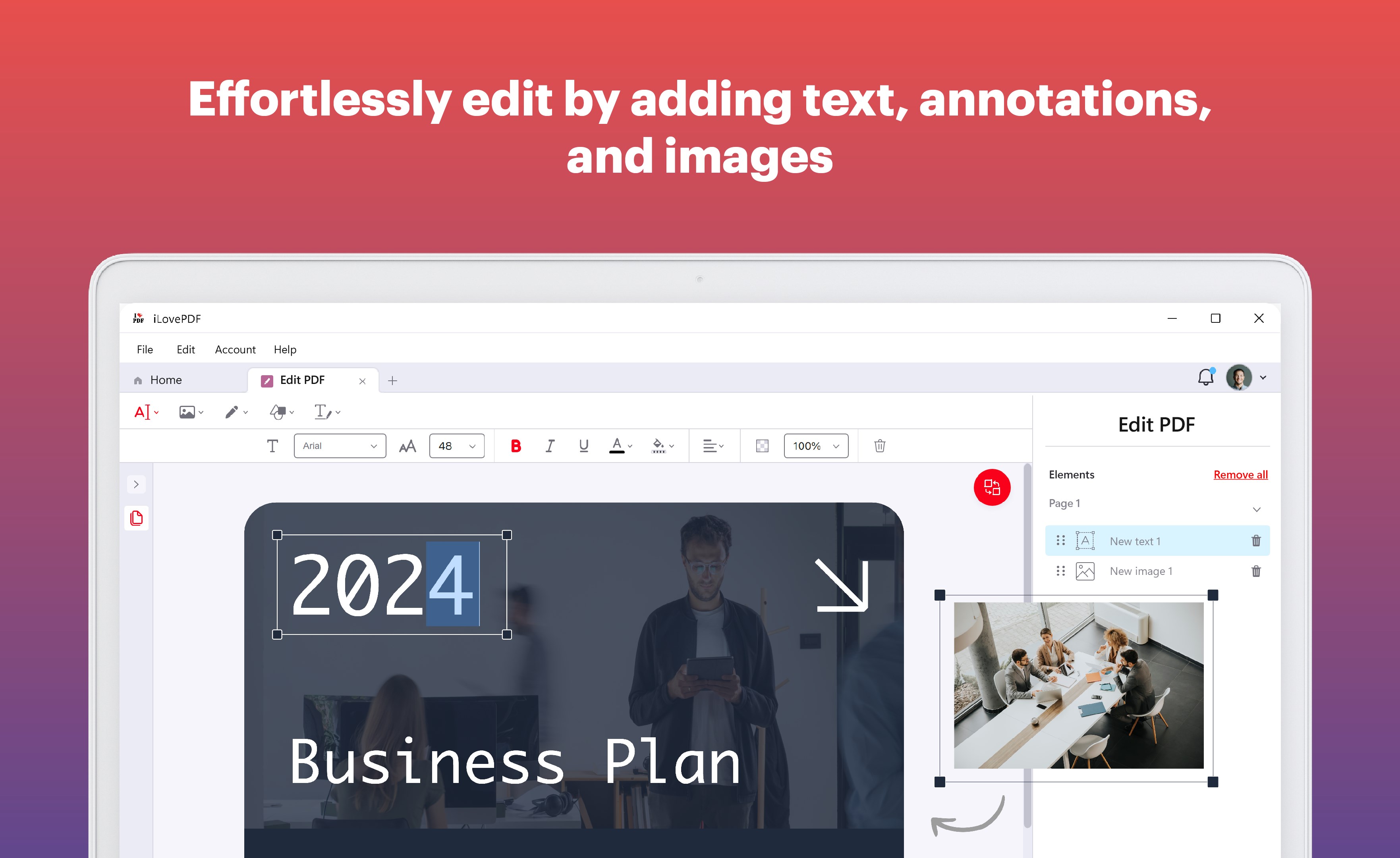
- Intuitive PDF Editing and Annotation: Easily add text, comments, highlights, or draw directly on your PDFs. The interface mimics familiar document editing tools, reducing the learning curve and making annotations feel natural.
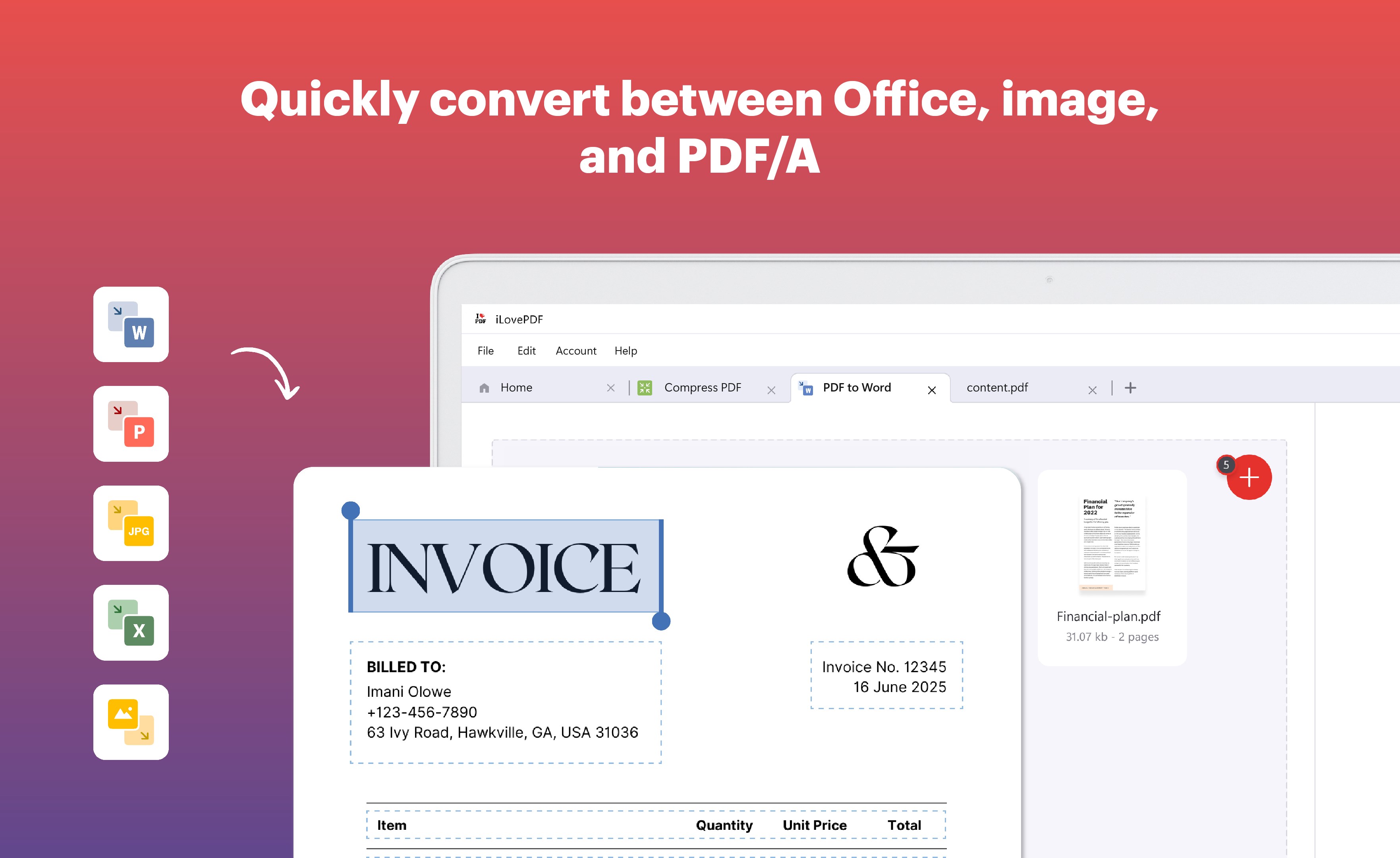
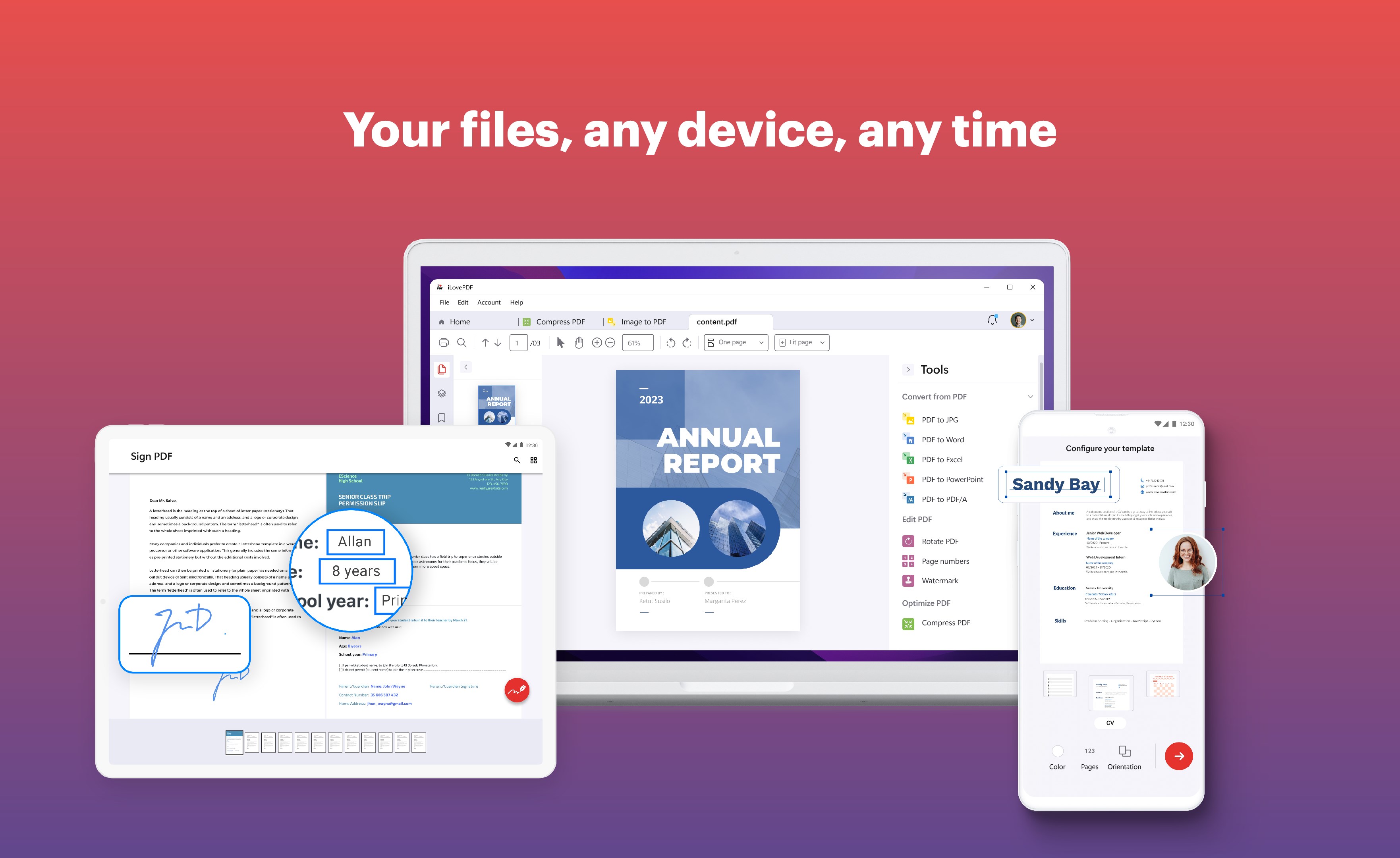
- Seamless PDF Conversion: Convert PDFs to Word, Excel, PowerPoint, or image formats without fuss. This feature ensures your documents are flexible and editable across different platforms, saving time from external conversions.
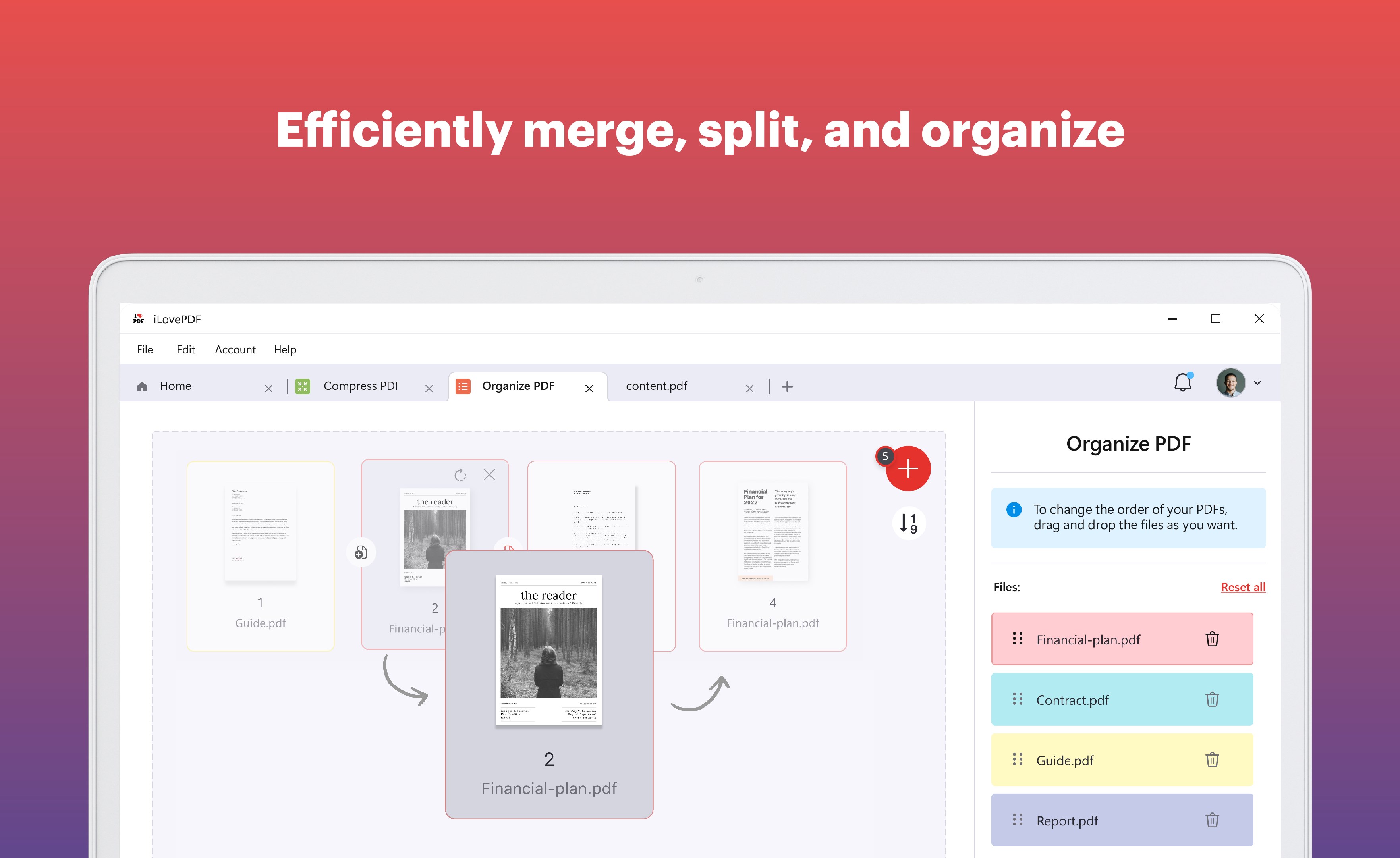
- Efficient Merging and Splitting: Quickly combine multiple PDFs into a single document or extract specific pages. Its straightforward drag-and-drop approach simplifies what used to be tedious assembly tasks.
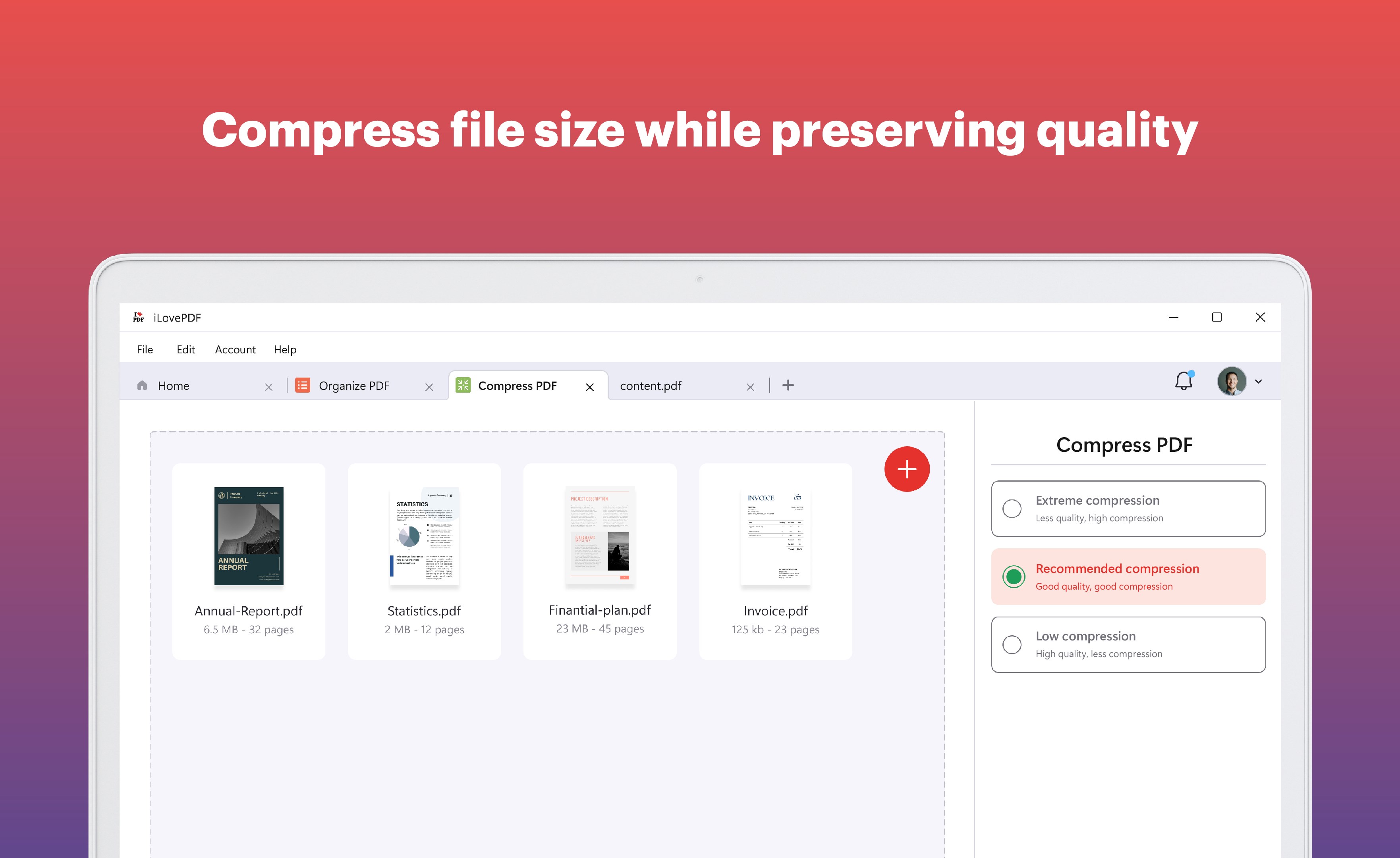
- Comprehensive Compression: Optimize file sizes for easier sharing and storage, without sacrificing significant quality—a perfect solution for users dealing with large PDFs regularly.
User Experience: Smooth Sailing in PDF Management
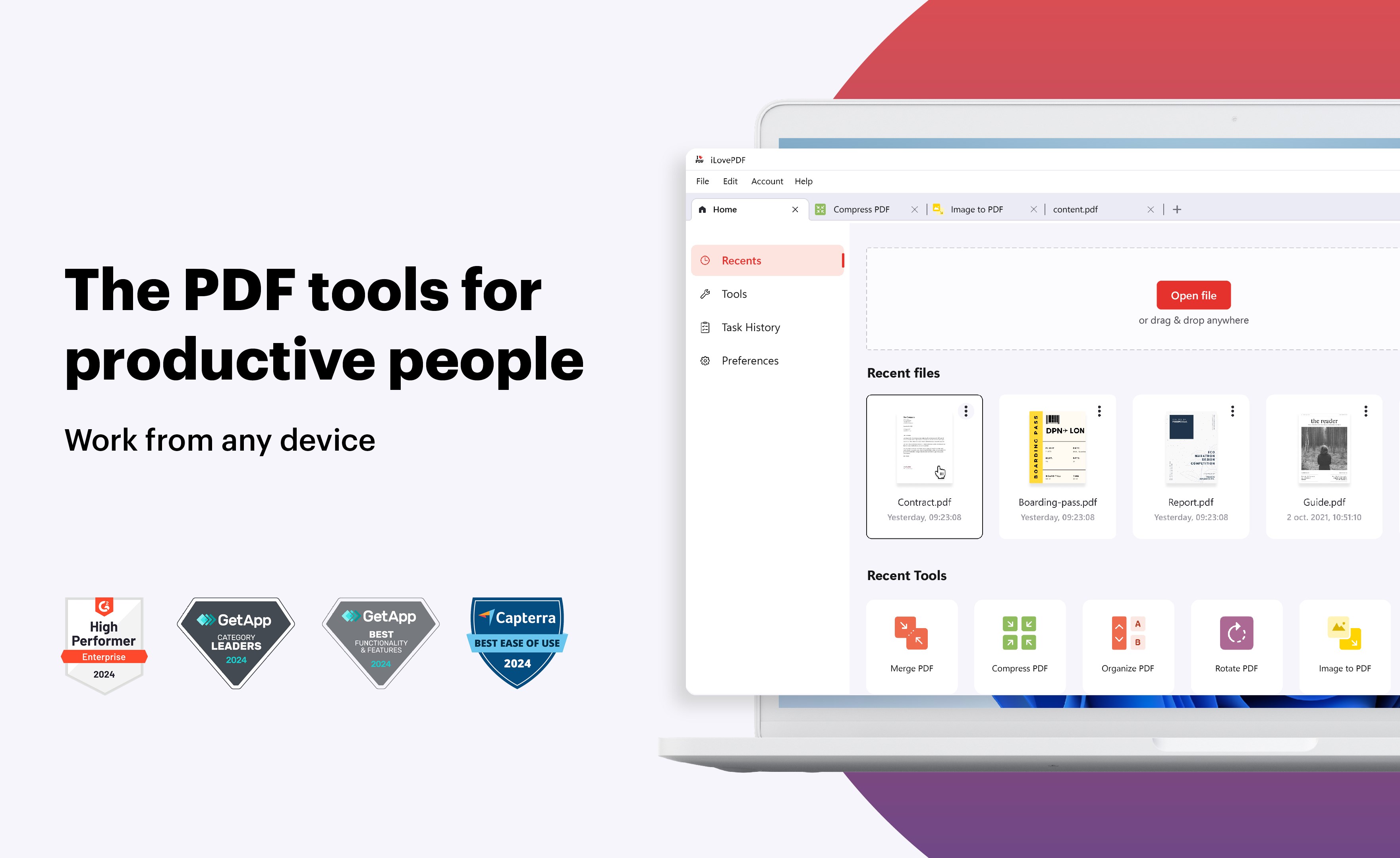
From launching the app to completing tasks, the user experience feels akin to guiding a well-trained assistant who anticipates your steps. The interface design is clean, modern, and clutter-free, with intuitive icons that clearly signal their functions. Navigating between features is seamless, thanks to logical menu arrangements and minimalistic design that emphasizes usability.
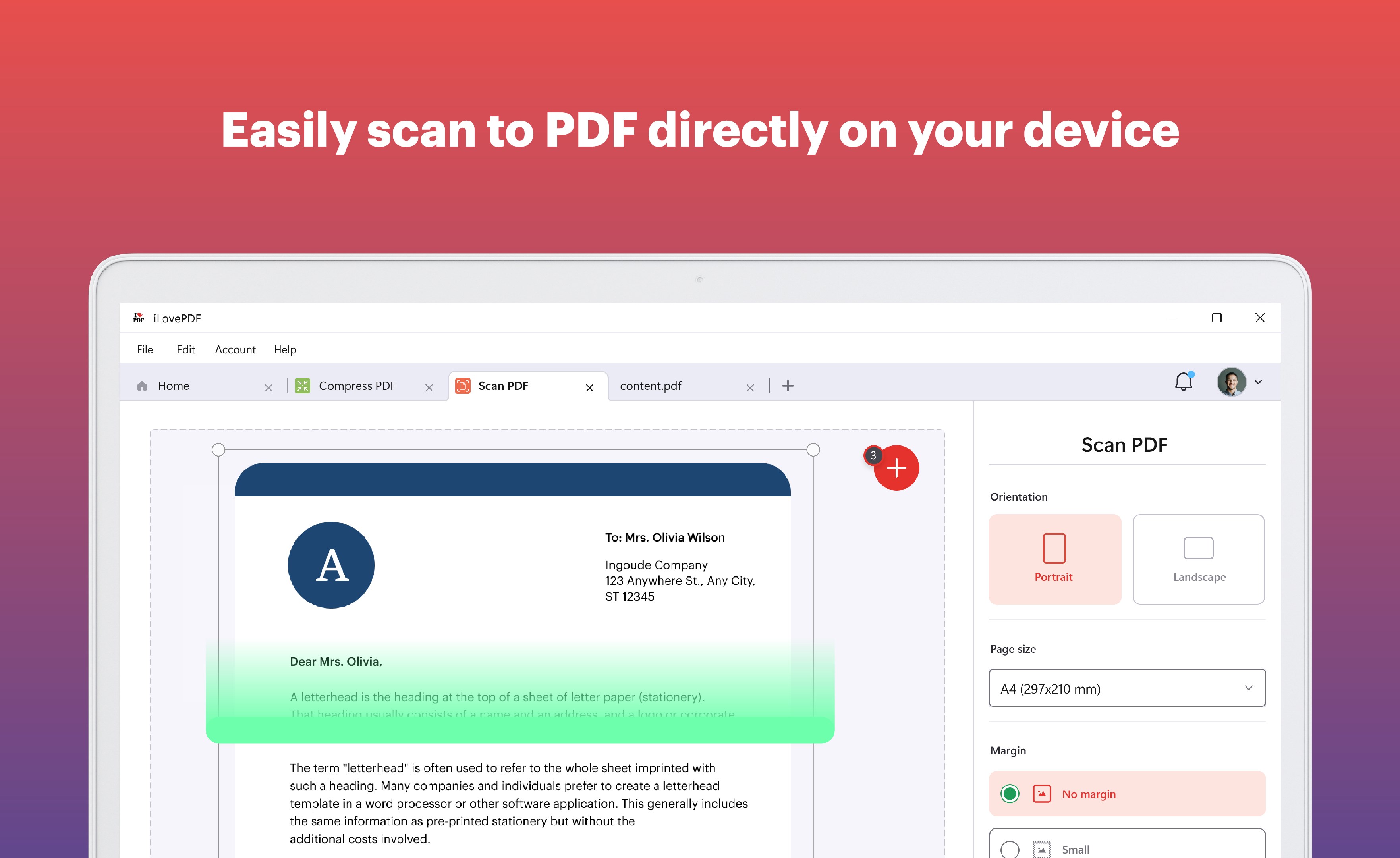
Operational speed is commendable—operations such as merging or compressing files execute quickly, even with larger documents. The learning curve is gentle enough for new users but offers enough depth for power users to appreciate advanced functions. Importing files via drag-and-drop feels natural, and real-time previews allow for quick verification before finalizing changes.
Standing Out in the PDF Productivity Crowd
Compared to other productivity tools, iLovePDF's standout feature lies in its workflow integration efficiency. Unlike many apps laden with complex menus and overwhelming feature sets, this tool emphasizes reducing cognitive load by keeping the interface simple and the core functions accessible. Its design philosophy ensures users spend less time figuring out how to perform tasks and more time actually working on documents. The seamless transition between editing, converting, and organizing preserves your workflow rather than interrupting it—a vital advantage in busy work environments.
Furthermore, the apps' focus on core tasks reduces unnecessary feature clutter, making it easier for users to concentrate on their goals without distraction. For instance, integrated batch processing allows multiple files to be handled simultaneously, boosting productivity and reducing repetitive manual efforts. This balance of functionality and simplicity sets iLovePDF apart from many competitors that sometimes sacrifice simplicity for a broader feature set.
Final Recommendations and Usage Tips
If you're seeking a practical, reliable PDF tool that integrates smoothly into your daily workflow, iLovePDF for Windows is worth trying. It's especially suitable for users who need quick edits, conversions, or document consolidation without the fuss of overly complex interfaces. For team environments or routine document management tasks, its efficiency and ease of use shine.
To get the most out of this app, start by exploring the core features—editing, converting, and merging—since they address the most common PDF challenges. For heavy-duty tasks, leverage batch processing and compression options. Keep in mind that while it's powerful, it doesn't aim for overly advanced editing capabilities like those found in dedicated design software, making it ideal for everyday use.
Overall, iLovePDF offers a balanced, user-centric approach that reduces the cognitive load associated with managing PDFs, helping you work smarter rather than harder. I recommend giving it a try, especially if your routine involves frequent PDF handling, and you value a straightforward, effective workflow tool.
Pros
- User-friendly Interface
- Comprehensive PDF Tools
- Cloud Integration
- Fast Performance
- Regular Updates & Support
Cons
- Limited Free Features
- Occasional Crashes on Large Files
- Basic Annotations May Lack Advanced Options
- Offline Functionality Restricted
- File Conversion Limitations in Free Version











