- Name IconEdit2
- Category Multimedia design
- Developer Dmitry Kozhinov
- Available on PC
- OS Windows 10 version 0.0 or higher
- Keyboard Integrated Keyboard
- Mouse Integrated Mouse
- languages Catalan, Danish, Dutch, English, Finnish, French, German, Italian, Japanese, Portuguese (Brazil), Spanish, Swedish
Introducing IconEdit2: A Versatile Icon Editing Tool for Windows Enthusiasts
IconEdit2 for Windows, developed and published by Dmitry Kozhinov, positions itself as a user-friendly yet powerful icon editing application tailored for designers, developers, and hobbyists alike. This software aims to streamline the process of creating and customizing icons with an intuitive interface and essential features for effective icon design.
Core Features That Shine
Intuitive User Interface Designed for Ease
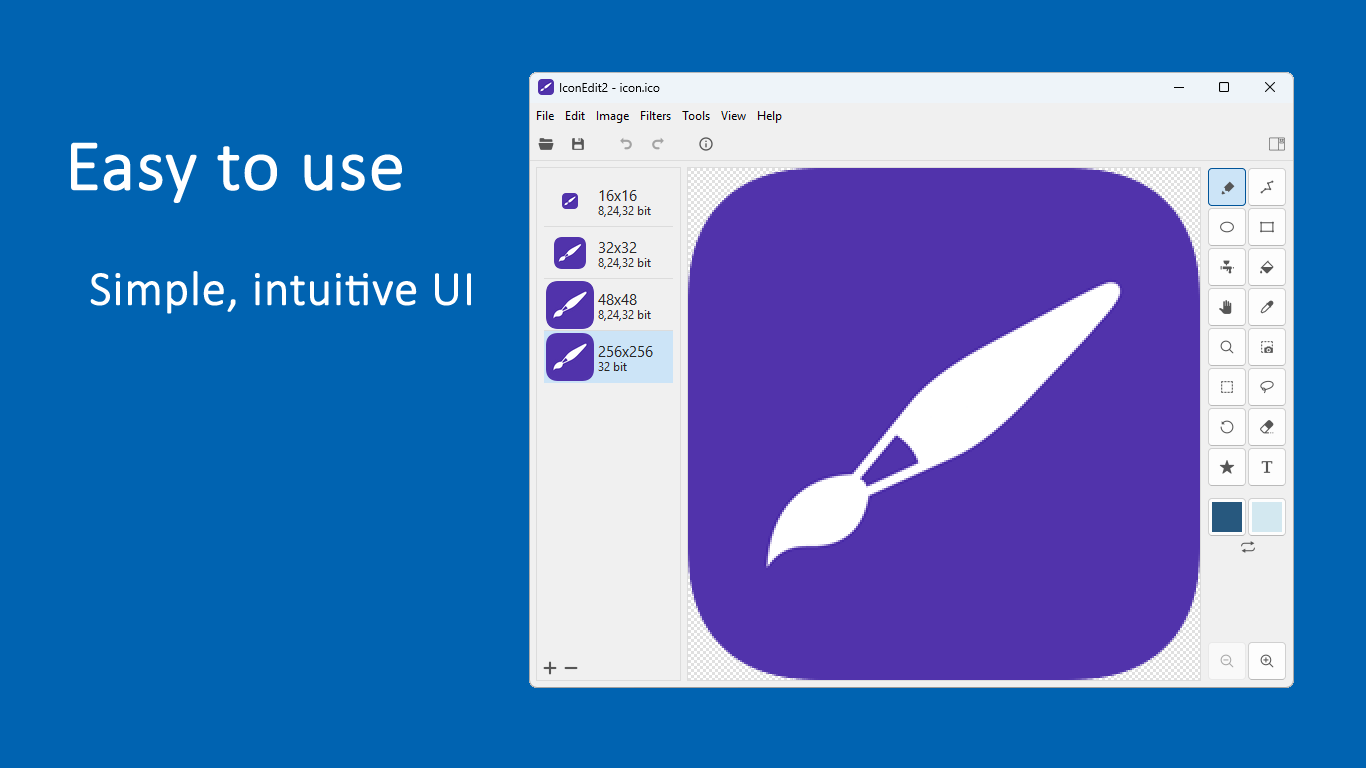
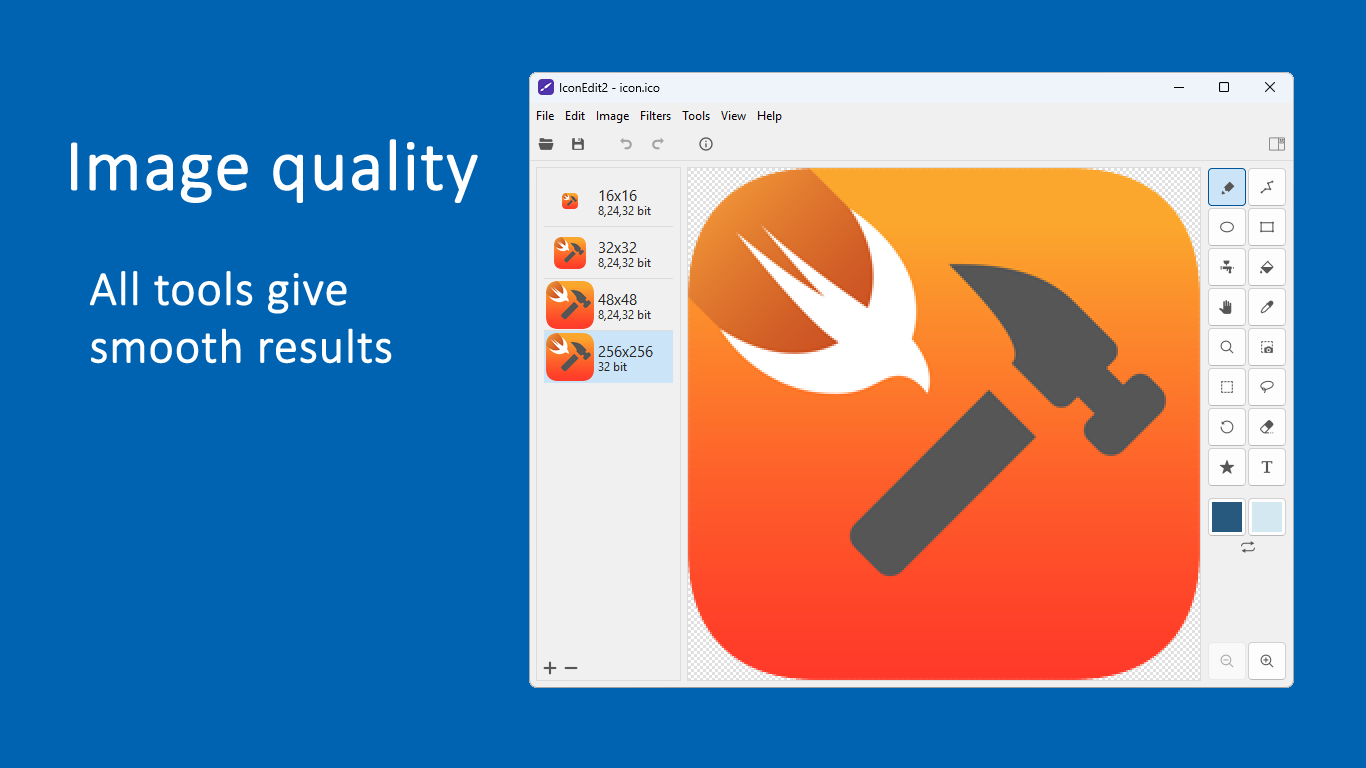
The application boasts a clean and straightforward interface that resembles a well-organized digital workspace. With clearly labeled tools and an accessible layout, users can navigate effortlessly—even if they're newcomers to icon design. The interface's design minimizes clutter, allowing focus on creativity rather than struggling with complex menus.
Robust Icon Editing and Exporting Capabilities
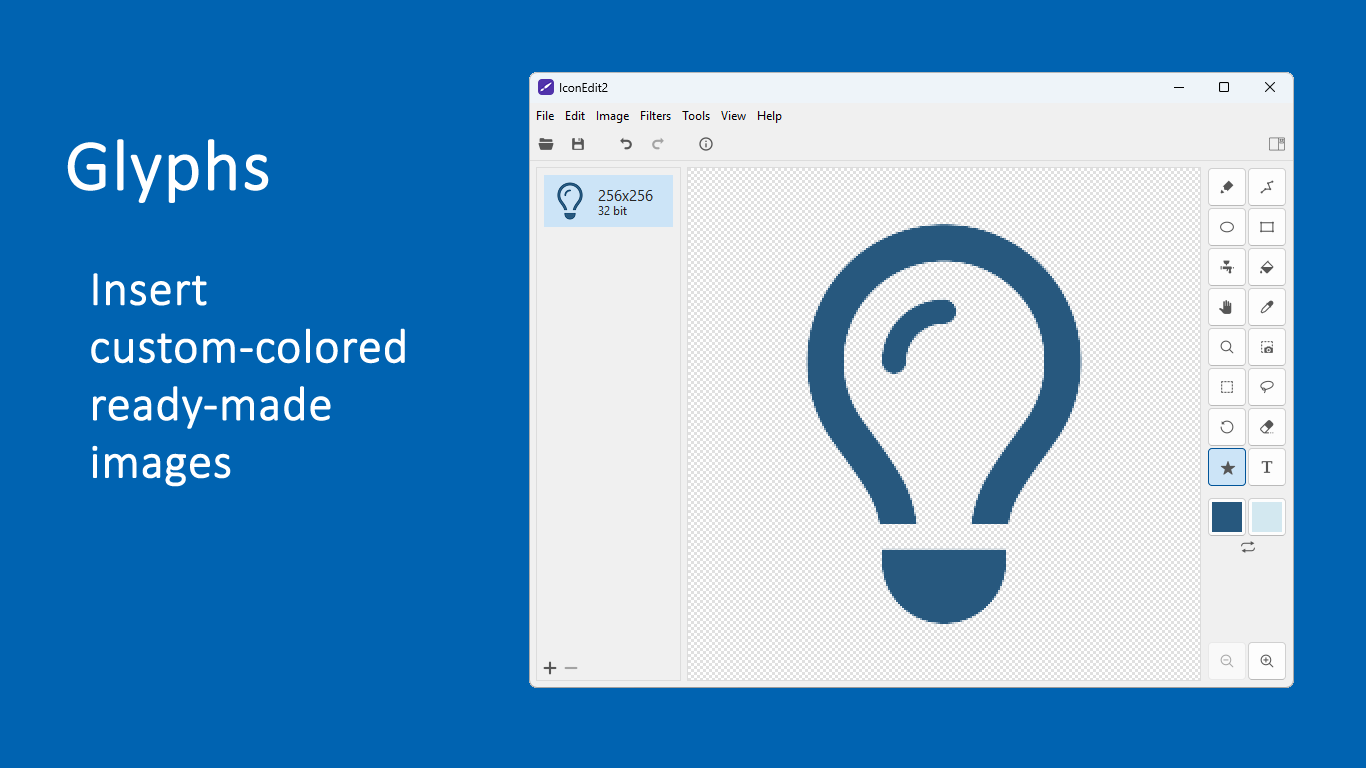
IconEdit2 offers a comprehensive toolkit for creating, editing, and refining icons. Users can import images, convert them into icon formats, and tweak details like color, transparency, and dimensions. The app supports exporting icons in various sizes and formats suitable for different platforms, making it particularly handy for app developers and UI designers.
Specialized Features for Enhanced Customization
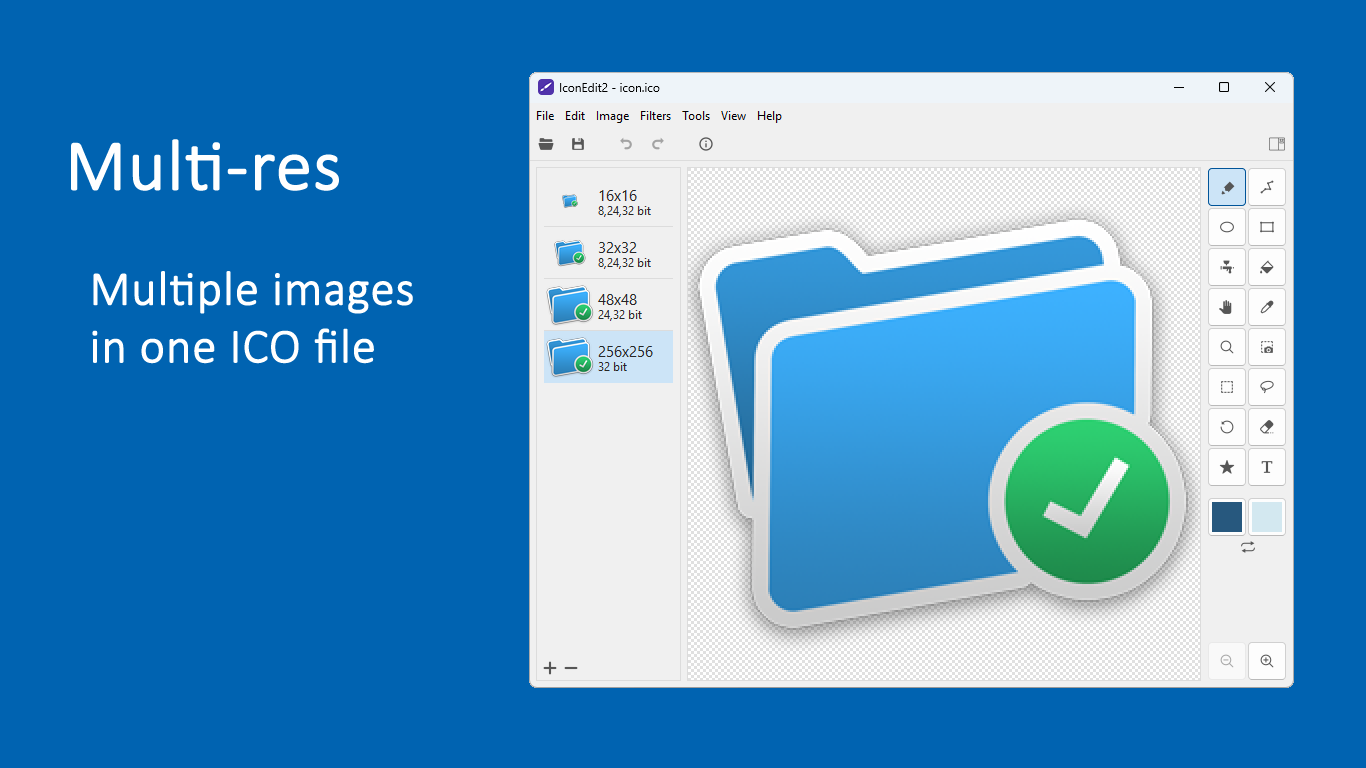
One of the standout features is the app's ability to generate multiple icon sizes from a single source image automatically, saving time and effort. Additionally, it offers built-in effects and simple drawing tools, which facilitate rapid prototyping of icon ideas. These features set IconEdit2 apart from more generic image editors by focusing on icon-centric workflows.
A Closer Look at User Experience
The design of IconEdit2 feels like working within a neatly arranged workshop—the tools are logically placed, making it easy to pick up and start creating. The software operates smoothly, even when handling larger files or multiple layers, reflecting optimized performance. Learning curves are gentle; beginners can quickly grasp basic functions, while more experienced users can explore advanced features with minimal fuss.
This application shines in delivering a streamlined workflow that balances functionality with simplicity. Unlike more bloated graphic editors, IconEdit2 maintains focus on icon creation, which enhances productivity and reduces frustration. Transitioning between editing modes is hassle-free, and the preview features allow for instant visual feedback, critical for iterative design processes.
What Makes IconEdit2 Unique?
The app's most distinctive advantage lies in its automatic multi-size icon generation. This feature is akin to having a personal assistant that instantly scales your creations to fit various device specifications, a noteworthy time-saver. Compared to other multimedia design tools that require manual resizing or rely on external plugins, IconEdit2 provides an integrated, straightforward solution tailored specifically for icon workflows.
Moreover, its focus on a clutter-free, purpose-built environment for icon editing sets it apart from more general graphic editors. This specialization ensures that users avoid unnecessary complexity, making it ideal for quick edits or batch projects where efficiency is prized.
Final Thoughts and Recommendations
All in all, IconEdit2 is a solid choice for those looking for an accessible yet capable tool to create and refine icons on Windows. Its particularly noteworthy features—automatic multi-size export and focused design environment—make it especially appealing for developers and UI designers who value time and precision. While it may not have all the advanced features of high-end graphic programs, it hits a sweet spot for versatility and ease of use.
For anyone diving into icon design, whether for personal projects or professional interfaces, I recommend giving IconEdit2 a try. Its straightforward approach allows you to focus on your creative ideas without getting bogged down by overly complex tools. Overall, it's a reliable companion for turning your icon ideas into polished, ready-to-use assets.
Pros
- User-friendly interface
- Wide range of editing tools
- Supports multiple image formats
- Lightweight and fast
- Regular updates with bug fixes
Cons
- Limited advanced editing features
- Occasional stability issues
- No batch processing capability
- Limited export options
- Basic customization options only