

- Name iCloud
- Category Productivity
- Available on PC
- OS Windows 10 version 18362.145 or higher
- languages Arabic, Catalan, Chinese (Simplified), Chinese (Traditional), Chinese (Traditional, Hong Kong SAR), Croatian, Czech, Danish, Dutch, English (Australia), English (United Kingdom), English (United States), Finnish, French, French (Canada), German, Greek, Hebrew, Hindi, Hungarian, Indonesian, Italian, Japanese, Korean , Malay, Norwegian (Bokmål), Polish , Portuguese (Brazil), Portuguese (Portugal), Romanian, Russian, Slovak, Spanish (Latin America), Spanish (Spain), Swedish, Thai, Turkish, Ukrainian, Vietnamese
Seamless Cloud Connectivity for Windows: An In-Depth Look at iCloud for Windows
If you're an Apple user juggling multiple devices, iCloud for Windows promises to bridge the ecosystem gap, offering a straightforward way to access your Apple cloud data on your Windows PC. But how well does it truly integrate into your workflow? Let's break down its features, interface, and unique strengths in a friendly, clear manner.
Basic Information: What's iCloud for Windows All About?
Positioned as a bridge for Apple's cloud services on Windows, iCloud for Windows aims to streamline your cross-platform experience. Developed by Apple Inc., this application allows Windows users to synchronize photos, emails, contacts, calendars, and files effortlessly with their Apple account. Its main strengths include easy photo library management, email and calendar synchronization, and file access via iCloud Drive. The target audience primarily encompasses Windows users who are also deeply embedded in the Apple ecosystem—such as Mac users, iPhone owners, or professionals who need to access Apple cloud data from time to time without switching devices.
Starting the Journey: An Engaging User Experience
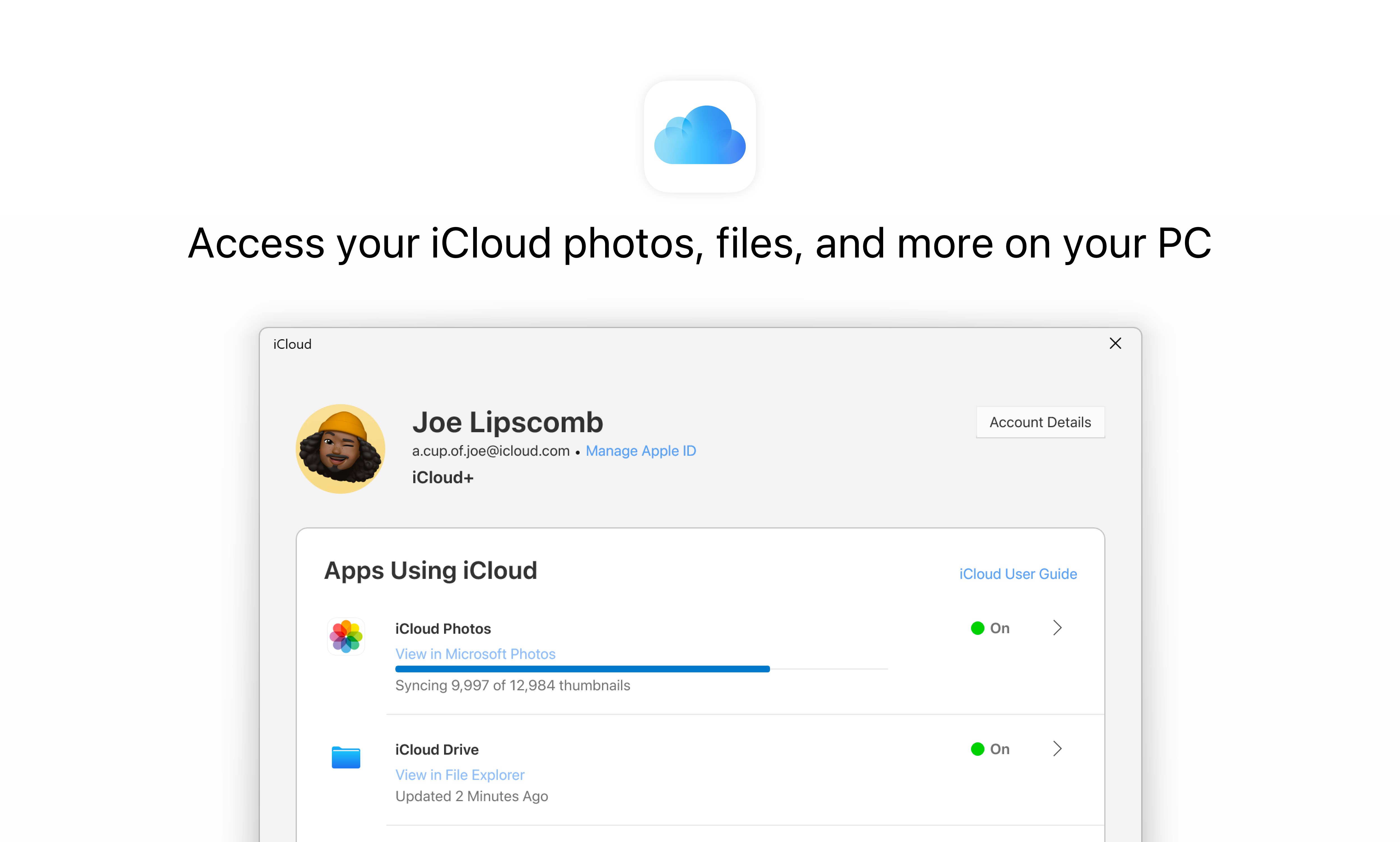
Imagine your digital life as a well-orchestrated symphony—iCloud for Windows strives to be the conductor that ensures all instruments stay in tune. Once installed, it integrates smoothly into your system tray, offering easy access and status updates. The initial setup involves signing into your Apple ID, which, thanks to Apple's familiar security prompts, feels just like logging into your iPhone. The interface is clean and straightforward, with familiar icons representing Photos, Mail, Contacts, and Files, making navigation intuitive even for newcomers.
Syncing Photos and Videos: Your Digital Album, Always Updated
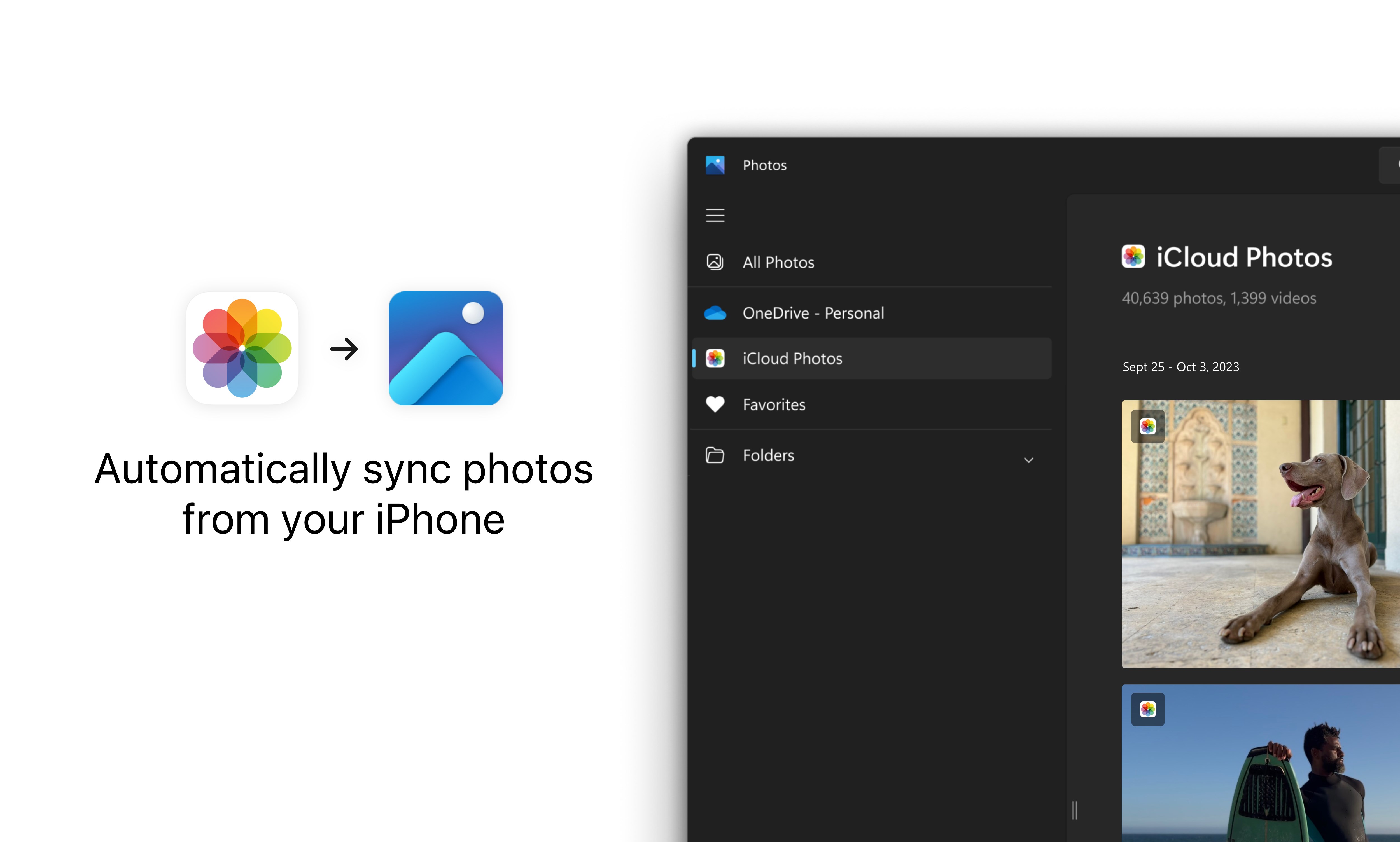
This is arguably the most visually prominent feature of iCloud for Windows. The Photos module syncs your iPhone or Mac photo library seamlessly, creating a centralized hub accessible from any Windows device. The process feels as effortless as flipping through an album—once enabled, photos automatically upload and download in the background. The key advantage here is the reduce in cognitive load; no manual transfers or complex setups needed. The interface offers a straightforward view of all your albums and recent photos, making browsing and management feel like flipping through your favorite photo album.
Email, Calendars, and Contacts: Your Digital Assistant
Another core component is the synchronization of email accounts, calendars, and contacts. Connecting your Apple Mail account to Outlook or Windows Mail feels as natural as organizing your desk calendar—everything updates in real time. This tight integration significantly reduces the mental effort required to keep track of appointments across devices, providing a unified experience. The data refreshes swiftly, and the setup is simple enough for non-technical users, making daily coordination effortless instead of cumbersome.
File Access and Storage: Your Cloud Storage Companion
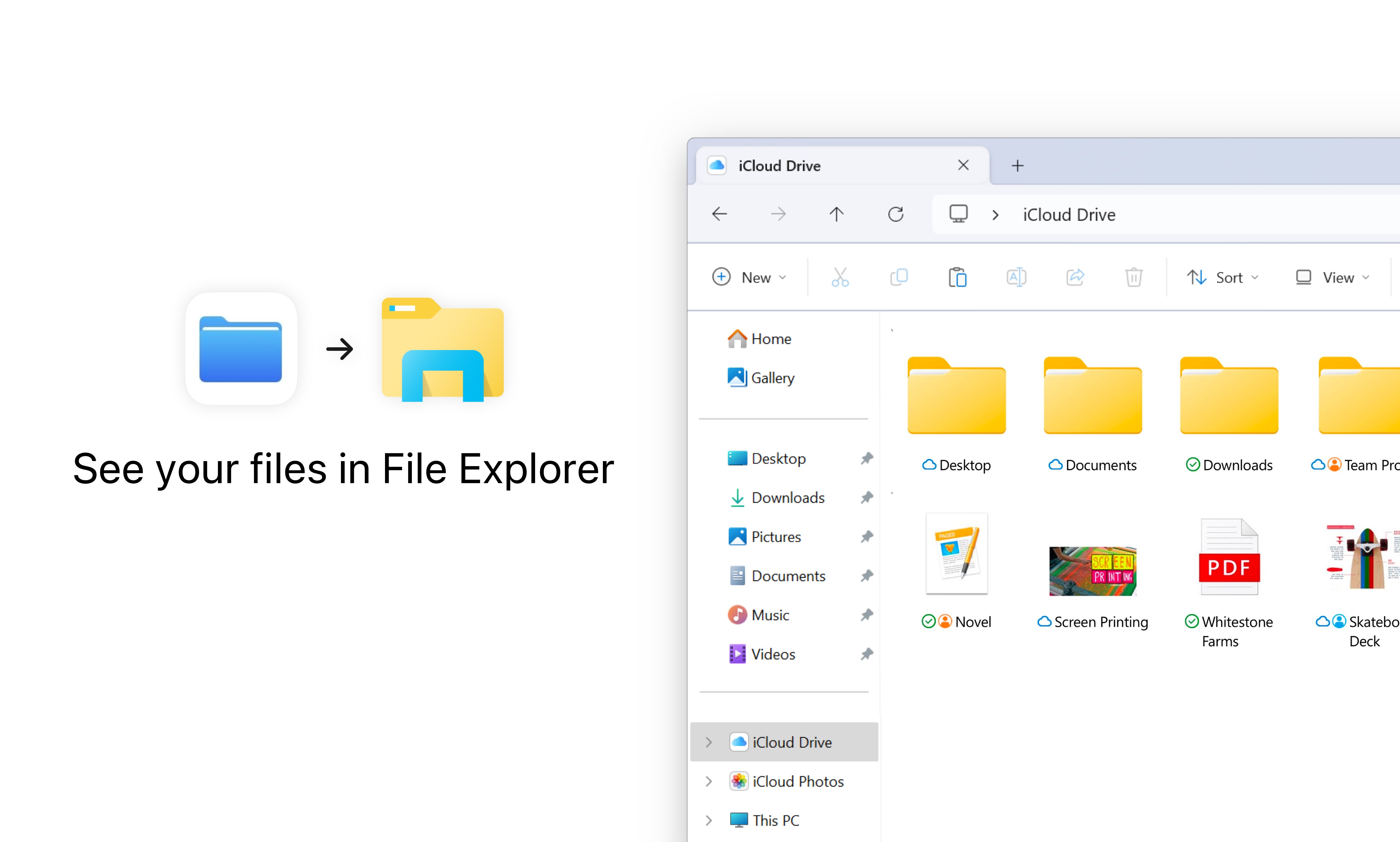
iCloud Drive on Windows works almost like a local folder, allowing you to save and retrieve files directly from your Apple cloud. The experience is smooth; files appear in a dedicated folder that behaves as naturally as any other folder on your PC. This seamless access minimizes the annoyance of switching between multiple cloud services or transferring files via USB. The notable strength here is the reduction of mental clutter—yes, fewer steps mean less cognitive friction, and your workflow remains smooth and focused.
Evaluating the Experience: Design, Performance, and Uniqueness
The interface design of iCloud for Windows is minimalistic yet crafted for clarity, aligning with Apple's sleek standards. Operations are tremendously fluid—syncing happens swiftly and silently in the background, much like a well-oiled machine. Learning curve is mild; even non-tech-savvy users find the setup straightforward, and ongoing management feels natural, akin to tending to a familiar garden.
Compared to other productivity apps, iCloud for Windows sets itself apart by its emphasis on deep ecosystem integration rather than feature clutter. Its standout advantage is the workflow efficiency achieved by reducing the cognitive load: automatic syncing, native handling of Apple data formats, and minimized manual intervention reach a level where users don't have to think about "how" to sync or manage their data—they simply do. It's less about offering a laundry list of features and more about doing a few things very well, oriented toward reducing mental effort and avoiding feature overload.
Final Verdict: A Recommended Companion for Apple-Driven Windows Users
For Windows users who are already embedded in the Apple universe, iCloud for Windows offers a sensible, reliable, and seamlessly integrated toolkit. Its strongest points lie in effortless photo synchronization and simplified file access—features that truly streamline cross-platform workflows. Although it may not offer the extensive customization of third-party cloud tools, its purpose-built nature ensures smooth operation without unnecessary complexity.
My recommendation is to use it if you regularly need to access your Apple cloud data on a Windows PC and value minimal friction over a multitude of bells and whistles. Its design favors simplicity, efficiency, and reducing cognitive load—practical virtues for daily productivity.
In short, think of iCloud for Windows as a friendly assistant who quietly takes care of your cloud needs and lets you focus on what truly matters, rather than bogging you down with unnecessary options. It's a trustworthy, elegant solution for those bridging the Apple-Windows divide.
Pros
- Seamless integration with Microsoft ecosystem
- User-friendly interface
- Reliable cloud storage
- Automatic photo and document backup
- Regular updates and improvements
Cons
- Limited support for non-Microsoft cloud services
- Occasional syncing delays
- Basic editing features are limited
- Requires Microsoft account for full features
- Occasional app crashes on older devices











