

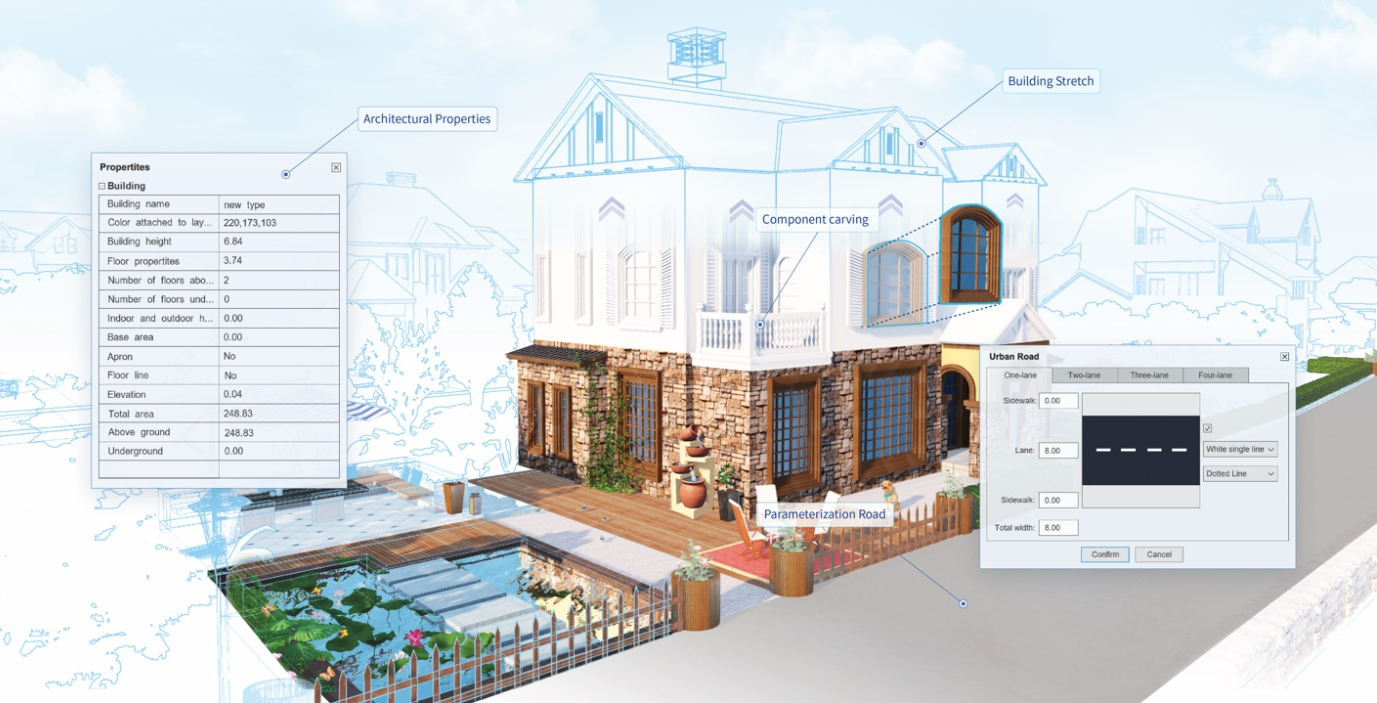
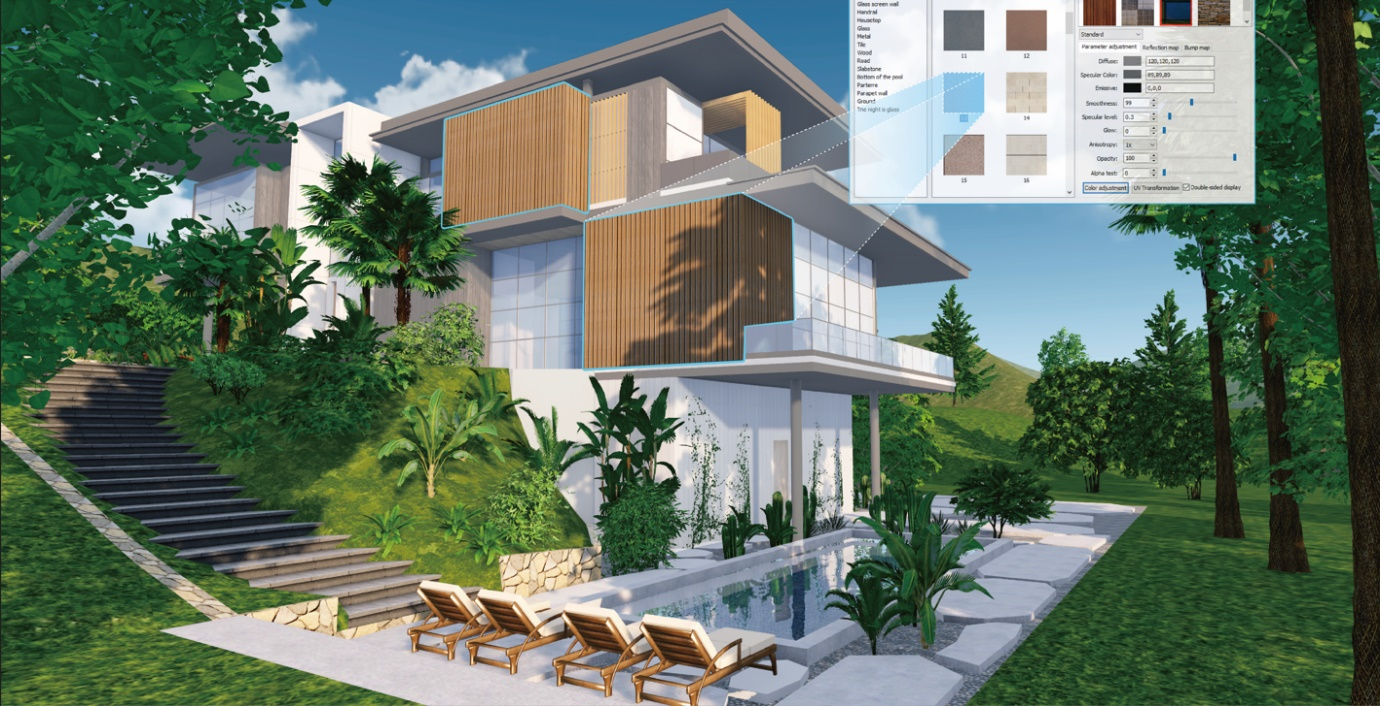
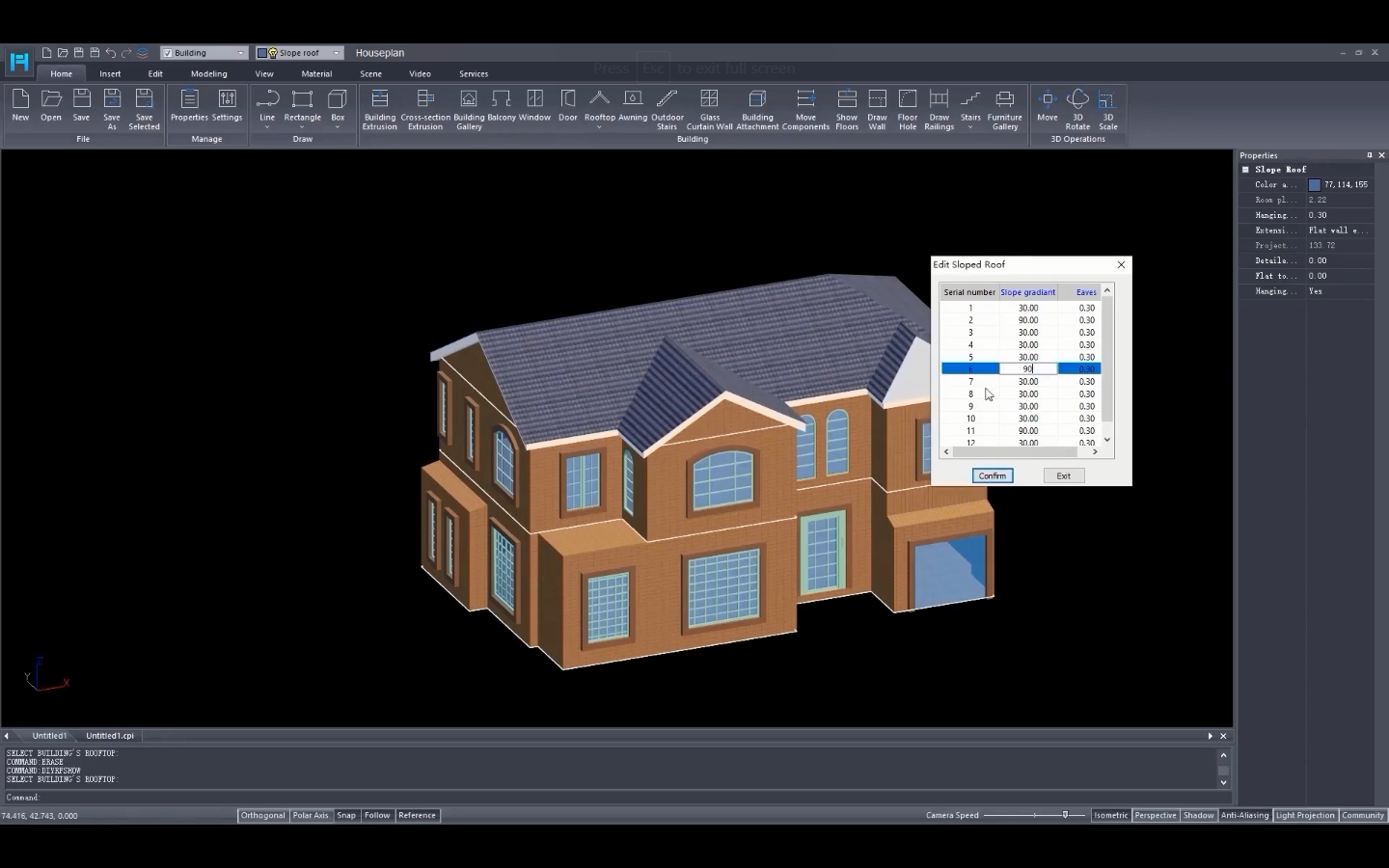
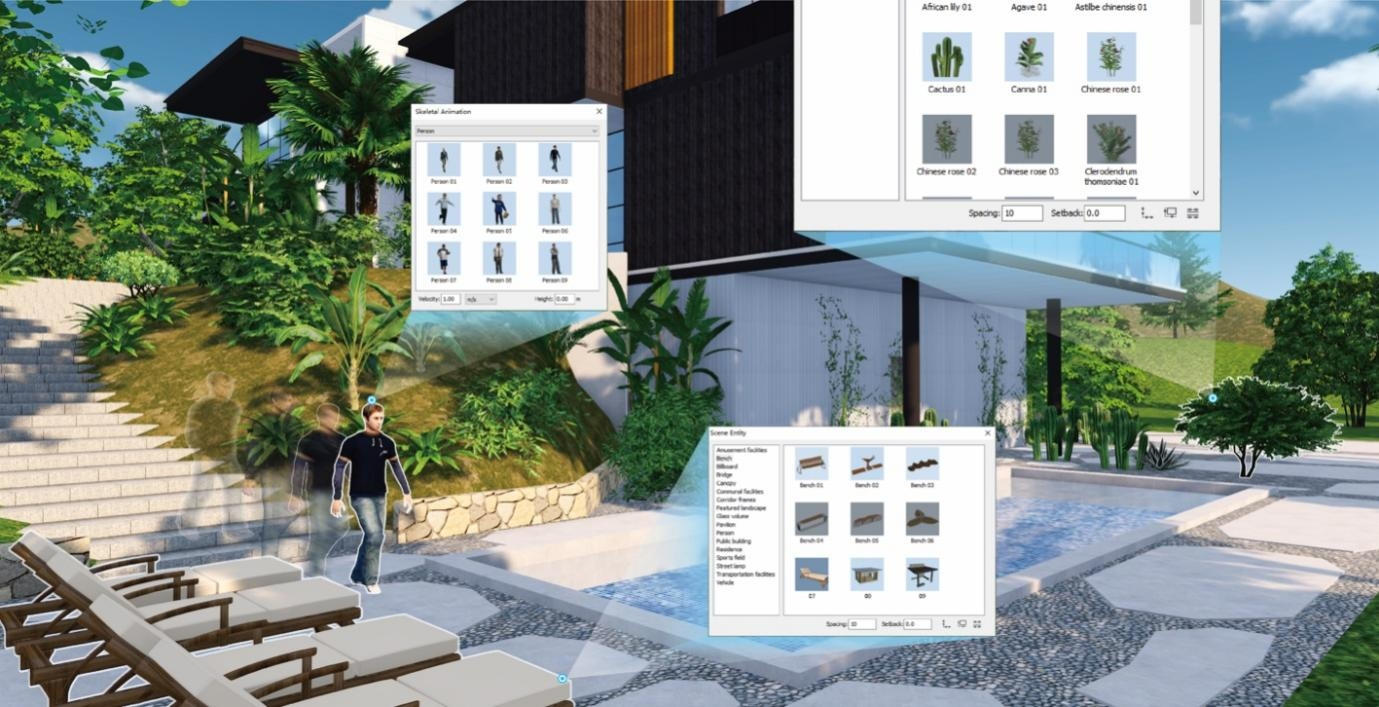

- Name Houseplan
- Category Productivity
- Available on PC
- OS Windows 10 version 0.0 or higher
- languages English
An Intro to Houseplan for Windows: Your Digital Blueprint Companion
If you're tired of juggling multiple plans, sketches, and notes across different platforms, Houseplan for Windows emerges as a streamlined solution to organize and visualize your home design process. With its focus on creating clear, detailed floor plans and integrating seamlessly into your workflow, this app aims to serve architects, interior designers, DIY homeowners, and real estate enthusiasts alike. Developed by Gstarsoft Co., Ltd., a team experienced in graphics and CAD-related software, Houseplan offers a suite of features designed to transform your ideas into professional-level blueprints with ease.
Key Highlights of the App
- User-friendly drag-and-drop interface: Build accurate floor plans effortlessly without extensive CAD knowledge.
- Rich library of architectural components: Access a wide variety of furniture, fixtures, and structural elements to enhance your designs.
- Precise measurement and scalability tools: Ensure your plans are dimensionally accurate, ready for presentation or construction.
- Workflow integration: Designed to blend seamlessly into your productivity landscape, reducing cognitive load and avoiding cluttered feature sets.
Living with Houseplan: An Engaging User Experience
Imagine starting your home project as if you're sketching on a clean canvas—simple, intuitive, almost playful. Houseplan for Windows turns this fantasy into reality. From the moment you open the app, it invites you into a clean, organized workspace where creativity and precision walk hand in hand. Whether you're mapping out an apartment renovation or designing a new dream home, the app makes the process feel less like a chore and more like a creative adventure.
Core Functionality 1: Designing Floor Plans with Ease
At the heart of Houseplan lies its drag-and-drop interface, reminiscent of arranging furniture in a virtual room. Building walls, inserting doors, adding windows—all can be achieved fluidly without complex menus or overwhelming options. The app's library of architectural components is intuitively organized, allowing users to find what they need quickly. This simplicity doesn't sacrifice detail; precision rulers and measurement tools enable accurate scaling, making it ideal for professional presentations or DIY plans. The clear visual feedback ensures you're never lost, and pre-set room dimensions help reduce errors before they reach the construction stage.
Core Functionality 2: Enhancing Visualization and Detail
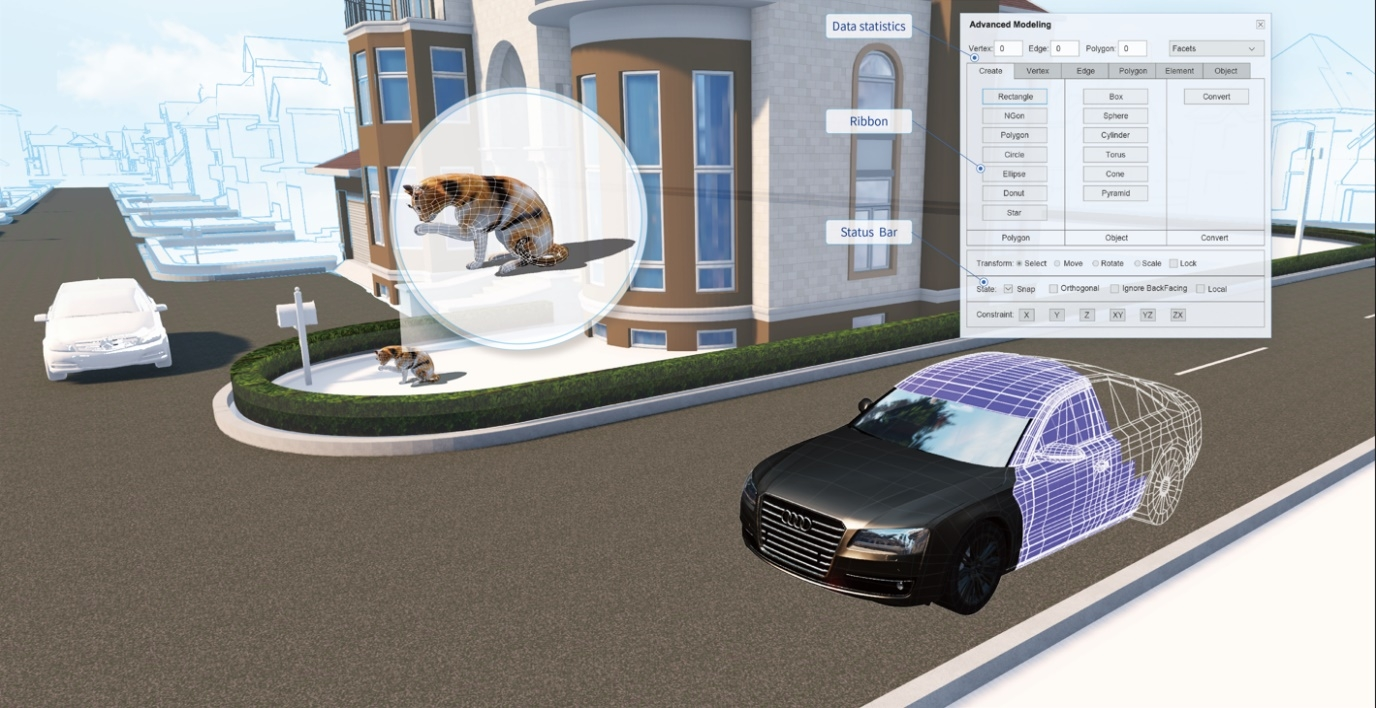
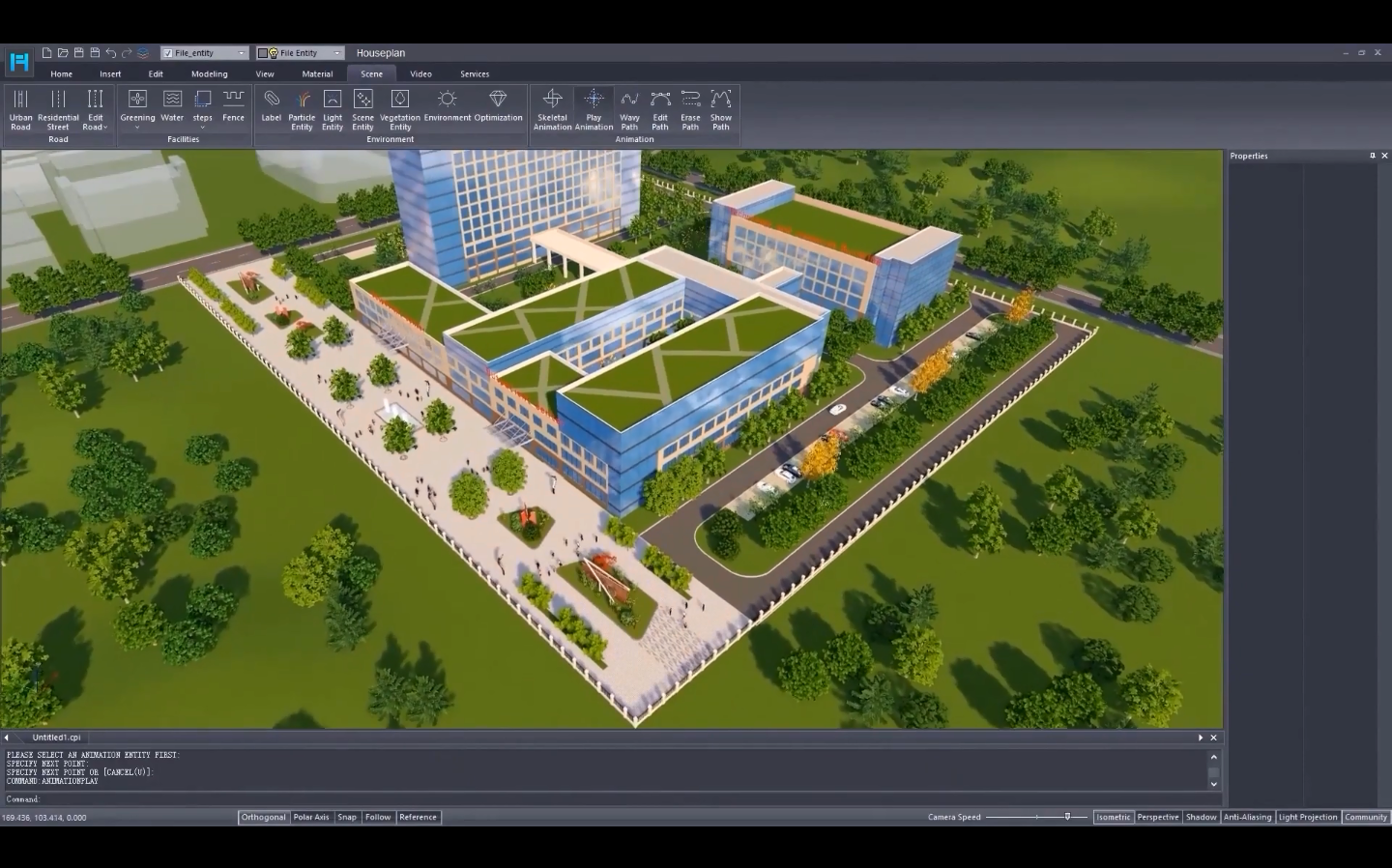
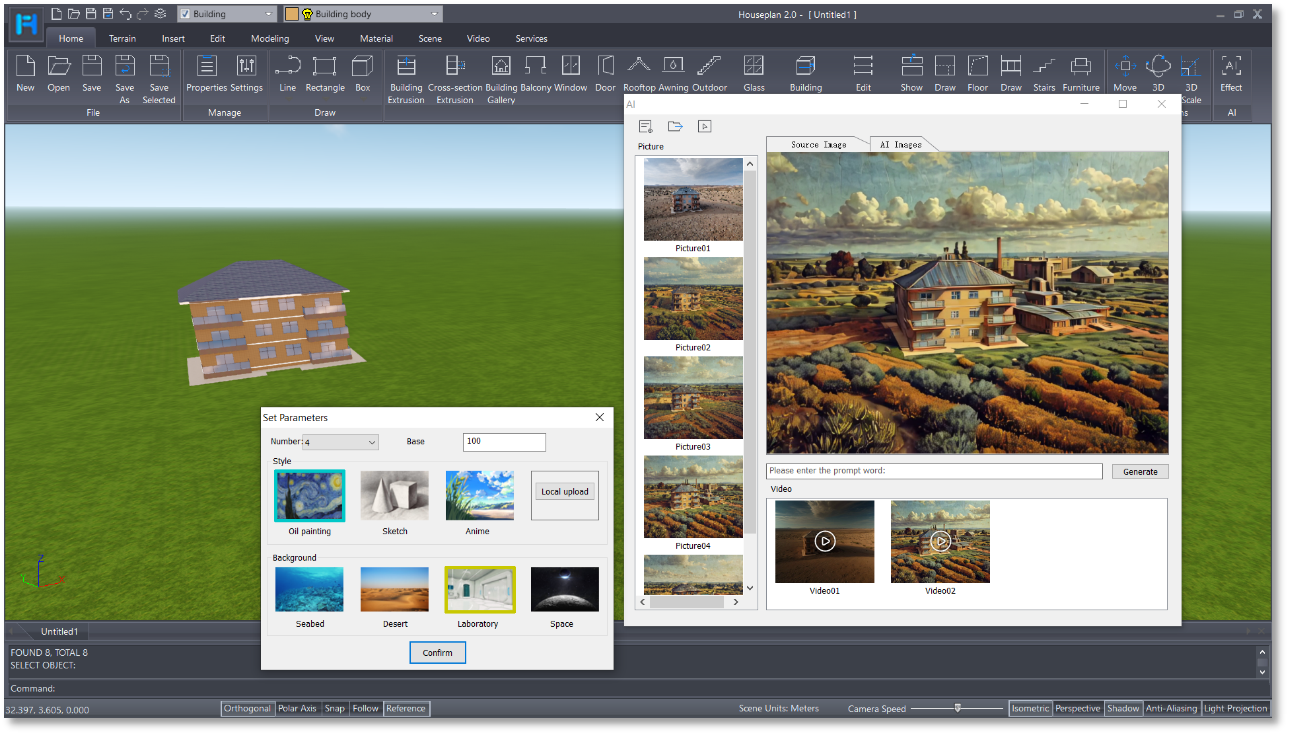
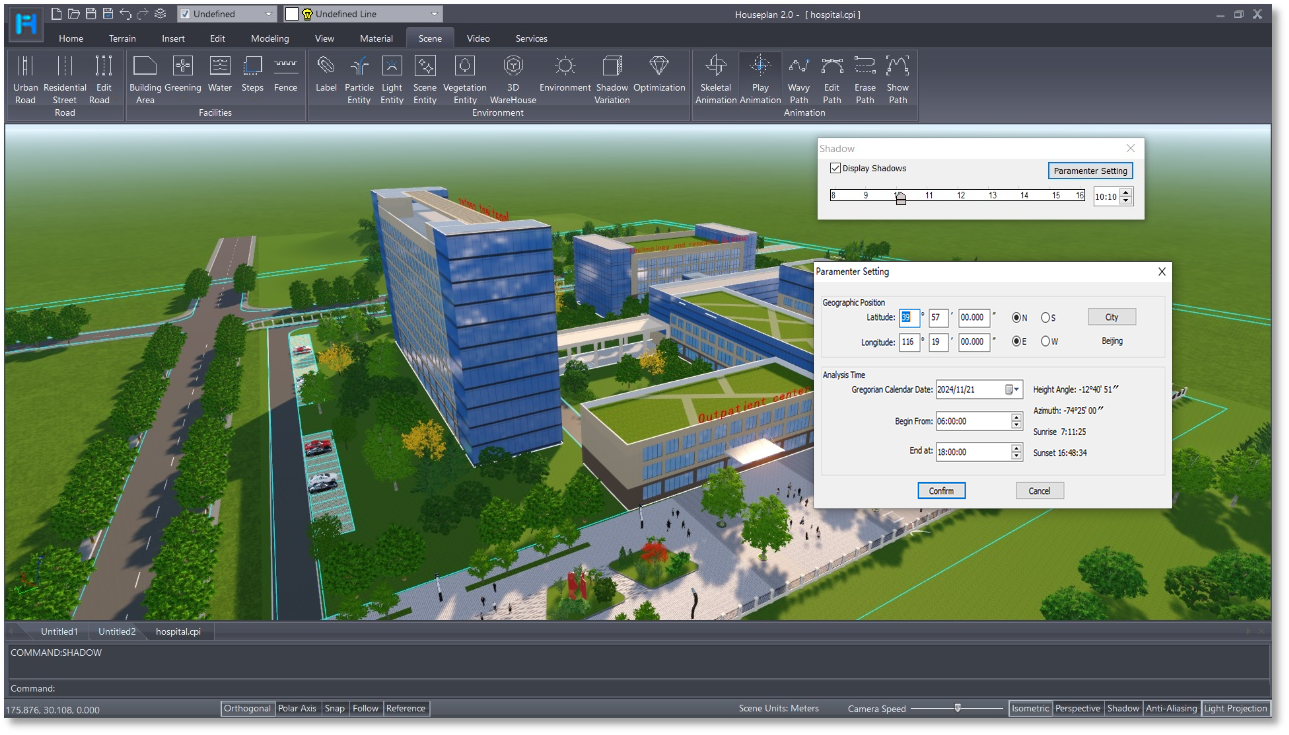
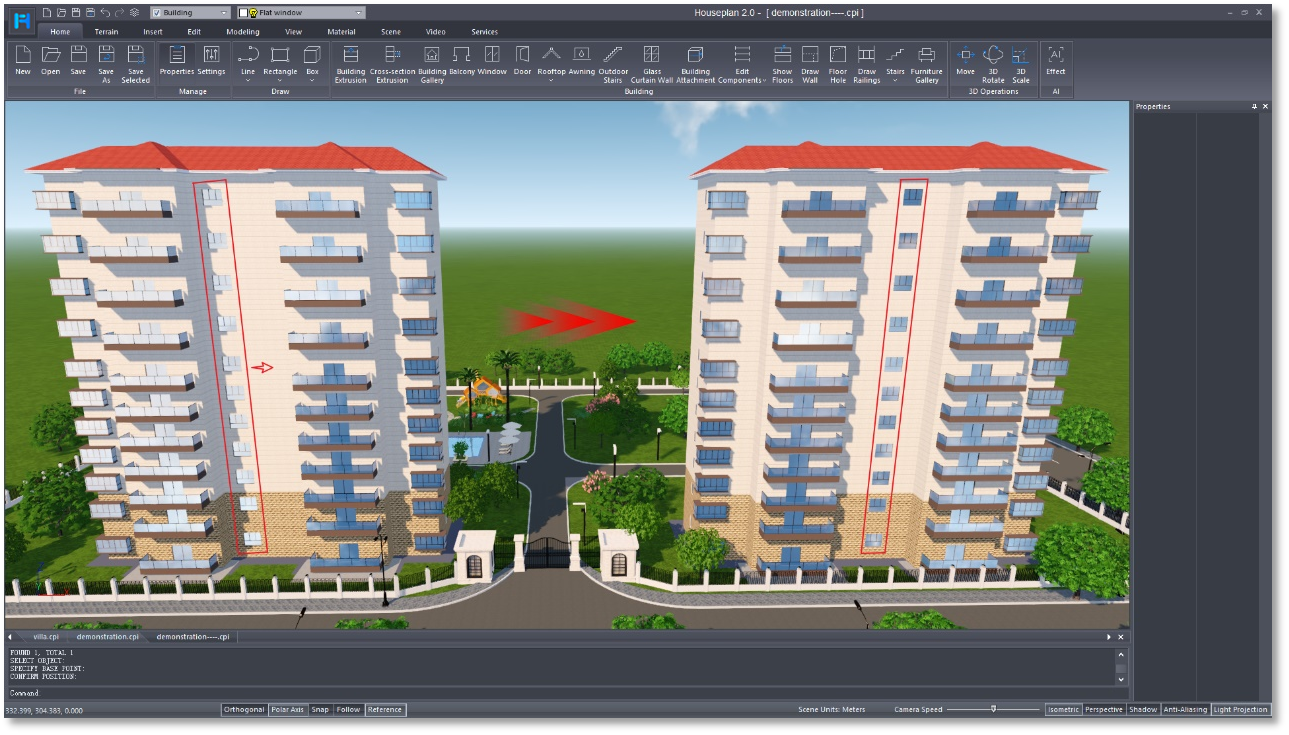
Beyond basic layouts, Houseplan excels in providing detailed visualizations. Users can add furniture, appliances, and fixtures via the extensive libraries—turning bland sketches into convincing representations of real spaces. The app's object snapping and alignment features keep everything neat and precise, enhancing the overall clarity of your design. This level of detail supports better decision-making, especially when collaborating with clients or contractors who rely on visual cues. Additionally, exporting high-quality images and reports ensures your plans look professional and polished.
Evaluating the User Experience and Differentiators
The interface's design mirrors a well-organized toolkit; everything feels at your fingertips, minimizing the mental effort involved in switching between tools. Smooth responsiveness and minimal lag contribute to a satisfying workflow—no frustrating delays or cluttered screens here. Compared to other productivity apps that often overwhelm users with features, Houseplan maintains a delicate balance of functionality and simplicity, ensuring users aren't burdened with unnecessary complexity. Its standout feature appears to be the focus on reducing cognitive load—offering a streamlined set of tools that facilitate working efficiently, rather than bogging you down with distractions. This makes it particularly advantageous for users who want to keep their focus on design rather than navigating menus.
Is Houseplan for You? Recommendations and Final Thoughts
If you're searching for a Windows-based home design app that combines intuitive usability with enough detail for professional planning, Houseplan deserves serious consideration. Its primary strengths lie in its ease of use and workflow efficiency, making it suitable for beginners and seasoned designers alike. However, if you require highly advanced features like 3D modeling or complex structural analysis, you might find it limited. Nevertheless, for straightforward floor plan creation and visualization, it strikes a commendable balance.
In conclusion, Houseplan for Windows stands out by prioritizing user experience and workflow integration. It simplifies the design process without sacrificing essential detail, helping you turn your home projects from ideas into clear, actionable blueprints. I recommend giving it a try if you're aiming for a tidy, effective, and approachable design tool that feels more like a helpful assistant than a cumbersome software suite.
Pros
- Extensive house plan library
- User-friendly interface
- Customization options available
- High-quality images and detailed plans
- Regular updates with new plans
Cons
- Limited free access to plans
- Occasional app crashes on older devices
- Navigation could be improved for advanced filtering
- No 3D visualization feature currently
- Limited customer support options











