



- Name HEVC Player for Windows
- Category Productivity
- Developer Media AI Center
- Available on PC, Mobile, Surface Hub, HoloLens
- OS Windows 10 version 17763.0 or higher
- languages English (United States)
Unboxing HEVC Player for Windows: A Sleek Solution for Efficient Video Playback
If you've ever found yourself frustrated by slow buffering or juggling multiple media players that clutter your desktop, HEVC Player for Windows promises to streamline your viewing experience with a focus on efficiency and simplicity. Developed by Media AI Center, this lightweight app aims to deliver high-quality video playback without the fuss. Let's dive into what makes this app stand out and whether it's worth adding to your digital toolkit.
A Closer Look at the Developer and Core Features
Created by Media AI Center, a team known for producing user-centric multimedia tools, HEVC Player is tailored specifically for Windows users seeking a straightforward, reliable media player optimized for HEVC (H.265) video formats. Its main attractive points include fast decoding capabilities, a clean and intuitive interface, efficient resource utilization, and easy integration into your workflow. Designed with a broad audience in mind, from casual viewers to professionals needing quick media previews, the app emphasizes minimal learning curve and seamless operation.
Experience the Visual and Functional Highlights
Vivid, Minimalist Interface for Effortless Viewing
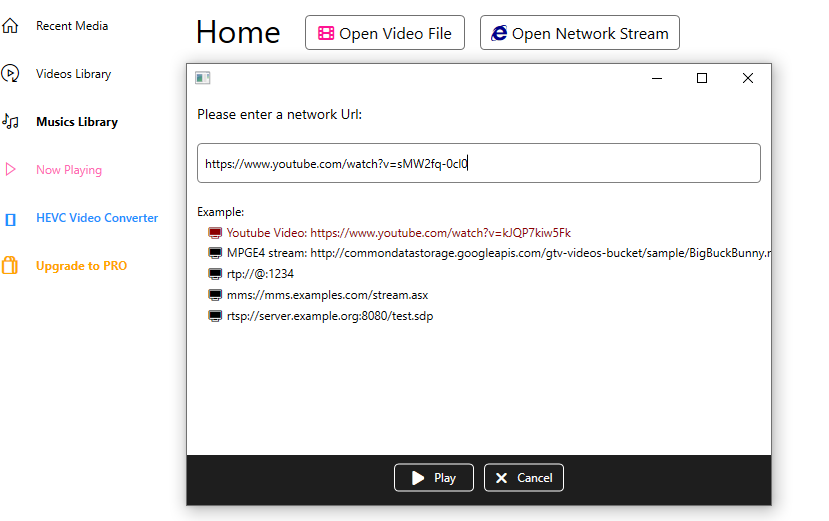
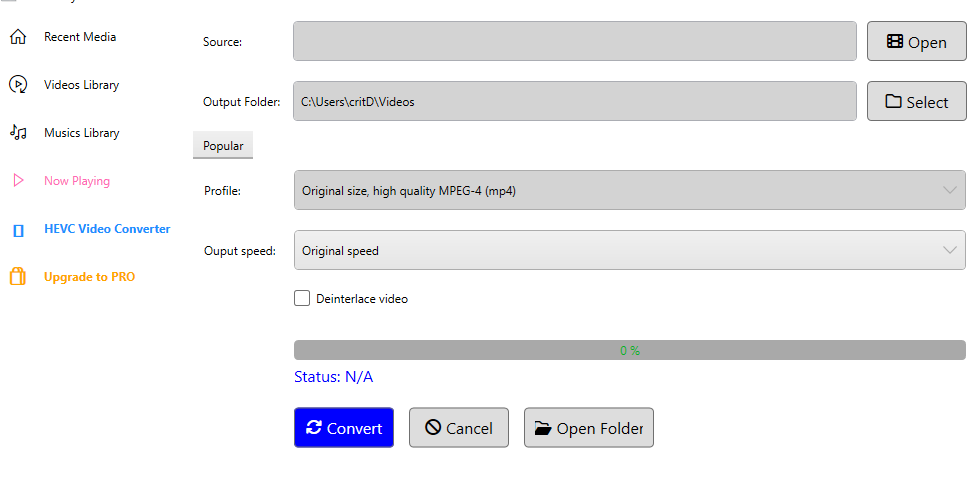
Upon launching HEVC Player, you're greeted with a sleek, modern interface that resembles a well-organized media dashboard rather than a cluttered control center. The design zeros in on simplicity—large playback buttons, minimal menu options, and a clean workspace that keeps your focus on the video content. This layout is akin to sitting in a cozy lounge where everything is within reach yet unobtrusive, making navigation feel natural even for first-time users.
Robust Playback and Compatibility
The core strength of HEVC Player lies in its ability to decode HEVC videos efficiently, ensuring high-definition playback without taxing your system. Unlike some free players that struggle with high-res files, this app handles 4K and HDR videos smoothly, thanks to its hardware-accelerated decoding engine. Moreover, it supports a variety of formats beyond HEVC, such as MP4 and MKV, making it a versatile media companion ideal for diverse content libraries.
Streamlined Workflow Integration and Reduced Cognitive Load
What truly sets this app apart from many other media players is its thoughtful focus on reducing the cognitive load during media consumption. Instead of bombarding users with an array of complex features or distracting options, HEVC Player streamlines the entire experience—less menu surfing, more watching. Its quick access to essential functions means less mental effort in navigating settings, enabling you to focus on what matters: your viewing pleasure. Compared to bulky, feature-heavy players, HEVC Player offers a clean, focused environment aligned with effective workflow practices, reducing unnecessary cognitive steps and making routine video playback effortless.
Recommendation and Usage Tips
For users who prioritize straightforward, high-quality video playback without the fuss, HEVC Player for Windows is a solid choice. Its minimalist design combined with efficient decoding capabilities makes it particularly well-suited for professionals managing large media libraries or casual users seeking reliable performance. While it lacks some advanced editing or streaming features found in more complex media suites, its core strength lies in delivering a smooth, hassle-free viewing experience. I recommend giving it a try if you want a lightweight, dependable player that respects your time and cognitive resources.
Pros
- Supports a wide range of HEVC video formats
- Smooth playback of 4K HEVC videos
- Lightweight and easy to install
- Integrates seamlessly with Windows system
- Provides user-friendly interface
Cons
- Limited playback features compared to full media players
- Occasional compatibility issues with certain HEVC files
- No built-in subtitle support
- Limited customization options
- Offered only for Windows platform











