
- Name GlideX
- Category Productivity
- Developer ASUSTeK COMPUTER INC.
- Available on PC
- OS Windows 10 version 16299.0 or higher
- languages Arabic, Chinese (Simplified) (China), Chinese (Traditional Chinese), Czech, Danish, Dutch, English, English (United States), Finnish, French, German, Greek, Hebrew, Hungarian, Indonesian, Italian, Japanese, Korean, Norwegian (Bokmål), Polish, Portuguese (Brazil), Portuguese (Portugal), Romanian, Russian, Slovak, Spanish, Swedish, Thai, Turkish, Ukrainian, Vietnamese
Introduction: Streamlining Your Windows Workflow with GlideX
Imagine a magic wand that seamlessly connects your various devices and platforms, transforming how you multitask and manage your digital workspace — that's exactly what GlideX for Windows aims to deliver. Developed by ASUSTeK Computer Inc., this app serves as a bridge to unify your screens, apps, and workflows into a more cohesive and efficient experience. Whether you're a busy professional, a student juggling multiple tasks, or a tech enthusiast seeking smoother integrations, GlideX promises to simplify your digital life in ways traditional tools often fall short of.
Core Features That Make GlideX Stand Out
Multi-Device Screen Mirroring and Extension
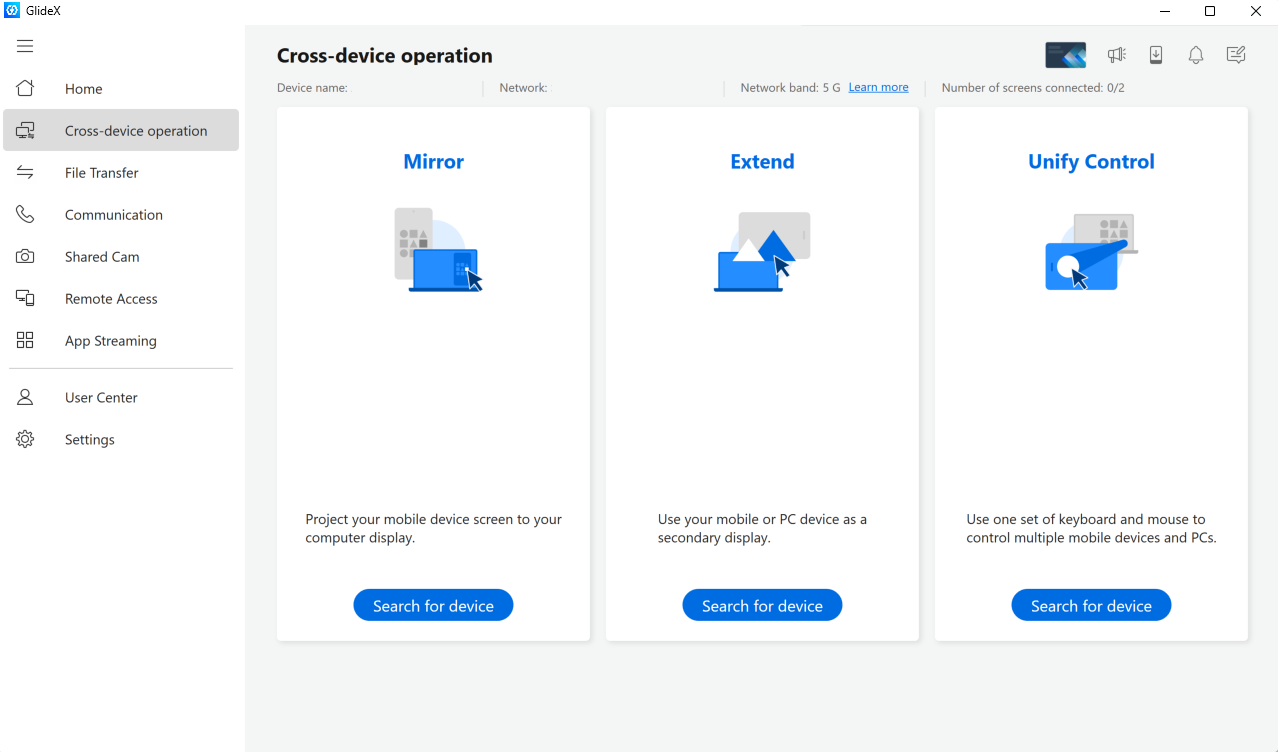
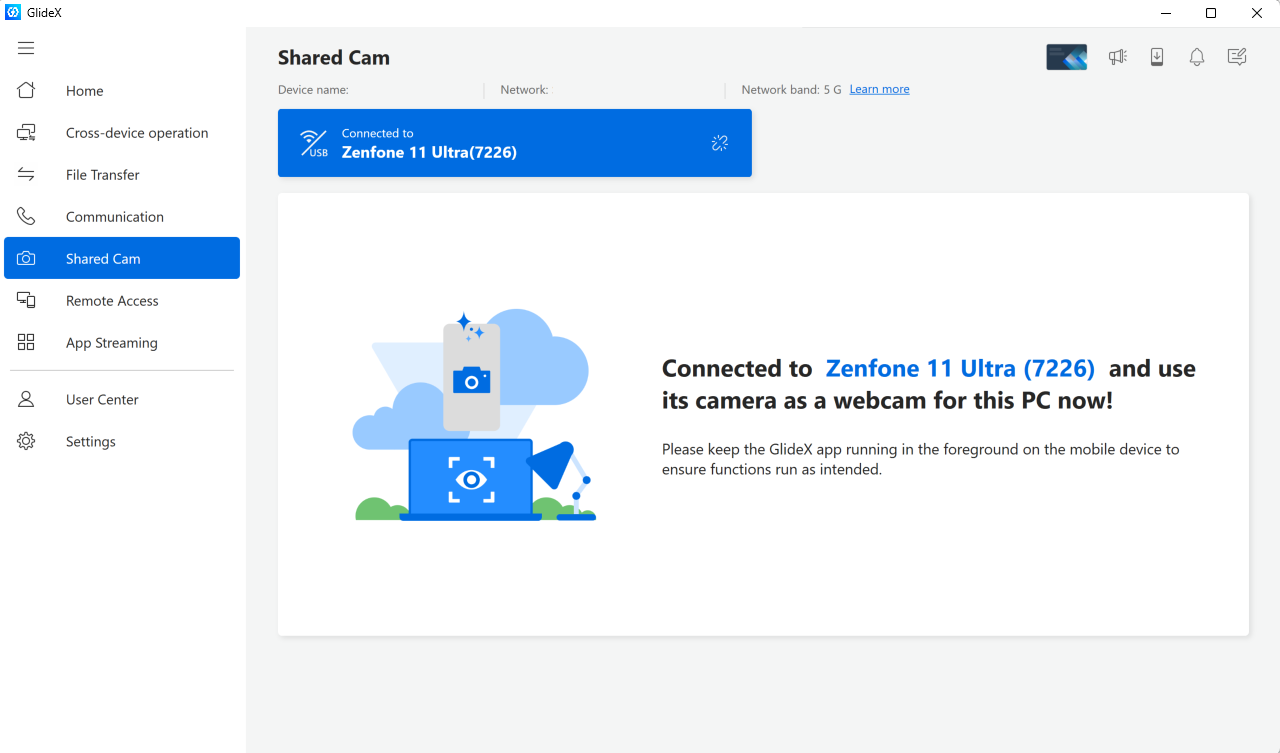
At its heart, GlideX lets you mirror or extend your Windows screen to other devices effortlessly. Whether you're working on a laptop and want to share content on a tablet or use a second monitor for extra workspace, GlideX creates a seamless, wireless connection. Unlike generic screen sharing tools, it's optimized for low latency and stability, making your multi-monitor setup feel natural — almost like having an infinite canvas that adapts fluidly to your needs.
Integrated Cross-Platform App Management
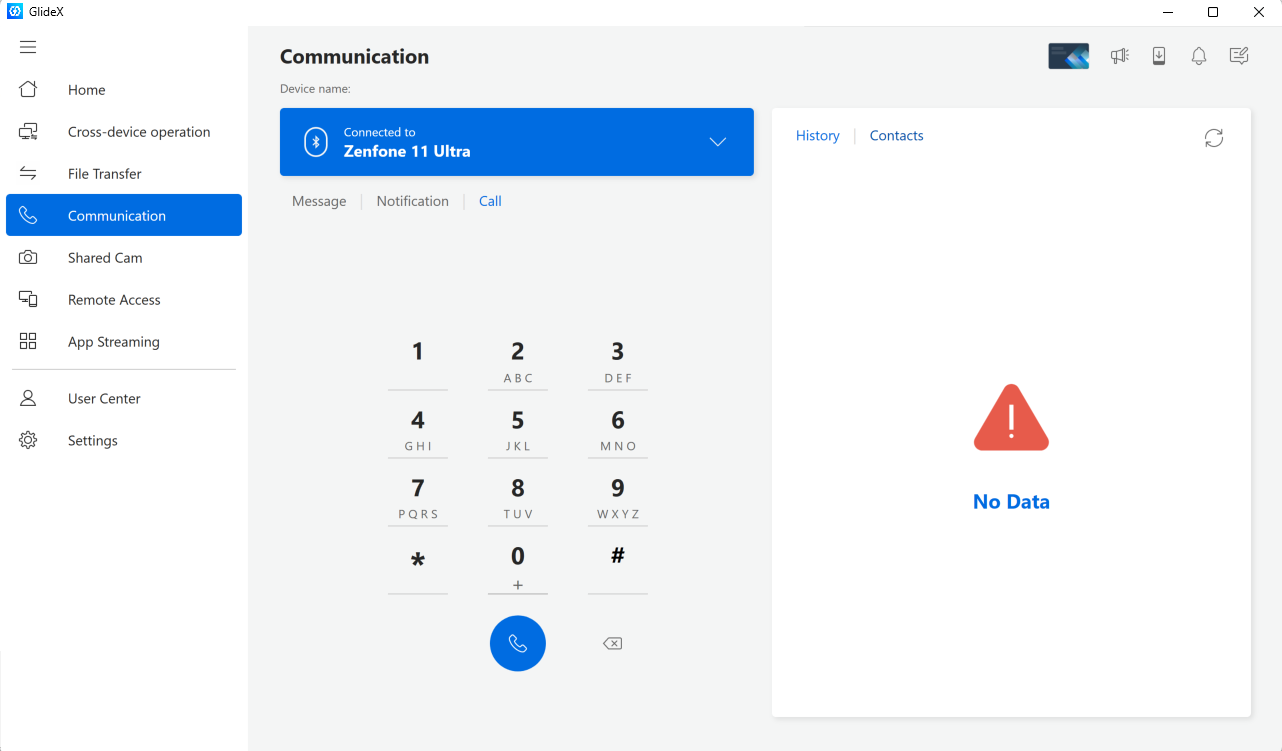
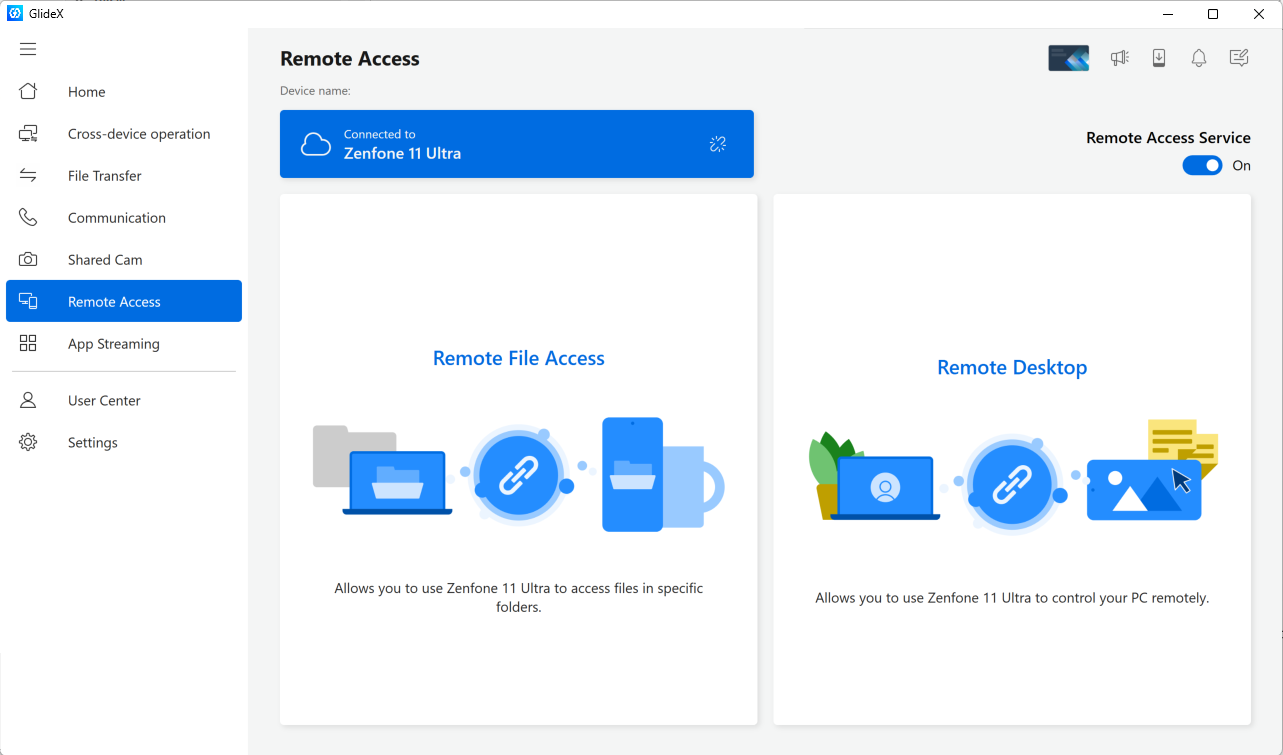
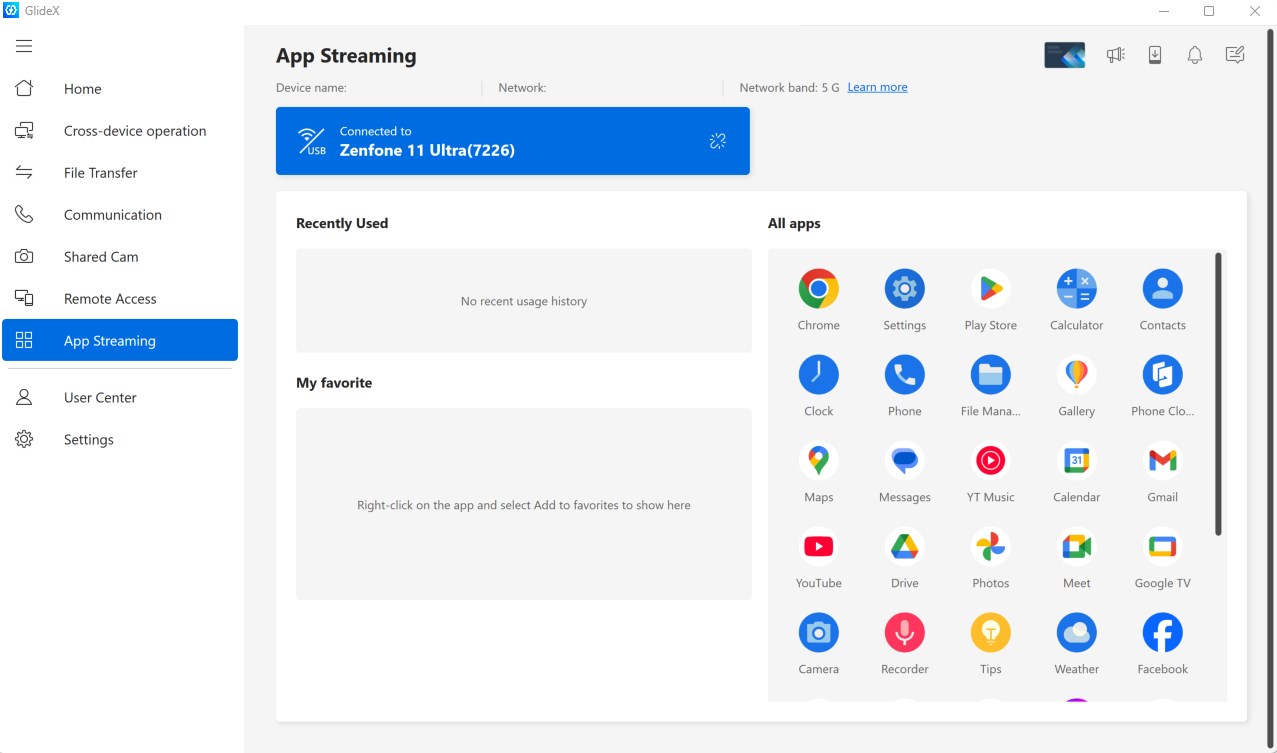
Another standout feature is GlideX's ability to enable cross-platform app control. You can run and control Android apps directly on your Windows PC via connected devices, reducing the need for switching between multiple gadgets. This integrated environment reduces cognitive load—no more juggling between different devices and interfaces—allowing your focus to stay steady and your productivity to climb.
Intuitive User Interface with Smart Workflows
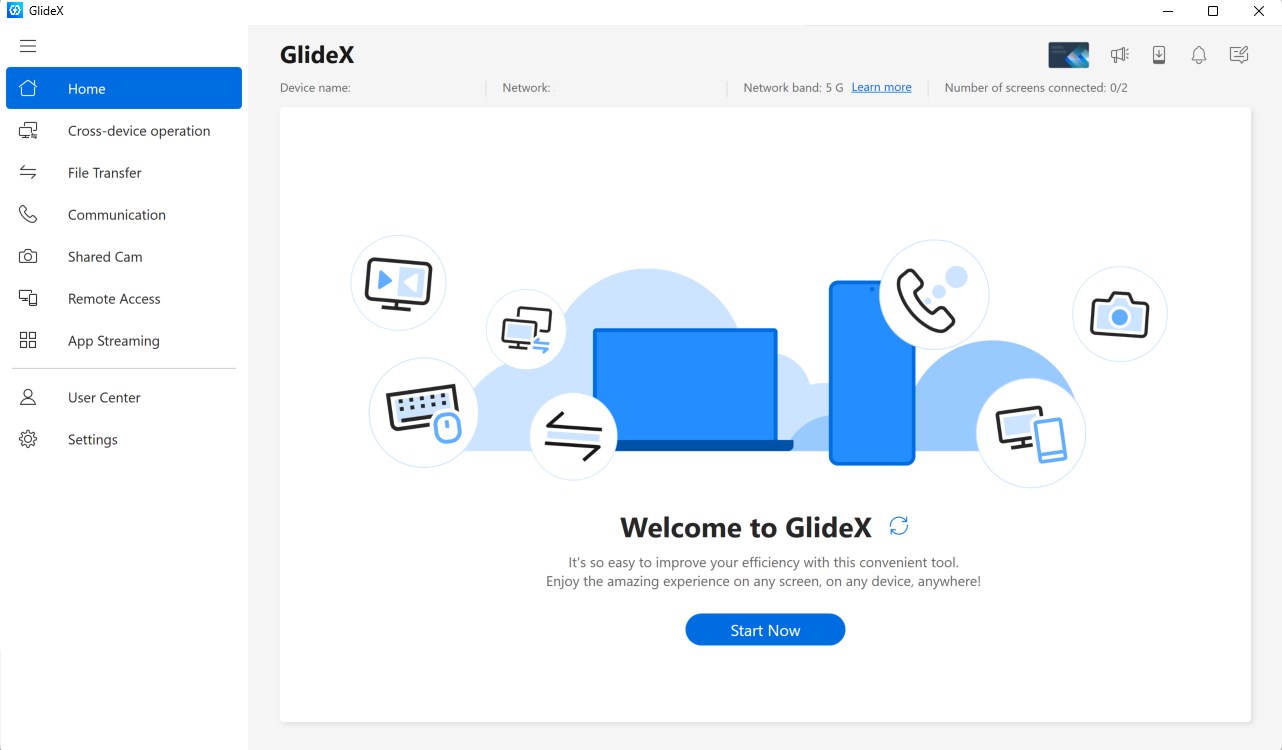
The application boasts a clean, user-friendly interface, where navigation feels intuitive rather than overwhelming. Setup is straightforward, with guided prompts aiding even first-time users through device pairing and connection, while the smart interface adapts to your workflow needs over time. This thoughtful design minimizes learning curves, so you spend less time fiddling and more time doing.
User Experience and Performance: Smooth Sailing or Choppy Waters?
GlideX for Windows offers a refreshingly smooth user experience, thanks to its efficient engine optimized for minimal lag. The interface leverages simple icons and logical layout, making multi-device management feel almost like a breeze — akin to tending a well-organized workspace. During testing, interactions were snappy, with negligible delay even when streaming high-resolution content or running resource-intensive apps, highlighting its suitability for demanding users.
In terms of learning curve, GlideX scores highly. Its straightforward onboarding process minimizes user frustration, and in-app tutorials help you unlock more advanced functionalities gradually. The overall experience is akin to learning a new dance — initially deliberate but becoming second nature with practice.
What Sets GlideX Apart from Competing Productivity Tools
Unlike many productivity applications that focus solely on either device sharing or app control, GlideX excels by harmonizing both within a unified ecosystem. Its cross-device mirroring and native Android app integration reduce the cognitive load that comes with managing multiple platforms. It's like having a personal assistant that not only shares your screen but also anticipates your workflow needs by reducing context switching and streamlining steps.
Another key advantage is its emphasis on workflow efficiency. Instead of adding complexity with numerous features, GlideX opts for smart, targeted tools that enhance productivity without complicating the user experience. This thoughtful balance allows users to extend their workspace dynamically, without feeling overwhelmed or bogged down by unnecessary settings.
Final Recommendations and Usage Tips
Considering its strengths, I would recommend GlideX for users seeking an integrated, low-latency solution to connect multiple devices and streamline workflows. It's particularly valuable for professionals who need to display content across devices or run Android apps on Windows without cumbersome setups.
For best results, ensure your devices are on the same high-speed Wi-Fi network to maximize connection stability. Take some time to familiarize yourself with its setup process — once configured, GlideX becomes an unobtrusive yet powerful tool seamlessly woven into your daily routine.
In conclusion, GlideX for Windows stands out with its thoughtful design and core capabilities—particularly its ability to unify multi-device screens and manage cross-platform apps efficiently. It offers measurable reductions in cognitive load compared to more fragmented solutions, making your digital workspace feel less cluttered and more cohesive. If you're tired of toggling through myriad apps and devices, GlideX might just be the partner you need for smarter, more efficient multitasking.
Pros
- Intuitive user interface
- High-quality video output
- Wide range of templates
- Regular updates and bug fixes
- Integration with other Microsoft services
Cons
- Limited advanced editing features
- Occasional lag during complex projects
- Free version has restricted export options
- Learning curve for some templates
- Limited multilingual support











