

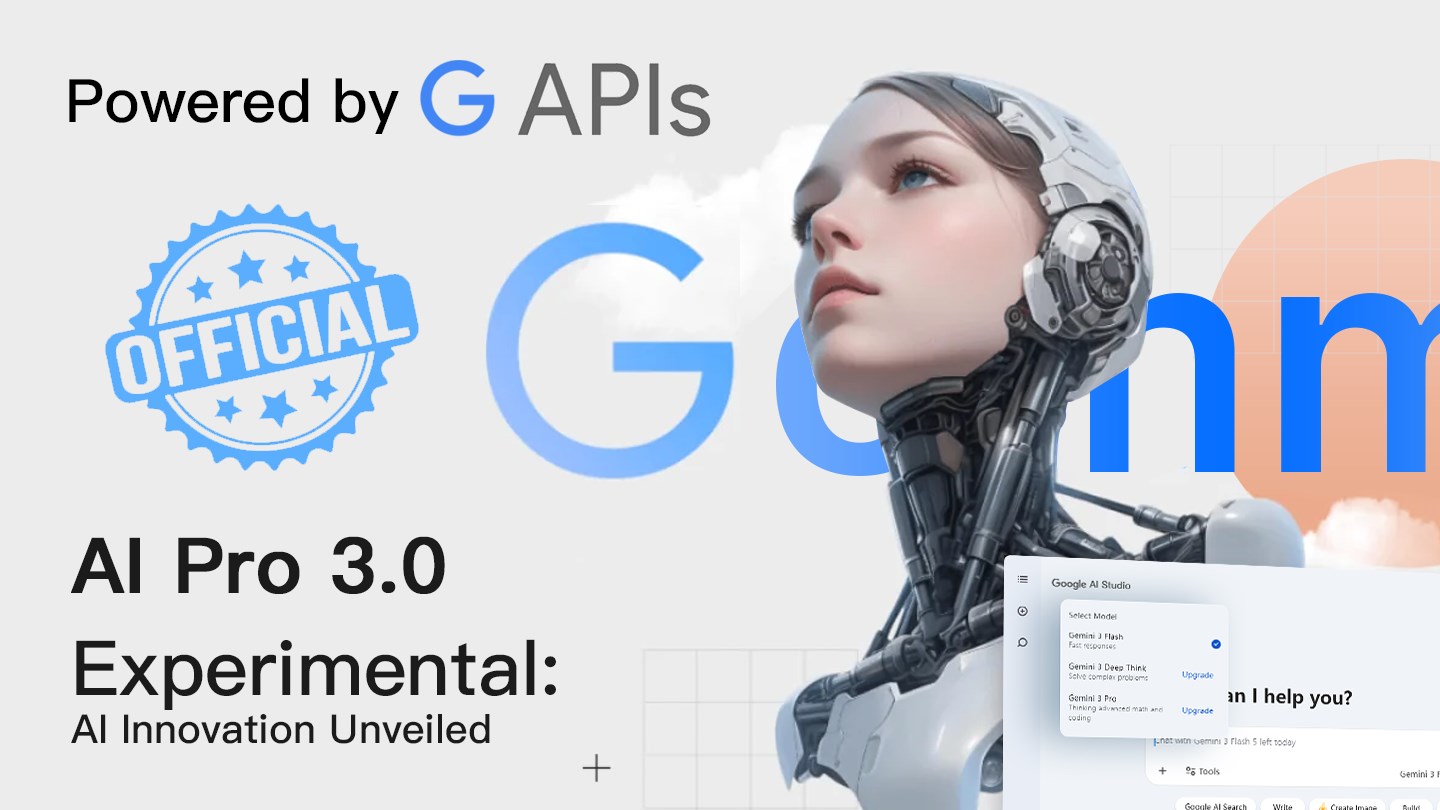
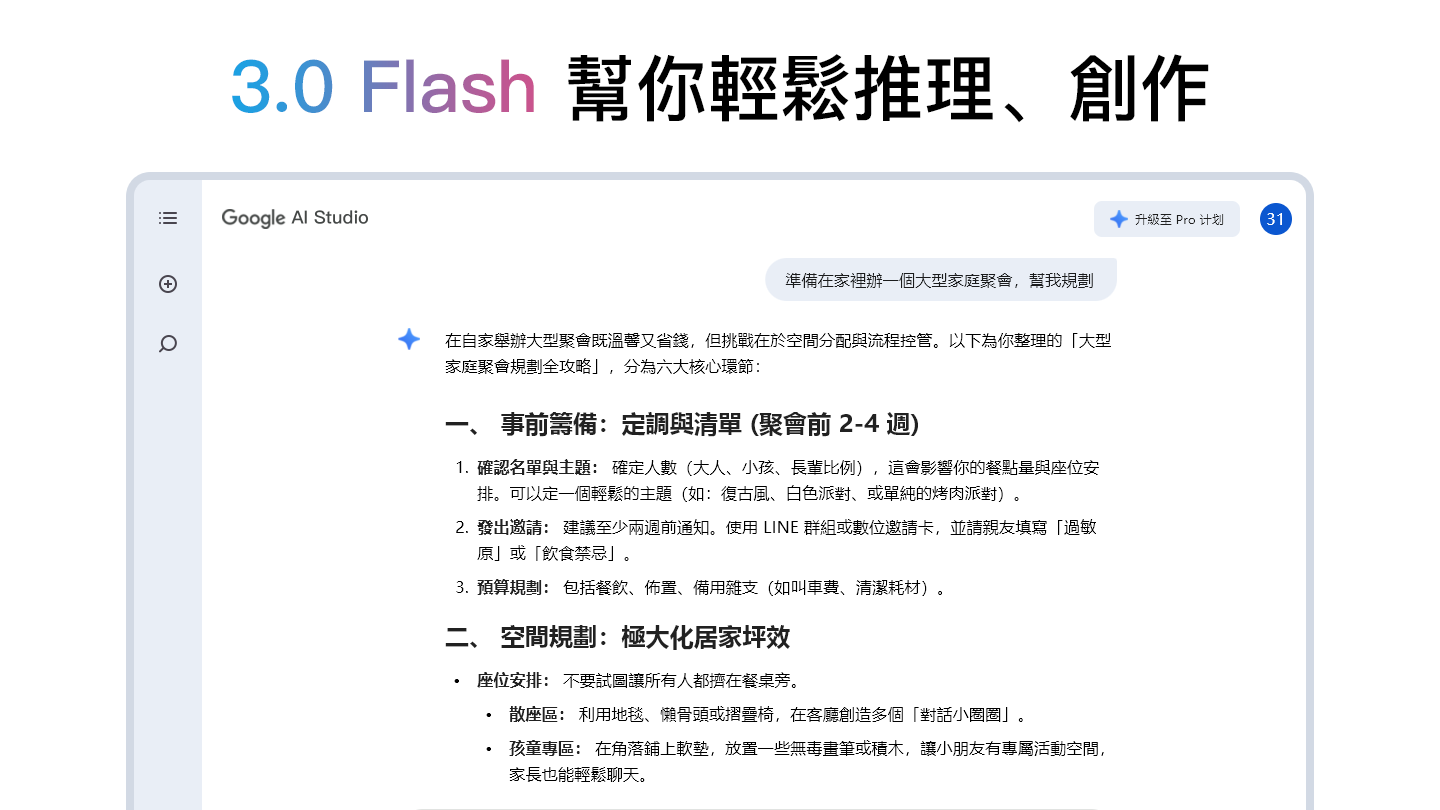
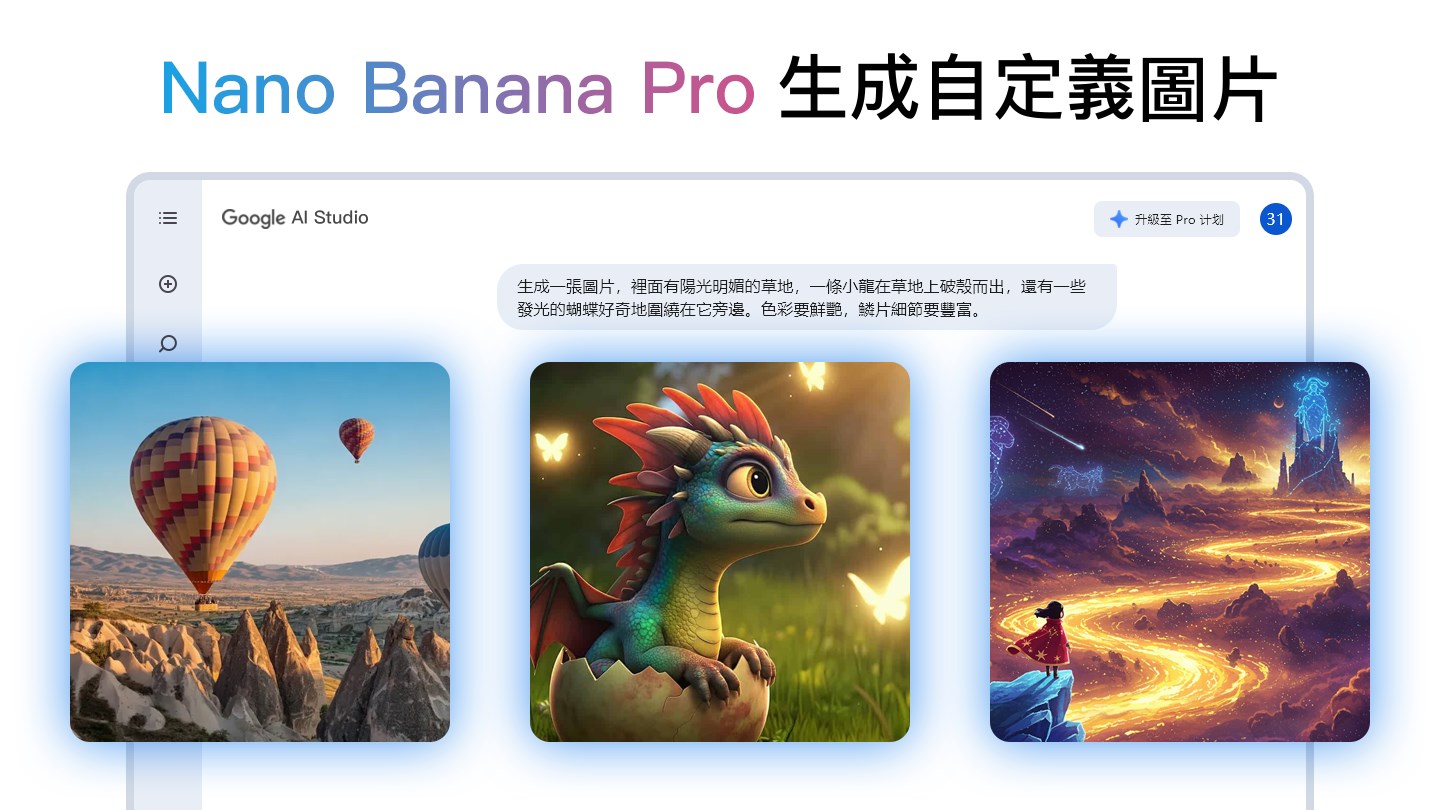
- Name GemMind AI - Multimodal AI Assistant
- Category Productivity
- Developer Chat APP Studio
- Available on PC
- OS Windows 10 version 17763.0 or higher
- languages English (United States)
GemMind AI: The Multimodal AI Assistant Revolutionizing Windows Productivity
Imagine having a versatile digital companion that seamlessly understands and responds to your voice, images, and text prompts—making your Windows experience smarter, faster, and more intuitive. GemMind AI aims to do just that, bridging the gap between various modes of input to streamline your workflows and elevate your productivity.
Who is GemMind AI For?
Developed by Chat APP Studio, a dedicated team focused on innovative AI solutions, GemMind AI targets professionals, students, content creators, and tech enthusiasts who crave a more integrated and intelligent computer assistant. Its primary focus is on users seeking to reduce cognitive load and enhance multitasking efficiency without the clutter of overly complex features.
Unpacking GemMind AI: A Fresh Take on Multimodal Integration
If you're tired of juggling multiple apps and windows to get your ideas flowing, GemMind AI presents itself as the perfect bridge—bringing voice commands, image recognition, and text editing into a unified workspace, smoothly synchronized to your intentions. Its engaging interface is designed to feel familiar yet sophisticated, like having a knowledgeable assistant by your side, whispering insights and taking commands effortlessly.
Seamless Multimodal Inputs: More Than Just a Smart Assistant
At the heart of GemMind AI is its ability to process and interpret different input types efficiently. Whether you're speaking to it during a video call, snapping a picture of a handwritten note, or pasting a complex prompt into the chat, the app adapts gracefully. For example, imagine reviewing a diagram and asking GemMind to generate an explanation or modify details—this fluidity transforms traditional workflows. The app's recognition algorithms are tuned for accuracy, allowing users to switch between modes without missing a beat.
Enhanced Workflow Integration: Less Cognitive Hijack, More Focus
Unlike many productivity apps that overload you with features, GemMind AI emphasizes reducing cognitive load by integrating key functions. Its natural language processing combined with visual recognition minimizes the need to juggle multiple tools. For instance, instead of copying and toggling between apps for image editing or note-taking, you can do it all within GemMind AI—like having a multi-talented aide on your desktop. This focus on streamlined workflows helps users achieve more with less mental clutter, making it ideal for those who value efficiency over feature junkiness.
Elegant design, Smooth Operation, Intuitive Learning Curve
The application's interface strikes a balance between minimalism and functionality, with clean menus and clear prompts that invite exploration. The user experience feels snappy, supporting quick toggles between voice commands and visual inputs without lag. Though some initial adjustment might be needed to familiarize yourself with certain commands, the learning curve remains gentle—like learning the nuances of a new but friendly language. This accessibility makes GemMind AI a compelling choice for both tech-savvy users and newcomers alike.
Final Thoughts: To Use or Not to Use?
Considering its emphasis on multimodal input integration, reduced cognitive load, and workflow efficiency, GemMind AI stands out among Windows productivity tools. It isn't bogged down by overwhelming features but instead offers a smart, focused experience that can truly augment your daily tasks. I'd recommend giving it a try if you're looking to unchain your productivity from the traditional mouse-and-keyboard routine and want a helpful digital partner that respects your time and mental space. Whether for work, study, or creative projects, GemMind AI shows real promise as a personalized, adaptive assistant—a smart tool worth exploring.
Pros
- Intuitive Multimodal Interface
- Advanced AI Capabilities
- User-Friendly Design
- Versatile Application
- Regular Updates and Improvements
Cons
- Limited Offline Functionality
- Speech Recognition Accuracy Varies
- Image Recognition May Be Basic
- Limited Language Support
- Customization Options Are Basic











