

- Name Foxit PDF Editor
- Category Productivity
- Developer Foxit Software Inc.
- Available on PC
- OS Windows 10 version 0.0 or higher
- Mouse Integrated Mouse
- Memory 750 MB
- languages Chinese (Simplified), Chinese (Traditional Chinese), Danish, Dutch, English (United States), Finnish, French, German, Italian, Japanese, Korean , Norwegian, Polish, Portuguese (Brazil), Russian, Spanish, Swedish
Streamlining PDF Management with Foxit PDF Editor for Windows
Foxit PDF Editor for Windows emerges as a versatile and user-friendly tool designed to simplify your document workflows, making PDF editing feel effortless rather than a chore.
An Introduction to Foxit PDF Editor
Developed by Foxit Software Inc., a renowned name in PDF solutions, this application positions itself as a comprehensive yet approachable PDF editor tailored for Windows users. Its primary aim is to enable users to effortlessly create, edit, annotate, and secure PDF documents within a unified interface. Key features that stand out include advanced editing capabilities without losing formatting, robust security options like password protection, seamless integration with cloud services, and powerful form handling tools. The target audience spans professionals, students, and casual users who frequently work with PDFs and seek a reliable editor that simplifies complex tasks without an overly steep learning curve.
Vivid Capabilities that Elevate PDF Editing
Intuitive Interface and Effortless Workflow
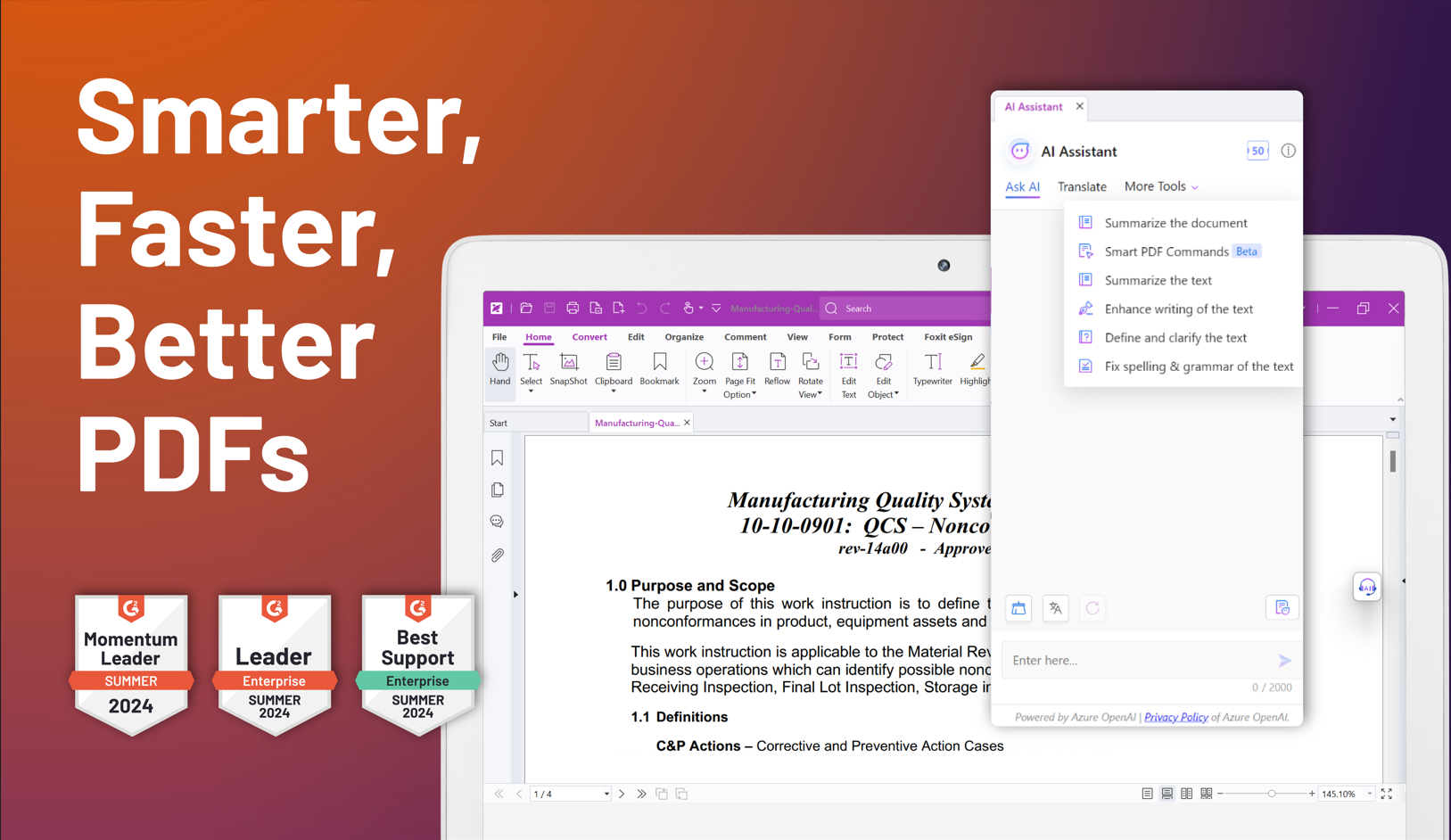
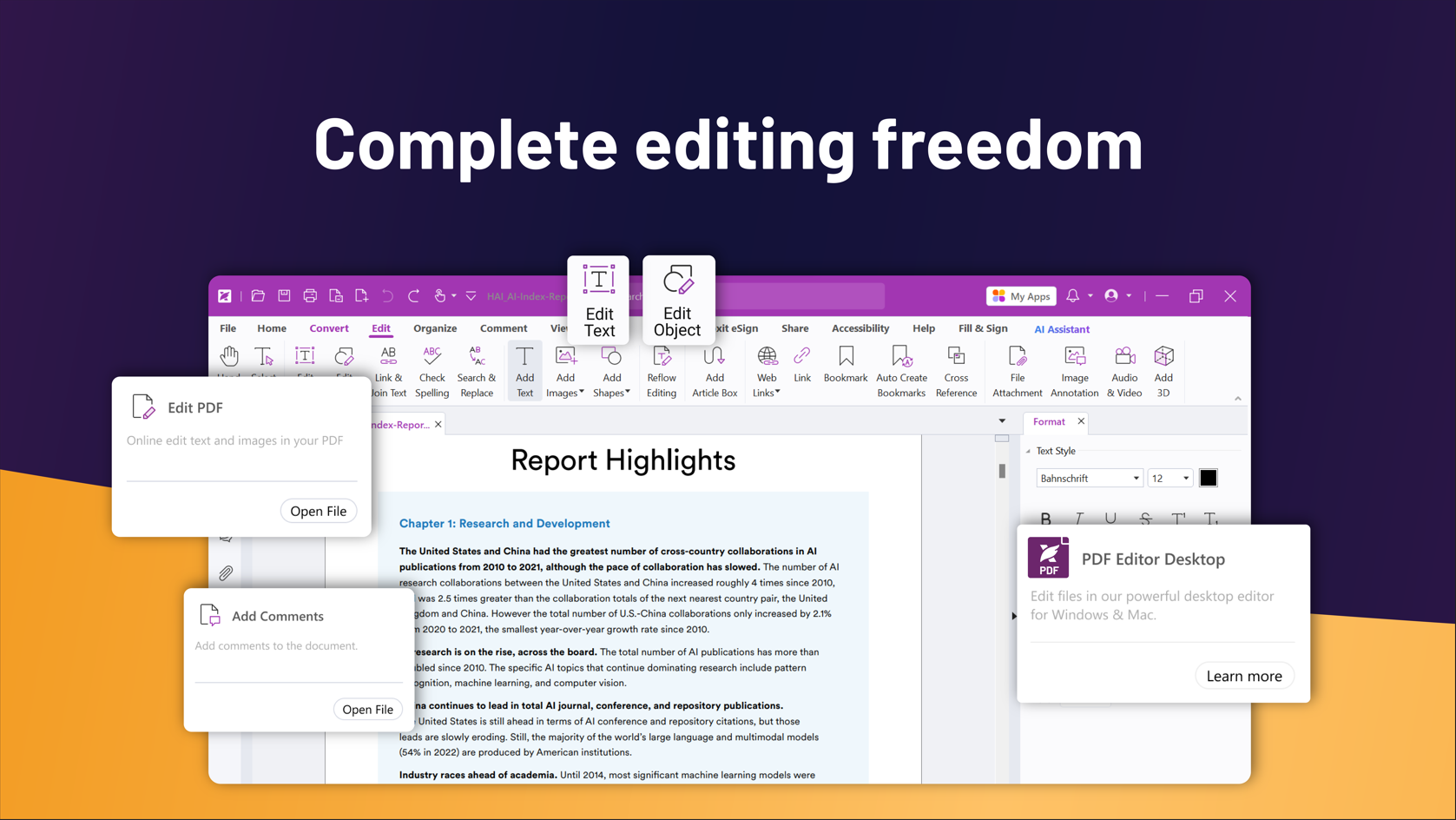
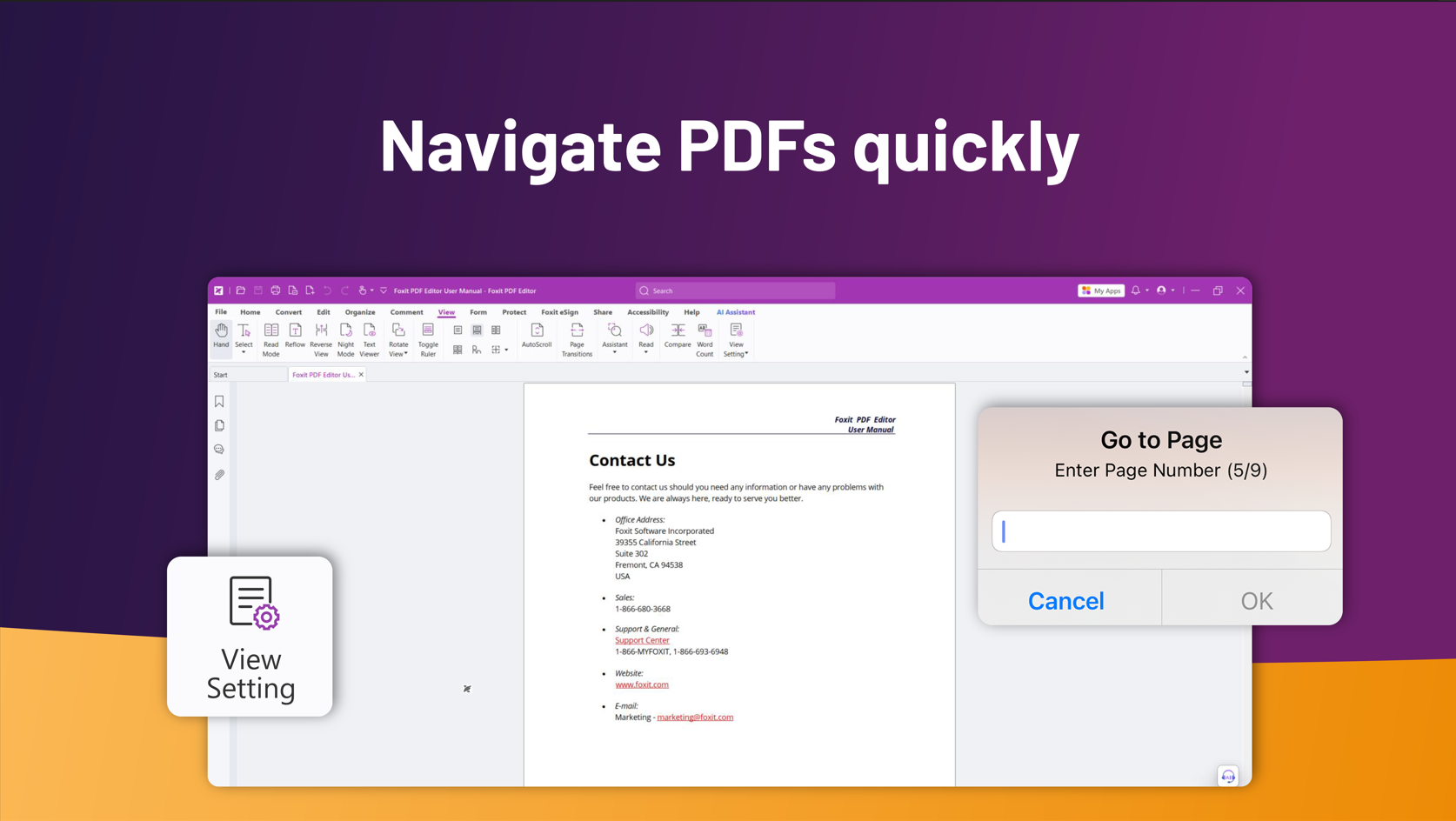
The design philosophy behind Foxit PDF Editor emphasizes clarity and ease-of-use. The interface resembles a well-organized workspace, much like a clean, well-lit desk. With tabs, ribbons, and contextual menus, users can find what they need swiftly. Navigation feels fluid, and common tasks such as adding annotations or editing text are akin to flipping through a well-structured book—intuitive and satisfying. The application runs smoothly, even with large files, demonstrating excellent responsiveness and minimal lag, which is essential for busy professionals who want to stay productive without frustration.
Advanced Editing & Annotation Features
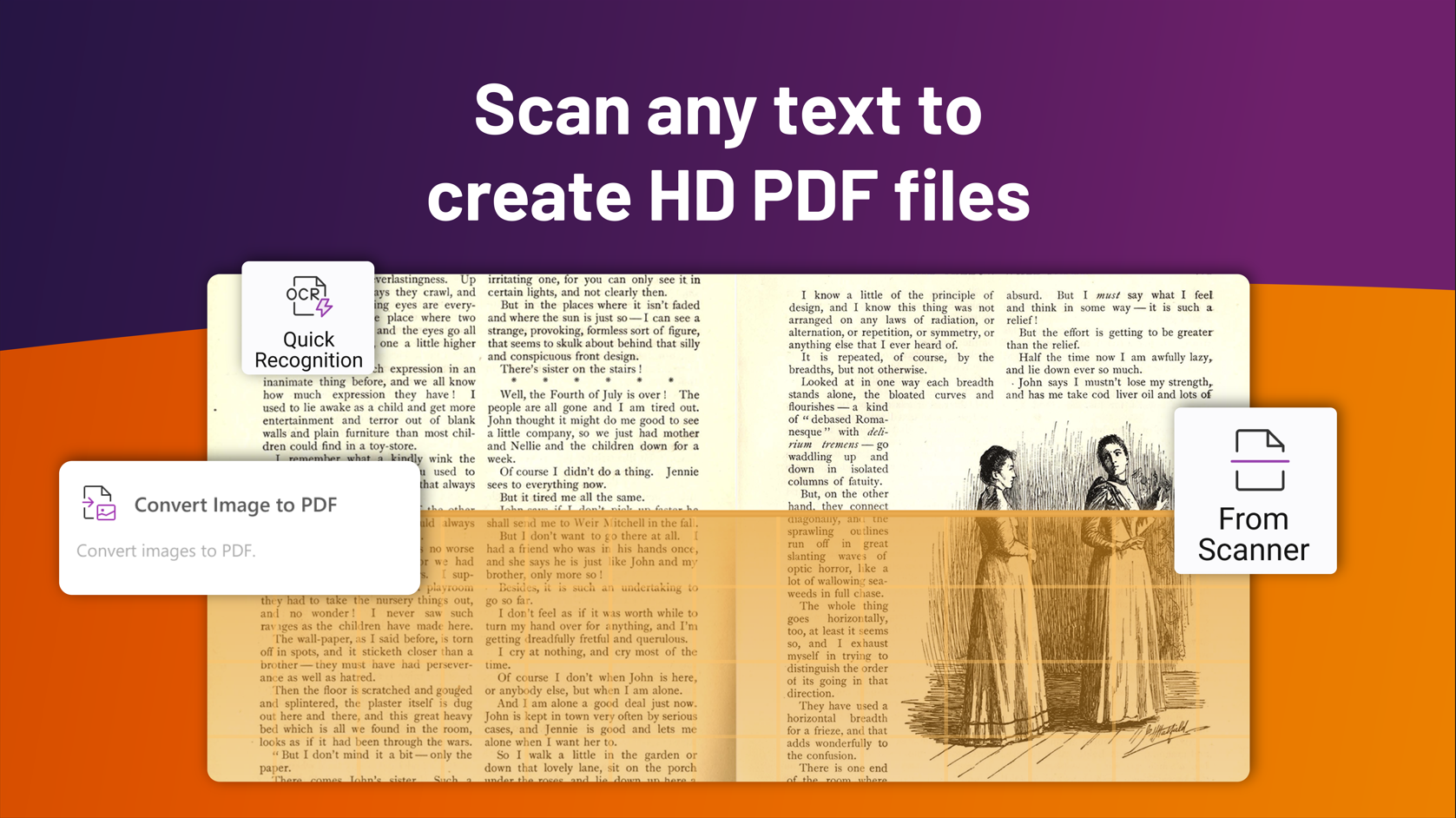
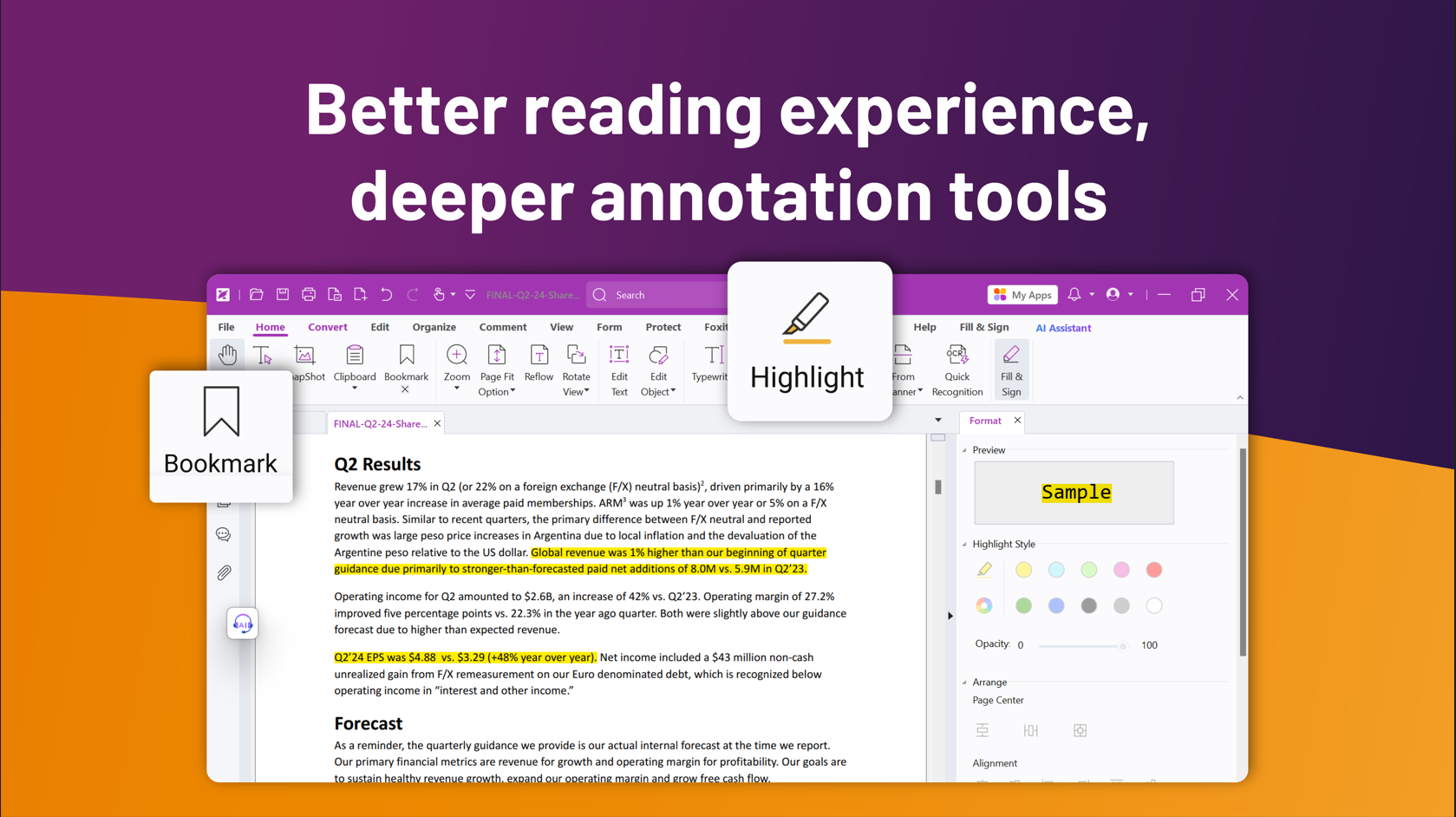
The core strength of Foxit PDF Editor lies in its ability to modify PDFs without breaking a sweat. Imagine editing a scanned contract or a brochure without having to recreate the entire layout—this is where its Optical Character Recognition (OCR) and editing tools shine. Users can easily edit text, images, and layout elements directly within the document. Annotating documents is equally straightforward: sticky notes, highlights, stamps, and drawing tools integrate seamlessly, making collaboration a breeze. These features elevate the PDF experience from static viewing to dynamic document interaction, boosting efficiency significantly.
Secure, Collaborative, and Cloud-Ready
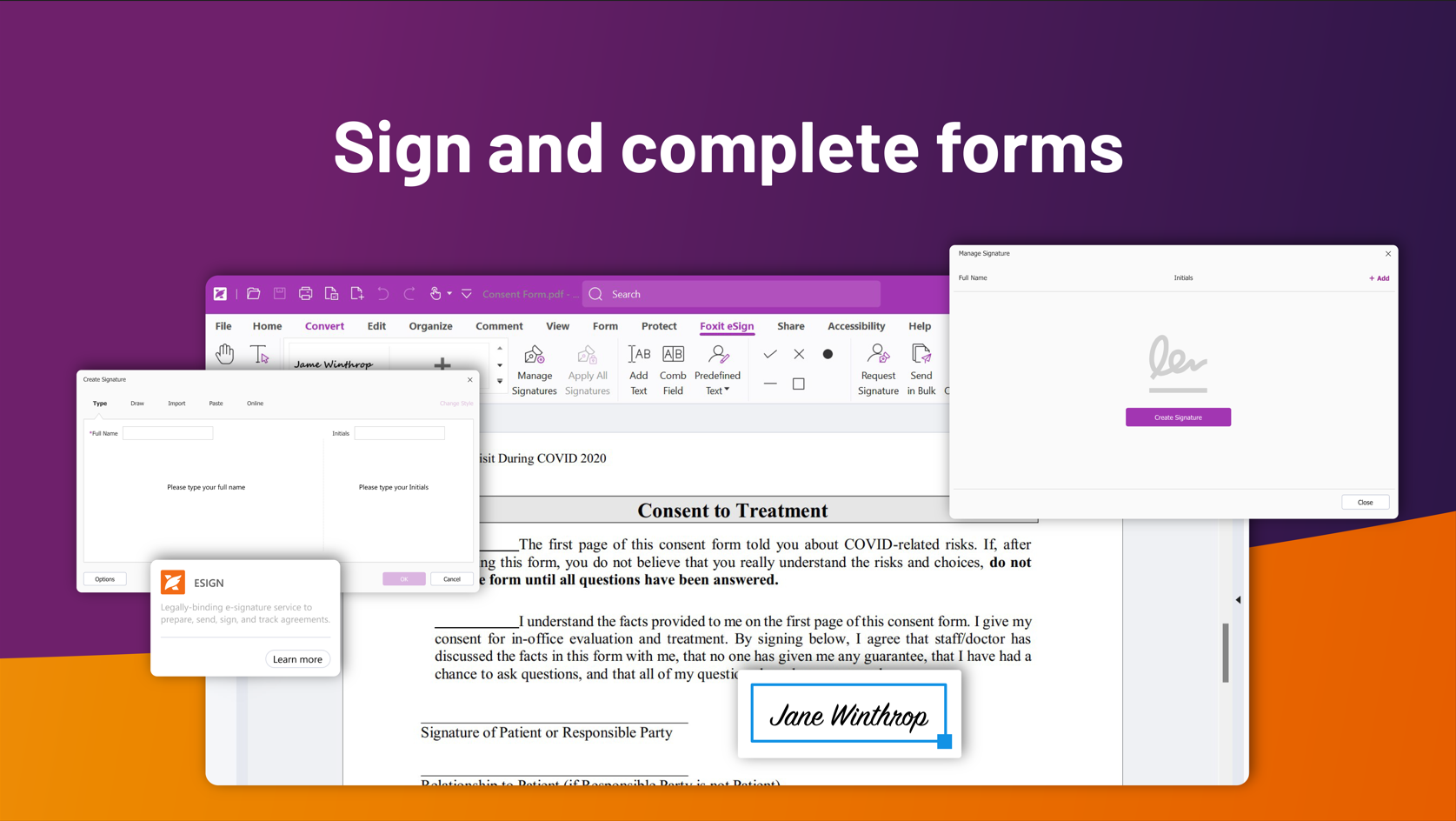
Another highlight is the app's security and sharing capabilities. Password protection, certificate encryption, and digital signatures keep your sensitive info safe. Plus, its tight integration with cloud platforms like OneDrive, Dropbox, and Box enables real-time sharing and collaboration—think of it as the Swiss Army knife of PDF tools, accommodating your entire workflow. From filling forms to signing contracts digitally, Foxit PDF Editor offers a cohesive environment that minimizes the need to juggle multiple applications.
Standout Features and User Experience
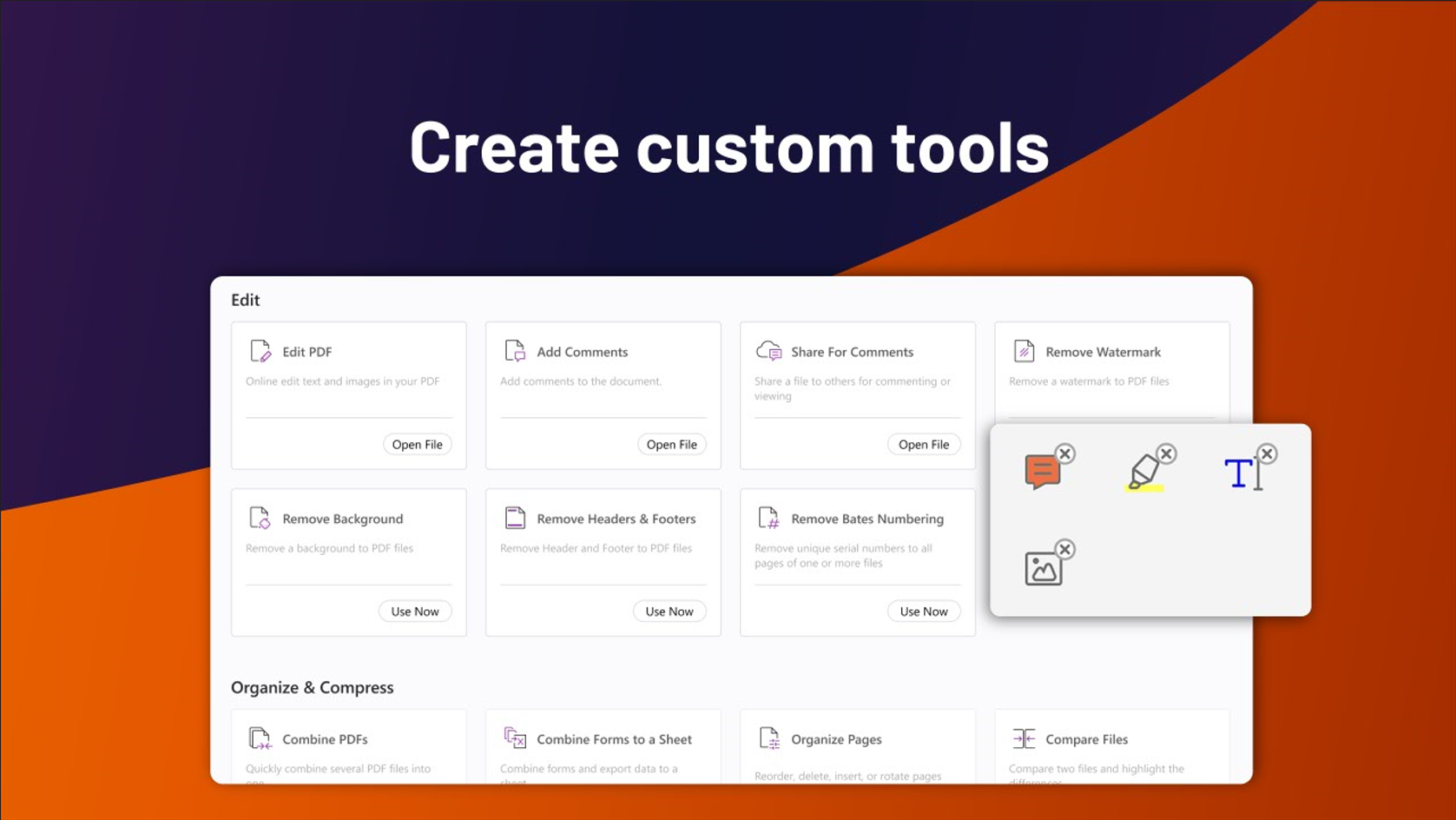
What truly sets Foxit apart from many similar tools is its focus on reducing cognitive load by simplifying complex workflows. The interface strikes a balance: packed with powerful features but not overwhelming, akin to a navigator that guides you intuitively without cluttering your cockpit. Its ability to handle detailed document edits while maintaining clarity makes complex tasks feel manageable. Moreover, the app's modular design means that you can access advanced functions when needed but remain in a distraction-free environment during routine tasks.
Recommendation and Usage Suggestions
If you're looking for a PDF tool that combines comprehensive functionality with a user-centric design, Foxit PDF Editor for Windows is worth considering. Its adeptness at streamlining document workflows, especially the unique OCR and security features, makes it ideal for professionals handling sensitive or complex documents regularly. For casual users, the simplified annotation and form-filling features ensure a smooth experience. Given its balance of power and usability, I recommend it for anyone wanting a reliable PDF editor without the hassle of excessive complexity. For best results, integrate it into your everyday document routines—whether for editing reports, managing contracts, or collaborative annotation—and experience how it transforms your PDF interactions into seamless workflows.
Pros
- Intuitive User Interface
- Robust PDF Editing Features
- Fast Performance
- Secure Document Handling
- Cloud Integration Support
Cons
- Limited OCR Functionality
- Occasional Stability Issues
- High Subscription Cost
- Limited Annotation Tools Compared to Competitors
- Some Interface Customization Limitations











