

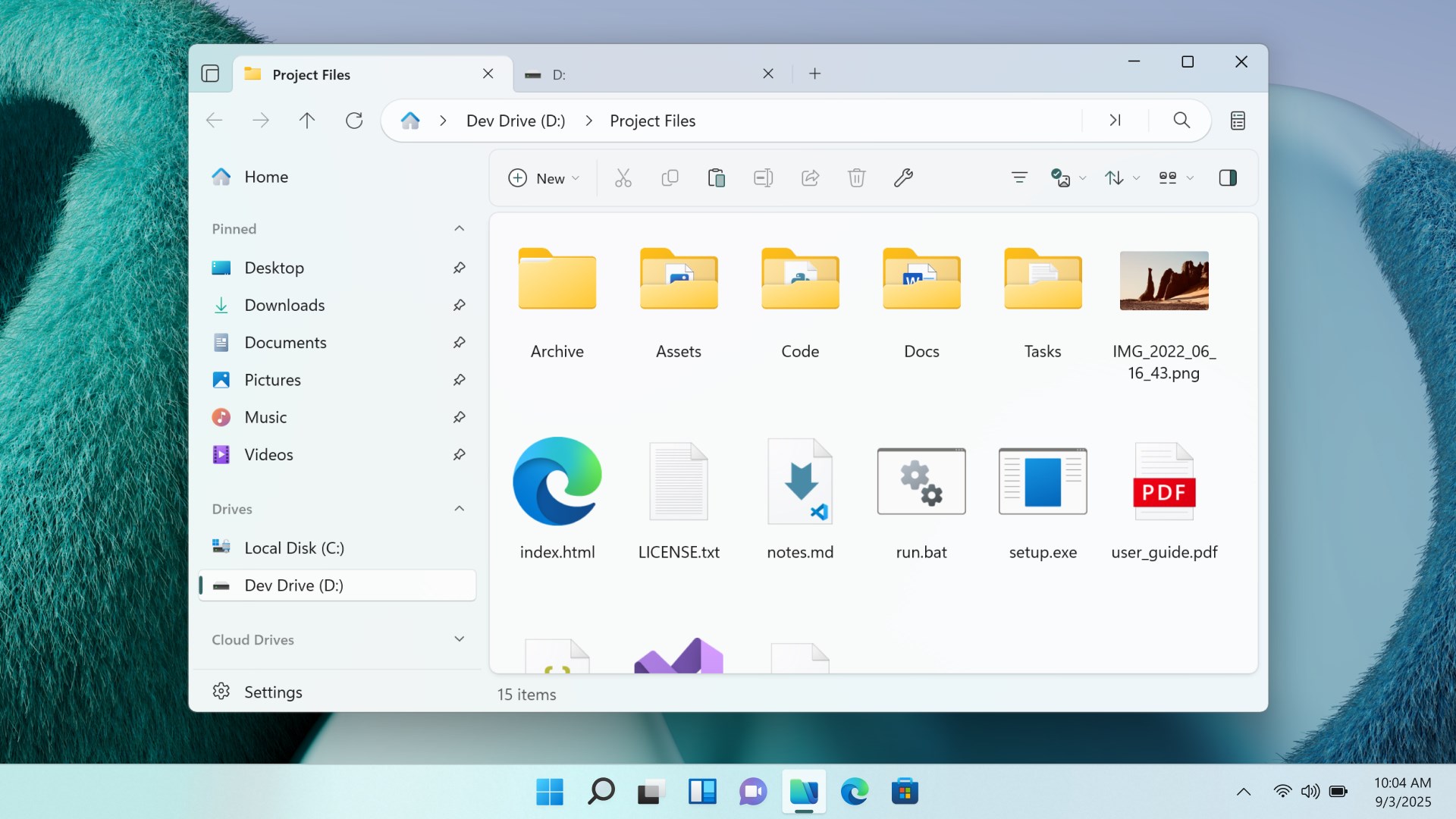
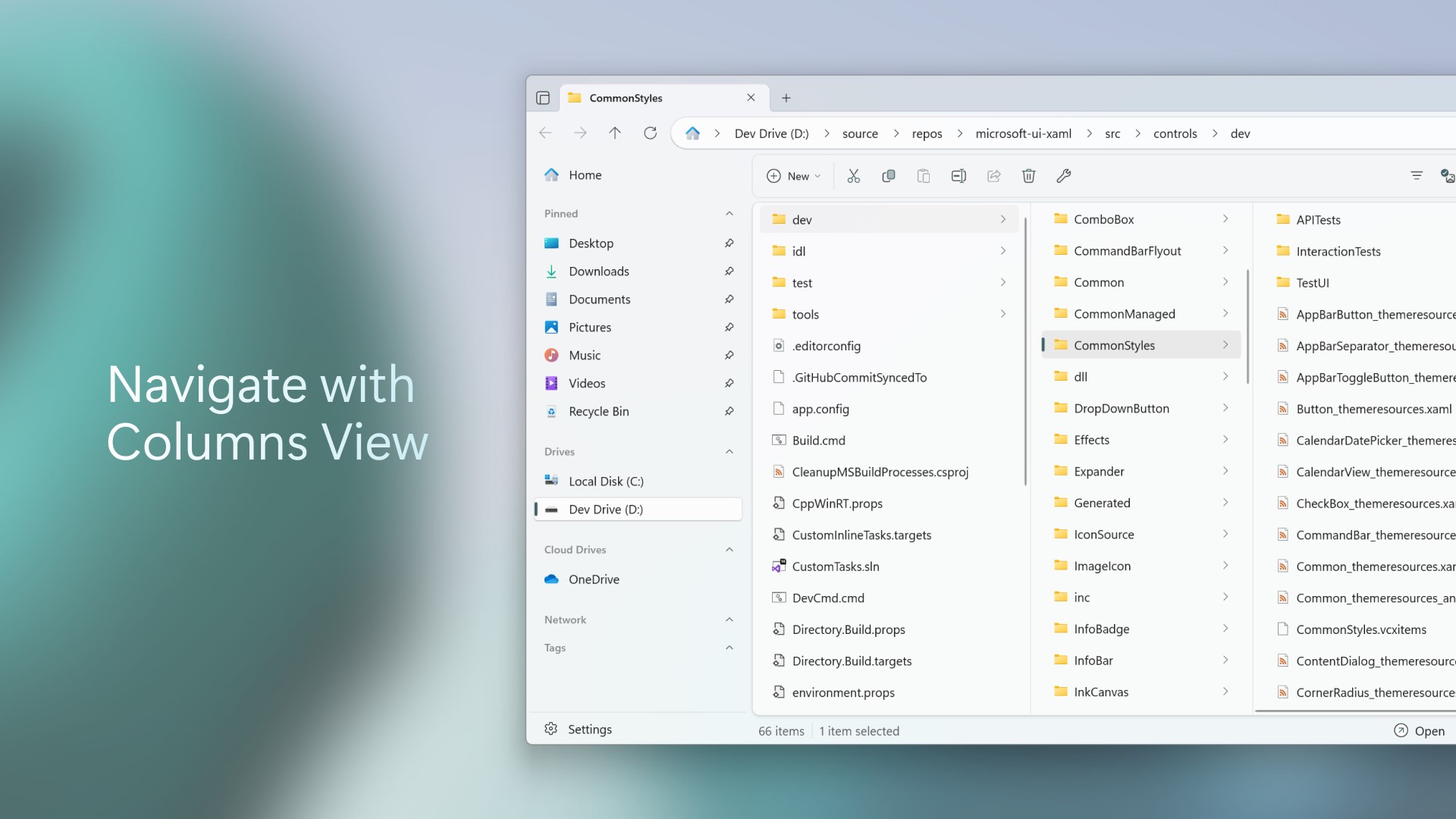
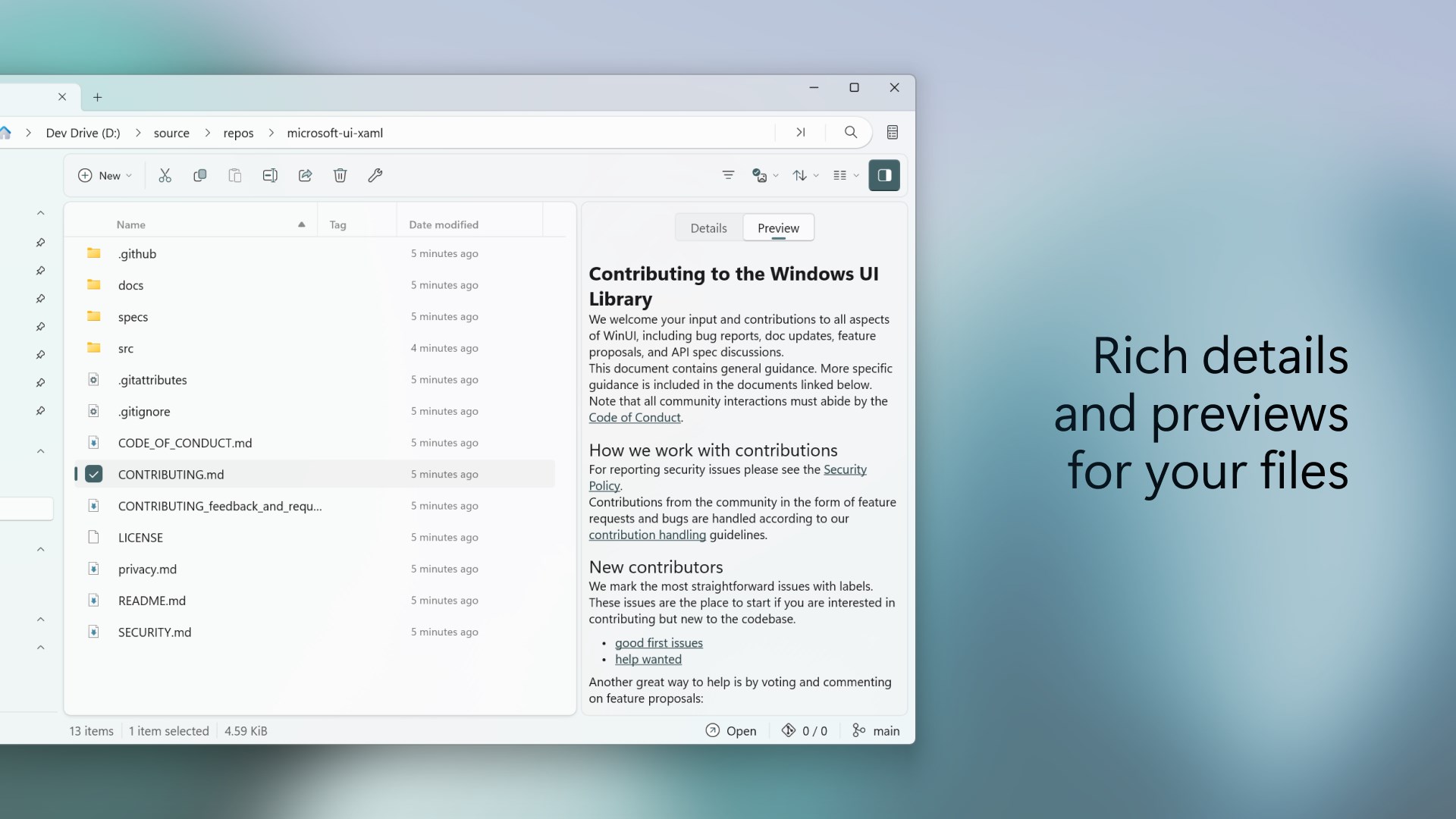
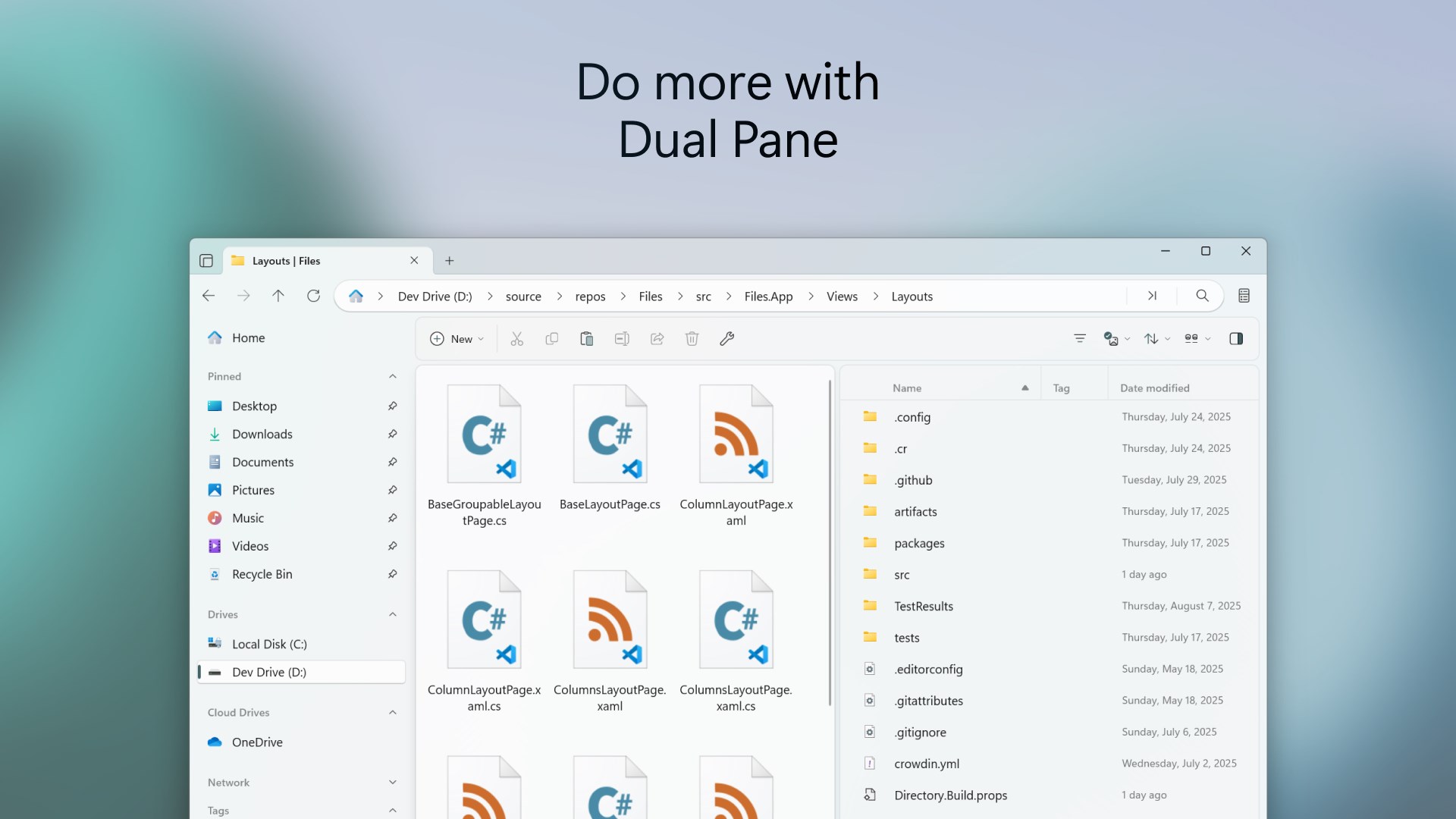
- Name Files Preview
- Category Productivity
- Developer Files Community
- Available on PC
- OS Windows 10 version 19041.0 or higher
- Keyboard Not specified
- Mouse Not specified
- languages Afrikaans, Albanian, Arabic, Armenian, Belarusian, Bulgarian, Catalan, Chinese (Simplified), Chinese (Traditional Chinese), Croatian, Czech, Danish, Dutch, English (United Kingdom), English (United States), Filipino, Finnish, French, Georgian, German, Greek, Hebrew, Hindi, Hungarian, Indonesian, Italian, Japanese, Khmer, Korean , Latvian, Lithuanian, Malay, Norwegian (Bokmål), Persian, Polish , Portuguese (Brazil), Portuguese (Portugal), Romanian, Russian, Serbian (Cyrillic), Slovak, Spanish (Latin America), Spanish (Spain), Swedish, Tamil, Thai, Turkish, Ukrainian, Vietnamese
An Elegant Solution for Streamlined File Previews
Files Preview for Windows by Files Community emerges as a thoughtful enhancement to the Windows file management experience, aiming to bridge the gap between quick access and detailed insights into your files without the need for additional applications.
Basics at a Glance: Who and What?
This lightweight application positions itself as a versatile file previewer, integrated directly within the Windows environment. Developed and published by Files Community, a team dedicated to improving productivity through simple yet effective tools, the app centers around delivering fast, reliable previews for various file types.
Its main features include seamless in-folder file previews without opening the associated applications, supporting a broad spectrum of file formats including images, documents, and videos, and providing an intuitive interface that reduces the clutter often associated with complex file explorers. The ideal users are professionals who handle numerous files daily—writers, designers, data analysts—or casual users seeking more efficient ways to browse their document collections.
Gets You Previewing: The Core Features
Instant, In-Place Previews for All Your Files
Imagine flipping through a physical photo album—Files Preview does this digitally. When you select a file, a vibrant, instantly rendered preview appears on the side, saving you the time and frustration of opening multiple apps or windows. This feature is especially valuable for users managing large document libraries or multimedia collections, giving quick context before deciding to open or organize files further.
Rich Support for Diverse File Types
The app's strength lies in its broad compatibility. From high-resolution images and PDFs to numerous document formats like Word and Excel, as well as video files, Files Preview democratizes your file browsing experience. This versatility ensures that users won't need to switch apps or install multiple previewers—everything they need is in one lightweight, cohesive package.
Streamlined Interface with Reduced Cognitive Load
The user interface is clean, unobtrusive, and designed with simplicity in mind. When navigating through folders, the preview pane dynamically updates, offering a smooth and responsive experience. The learning curve is gentle; even tech novices can quickly adapt without the need for lengthy tutorials. This thoughtful design minimizes cognitive load, allowing you to focus on your workflow without being distracted by complex menus or redundant features.
Standing Out in the Productivity Crowd
Compared to other file preview tools, Files Preview excels in integrating seamlessly into your existing workflow without imposing additional feature bloat. Its unique edge lies in providing rapid, reliable previews without the need for heavy dependencies or complicated settings, preserving system resources and keeping distractions minimal. Unlike more complex file managers or multi-feature add-ons, this app emphasizes reducing cognitive overhead—think of it as a considerate assistant who quickly shows you what's inside without making a fuss.
This focus on efficiency and ease of use makes it an especially attractive choice for users who value a clutter-free, task-focused environment. It's not about offering every conceivable feature but about doing one thing exceptionally well—helping you preview files effortlessly and integrate that capability into your daily routine.
Should You Give It a Try?
I recommend Files Preview for Windows to anyone looking for a straightforward, dependable quick-view solution that seamlessly fits into their workflow. If your daily activities involve sifting through numerous files—be it for content review, organization, or quick referencing—this app can serve as your unobtrusive assistant, saving time and mental energy.
While it might not replace full-featured file managers for advanced tasks, its simplicity and efficiency make it a valuable addition to your productivity toolkit. For those who appreciate minimalism and crave a smoother file browsing experience, this app comes highly recommended.
Pros
- Intuitive File Previewing
- Seamless Integration with Windows
- Lightweight and Fast
- Support for Multiple Formats
- User-Friendly Interface
Cons
- Limited Functionality for Advanced Editing
- Occasional Crashes on Large Files
- Limited Customization Options
- Compatibility Issues with Some File Types
- No Offline Documentation or Help Guide











