

- Name Files App
- Category Productivity
- Developer Files Community
- Available on PC
- OS Windows 10 version 19041.0 or higher
- Keyboard Not specified
- Mouse Not specified
- languages Afrikaans, Albanian, Arabic, Armenian, Belarusian, Bulgarian, Catalan, Central Kurdish, Chinese (Simplified), Chinese (Traditional Chinese), Croatian, Czech, Danish, Dutch, English (United Kingdom), English (United States), Filipino, Finnish, French, Georgian, German, Greek, Hebrew, Hindi, Hungarian, Indonesian, Italian, Japanese, Khmer, Korean , Latvian, Lithuanian, Malay, Norwegian (Bokmål), Odia, Persian, Polish , Portuguese (Brazil), Portuguese (Portugal), Romanian, Russian, Serbian (Cyrillic), Slovak, Spanish (Latin America), Spanish (Spain), Swedish, Tamil, Thai, Turkish, Ukrainian, Vietnamese
Introducing Files App for Windows: Your Streamlined File Management Companion
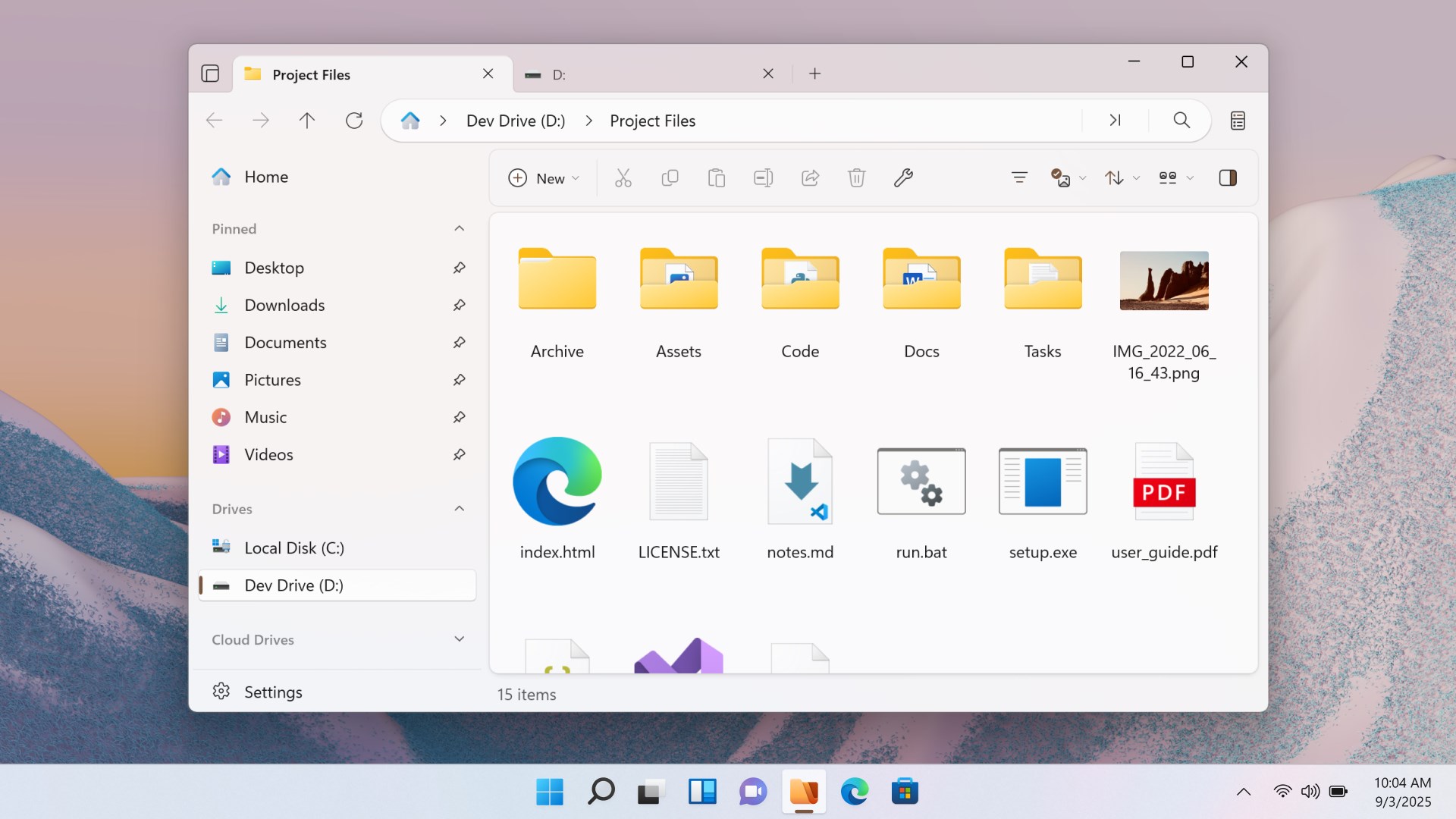
Files App for Windows, developed by Files Community, is a modern file explorer designed to replace the classic Windows File Explorer with a fresh, intuitive interface. It aims to simplify your file management workflows while maintaining robust functionality. Whether you're a casual user or a power user, this app promises a more organized and efficient way to navigate your files and folders.
Core Features That Will Make You Smile
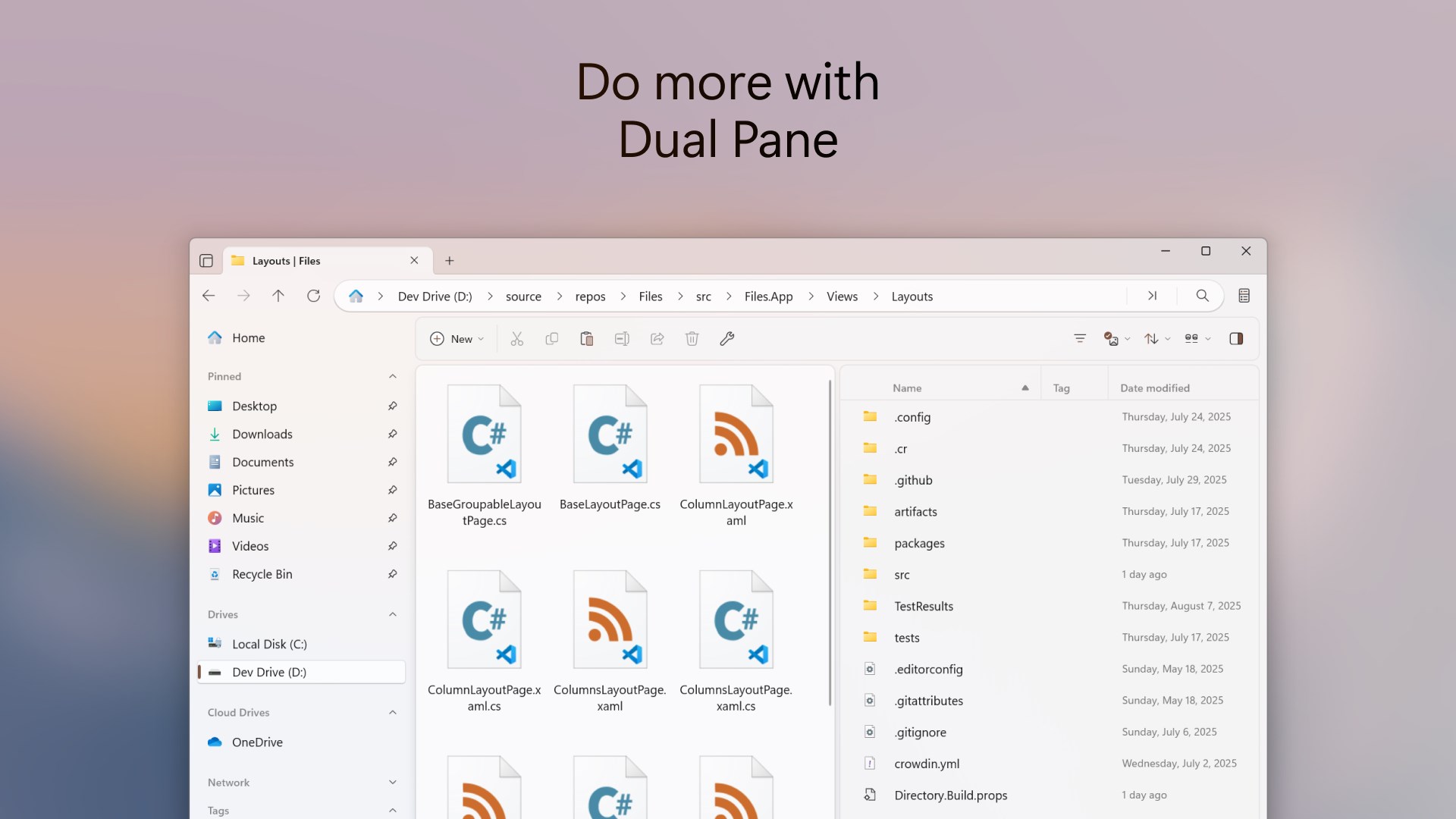
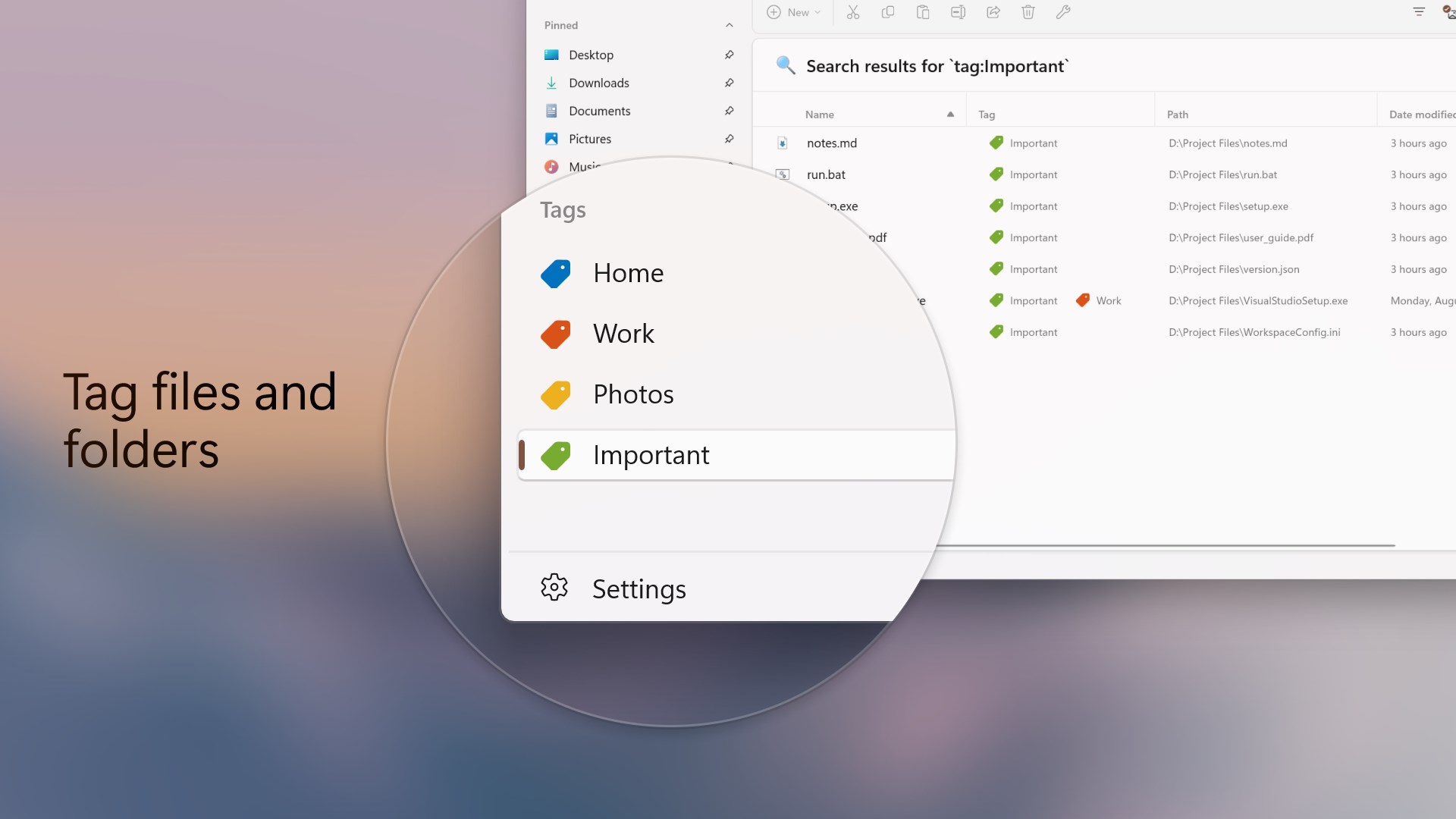
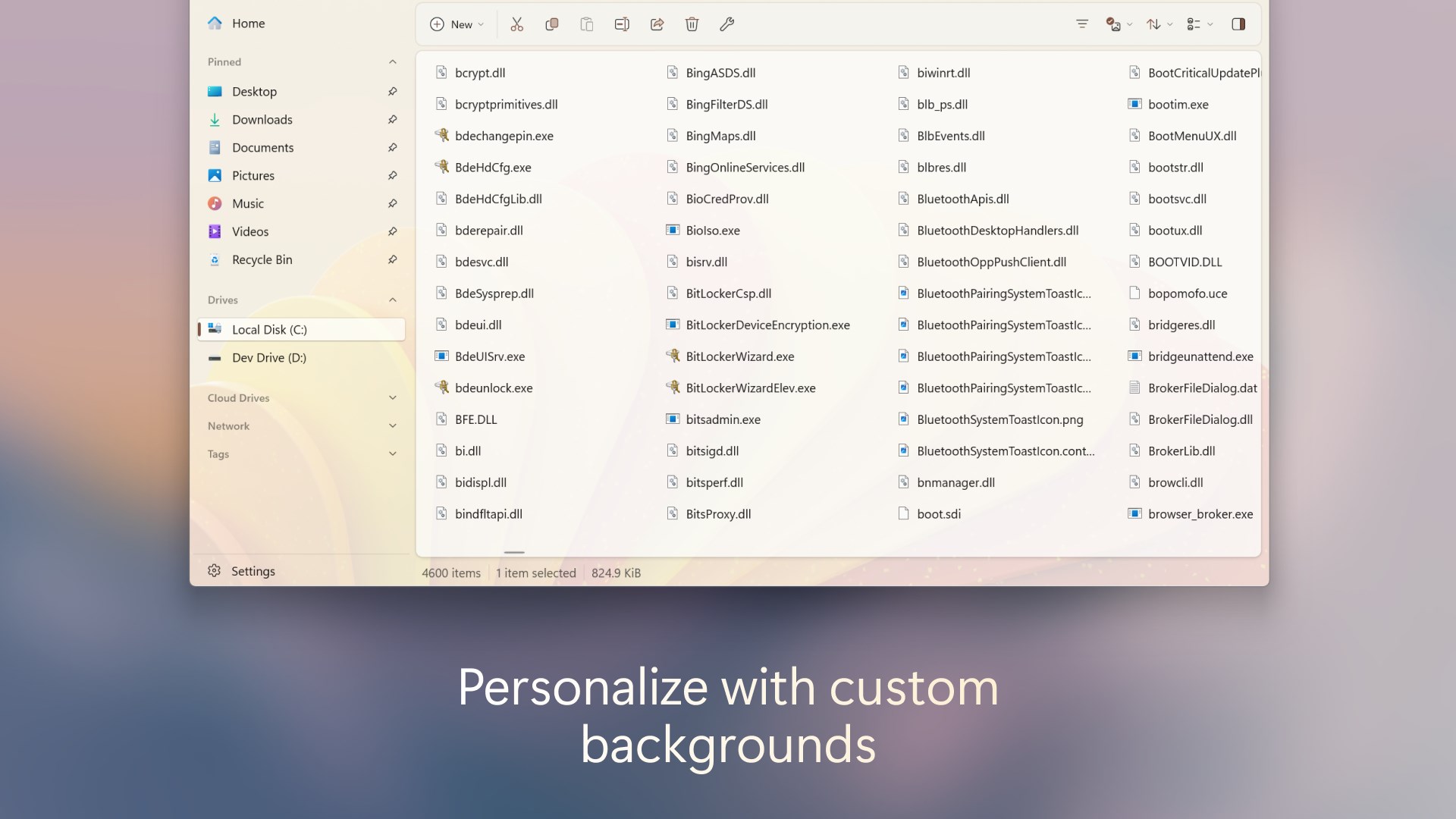
One of the standout features of Files App is its split-pane interface that allows multitasking—think of it as having two windows within one, making copying or moving files as easy as dragging between panes. Additionally, the app offers customizable themes and icon layouts, giving users a personalized visual experience. Its integrated search function is lightning-fast, providing instant access to files across multiple locations, which greatly enhances productivity. Lastly, the app's support for cloud services and network locations ensures your files are accessible whether stored locally or online.
Design, Experience, and Ease of Use
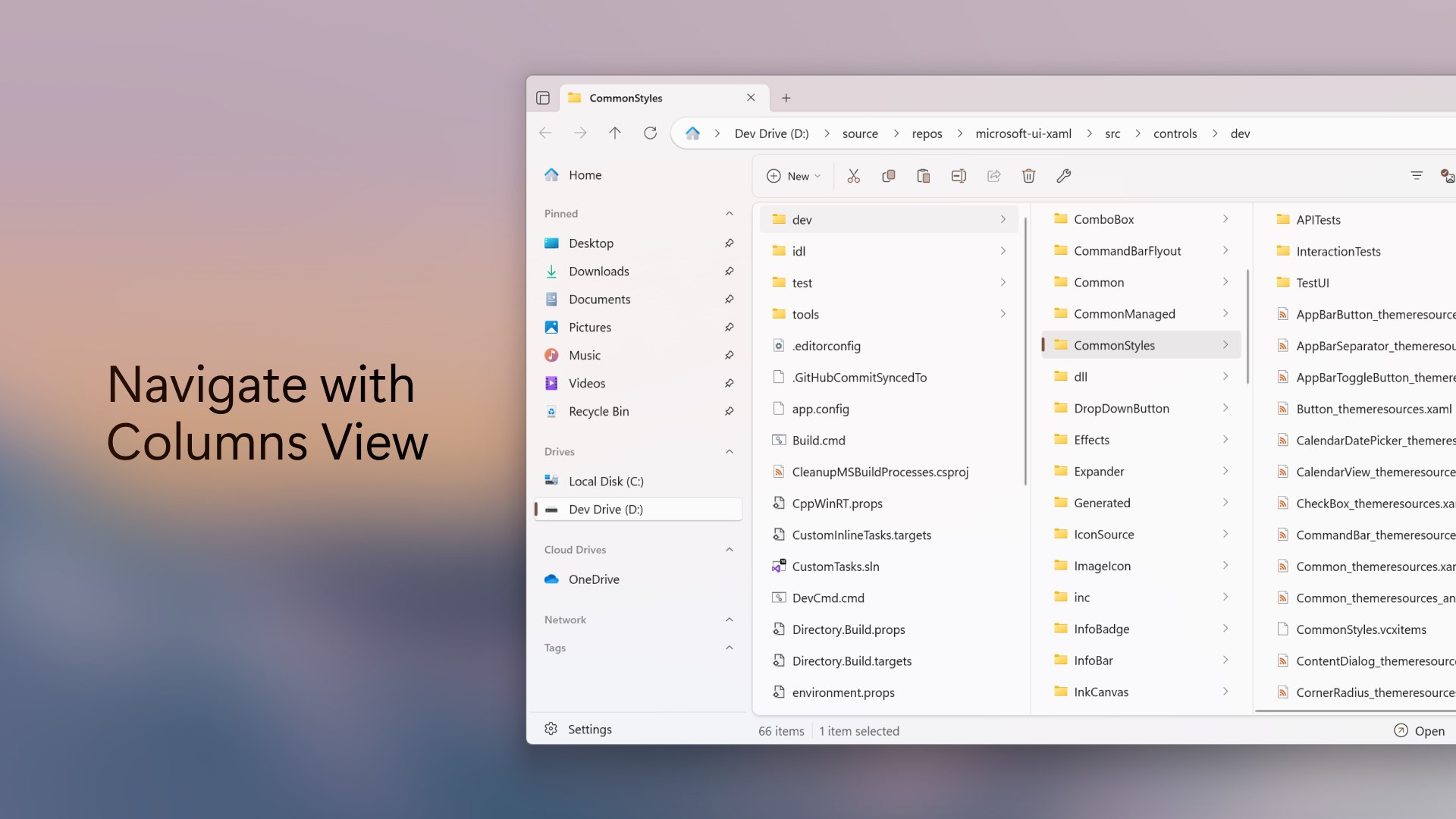
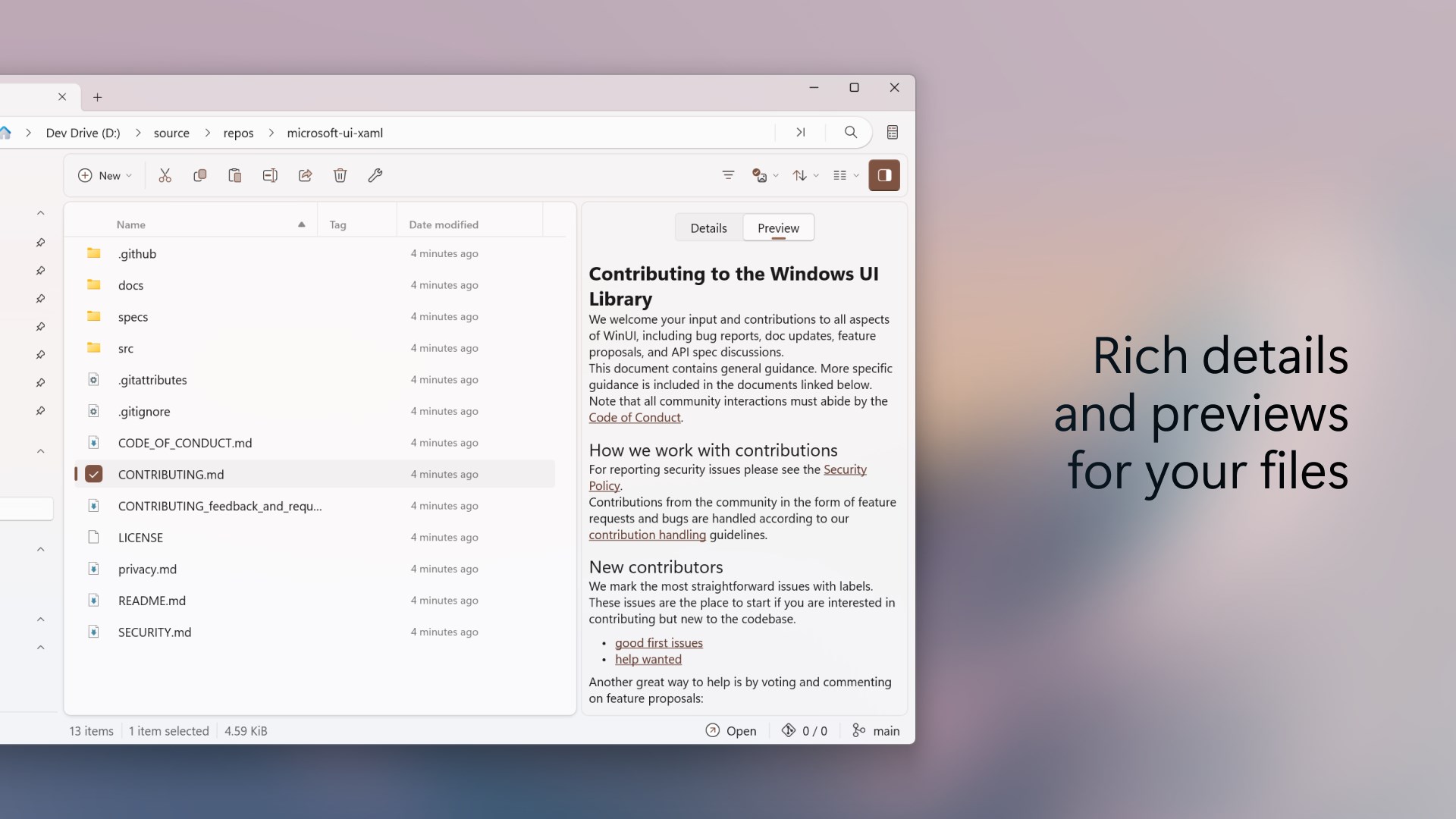
The interface of Files App for Windows is a breath of fresh air compared to traditional explorers. With a clean, minimalist design, it reduces visual clutter and allows users to focus on what matters: their files. The layout resembles a modern workspace, with visually distinct sections and clear icons. Navigation feels smooth—scrolling, opening folders, and switching views happen seamlessly, thanks to optimized performance under the hood. The learning curve is gentle; even novice users can quickly grasp its core functionalities with minimal effort. Advanced users will appreciate the customization options that enable tailoring workflows to personal preferences.
Unpacking the Unique Selling Points
The most distinctive aspect of Files App is its emphasis on enhancing workflow efficiency through its split-pane view and multi-location access. Unlike traditional file explorers cluttered with menus and complex options, it focuses on reducing cognitive load by integrating multiple source views into a single workspace, significantly speeding up file operations. This design choice reduces the mental effort required to switch between windows or tabs, making file management feel more natural—like working with a well-organized desktop, rather than juggling multiple apps.
Furthermore, the app balances feature richness with simplicity. Rather than overwhelming users with countless options, it offers just enough tools to handle typical tasks efficiently, helping reduce cognitive overload. The seamless integration with cloud services and network locations means you no longer need to juggle multiple apps or windows to access all your files, streamlining your overall workflow.
Final Thoughts and Recommendations
Overall, Files App for Windows is a thoughtfully designed file manager that stands out by prioritizing user workflow and reducing unnecessary complexity. Its split-pane interface and multi-location support are particularly useful for users who handle large volumes of files regularly or need quick access to multiple sources. I would recommend this app to users looking for a more modern, efficient, and customizable file management experience without the clutter found in conventional explorers. It's especially beneficial for those who appreciate a clean design paired with thoughtful functionality aimed at reducing cognitive load during everyday tasks.
Pros
- Intuitive File Management
- Seamless Integration with Windows
- Supports Multiple Storage Services
- Offline Access Capability
- Regular Updates and Improvements
Cons
- Limited File Editing Features
- Slow Synchronization with Cloud Accounts
- Occasional Crashes on Large Files
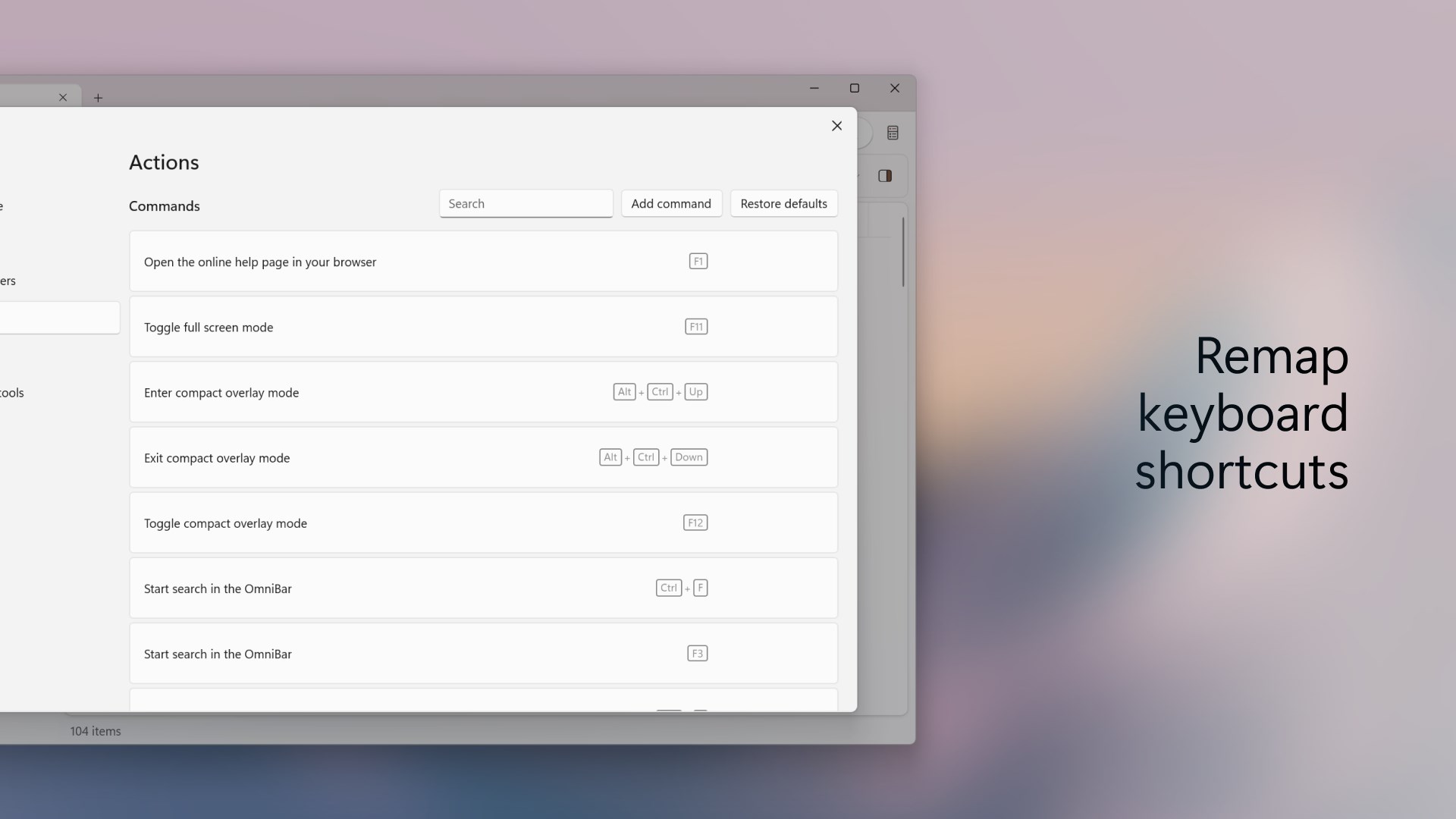
- Limited Customization Options
- Lack of Advanced Search Filters











