

- Name Easy To Do
- Category Productivity
- Developer App Eso
- Available on Xbox console, PC, Mobile
- OS Windows 10 version 17763.0 or higher
- languages English (United States)
Effortless Workflow Optimization with Easy To Do for Windows
In a world where juggling multiple tasks can feel like spinning plates on a busy street, Easy To Do aims to be your reliable assistant—streamlining task management without adding unnecessary complexity. Developed by App Eso, this Windows application provides a straightforward yet powerful platform for organizing your to-do list and enhancing productivity with minimal fuss. Whether you're a busy professional, a student, or anyone seeking a clearer task overview, Easy To Do promises to keep your priorities in check through its clean design and intuitive features.
Key Features That Stand Out
What makes Easy To Do a noteworthy addition to the productivity app landscape? First, its focus on simplicity ensures that users spend less time figuring out how to use it and more time actually getting things done. Second, the app emphasizes seamless workflow integration, allowing users to swiftly transition from planning to action. Lastly, its minimalist approach reduces cognitive load, preventing overwhelm and fostering better task focus. These core strengths position Easy To Do as a compelling choice for those who value efficiency over feature bloat.
Getting a Handle on Your Tasks: Core Functionalities
Simple Task Management with a User-Friendly Interface
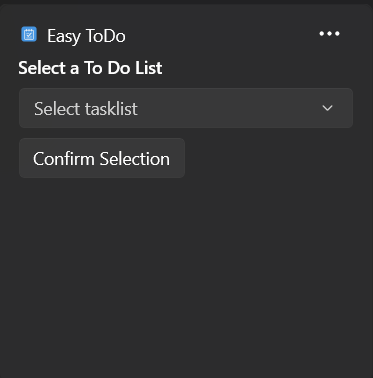
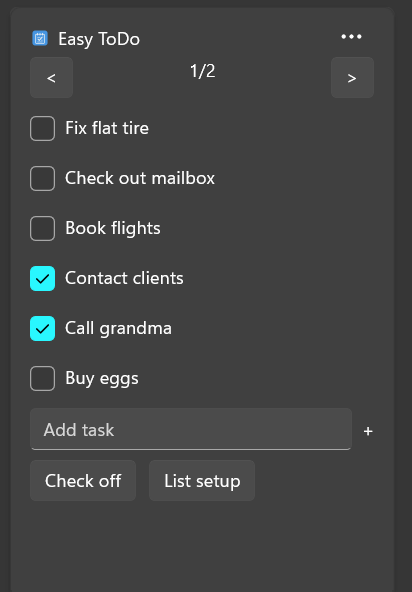
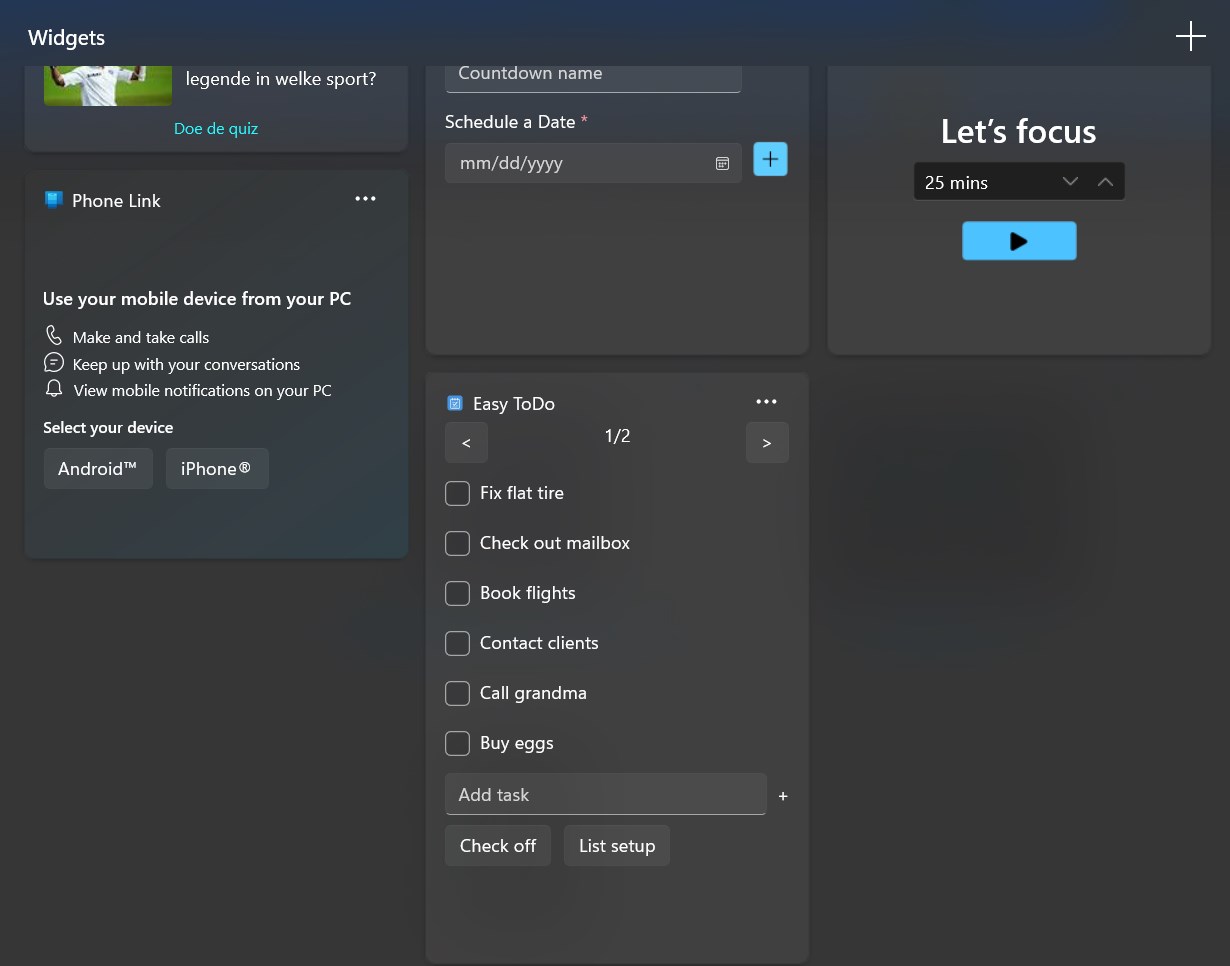
Once installed, Easy To Do greets users with a clean, uncluttered dashboard that resembles a neat desk—everything in its place, ready for action. Adding, editing, or deleting tasks is as straightforward as a few clicks or keystrokes. The app's minimalistic design reduces visual clutter, making it easy to focus on what truly matters. For users who dislike convoluted menus or overwhelming options, this approach offers a breath of fresh air, turning task input from a chore into a quick, even enjoyable, part of your day.
Workflow Integration for Seamless Productivity
The app distinguishes itself with features that promote smooth workflow integration. For instance, it supports quick task prioritization and categorization, enabling users to structure their day effortlessly. The app's lightweight nature means it runs smoothly in the background, syncing seamlessly across devices without noticeable lag or setup headaches. This seamless experience helps users avoid the typical friction of switching between multiple productivity tools, effectively acting as a central hub for your daily priorities. Its design ensures that managing tasks becomes an organic part of your routine rather than an disruptive add-on.
Reducing Cognitive Load Without Sacrificing Functionality
Unlike some productivity tools that drown users in features and options, Easy To Do emphasizes clarity and simplicity. Its streamlined interface keeps distractions at bay, enabling users to concentrate on completing their tasks rather than figuring out complex configurations. This thoughtful design minimizes mental clutter, helping you stay focused and less overwhelmed. It's akin to having a clean, well-organized workspace—everything you need is visible and accessible, promoting efficient task execution without cognitive fatigue.
Experience and Recommendations
Using Easy To Do feels like having a dedicated personal assistant who quietly manages your task list while you focus on what truly matters. The app's intuitive design and emphasis on workflow integration make it especially appealing for those who find traditional to-do apps either too complex or too barebones. It strikes a balance—offering enough functionality to stay organized without introducing unnecessary complexity that can hinder productivity.
For professionals seeking a straightforward, no-fuss task manager that integrates smoothly with their existing routines, Easy To Do is highly recommended. It's particularly well-suited for users who prefer clarity over customization and want a dependable tool that fosters focus rather than distraction. While it may lack advanced features found in more elaborate apps, its core strengths lie in its simplicity and efficiency—traits that often lead to higher productivity gains.
In conclusion, if your goal is to cut through the noise and focus on just getting things done, Easy To Do for Windows is worth trying. It's like having a streamlined, reliable task partner that helps you stay on track without unnecessary bells and whistles, making your workflow more natural and less mentally taxing.
Pros
- Intuitive User Interface
- Syncs Across Devices
- Customizable Reminders
- Lightweight and Fast
- Free Core Features
Cons
- Limited Advanced Features
- Basic Interface Customization
- Offline Mode Limitations
- No Task Prioritization System
- Occasional Sync Delays











