


- Name Easy Connection to Screen
- Category Productivity
- Available on PC
- OS Windows 10 version 0.0 or higher
- Keyboard Integrated Keyboard
- Mouse Integrated Mouse
- languages Chinese (Simplified) (China), Chinese (Traditional Chinese), English, French, German, Hindi, Italian, Korean , Portuguese, Russian, Spanish
Easy Connection to Screen for Windows: Simplifying Your Digital Workspace
Imagine effortlessly projecting your laptop screen onto a larger display without the hassle of tangled cables or complex setups—that's exactly what *Easy Connection to Screen for Windows* promises. Developed by Samsung Electronics Co., Ltd., this app aims to streamline the way Windows users connect to external screens, making presentations, entertainment, and multitasking smoother and more intuitive.
Core Features That Shine
Seamless Wireless Screen Sharing
The standout feature of this app is its robust wireless connection capability. Whether you're in a conference room or a cozy living room, you can instantly mirror your device's screen onto a compatible display. This eliminates the need for cables and adapters, offering a clutter-free experience that's perfect for spontaneous meetings or quick media showcases. The app intelligently detects available screens nearby and facilitates quick pairing, making setup almost effortless—even for non-tech-savvy users.
Multi-Device Compatibility & Easy Management
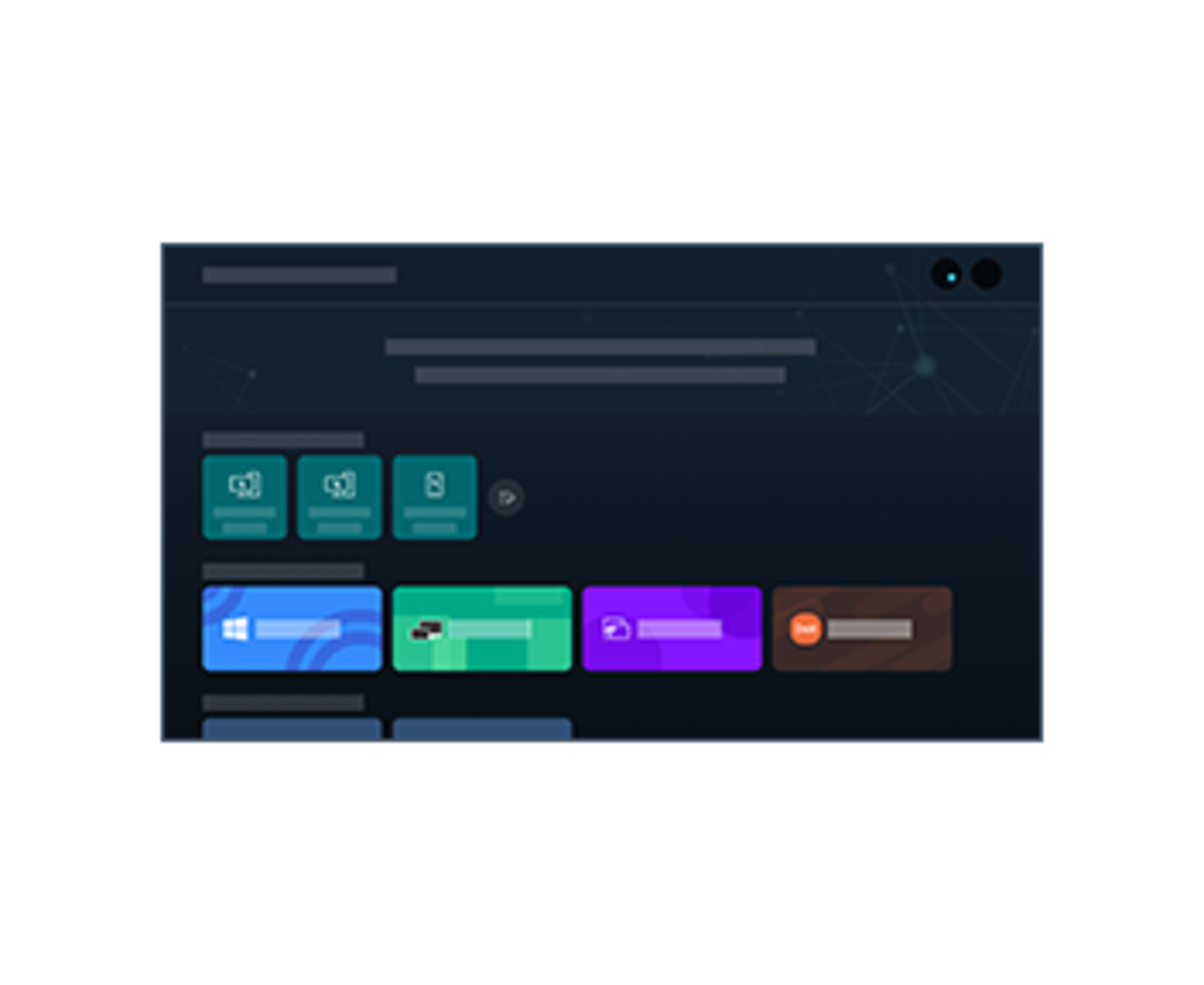
Designed to work harmoniously within the Samsung ecosystem, the app supports a variety of devices, including smartphones, tablets, and laptops. Users can manage multiple connected screens within the interface, switching between devices or disconnecting with just a few taps. This flexibility is particularly beneficial in environments where multiple presentations or media sources need to be managed efficiently. The interface's clarity ensures users navigate the screen management process with minimal cognitive load.
User-Friendly Interface & Smooth Performance
From the moment you launch the app, it's clear that Samsung prioritized a clean, intuitive UI that invites users to start sharing instantly. The layout is uncluttered, with straightforward buttons guiding you through connection steps. In terms of performance, the app boasts low latency and stable connections, ensuring your screen sharing experience remains smooth and lag-free. Whether you're streaming videos or sharing detailed spreadsheets, the app maintains consistency without frustrating hiccups. Its learning curve is shallow, even for first-time users, which encourages adoption in both personal and professional settings.
How It Stands Out in the Productivity Crowd
Compared to other screen mirroring apps or traditional wired connections, *Easy Connection to Screen for Windows* offers a remarkable reduction in cognitive load—a fancy way of saying it simplifies what could be an intimidating tech task. Unlike feature-heavy competitors that bombard users with options, this app concentrates on core functionality—wireless mirroring and device management—delivering a highly efficient workflow integration. Its focus on effortless usability reduces mental fatigue, enabling users to concentrate on their tasks rather than fiddling with settings.
Furthermore, its unique ability to quickly detect and connect to multiple compatible screens sets it apart. While many similar apps require cumbersome configuration steps, this one's automatic detection and simple interface act like a friendly assistant, removing barriers and fostering a more natural workflow. This focus on reducing cognitive load, combined with reliable performance, positions it as a reliable tool for both casual users and professionals needing rapid setup and switchovers.
Final Thoughts and Recommendations
Overall, *Easy Connection to Screen for Windows* is a well-crafted, user-centric application that excels at simplifying wireless screen sharing. Its most notable strengths—the seamless connection process and intuitive management—make it an excellent choice for anyone looking to enhance their digital workspace without adding complexity. Whether you're delivering presentations frequently, enjoying media on a larger screen, or managing multiple displays, this app offers a streamlined experience that minimizes frustration and maximizes productivity.
I recommend it wholeheartedly for users within the Samsung ecosystem or those seeking a straightforward, reliable screen sharing solution. For best results, ensure your devices support the necessary wireless standards, but rest assured, once set up, you'll find that this app integrates smoothly into your daily routine, making screen connection feel almost like a natural extension of your workflow.
Pros
- Easy and quick setup
- High compatibility with multiple devices
- Stable connection quality
- Intuitive user interface
- Supports multiple connection methods
Cons
- Limited customization options
- Occasional lag during high-bandwidth activities
- Compatibility issues with some older devices
- Limited support documentation
- Battery consumption on laptops











