

- Name draw.io Diagrams
- Category Productivity
- Developer JGraph Ltd
- Available on PC
- OS Windows 10 version 14316.0 or higher
- Keyboard Integrated Keyboard
- Mouse Integrated Mouse
- languages English (United States)
A Clear and Intuitive Diagramming Tool for Windows
draw.io Diagrams for Windows, developed by JGraph Ltd and published by draw.io Ltd, offers a streamlined way to create professional diagrams directly within the Windows environment. It's positioned as a versatile, user-friendly diagramming solution tailored for professionals, educators, and students alike seeking an efficient way to map out ideas and processes.
Core Features That Make Draw.io Stand Out
Seamless Integration and Cloud Connectivity
One of the standout qualities of draw.io for Windows is its ability to integrate effortlessly with popular cloud storage services, like OneDrive, Google Drive, and Dropbox. This means your diagrams are not confined to local files but can be accessed, edited, and shared across devices with ease. Imagine working on a complex flowchart at your desk, then reviewing or editing it later on your tablet—this fluid connectivity transforms the way you approach collaborative projects.
Rich Library of Shapes and Templates
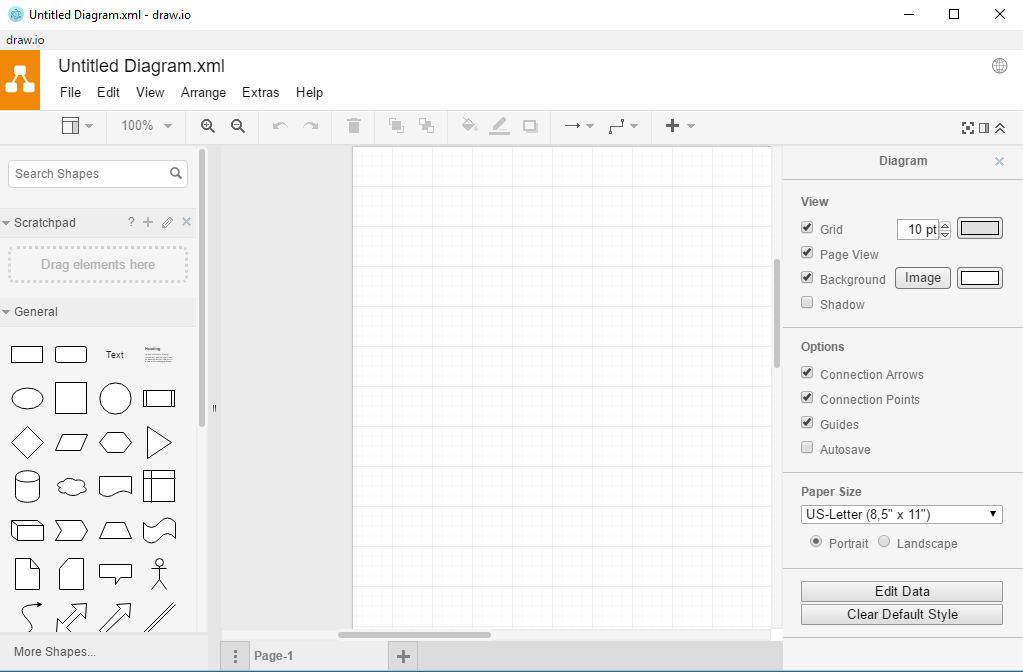
The app comes preloaded with an extensive collection of shapes, icons, and templates covering various diagram types—from flowcharts and organizational charts to network diagrams and UML diagrams. This abundance allows users to get started swiftly without the hassle of building components from scratch. Plus, the ability to customize or add new shapes ensures that even specialized diagramming needs are met.
Intuitive Drag-and-Drop Interface
Draw.io's interface is akin to a well-organized workshop where tools are at your fingertips—it's designed to minimize the learning curve. Users can easily drag, drop, connect, and resize elements without fighting through complex menus. The interface feels smooth and responsive, lending a sense of natural flow that keeps creativity flowing and frustrations at bay. This simplicity makes it accessible for newcomers, yet robust enough for seasoned diagrammers.
Exceptional User Experience and Workflow Efficiency
From the moment you launch draw.io, the clean layout and thoughtfully designed controls create an inviting environment—much like stepping into a neat, well-organized workspace. The responsiveness across different actions—whether adding shapes, adjusting connections, or formatting elements—is remarkably smooth, which keeps users immersed rather than frustrated by sluggish performance. Navigating through various tools feels seamless, encouraging a focus on the content rather than battling the interface.
Learning curve? Surprisingly gentle. Beginners pick up the core features quickly thanks to contextual tooltips and straightforward menus. For advanced users, the layered options provide ample depth without cluttering the workspace, striking a respectful balance that caters to diverse skill levels.
Unique Advantages Over Competitors
Compared to other productivity tools like Visio or Lucidchart, draw.io for Windows excels in simplifying workflow integration and reducing cognitive load. Its cloud connectivity means users can effortlessly embed diagrams into their existing workflow—think of it as a versatile palette that adapts to your studio, rather than forcing you into a predefined art supply box. Furthermore, the minimalistic design avoids overwhelming users with overly complex features; instead, it offers just enough to handle intricate diagrams without raising the cognitive load, which is often a pitfall in more feature-heavy tools.
Unlike some diagramming software that can feel like navigating a maze of menus and options, draw.io emphasizes clarity and ease of use. Its focus on reducing unnecessary complexity makes it a practical choice across various disciplines—be it software architecture, project planning, or educational purposes—without sacrificing depth when needed.
Final Thoughts and Recommendations
In summary, draw.io Diagrams for Windows is a robust, flexible, and user-centered diagramming tool that seamlessly integrates into your workflow. It's especially recommended for users who value ease of use, quick access to a wide array of resources, and smooth cloud collaboration features. Whether you're a project manager sketching out a process, an educator preparing lesson plans, or a student mapping out ideas, this app offers a compelling combination of simplicity and power.
While it may not boast the extensive feature set of high-end diagramming suites, draw.io's focus on core diagramming needs and its intuitive interface make it a reliable and efficient choice. I'd confidently suggest giving it a try if you're looking for a free, versatile diagramming solution that respects your workflow rather than complicates it. Its standout features—especially the seamless cloud connectivity and minimalist, user-friendly interface—are truly its biggest strengths, reducing frustration and allowing creativity and productivity to flourish together.
Pros
- Intuitive Drag-and-Drop Interface
- Wide Range of Diagram Templates
- Real-Time Collaboration Capabilities
- Seamless Integration with Microsoft Ecosystem
- Export Options and Cloud Syncing
Cons
- Limited Offline Functionality
- Performance Issues with Large Diagrams
- Occasional Sync Conflicts
- Limited Advanced Diagram Features
- Learning Curve for Advanced Templates











