



- Name Drawboard PDF + Notes
- Category Productivity
- Developer Drawboard
- Available on PC, Surface Hub
- OS Windows 10 version 18362.0 or higher
- languages Chinese (Simplified), English (United States), French, German, Japanese, Korean , Spanish (Spain)
Drawboard PDF + Notes for Windows: A Robust Digital Note-Taking Companion
In an era where seamless digital annotation and note management are essential for productivity, Drawboard PDF + Notes offers a compelling solution tailored for Windows users seeking a unified platform for PDF interaction and note-taking. Designed to bridge the gap between reading and annotation, this app strives to enhance workflow efficiency without overwhelming users with unnecessary complexity.
About the Developer and Core Features
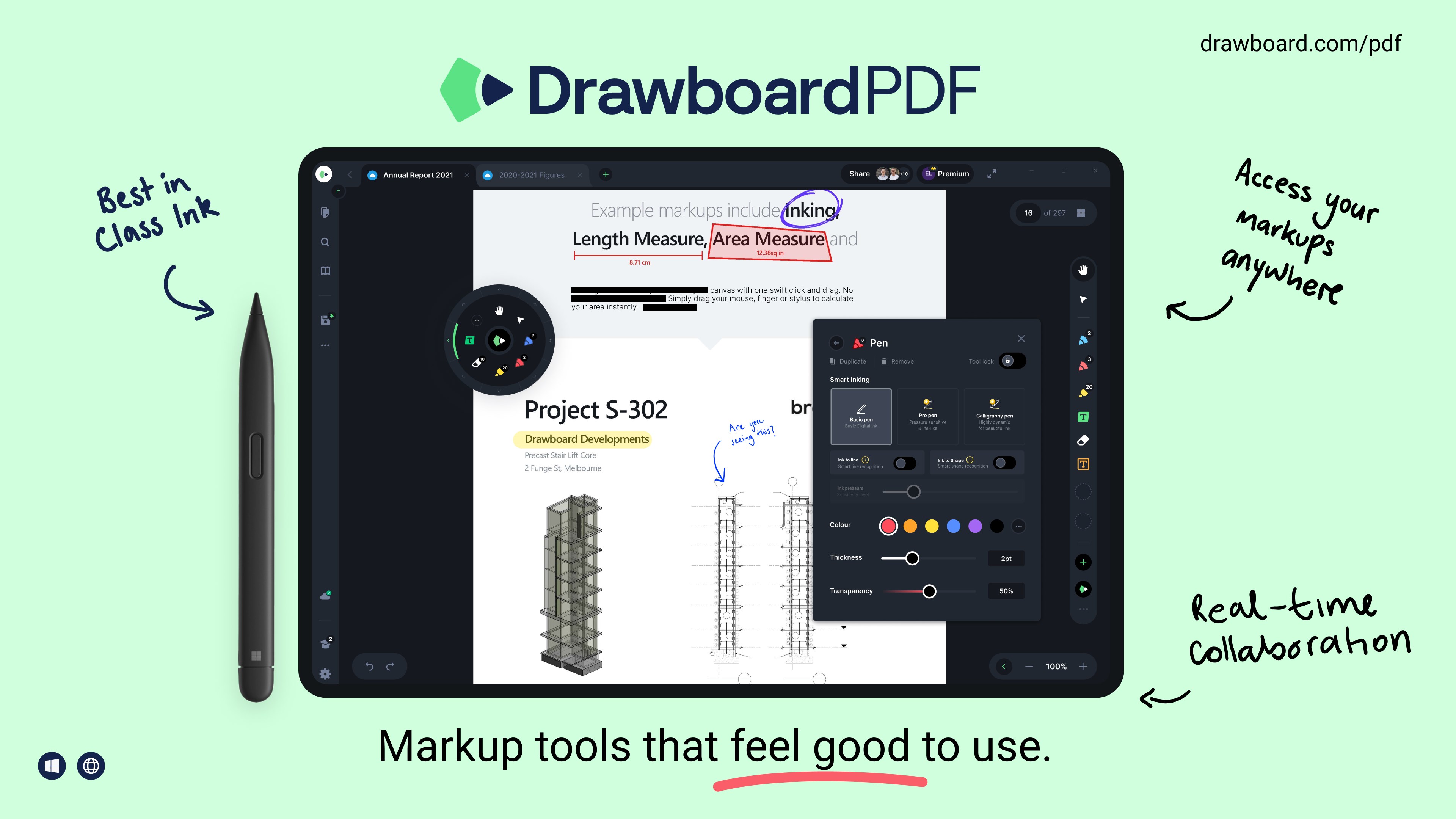
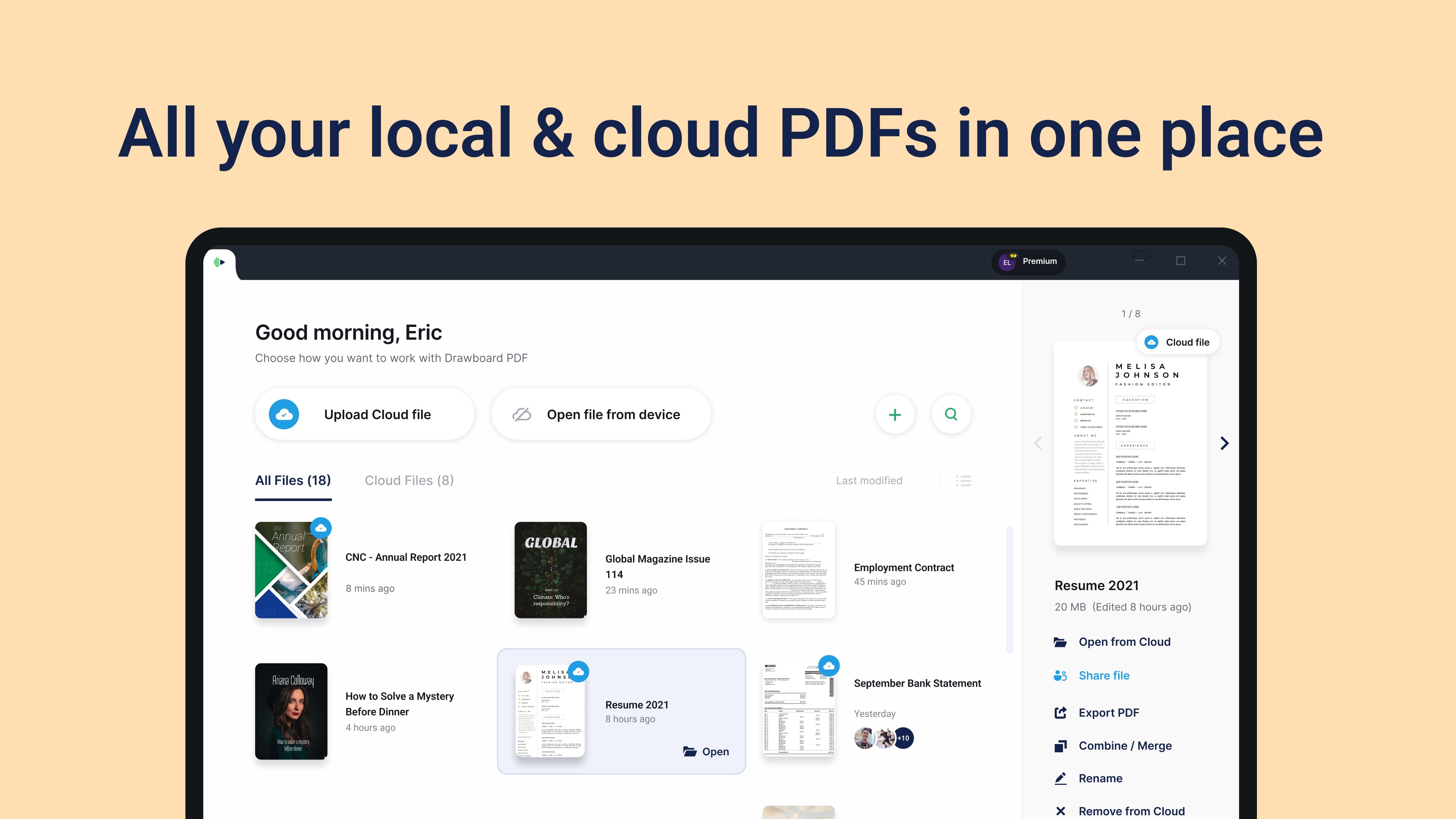
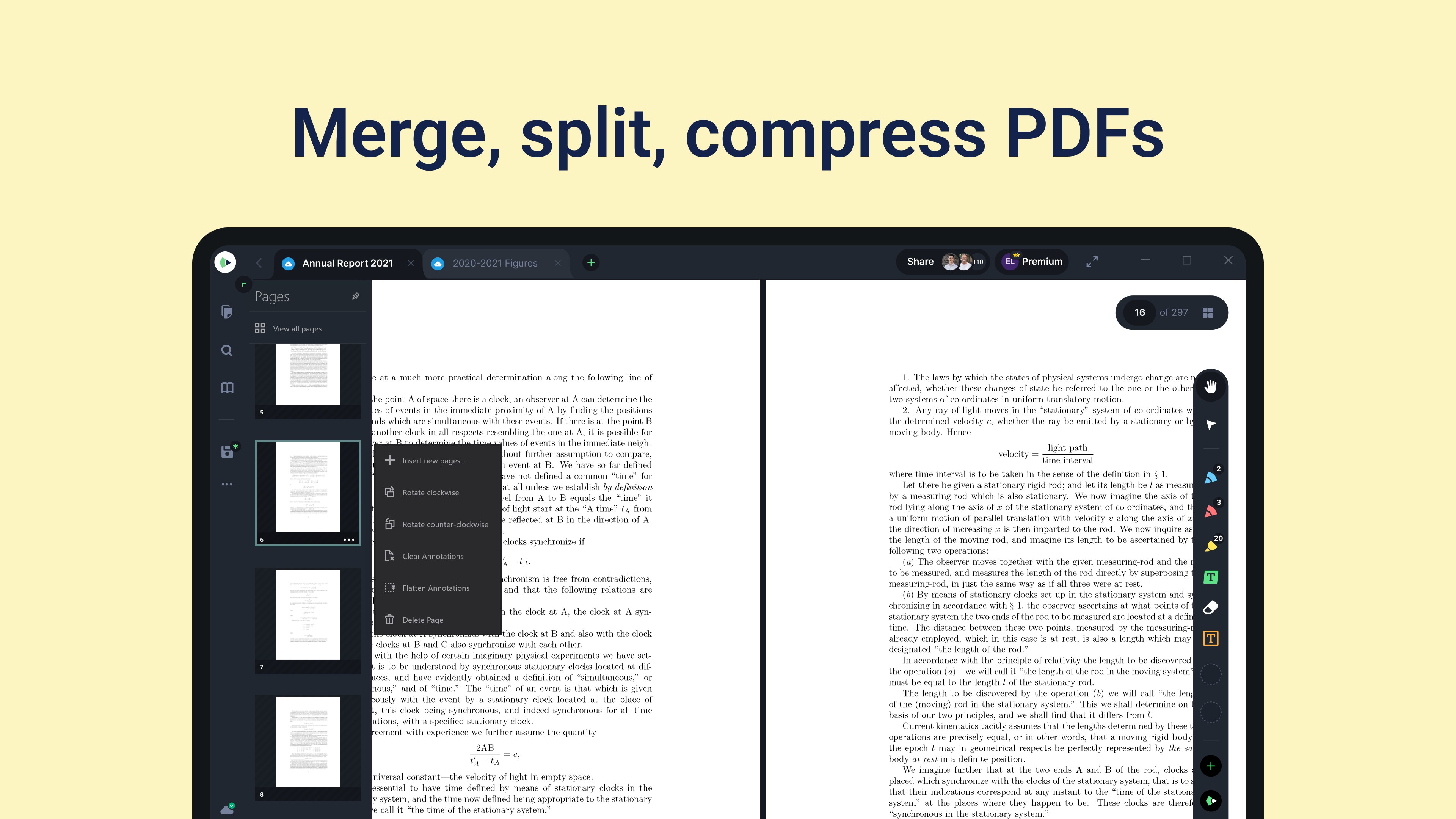
Developed and published by Drawboard, a company renowned for its focus on professional PDF editing tools, Drawboard PDF + Notes consolidates core functionalities into an intuitive interface. Its main highlights include versatile annotation tools, seamless note synchronization, and an optimized workflow interface, all crafted for professionals, students, and creatives who need to juggle multiple documents effortlessly.
Engaging the User: An Invitation to Explore
Picture this: you're sitting at your desk, shuffling through a thick pile of research papers and meeting notes. Suddenly, your workspace transforms—each document becomes a living canvas, where ideas flow freely and annotations stick like post-its on a glass wall. That's the kind of empowering experience Drawboard PDF + Notes aims to deliver, turning your Windows device into a digital studio where reading, annotating, and note-taking happen effortlessly. Its design encourages a distraction-free environment, much like having a dedicated workspace that adapts to your imagination rather than constrains it.
Core Functionality 1: Advanced Annotation Toolbox
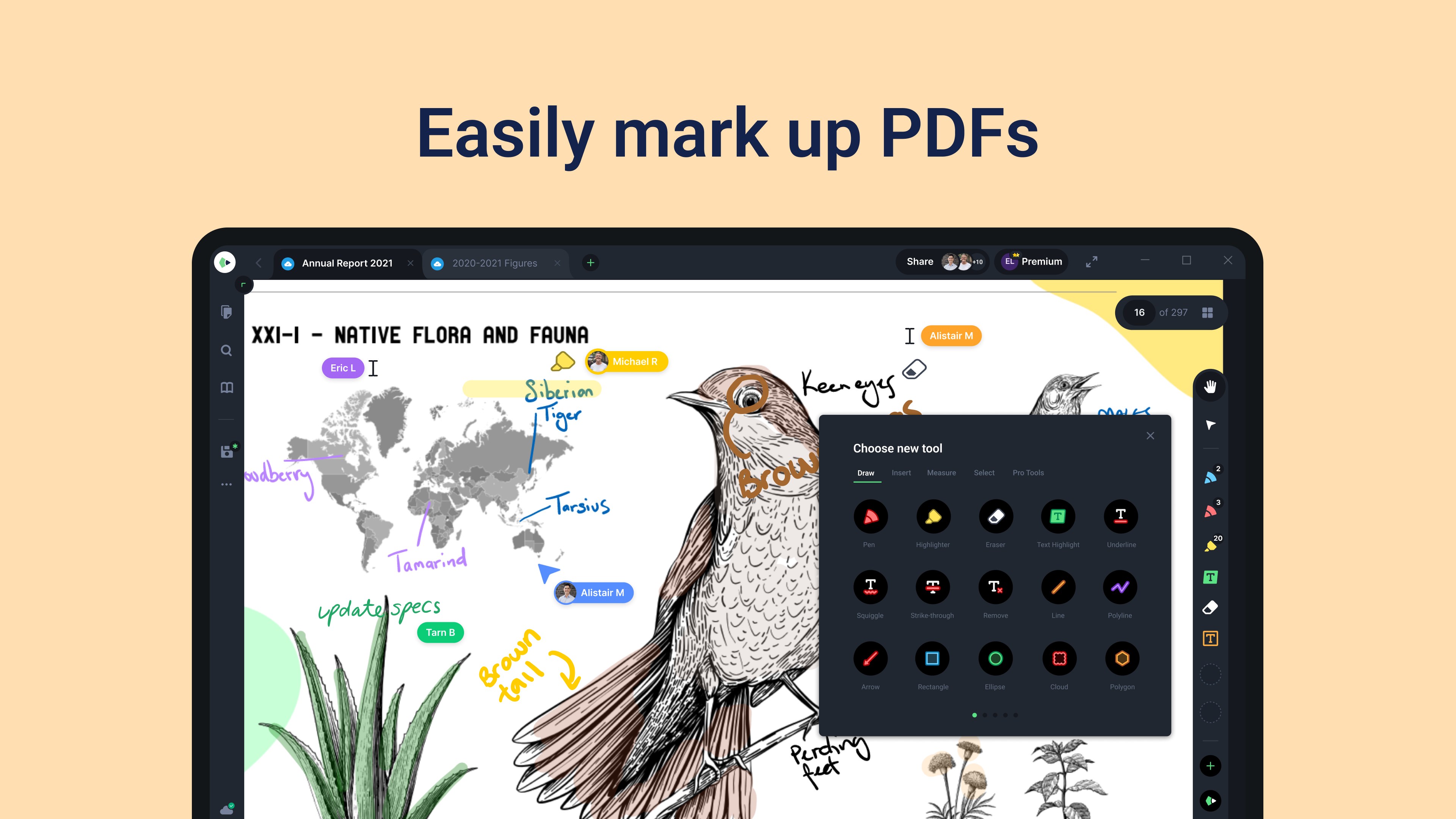
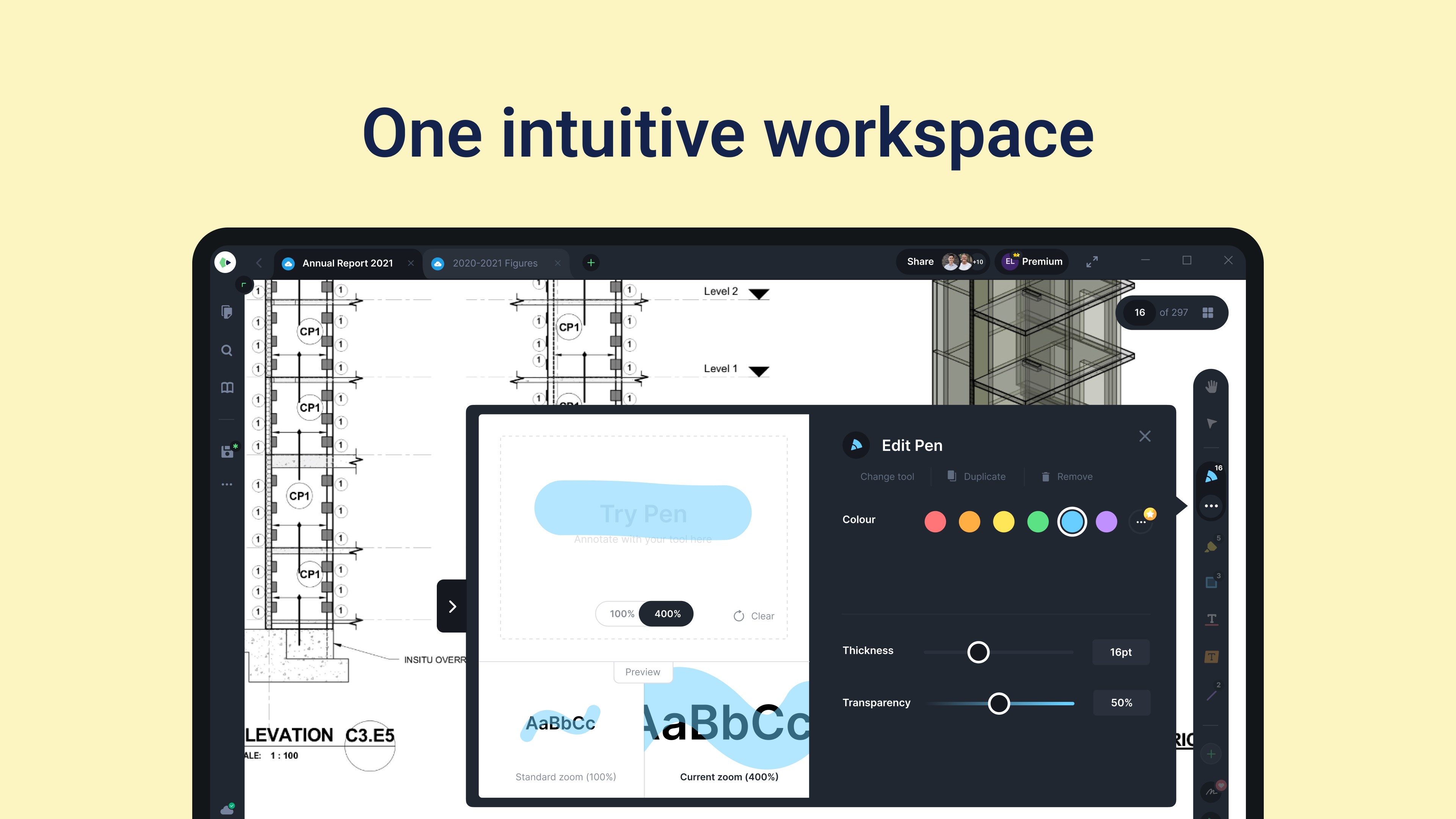
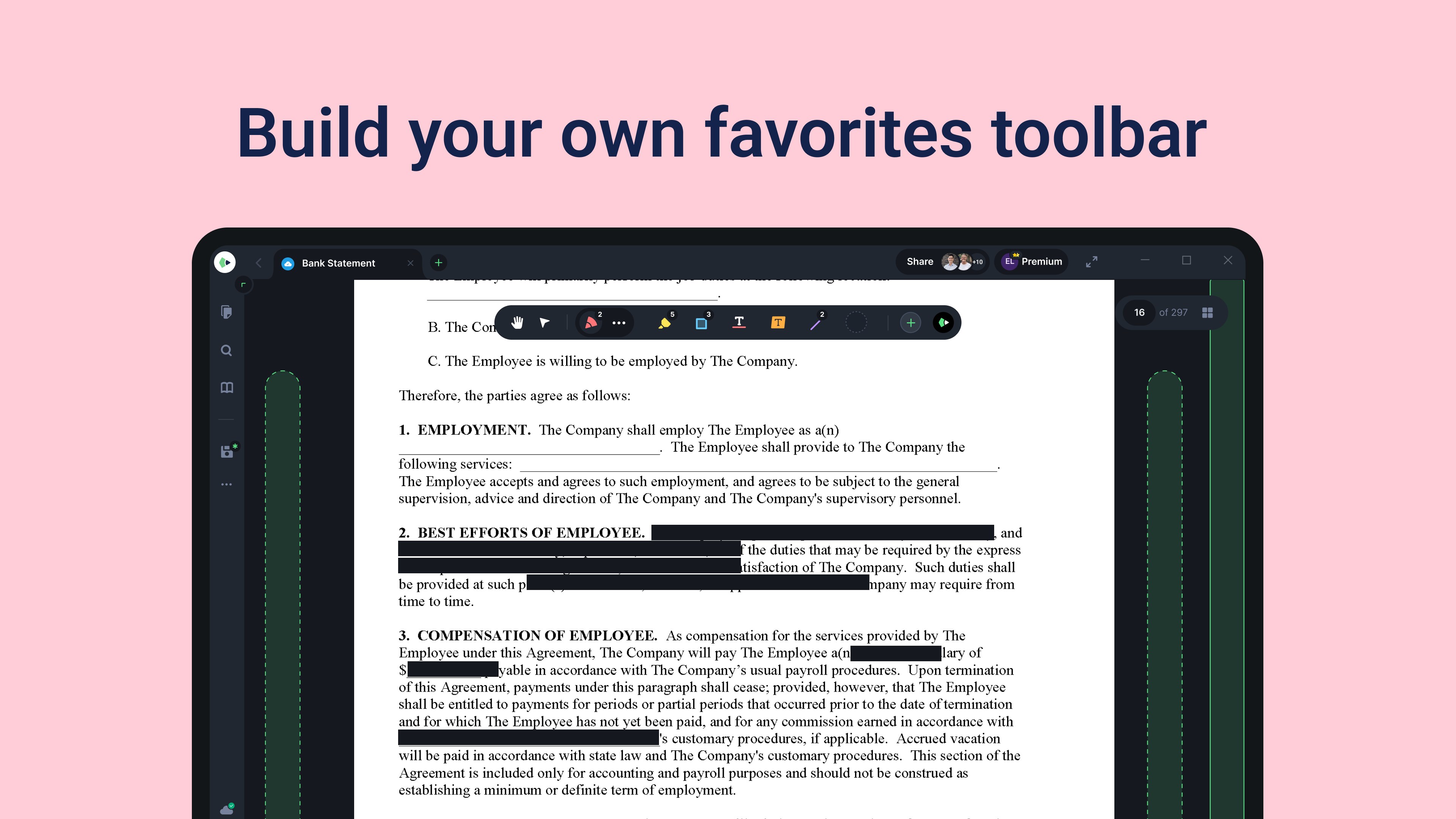
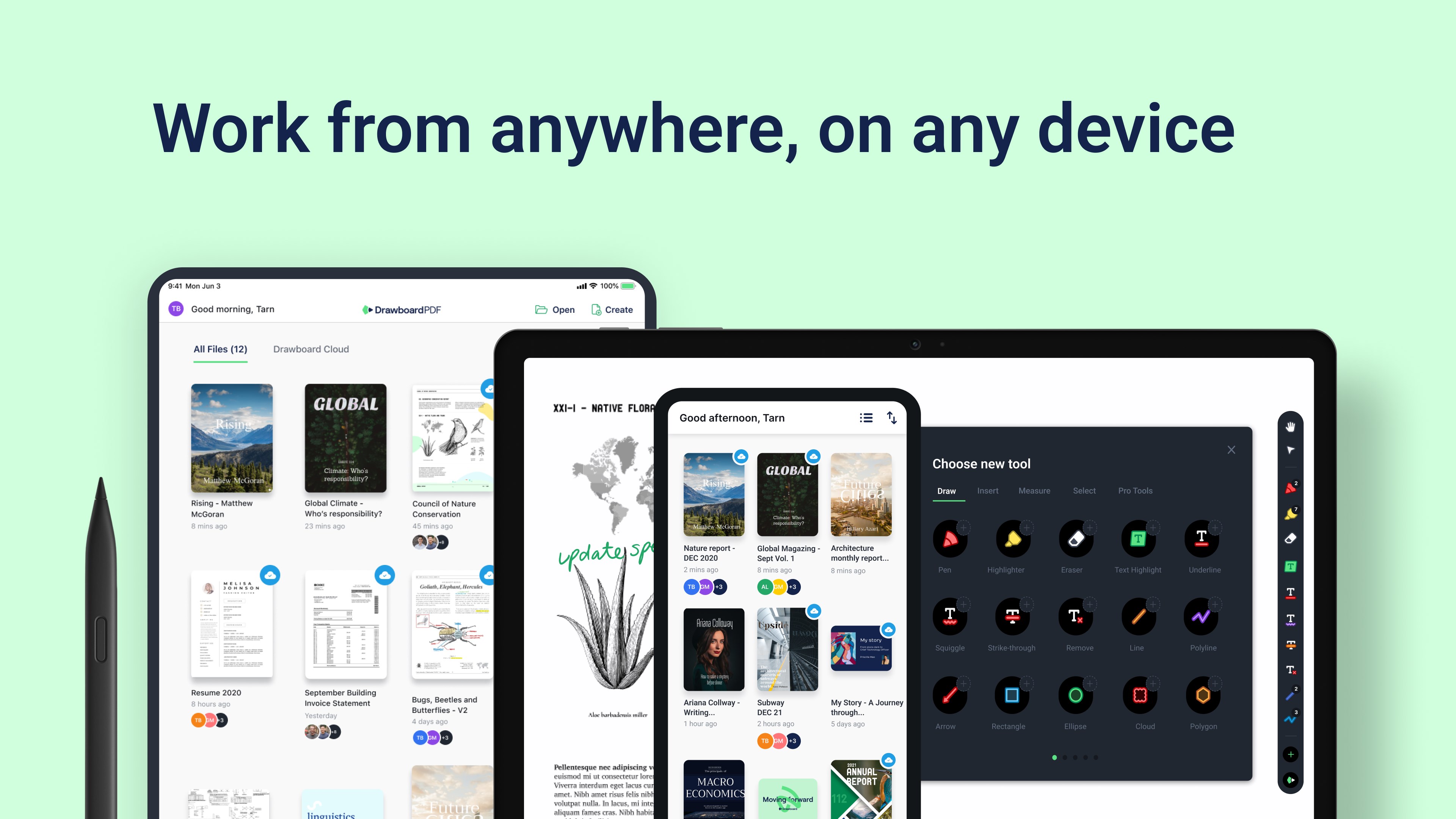
The app truly shines with its rich set of annotation tools—pen, highlighter, shape tools, and even text boxes—enabling users to mark up PDFs with precision and clarity. Imagine equipping your digital workspace with a high-end drafting pen; that's what the annotation suite provides, but with the convenience of digital shortcuts. The tools respond smoothly, allowing for natural, handwriting-like strokes that feel intuitive rather than cumbersome. Whether you're underlining key passages or sketching diagrams, the app ensures your annotations retain their form with minimal lag. The interface is clean and thoughtfully organized, making new users feel at ease while giving veterans the power to operate quickly without hunting through menus.
Core Functionality 2: Effortless Note Integration and Synchronization
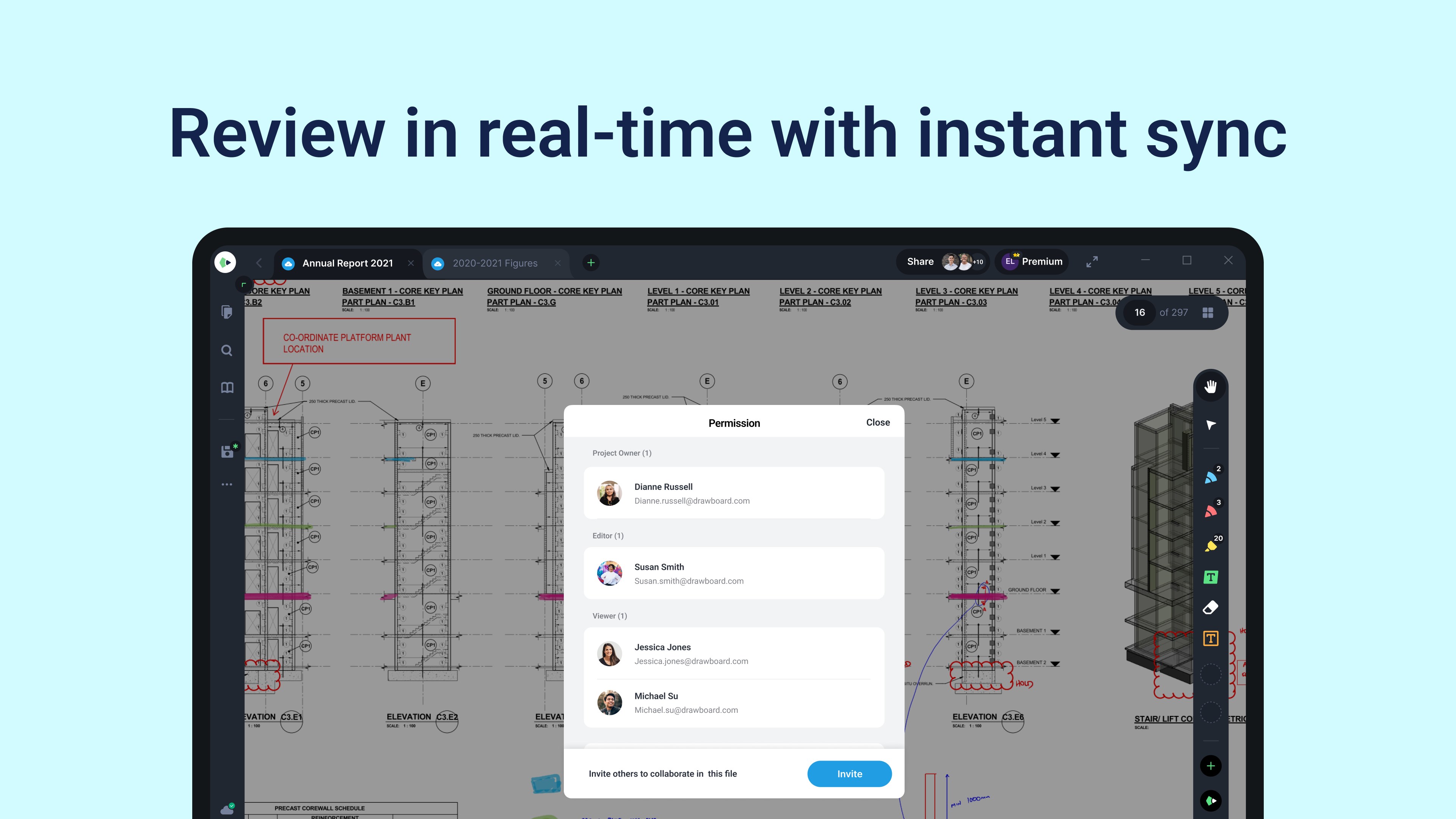
Perhaps the most enticing feature is its ability to keep your notes aligned with your PDFs. This synchronization works effortlessly, akin to flipping back and forth between pages of a book while your handwritten sticky notes remain precisely where they belong. Users can create notes directly within the app, which then float alongside the relevant document section, greatly reducing cognitive load by eliminating the need to juggle multiple apps or windows. The note-taking experience is natural—writing with your stylus or finger feels just like on paper, yet all the benefits of digital editing are at your fingertips. The way it integrates notes into the reading process streamlines workflow, especially during review sessions or collaborative settings.
User Experience and Differentiating Factors
Drawing comparisons to other productivity apps like Adobe Acrobat or OneNote, Drawboard PDF + Notes emphasizes workflow integration over feature bloat. Its interface is streamlined for quick access—think of it as a well-organized workshop where tools are with you, not hidden behind layers. This reduces cognitive load significantly, allowing users to focus on their content rather than fumbling through menus. The app's touch optimization ensures smooth operation on touchscreen devices—swiping, zooming, and writing all feel fluid, mimicking the natural motion of pen on paper. Unlike some complex PDF editors that overwhelm with options, Drawboard prioritizes core functions, making it easier to incorporate into daily routines without a steep learning curve. Its unique selling point is this balance—powerful enough for professionals, simple enough for casual users.
Final Thoughts: A Thoughtful Choice for Focused Productivity
Overall, Drawboard PDF + Notes offers a pragmatic, user-centered approach to digital PDF annotation and note management. Its strongest features—advanced annotation tools and seamless note synchronization—solve practical workflow challenges while maintaining an accessible interface. I'd recommend it strongly for users who want a dedicated, clutter-free environment for document review, study, or collaborative work. While it may not replace specialized tools for very niche tasks, its focus on reducing complexity and enhancing workflow efficiency makes it a standout choice for anyone seeking a reliable digital notebook companion on Windows. Whether you're drafting ideas, marking up reports, or outlining concepts, this app helps you keep your focus where it belongs—on the content, not the convoluted controls.
Pros
- Intuitive annotation tools
- Seamless PDF editing and management
- Excellent stylus support
- Syncs with OneDrive and other cloud storage
- Customizable interface
Cons
- Limited advanced editing features
- Occasional lag on large files
- Missing annotation export options
- Interface may feel cluttered for new users
- Some features require Microsoft 365 subscription











