
- Name Draw Diagram: For MS Visio
- Category Productivity
- Developer OfficeSuiteLab
- Available on PC, Mobile, Surface Hub, HoloLens
- OS Windows 10 version 14393.0 or higher
- languages English (United States)
Streamlining Diagram Creation with Draw Diagram for MS Visio
If you're someone who frequently juggles complex workflows and finds traditional diagram tools a bit cumbersome, Draw Diagram for MS Visio offers a approachable yet powerful alternative. Crafted by OfficeSuiteLab, this app aims to simplify diagramming on Windows, seamlessly integrating into your existing productivity environment. Whether you're a project manager, software architect, or educator, this tool promises to elevate your visual communication without bogging you down with unnecessary features.
Sleek, User-Friendly Interface That Feels Like a Breeze
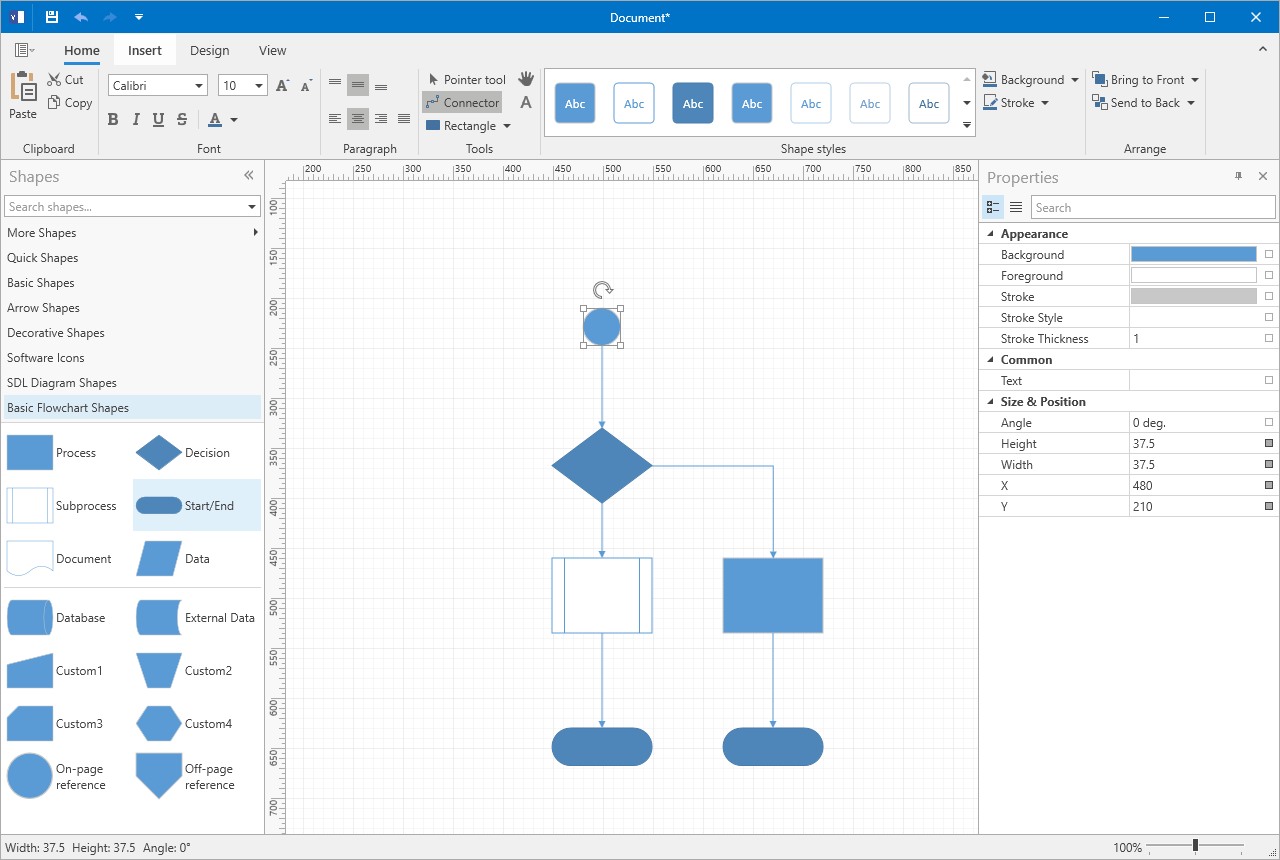
One of the standout qualities of Draw Diagram is its intuitive interface. Navigating through menus feels akin to flipping through a well-organized notebook—time spent figuring out how to make your diagrams is minimized. The app's layout emphasizes clarity, with drag-and-drop features that make adding shapes or connectors almost intuitive as sketching on paper. Moreover, aesthetically pleasing icons and minimalistic design mean that users are less distracted by clutter and can focus purely on crafting their diagrams. From newcomers to seasoned professionals, users will find the learning curve gentle, with immediate access to core functionalities that enable rapid diagram drafting.
Core Functionality Spotlight: Focused and Efficient Design Tools
Seamless Workflow Integration
Unlike many standalone diagram apps, Draw Diagram shines brightest when it flows smoothly into your existing MS Visio or Microsoft Office ecosystem. It offers easy import and export options, reducing the need to juggle multiple formats or switch between applications. For example, you can prepare foundational diagrams in Draw Diagram, and then elaborate or refine within Visio, saving time and maintaining consistency across project documents. This focus on interoperability significantly boosts workflow efficiency, eliminating redundant steps often encountered with siloed diagramming tools.
Smart Diagram Elements and Customization Options
A key feature that sets Draw Diagram apart is its library of intelligent shapes and templates tailored to various industries and use cases. Whether you're designing network diagrams, flowcharts, or organizational structures, the app provides adaptive elements that can be easily customized. These smart components help reduce cognitive load by offering contextually relevant options, unlike more complex apps that bombard users with excessive features. This focus makes creating precise diagrams faster and less mentally taxing, enabling you to communicate ideas clearly without getting lost in feature overkill.
Evaluating User Experience and Unique Advantages
The app's interface design emphasizes ease of use, with a minimal learning curve that encourages quick adoption. Its lightweight nature ensures operations feel snappy, even on modest hardware, which is vital for professionals on the go. Unlike more feature-heavy diagramming tools, Draw Diagram emphasizes functionality tailored specifically for workflow clarity—cutting down on visual clutter and cognitive strain. Its tight integration with MS tools stands out, making it ideal for users embedded in the Microsoft ecosystem seeking a streamlined, less distracting diagramming experience.
Recommendation and Usage Suggestions
Considering its focus on simplicity, workflow integration, and efficient design tools, Draw Diagram is highly recommended for professionals who need quick, reliable diagrams without the hassle of mastering complicated software. It's particularly well-suited for teams already using MS Office products who want a supplementary tool to speed up diagram creation and collaboration. For those who value clarity over complexity and seek a lightweight platform that complements their existing tools, this app offers a compelling choice. However, if your work involves highly intricate diagramming with advanced features, you might find it somewhat limiting. Still, for straightforward, effective visualizations—consider Draw Diagram your friendly sidekick in the realm of productivity tools.
Pros
- Intuitive User Interface
- Wide Range of Templates and Shapes
- Seamless Integration with Microsoft Office
- Cloud Synchronization
- Regular Updates with New Features
Cons
- Limited Advanced Diagram Features
- Performance Issues on Low-End Devices
- Occasional Synchronization Glitches
- Learning Curve for Advanced Functions
- Limited Export Format Options











