

- Name DisplayBuddy
- Category Productivity
- Developer Onlabs
- Available on PC, Mobile, Surface Hub, HoloLens
- OS Windows 10 version 18362.0 or higher
- languages English (United States)
DisplayBuddy for Windows: Elevating Multi-Display Management with Elegance
Imagine effortlessly orchestrating multiple monitors as if conducting a symphony — DisplayBuddy makes this a reality. Developed by Onlabs, this application promises to streamline window organization and enhance productivity for users juggling several screens. Whether you're a professional managing complex workflows or a casual user looking to optimize your workspace, DisplayBuddy is designed with versatility and ease of use in mind.
Core Features That Make DisplayBuddy Stand Out
Seamless Multi-Display Layouts and Snap Management
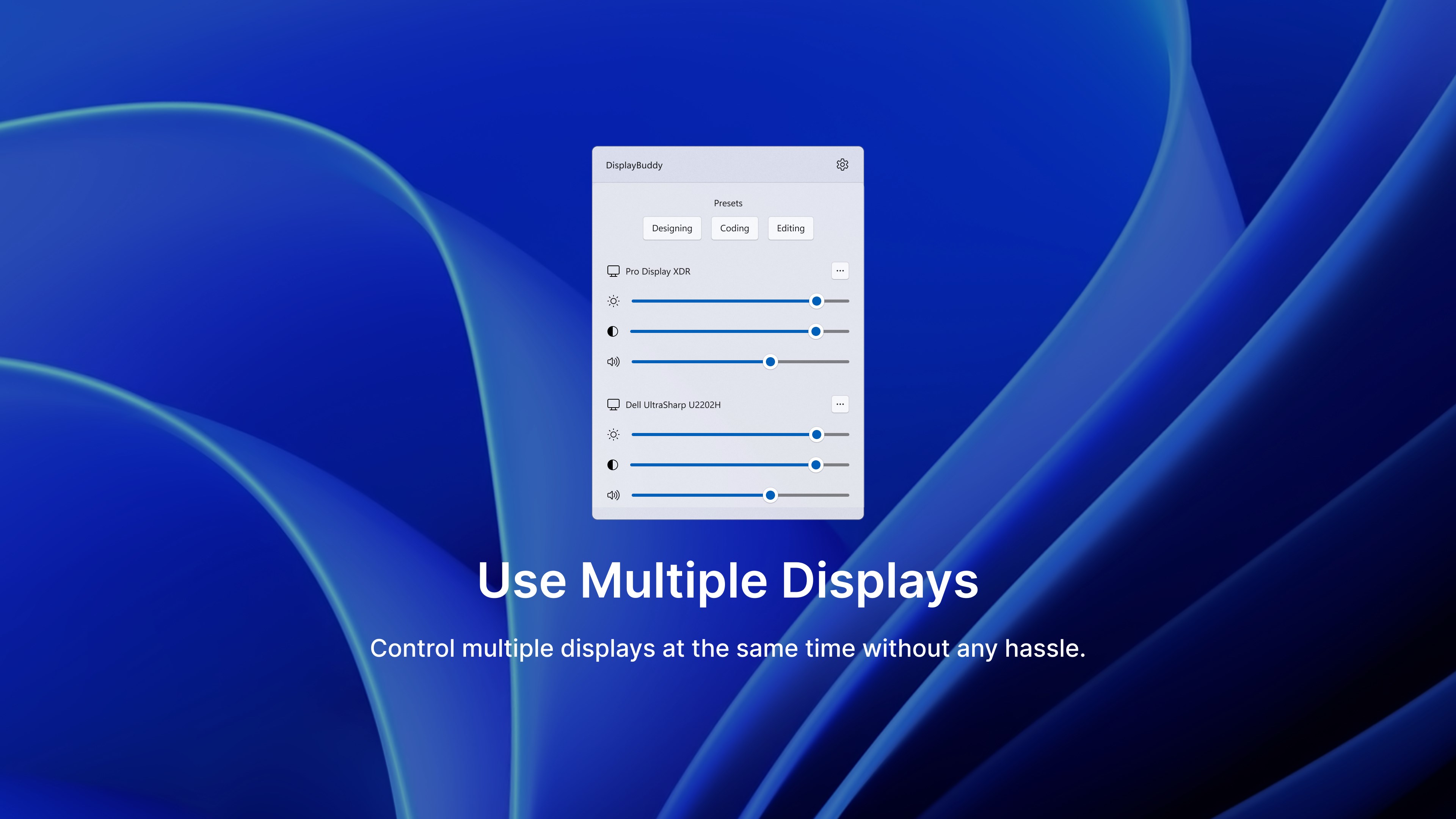
DisplayBuddy introduces an intuitive layout system that allows users to easily arrange, save, and switch between different multi-monitor configurations. Think of it as having a virtual workspace architect, setting up dedicated screens for specific tasks—whether for coding, design, or research. Its smart snapping feature ensures windows align precisely, reducing clutter and frustration.
Smart Workspace Automation and Presets
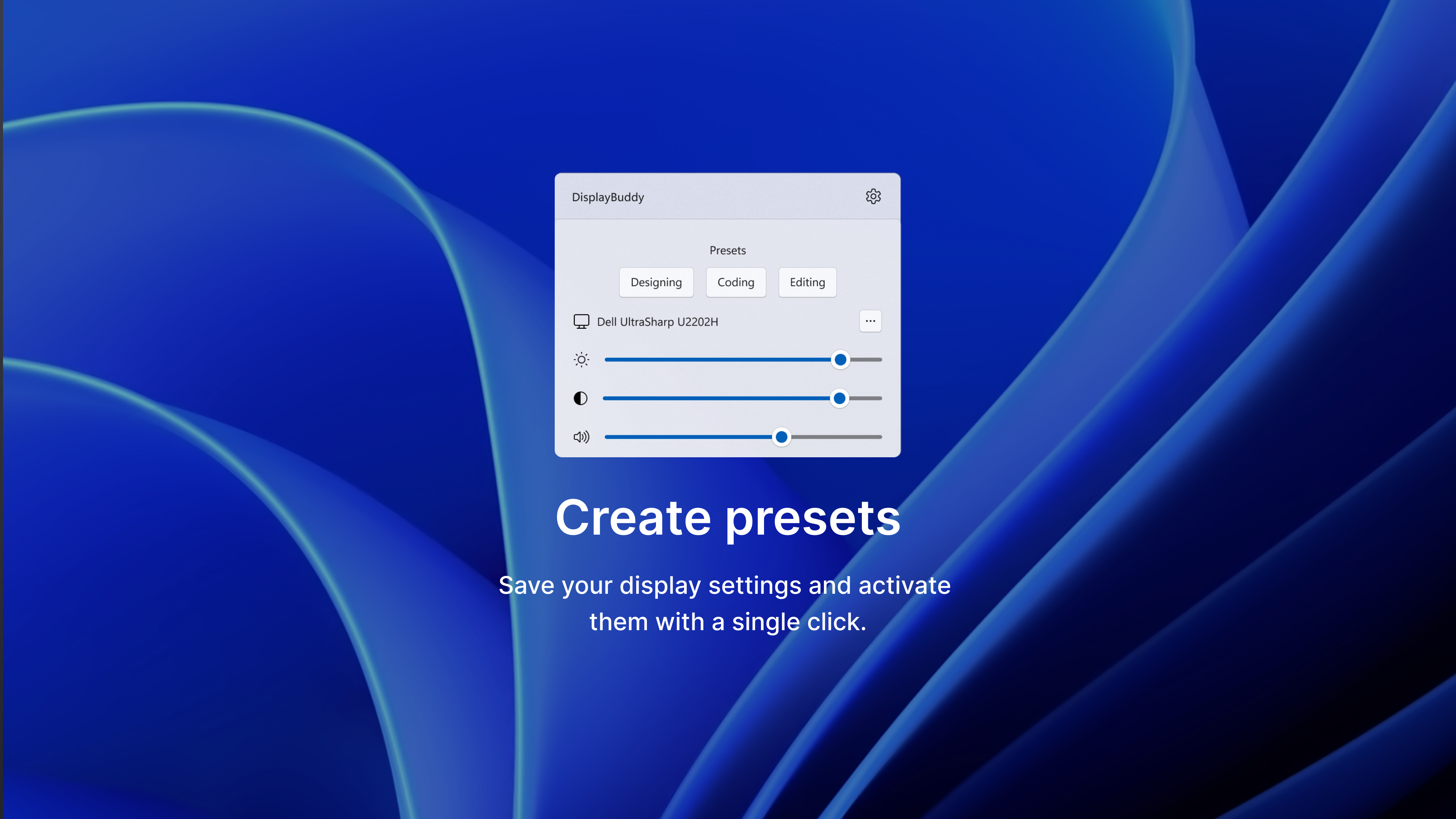
One of DisplayBuddy's standout features is its ability to create and activate preset arrangements with a click. Imagine setting up your 'Work Mode' with all relevant applications positioned just right, then toggling effortlessly at the start of your day. This automation reduces cognitive load by cutting down monotonous window rearrangements, allowing you to focus on what truly matters.
Advanced Workflow Integration and Efficiency
Beyond simple window management, DisplayBuddy offers deep integration with your workflow. It supports complex multi-window setups for different projects, speeding up task switching and reducing distractions. Unlike more basic tools, its intelligent behavior ensures minimal manual intervention, streamlining productivity without overwhelming the user with excessive options. This makes it especially valuable for professionals seeking a clutter-free, efficient workspace.
An Engaging Experience: Design, Usability, and Learning Curve
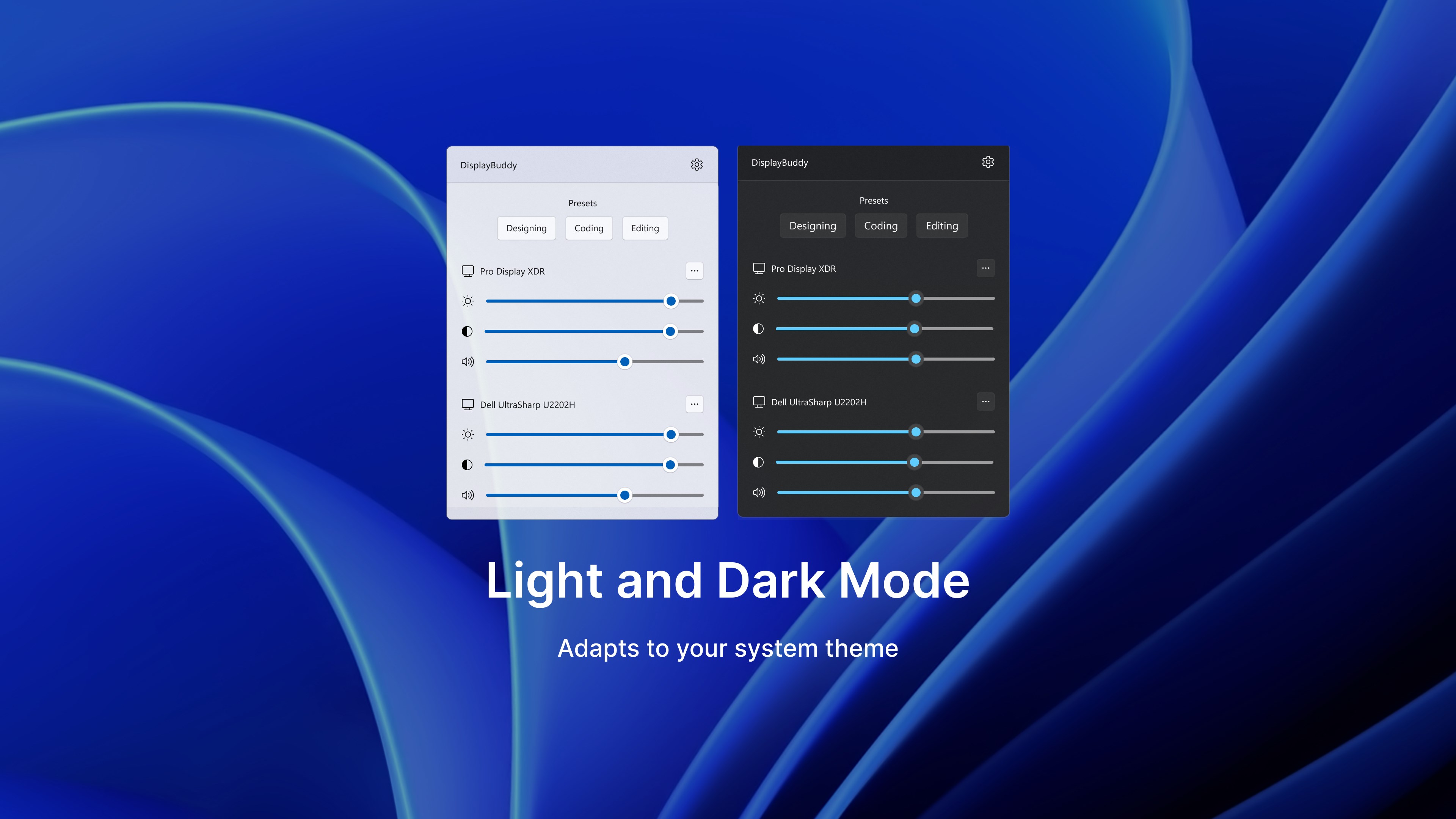
From the moment you launch DisplayBuddy, its clean, minimalist interface welcomes you like a well-organized desk. The layout is thoughtfully designed, making navigation straightforward even for newcomers. Setting up monitor profiles feels akin to arranging picture frames on a wall — satisfying and effortless. The app runs smoothly, with responsive drag-and-drop capabilities and near-instantaneous application of settings, contributing to a fluid user experience. For those wary of new software, the learning curve is gentle; most features are accessible through simple menus, and comprehensive documentation is available for advanced configurations.
What Makes DisplayBuddy Unique?
Compared to other multi-monitor management tools, DisplayBuddy's real strength lies in its workflow integration efficiency. Its ability to quickly switch between comprehensive workspace presets significantly reduces the cognitive load that comes with manual window rearrangements. Unlike feature-heavy but cluttered apps, DisplayBuddy strikes a balance, offering powerful functionalities without overwhelming the user—a critical advantage for those who prefer a streamlined, distraction-free environment.
Final Recommendations and Usage Suggestions
DisplayBuddy is well-suited for professionals, creatives, and dedicated multitaskers who need reliable and flexible multi-display control. If you spend significant time managing multiple monitors, this app could become your new best friend, quietly boosting your productivity behind the scenes. Its intuitive interface makes it accessible for beginners, while its automation and preset capabilities will satisfy power users looking to optimize their workflows.
While it may not have the extensive customization options of some enterprise solutions, DisplayBuddy excels at simplicity and effectiveness. For a clean, efficient, and user-friendly multi-monitor management experience, I recommend giving it a try—your workspace will thank you.
Pros
- Intuitive interface
- High customization options
- Real-time display preview
- Seamless integration with Windows
- Regular updates with new features
Cons
- Limited advanced options for power users
- Occasional bugs in display detection
- User interface could be more modern
- Documentation is basic and lacking in detail
- Limited support for multi-monitor setups with different resolutions











