
- Name Display Calibration
- Category Productivity
- Available on PC
- OS Windows 10 version 17134.0 or higher
- languages English (United States), Vietnamese
An Honest Dive into Display Calibration for Windows by Auralisoft
If you've ever struggled with unbalanced colors, inconsistent brightness, or simply want your screen to match real-world visuals more precisely, Display Calibration for Windows promises an approachable solution. As a tech reviewer, I appreciate tools that cut through complexity and genuinely enhance workflow, and this application aims to do just that—without overwhelming users with an ocean of features.
What Is Display Calibration for Windows?
Display Calibration for Windows is a dedicated app designed to fine-tune your monitor's display settings, ensuring accurate colors and optimal visual performance. Designed by Auralisoft, a team with a knack for user-centered software, this tool targets anyone—from casual users refining personal viewing experiences to professionals needing precise color calibration for creative tasks.
- Key Features: Simple yet effective calibration controls, gamma adjustments, and color temperature tuning.
- Developer: Auralisoft
- Target Audience: Graphic designers, photographers, video editors, and tech enthusiasts seeking straightforward calibration without the hassle of complex professional tools.
A Fresh Approach to Display Calibration
Imagine staring at your screen and feeling it doesn't quite mirror reality—the whites may seem too bright or dull, colors may appear washed out, and shadows lack depth. Calibration isn't just a cosmetic tweak; it's the foundation for reliable visual work and a more pleasurable viewing experience. This app walks a fine line between professional-grade accuracy and user-friendly simplicity, like a seasoned chef making gourmet cuisine accessible to home cooks.
Simplifying the Calibration Journey
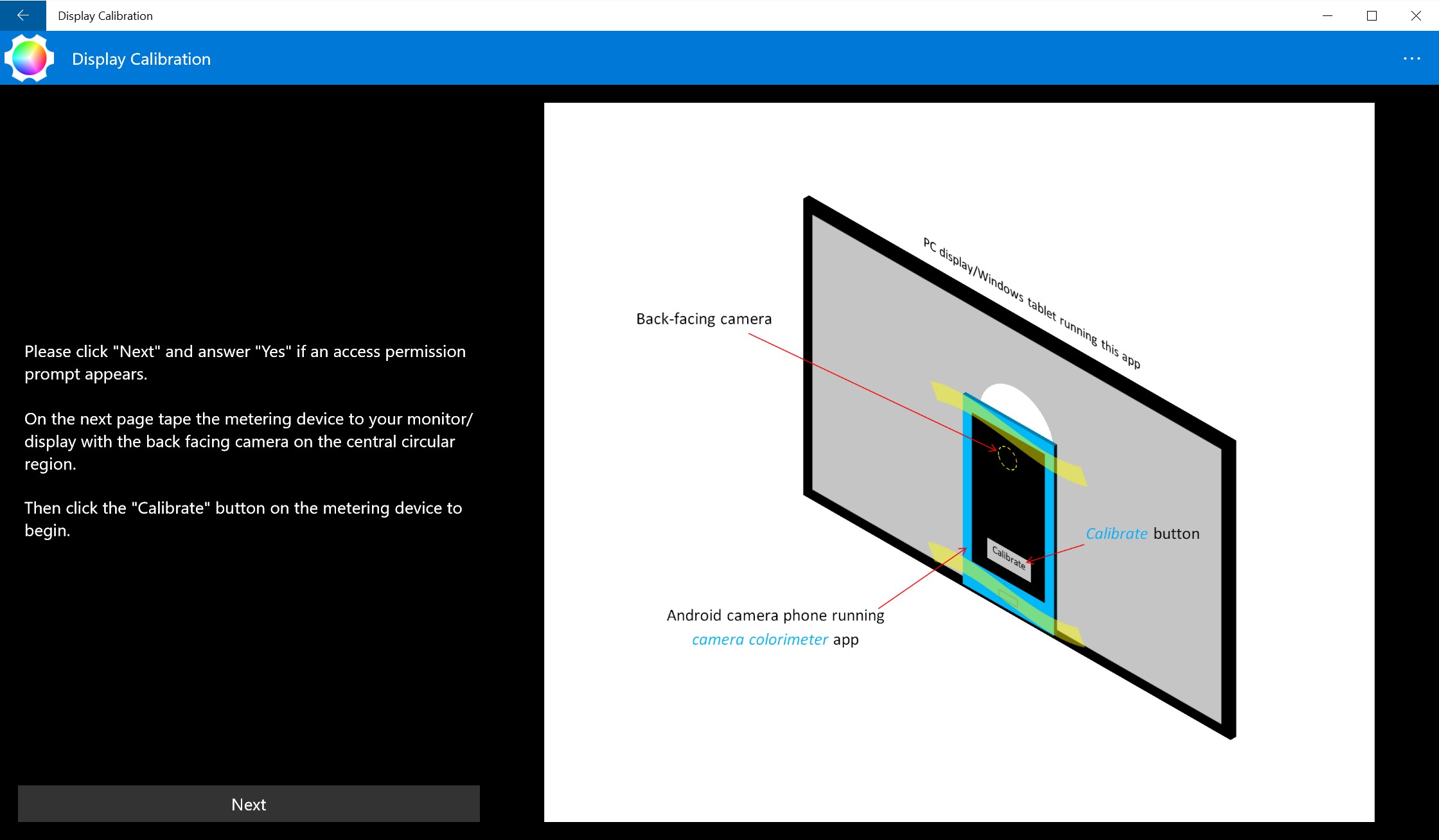
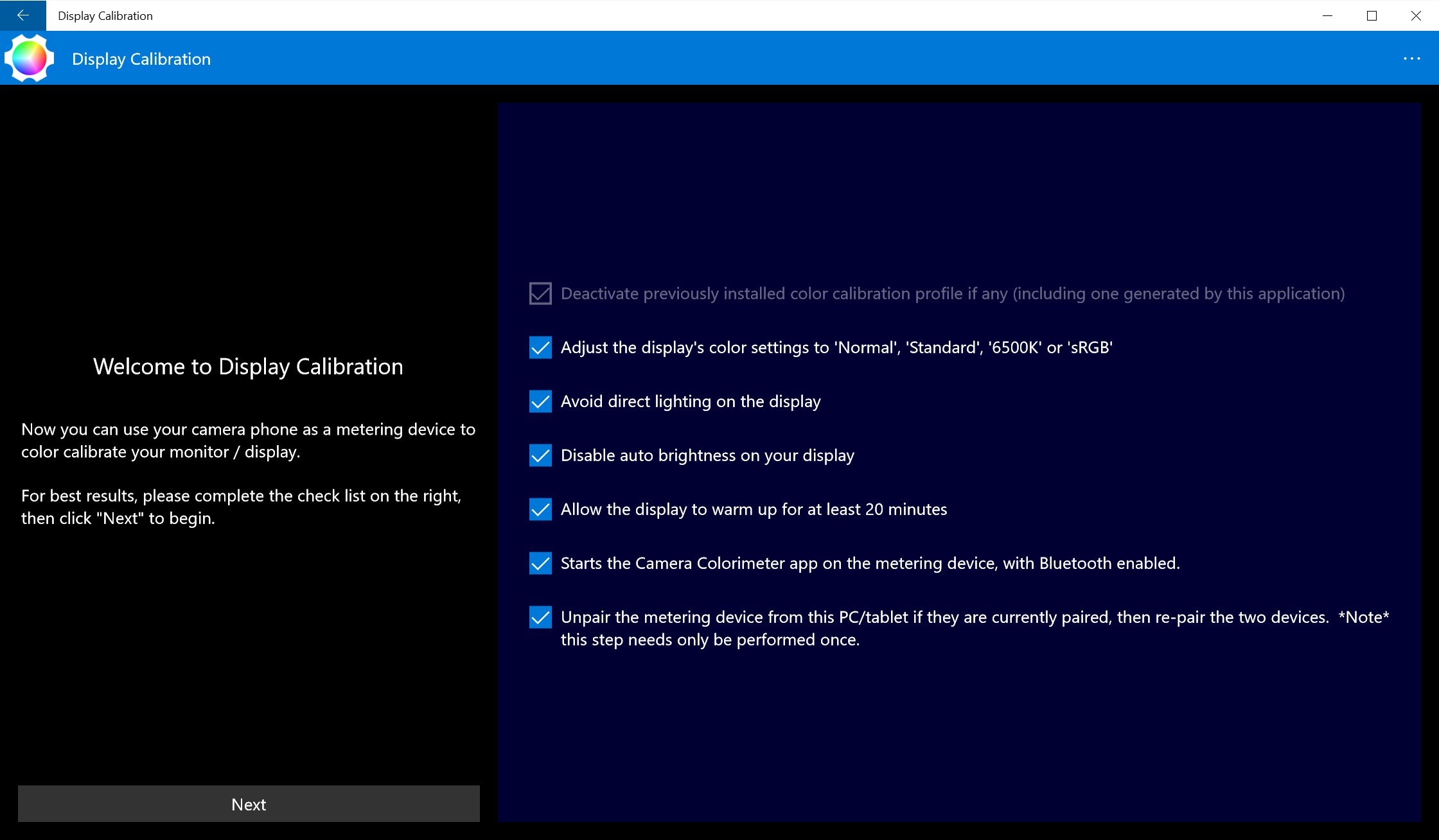
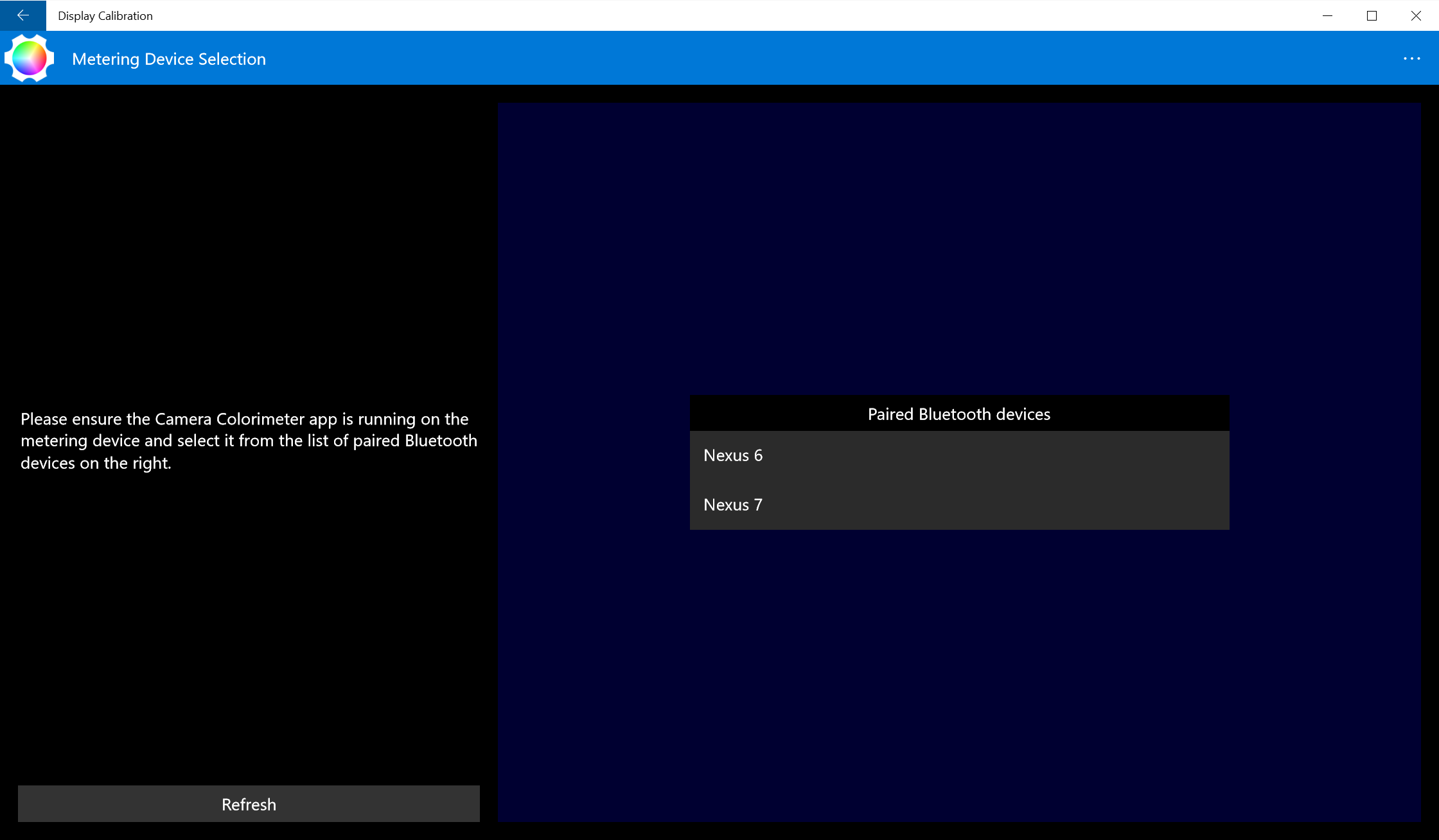
One standout aspect of Display Calibration for Windows is its intuitive interface. Instead of a cluttered maze of sliders and technical jargon, it employs a clean, organized layout. Think of it as a well-arranged toolbox: essential functions are at your fingertips, making calibration feel less like a daunting project and more like a quick, rewarding adjustment. The app guides you through steps with clear instructions, making it suitable for first-timers and seasoned experts alike. Its learning curve is gentle—think of it as the difference between assembling complex furniture with a kit versus building from scratch.
Core Functionalities: Precision Made Easy
1. Color Calibration and Balance
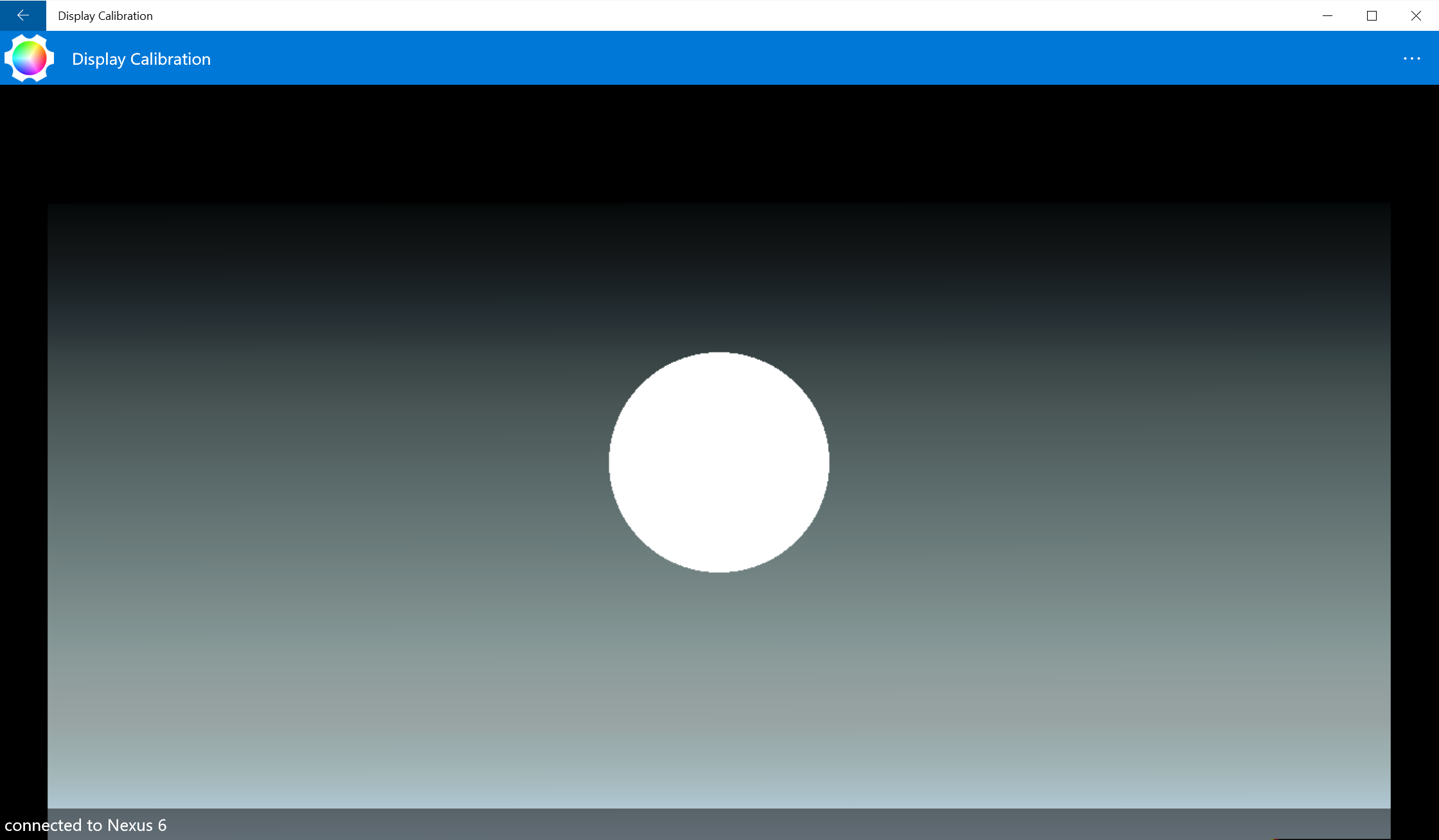
This is the heart of the app. It allows users to adjust color profiles with sliders or preset guided modes, fine-tuning the display's balance to match real-world visuals. It makes your monitor a painter's canvas that faithfully reproduces colors—be it for accurate photo editing or simply enjoying media as intended.
2. Gamma and Brightness Tuning
Adjusting gamma is like setting the contrast of a film—it controls how shadows and highlights manifest on your screen. With an easy-to-use slider, the app lets you reach that perfect equilibrium where details are visible without sacrificing naturalness. Brightness adjustments further tailor your display for specific lighting conditions, like dimming your monitor in the evening or brightening it for daylight work.
3. Temperature and Contrast Settings
Manipulating color temperature—ranging from cool to warm tones—helps reduce eye strain and creates a mood fitting your environment. The contrast controls ensure blacks are deep and whites are crisp, like adjusting the tint and tone of a photograph to get just the right mood.
Weighing the User Experience and Differentiation
The app's interface is a breath of fresh air—clear, minimalistic, and focused. Unlike many calibration tools that resemble scientific displays with tangled controls, this app feels like a friendly guide walking you step-by-step. Transitioning between different calibration modes is seamless, and the responsiveness of adjustments ensures instant feedback, making the process satisfying rather than frustrating. Its low learning curve makes it accessible even for those who have never touched monitor calibration before.
One of its most compelling distinctions from competing products is its emphasis on simplicity combined with core precision. While high-end professional tools often come with overwhelming feature sets that can increase cognitive load, Display Calibration for Windows narrows its scope to essential tweaks—reducing mental effort and allowing users to focus on what truly matters: achieving accurate display performance efficiently. It's akin to choosing a reliable, well-tuned instrument over a complex orchestra: straightforward, effective, and less stressful to operate.
Final Verdict: A Reliable Partner for Your Screen
Overall, I recommend Display Calibration for Windows to users seeking a straightforward, effective calibration app that balances ease of use with meaningful adjustments. Whether you're a creative professional needing dependable color accuracy or a casual user wanting a better visual experience, this tool offers tangible benefits without the intimidating complexity of professional calibration hardware or software. Just like tuning a musical instrument to perfection, a few well-placed tweaks with this app can dramatically enhance your display—making every pixel count.
Pros
- User-friendly interface
- Accurate color calibration
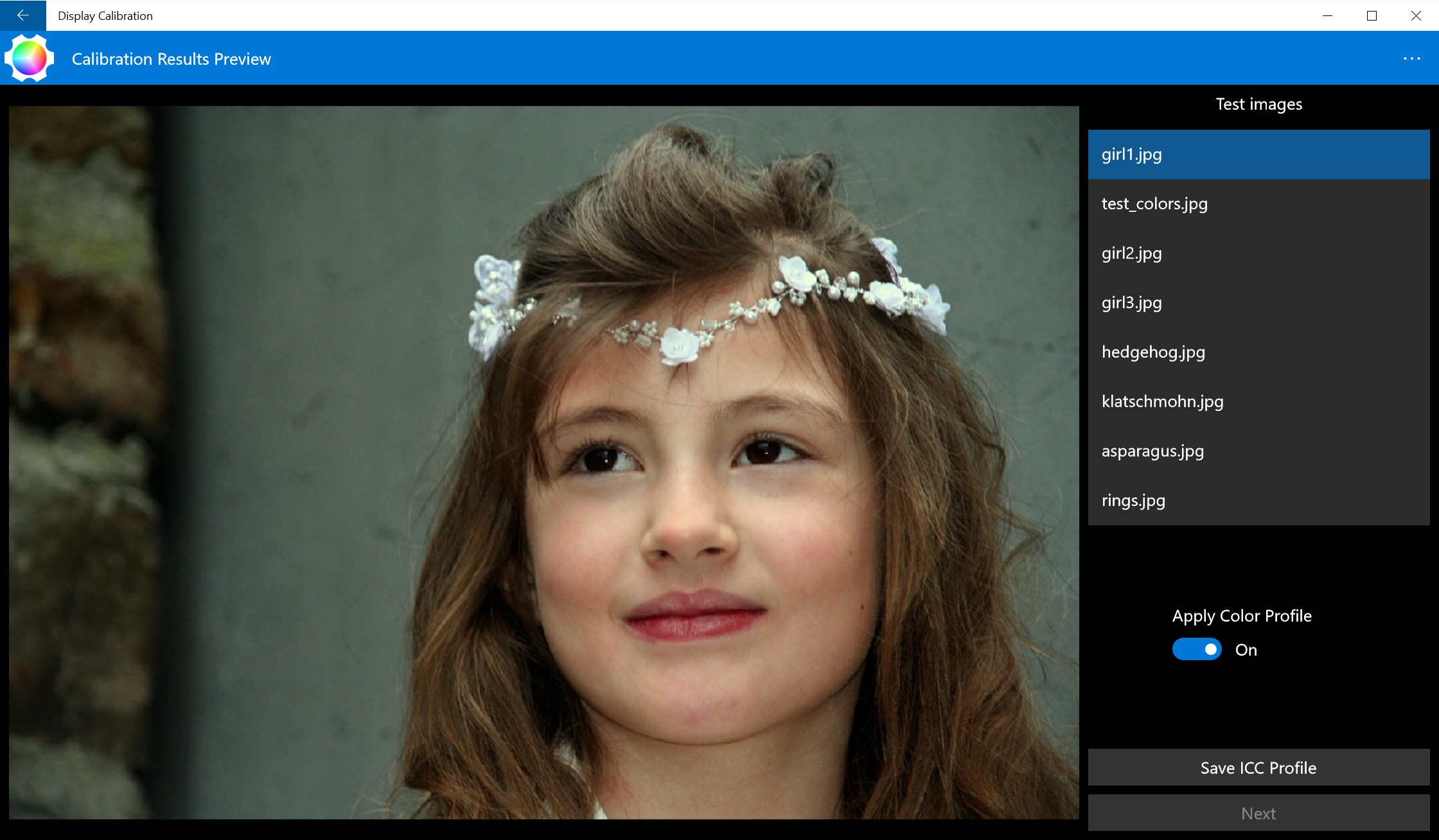
- Real-time preview
- Automatic calibration suggestions
- Supports multiple display profiles
Cons
- Limited advanced customization
- Compatibility issues with some hardware
- Requires administrative permissions
- Limited export options for profiles
- Calibration adjustments may revert after system updates











