
- Name CorelDRAW Microsoft Store Edition
- Category Multimedia design
- Developer Corel Corporation
- Available on PC
- OS Windows 10 version 18362.0 or higher
- Keyboard Integrated Keyboard
- Mouse Integrated Mouse
- DirectX DirectX 12 API, Hardware Feature Level 11
- Memory 8 GB
- languages English (United States)
Unleashing Creativity with CorelDRAW Microsoft Store Edition
CorelDRAW Microsoft Store Edition for Windows is a streamlined, user-friendly graphic design tool tailored for both aspiring artists and seasoned professionals seeking powerful vector illustration and design capabilities within a familiar Windows environment.
About the Developer and Main Features
Developed and published by Corel Corporation, a renowned name in digital creative software, this edition of CorelDRAW aims to bring professional-grade design tools directly to Windows users through the Microsoft Store. Its core highlights include an intuitive vector illustration environment, robust typography and layout tools, and seamless integration with other Corel ecosystem applications. The design focuses on accessibility without sacrificing depth, making it ideal for designers ranging from hobbyists to small business owners looking to craft eye-catching visuals efficiently.
Vivid Creativity: A Friendly Dive into CorelDRAW's World
Picture this: you're sitting at your desk, surrounded by sketches and inspiration, ready to breathe life into your ideas. CorelDRAW Microsoft Store Edition is like a trusty atelier—offering a canvas vast enough for your imagination to roam free, yet approachable enough not to feel overwhelming. Whether you're designing a logo, creating detailed illustrations, or working on marketing materials, this app feels like a collaborative partner that's always ready to support your creative journey.
Powerful Vector Illustration Tools — Bringing Ideas to Life
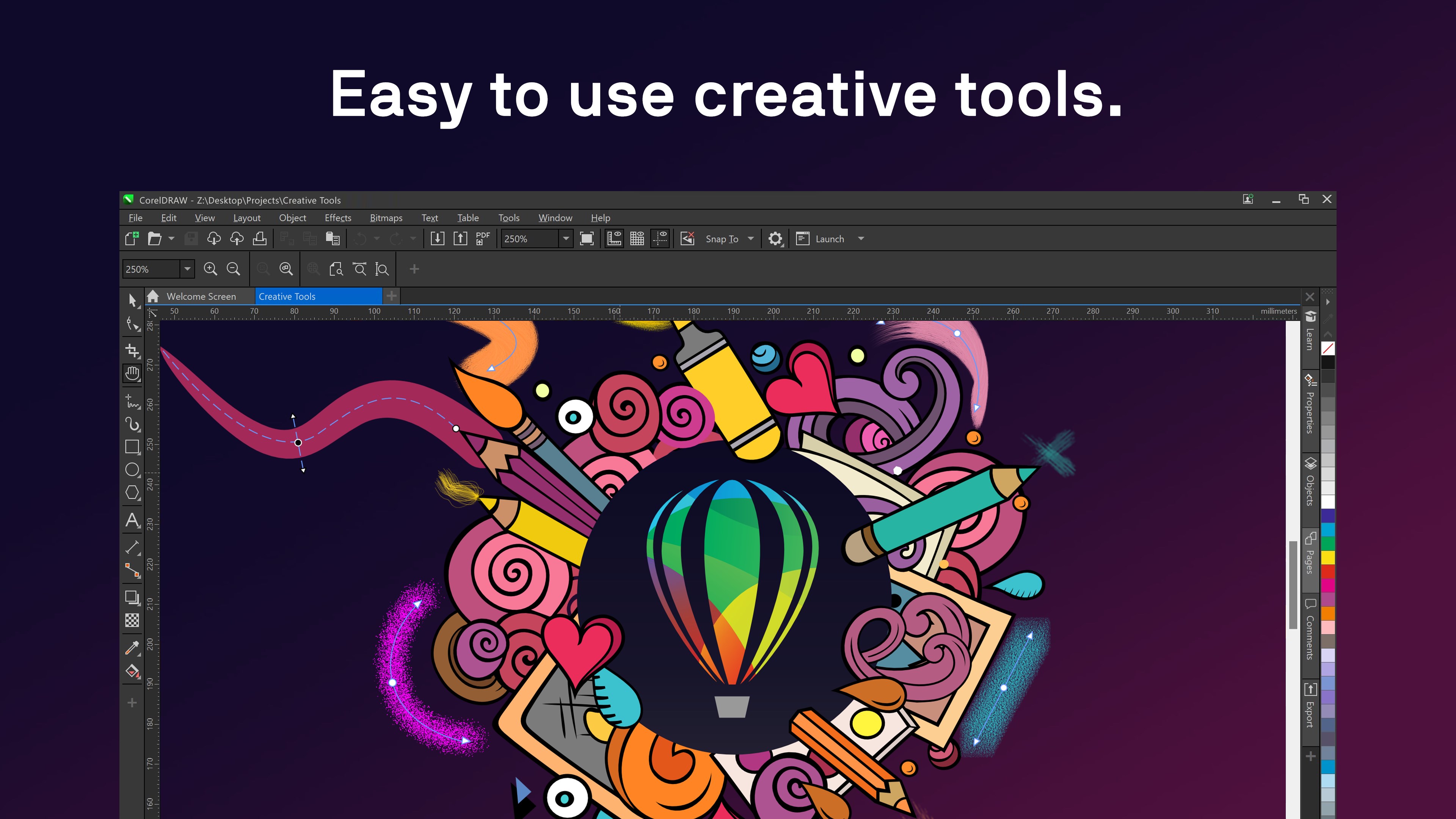
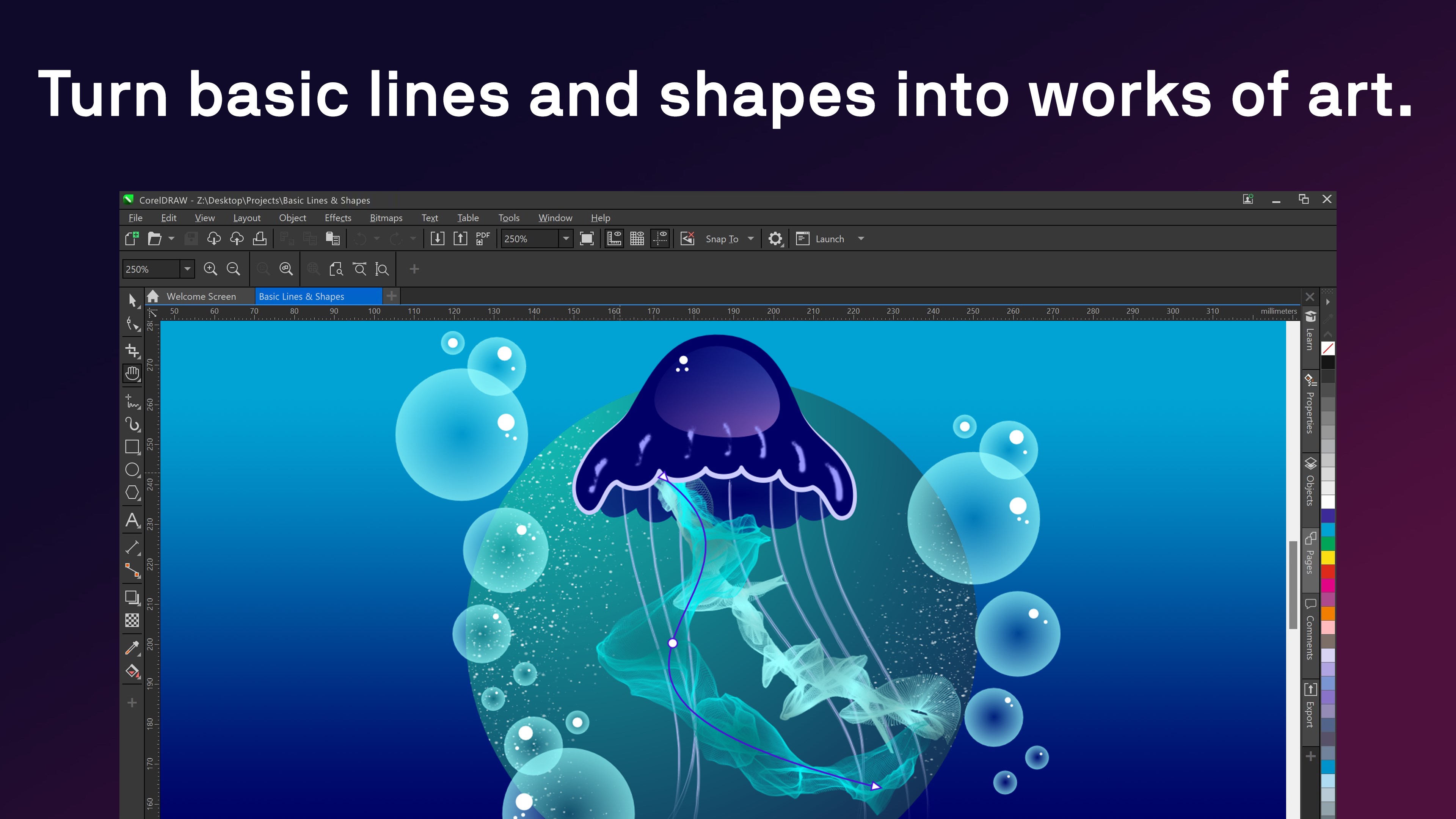
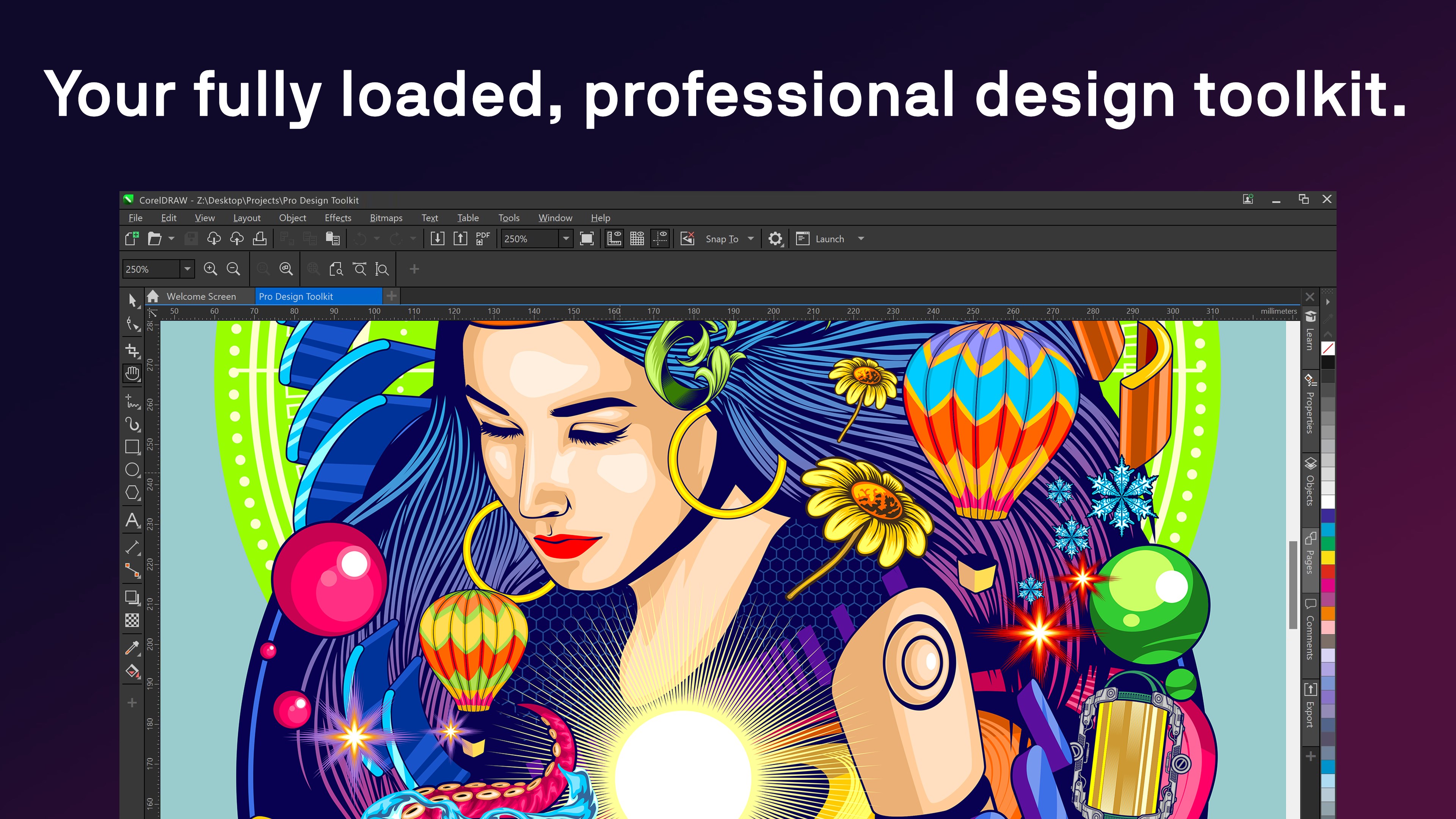
The heart of CorelDRAW is its vector illustration engine, designed to give your creations crisp lines and scalable graphics. Unlike bitmap editors that rasterize your work, this vector-focused environment ensures your designs remain sharp at any size—think of it as a magic magnifying glass that keeps every pixel perfect, from tiny icons to large banners. Features like the Bézier and pen tools make drawing curves feel natural, while advanced node editing allows for precise control, perfect for intricate illustrations or logo design. What sets this apart is its ease of handling complex vector artwork without bogging down your workflow, a true boon for creative professionals aiming for detail without chaos.
Intuitive User Interface with Seamless Workflow
The interface adopts a modern, clean look reminiscent of a well-organized artist's studio. It employs familiar ribbon menus and customizable workspaces, making transitions from other design software or even beginner-level tools smooth and straightforward. Responsiveness is notable—operations like zooming, panning, and object manipulation feel fluid and natural, akin to flicking a brush across the canvas. The learning curve is friendly, with contextual hints and tips that gently guide newcomers, yet rich enough features to satisfy advanced users. This balance makes CorelDRAW an accessible yet capable companion for daily creative tasks.
Unique Edge: What Makes It Stand Out?
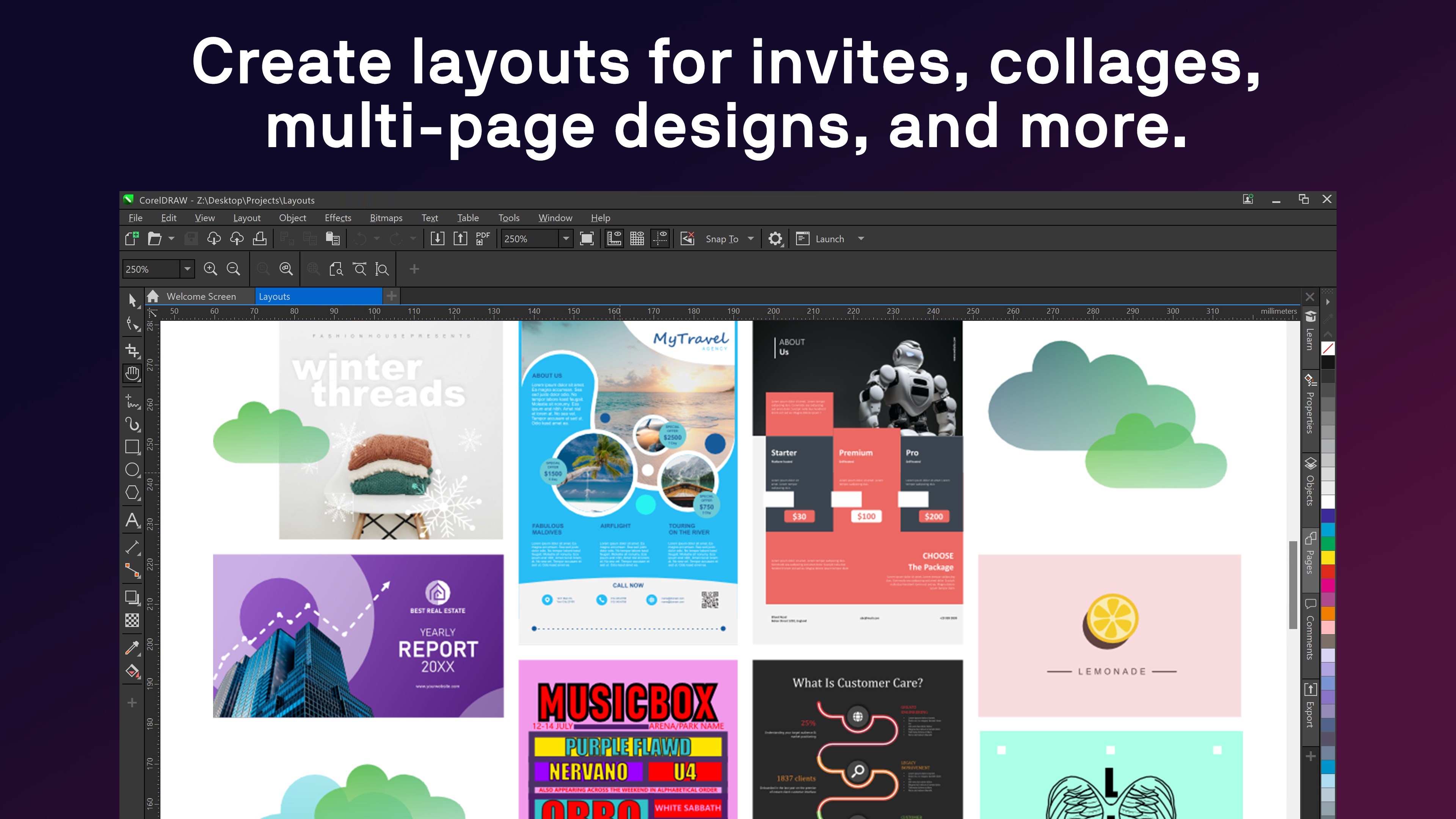
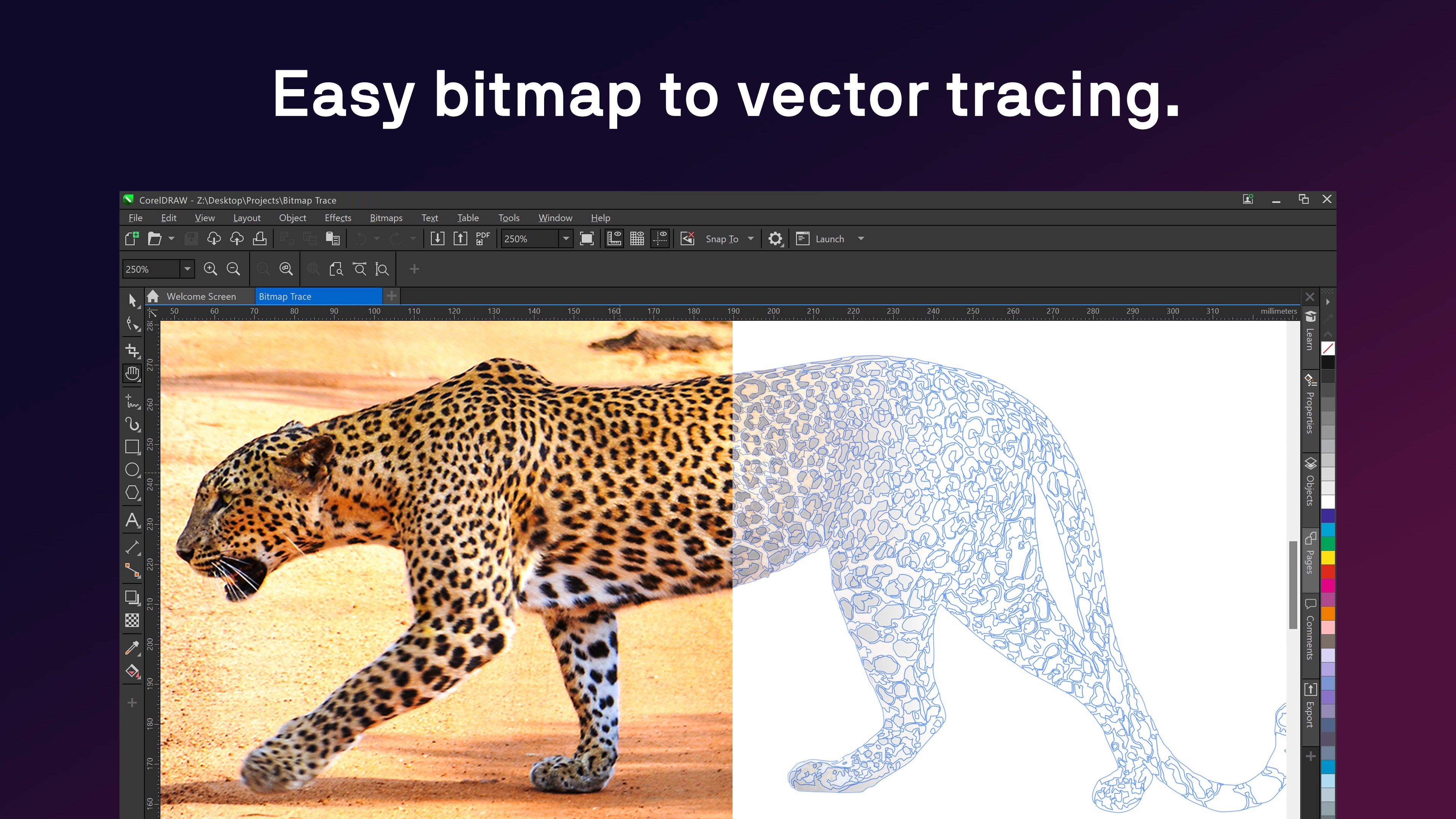
One standout feature is the integrated font management—offering an extensive library and real-time font previews, which accelerates typography workflows, especially when paired with the app's powerful layout tools. Another distinguishing point is its compatibility within the broader Corel ecosystem, allowing easy import/export of files across programs like Corel PHOTO-PAINT, providing a comprehensive suite that covers all your design needs. Unlike many competitor apps that focus solely on vector art, CorelDRAW emphasizes versatility—enabling precise control over both vector and raster elements—making it a comprehensive tool for multimedia projects.
Final Verdict and Usage Recommendations
CorelDRAW Microsoft Store Edition shines as a versatile, approachable, and reliable design platform. It's particularly recommended for small teams, hobbyists, or freelancers seeking professional features packaged in a user-friendly interface. While not as heavyweight as desktop counterparts, its performance and core functionalities are impressive enough for a majority of creative tasks. If your goal is to craft high-quality graphics with less hassle and more confidence, this edition offers a compelling package worth trying out.
In summary, whether you're fine-tuning a logo, designing a poster, or exploring digital artistry, CorelDRAW Microsoft Store Edition can be a valuable addition to your creative toolkit—bringing professional precision and effortless usability together in one sleek package.
Pros
- Intuitive user interface
- Comprehensive vector design tools
- High compatibility with standard file formats
- Performance optimized for Windows
- Regular updates and feature improvements
Cons
- Limited built-in tutorials
- Occasional lag with complex files
- Some features are restricted to the desktop version
- Limited customization options for interface
- Initial setup can be slow on older hardware