- Name Clip Studio Paint - Draw and Paint Anywhere -
- Category Multimedia design
- Developer CELSYS, Inc.
- Available on PC
- OS Windows 10 version 0.0 or higher
- Keyboard Integrated Keyboard
- Mouse Integrated Mouse
- Memory 2 GB
- languages Chinese (Traditional Chinese), English, French, German, Indonesian, Japanese, Korean, Portuguese (Brazil), Spanish, Thai
Charming Flexibility in Digital Art Creation
Clip Studio Paint is an intuitive drawing application that seamlessly combines powerful tools with a user-friendly interface, making it an ideal choice for artists who wish to craft their masterpieces anywhere on Windows devices. Developed by CELSYS, Inc., this software promises a smooth blend of professional-grade features and accessibility, ensuring that both novice and seasoned creators can produce with ease and confidence.
Powerful Core Features that Inspire Creativity
Versatile Drawing and Painting Tools
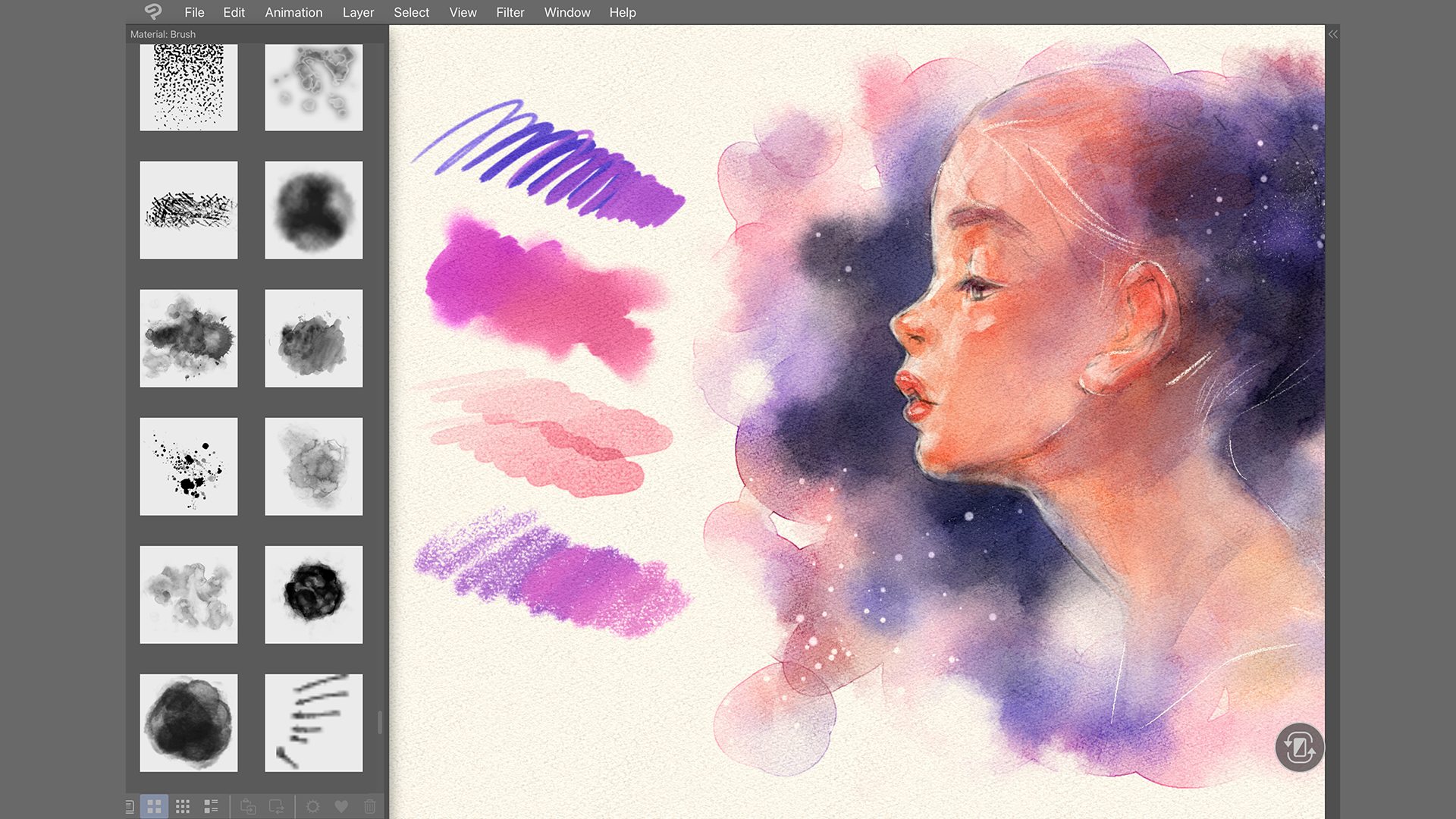
At the heart of Clip Studio Paint lies an extensive suite of brushes, pen tools, and coloring options that emulate traditional art media with remarkable realism. Whether you're sketching intricate line arts or applying vibrant digital washes, the app provides a dynamic environment that adapts to your creative style. The customizable brush settings and layer management empower artists to experiment freely without technical restraints.
Intelligent Vector and Raster Support
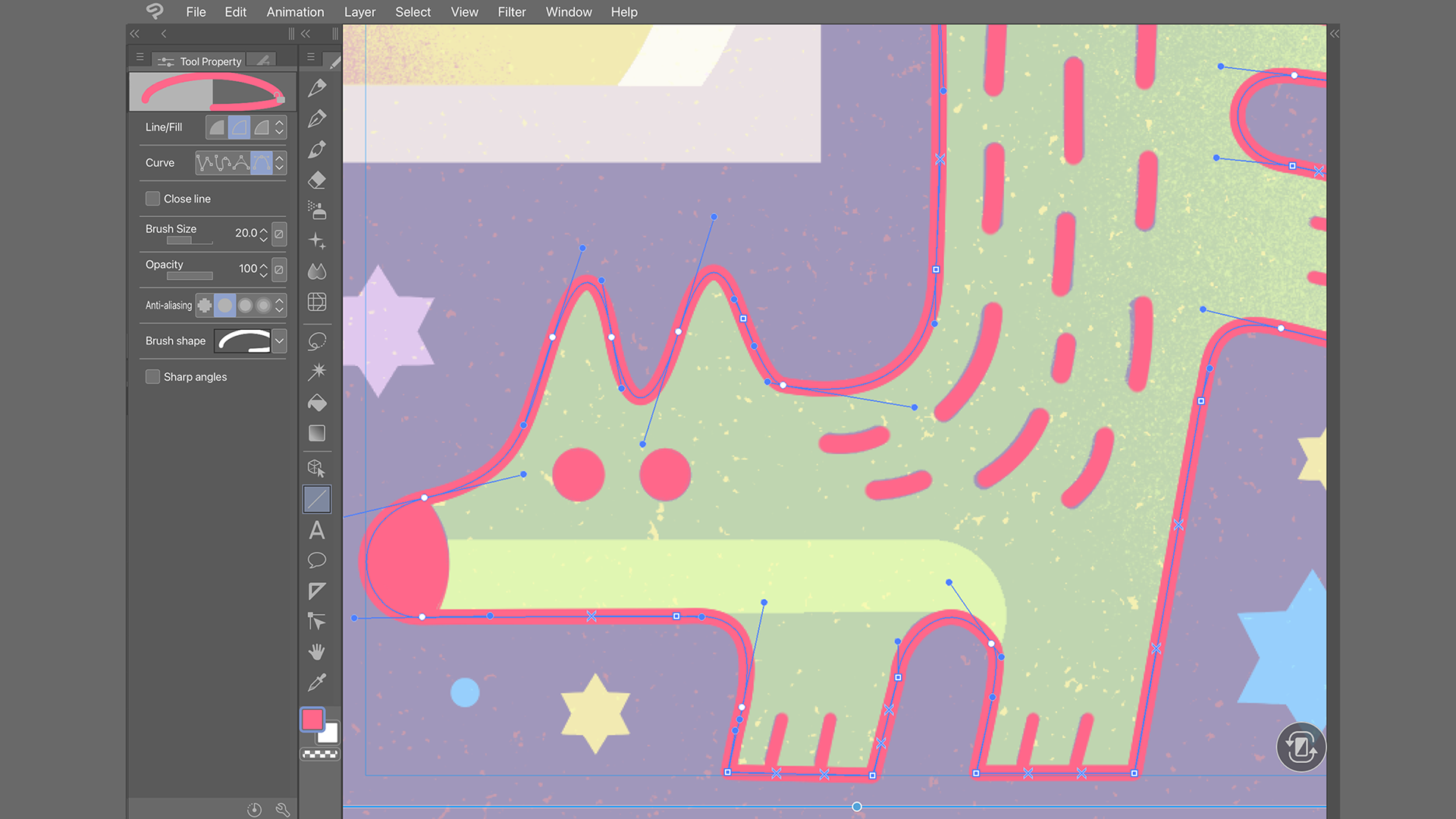
An impressive blend of raster and vector capabilities allows for sharp, scalable line art and detailed painting. The vector tools facilitate clean, crisp lines perfect for comic art or animation storyboarding, while raster layers ensure depth and texture in paintings. This dual support enables seamless switching between styles, making the application highly flexible for multiple artistic pursuits.
Seamless Mobile and Desktop Integration
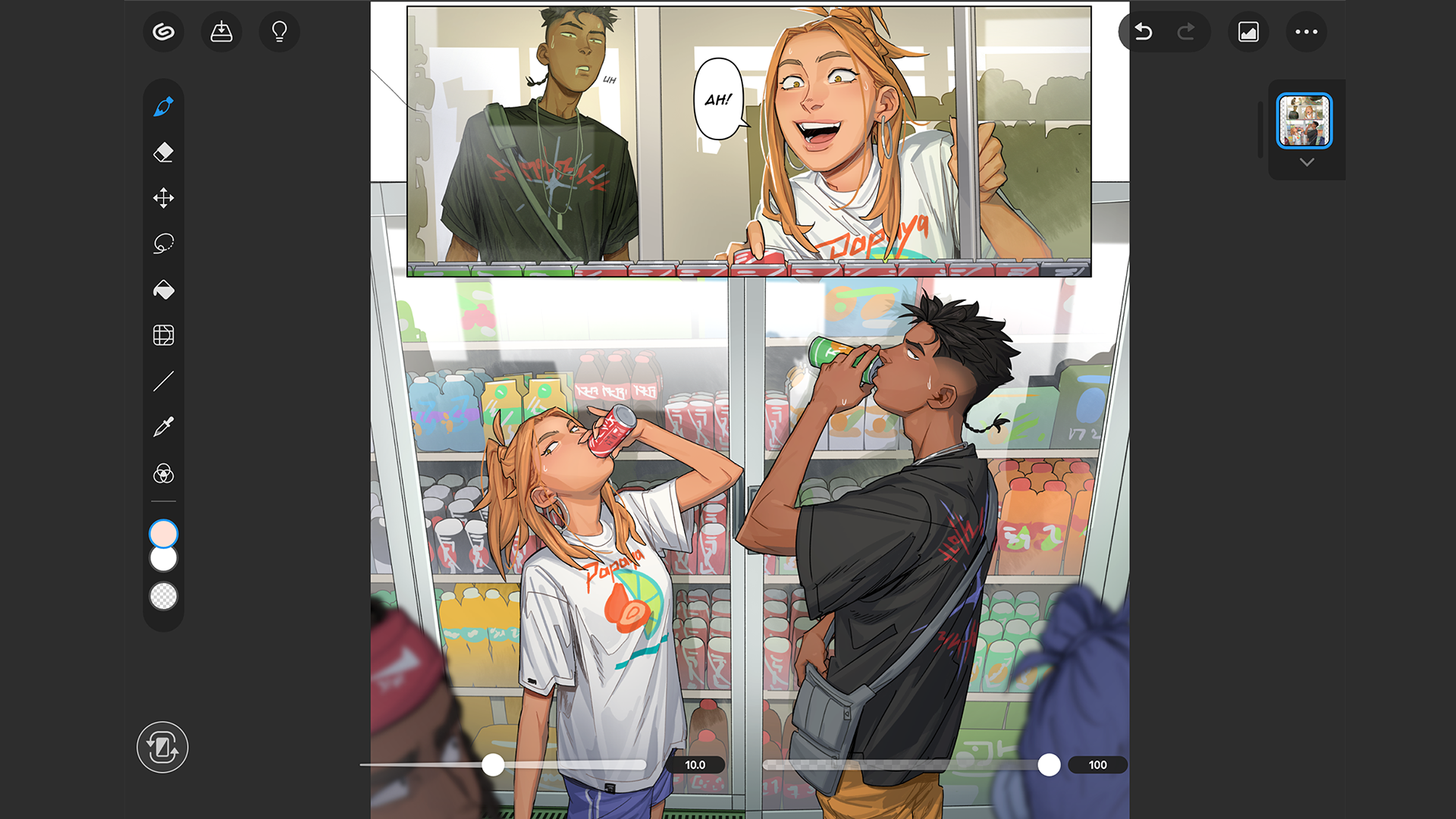
One of the standout features is the app's portability—working effortlessly across various Windows devices, including tablets and laptops. Its optimized interface ensures that creators can sketch in bed, refine their work on a desktop, or share their art on social media without missing a beat. This cross-platform adaptability is a significant advantage in today's mobile-focused digital art landscape.
Engaging User Experience and Interface Design
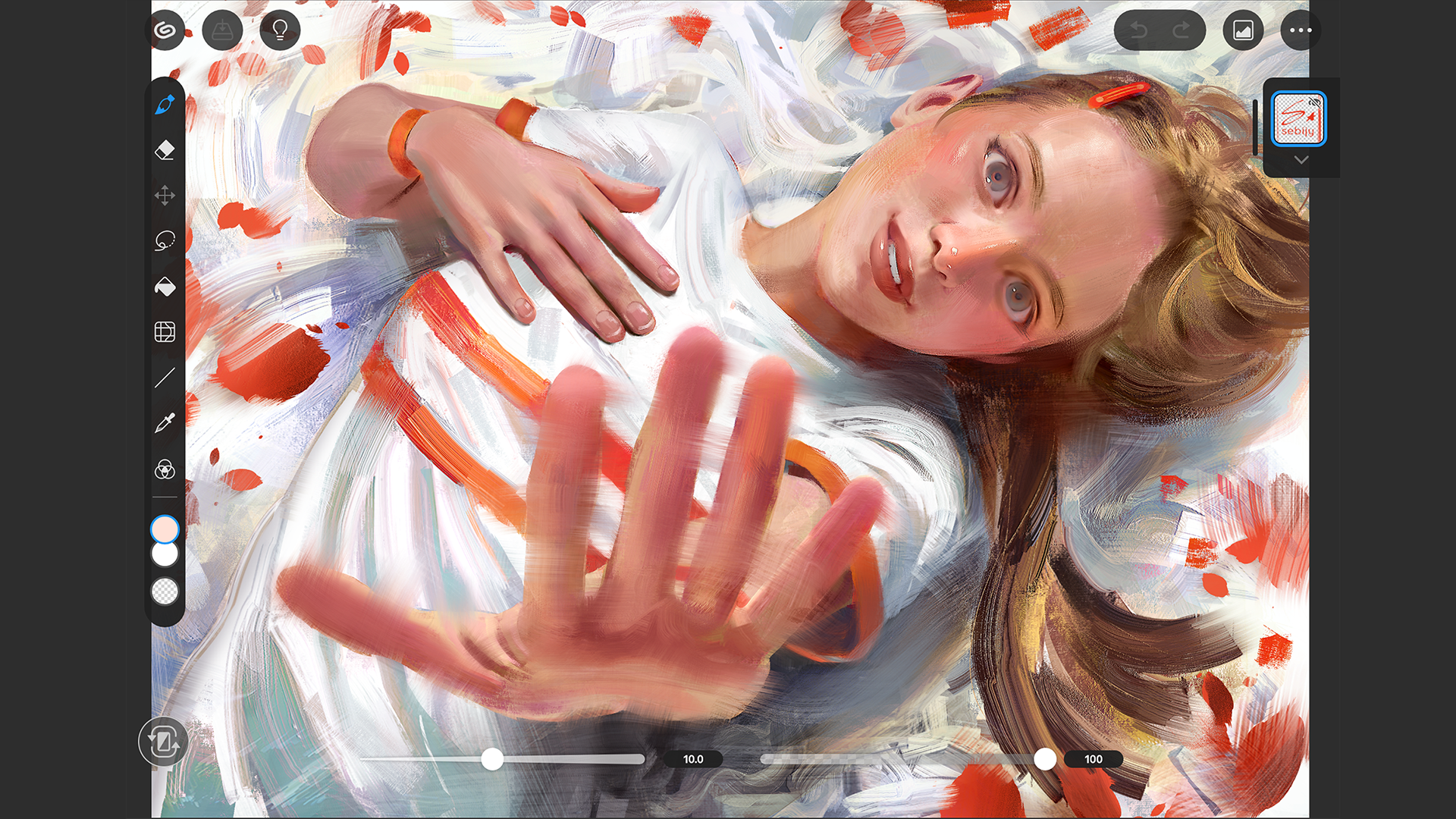
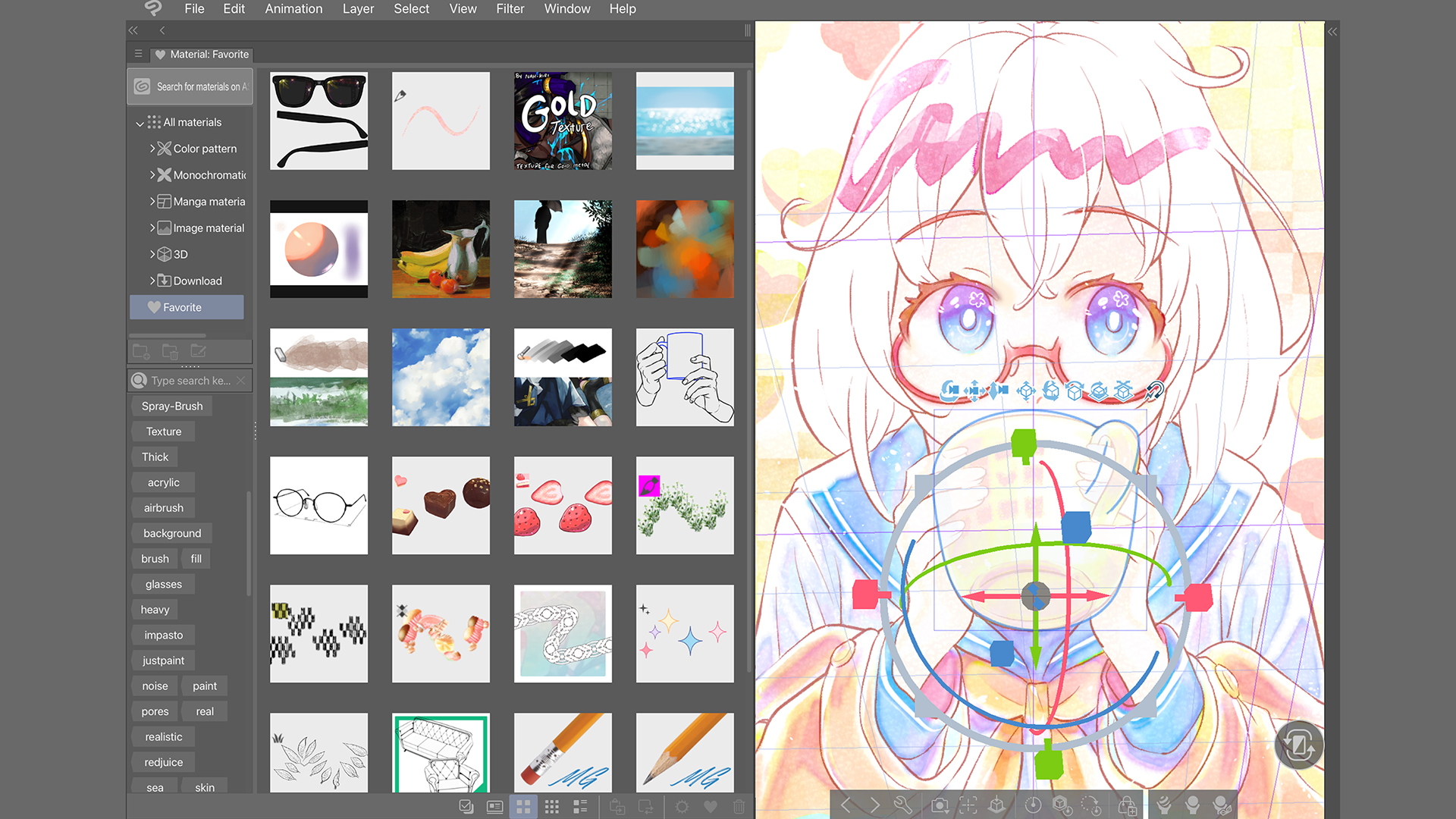
The interface of Clip Studio Paint adopts a clean, organized layout reminiscent of a well-arranged art studio—everything is within reach without cluttering the workspace. The design is both modern and intuitive, reducing the learning curve for newcomers while providing seasoned artists with customizable shortcuts and panels. The responsiveness is noteworthy; strokes feel natural and lag-free, even with complex projects, which contributes greatly to a satisfying creative flow.
Learning Curve and Accessibility
For those new to digital art, the app offers comprehensive tutorials and a friendly onboarding process. Experienced users benefit from keyboard shortcuts and customizable interface options, enabling rapid workflows. The learning curve remains gentle, with features logically grouped and well-documented, making it accessible for users at various skill levels.
Unique Selling Points Among Multimedia Design Tools
Compared to similar apps like Adobe Photoshop or Corel Painter, Clip Studio Paint's standout feature is its dedicated comic and manga creation toolkit, which includes screentone materials, panel layout templates, and speech bubble tools—tailored specifically for comic artists. Additionally, its freehand vector layers provide a level of precision and editability that few rivals match, giving artists a significant edge when refining line work or creating scalable designs.
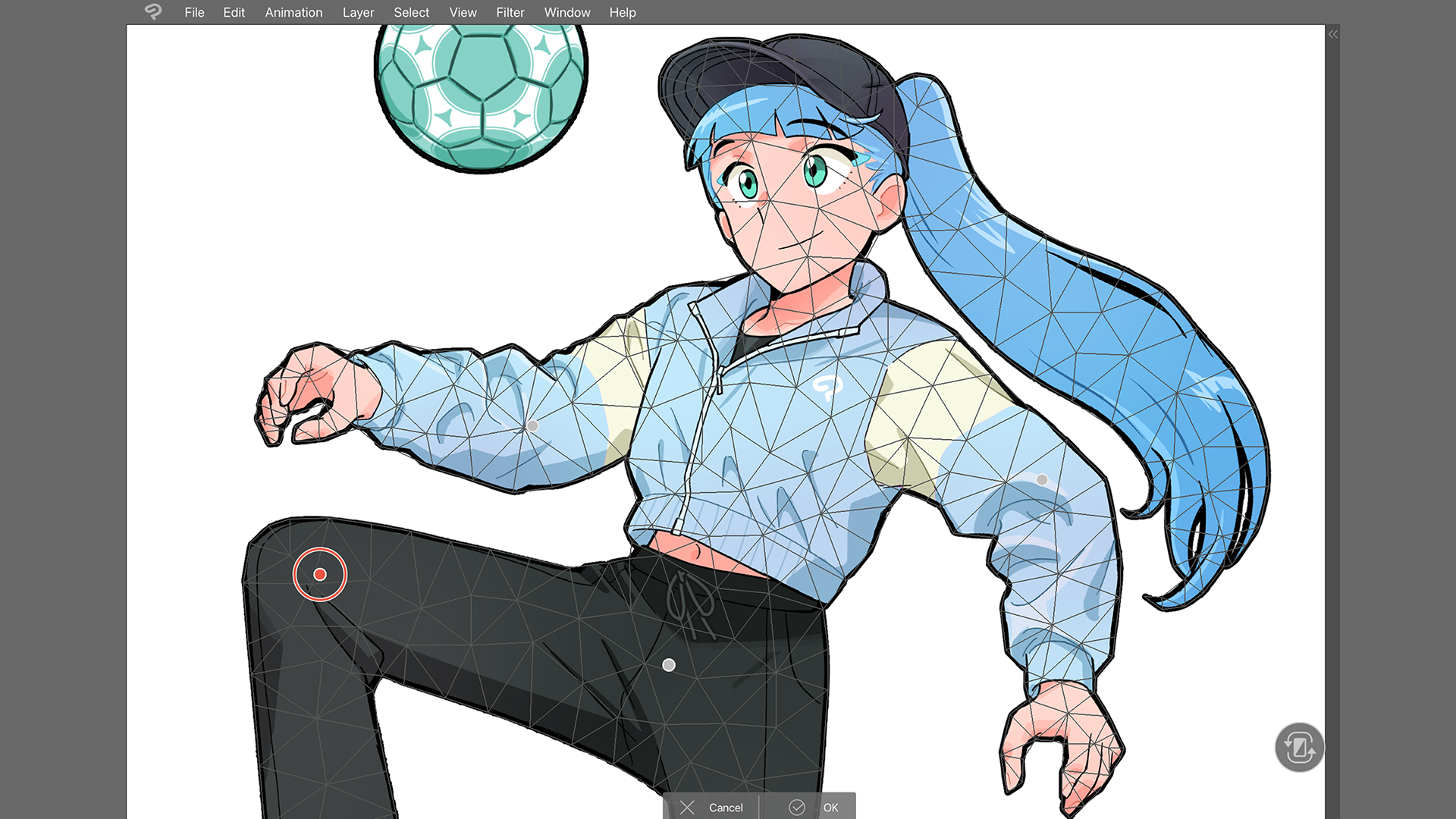
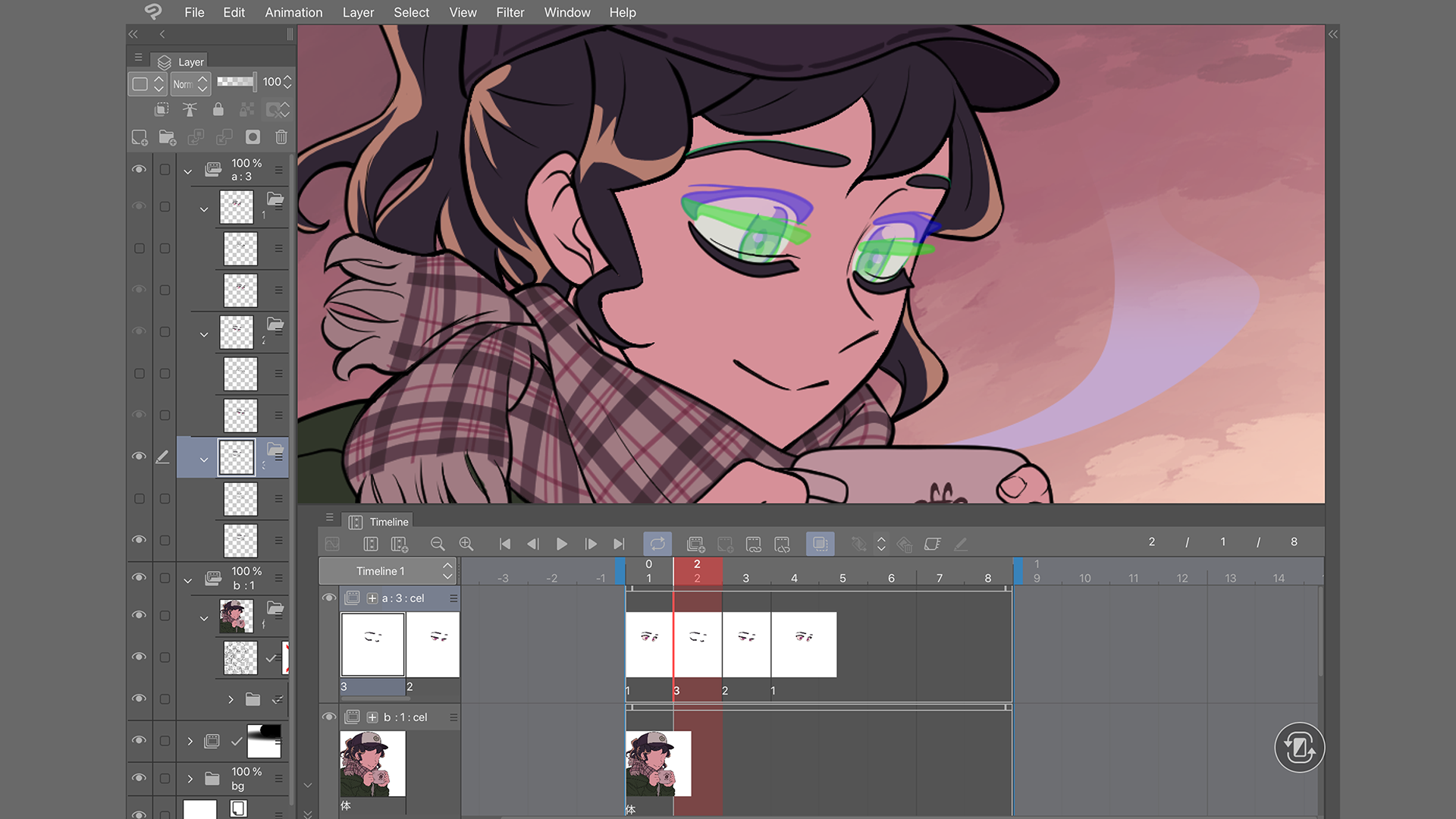
Furthermore, its affordability without sacrificing professional features makes it a compelling choice for aspiring artists and students. The integration of animation features and AI-assisted coloring tools also sets it apart, demonstrating a thoughtful approach to expanding creative possibilities within a single app.
Final Verdict and Recommendations
Overall, Clip Studio Paint for Windows stands out as a versatile and user-centric digital art solution. The combination of powerful tools, intuitive design, and unique features like specialized manga tools make it a valuable asset in any artist's toolbox. I recommend it especially to those who pursue comic art, illustration, or digital painting and desire a portable yet professional-grade platform.
For casual hobbyists or professionals seeking a robust, affordable alternative to more complex or costly software, Clip Studio Paint is definitely worth exploring, particularly on Windows tablets or laptops where mobility is essential. Its learning resources quickly ensure new users can get up to speed, and experienced artists will appreciate the nuanced control and creative freedom it offers.
Pros
- Versatile Drawing Tools
- Cross-Platform Accessibility
- Layer Management
- Intuitive User Interface
- Compatibility with File Formats
Cons
- High Subscription Cost
- Occasional Lag on Older Devices
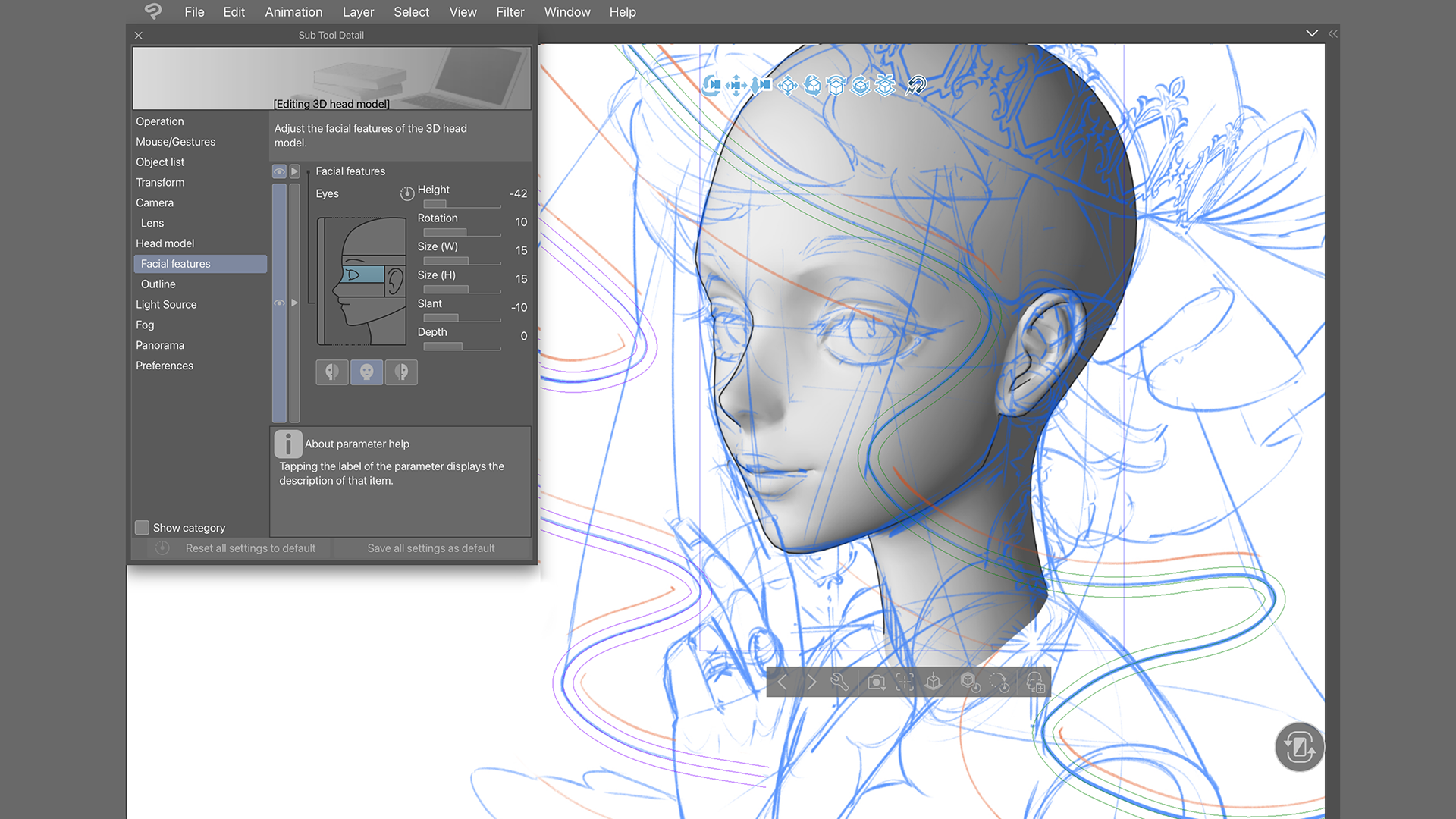
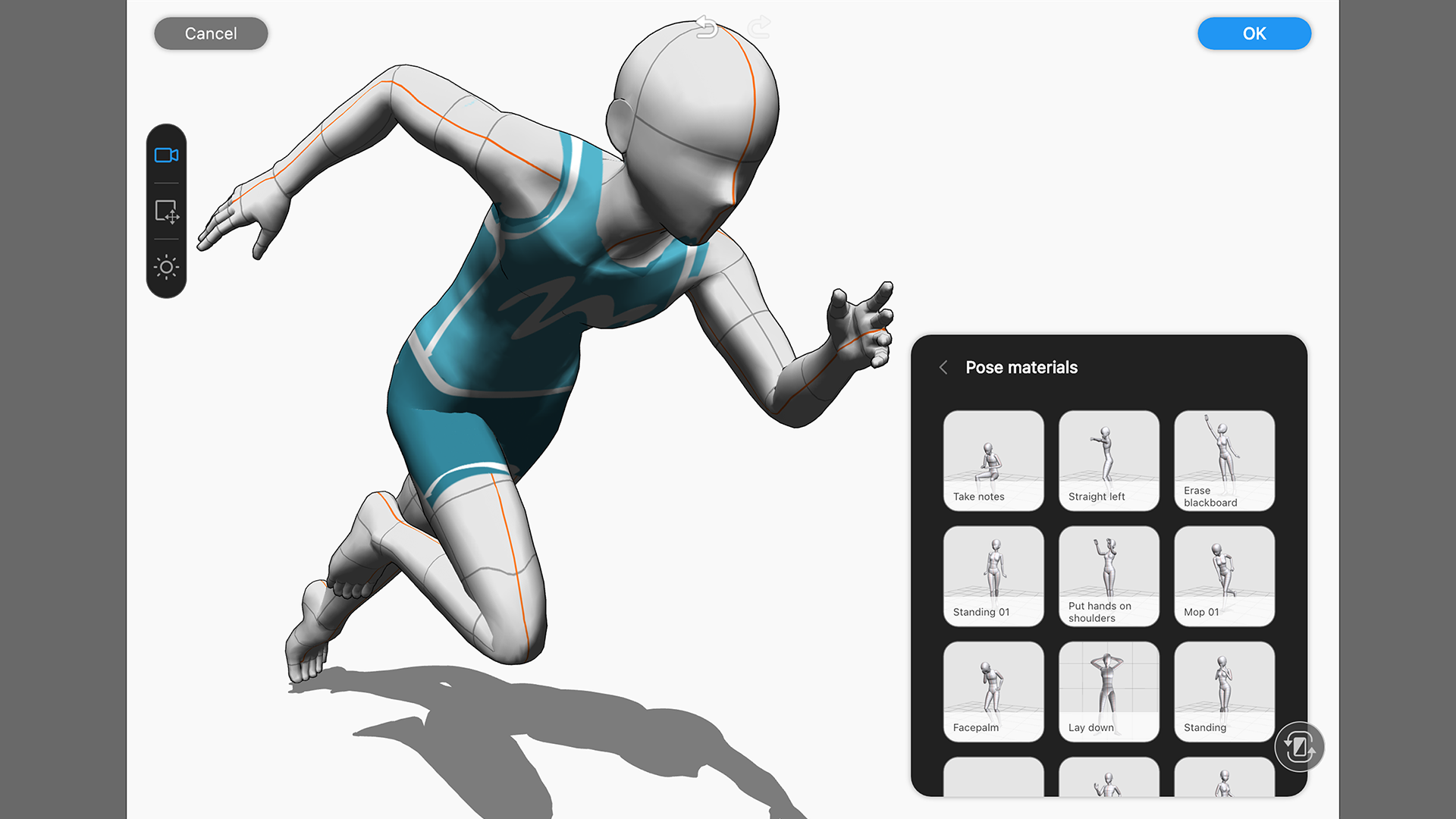
- Limited 3D Object Support
- Learning Curve for Advanced Features
- Offline Functionality Restrictions