


- Name ClickUp
- Category Productivity
- Developer ClickUp
- Available on PC
- OS Windows 10 version 0.0 or higher
- Keyboard Integrated Keyboard
- Mouse Integrated Mouse
- Memory 4 GB
- DirectX Version 9
- languages English
ClickUp for Windows: A Streamlined Hub for Your Productivity Needs
Imagine a digital command center where your tasks, notes, and project workflows converge seamlessly—ClickUp for Windows aims to be just that, offering a unified platform designed to enhance productivity and reduce cognitive load. Developed by ClickUp, renowned for its versatile project management solutions, this app promises a streamlined user experience that caters to a broad spectrum of professionals, from busy project managers to freelancers seeking to organize their day efficiently.
Core Features That Make ClickUp Stand Out
All-in-One Platform with Deep Workflow Integration
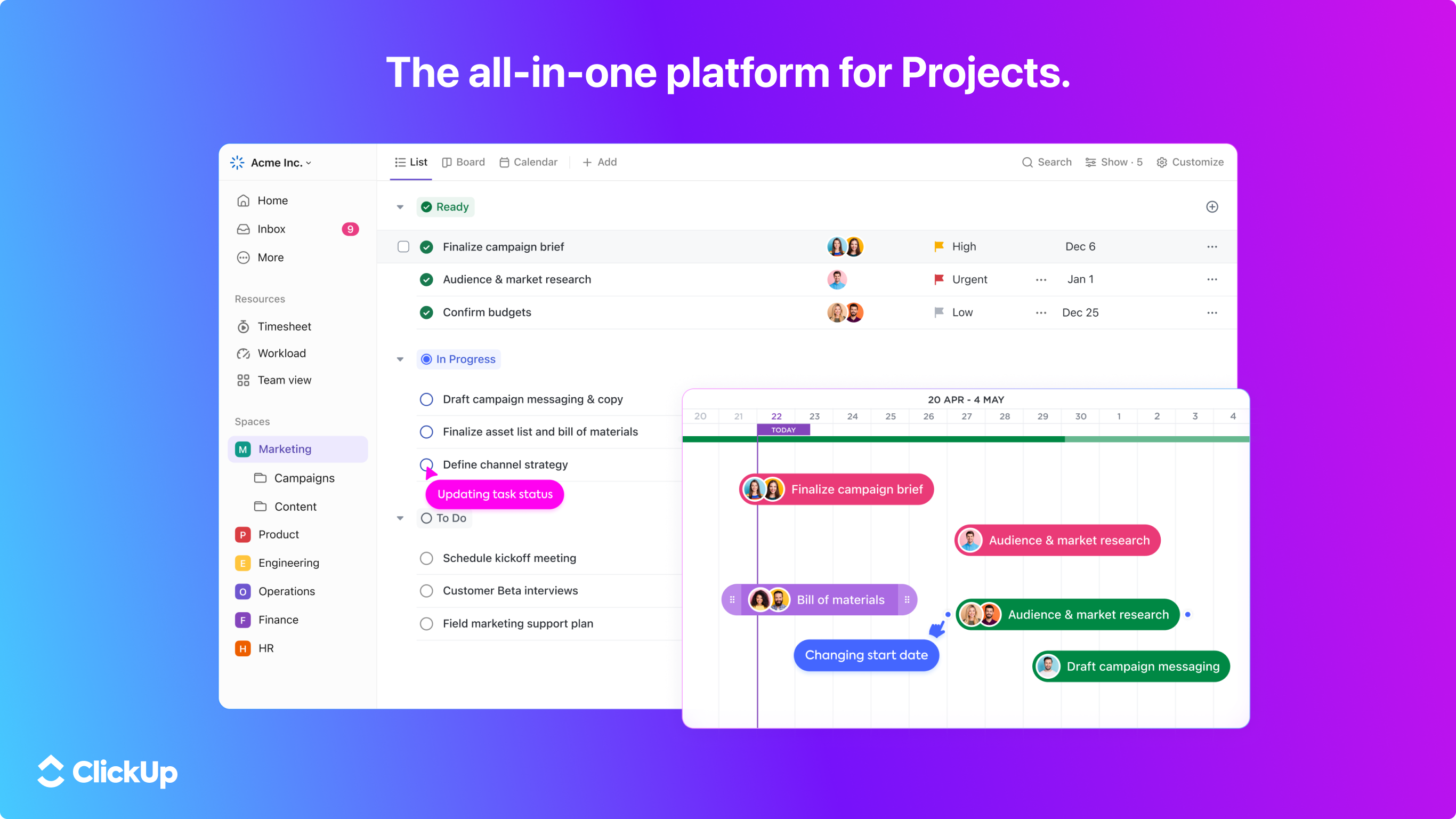
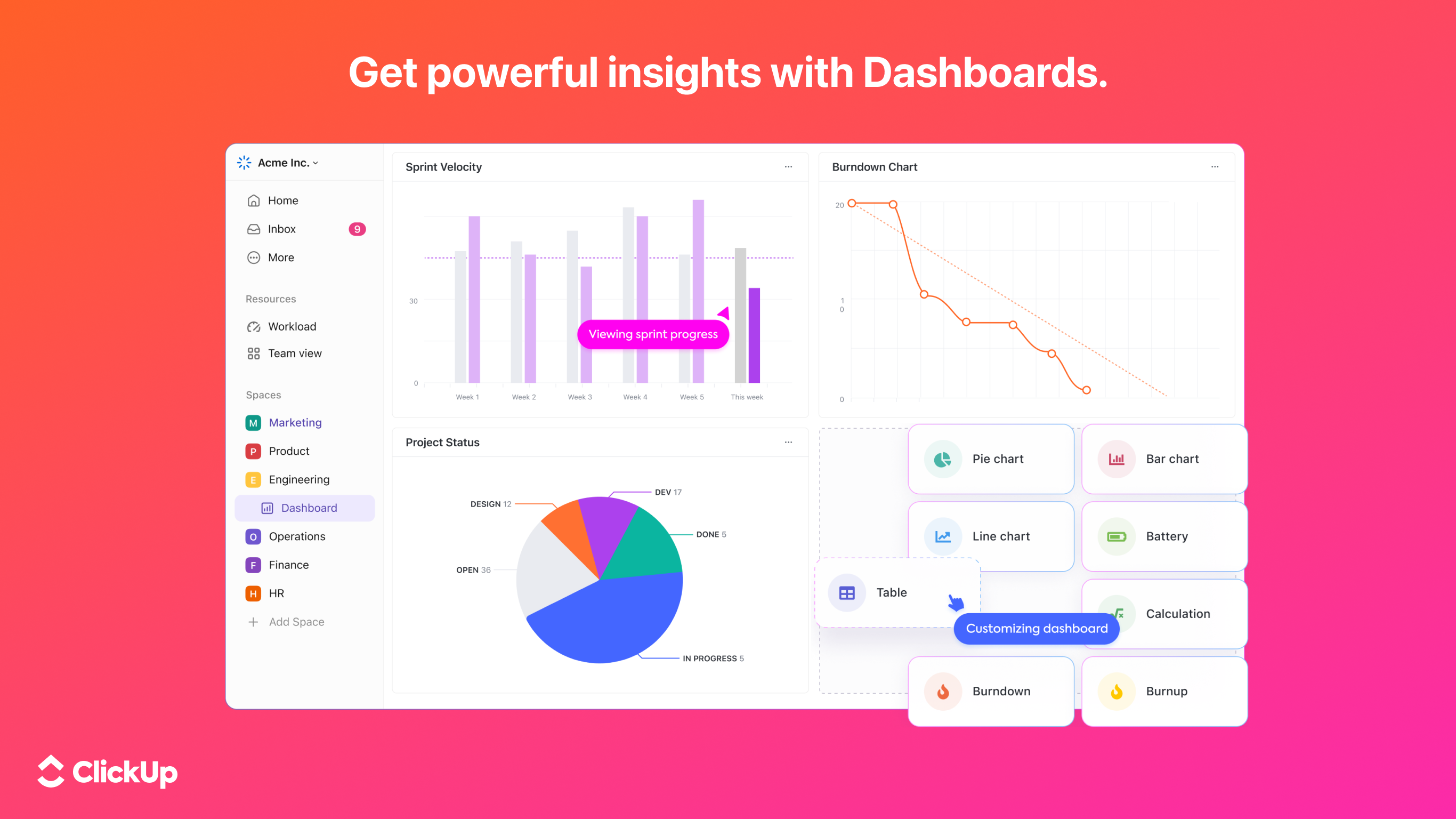
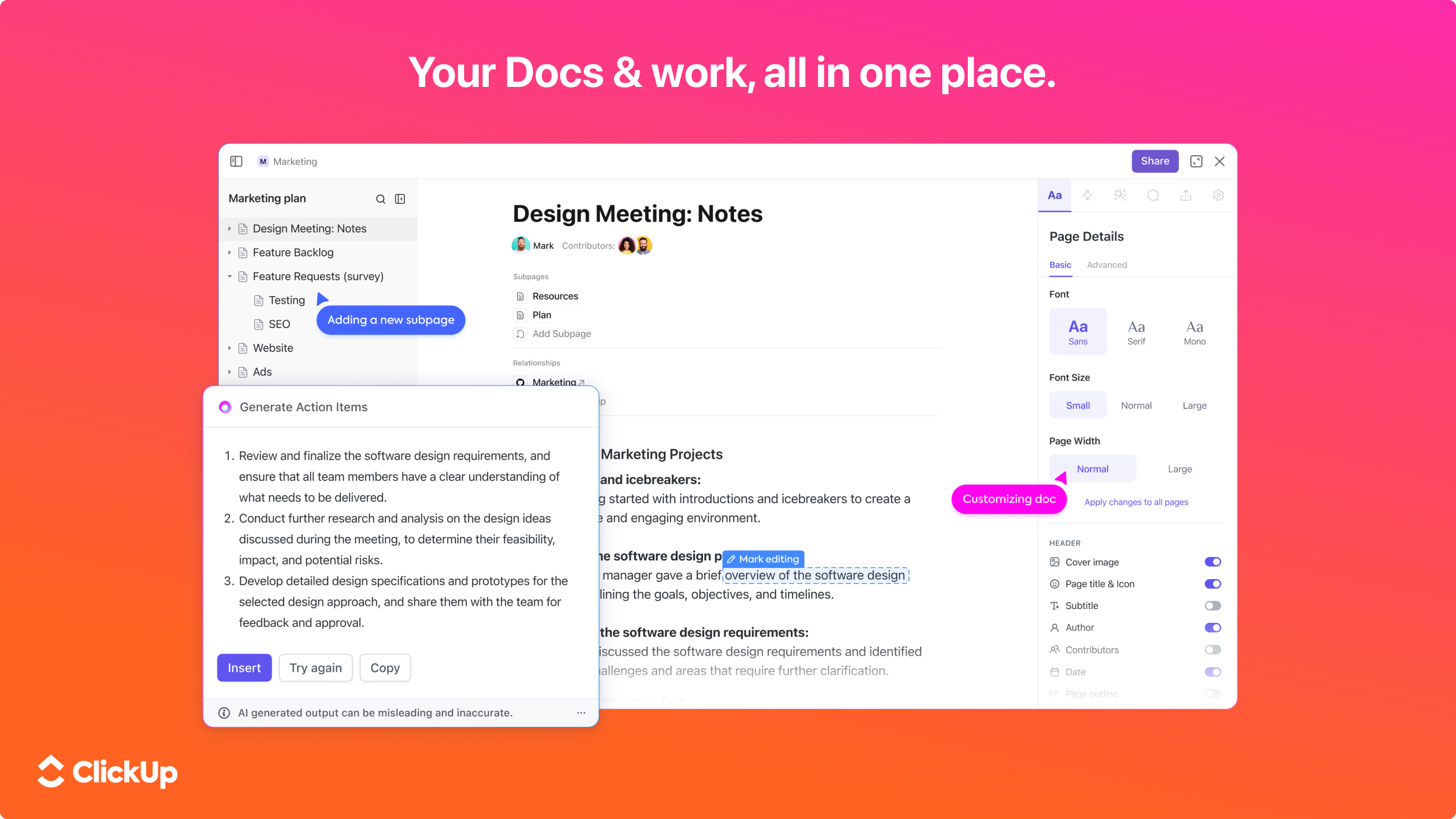
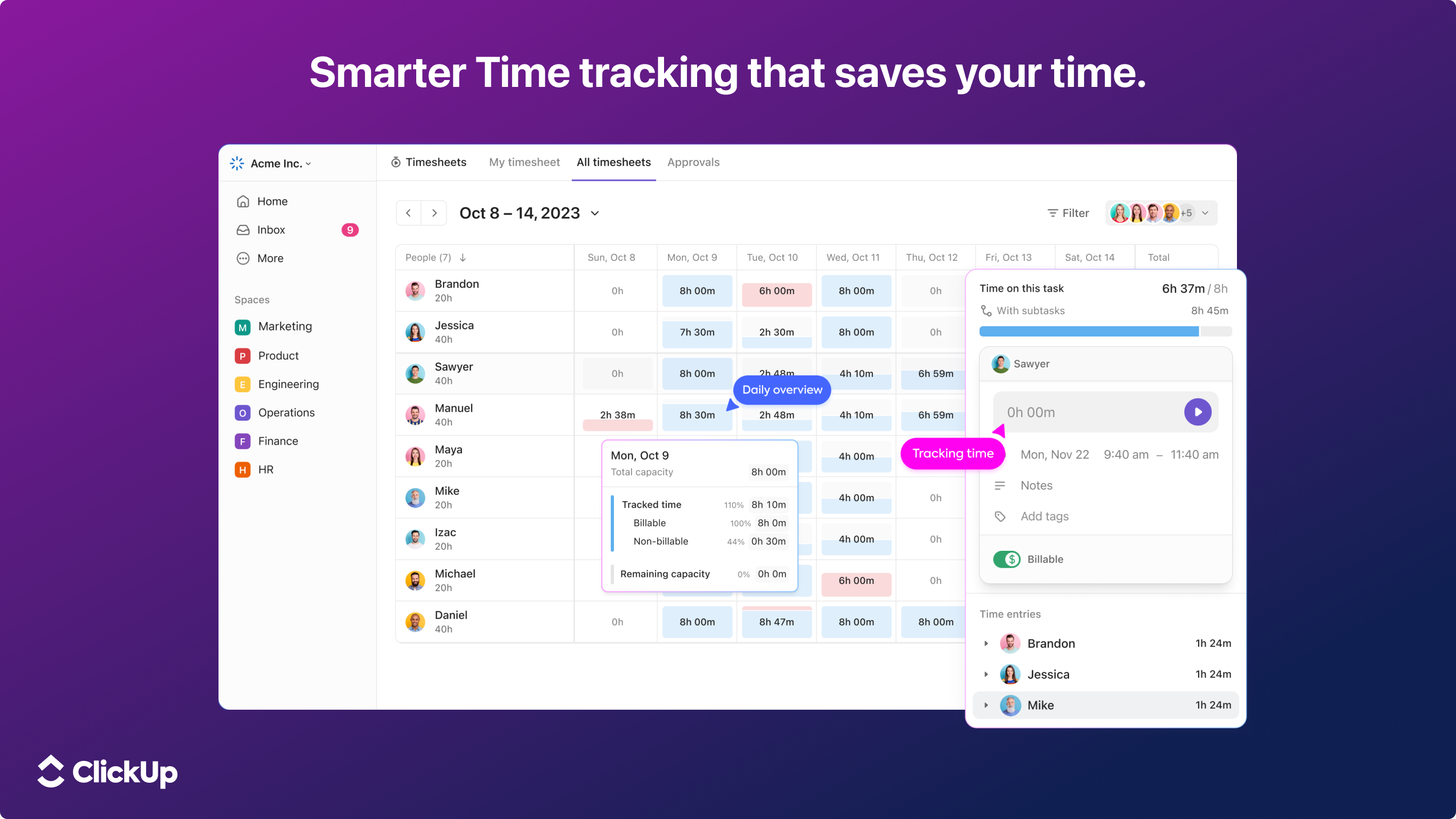
At its heart, ClickUp consolidates tasks, docs, goals, and time tracking into a single interface, reducing the need to switch between multiple apps. Its tight integration with other tools like Slack, Google Calendar, and Outlook transforms your Windows environment into a productivity powerhouse. This deep workflow integration minimizes time wasted in context switching, making your work process smoother and more intuitive.
Customizable Views and Automation for Efficiency
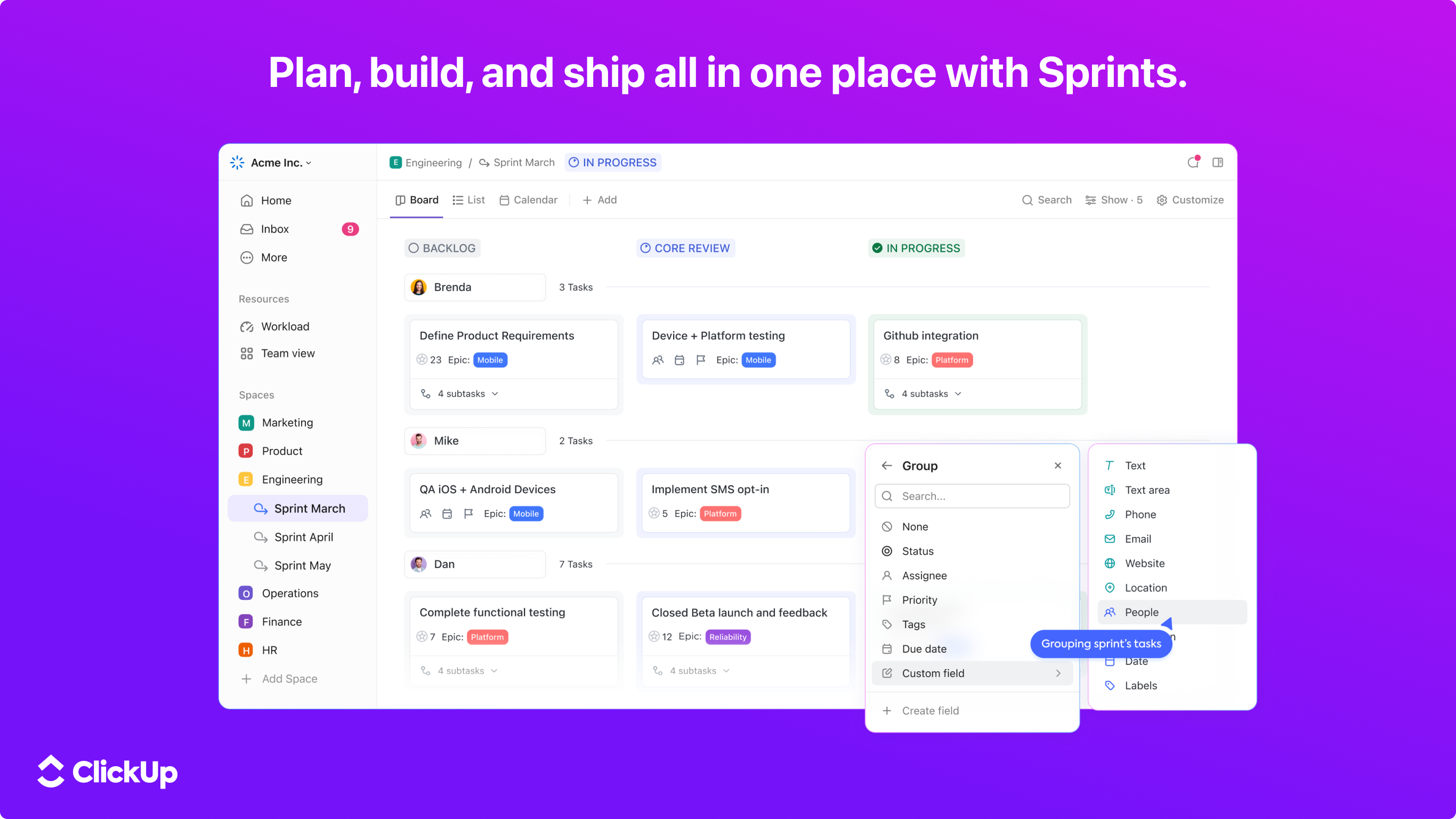
Whether you prefer list, board, or Gantt views, ClickUp offers extensive customization to see your projects the way that fits your style. Plus, with its automation capabilities—such as automatic task assignments or status updates—you can set rules that execute actions behind the scenes, letting you focus on high-level thinking instead of repetitive chores. This combination substantially reduces cognitive load, helping you stay focused and organized.
User-Friendly Interface with Minimal Learning Curve
Designed with clarity in mind, the interface resembles an elegant control panel—clean, intuitive, and accessible even for newcomers. Navigation feels natural, and the onboarding process is straightforward, thanks to helpful tutorials and tooltips. This approachable design shortens the learning curve, ensuring you're productive sooner rather than later.
Deep Dive into Core Functionalities
Task and Project Management Made Intuitive
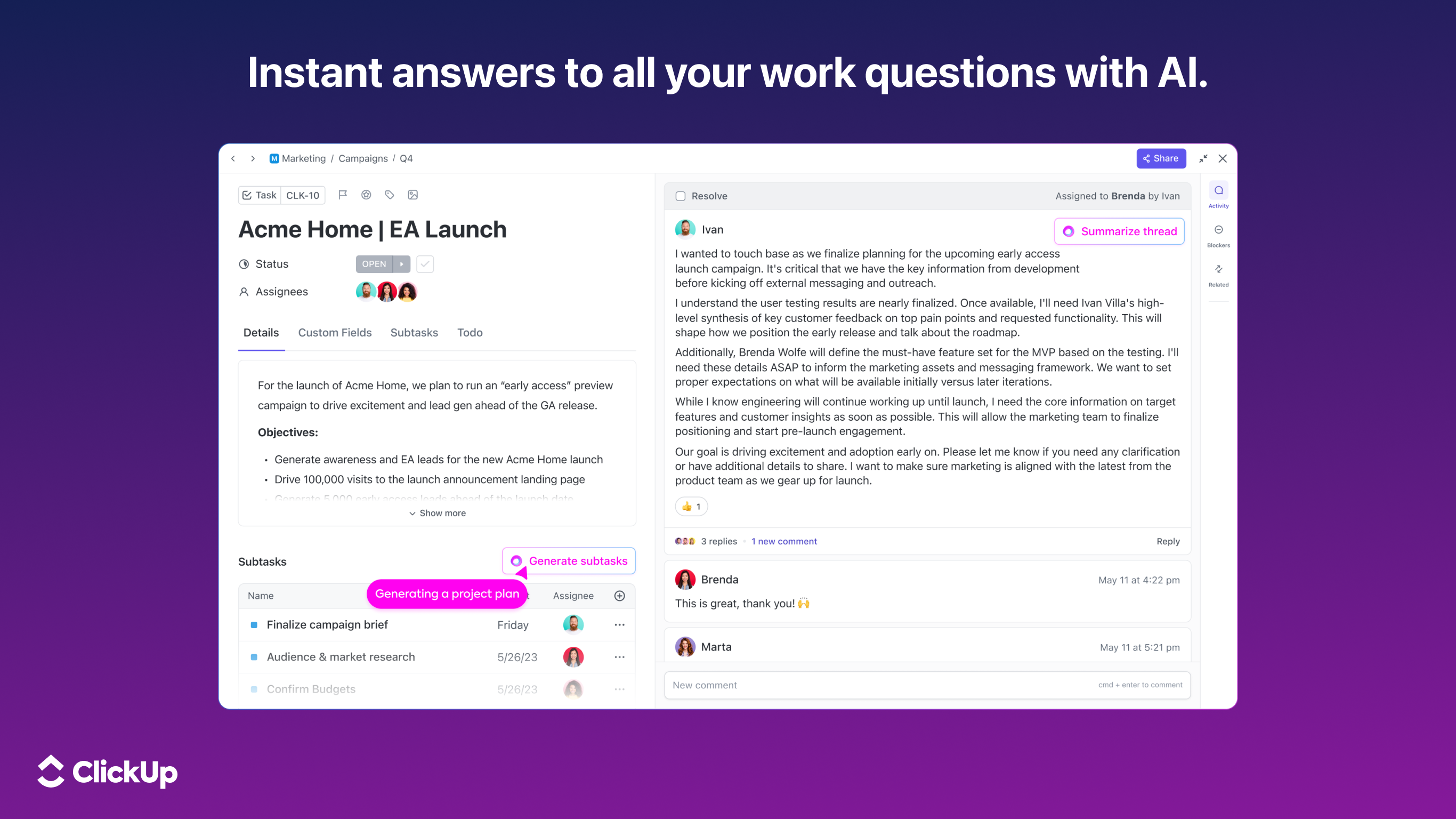
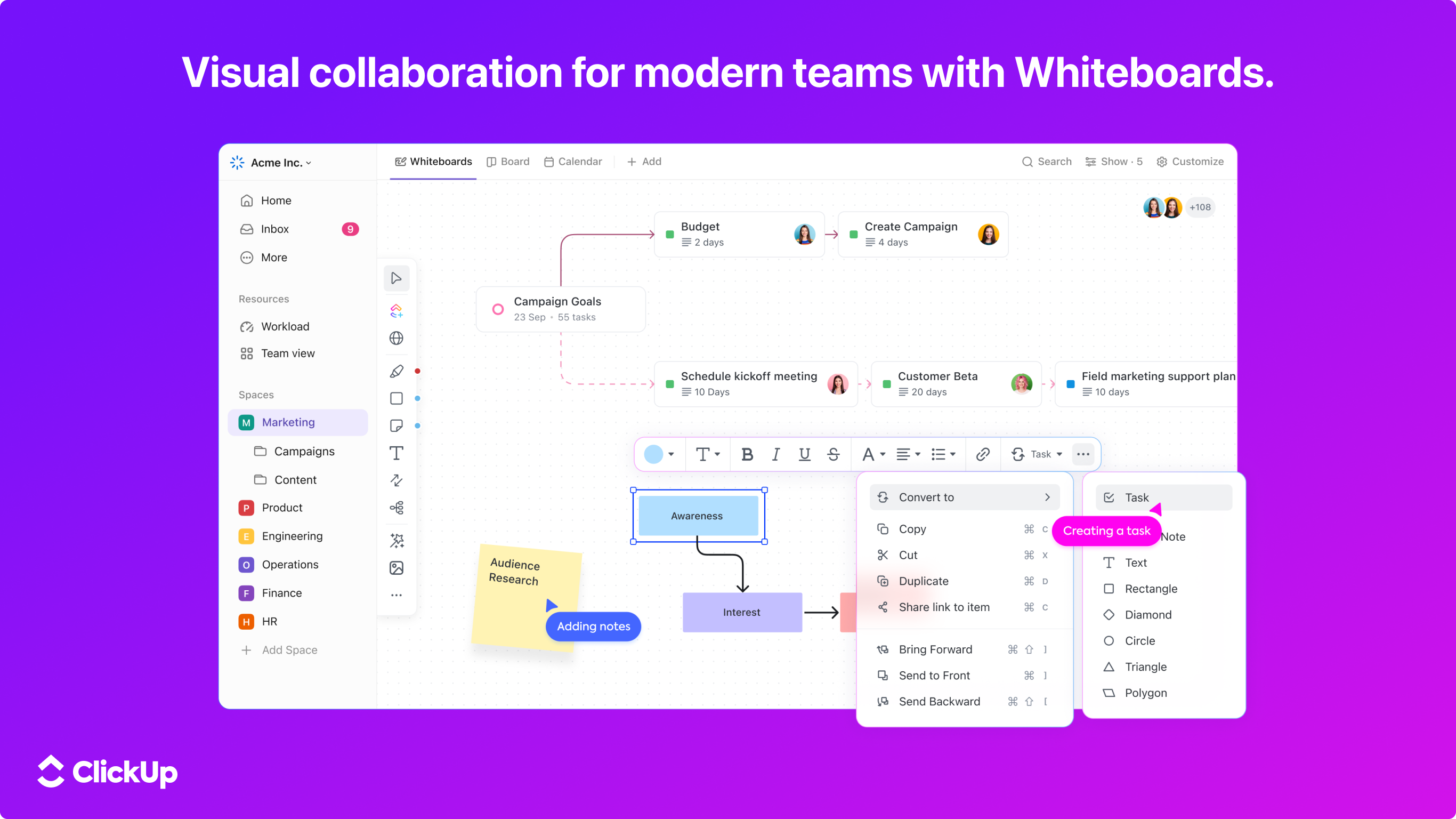
ClickUp's core strength lies in its flexible task management system. You can create nested tasks, assign priorities, add rich comments, and attach files effortlessly. The drag-and-drop interface for organizing tasks across different views mirrors real-world workflows, making project planning feel almost tactile. The ability to link related tasks or set dependencies adds a layer of clarity often missing in simpler apps.
Workflow Automation and Integrations
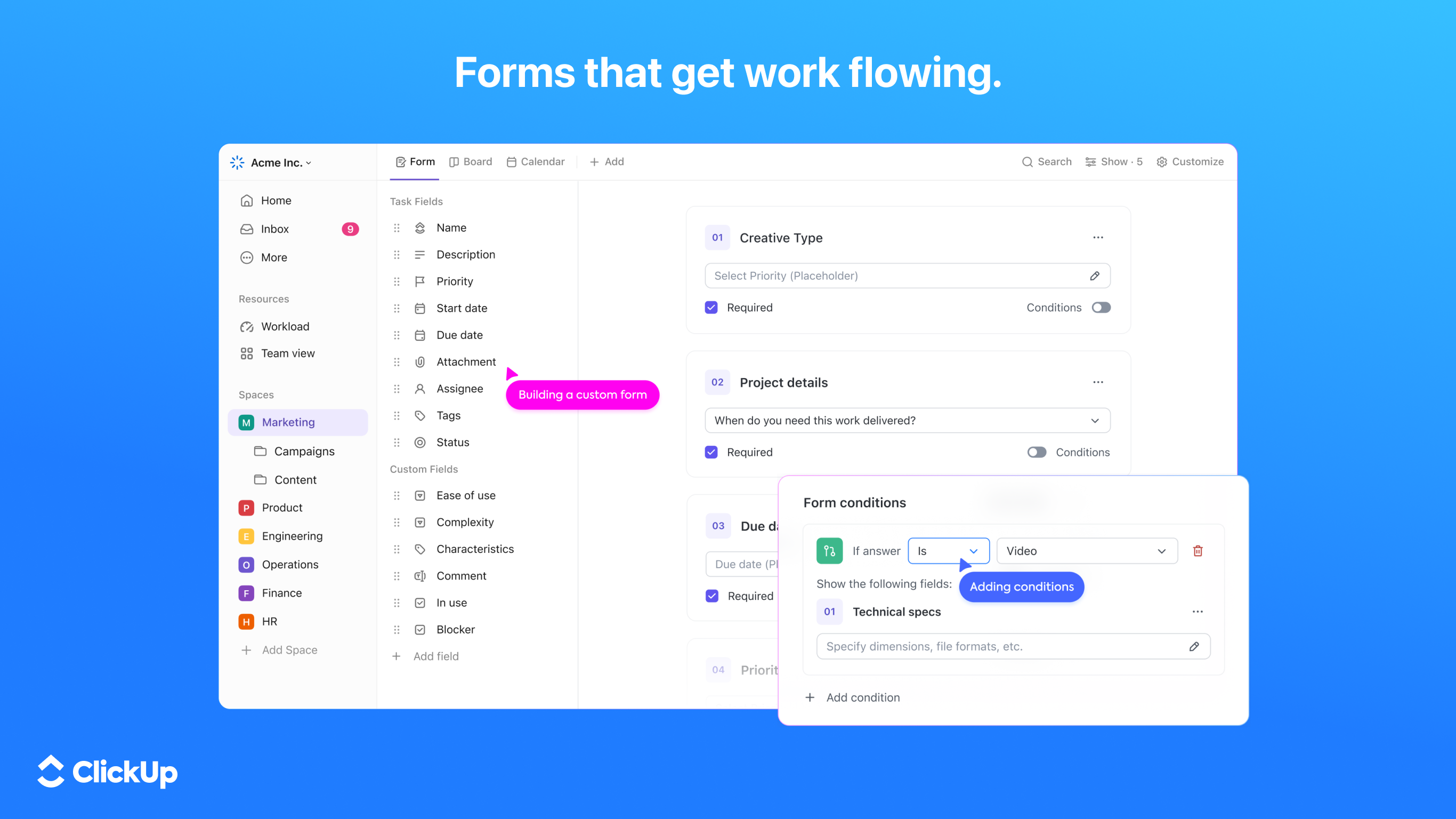
Automation is where ClickUp truly shines, allowing users to set up triggers and actions that streamline repetitive activities. Imagine receiving an email that, once marked as urgent, automatically flags the associated task and notifies relevant team members. Its extensive integrations with tools like Slack, Jira, and Google Drive guarantee that your workflow stays connected without friction. This focus on seamless workflow integration boosts efficiency significantly, making it a standout among productivity apps.
Performance and User Experience
Running smoothly on Windows, ClickUp feels snappy, with minimal lag even when juggling multiple projects. The layout adapts well to various screen sizes and resolutions, whether you're working on a laptop or a bigger monitor. The app is thoughtfully designed to reduce unnecessary clutter, which, along with its intuitive controls, keeps cognitive load low. New users can pick up the app quickly thanks to its logical structure and helpful tutorials, while experienced users appreciate the depth of customization offered.
What Sets It Apart from Competitors?
Unlike some productivity tools that overcomplicate workflows with feature bloat, ClickUp maintains a delicate balance—providing enough functionality to power complex projects while keeping the interface uncluttered. Its highlight feature, in particular, is the focus on workflow integration efficiency; by consolidating multiple functions into a single interface and automating routine tasks, it scales well from individual users to large teams. This reduces mental overhead and fosters a more focused work environment, which is crucial in today's fast-paced digital landscape.
Final Verdict and Recommendations
Overall, I'd recommend ClickUp for Windows to users seeking a unified, customizable, and efficient productivity platform. It's especially beneficial for those who value workflow automation and integration, helping to cut down on unnecessary cognitive load and streamline daily operations. For team leaders and project managers, its collaborative features and goal tracking add further value. Solo entrepreneurs or freelancers will also find its flexibility and simplicity appealing.
While it does require some initial setup to customize workflows to your preferences, the learning curve remains manageable, and the payoff is substantial. If you're tired of juggling multiple apps or overwhelmed by overly complicated tools, ClickUp might just be the organizational partner you need—smart, sleek, and built for productivity.
Pros
- User-friendly interface
- Comprehensive task management features
- Highly customizable workflows
- Integrated productivity tools
- Cross-platform availability
Cons
- Limited offline access
- Learning curve for advanced features
- Price for premium plans
- Notification settings can be complex
- Integration setup may be time-consuming











