

- Name Calendar Dashboard
- Category Productivity
- Developer dave smits
- Available on PC
- OS Windows 11 version 22000.0 or higher
- languages Danish, Dutch, English (United States), Spanish
A Fresh Take on Your Windows Calendar: Calendar Dashboard for Windows
If you're tired of juggling multiple apps or longing for a way to see your schedule at a glance with elegance and ease, Calendar Dashboard for Windows offers a streamlined approach to managing your time. Built with simplicity yet packed with thoughtful features, this app aims to be your command center for daily planning.
Meet the Developer: Dave Smits's Creation
Developed and published by Dave Smits, Calendar Dashboard for Windows is a product of individual craftsmanship, designed to serve users seeking an unobtrusive but powerful calendar companion on their desktop. The developer's focus is on crafting a user-friendly experience that minimizes cognitive load while maximizing efficiency.
Core Features That Stand Out
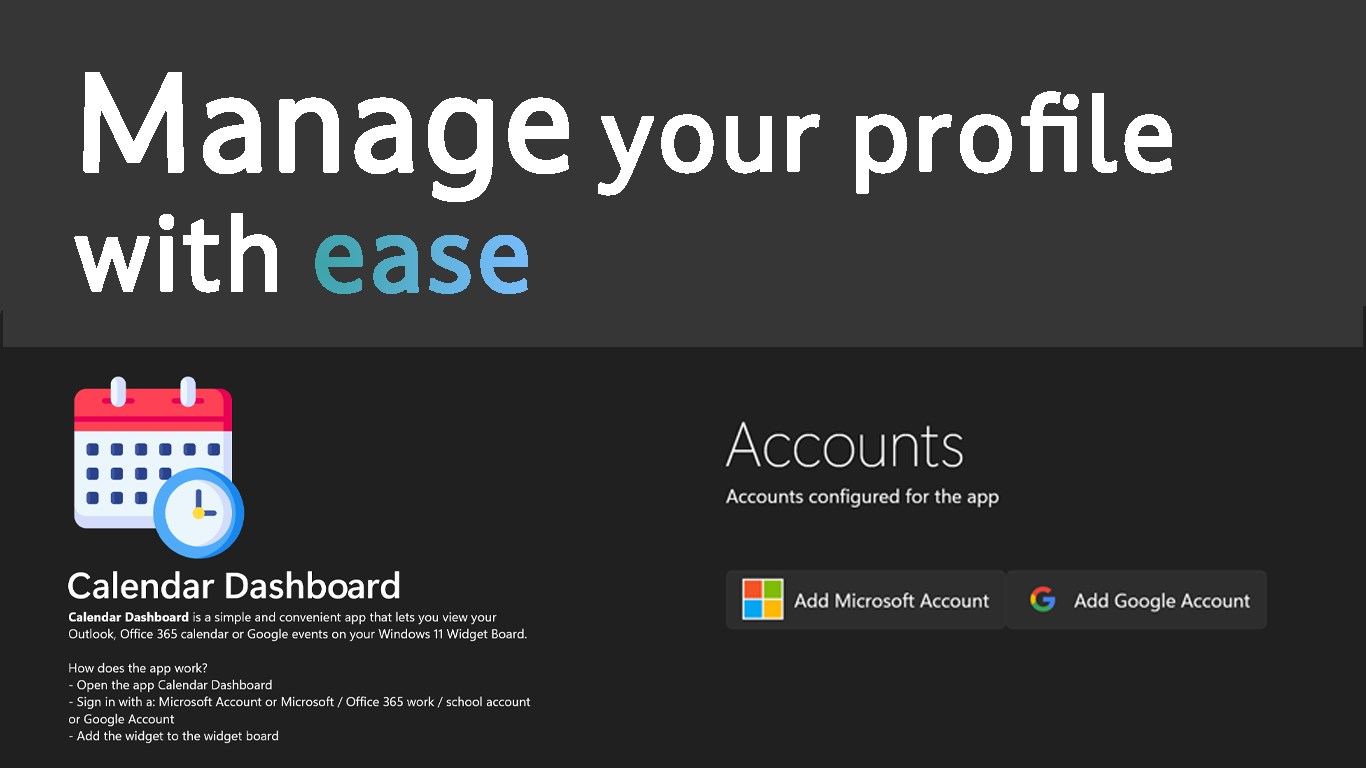
- Comprehensive Calendar View with Custom Filters: A visually appealing, centralized display that aggregates multiple calendars—such as Outlook, Google Calendar, or iCloud—into a single view, simplifying your daily overview.
- Intuitive Task and Event Management: Easily add, modify, or delete events and tasks with minimal clicks, directly from the dashboard, making scheduling feel like a natural extension of your workflow.
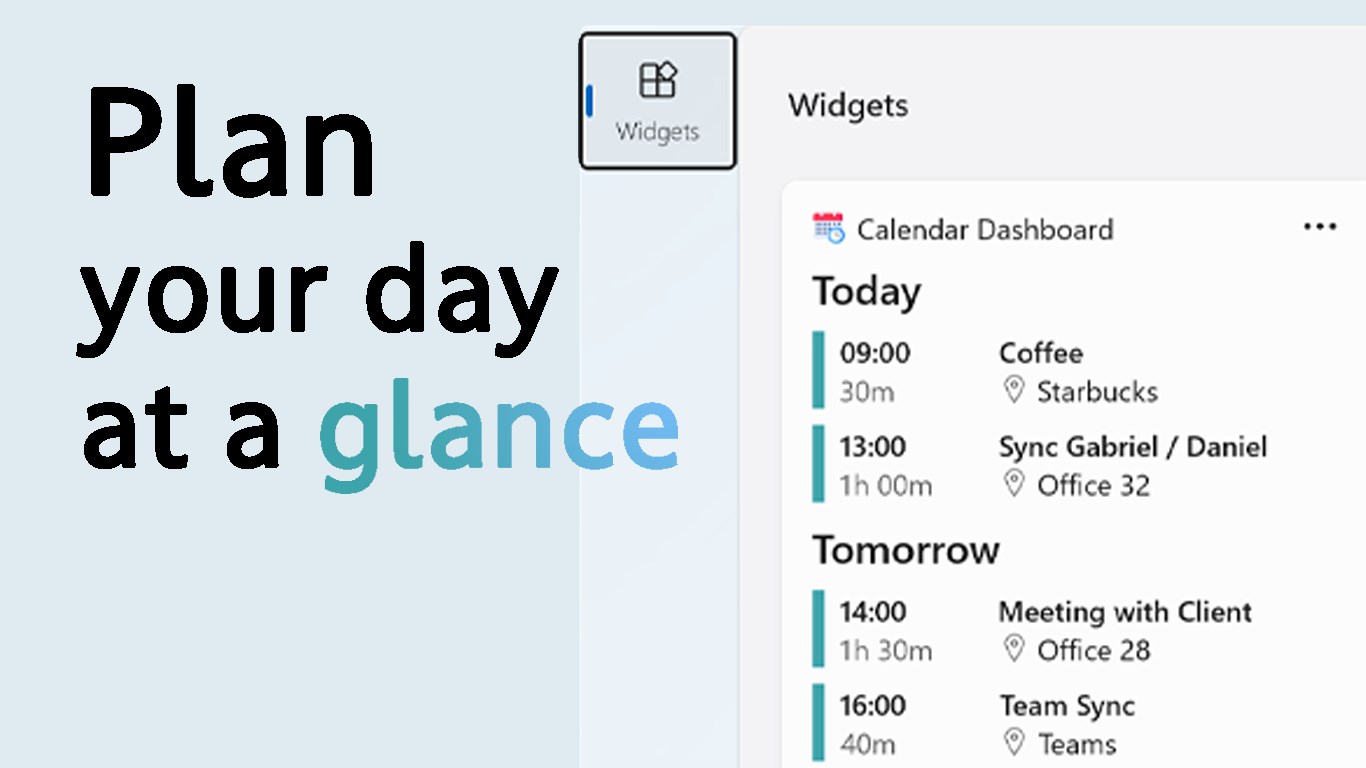
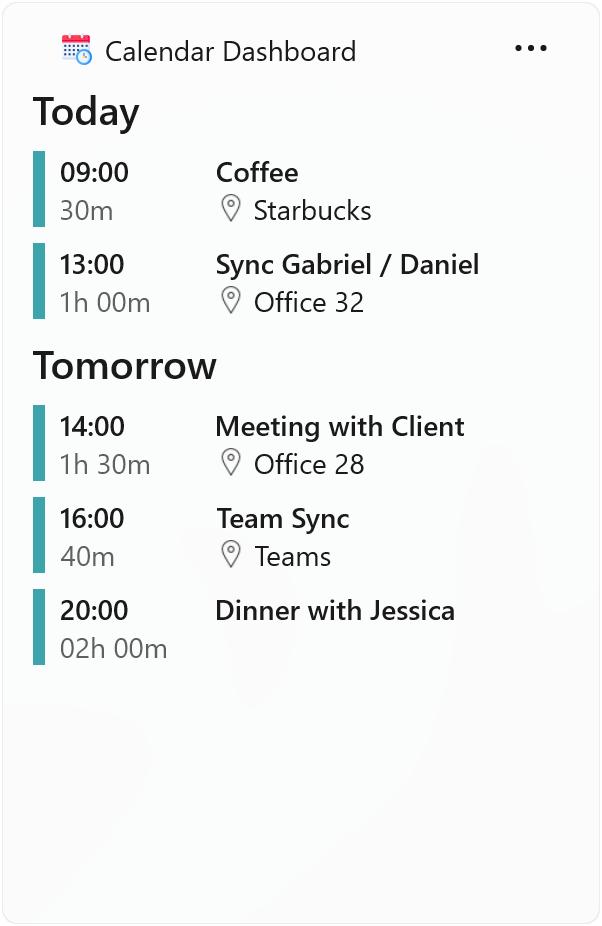
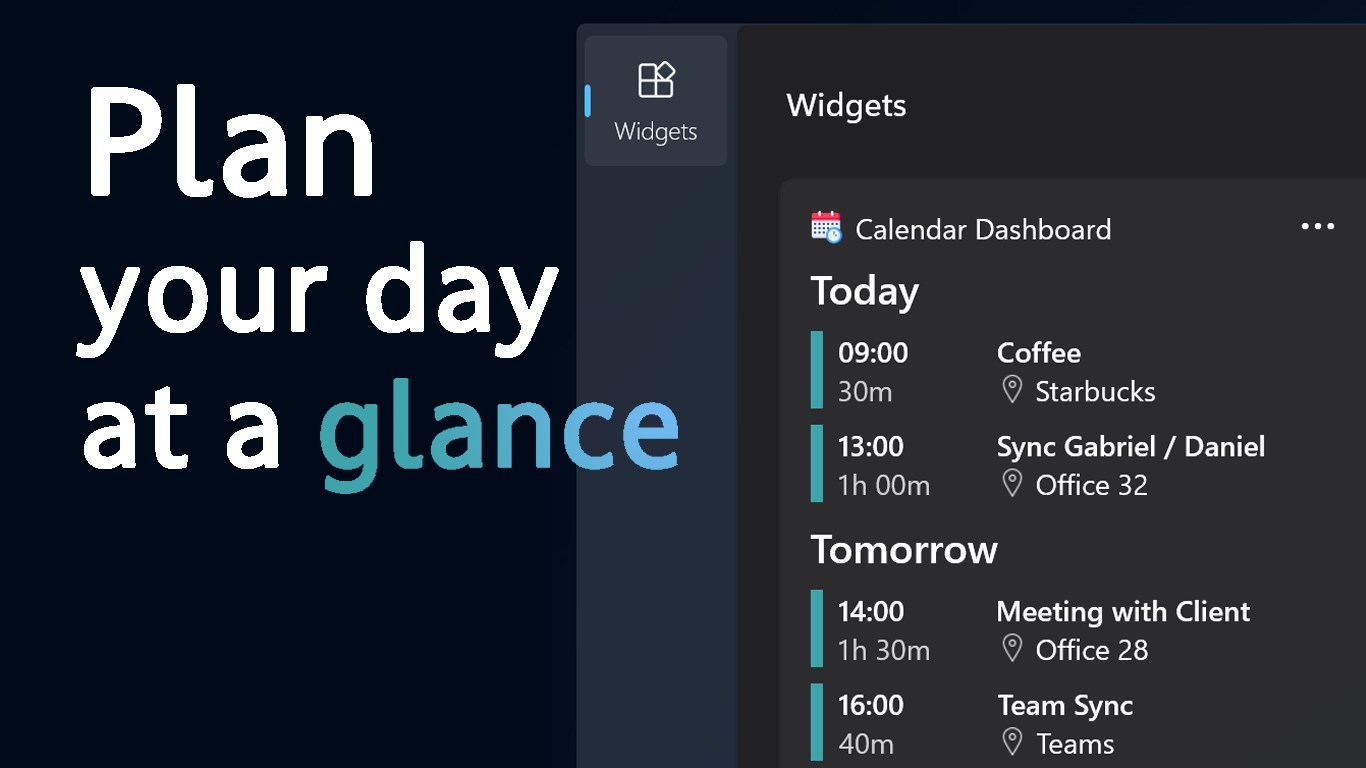
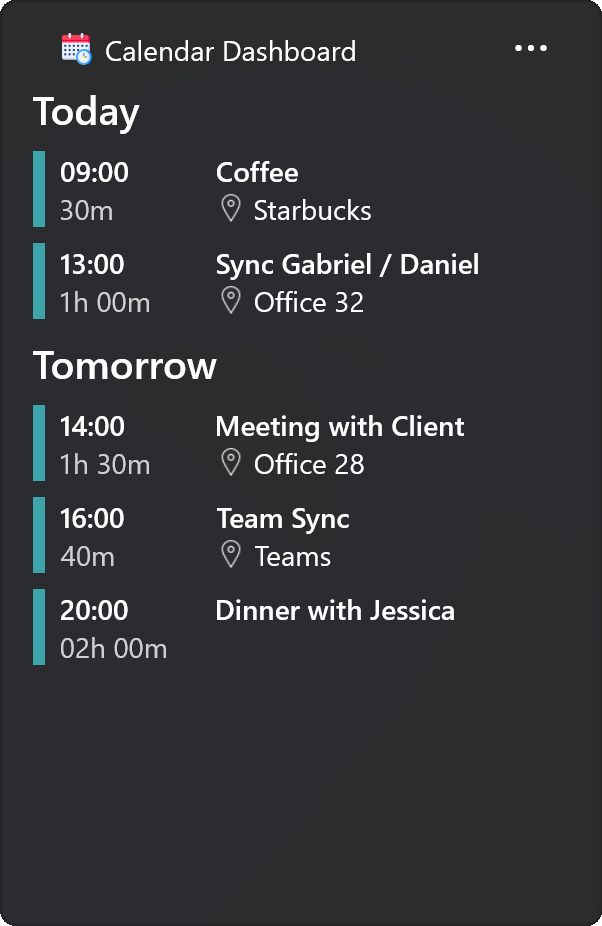
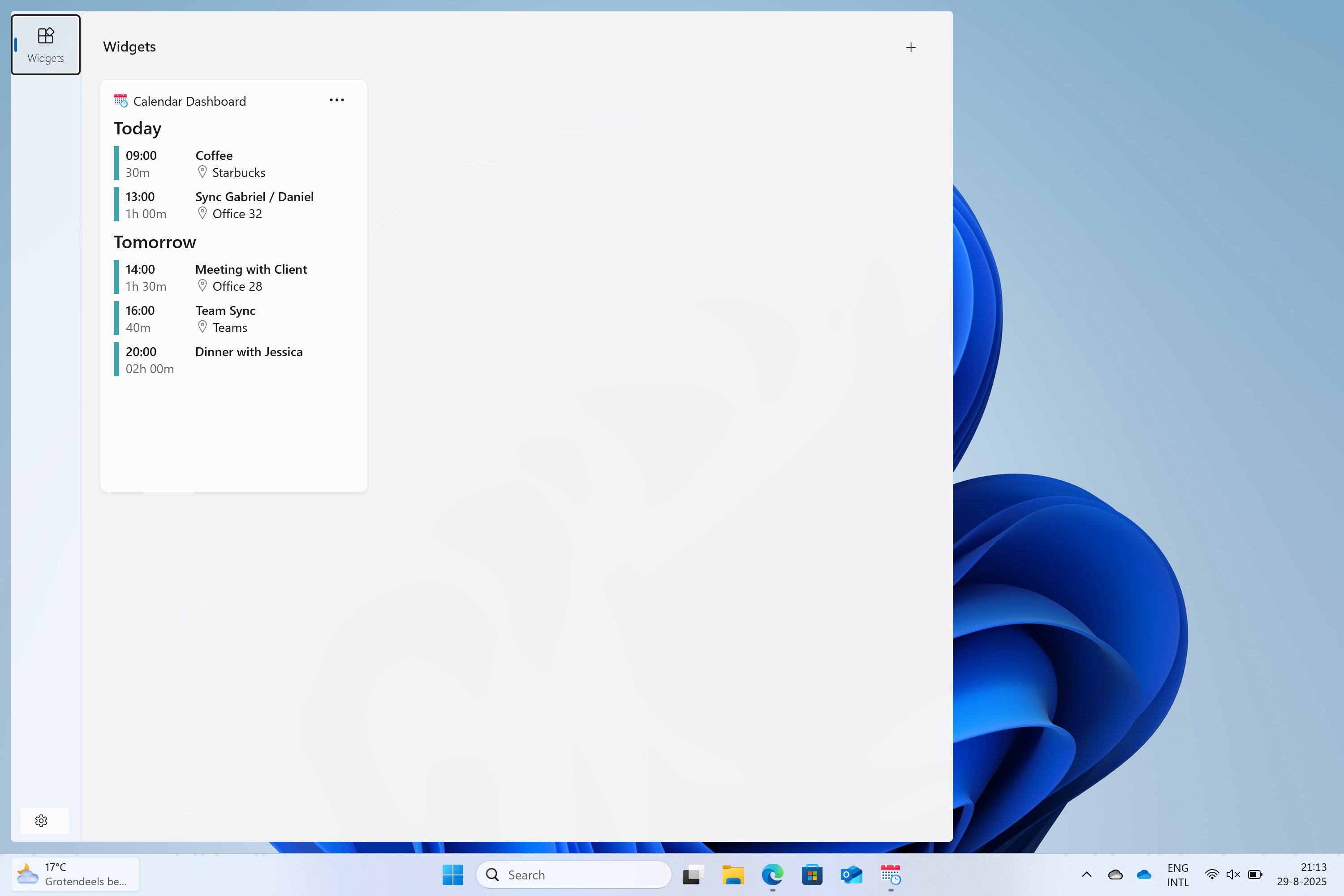
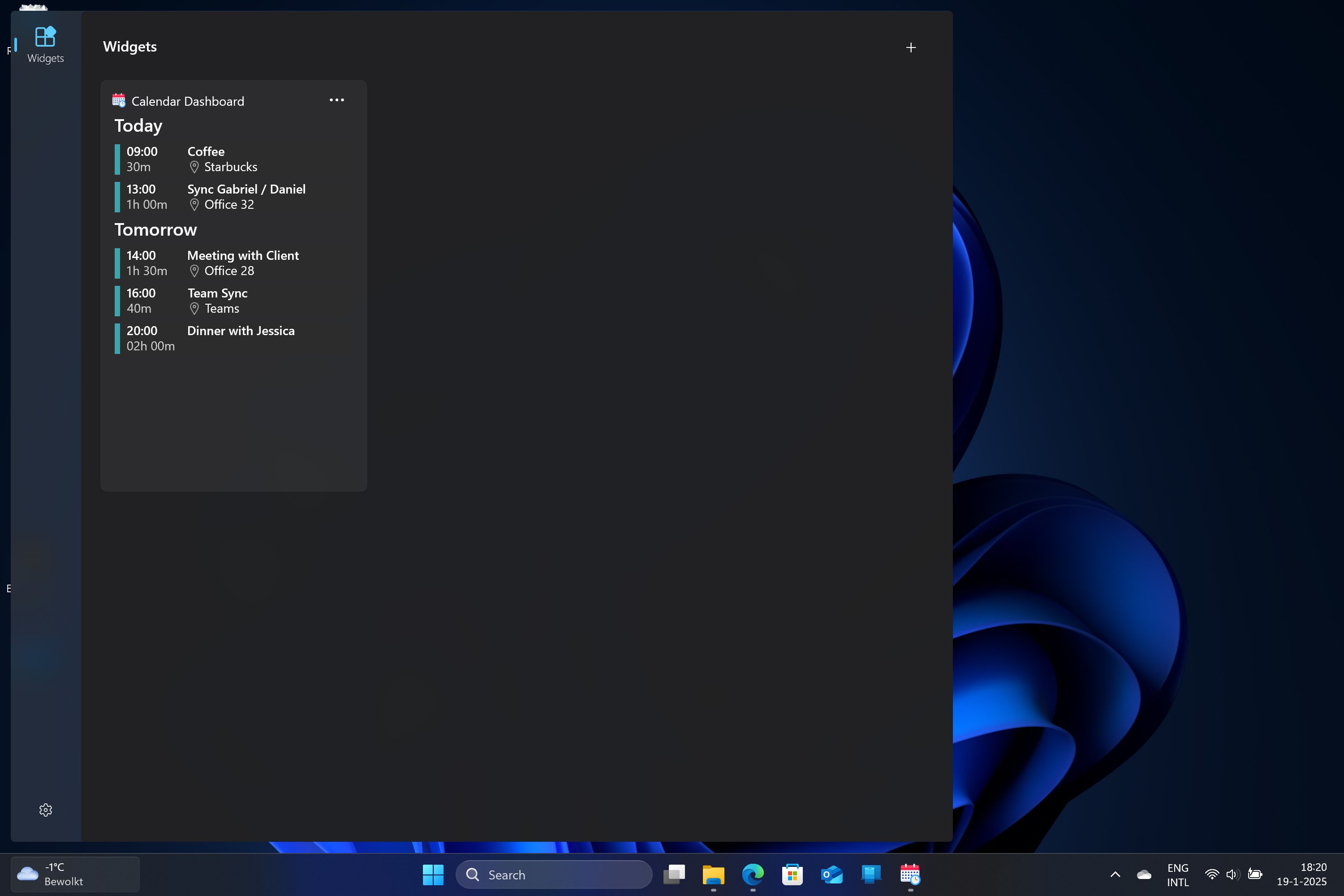
- Widget-Like Desktop Integration: Pin a customizable calendar panel directly onto your desktop, ensuring your schedule is always within arms' reach without disrupting your workspace.
- User-Friendly Interface with Minimal Distractions: Clean and modern design choices keep the focus on your schedule, avoiding unnecessary clutter or complex menus.
Brighten Your Day with a Seamless Experience
Imagine waking up and your first glance is greeted by a sleek calendar dashboard floating silently on your desktop, showing your day's agenda. This app feels like a knowledgeable assistant, quietly providing all the essential information without overwhelming your senses. It's precisely this balance—combining clarity with functionality—that makes Calendar Dashboard for Windows a noteworthy companion for productivity aficionados. Its interface is hushed but sophisticated, with smooth animations that feel as natural as flipping through a well-organized planner. The learning curve is gentle; most users will find themselves up and running within minutes, thanks to straightforward controls and clear icons.
Jump Into Its Core Strengths
1. Unified Multi-Calendar Integration
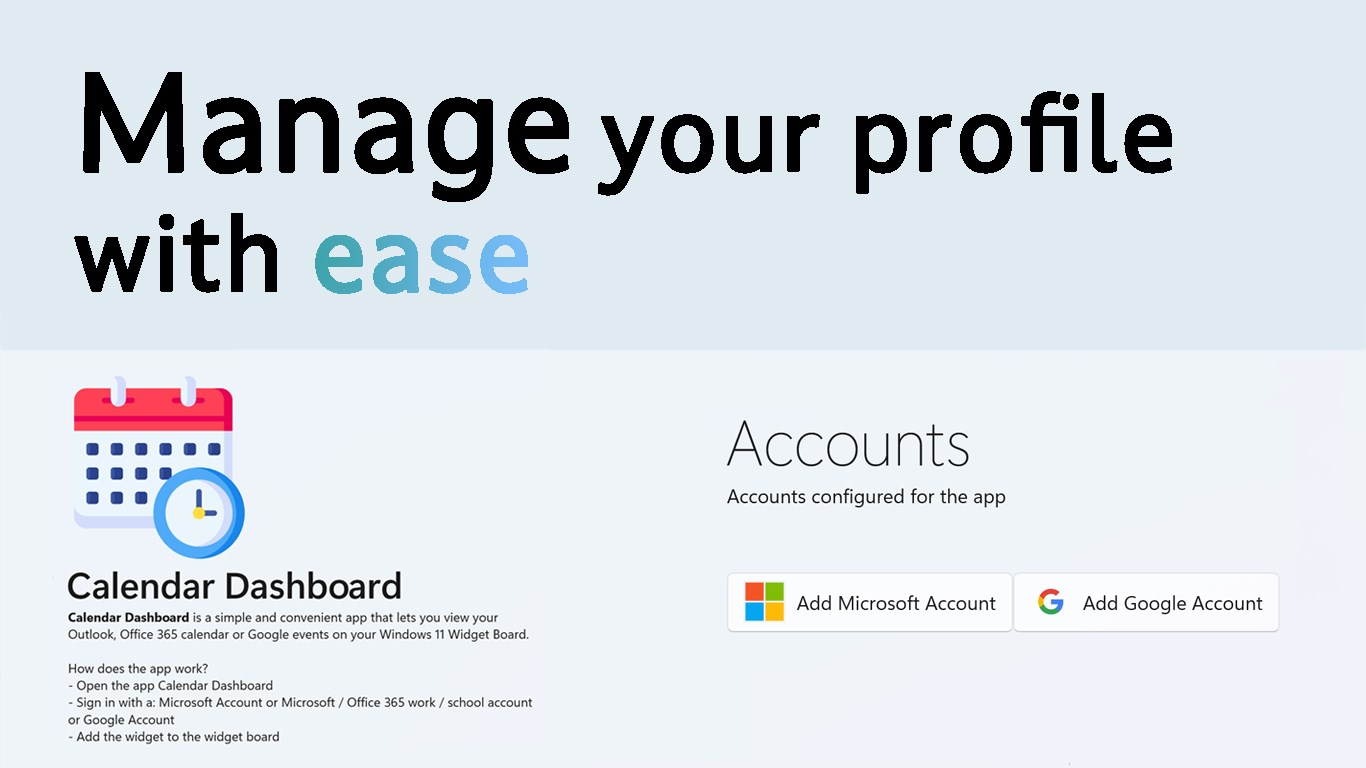
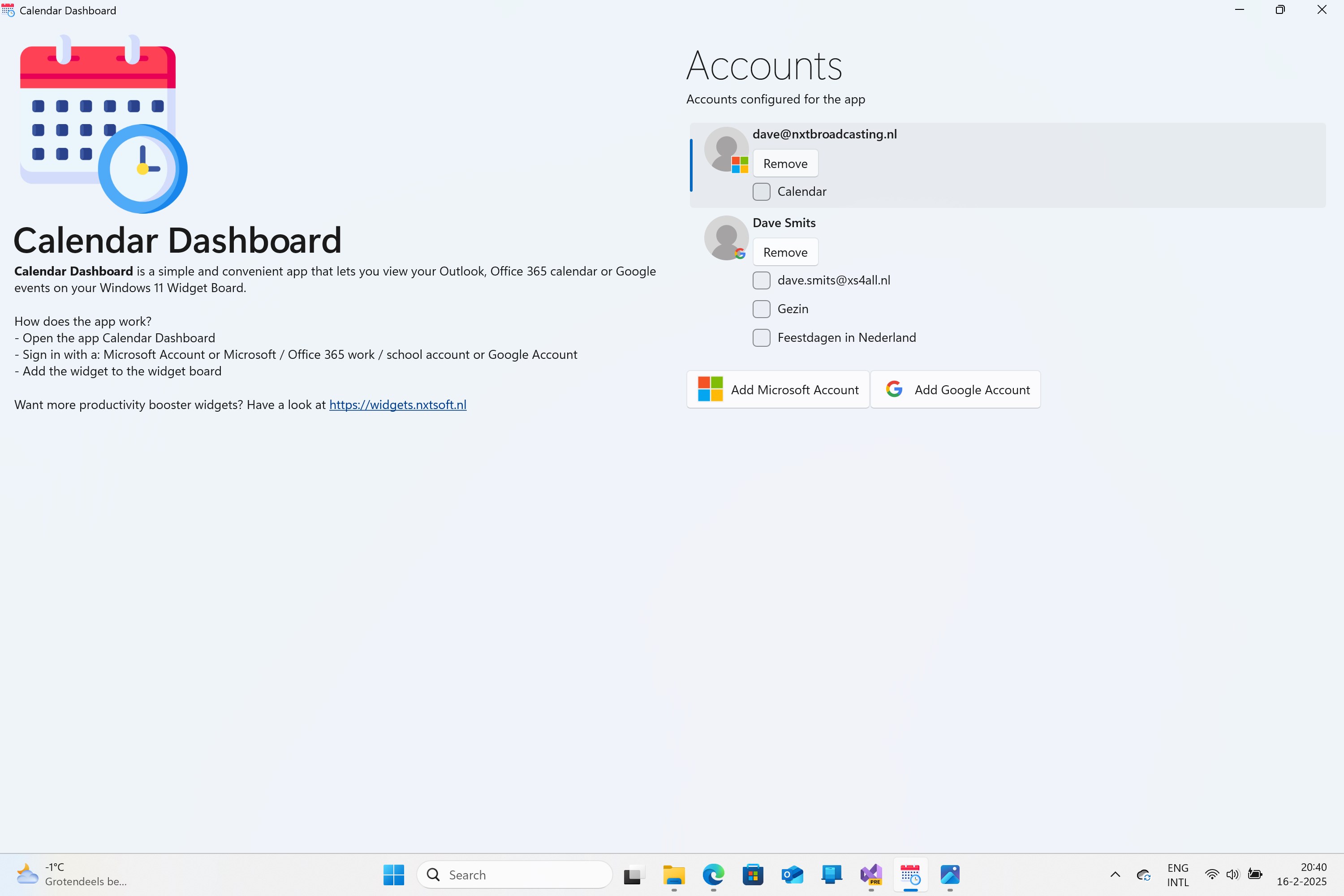
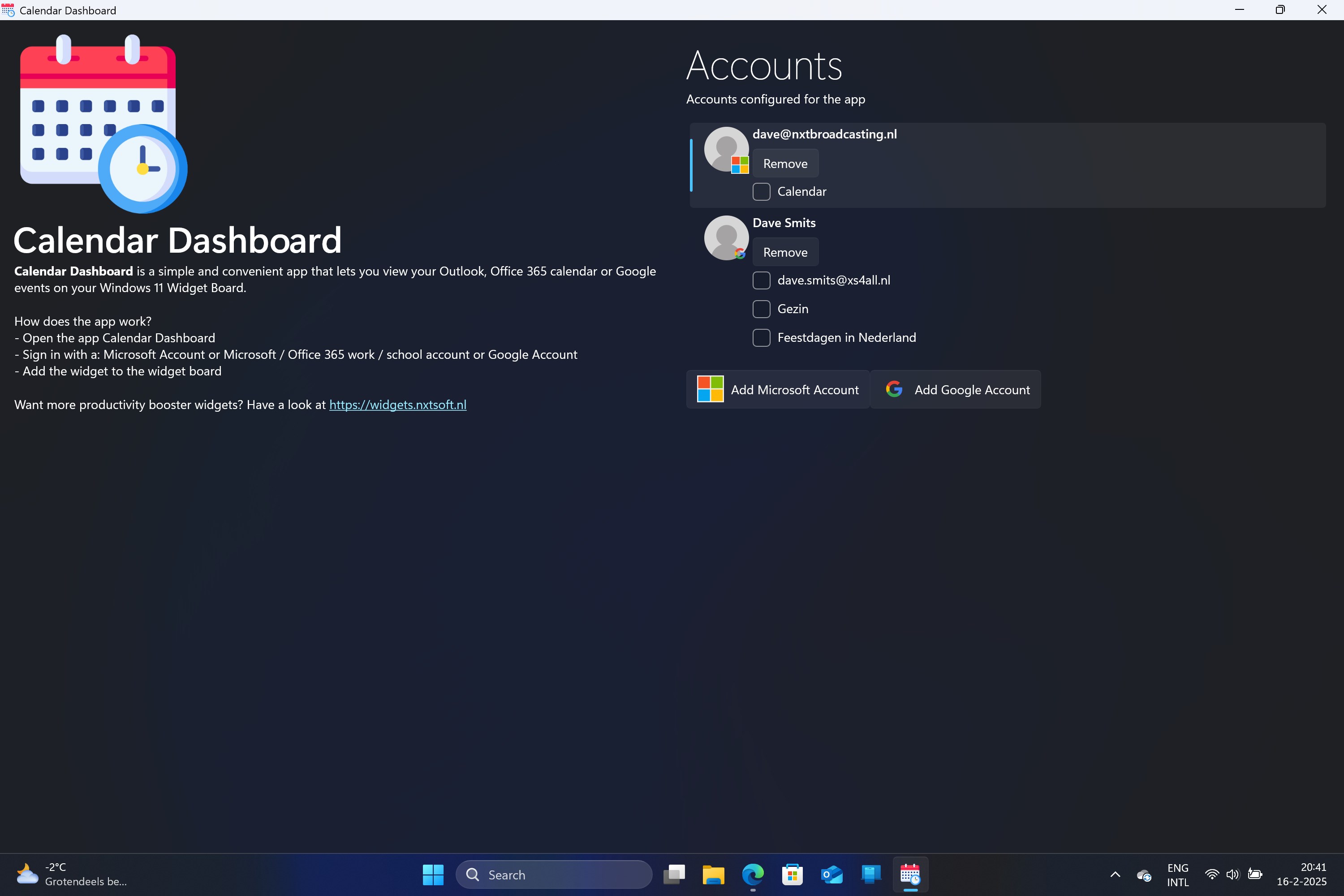
Rather than juggling multiple apps or browser tabs, this dashboard consolidates various calendars into one harmonious view. Whether you use Google Calendar for personal tasks, Outlook for work meetings, or other services, Calendar Dashboard pulls these together. This synergy reduces mental clutter—imagine having a single concert master conducting your schedule instead of separate, competing sections. The setup process is streamlined, requiring just basic account linkages, after which your schedules synchronize seamlessly. This feature distinctly enhances workflow efficiency, allowing you to plan your day without switching contexts.
2. Desktop Widget with Personalization
The app's desktop widget feature transforms your workspace into an interactive command center. Resize, reposition, and customize your calendar panel—perhaps a wide strip across the top of your screen or a corner panel—so it fits your unique workflow. This persistent view acts like a digital bulletin board, always within reach, reducing the need to open additional apps or windows. The real beauty is its unobtrusiveness; it provides constant accessibility without cluttering your desktop. This smooth integration contributes significantly to reducing cognitive load, helping you stay oriented with minimal effort.
3. Effortless Event Management and Notifications
Adding or modifying events in Calendar Dashboard is as easy as a few clicks or keystrokes, much like jotting down notes on a sticky note but in a more organized way. The app's design focuses on minimizing steps—no tedious navigation or confusing menus—so you can quickly capture fleeting ideas or schedule meetings on the fly. Notifications can be set up to alert you ahead of appointments, ensuring you stay punctual without constantly checking your calendar. This feature stands out because it offers task and event management in a clutter-free, integrated manner—turning scheduling from a chore into a natural part of your routine.
Comparative Edge and User Recommendations
While many productivity tools aim to centralize calendar functions, Calendar Dashboard for Windows distinguishes itself through its focus on workflow integration efficiency and low cognitive load. Unlike feature-heavy calendar apps that can overwhelm users with options and settings, this app emphasizes clarity and ease of use. Its desktop widget becomes an extension of your mind—never forcing you to switch contexts or remember complicated procedures. For users who prefer streamlined, unobtrusive tools that fit seamlessly into their daily routine, this app is highly recommended. It's ideal for busy professionals, students, or anyone seeking a minimalist yet functional calendar companion.
Final Verdict
Calendar Dashboard for Windows shines as an efficient, user-friendly calendar tool that champions simplicity without sacrificing power. Its key features—multi-calendar aggregation, desktop widget, and straightforward event management—work together to reduce mental clutter and enhance productivity. If you prioritize an intuitive workflow and seamless integration, this app deserves a spot on your desktop. Think of it as a quiet but capable assistant that keeps your schedule in sight and mind, freeing you to focus on what truly matters. I wholeheartedly recommend giving it a try for a more organized, less stressful day-to-day experience.
Pros
- Intuitive calendar interface
- Seamless Microsoft 365 integration
- Customizable dashboard views
- Effective task and event reminders
- Support for multiple calendar accounts
Cons
- Limited offline access
- Occasional sync delays with Microsoft servers
- Lack of advanced scheduling features
- Notification customization options are limited
- Design could be more modern











