
- Name Bitwarden
- Category Productivity
- Developer Bitwarden Inc.
- Available on PC
- OS Windows 10 version 14316.0 or higher
- languages Afrikaans, Arabic, Azerbaijani (Latin), Bangla, Basque, Belarusian, Bosnian (Latin), Bulgarian, Catalan, Chinese (Simplified), Chinese (Traditional), Croatian, Czech, Danish, Dutch, English (India), English (United Kingdom), English (United States), Estonian, Filipino, Finnish, French, Galician, Georgian, German, Greek, Hebrew, Hindi, Hungarian, Indonesian, Italian, Japanese, Kannada, Khmer, Korean, Latvian, Lithuanian, Malayalam, Marathi, Nepali, Norwegian (Bokmål), Norwegian (Nynorsk), Odia, Persian/Farsi, Polish, Portuguese (Brazil), Portuguese (Portugal), Romanian, Russian, Serbian (Cyrillic), Sinhala, Slovak, Slovenian, Spanish, Swedish, Tamil, Telugu, Thai, Turkish, Ukrainian, Vietnamese, Welsh
Bitwarden for Windows: A Secure Vault for Your Digital Life
Designed to keep your passwords safe and accessible, Bitwarden for Windows offers a straightforward yet powerful solution in the realm of password management, making digital security less of a chore and more of a peace of mind.
Meet the Minds Behind the Lock
Developed and published by Bitwarden Inc., a well-respected player in open-source security solutions, this app benefits from a community-driven approach combined with professional security standards. Their focus is on delivering a transparent, reliable, and easy-to-use password manager that caters to both personal users and teams.
Key Features that Stand Out
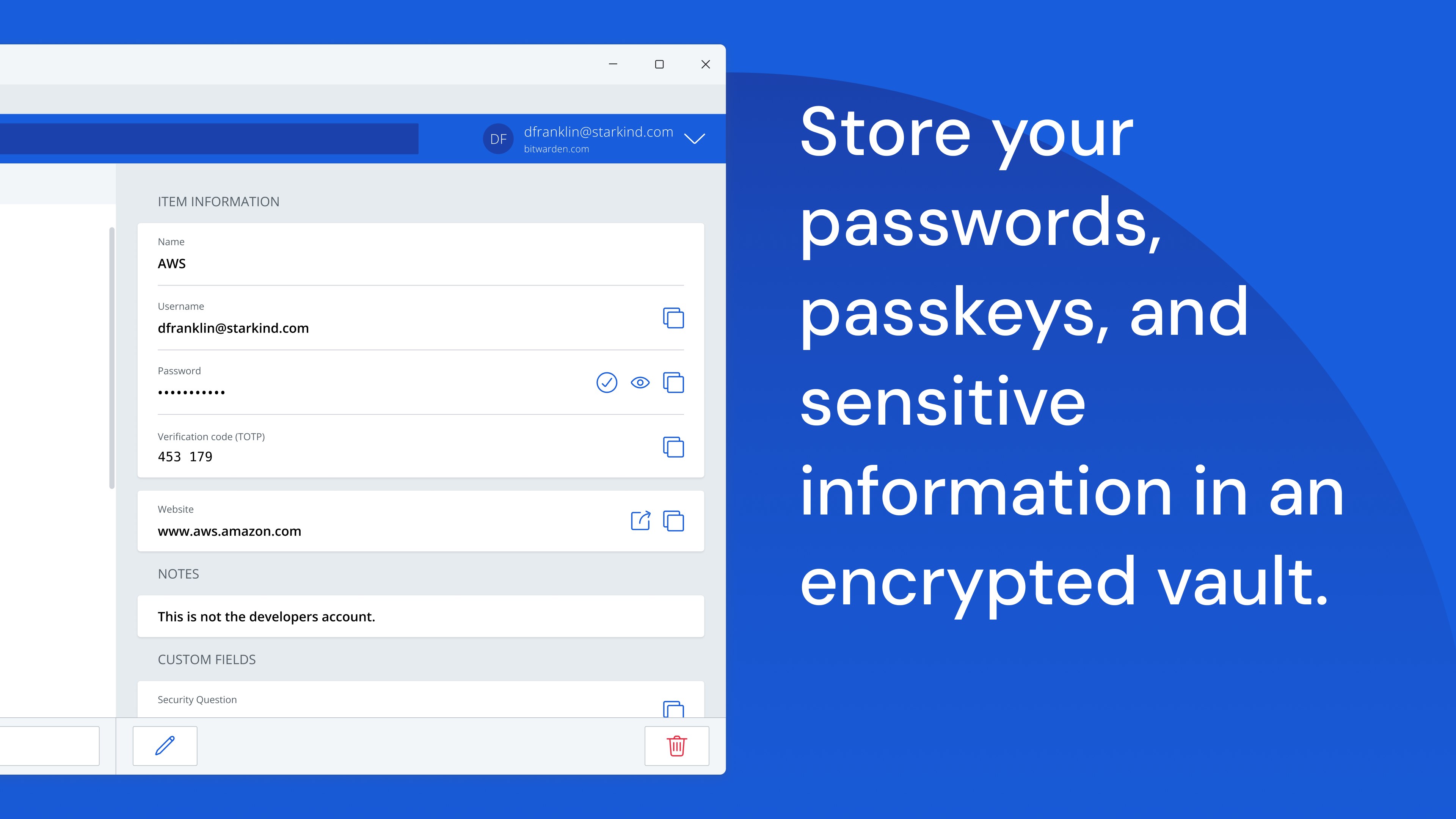
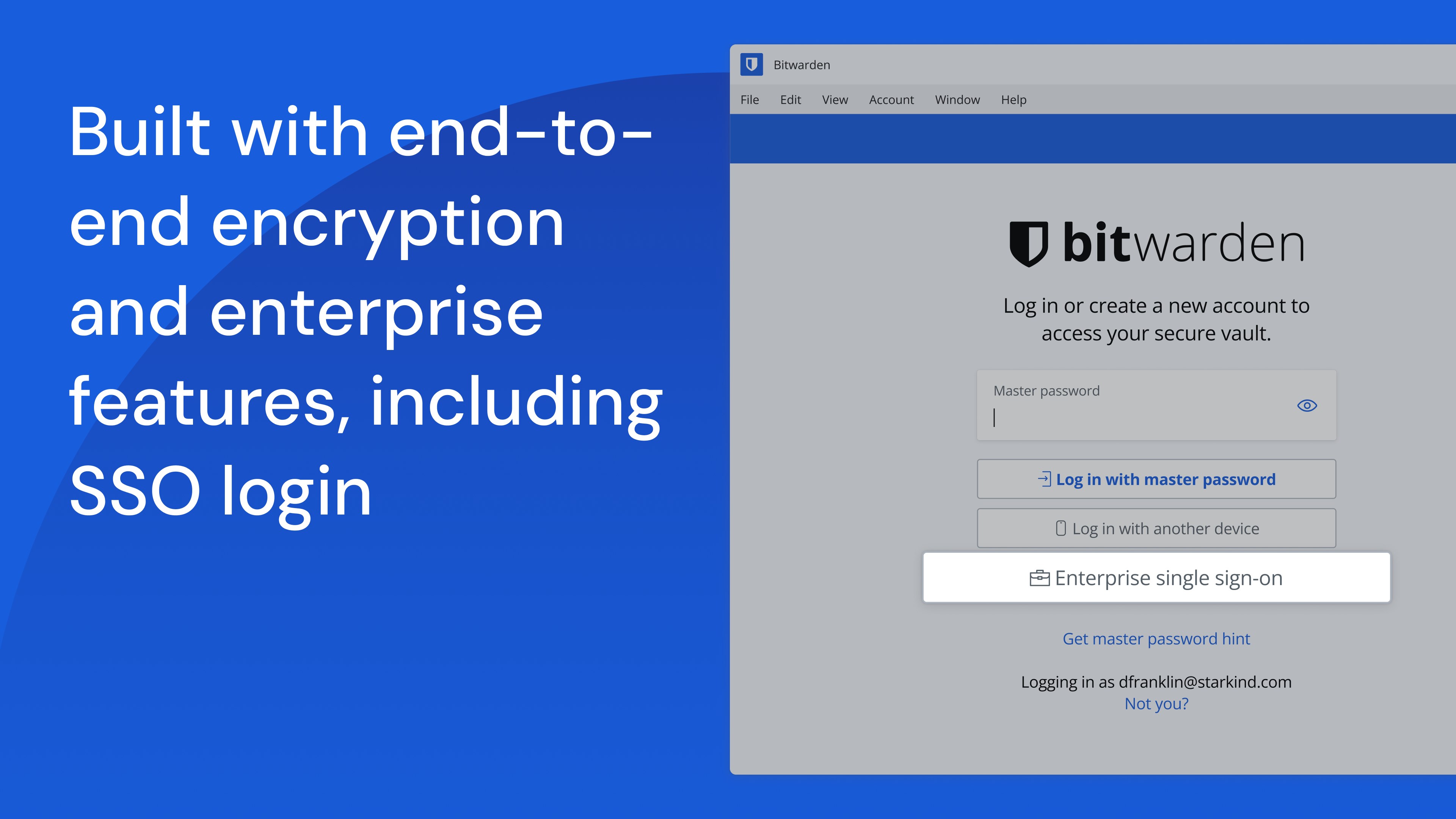
- End-to-End Encryption: Ensures all your data stays encrypted before leaving your device, providing peace of mind that only you hold the keys.
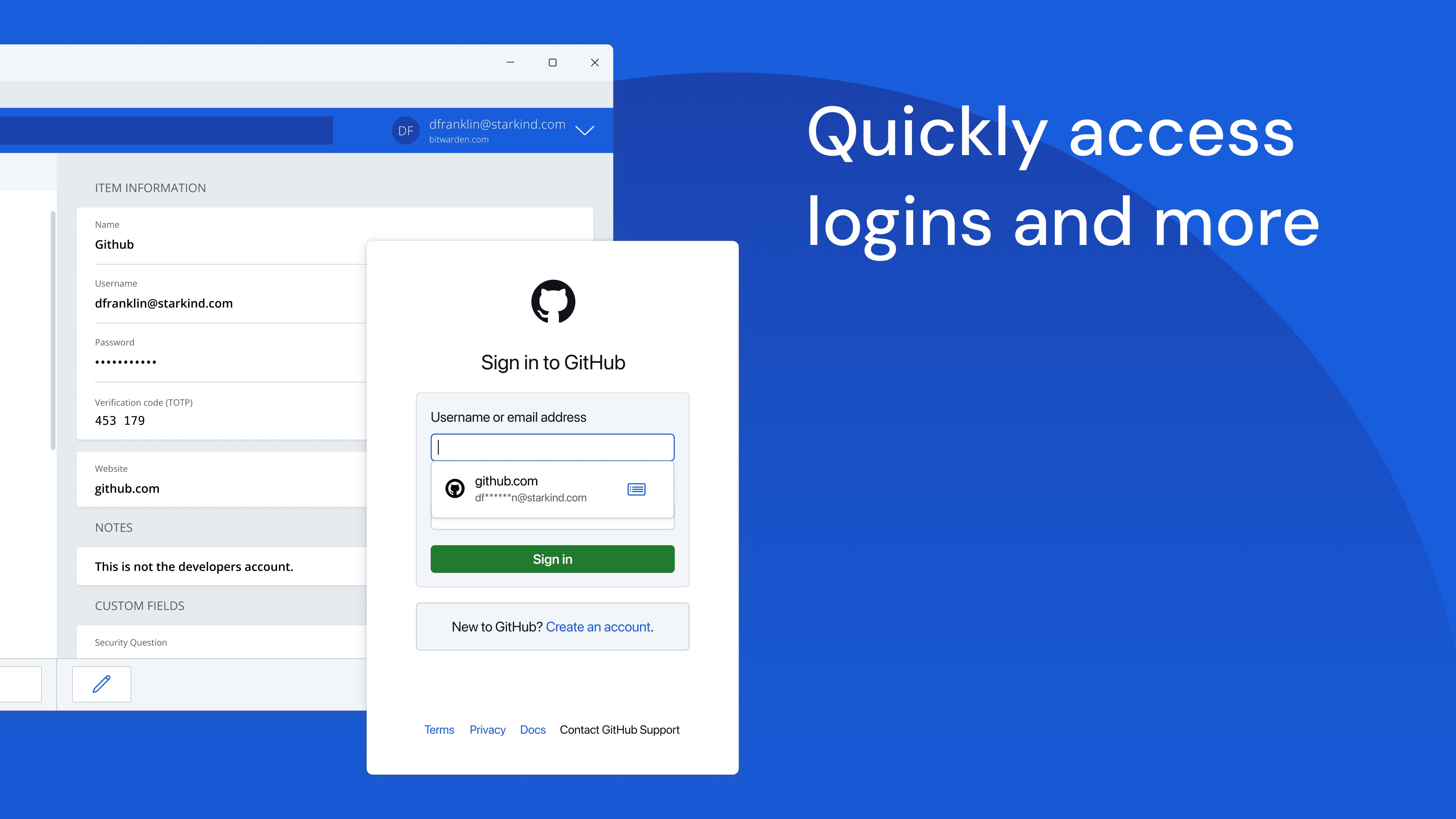
- Auto-fill & Auto-login: Seamlessly fill login credentials across browsers and apps, saving time and reducing the frustration of forgotten passwords.
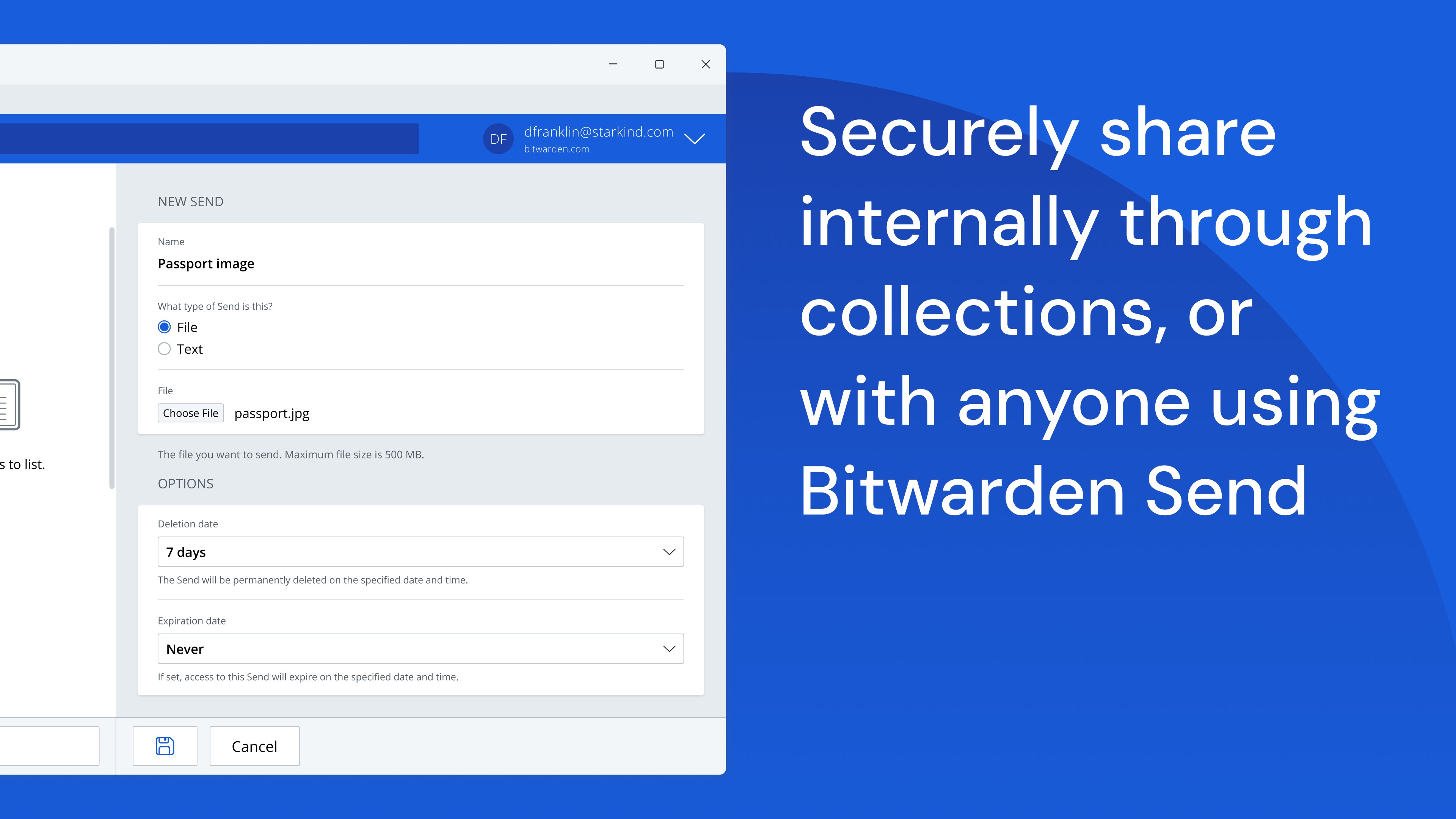
- Secure Storage & Sharing: Not just passwords—store notes, credit cards, and securely share data within trusted groups or team members.
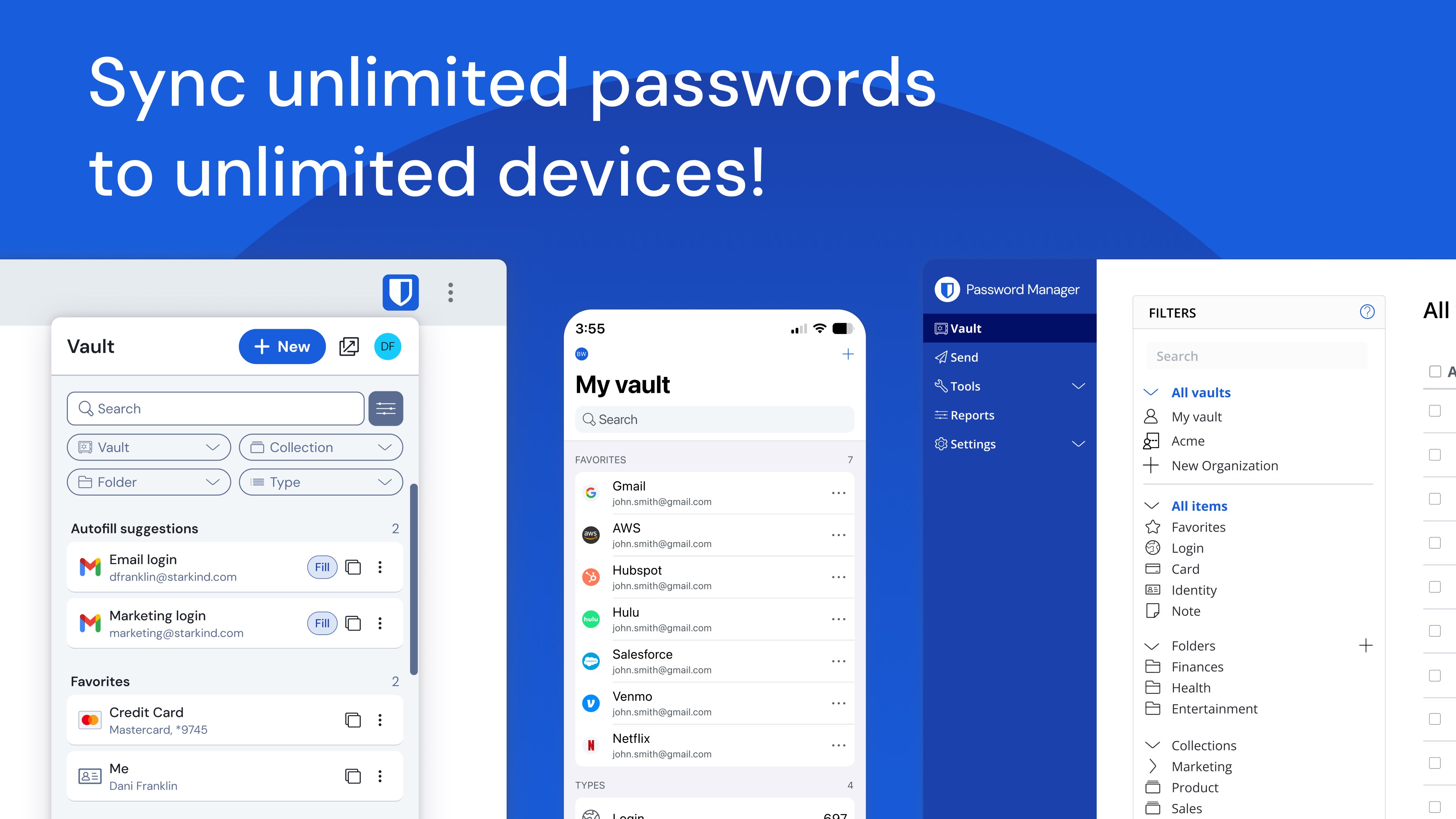
- Cross-Device Sync: Keep your passwords synchronized effortlessly across Windows and other platforms, ensuring uninterrupted access anywhere.
Experience the App: A Friendly & Functional Guardian
Imagine your digital life as a bustling cityscape—each account, password, or sensitive note a unique building. Bitwarden acts like a vigilant security guard, standing at every door, ensuring only you and those you trust pass through. The setup process feels more like mapping out your neighborhood rather than deciphering complex blueprints—intuitive and welcoming from the start.
User Interface: Simple, Clean, and Intuitive
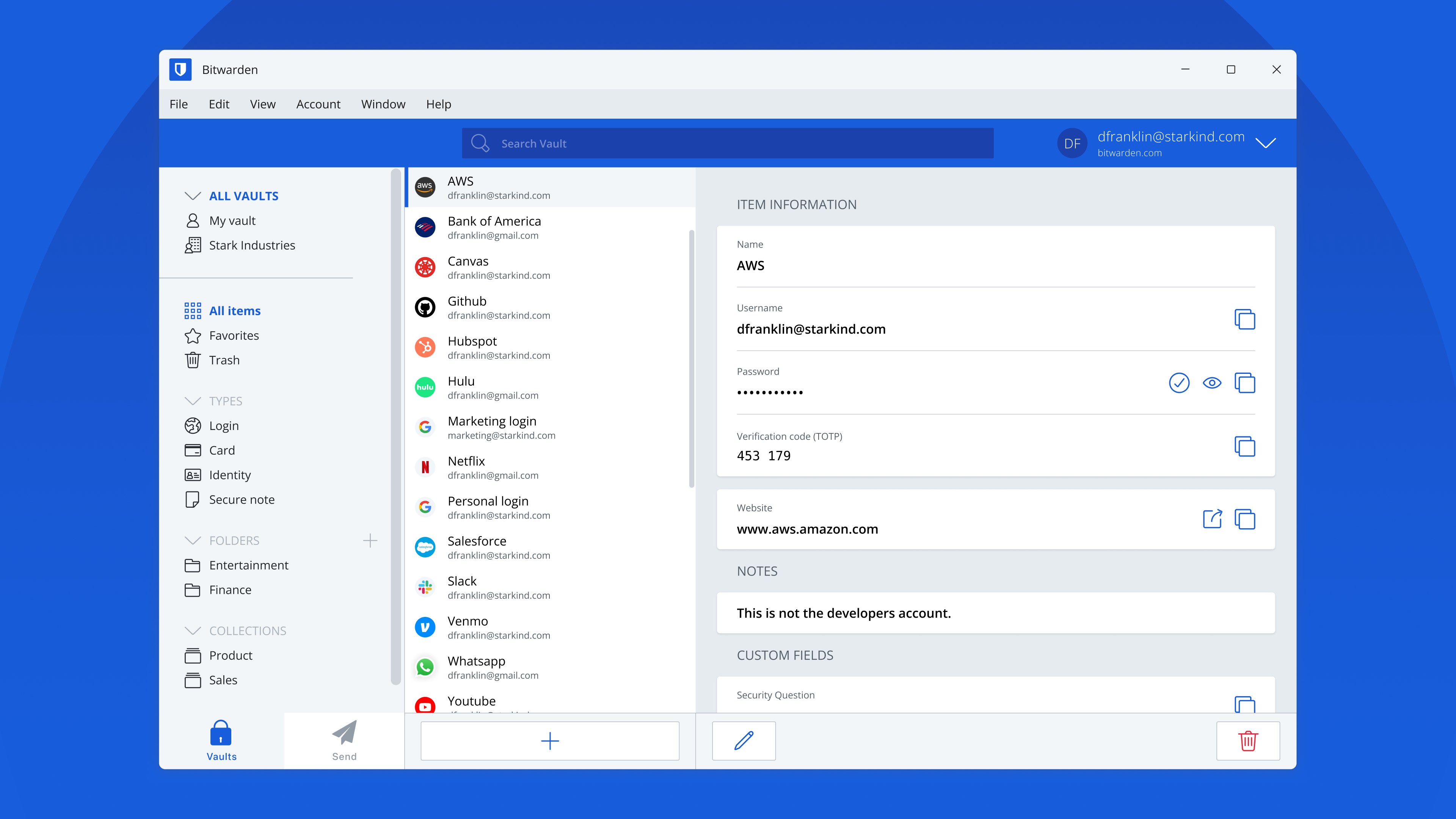
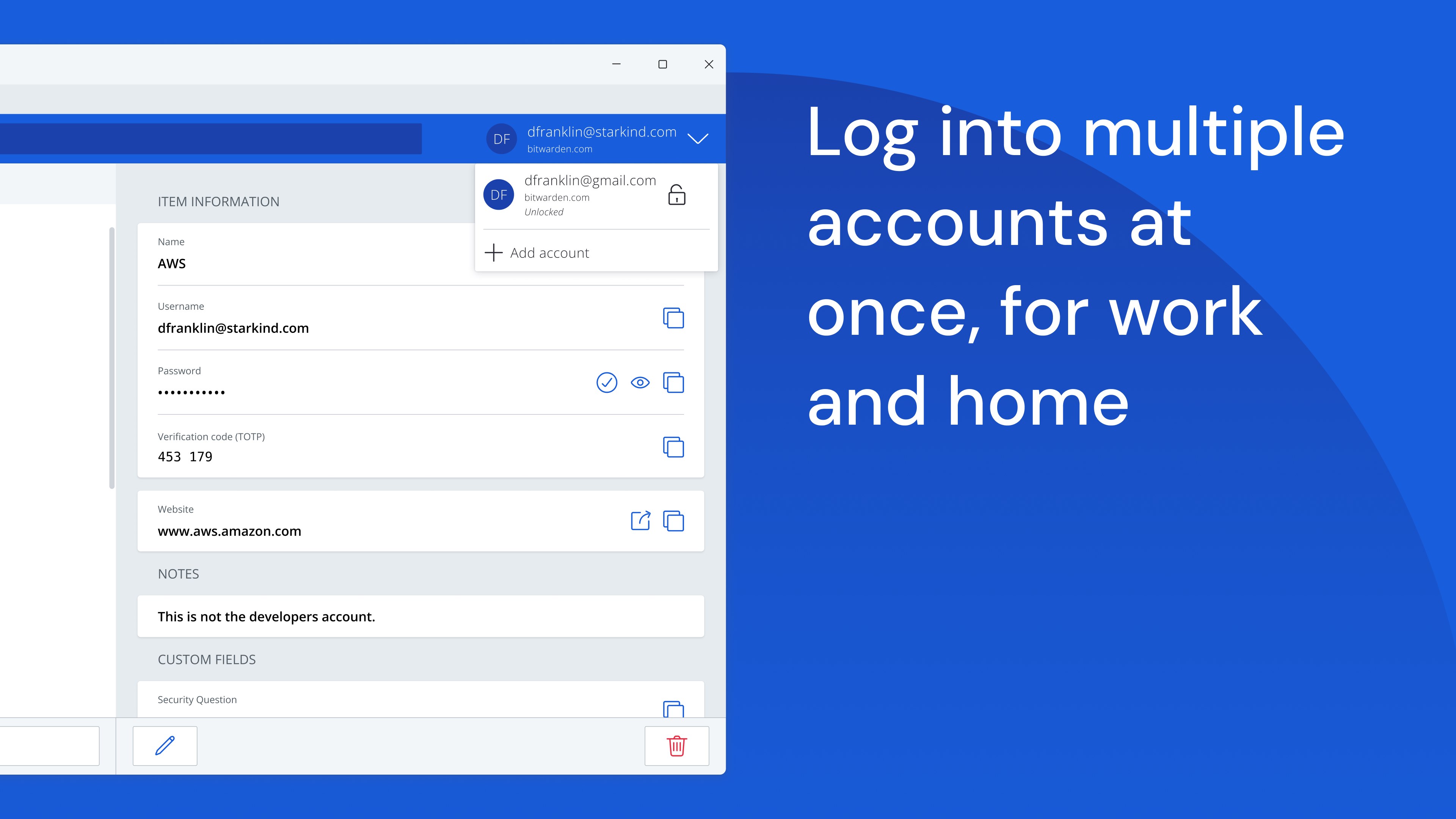
The design of Bitwarden for Windows is deliberately minimalistic—think of it as a well-organized wardrobe where everything has its place. Navigation is straightforward, with a clear sidebar listing your vaults, and a clean, easy-to-read main window to access your entries. The interface reduces cognitive load by focusing on essential elements, making password management less of a mental puzzle and more of a natural habit.
Performance and Workflow Integration
One of the app's most compelling advantages is its smooth integration into everyday workflow. The auto-fill feature recognizes login fields instantly, functioning seamlessly within browsers and other Windows applications—much like a trusted assistant anticipating your needs. The app runs quietly in the background, and switching between vaults or adding new entries feels fluid, not intrusive. Despite its feature-rich nature, the app maintains a low learning curve, making it suitable for newcomers and seasoned users alike.
Differentiated by Focus on Reducing Cognitive Load
Unlike some other password managers that bombard users with options and settings, Bitwarden emphasizes simplicity and efficiency. Its core strength lies in reducing cognitive overhead—fewer clicks, fewer mental toggles—so your focus stays on your work rather than managing the app. Its straightforward design, combined with features like universal autofill and secure notes, makes it a practical tool that enhances your workflow without adding unnecessary complexity.
Final Thoughts: Is It Worth Your Trust?
All signs point to Bitwarden for Windows being a reliable, user-friendly password management solution. Its standout features—particularly end-to-end encryption paired with effortless workflow integration—make it a top contender for anyone looking to streamline their digital security. While no app is perfect, Bitwarden's commitment to open-source transparency and cross-platform usability earns it a strong recommendation, especially for users who value security without sacrificing ease of use.
If you're someone tired of juggling multiple passwords or seeking a way to keep your sensitive information organized safely, give Bitwarden a try. It's akin to having a highly secure, well-organized digital safe at your fingertips—trustworthy, accessible, and unobtrusive. A dependable partner in your digital journey, ready to unlock peace of mind whenever you need it.
Pros
- Strong Security Features
- Open-Source Transparency
- Cross-Platform Compatibility
- Free Basic Version
- Password Sharing Capabilities
Cons
- User Interface Complexity
- Limited Advanced Features in Free Version
- Sync Speed Occasionally Slower
- Premium Subscription Cost
- Official App Update Frequency











