

- Name Azure VPN Client
- Category Productivity
- Available on PC, Mobile, Surface Hub, HoloLens
- OS Windows 10 version 17763.0 or higher
- languages Chinese (Simplified), Chinese (Traditional Chinese), Czech, Dutch, English (United States), French, German, Hungarian, Italian, Japanese, Korean, Polish, Portuguese (Brazil), Portuguese (Portugal), Russian, Spanish, Swedish, Turkish
Azure VPN Client for Windows: Seamless and Secure Remote Connectivity
Microsoft's Azure VPN Client for Windows stands out as a dedicated solution designed to streamline remote network access, offering a robust and user-friendly experience for professionals and organizations needing secure connections to Azure cloud environments and enterprise networks.
Developed by Microsoft Corporation: Trust in a Tech Titan
Crafted by the renowned Microsoft Corporation, this application leverages years of experience in enterprise solutions, integrating seamlessly with the larger Microsoft ecosystem to provide a reliable VPN solution that aligns with enterprise security standards and user expectations.
Key Features That Make a Difference
- Azure Integration and Easy Configuration: Designed specifically for Azure environments, it simplifies setting up VPN connections to Azure Virtual Networks, reducing technical hurdles for users.
- Secure Protocol Support: Supports industry-standard VPN protocols like IKEv2, offering strong security and stability, even under fluctuating network conditions.
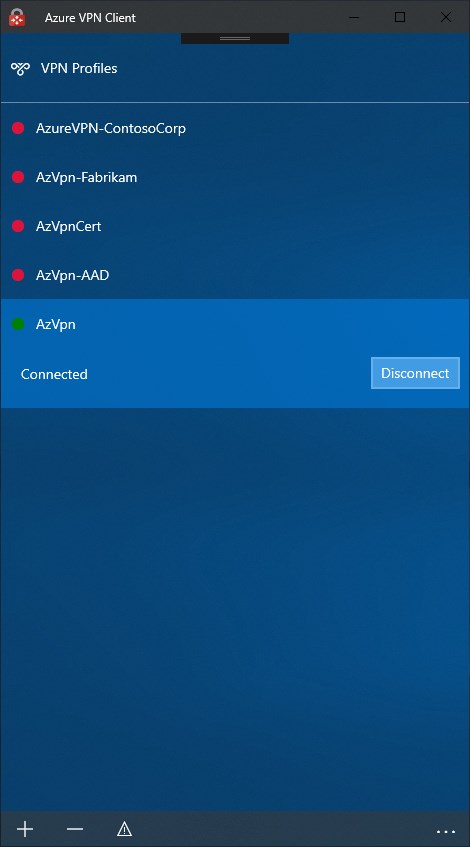
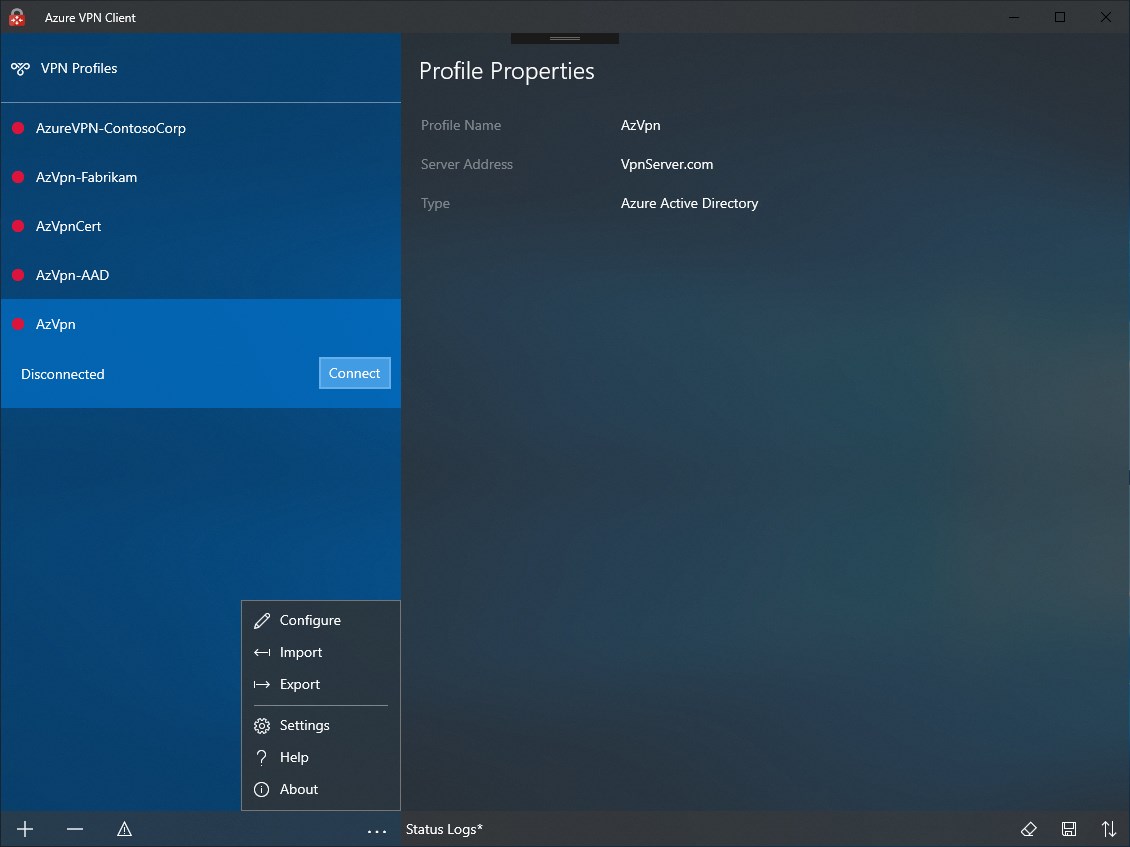
- User-Friendly Interface: A clean, minimalistic interface that makes managing multiple VPN profiles straightforward, even for less tech-savvy users.
- Automatic Connection Management: Includes options to automatically connect during system startup and reconnect if the connection drops, ensuring continuous security without user intervention.
An Engaging Dive into the User Experience
Imagine switching on your laptop in a bustling café, uncertain if you'll have a secure connection to your company's intranet. The Azure VPN Client steps in like a trusted guide, promising a straightforward journey through complex network landscapes. Its interface is akin to a well-organized control room—simple, intuitive, and clutter-free—allowing users to switch between VPN profiles as smoothly as changing channels on a remote. The app's seamless operation feels akin to driving a well-tuned vehicle—smooth, responsive, and free of unnecessary jerks or distractions.
Core Function 1: Azure-Centric VPN Configuration
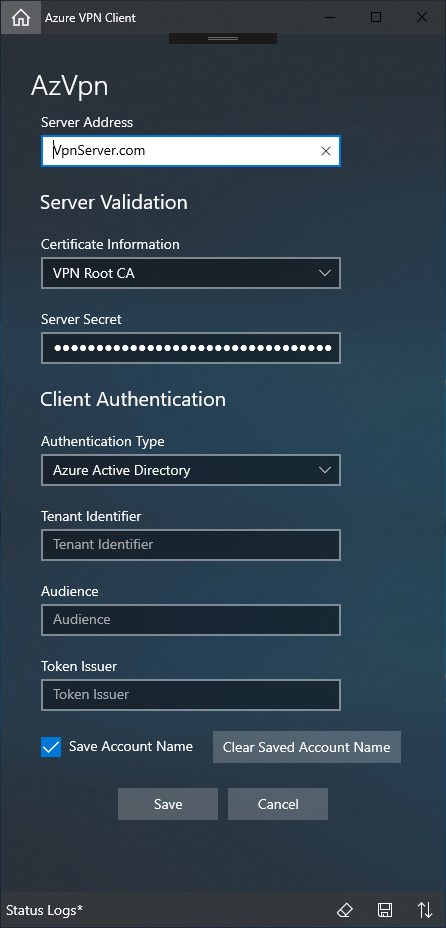
This feature is the app's standout, reducing the configuration complexity often associated with VPN setups. Users can quickly connect to Azure Virtual Networks with just a few clicks, thanks to built-in templates and guided setup dialogs. It's like having a knowledgeable co-pilot assisting you, minimizing the cognitive load and making the process less daunting—even for those unfamiliar with networking intricacies.
Core Function 2: Reliable and Secure Connections
Supporting protocols like IKEv2, the VPN client ensures a strong security posture without sacrificing connection stability. This is particularly vital for remote workers handling sensitive data—it's like having an armored shield around your internet traffic, protecting you from prying eyes. Furthermore, the automatic reconnect feature acts like an attentive guardian, keeping your connection alive through network fluctuations, much like a safety net catching you before you fall.
Core Function 3: Streamlined User Experience
The minimalist design and straightforward controls make managing VPN profiles effortless, akin to organizing your digital workspace. The app's quick access tray icon allows for instant connection toggling, enabling users to stay productive without navigating through convoluted menus. The learning curve is gentle—a rarity in the realm of enterprise-grade security tools—empowering users to adopt it swiftly.
Differentiation from Similar Productivity Tools
Compared to other VPN clients, especially those that bundle multiple features into complex dashboards, Azure VPN Client emphasizes workflow efficiency and cognitive simplicity. Its integration with Azure's ecosystem means fewer manual configurations and smoother deployment within enterprise infrastructures. Unlike generic VPN apps that may overwhelm users with options, this client reduces mental clutter—like a well-organized toolbox—focusing on essential functions that align tightly with user needs. Its ability to automatically handle connection states from startup to shutdown minimizes the effort required for routine secure access, effectively lowering cognitive load and enhancing productivity.
Recommendation and Usage Suggestions
For organizations heavily invested in Microsoft Azure or seeking a straightforward, dependable VPN solution for remote work, the Azure VPN Client for Windows is an excellent choice. Its emphasis on ease of use, security, and deep integration makes it particularly suitable for IT teams managing large user bases. While it may lack some of the advanced features found in more versatile VPN suites, its targeted design ensures optimal functioning within its niche.
I recommend users start with a trial deployment to assess its compatibility within your network architecture. For daily remote connectivity, especially in Azure-centric environments, this client offers a seamless experience akin to having a dedicated, reliable portal into your virtual networks—making remote work less of a chore and more of a secure extension of your office.
Pros
- User-friendly interface
- Seamless integration with Azure services
- Supports multiple VPN protocols
- Automatic reconnect feature
- Strong security features
Cons
- Limited customization options
- Occasional connection instability
- Requires Azure account login
- Limited cross-platform support
- Latency issues











