
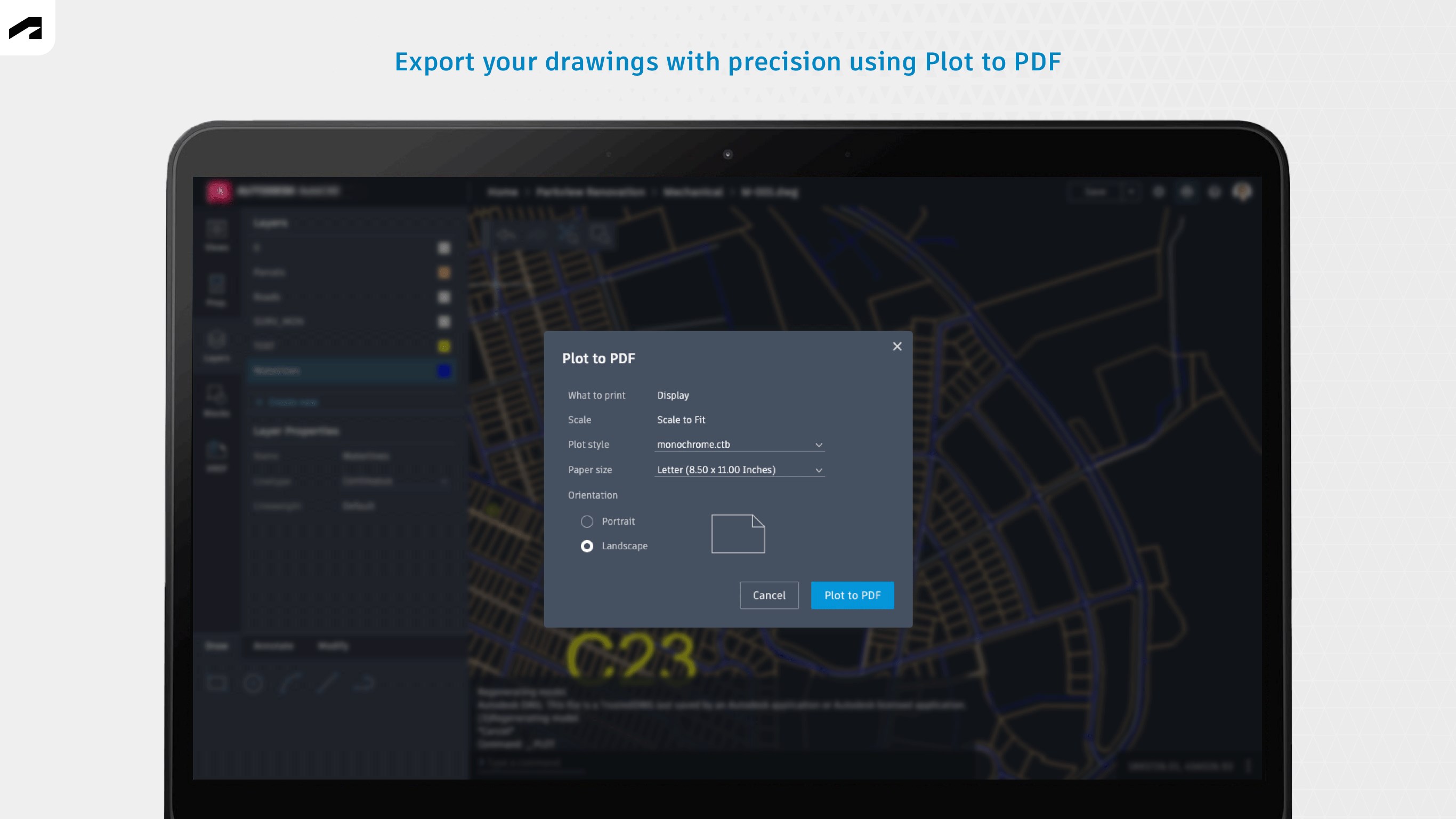
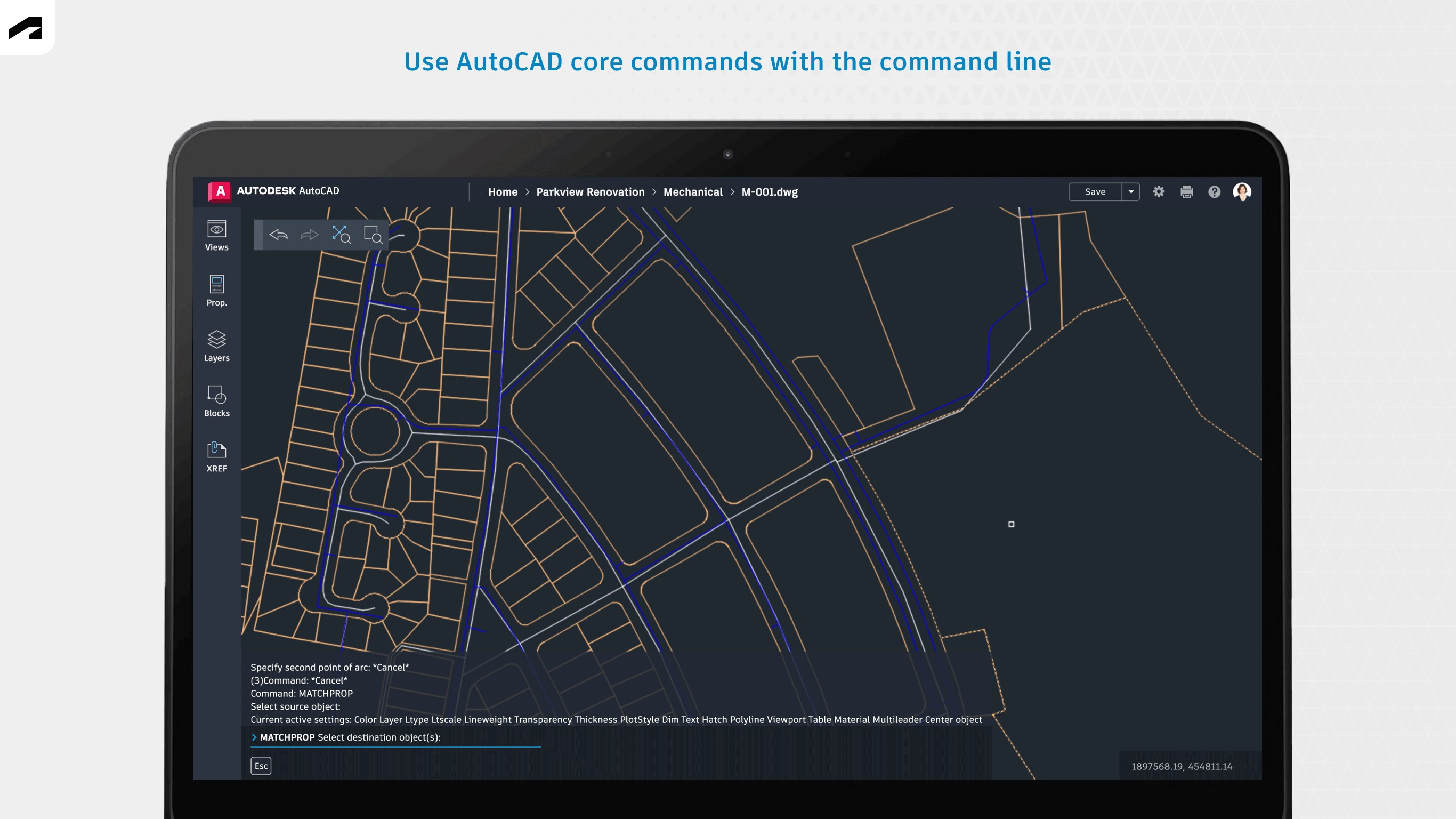
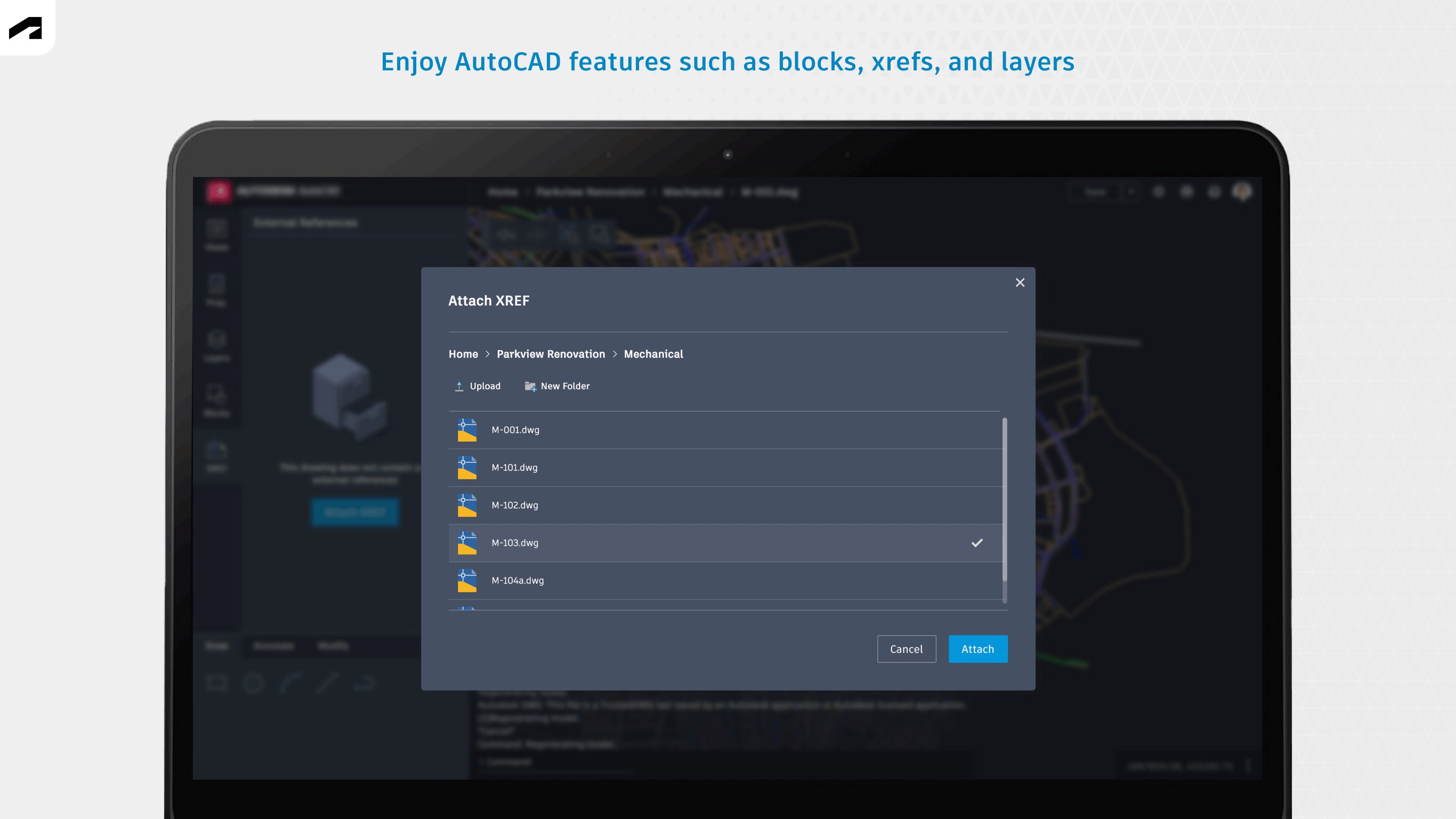
- Name AutoCAD - DWG Viewer & Editor
- Category Productivity
- Available on PC, HoloLens
- OS Windows 10 version 19041.0 or higher
- languages English
Introducing the AutoCAD - DWG Viewer & Editor for Windows
Designed for professionals who need a reliable and streamlined way to view, edit, and manage DWG files directly on Windows, this app from Autodesk Inc. stands out as a dedicated solution that integrates core CAD functionalities into a user-friendly interface.
Key Features That Make Your CAD Workflow Smoother
Efficient DWG Viewing and Navigation
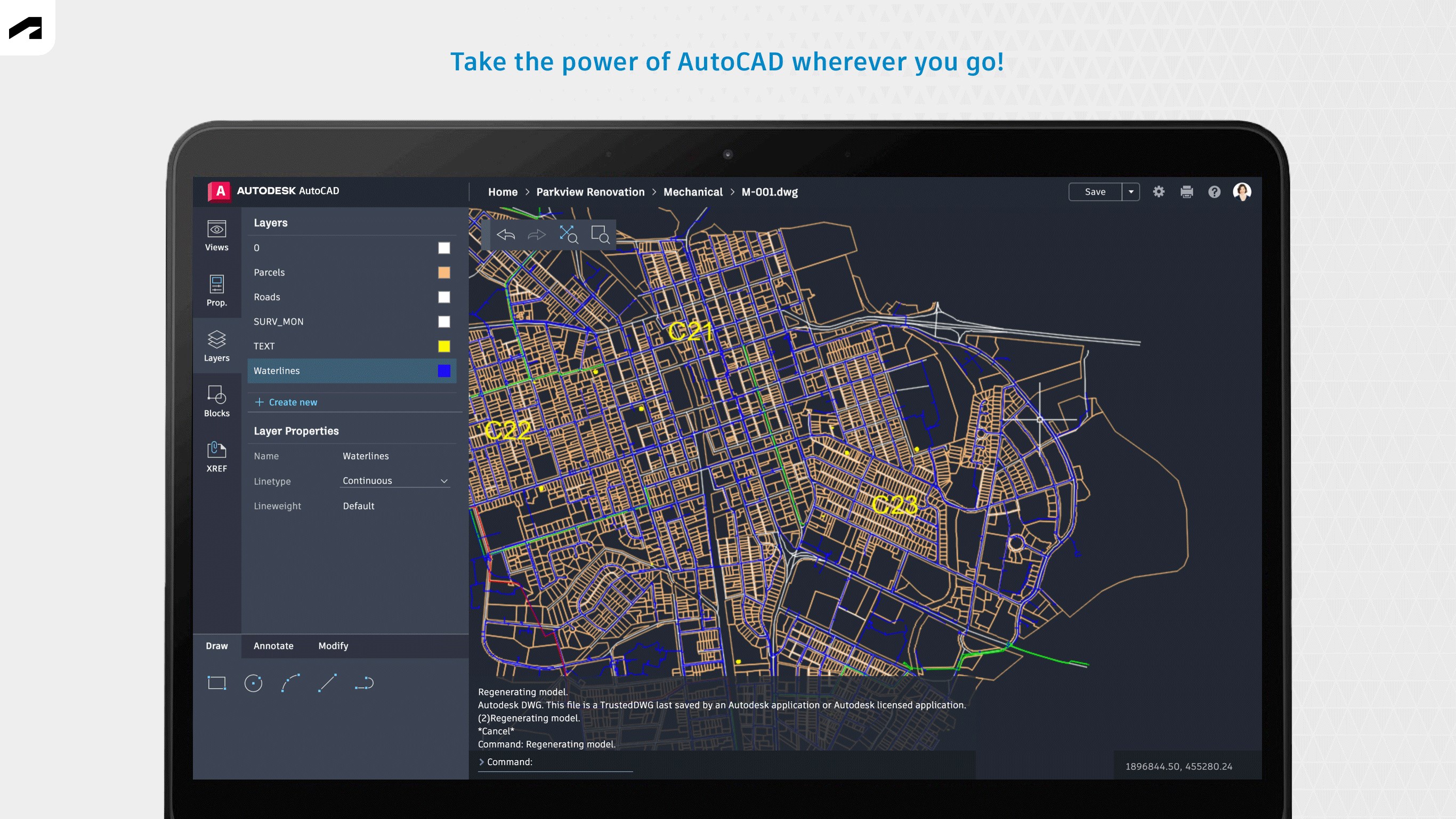
The app offers smooth rendering of complex DWG files, allowing users to zoom, pan, and rotate with ease. Its optimized rendering engine ensures that even large files open swiftly, making it feel akin to flipping through pages in a well-organized catalog. This feature alone reduces the time spent waiting and helps keep your creativity flowing without interruption.
Intuitive Editing and Annotation Tools
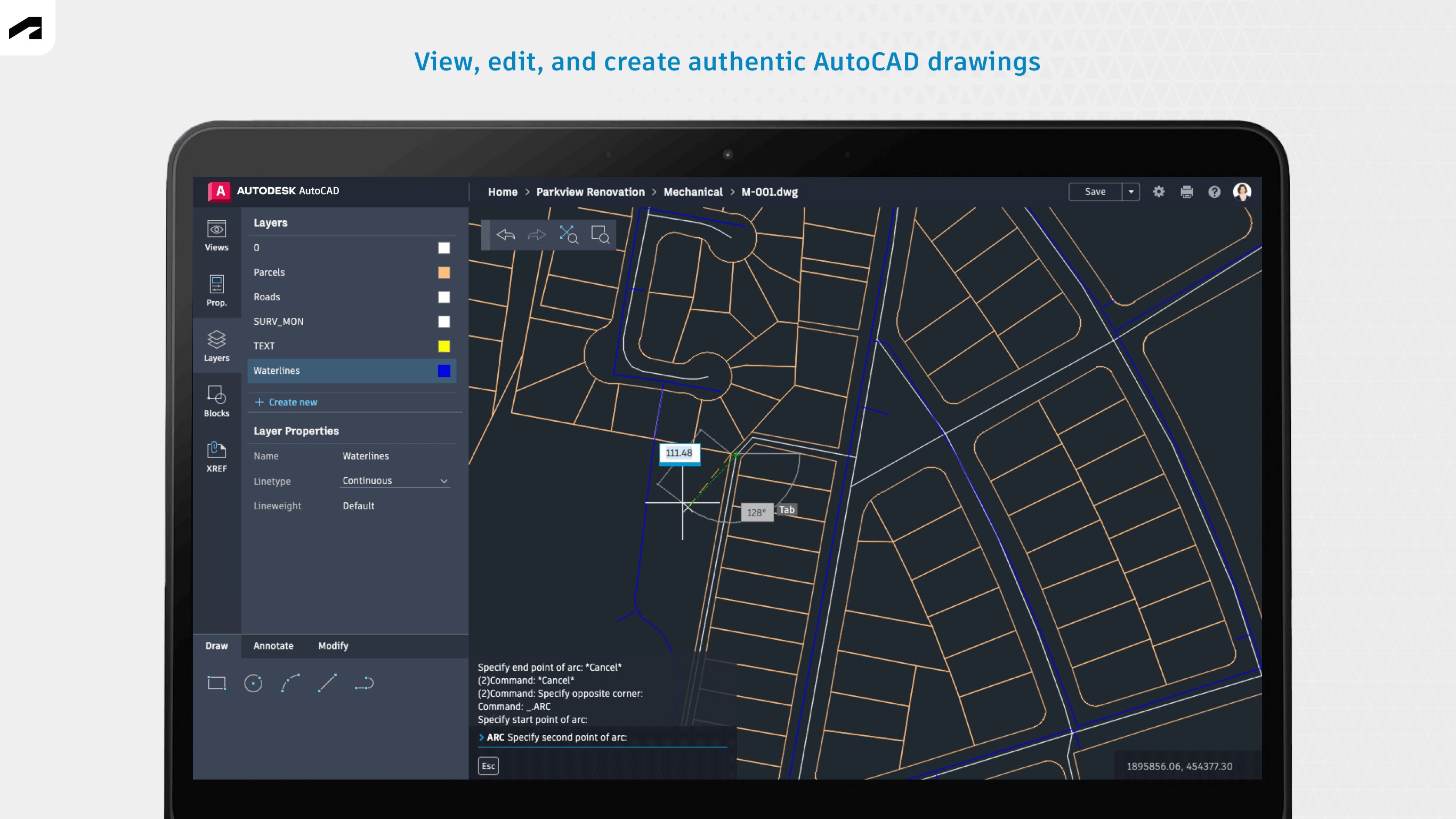
Unlike some lightweight viewers that only allow viewing, this app provides robust editing capabilities—adding, deleting, or modifying elements right within the viewer. Annotate directly on your drawings with markup tools, enabling seamless communication with team members. The editing tools are straightforward, reducing the cognitive load typically associated with complex CAD programs.
Seamless Integration with CAD Workflows
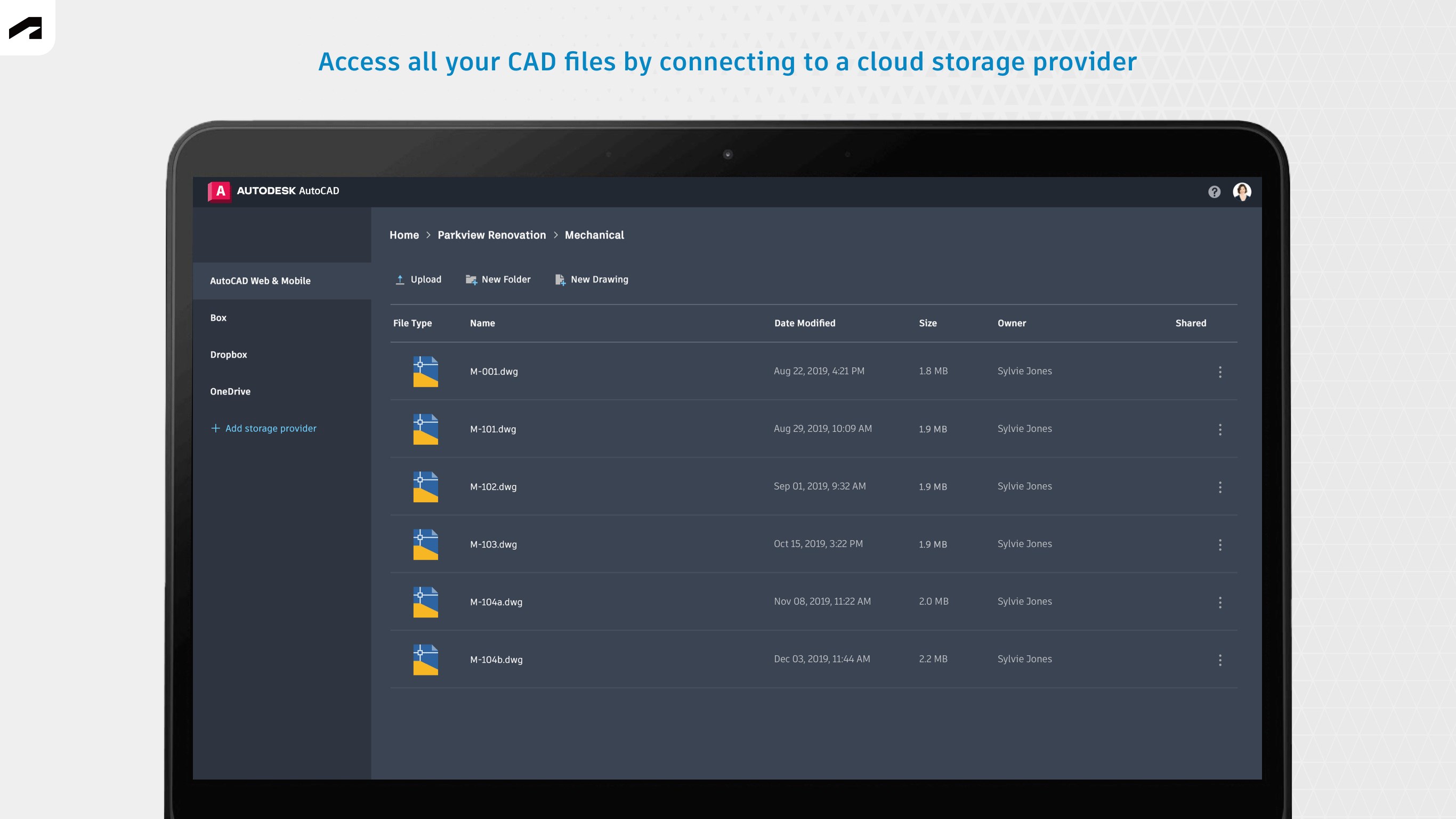
The app shines brightest in its ability to integrate effortlessly into existing CAD workflows. Users can easily open, edit, and save DWG files stored locally or in cloud locations like OneDrive or Dropbox. This interoperability means you spend less time managing files and more time being productive, which is a game-changer for project efficiency.
User Experience: A Friendly Companion or a Complex Challenge?
The interface design strikes a fine balance—clean, modern, yet familiar enough for CAD veterans to navigate instinctively. The layout echoes classic CAD tools, but with simplified menus that do away with unnecessary clutter. The operation feels fluid, with quick response times even when working on large files, indicating optimized performance tailored for a Windows environment. For newcomers, the learning curve is gentle, thanks to context-sensitive help and clear iconography, making it accessible for users transitioning from other applications.
Uniqueness in a Crowded Market
While many DWG viewers emphasize just viewing capabilities, this app's most compelling feature is its combined approach of viewing, editing, and workflow integration. Its ability to enable quick modifications and annotations right within the viewer reduces the need to switch between multiple apps—a common pain point in competing solutions. Additionally, by focusing on reducing cognitive load, it avoids overwhelming the user with complex features, instead delivering just what's necessary for efficient CAD management. This thoughtful balance significantly boosts productivity and user satisfaction.
Final Verdict and Recommendations
Overall, the AutoCAD - DWG Viewer & Editor for Windows is a solid choice for professionals seeking a lightweight yet capable tool to handle DWG files. It's particularly beneficial for those who need quick edits, annotations, and seamless cloud integration without the intricacies of full CAD software. I would recommend it to engineering teams, architects, or hobbyists who require straightforward DWG management with minimal fuss—think of it as a trusty sidekick that won't slow you down.
Pros
- Intuitive User Interface
- Strong DWG Compatibility
- Basic Editing Features
- Cloud Integration Support
- Lightweight and Fast Performance
Cons
- Limited Advanced Editing Tools
- Occasional File Compatibility Issues
- Basic Measurement and Annotation Tools Only
- No Layer Editing in Free Version
- Minor UI Clutter in Large Drawings











