

- Name Auto-Clicker
- Category Productivity
- Developer Playsaurus
- Available on PC
- OS Windows 10 version 17763.0 or higher
- Keyboard Integrated Keyboard
- Mouse Integrated Mouse
- Memory 750 MB
- languages English (United States)
Introduction: Simplifying Repetitive Tasks with Precision
If you've ever found yourself stuck in a loop of clicking, whether for gaming, data entry, or testing, Auto-Clicker for Windows by Playsaurus promises to be your reliable companion. Designed with ease and efficiency in mind, this lightweight tool aims to automate those tedious repetitive clicks so you can focus on more engaging activities. Its straightforward approach delivers a clear solution to automate mouse clicks seamlessly, making it an intriguing choice for anyone seeking to enhance productivity without the hassle of complex setups.
Core Features That Make It Stand Out
1. Customizable Auto-Clicking Patterns for Flexible Automation
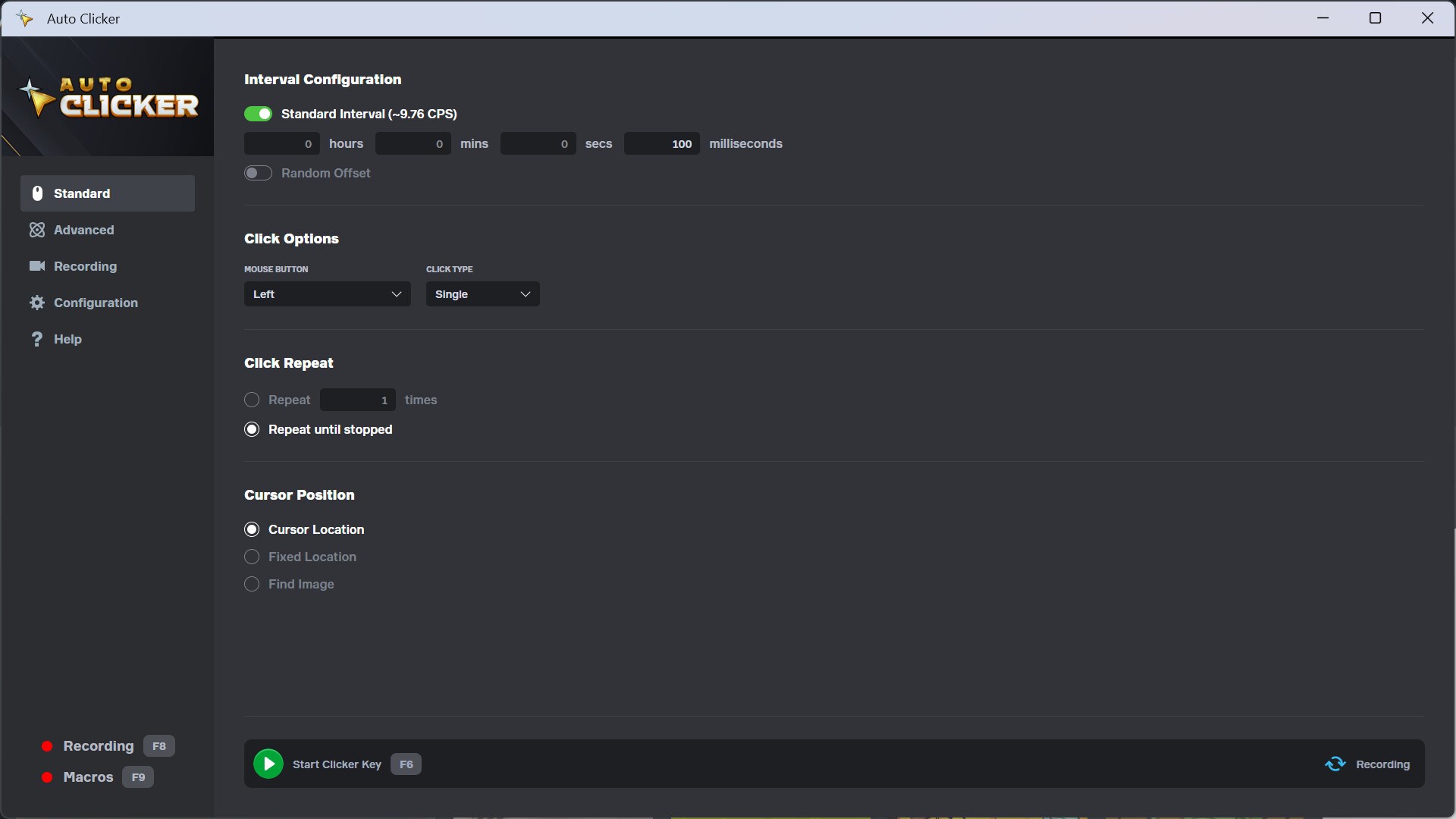
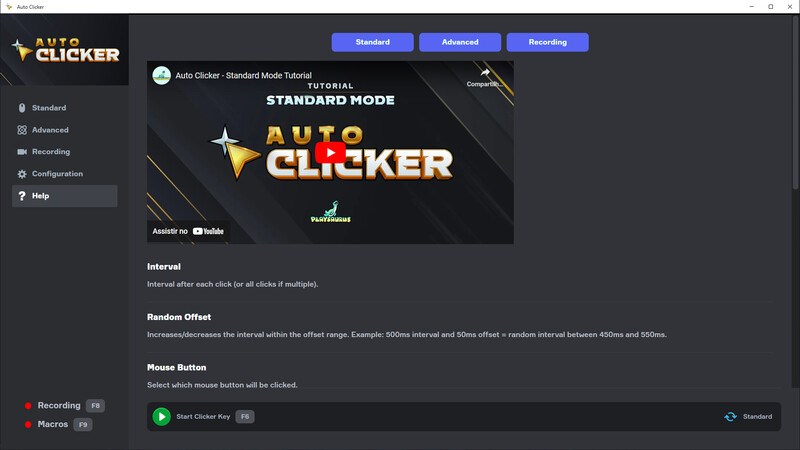
The app allows users to set precise click intervals, choose between left or right mouse button clicks, and even define specific screen locations for automation. Whether you're aiming for rapid-fire clicks or slow, deliberate ones, the customizable timing ensures you can tailor the automation to fit your specific workflow. Imagine setting up a routine that mimics your natural clicking rhythm—this flexibility grants you control without feeling constrained.
2. User-Friendly Interface with Minimal Learning Curve
Auto-Clicker sports a clean and intuitive interface reminiscent of a minimalistic dashboard, making it accessible even for beginners. Configurations are straightforward: select your preferred settings and activate the auto-clicking process instantly. The application's simplicity reduces cognitive load, enabling you to deploy automation quickly without wading through complex menus or lengthy tutorials—a true boon for those who value efficiency over fluff.
3. Seamless Integration into Workflow & Efficiency Enhancement
Compared to more feature-heavy productivity tools, this auto-clicker emphasizes streamlined operation, reducing unnecessary complexity. It acts as a silent assistant that integrates smoothly into your existing workflow; activated only when needed, it doesn't clutter your screen or distract from your tasks. This focus on lightweight operation means you spend less time configuring and more time being productive, reflective of a thoughtful design aimed at reducing cognitive effort while avoiding the pitfalls of feature bloat.
Design, Usability, and User Experience
The interface feels akin to a well-organized control panel—simple, uncluttered, and efficient. Navigating through options requires minimal effort, thanks to clearly labeled buttons and logical layout. The application responds promptly to user commands, ensuring smooth operation even during extended use. Setting up automated clicks takes mere seconds, and the intuitive controls mean even novices will quickly get comfortable. There's little to no learning curve, making this tool an easy addition to your automation arsenal.
Unique Selling Points & Differentiation
What truly sets Auto-Clicker apart from similar productivity applications is its laser focus on workflow integration efficiency. Unlike bulky macro or scripting tools, which often demand a steep learning curve and cause cognitive overload, this auto-clicker maintains simplicity and effectiveness. It's designed to reduce mental effort—by eliminating unnecessary options—while delivering reliable automation. This approach ensures users can swiftly set up repetitive tasks without wrestling with complex configurations, thus freeing mental resources for more critical aspects of their work.
Recommendation and Final Thoughts
In summary, Auto-Clicker for Windows stands out as a practical, user-centric tool ideal for individuals seeking straightforward automation of mouse clicks. Its minimalist design, combined with customizable features, makes it suitable for gaming, data entry, or testing scenarios where repetitive clicking is inevitable. I recommend this app to those who prioritize simplicity and efficiency over feature overload. For users new to automation, its approachable interface provides an excellent starting point, while experienced users will appreciate its focused performance. If you're seeking a no-fuss auto-clicking solution that seamlessly blends into your workflow, this tool is worth a try.
Pros
- User-Friendly Interface
- High Customizability
- Lightweight and Fast
- Reliable Auto-Clicking
- Free to Use
Cons
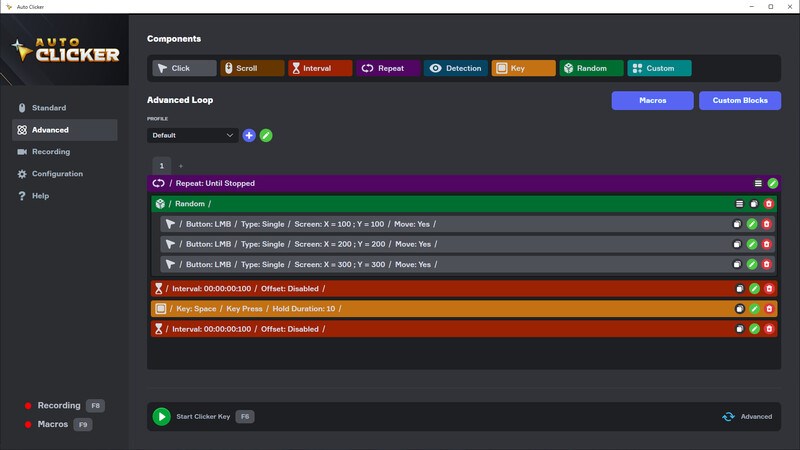
- Limited Advanced Features
- Occasional Unresponsiveness
- Compatibility Constraints
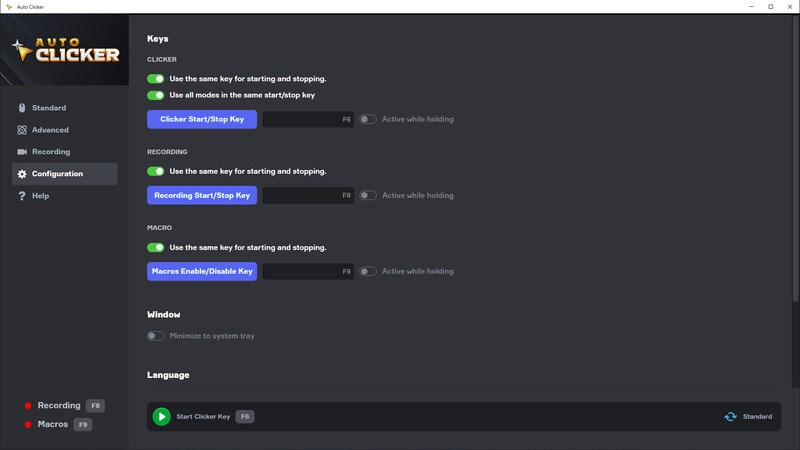
- Limited Custom Hotkey Options
- No Built-in Safety Features











