



- Name Ashampoo Video Optimizer Pro 2
- Category Multimedia design
- Developer Ashampoo GmbH & Co. KG
- Available on PC
- OS Windows 10 version 0.0 or higher
- languages English, Chinese (Simplified), Chinese (Traditional Chinese), German, Finnish, French, Italian, Catalan, Dutch, Polish, Portuguese, Portuguese (Brazil), Romanian, Russian, Swedish, Slovak, Spanish, Spanish (Argentina), Czech, Turkish, Hungarian
Introducing Ashampoo Video Optimizer Pro 2 for Windows
In an era where capturing life's moments is effortless but maintaining their quality can be challenging, Ashampoo Video Optimizer Pro 2 emerges as a reliable companion designed to enhance and refine your video content seamlessly. Whether you're a casual videographer or an aspiring content creator, this application aims to bring professional-grade enhancements within your reach.
About the Developer: Ashampoo GmbH & Co. KG
Founded in Germany, Ashampoo GmbH & Co. KG is renowned for developing user-friendly yet powerful software solutions across various digital domains. With decades of experience, the company emphasizes innovative technology combined with intuitive interfaces, making complex tasks accessible to everyday users.
Key Features That Shine
- Video Enhancement & Stabilization: Restores videos with noise reduction, sharpening, and stabilization—turning shaky or blurry footage into smooth, clear memories.
- Smart Optimization Tools: Automatic adjustments tailored to each video's unique qualities, saving time while maintaining natural visuals.
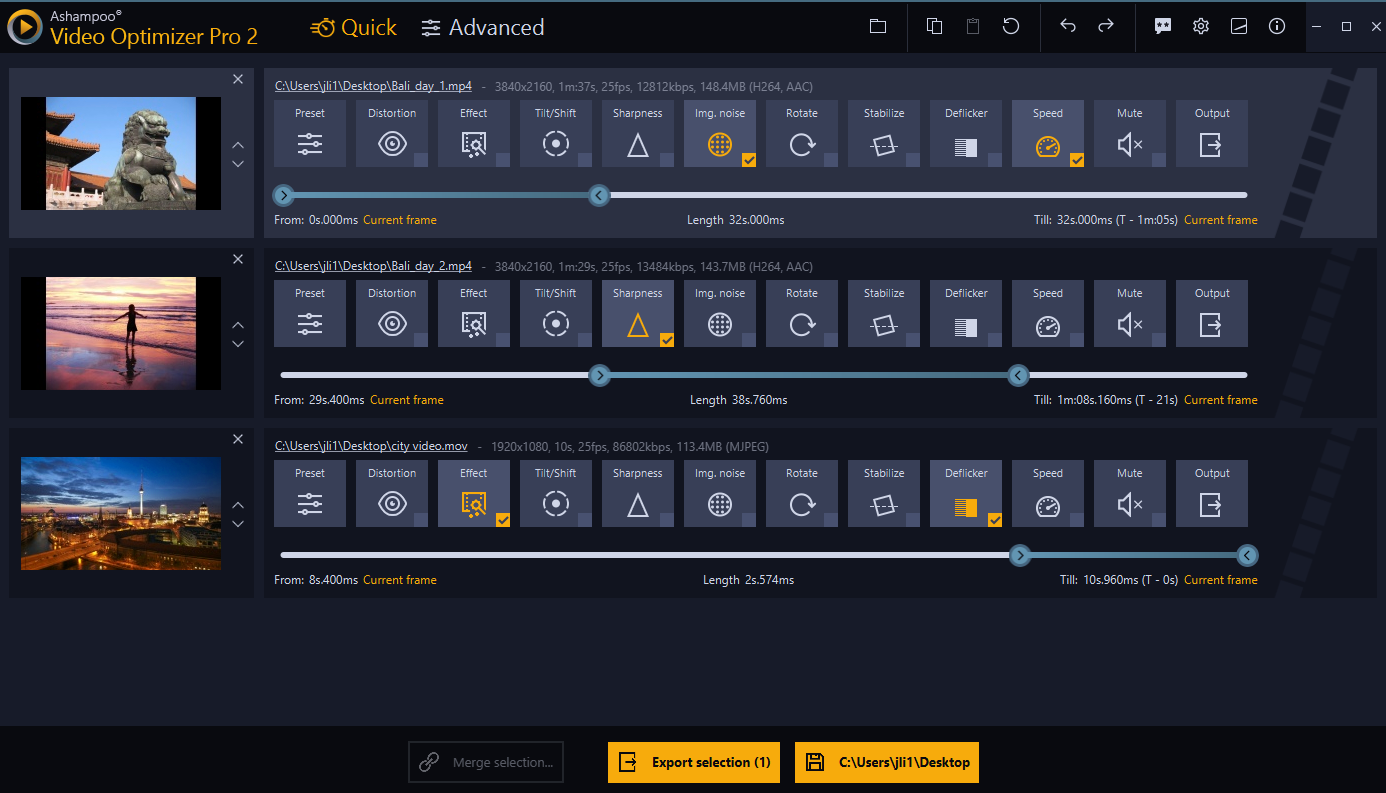
- Batch Processing: Efficiently applies improvements to multiple videos simultaneously, ideal for users managing large collections.
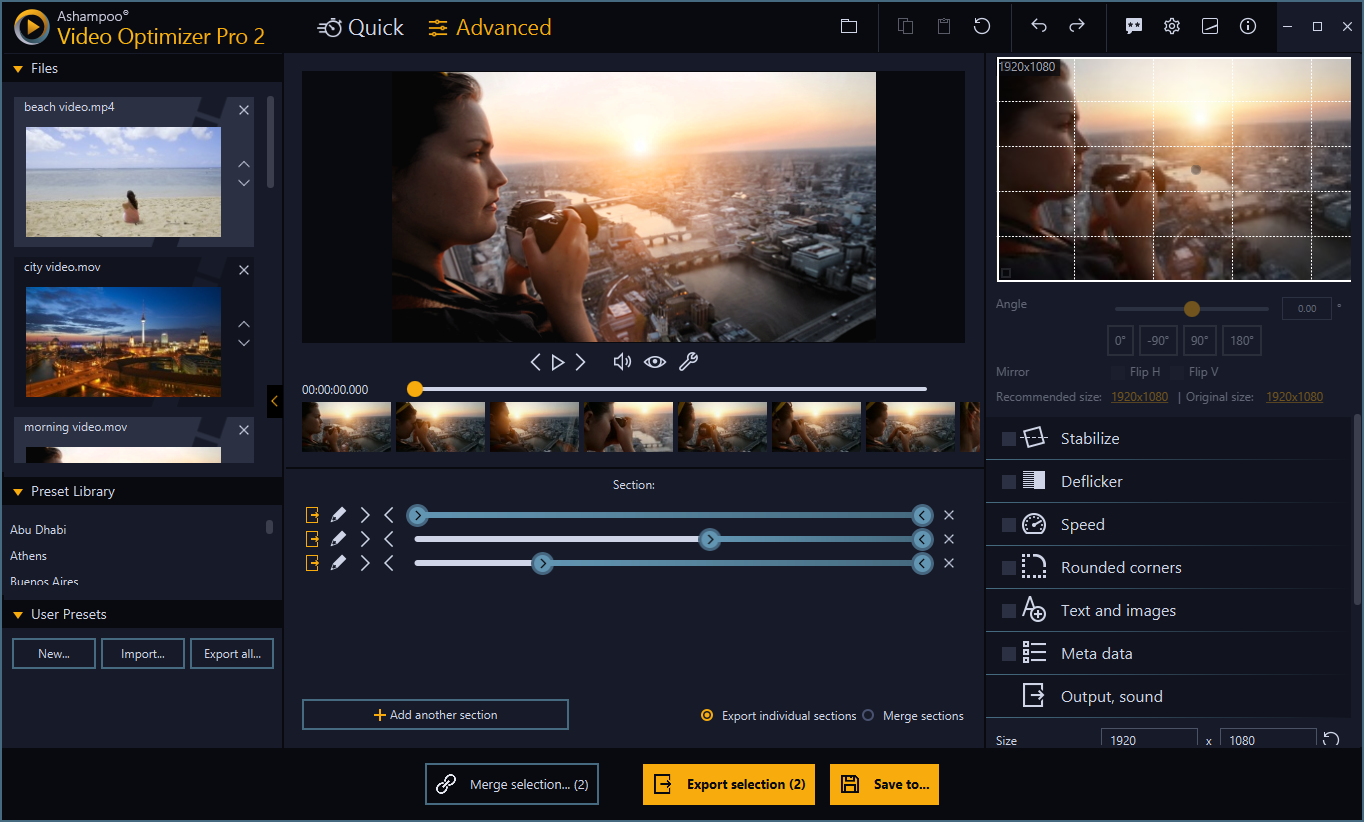
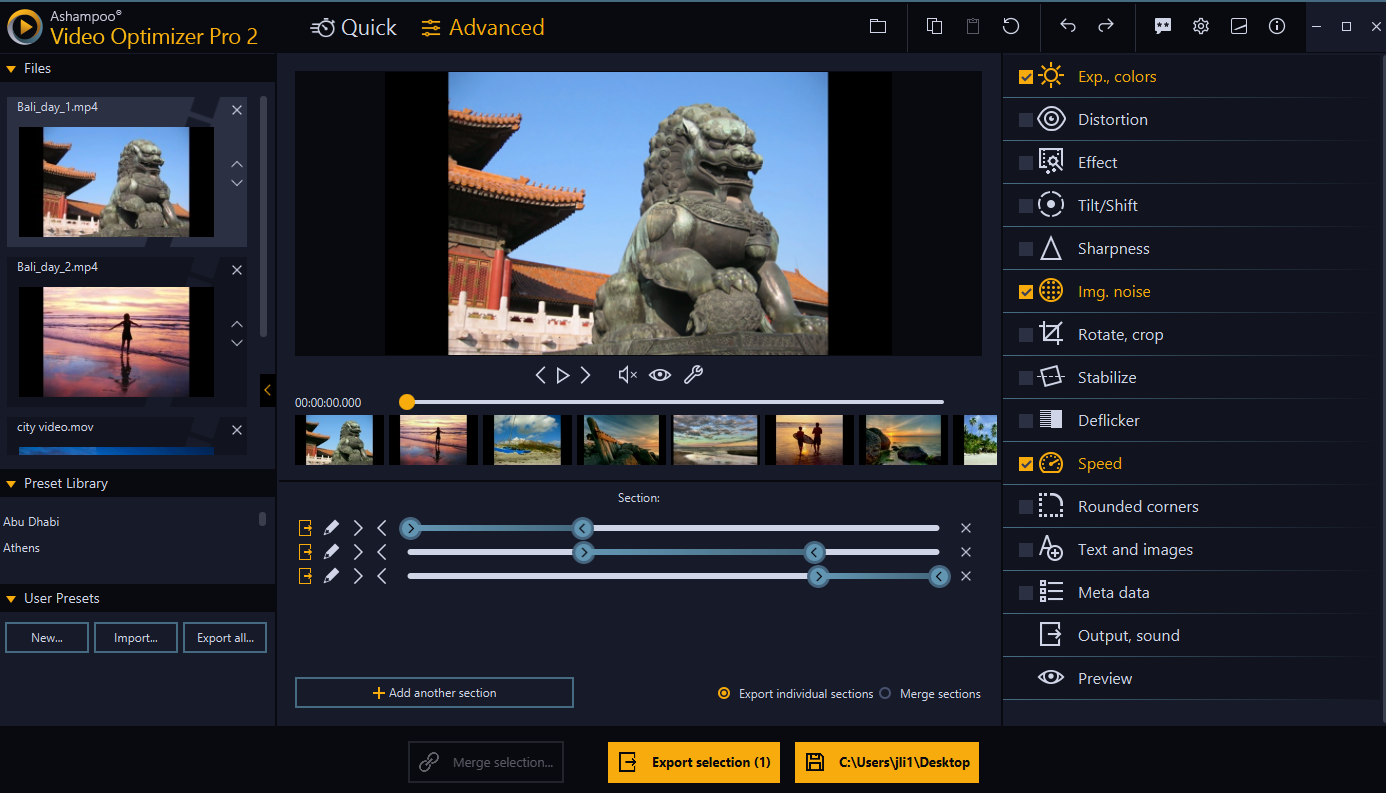
- User-Friendly Presets & Manual Controls: Balances automation with the flexibility of manual tweaks for personalized results.
Engaging and Intuitive User Experience
Downloading and exploring Ashampoo Video Optimizer Pro 2 feels like stepping into a well-organized workshop where every tool has its place. The interface strikes a nice balance between modern minimalism and practical layout—think of it as the dashboard of a sleek car: simple, accessible, and ready to take you anywhere. Navigating through the options swiftly becomes second nature, and even users new to video editing will find the learning curve gentle. The app responds smoothly to commands, with real-time previews allowing instant feedback—akin to having a digital audition where you can see the magic happen before your eyes.
Highlighting Its Unique Strengths
One of this application's most compelling features is its intelligent stabilization and noise reduction. Unlike many competitors that rely heavily on manual adjustments, Ashampoo's automated algorithms analyze each clip and apply improvements tailored to its characteristics—much like a seasoned chef seasoning a dish to perfection without overspicing. This smart automation ensures that even novice users can achieve professional-looking results without hours of tinkering. Additionally, its batch processing capability sets it apart, making it a standout tool for anyone managing extensive video libraries, such as videographers or social media content creators who need quick, consistent enhancements across multiple files.
Final Verdict: Worth a Consideration
Based on its robust feature set, ease of use, and innovative intelligent enhancements, Ashampoo Video Optimizer Pro 2 is a reliable tool for improving your video quality. While it may not replace high-end professional editors for complex projects, it offers a practical, efficient solution for everyday needs. I recommend it especially to users seeking a straightforward yet powerful app to tidy up their videos—think of it as giving your cherished memories a gentle spa treatment.
Pros
- User-Friendly Interface
- High-Quality Optimization
- Fast Processing Speeds
- Wide Format Support
- Additional Editing Features
Cons
- Occasional Export Errors
- Limited Free Features
- Resource Usage
- Minor UI Clutter
- Lack of Batch Processing