

- Name Ashampoo Burning Studio 27
- Category Productivity
- Developer Ashampoo GmbH
- Available on PC
- OS Windows 10 version 0.0 or higher
- languages English, Bulgarian, Chinese (Simplified), Chinese (Traditional Chinese), Danish, German, Finnish, French, Greek, Italian, Catalan, Korean, Latvian, Dutch, Norwegian, Polish, Portuguese, Portuguese (Brazil), Romanian, Russian, Serbian, Slovak, Slovenian, Spanish, Czech, Turkish, Hungarian
Ashampoo Burning Studio 27 for Windows: A Robust Solution for Your Optical Media Needs
In an era dominated by cloud storage and digital downloads, Ashampoo Burning Studio 27 remains a steadfast tool for creating, copying, and managing optical media with precision and ease. Designed with both casual users and enthusiasts in mind, this application offers a comprehensive suite that bridges traditional disc burning with modern multimedia management, ensuring your data and entertainment are always within reach.
About the Developer and Key Highlights
Developed by Ashampoo GmbH, a well-established name in the software industry, Ashampoo Burning Studio 27 leverages years of experience in delivering reliable multimedia solutions. The application's standout features include an intuitive interface tailored for quick disc creation, extensive support for various media formats, and integrated tools for multimedia editing—making it a versatile choice for users seeking both simplicity and depth.
Core Functionalities That Shine
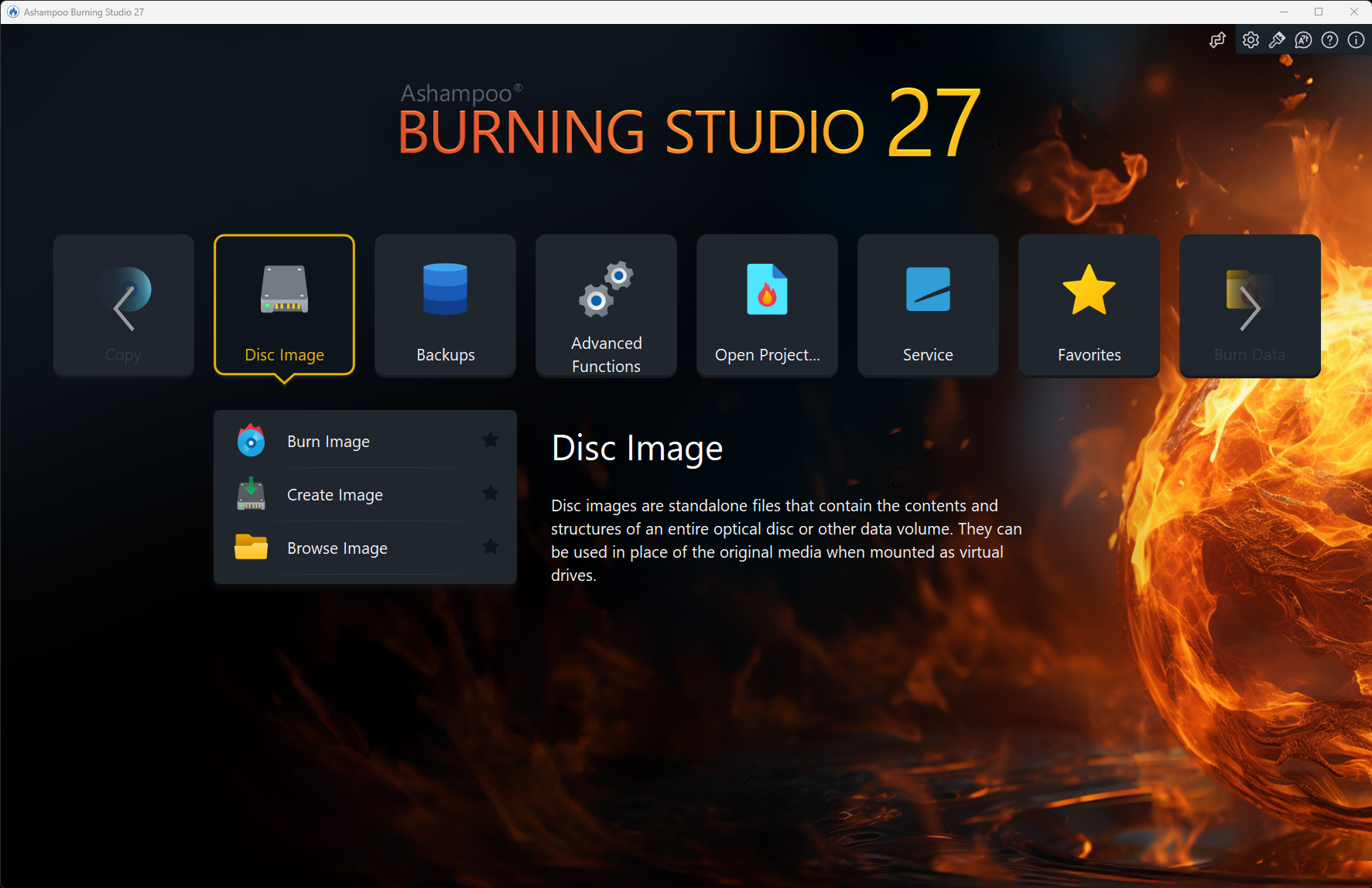
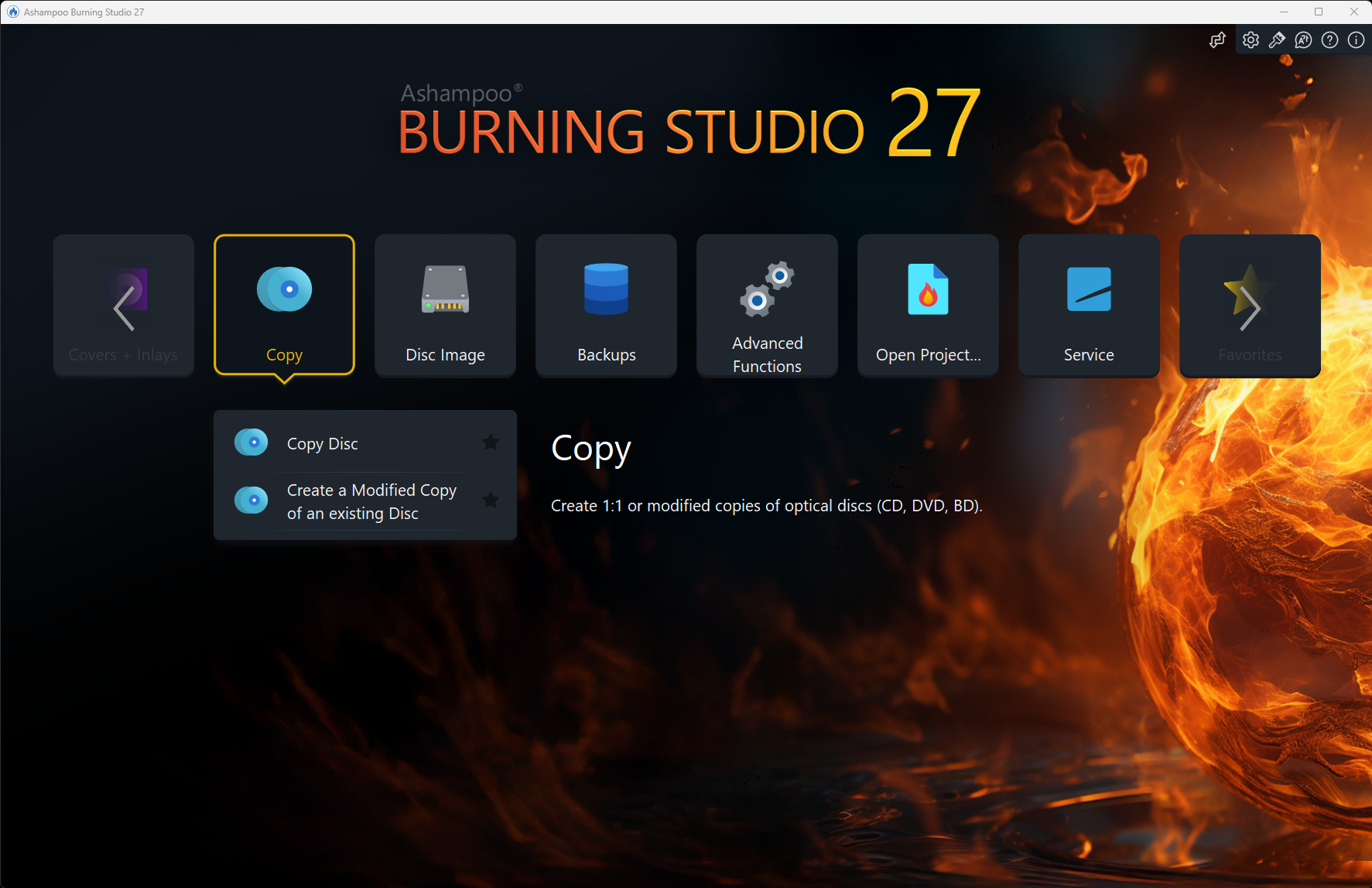
First, the program excels at creating high-quality CDs, DVDs, and Blu-ray discs, supporting data backups, multimedia playlists, and bootable media with reliable burning speed and accuracy. Second, its multimedia editing suite allows users to personalize video and audio files effortlessly before burning, transforming raw files into professional-looking projects. Third, Ashampoo Burning Studio 27 offers seamless disc copying and disc-to-ISO image conversion, crucial for data preservation and quick duplication tasks. These core functions demonstrate the software's balanced blend of power and user-friendliness.
Intuitive Interface and User Experience
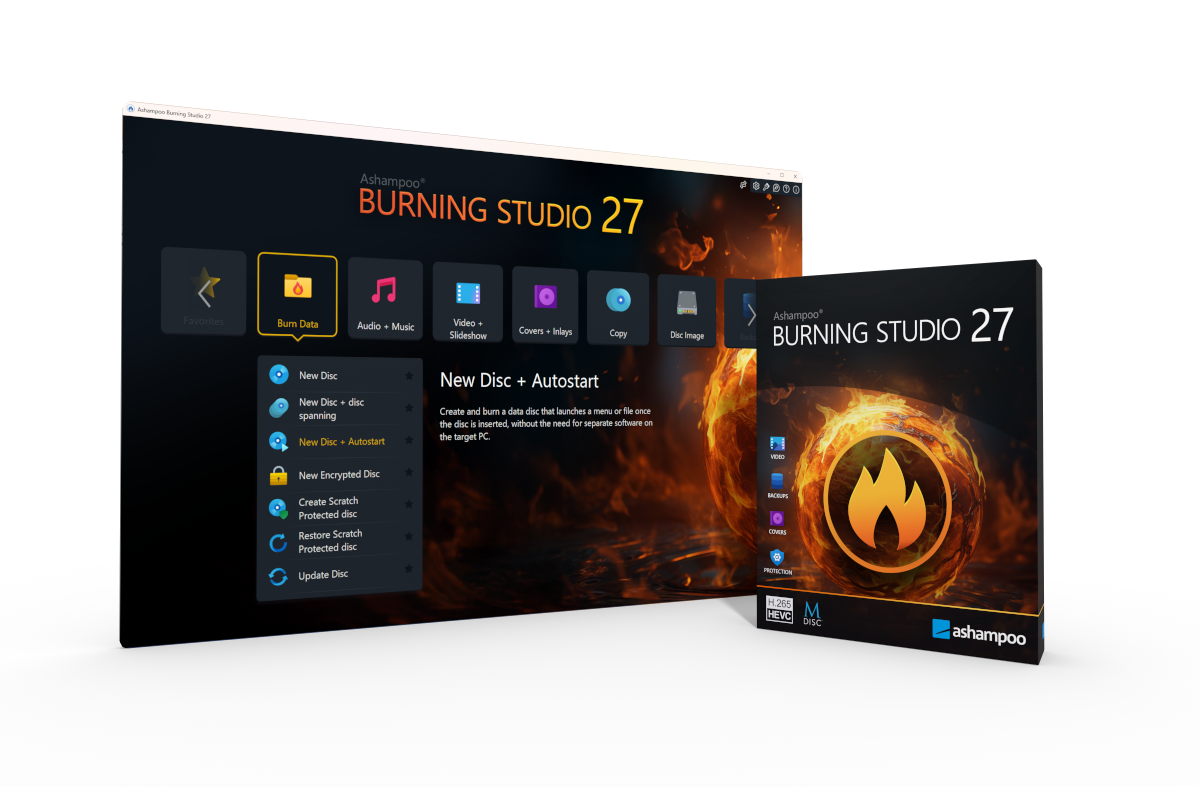
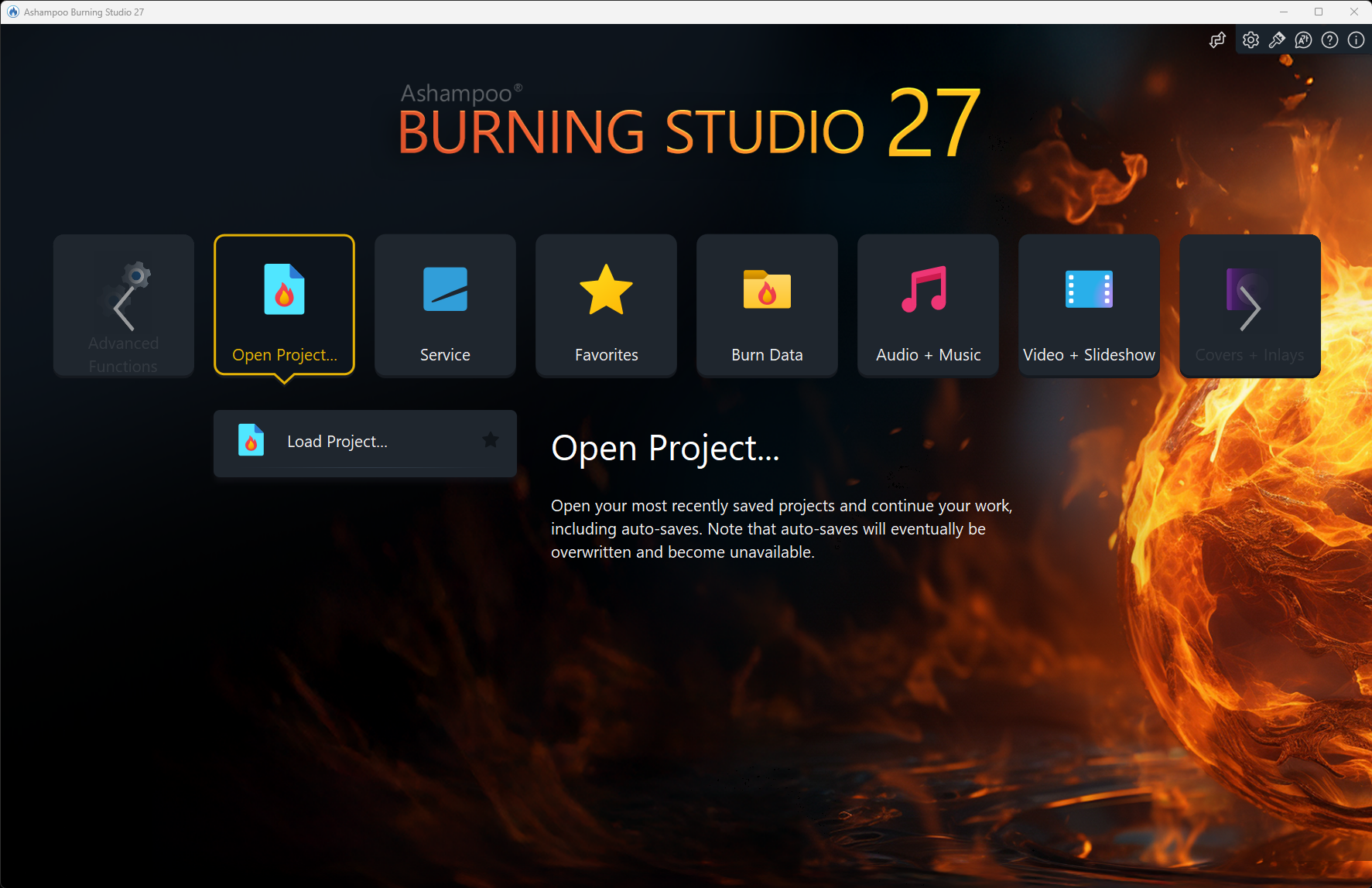
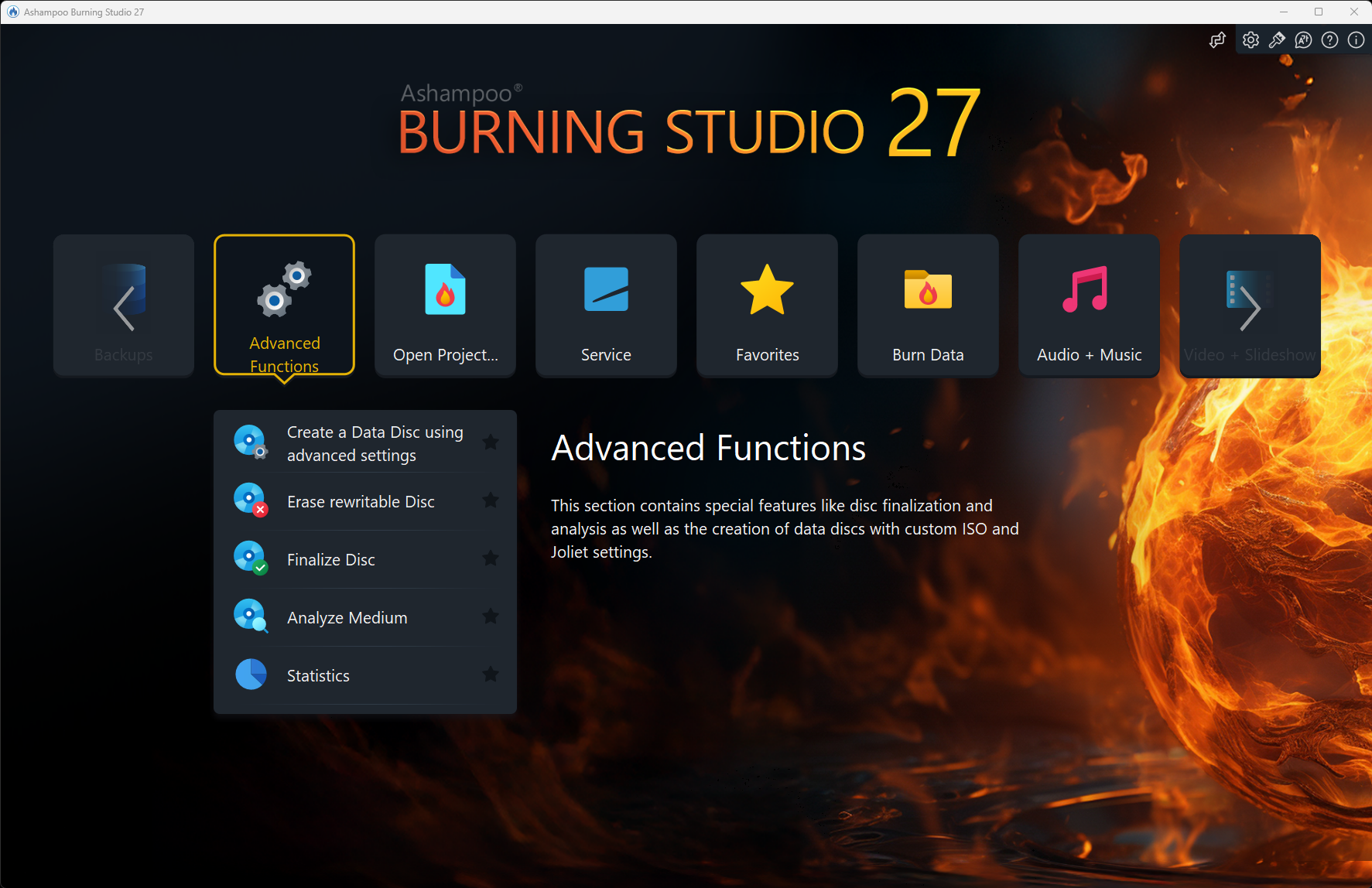
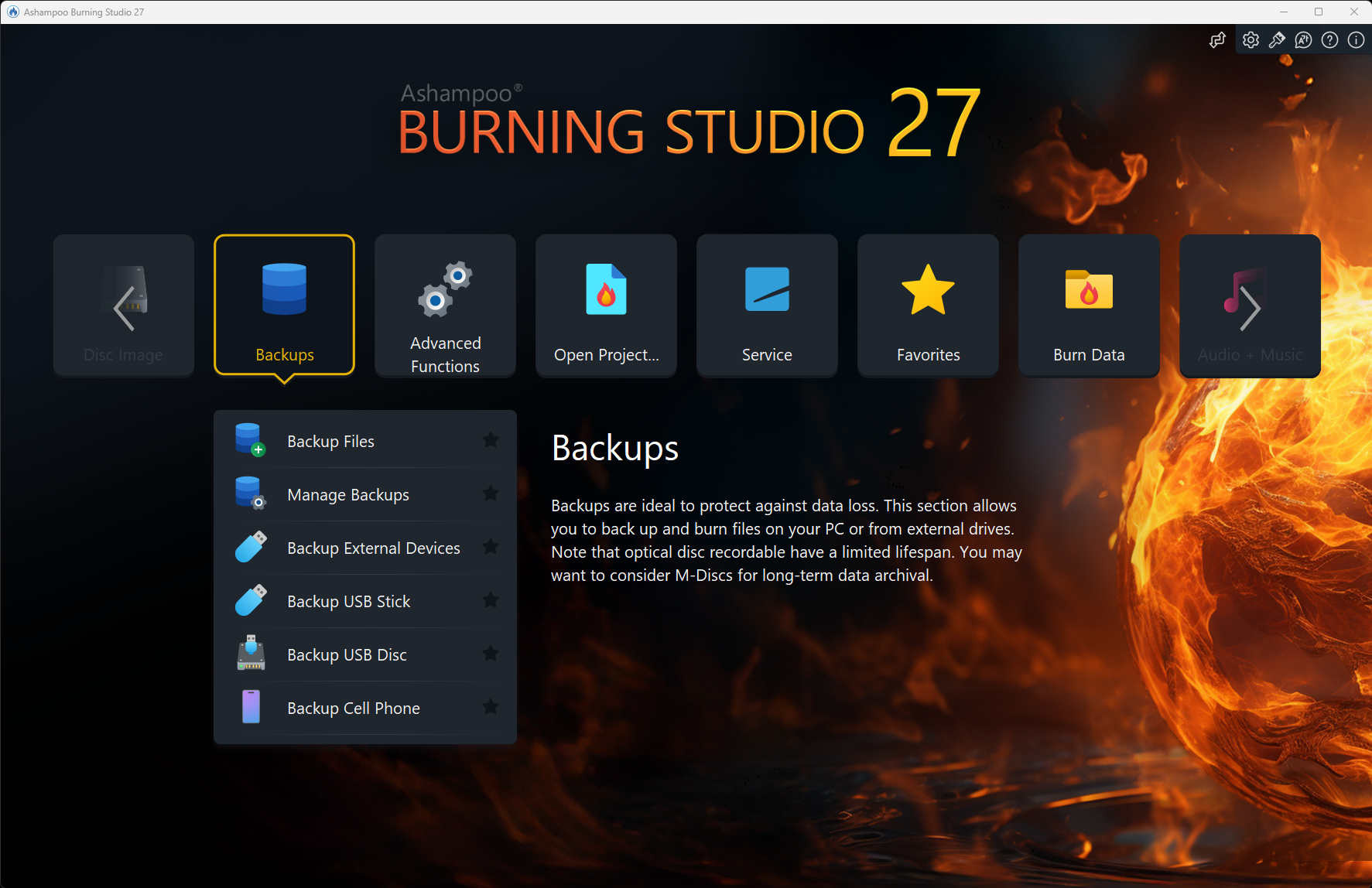
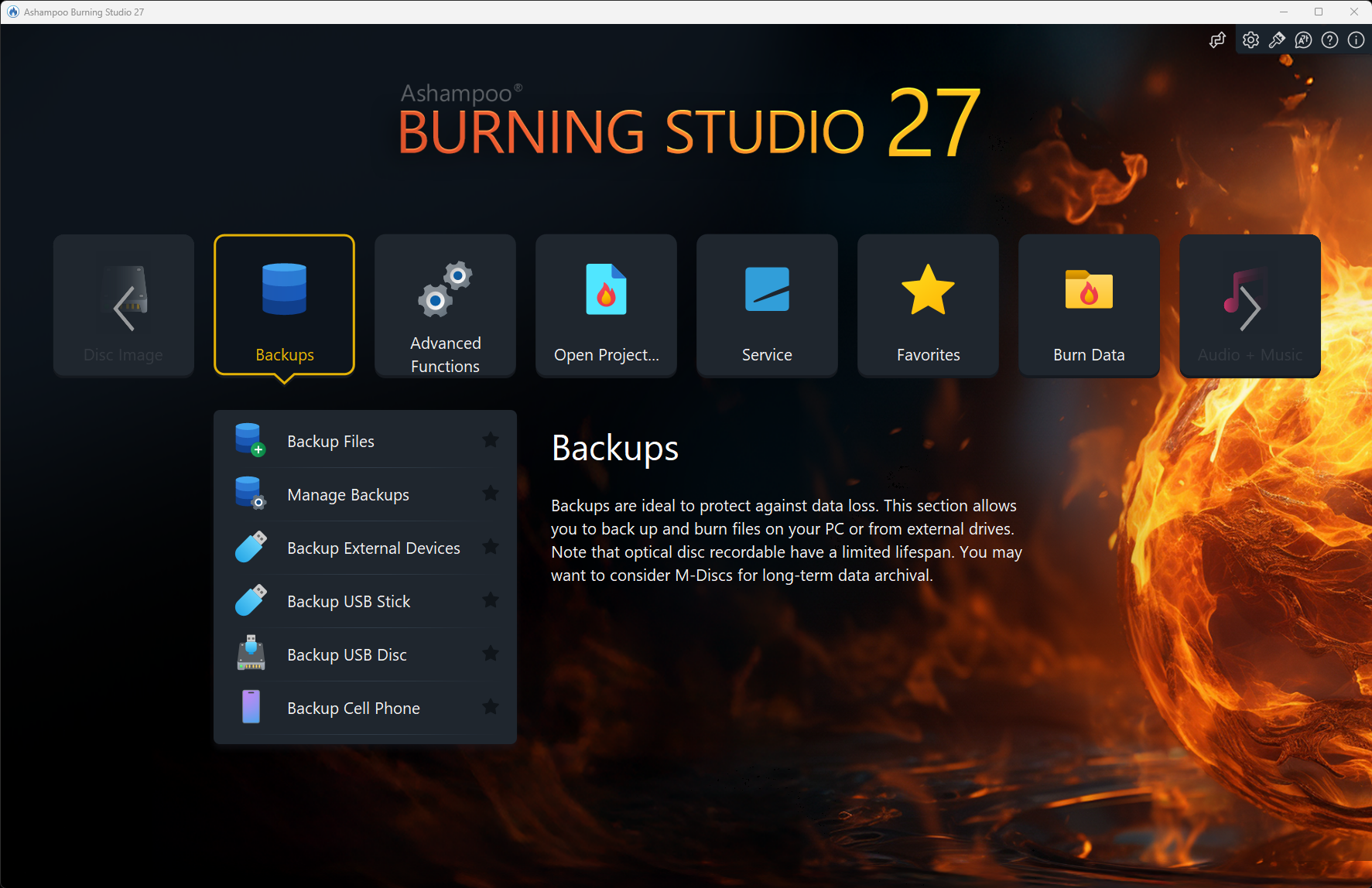
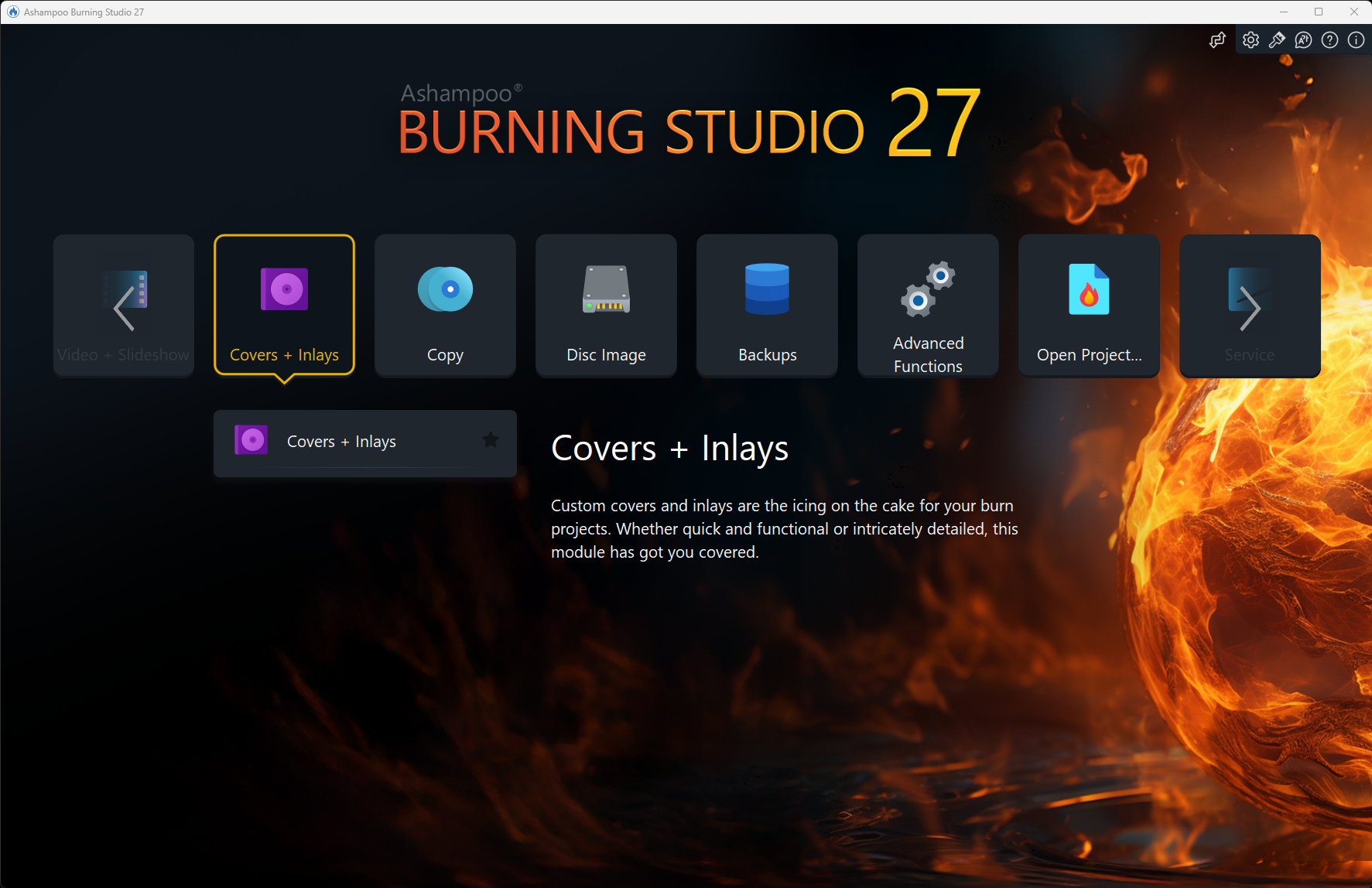
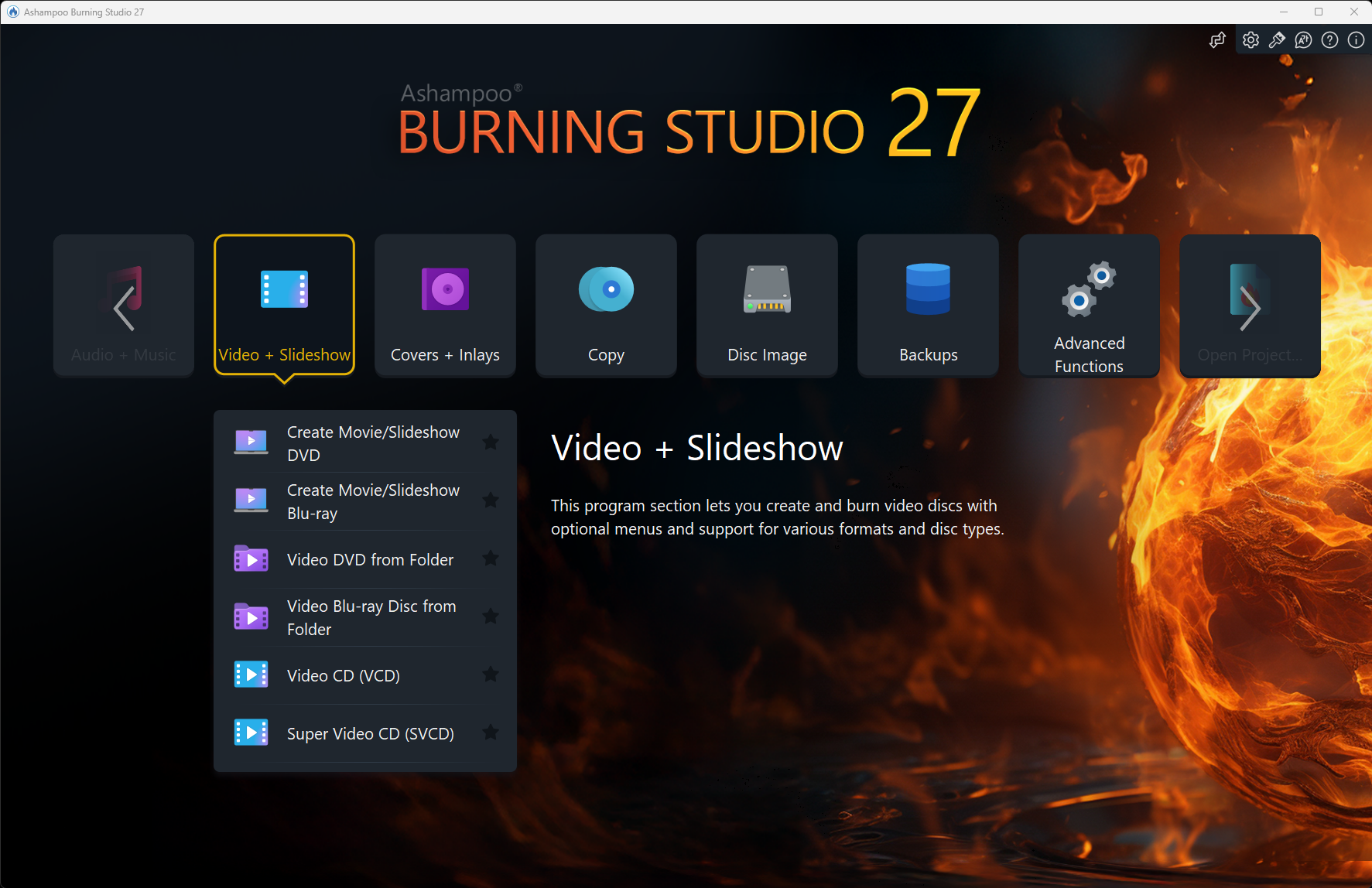
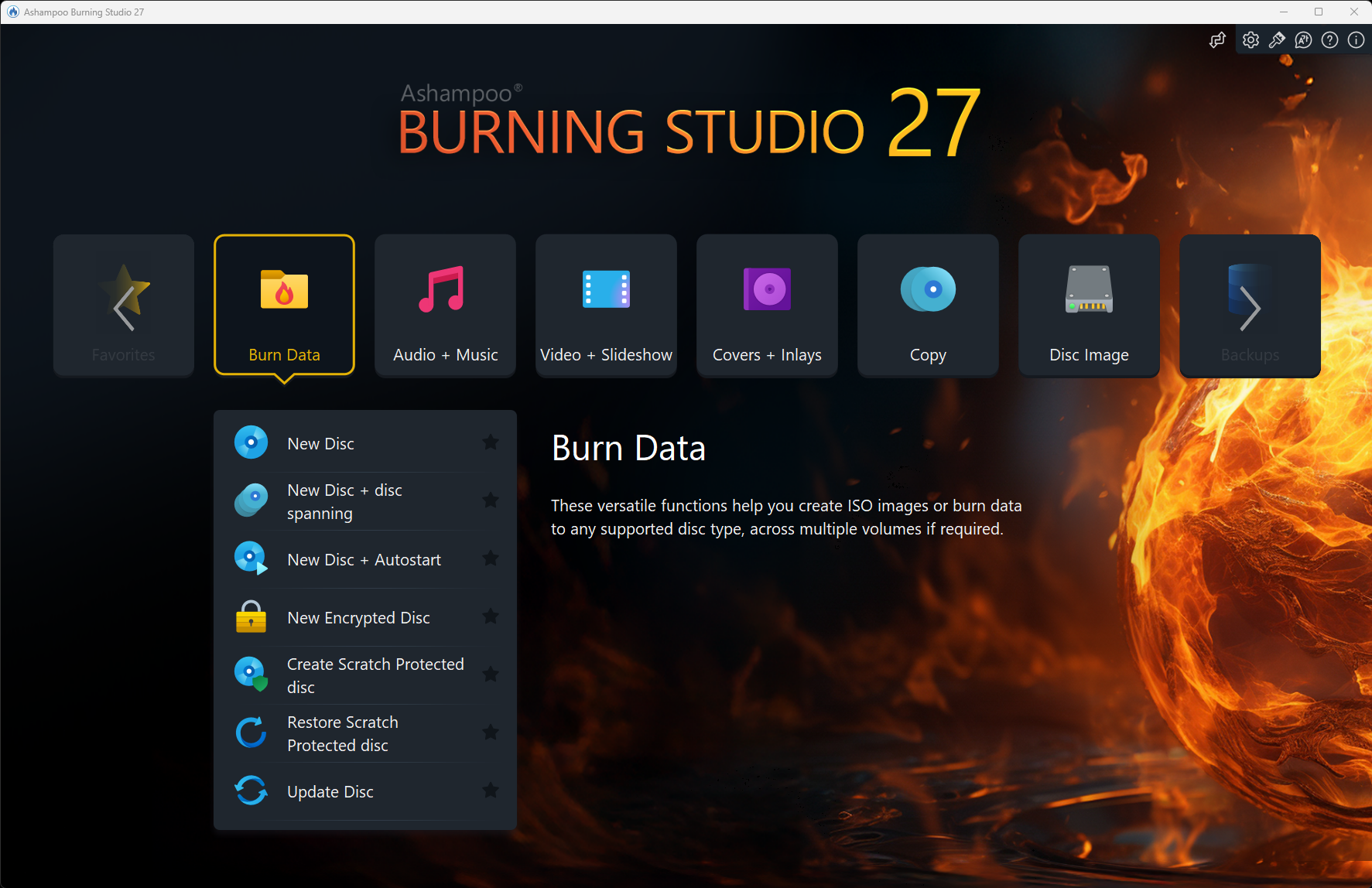
Imagine walking into a well-organized workshop—everything is in its place, and tools are at your fingertips. Ashampoo Burning Studio 27's interface embodies this feeling with a clean, modern layout that guides users naturally through different projects. Whether you're a power user or a newcomer, the learning curve remains gentle; most functions can be mastered within minutes thanks to clear icons and straightforward workflows. The program runs smoothly on Windows, with no noticeable lag, making the entire process feel like a well-oiled machine rather than a clunky chore.
Unique Advantages in Workflow Integration and Complexity Balance
What truly sets Ashampoo Burning Studio 27 apart from similar multimedia utilities is its ability to streamline common tasks without overwhelming the user with unnecessary options. Unlike some applications that bundle dozens of features into a cluttered interface, this software emphasizes workflow efficiency—prioritizing key functions and integrating helpful automation. It reduces cognitive load by offering context-sensitive prompts and simplified editing tools, allowing users to accomplish their goals swiftly while maintaining confidence in the results. This thoughtful balance between feature richness and ease of use makes it especially appealing for users who prefer straightforward, effective tools over intimidating software packed with superfluous options.
Final Verdict and Usage Recommendations
All in all, Ashampoo Burning Studio 27 presents a compelling choice for anyone needing a reliable, easy-to-use disc burning and multimedia management tool. Its focus on user experience, combined with powerful core features and smart workflow integration, makes it suitable for diverse scenarios—from routine data backups to professional multimedia projects. I recommend it to users who value straightforward operation without sacrificing functionality, especially if you enjoy creating customized discs or managing multimedia content efficiently. For those still relying on physical media or requiring occasional multimedia editing, this app offers a thoughtful, efficient solution—much like having a versatile workshop at your fingertips.
Pros
- User-Friendly Interface
- Fast Encoding & Burning Speeds
- Supports a Wide Range of Formats
- Includes Practical Editing Tools
- Reliable Data Verification
Cons
- Limited Customization Options
- Occasional Slow Performance on Large Projects
- Lack of Cloud Integration
- Minimal Audio CD Creation Features
- Limited Support for Some Older Discs











