- Name Any Audio Cutter: mp3 cutter & audio trimmer
- Category Multimedia design
- Developer AnywaySoft, Inc.
- Available on PC, Mobile, Surface Hub, HoloLens
- OS Windows 10 version 17134.0 or higher
- Keyboard Not specified
- Mouse Not specified
- Memory Not specified
- languages English (United States)
Transform Your Audio Editing Experience with Any Audio Cutter
Imagine having a trusty sidekick that quickly slices, dices, and trims your audio files precisely—the kind of tool that feels like a seasoned chef, effortlessly preparing your audio materials for the perfect presentation. That's exactly what Any Audio Cutter offers. Designed with simplicity and efficiency in mind, this Windows app promises to turn complex audio editing into a smooth, frustration-free process for all users—from beginners to seasoned pros.
Developer and Core Highlights
Developed by AnywaySoft, Inc., a reputable team dedicated to creating user-friendly multimedia tools, Any Audio Cutter stands out in the crowded market of audio editors. Its primary strengths include:
- Fast and Precise Cutting: Trim your MP3 and other audio formats accurately without unnecessary delays.
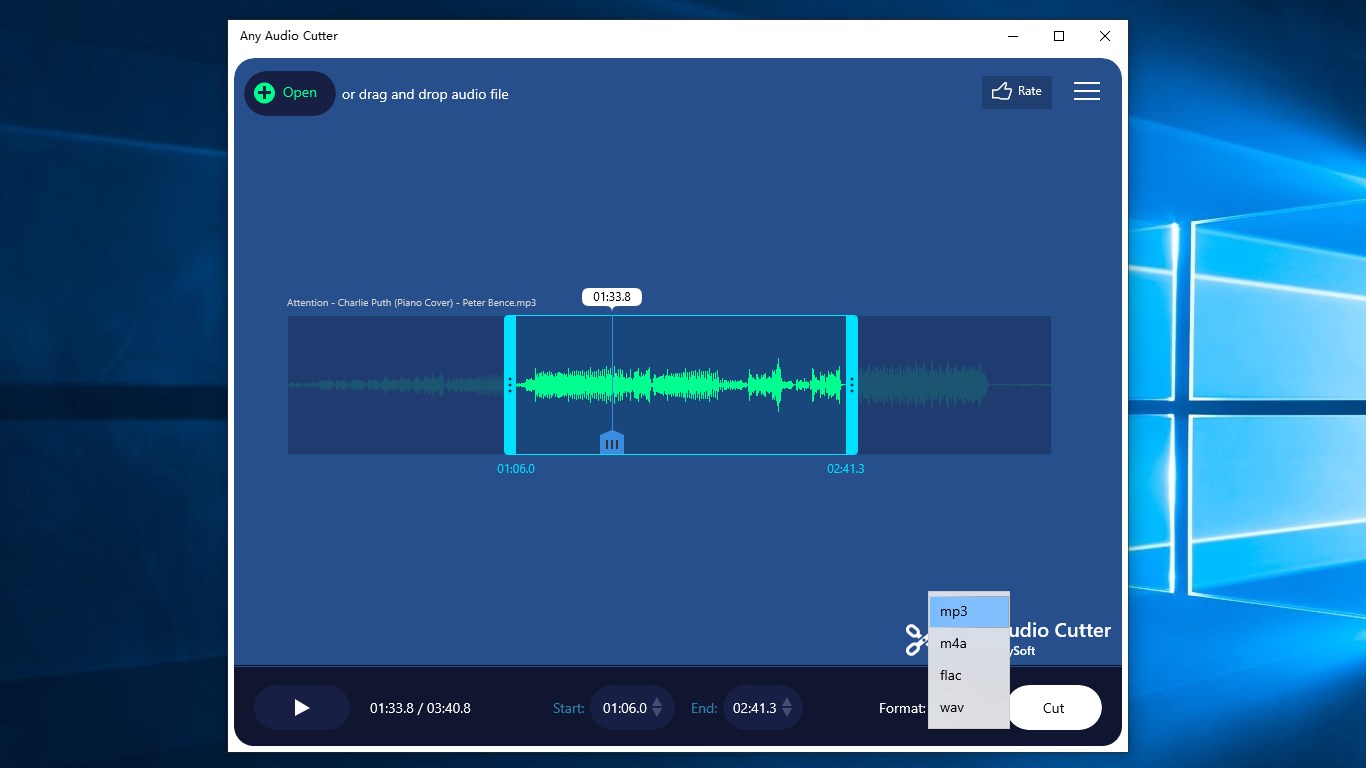
- Support for Multiple Formats: Beyond MP3, it supports a variety of audio formats, making it versatile for different needs.
- User-Friendly Interface: Clean, intuitive design that enables users to get started right away—even without prior experience.
- Batch Processing: Enables users to cut multiple files sequentially, saving valuable time for large projects.
This application aims at hobbyists, content creators, and anyone needing quick edits on their Windows PC, offering a straightforward solution without overpowering features.
Spice Up Your Audio Files — The Fun Begins Here
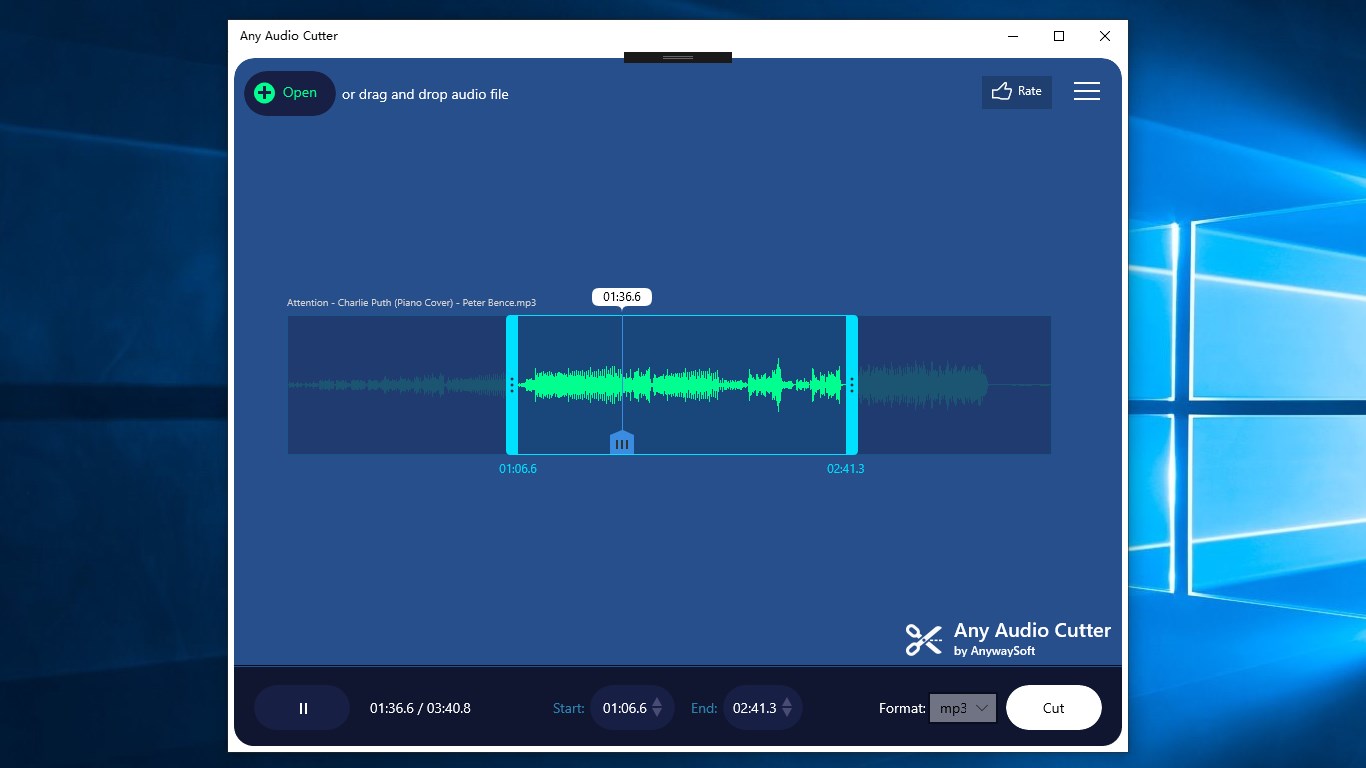
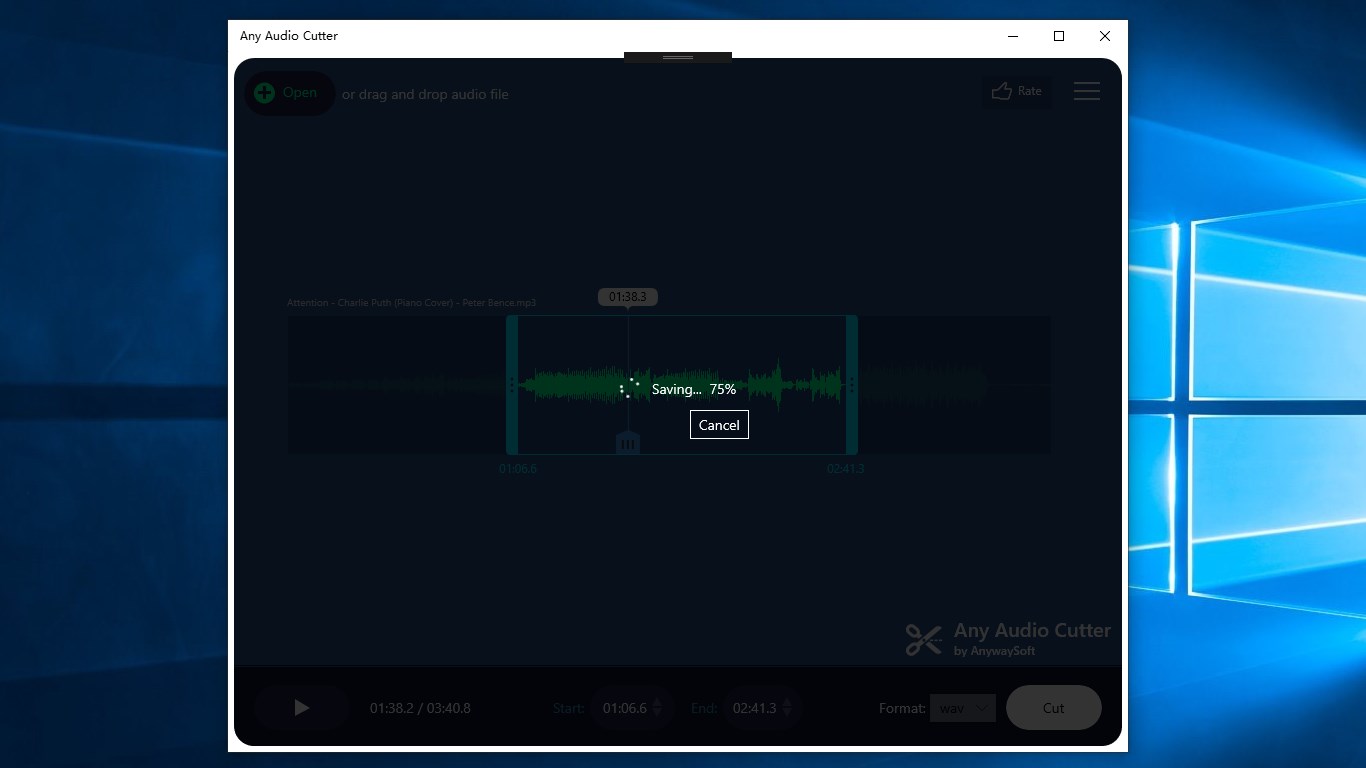
Stepping into Any Audio Cutter feels like entering a well-organized workshop. The absence of clutter and a straightforward layout make it instantly accessible. Whether you need to create ringtones, crop podcast segments, or prepare audio clips for presentations, the app simplifies these tasks with a few clicks. Its ability to perform rapid trims while maintaining high audio quality is particularly impressive—imagine slicing through a loaf of bread cleanly, without ruining the shape or texture.
Core Function: Precise Cutting and Trimming
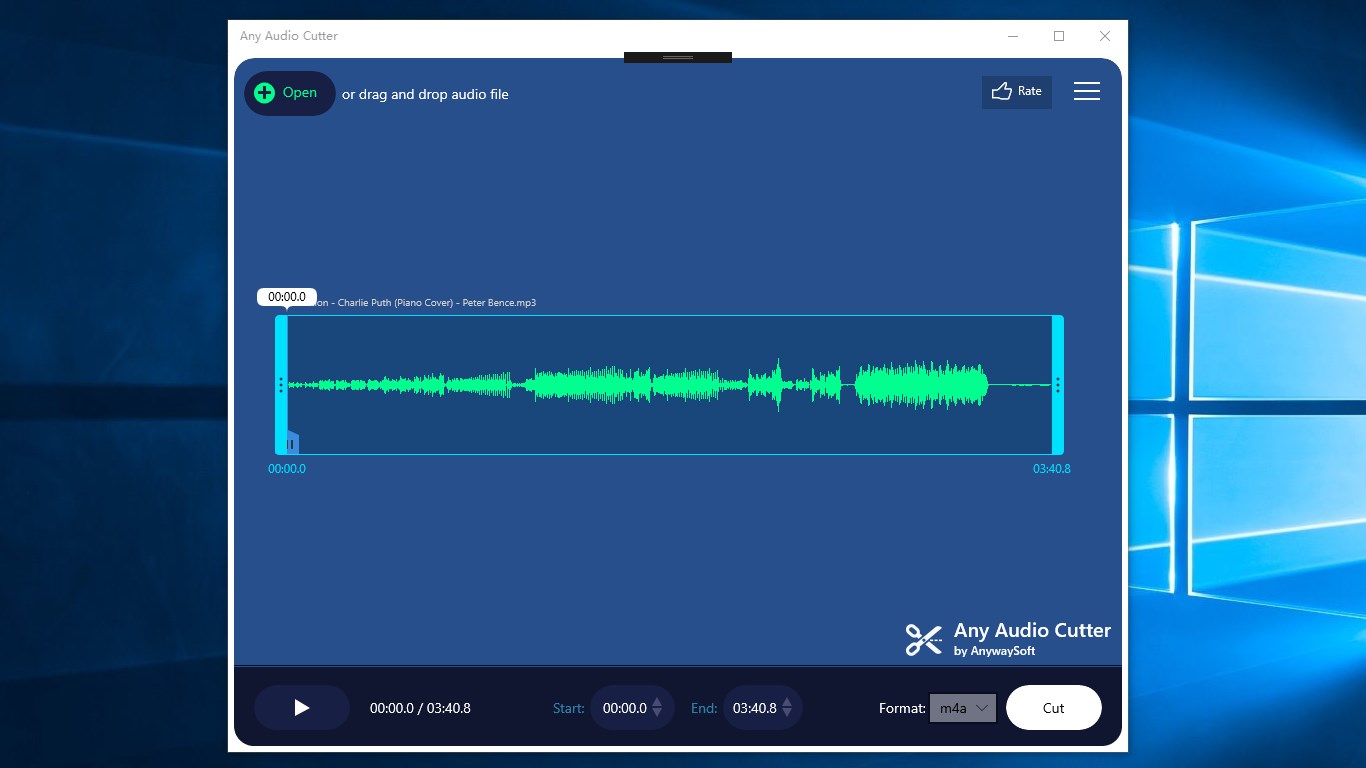
The standout feature here is its accuracy. You can select exact start and end points using familiar timeline sliders, and the built-in preview lets you listen before finalizing the cut. It's akin to having your own audio editing scalpel—simple yet sharp—giving you confidence that every cut is precise without introducing artifacts or distortions. This is particularly advantageous over more complex tools that might bombard users with layers of options or confusing menus.
Core Function: Format Support and Conversion
Another compelling aspect is the application's support for multiple audio formats, not just MP3. This versatility means you're not limited by file type and can seamlessly work with AAC, WAV, FLAC, and more. The app also offers quick conversion, which is like having your personal multilingual translator—making sure your audio files are always in the right format for the right platform or device. This function is especially handy for content creators looking to repurpose audio for various platforms without jumping between different tools.
Design, Usability, and How It Sets Itself Apart
The design philosophy here seems to revolve around “keep it simple, keep it smart.” The interface employs clean lines, large buttons, and intuitive controls—think of it like a modern kitchen where everything is within arm's reach. The learning curve is shallow; within minutes, users can perform basic cuts, and more advanced options are tucked away neatly for those who want to explore further. Smooth operation is evident, with minimal lag or crashes reported during testing.
Compared to more feature-heavy audio editors that resemble a cockpit full of switches and dials, Any Audio Cutter is like a reliable pocket knife—compact, focused, and ready for quick, effective tasks. Its batch processing feature, though perhaps underappreciated at first glance, really sets it apart by catering to users with larger workloads, making it efficient for editing multiple files in one go.
Final Verdict: Friendly, Functional, & Reliable
Overall, I'd recommend Any Audio Cutter to anyone seeking a straightforward, fast, and reliable tool for basic audio trimming needs. It's particularly suitable for users who want to avoid the steep learning curves associated with professional-grade editors and prefer a minimalistic experience that gets the job done without fuss. Whether you're creating personalized ringtones, editing podcast snippets, or preparing audio files for presentation, this app delivers what it promises—quick, accurate, and hassle-free editing. While it may not replace complex DAWs for advanced editing, its simplicity and efficiency make it a worthy addition to your multimedia toolkit.
Pros
- Easy-to-Use Interface
- Supports Multiple Audio Formats
- Precise Cutting and Trimming
- Fast Processing Speed
- No Watermarks and Free Basic Features
Cons
- Limited Editing Features
- Occasional Crashes on Large Files
- Limited Output Customization
- Lack of Batch Processing
- Ads in Free Version