- Name WSL Manager
- Category Developer tools
- Developer Bostrot (Eric Trenkel)
- Available on PC
- OS Windows 10 version 17763.0 or higher
- Keyboard Integrated Keyboard
- Mouse Integrated Mouse
- languages Chinese (Simplified), Chinese (Traditional), English (Australia), English (United Kingdom), English (United States), German, Portuguese (Brazil), Portuguese (Portugal), Turkish
Unlocking the Power of Windows Subsystem with WSL Manager for Windows
Imagine seamlessly managing multiple Linux distributions directly from your Windows interface—no more juggling between command lines or digging through complex settings. WSL Manager for Windows acts as a friendly bridge, empowering developers and tech enthusiasts to harness the full potential of WSL with ease and elegance.
Who's Behind the Magic?
This straightforward yet potent tool is crafted by Bostrot, led by developer Eric Trenkel. Known for their focus on streamlining developer workflows, Bostrot's team has fine-tuned WSL Manager to cater specifically to Windows users seeking a more intuitive way to control their Linux environments.
Key Features That Make It Stand Out
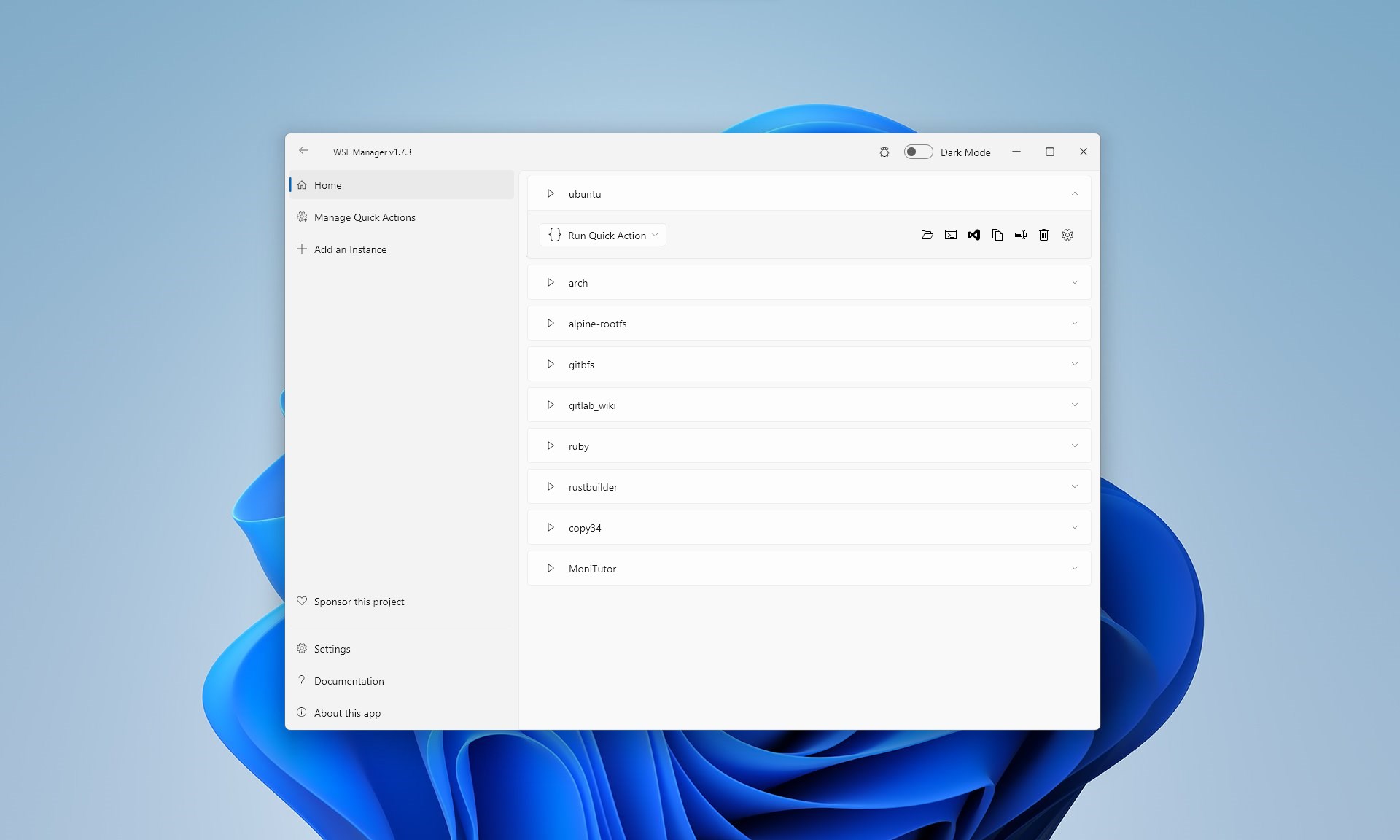
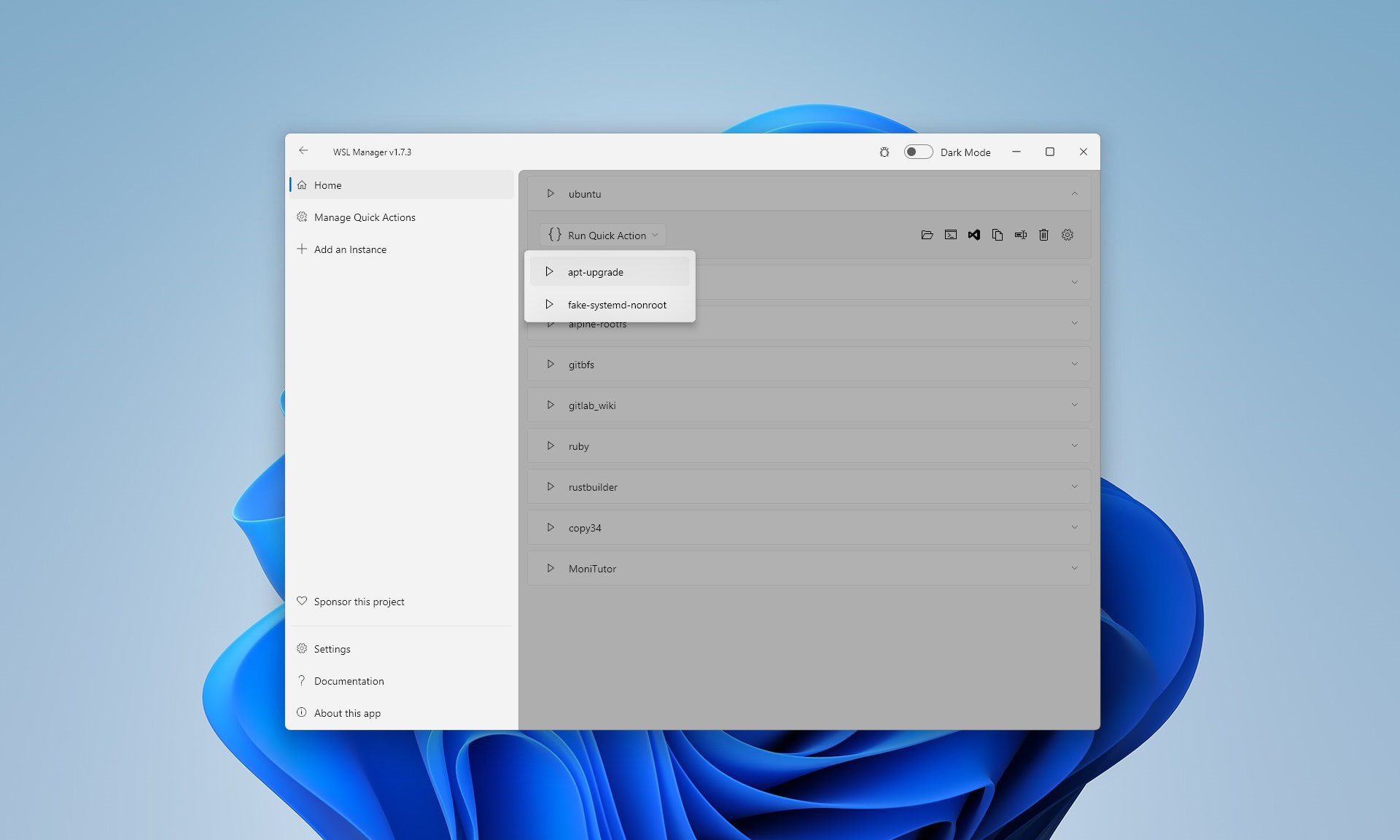
- Centralized WSL Control: Manage multiple Linux distributions from a single, unified interface—start, stop, configure, and switch between environments effortlessly.
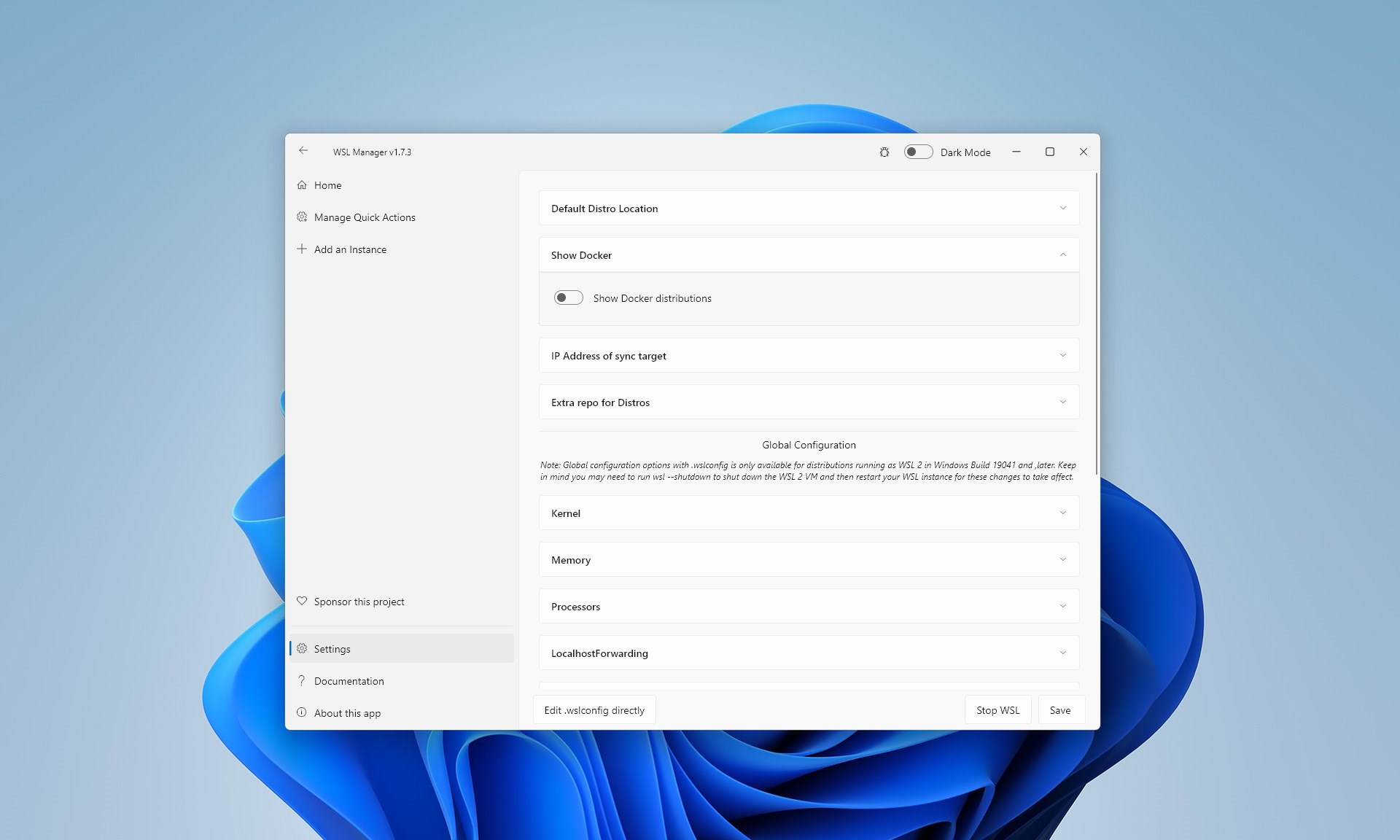
- Custom Profile Management: Create and customize profiles for different projects or environments, saving setup time and reducing configuration errors.
- Auto-Update and Maintenance Tools: Keep your distributions up-to-date with minimal effort, ensuring you always have access to the latest features and security patches.
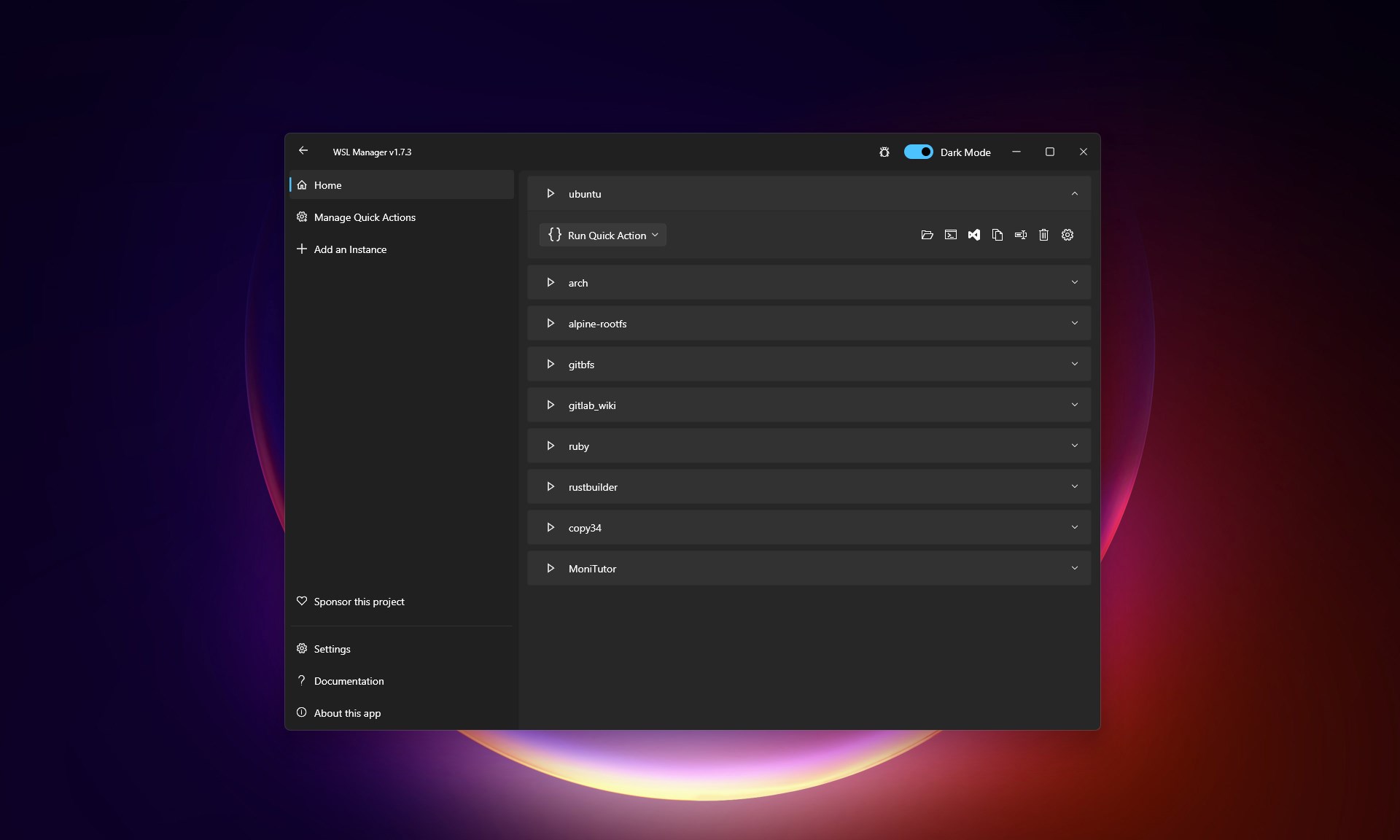
- Intuitive GUI Access: Unlike traditional CLI-centric tools, WSL Manager presents a clean and user-friendly graphical interface, making Linux management accessible to users at all skill levels.
Experience and Usability: Navigating the WSL Landscape
Stepping into WSL Manager feels akin to entering a digital control room, where everything is visible at a glance. Its interface sports a sleek, modern look that blends simplicity with functionality—think of it as the dashboard of a spaceship, designed for pilots of all experience levels. The overall操作流畅度 is impressive; switching distributions, starting or stopping environments, and adjusting settings happen seamlessly without noticeable lag.
The learning curve is gentle, especially for users familiar with Windows but new to WSL. The intuitive layout minimizes the need for lengthy tutorials, making onboarding smooth. Moreover, the app's design considers accessibility, with clear icons and straightforward options that reduce confusion.
Unique Selling Points: What Sets WSL Manager Apart?
Compared to other developer tools, WSL Manager's standout feature is its emphasis on holistic management within a graphical environment. While many WSL-related apps or scripts require command-line familiarity, this app simplifies the process to a few clicks. Its ability to manage multiple distributions concurrently and create personalized profiles provides a tailored experience that caters especially well to developers juggling various projects.
Another highlight is the application's commitment to keeping distributions up-to-date automatically, a feature often overlooked by other tools. This reduces the maintenance burden and ensures that developers work with optimal system configurations effortlessly.
Final Thoughts and Recommendations
All in all, WSL Manager for Windows is a well-crafted, practical tool that fills a notable gap for Windows users seeking convenient Linux environment management. It's particularly recommended for developers, system administrators, and power users who want more control without the complexity. Casual users exploring WSL will also find it a friendly companion, lowering barriers to entry.
While it may not replace the command line entirely for advanced users, its key features can significantly enhance workflow efficiency. Given its ease of use, stability, and thoughtful design, I'd confidently rate this app as a useful addition to any Windows-based developer toolkit.
Pros
- Intuitive User Interface
- Multi-Distribution Management
- Seamless Integration with Windows
- Automatic Updates and Maintenance
- Detailed Monitoring and Logging
Cons
- Limited Customization Options
- Occasional Stability Issues
- Restricted Support for Older Windows Versions
- Lack of Command Line Interface (CLI) Features
- Limited Network Configuration Options