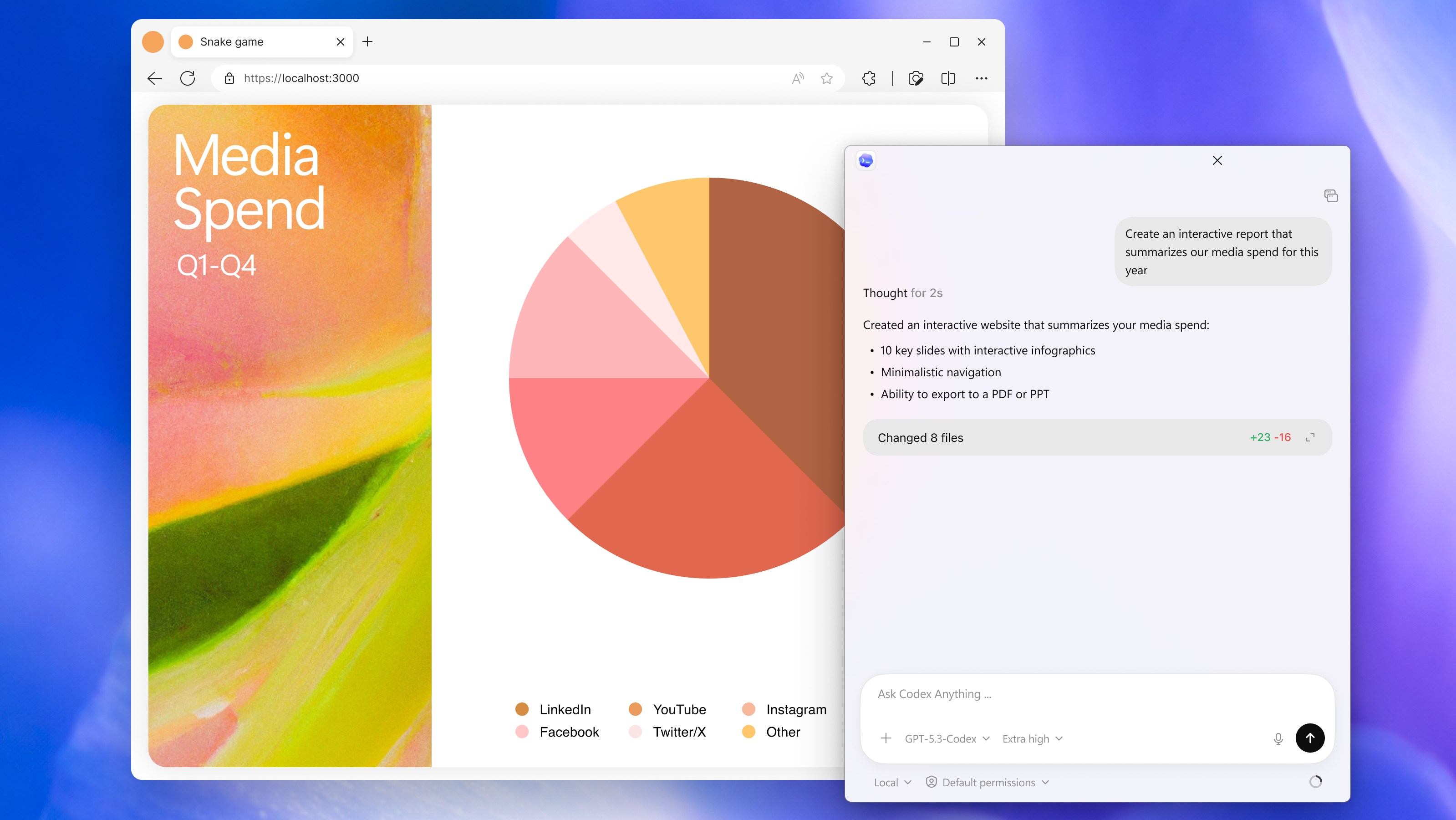
- Name Codex
- Category Developer tools
- Developer OpenAI
- Available on PC
- OS Windows 10 version 19041.0 or higher
- Keyboard Integrated Keyboard
- Mouse Not specified
- languages English (United States)
Introducing Codex for Windows: A Gateway to Smarter Coding
Codex for Windows, developed by OpenAI, is a powerful AI-assisted coding tool designed to streamline programming workflows and enhance productivity for developers of all levels. It aims to bridge the gap between human creativity and AI capabilities, offering an intuitive environment to generate, refine, and understand code efficiently.
Who's Behind the Magic?
Developed and published by OpenAI, Codex for Windows benefits from the company's extensive expertise in artificial intelligence and language models. As a leader in AI research, OpenAI leverages its groundbreaking GPT technologies to empower developers with innovative tools that simplify complex coding tasks.
Standout Features That Make Coding a Breeze
- Natural Language Code Generation: The app allows users to describe their desired functionalities in plain language, and it converts these descriptions into executable code, significantly reducing development time.
- Context-Aware Assistance: Codex provides intelligent suggestions and completions that are contextually relevant, helping to maintain flow and consistency in coding sessions.
- Multi-Language Support: Supporting a broad spectrum of programming languages, from Python and JavaScript to more niche options, it covers most developer needs.
- Seamless Integration: The app integrates smoothly with Windows environments and popular IDEs, fostering a natural extension to existing workflows.
A Deep Dive into the Experience
Engaging and Intuitive Interface
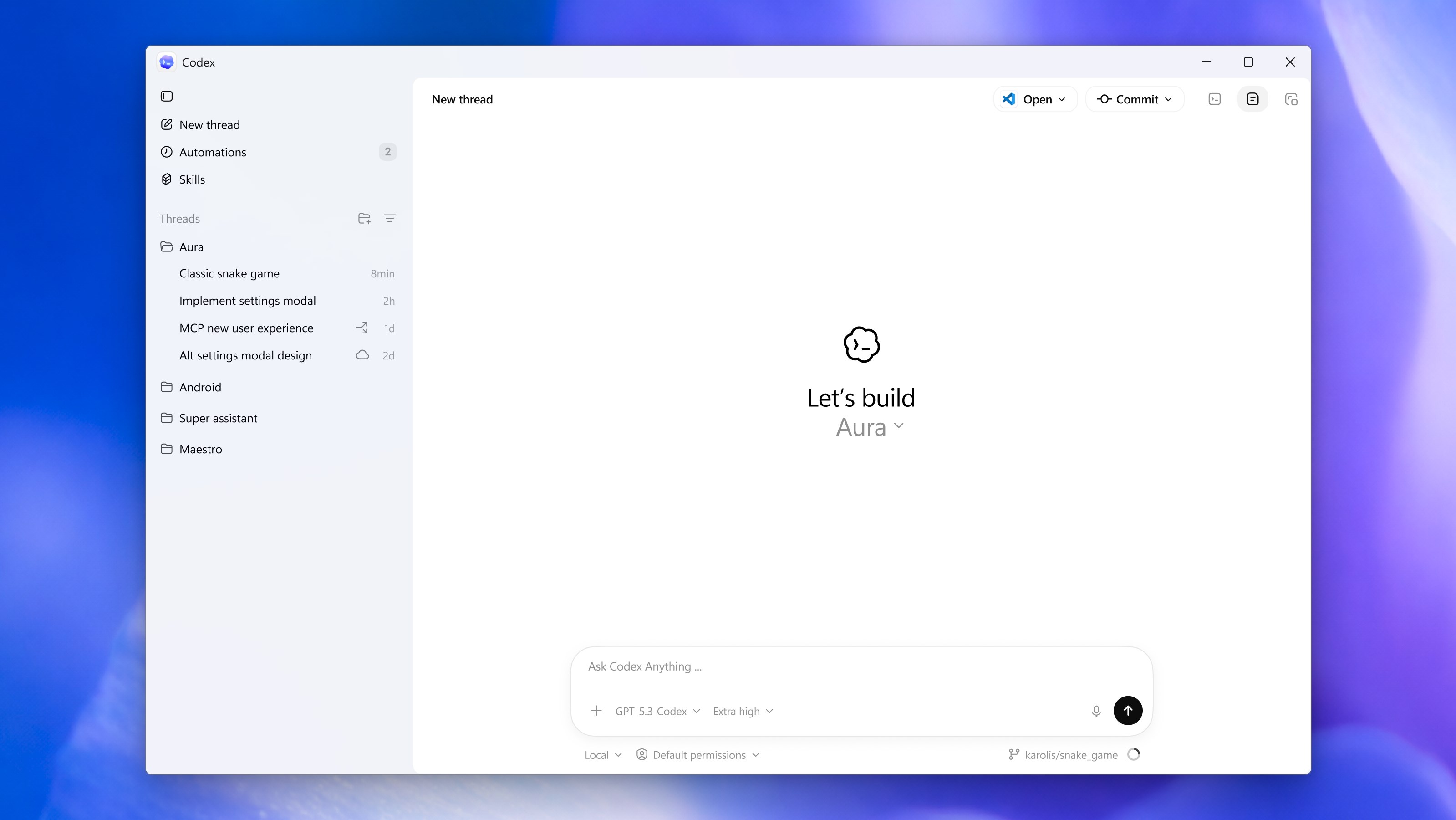
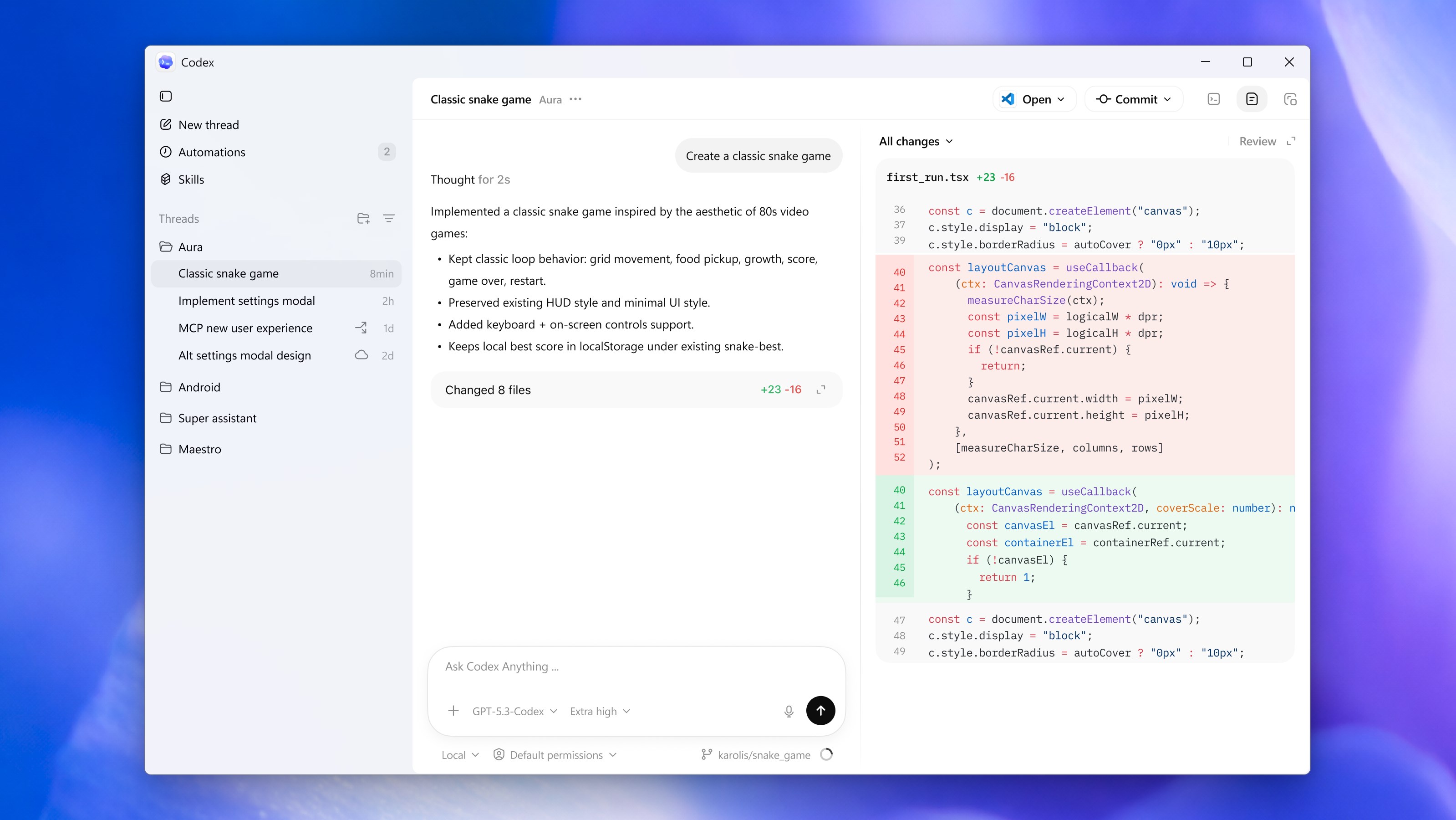
Upon launching Codex for Windows, users are greeted with a clean, minimalistic interface that feels like stepping into a well-organized workshop. The layout is straightforward—think of it as a clutter-free desk where every tool is at your fingertips. The design prioritizes ease of use, making it accessible even for those new to AI-assisted coding tools. Navigating between code, prompts, and suggestions is fluid, thanks to thoughtfully placed menus and responsive interactions.
Powerful Core Functionality
The star of the show is undoubtedly its natural language code generation. Imagine describing an idea to a friend as you sketch out a plan for your next project; Codex takes that casual language and transforms it into functional code snippets that are immediately usable. This feature is especially useful for rapid prototyping or when facing writer's block in coding. Furthermore, the context-aware assistance ensures the suggestions are tailored to your current task, helping to keep your workflow coherent and efficient.
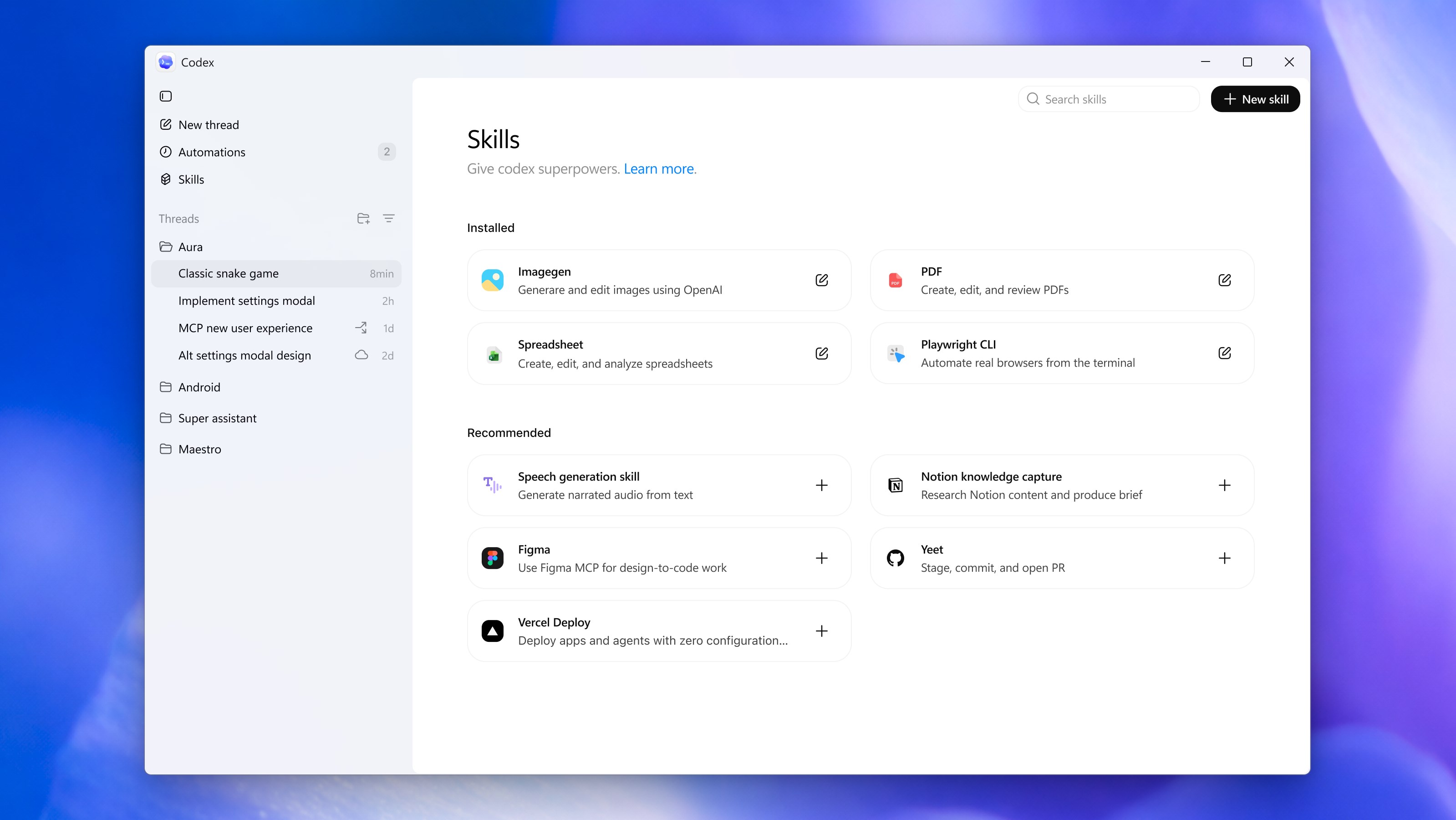
Another highlight is its support for multiple languages. Whether you're crafting a Python data analysis script or building a JavaScript web app, Codex's versatility shines. Its integration with Windows and compatibility with popular IDEs mean you don't have to switch environments, fostering a seamless coding experience.
User Experience: Smooth, Friendly, and Learning-Friendly
Operation with Codex feels like working with a knowledgeable and gentle coding companion. The app loads swiftly, and interactions are snappy, making the process feel natural rather than burdensome. For beginners, the learning curve is gentle—helpful prompts and examples guide users through new features without overwhelming them. Experienced developers will appreciate its depth, ability to handle complex prompts, and the way it accelerates routine tasks.
What Sets Codex Apart?
Compared to other developer tools, Codex's standout feature is its ability to translate everyday language into code, making programming more accessible to non-experts. Unlike traditional code completion tools that operate within a narrow scope, Codex understands the intent behind your descriptions, offering a more personalized and intelligent response. This contextual understanding is what truly differentiates it and can serve as a modern IDE assistant for collaborative and exploratory coding sessions. Additionally, the multi-language and multi-platform support mean it adapts to a variety of workflows, unlike some tools that are language- or environment-specific.
Should You Give It a Go?
Overall, I recommend Codex for Windows as a valuable addition to any developer's toolkit. It's particularly beneficial for those looking to accelerate development, brainstorm ideas, or learn new programming languages with a friendly, guiding AI. While it's not a substitute for deep coding expertise or problem-solving skills, it acts as a smart helper, making coding more accessible and efficient.
For best results, I suggest using Codex as a complementary tool during prototyping, educational pursuits, or routine coding tasks. Its intuitive interface and strong core features make it a reliable and innovative partner in your development journey.
Pros
- Intuitive User Interface
- Fast Performance
- Comprehensive Code Suggestions
- Cross-Platform Compatibility
- Regular Updates and Improvements
Cons
- Limited Language Support
- Offline Functionality is Restricted
- Learning Curve for Advanced Features
- Occasional Code Suggestion Inaccuracies
- Customization Options Are Limited