- Name gedit text editor
- Category Developer tools
- Available on PC
- OS Windows 10 version 17763.0 or higher
- Keyboard Integrated Keyboard
- Mouse Integrated Mouse
- languages English (United States)
Introducing gedit for Windows: A Sleek, Open-Source Text Editor
Gedit for Windows stands out as a lightweight, yet versatile text editor that balances simplicity with powerful features, making it a compelling choice for developers, writers, and casual users alike.
About the Developer and Core Features
Developed by the gedit Team
This application is maintained by the gedit team, originally part of the GNOME project, bringing their open-source ethos to the Windows platform with a dedicated, user-friendly interface.
Key Functional Highlights
- Syntax Highlighting and Code Folding: Supports numerous programming languages, enabling developers to write and review code efficiently.
- Simple but Extensible Interface: Clean design with options for customization, including themes and plugins, to tailor the environment.
- Robust Search and Replace: Advanced search functionalities, including regular expressions and multi-file operations, facilitate quick text editing.
- Auto-Indentation and Line Numbering: Features that improve readability and help maintain code structure.
Target User Groups
Gedit for Windows is ideal for programmers, writers, students, and anyone seeking a straightforward, customizable text editing tool without the complexity of heavy IDEs.
A Vibrant Introduction: A Window into Simplicity
Imagine sitting down to your laptop, eager to jot down ideas or craft some code, only to be greeted by a cluttered, intimidating interface. Now, picture gedit's clean and welcoming workspace—it's like opening a tidy writing desk nestled in a peaceful study. Its minimalist design invites focus, but don't be fooled—beneath the surface lies a powerhouse that balances elegance with efficiency. Whether you're editing a quick note or diving into complex scripts, gedit offers a smooth and enjoyable experience reminiscent of a trusted companion, ready to assist without getting in your way.
Core Functional Strengths in Action
1. Coding Convenience with Syntax Highlighting and Plugins
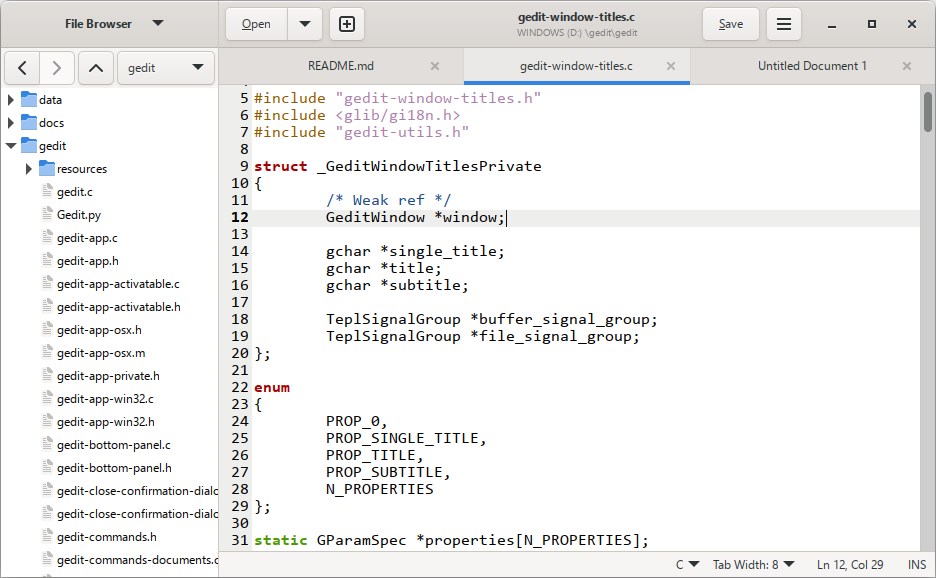
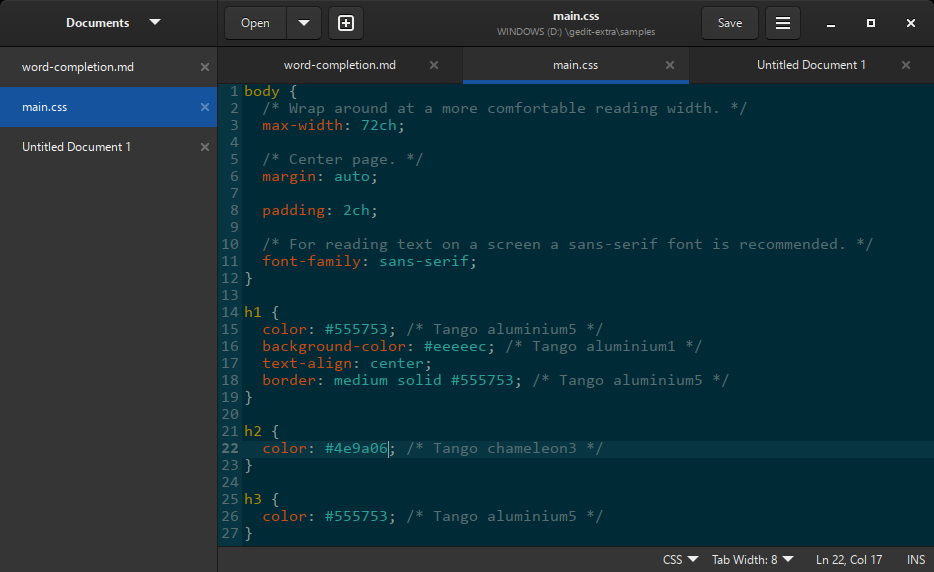
One of gedit's most compelling features is its syntax highlighting—think of it as a colorful highlighter that makes your code pop with clarity. Whether you're working in Python, C++, or Markdown, gedit recognizes the language and colors keywords, variables, and comments accordingly. Complemented by a variety of plugins, such as code completion and project management tools, this editor can evolve from a simple text box into a mini-IDE tailored to your needs. Unlike bulky editors, gedit offers just enough extensibility to enhance productivity without feeling overwhelming.
2. Seamless User Interface and Customization
The interface of gedit is like a well-designed toolbox—orderly, intuitive, and unobtrusive. It features a tabbed layout, allowing you to work on multiple documents simultaneously, with smooth switching akin to flipping through pages of a well-organized scrapbook. Custom themes and font options enable users to personalize their workspace, making it visually comfortable—a crucial aspect for long coding or writing sessions. The simplicity of layout ensures that even beginners can locate features effortlessly, while seasoned users can tweak settings for optimal workflow.
3. Powerful Search and Code Management
Imagine having a magic wand that instantly finds that elusive line of code or word—gedit's enhanced search function is just that. With support for regular expressions, multi-file searches, and replace operations, managing large projects or editing extensive text becomes a breeze. This feature is especially vital when editing configuration files or scripts where precision and speed are paramount. The line numbering and auto-indentation further streamline readability and help keep your code tidy and professional-looking.
User Experience and How gedit Differs
The charm of gedit lies in its simplicity paired with practicality. Its interface is uncluttered, with a learning curve that's gentle—like learning to ride a bike with training wheels, it's easy to get started but capable of impressive feats as you grow more confident. The application's responsiveness is notable; typing and commands feel instantaneous, providing a fluid experience comparable to sliding smoothly across a polished surface. Its lightweight nature ensures minimal CPU usage, an advantageous trait for users operating on modest machines or multitasking.
Compared to other developer tools or text editors—such as Notepad++, VS Code, or Sublime Text—gedit's unique strength is its balance. It offers essential features without the bloat, making it accessible and straightforward. Its open-source foundation also means it's customizable at a granular level, fostering community-driven enhancements. While it may not have every advanced feature of heavyweight editors, its focus on core functionalities with a user-friendly approach makes it a standout choice for those who prefer simplicity without sacrificing capability.
Final Verdict and Recommendations
I would recommend gedit for Windows to users seeking a clean, reliable, and extendable text editor that doesn't overwhelm with unnecessary features. It's well-suited for coding, note-taking, and quick edits—particularly if you value clarity and customization. For beginners or those who prefer a straightforward environment that can be slightly customized, gedit hits the sweet spot.
While it might lack some of the more advanced features found in dedicated IDEs, it excels in providing a stable, user-friendly platform for everyday text editing needs. I suggest giving it a try—especially if you're looking for a no-fuss, efficient editor that seamlessly integrates into your workflow without demanding a steep learning curve. Whether you're dabbling in programming or simply want a neat place to jot down ideas, gedit is a solid, approachable tool worth adding to your software arsenal.
Pros
- User-Friendly Interface
- Lightweight and Fast
- Simple Text Editing Features
- Open Source and Free
- Multi-Platform Compatibility
Cons
- Limited Advanced Features
- Minimal Customization Options
- Inconsistent Plugin Ecosystem
- Basic Spell Check Support
- Limited Offline Documentation