- Name PowerShell
- Category Developer tools
- Available on PC
- OS Windows 10 version 17763.0 or higher
- Keyboard Integrated Keyboard
- Memory 1 GB
- Mouse Not specified
- languages English (United States)
PowerShell for Windows: Streamlining Automation with a User-Friendly Interface
PowerShell for Windows, developed by Microsoft Corporation, serves as a versatile and powerful command-line scripting environment designed to empower Windows users and IT professionals to automate tasks, manage systems, and enhance productivity seamlessly.
Basic Information About PowerShell for Windows
PowerShell for Windows is a modern, integrated scripting environment aimed at simplifying system management through powerful automation capabilities. Developer: Microsoft Corporation Key Highlights:- Comprehensive scripting capabilities with support for complex automation workflows.
- Intuitive command-line interface that bridges traditional CMD commands with modern scripting features.
- Robust integration with Windows OS, allowing direct management of system components, services, and networks.
- Extensible with modules and community-driven scripts to expand functionality.
An Engaging Dive into PowerShell for Windows
Imagine stepping into a control room where every lever, switch, and indicator lights up with the potential to command your entire Windows environment. PowerShell for Windows transforms this metaphor into reality—an elegant, scriptable playground that turns complex management tasks into choreographed symphonies of commands. Whether you're automating routine updates or troubleshooting elusive system issues, this tool promises a balanced blend of power and simplicity, making your day-to-day operations a lot less mundane.
Core Functionalities that Make PowerShell Shine
Powerful Automation with Scripts and Cmdlets
At the heart of PowerShell for Windows are its extensive repository of cmdlets—predefined commands that perform specific tasks like managing files, processes, services, and registry entries. The scripting environment allows users to combine these cmdlets into sophisticated scripts, automating lengthy procedures that would otherwise consume significant time. This modular approach turns mundane tasks into repeatable, reliable routines, elevating efficiency to new heights. The intuitive syntax makes scripting accessible for beginners yet sophisticated enough for seasoned professionals to craft complex automation workflows.
Seamless System Management & Integration
One of PowerShell's strongest suits is its deep integration with Windows OS. It provides direct control over system components, enabling tasks such as user account management, network configuration, and software deployment—all from a unified platform. Imagine managing an entire fleet of machines or orchestrating multiple configurations with a few scripts; PowerShell acts like a conductor, coordinating each element harmoniously. Its integration extends to cloud services as well, supporting Azure and other platforms, making it a versatile tool for hybrid environment management.
User Experience & Design: Friendly Power in a Command Line
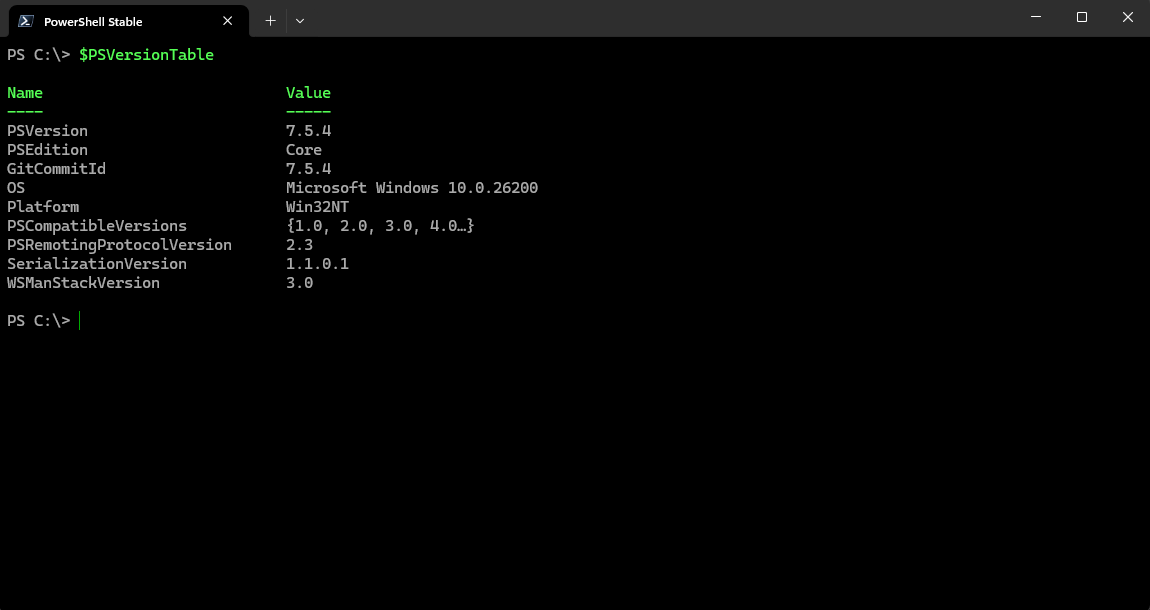
The interface of PowerShell for Windows is designed to be accessible without sacrificing depth. Its console interface is minimalistic—resembling a friendly command prompt with advanced features—allowing users to start quickly. Features like syntax highlighting, command auto-completion, and integrated help make the learning curve smoother. While it retains the traditional command-line feel, it offers a logical, well-structured layout that eases navigation and command discovery. For those transitioning from GUI-based tools, the familiar command history and scripting hints serve as gentle guides, making the switch less daunting.
What Sets PowerShell Apart from Its Peers?
Compared to other developer tools like Windows Terminal or third-party scripting environments, PowerShell for Windows stands out with its native integration and extensive ecosystem. Its most notable features are its deep system management capabilities—allowing automation directly at the OS level—and its adaptability through modules. The ability to harness the full potential of Windows and Azure environments with a single, consistent scripting language is a significant advantage. Unlike some tools that require multiple interfaces or languages, PowerShell consolidates control into one scriptable environment, making it a truly unique platform for Windows automation.
Final Verdict: Recommended for Those Who Seek Power and Ease
If you're a Windows user looking to elevate your system management game—be it for personal productivity, IT administration, or development—PowerShell for Windows deserves serious consideration. Its intuitive interface combined with powerful scripting capabilities bridges the gap between novice and expert, making automation accessible yet robust. The standout feature—the ability to manage and automate Windows systems at a granular level—sets it apart from many similar tools. While there's a learning curve, especially for complex tasks, the extensive documentation and active community support make the process manageable.
My recommendation? Give PowerShell for Windows a try if you're eager to make your Windows environment more efficient and manageable. For those ready to dive into scripting or automate repetitive tasks, it's a reliable, versatile, and continuously evolving tool that's worth integrating into your workflow.
Pros
- PowerShell integration enhances automation capabilities
- Rich scripting environment with extensive cmdlets
- Seamless Windows ecosystem compatibility
- Regular updates and improvements from Microsoft
- Supports cross-platform operation (Windows, Linux, macOS)
Cons
- Initial setup can be complex for beginners
- Some cmdlets have limited documentation
- Performance may vary with large scripts
- Cross-platform features are still evolving
- Requires updates to maintain security patches