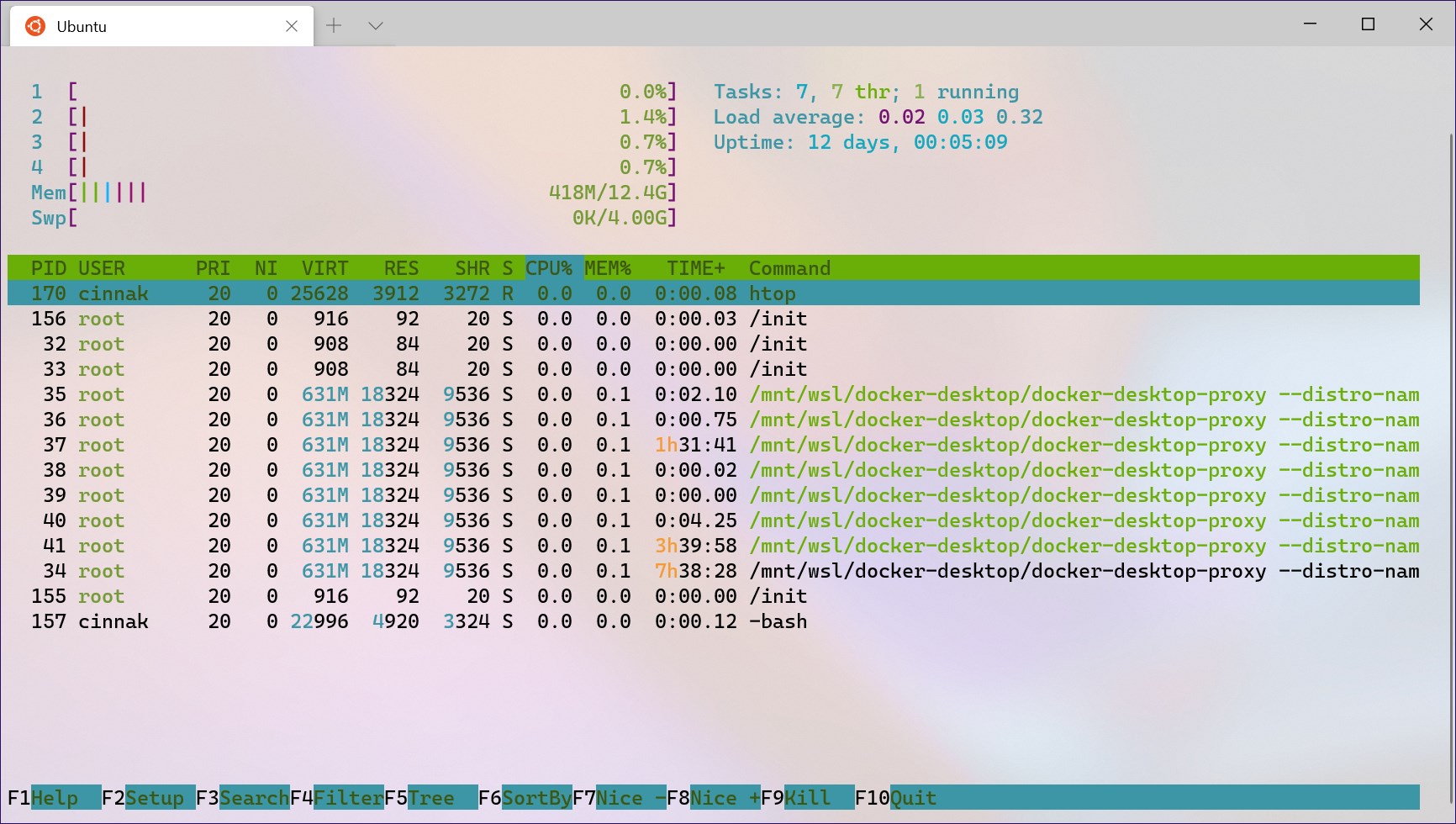
- Name Windows Terminal
- Category Developer tools
- Available on PC
- OS Windows 10 version 19041.0 or higher
- Keyboard Not specified
- languages Afrikaans, Albanian, Amharic, Arabic, Armenian, Assamese, Azerbaijani, Bangla (India), Basque, Bosnian (Latin, Bosnia and Herzegovina), Bulgarian, Catalan, Chinese (Simplified), Chinese (Traditional), Croatian, Czech, Danish, Dutch, English (United Kingdom), English (United States), Estonian, Filipino, Finnish, French, French (Canada), Galician , Georgian, German, Greek, Gujarati, Hebrew, Hindi, Hungarian, Icelandic, Indonesian, Irish, Italian, Japanese, Kannada, Kazakh, Khmer, Konkani, Korean , Lao, Latvian, Lithuanian, Luxembourgish, Macedonian, Malay, Malayalam, Maltese, Maori, Marathi, Nepali, Norwegian (Bokmål), Odia, Persian, Polish , Portuguese (Brazil), Portuguese (Portugal), Punjabi (India), Quechua, Romanian, Russian, Scottish Gaelic, Serbian, Serbian (Cyrillic, Bosnia and Herzegovina), Serbian (Latin, Serbia), Slovak, Slovenian (Slovenia), Spanish (Mexico), Spanish (Spain), Swedish, Tamil, Tatar, Telugu, Thai, Turkish, Ukrainian, Urdu, Uyghur, Uzbek, Valencian, Vietnamese, Welsh
Microsoft Windows Terminal: The Modern Command Line Experience
Designed as a sleek and versatile terminal emulator for Windows, Microsoft Windows Terminal aims to unify and enhance the command-line experience, catering to developers, sysadmins, and power users alike. Whether you're managing multiple shells or just seeking a more inviting interface, this app promises both functionality and customization in one package.
Bright and Bold: Exploring the Core Highlights
Windows Terminal's standout features center around its multi-tab interface, rich customization capabilities, and seamless integration with various shells and tools. It transforms the command line from a bare-bones interface into a personalized command playground, making complex workflows feel more approachable and less intimidating.
Multiple Tabs and Panes for a Dashboard-Like Experience
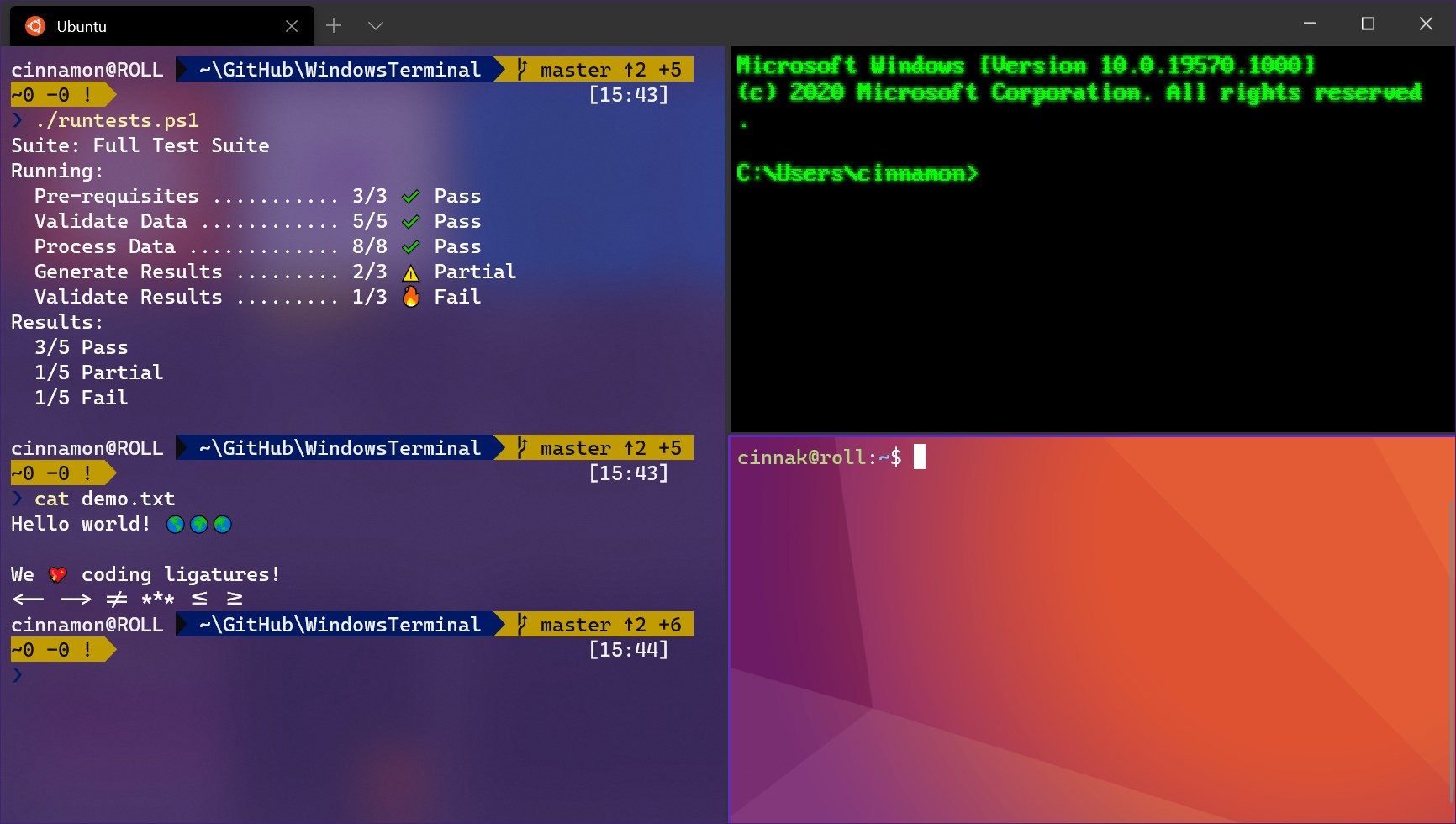
The most notable feature is its support for multiple tabs and panes in a single window. Imagine having several windows open, each running different shells like PowerShell, Command Prompt, WSL (Windows Subsystem for Linux), or even SSH sessions — all within one unified space. This setup is akin to having a command-line command center, where switching contexts is as easy as switching tabs. The smooth drag-and-drop functionality and the ability to split panes horizontally or vertically ensure users can organize their workflow visually and efficiently.
Extensive Customization and Themes — Make It Feel Like Home
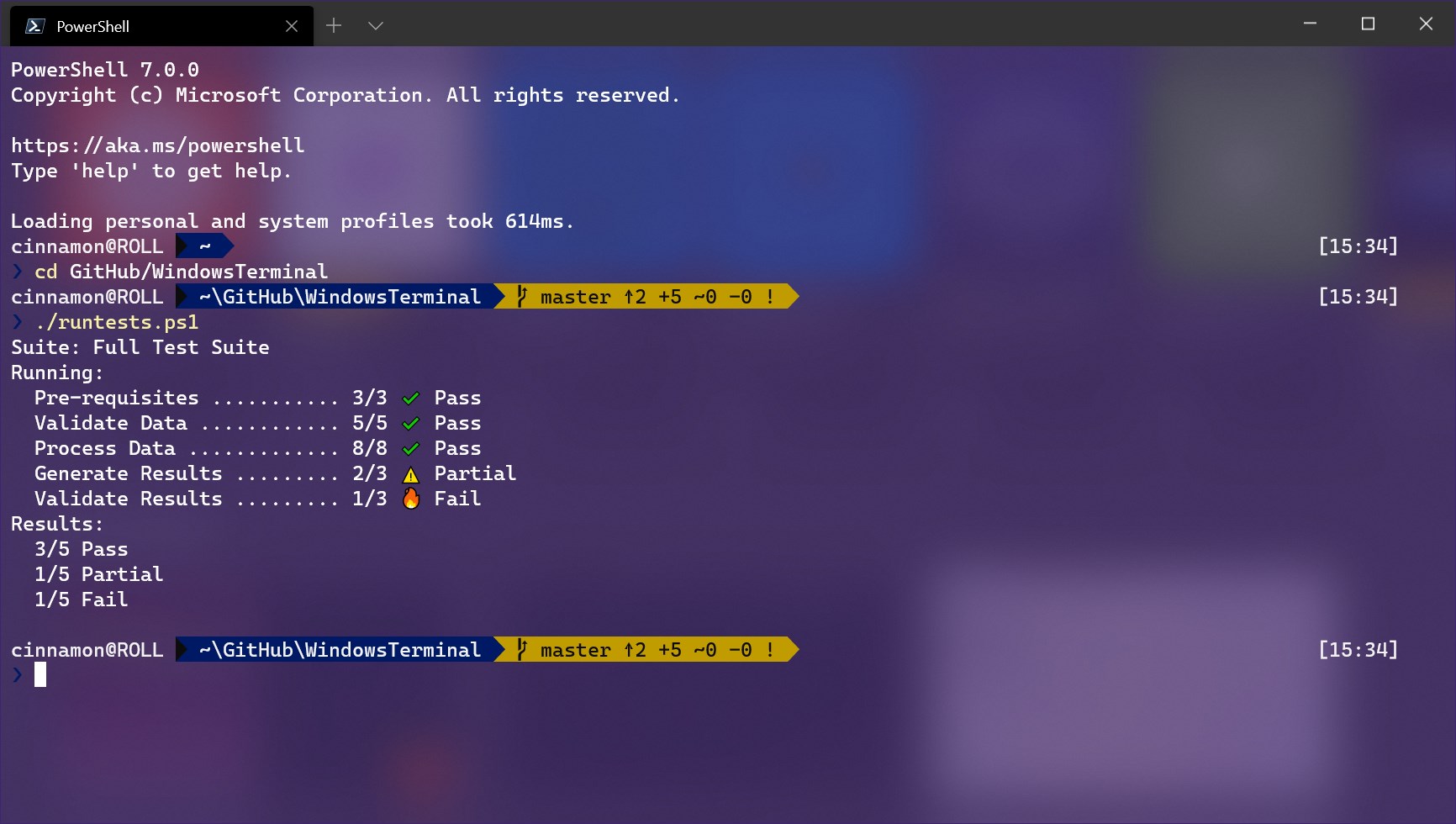
One of Windows Terminal's strongest suits is its highly customizable interface. From color schemes and background images to font styles and sizes, users can craft an environment that's both visually appealing and conducive to focus. For example, developers who like dark themes but need specific vibrancy or contrast can tweak settings to match their preferences. This level of personalization turns a simple terminal into a true reflection of your workspace aesthetic, making long coding sessions more comfortable and less monotonous.
Performance and User Experience — Fast, Fluid, Friendly
Beyond visual aspects, Windows Terminal excels in delivering a smooth experience. The app feels snappy, with negligible lag even under load, thanks to optimal rendering powered by modern GPU acceleration. The interface design is minimalistic yet functional, striking a balance between aesthetics and usability. The learning curve is gentle—new users find the straightforward setup and intuitive commands welcoming, while seasoned users appreciate the Deep customization options that enhance productivity. Switching between tabs or customizing profiles is as effortless as flipping a switch, making the transition from older terminals seamless.
Unique Selling Points: What Sets It Apart?
Compared to other terminal emulators like ConEmu or Terminus, Windows Terminal's tight integration with Windows and early access to cutting-edge features makes it stand out. Notably, its support for GPU-accelerated rendering ensures high performance, even on busy terminals. Moreover, its open-source roots—though officially maintained by Microsoft—invite community-driven enhancements, ensuring it stays aligned with user needs. Another key advantage is its native support for multiple shell environments within a single window, simplifying multi-tasking for users who juggle different command-line tools daily.
Final Thoughts and Recommendations
All in all, Windows Terminal marks a significant upgrade over traditional command-line interfaces on Windows. Its customization, multi-session management, and performance make it a compelling choice for anyone who relies heavily on the command line for their work or hobbies. While it may have a slight learning curve initially, the payoff in productivity and comfort is well worth it. I'd recommend giving it a try if you're looking to modernize your terminal experience or to replace a cluttered suite of separate windows.
Pros
- Customizable interface
- Tab management features
- Open-source and actively developed
- Improved performance and rendering
- Supports multiple shells and protocols
Cons
- Limited customization options in default version
- Initial setup can be complex for beginners
- Occasional stability issues with certain shell profiles
- Limited plugin ecosystem compared to other terminal emulators
- Resource consumption on older hardware