


- Name Windows Camera
- Category Photo & video
- Available on Xbox console, PC, Surface Hub, Mobile, HoloLens
- OS Windows 10 version 19041.0 or higher
- languages Afrikaans, Albanian, Amharic, Arabic, Azerbaijani, Bangla (Bangladesh), Basque, Belarusian, Bulgarian, Catalan, Chinese (Simplified), Chinese (Traditional), Croatian, Czech, Danish, Dutch, English (United Kingdom), English (United States), Estonian, Filipino, Finnish, French, French (Canada), Galician , German, Greek, Hausa (Latin), Hebrew, Hindi, Hungarian, Icelandic, Indonesian, Italian, Japanese, Kannada, Kazakh, Khmer, Kiswahili, Korean , Lao, Latvian, Lithuanian, Macedonian, Malay, Malayalam, Norwegian (Bokmål), Persian, Polish , Portuguese (Brazil), Portuguese (Portugal), Romanian, Russian, Serbian (Latin, Serbia), Slovak, Slovenian (Slovenia), Spanish (Mexico), Spanish (Spain), Swedish, Tamil, Telugu, Thai, Turkish, Ukrainian, Uzbek, Vietnamese
Introducing Windows Camera: Your Reliable Windows-built Photography Assistant
Designed as a straightforward yet efficient camera application, Windows Camera offers users a seamless way to capture photos and videos directly from their Windows devices. With its intuitive interface and essential features, it is perfect for both casual photographers and aspiring content creators alike.
Developed by Microsoft: Trust in a Tech Giant
The app is developed by Microsoft Corporation, a leader in software and hardware solutions. Leveraging Microsoft's expertise, Windows Camera integrates smoothly with Windows 10 and 11 systems, delivering a reliable and consistent user experience.
Key Highlights of Windows Camera
- Simple and Intuitive Interface: Clean design that minimizes clutter and maximizes ease of use, allowing users to focus on capturing moments without distractions.
- Advanced Capture Features: Includes features like auto-focus, stabilization, and scene modes to improve photo quality automatically.
- Video Recording Capabilities: Supports high-resolution video recording with basic editing options to produce ready-to-share videos.
- Quick Access and Integration: Easily accessible from the taskbar or start menu and seamlessly integrates with Windows Photos for quick editing and sharing.
A Close Look: What Makes Windows Camera Stand Out?
Uncomplicated User Experience: Making Photography Easy
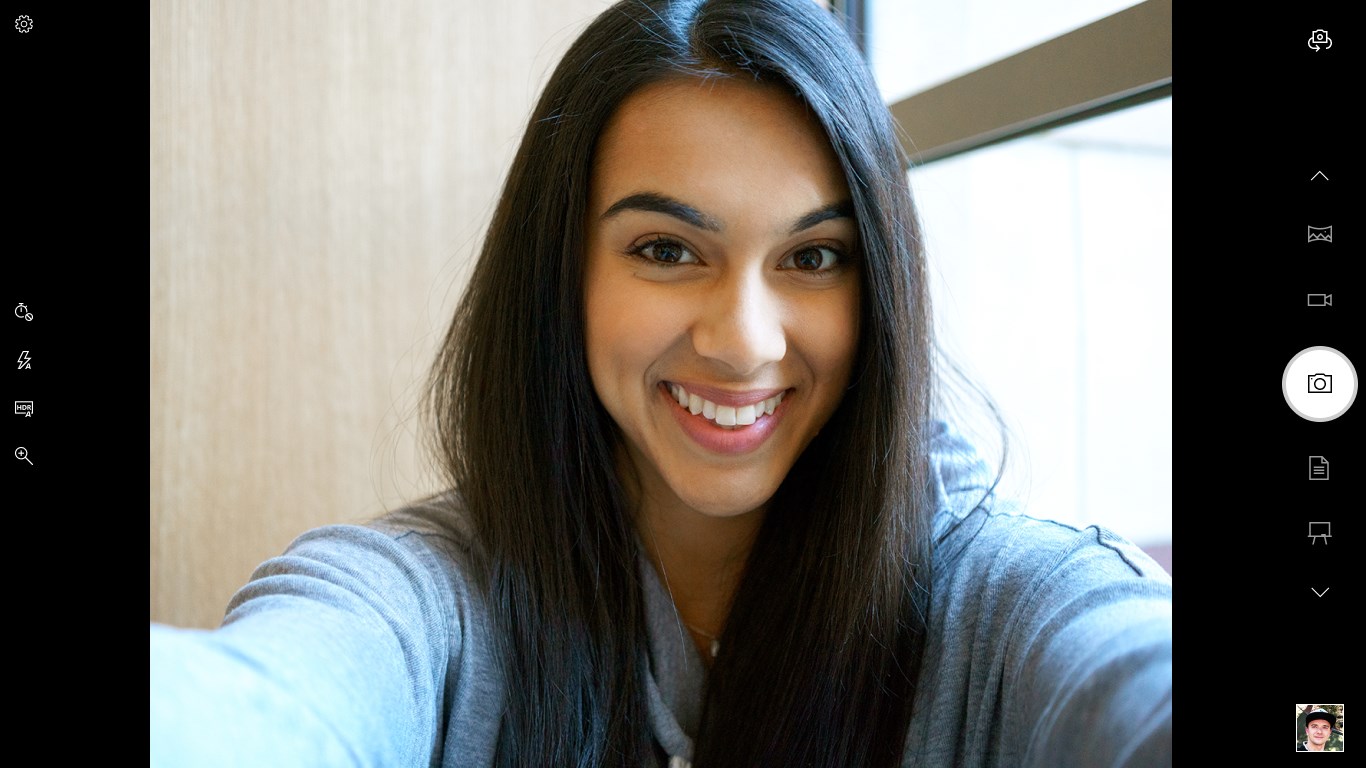
Imagine holding a lightweight, well-designed camera in your hand—Windows Camera feels just like that. Its interface is minimalistic yet practical, with large icons for shutter, video recording, and camera switch options. Navigating through its features is a breeze; the learning curve is shallow enough for anyone to start shooting confidently within minutes. Transitioning between photo capturing and video recording is as smooth as flipping a switch—no more fiddling with complicated settings or cluttered menus. This straightforward approach ensures that your focus remains on the moment, not on figuring out how to use the app.
Core Functionalities: Precision and Flexibility in Every Shot
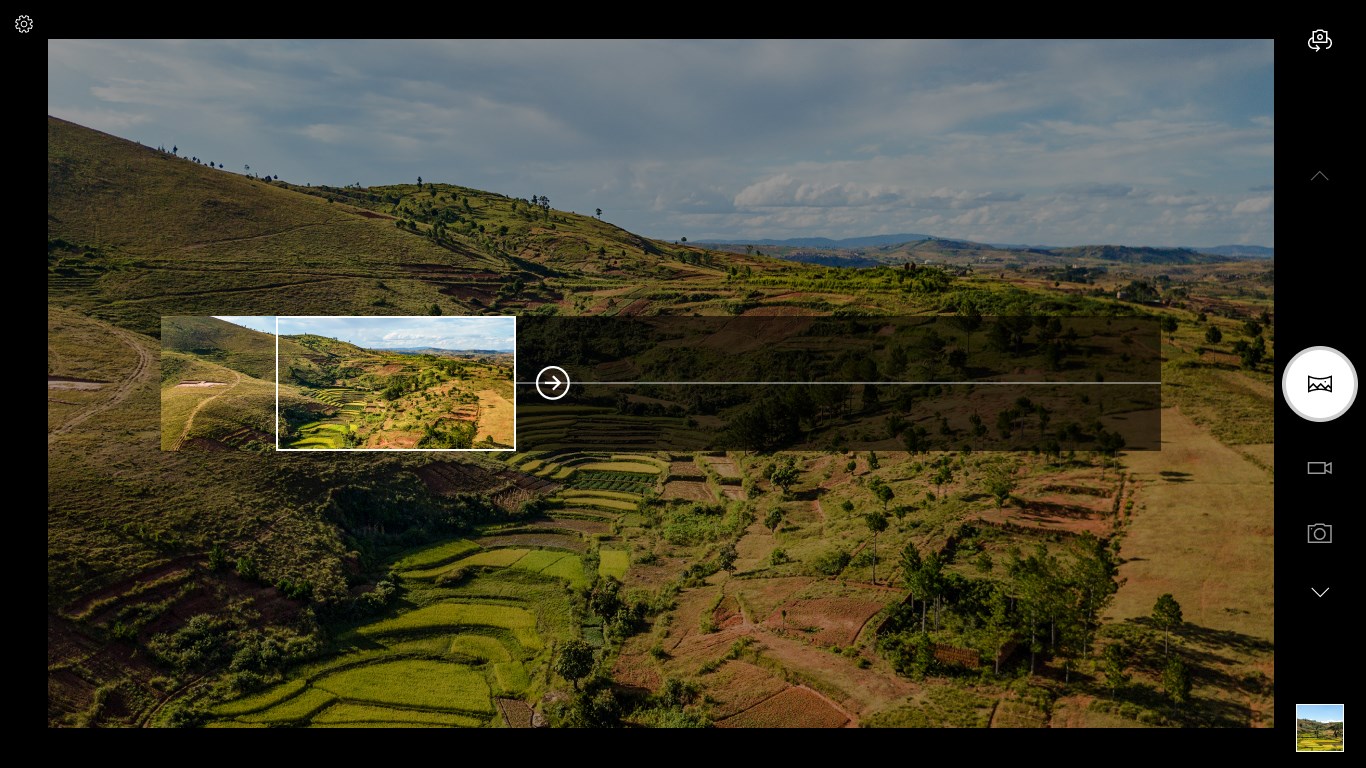
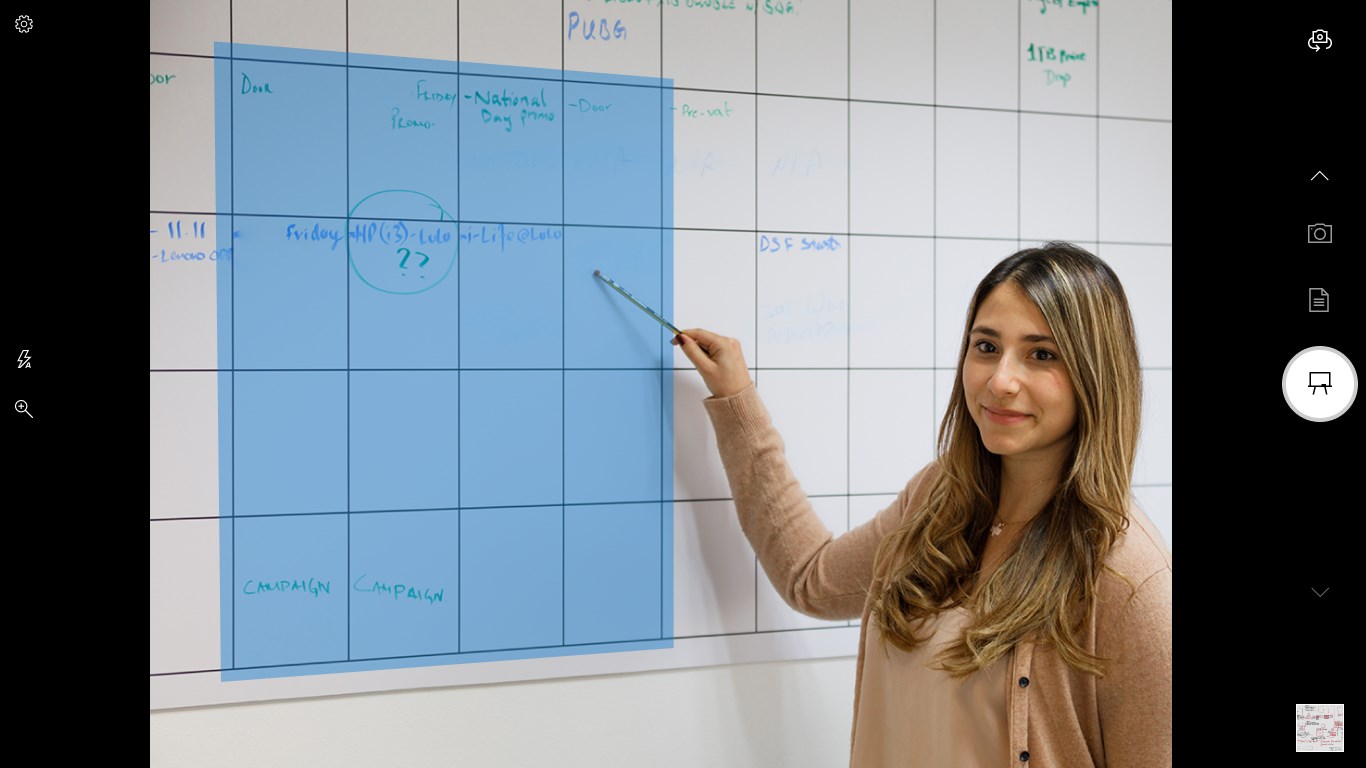
One of the notable features is the auto-focus and stabilization system. Think of it as having a seasoned photographer by your side, ensuring sharp, steady images even when you're on the move. The scene modes automatically adjust camera parameters based on what you're capturing—be it a landscape, portrait, or macro shot—helping you get professional-looking photos easily. For videographers, the app offers high-quality recording options with minimal lag and smooth playback. Additionally, the app's integration with Windows Photos allows you to enhance your images with basic editing tools, such as crop, rotate, and simple filters, right after snapping or recording.
Design and User Experience: Seamless and User-Friendly
The app's interface is like a well-organized workshop—everything you need is right at your fingertips. The layout is clean, with a dark mode option that reduces eye strain during extended shooting sessions. The responsiveness of the app is smooth; shutter responses are instantaneous, and switching between modes is fluid. New users will find the app's learning curve gentle, making it accessible for anyone from tech newbies to seasoned photographers. Although it doesn't offer advanced manual controls like exposure adjustment or aperture settings, its simplicity helps users focus on capturing rather than tweaking settings.
Comparison & Unique Strengths
Unlike many third-party camera apps that come loaded with numerous features that can sometimes overwhelm users, Windows Camera emphasizes core functionality with an emphasis on ease of use. Its deep integration with Windows makes it uniquely convenient—images and videos are instantly compatible with Windows ecosystem tools, and privacy controls are straightforward. Additionally, it's lightweight; unlike some bulky camera apps that consume significant system resources, Windows Camera remains nimble and responsive, even on modest hardware.
Final Thoughts and Recommendations
Overall, Windows Camera is a practical, no-fuss app that excels at what it promises: quick, clear photo and video capture on Windows devices. Its most compelling feature is its simplicity combined with quality, making it an excellent choice for everyday users who need a reliable camera app without bells and whistles. I would recommend it to casual users, students, or anyone looking for a straightforward tool to document moments without fuss.
If you're seeking an app with advanced manual controls or professional editing features, this might not be the perfect fit. However, for quick shoots, spontaneous videos, or capturing memories effortlessly, Windows Camera stands out as a reliable companion—think of it as your trusty digital point-and-shoot for the Windows world.
Pros
- User-friendly interface
- High-quality image and video output
- Built-in filters and effects
- Seamless integration with Windows system
- Supports multiple camera devices
Cons
- Limited advanced editing features
- Occasional lag or slow response
- Battery consumption is relatively high
- Limited customization options
- Some compatibility issues with older devices