
- Name CapCut
- Category Photo & video
- Developer Bytedance Pte. Ltd.
- Available on PC
- OS Windows 10 version 0.0 or higher
- Keyboard Integrated Keyboard
- Mouse Integrated Mouse
- Memory 8 GB
- DirectX Version 9
- languages English
Introducing CapCut for Windows: The All-in-One Video Editing Companion
If you're someone who enjoys turning everyday moments into engaging videos, CapCut for Windows emerges as a compelling tool that packs a punch with its intuitive interface and powerful features. Developed by Bytedance Pte. Ltd., this application aims to democratize professional-grade video editing, making it accessible to both beginners and seasoned creators alike.
About the Developer and Core Features
Crafted by the innovative team at Bytedance Pte. Ltd., CapCut for Windows brings a proven mobile editing experience straight to your desktop. The app's main selling points include a rich selection of creative editing tools, seamless multimedia integration, and an intelligent automation system that simplifies complex editing tasks. Its highlight features comprise multi-layer editing, real-time effects, and AI-powered tools for improved workflow efficiency.
Engaging Your Creativity: The Core Experience
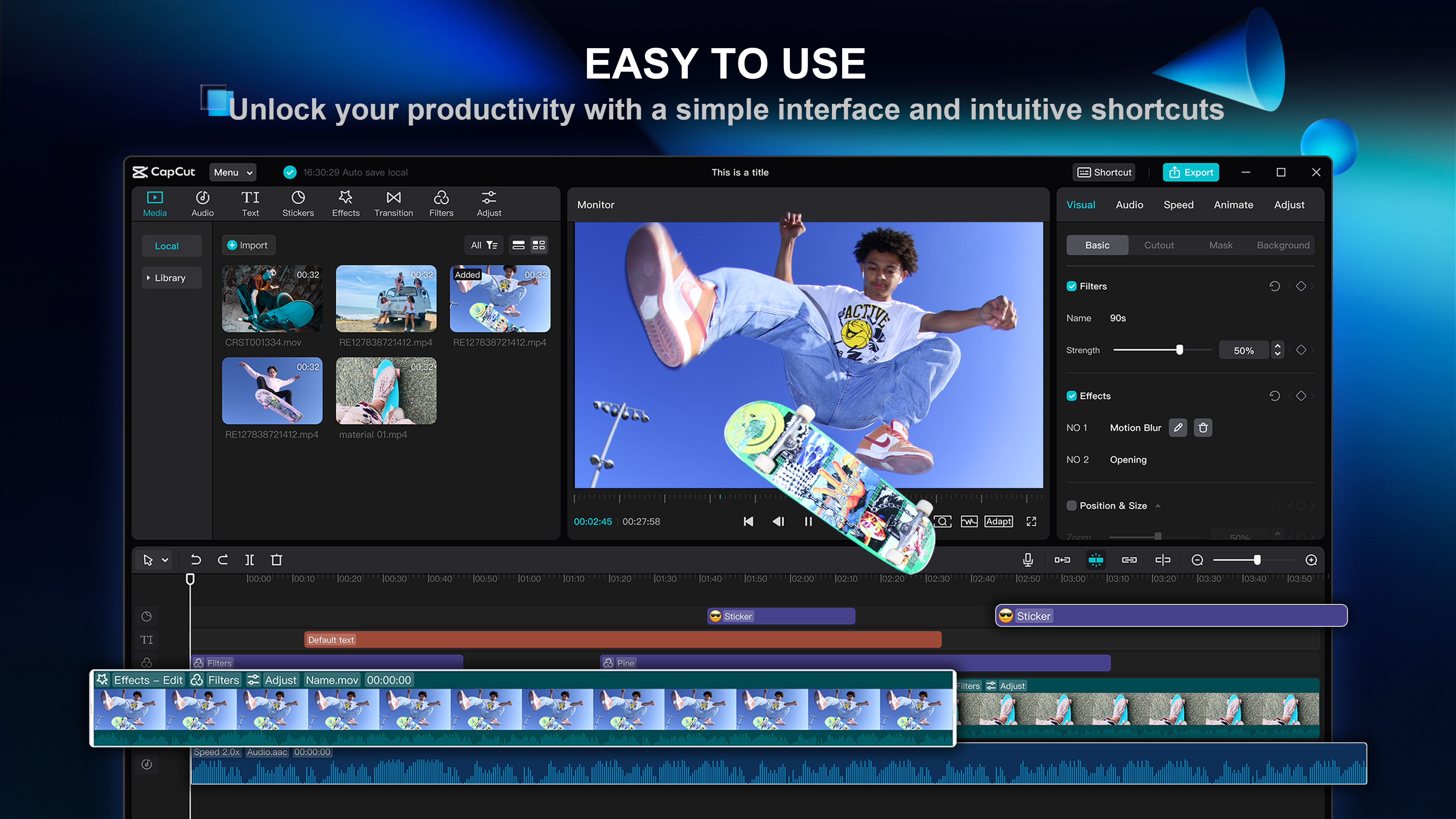
Imagine sitting in a cozy corner, with your photos and clips laid out like building blocks, awaiting transformation into a cinematic story. CapCut's interface strikes a friendly balance—sleek yet straightforward—guiding you effortlessly from raw footage to polished masterpiece. This design ensures that even those new to editing can quickly find their footing without drowning in menus or technical jargon.
Multilayer Editing: Flexibility Like a Real Studio
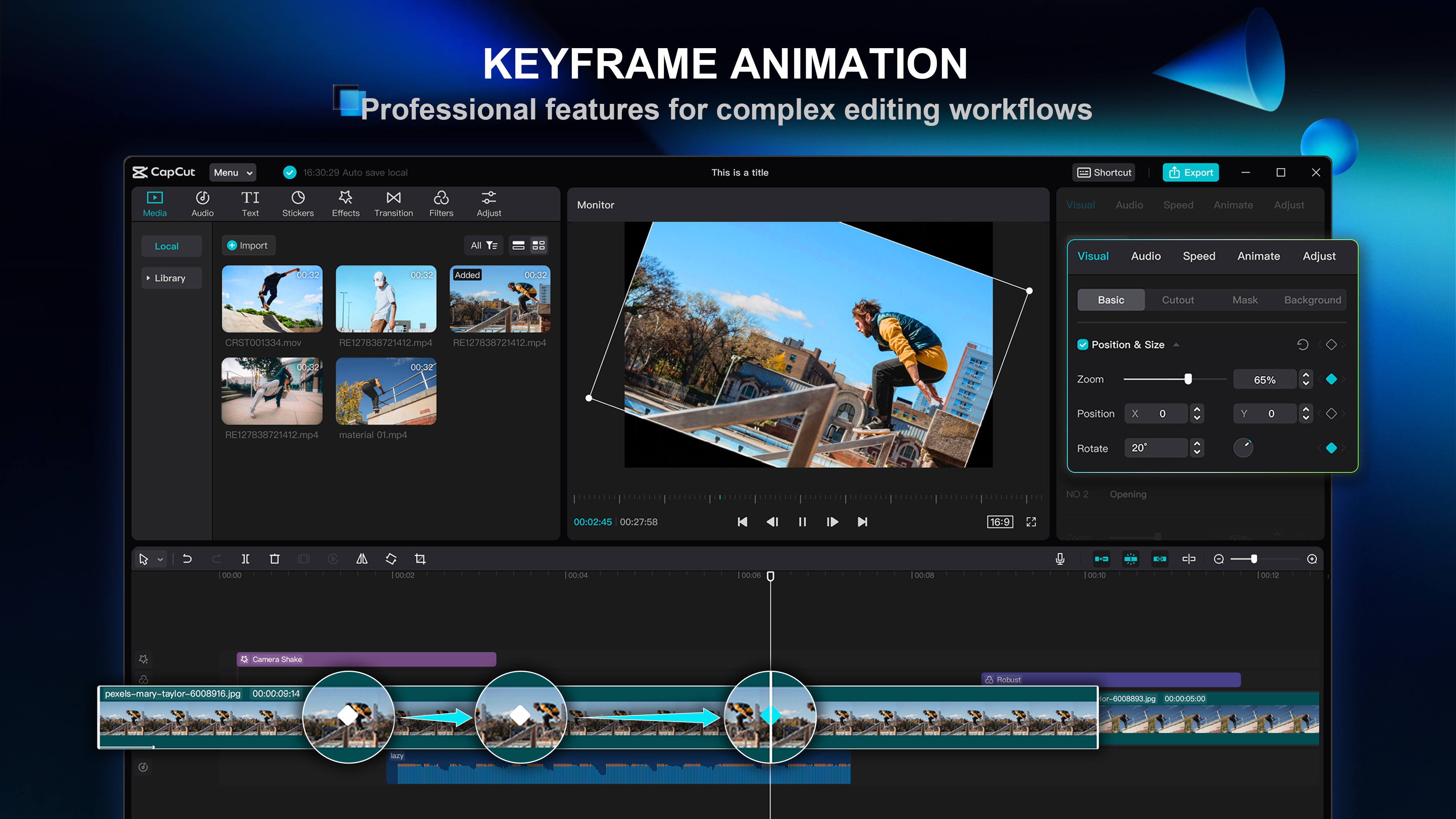
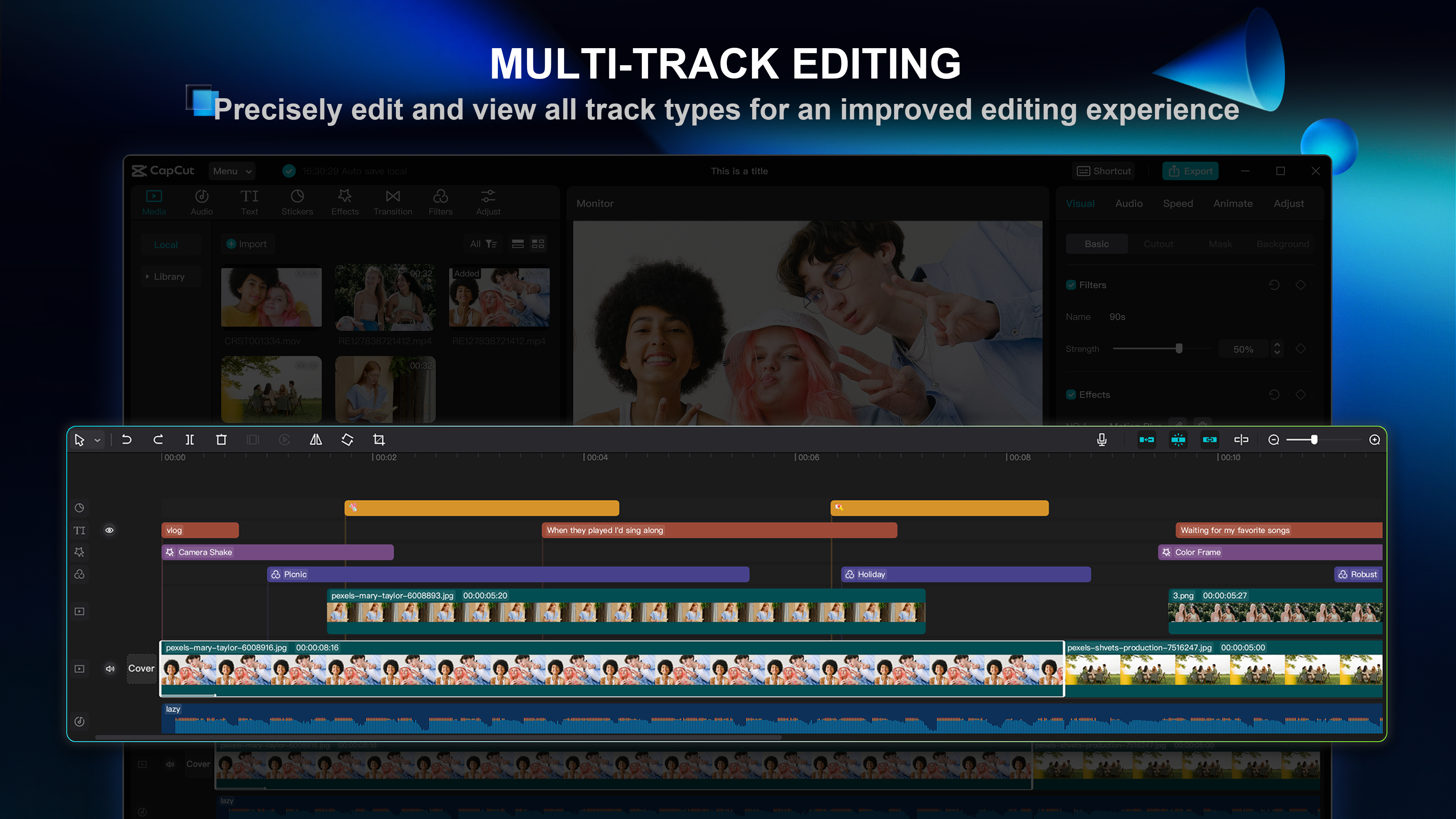
One of CapCut's standout features is its multilayer editing capability, which lets you layer videos, images, text, and audio with precision. Whether you're creating a montage or a dynamic presentation, this feature acts like a digital film studio, giving you the power to position and animate multiple elements for a professional look. Unlike some lightweight editors, CapCut allows customization with keyframes and adjustable transparency—perfect for those wanting to elevate their storytelling.
Real-Time Effects and AI Assistance: Creativity Made Effortless
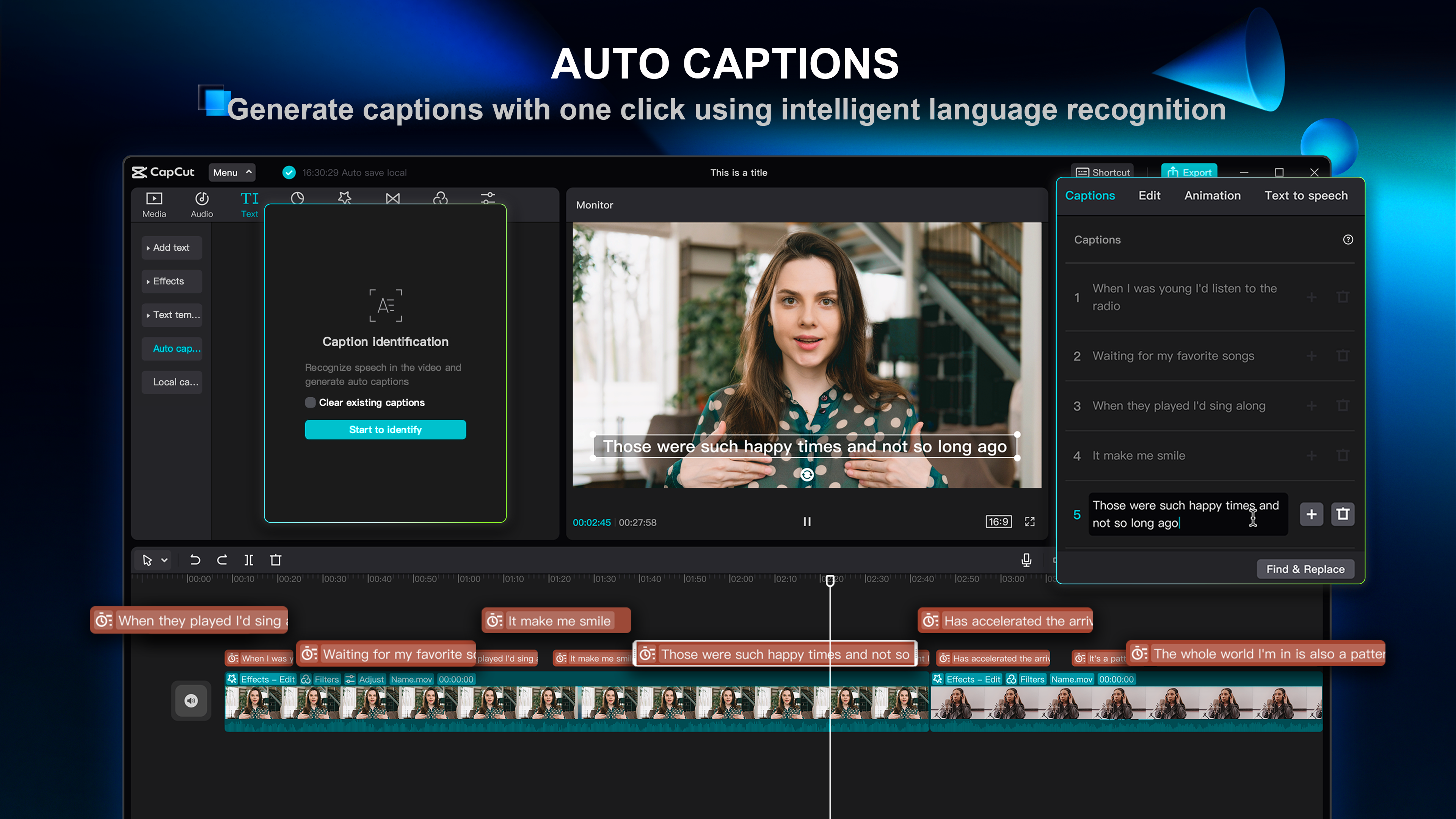
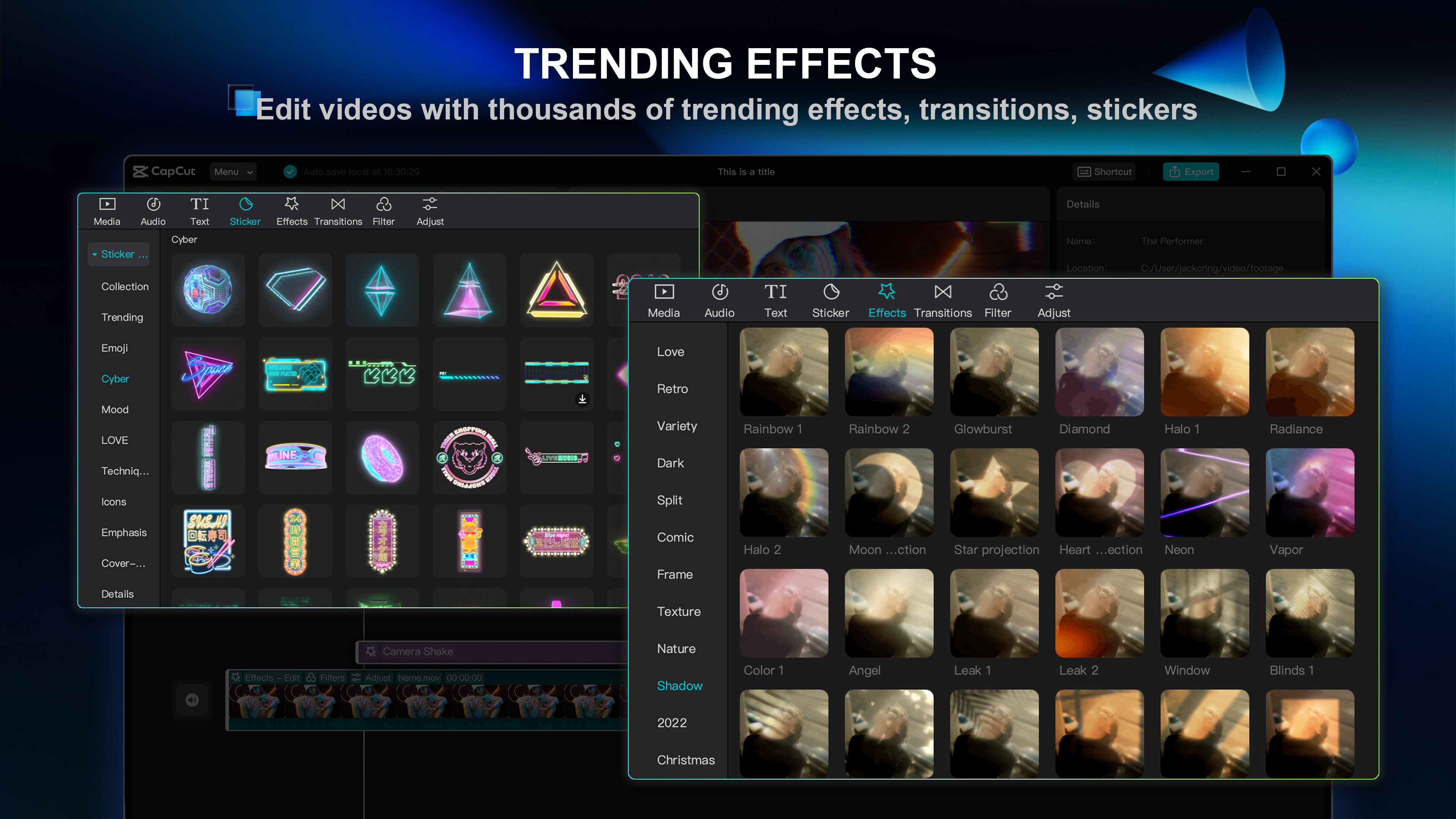
The app shines in applying real-time effects—think transitions, filters, and overlays—without delay, making your editing workflow smooth and engaging. Its AI-powered tools further enhance productivity; for instance, automatic scene enhancement and background removal help achieve high-quality results swiftly. These intelligent aids distinguish CapCut from many competitors, reducing the learning curve and enabling quicker content creation, ideal for social media influencers or content creators pressed for time.
User Experience and Final Verdict
Navigating CapCut for Windows feels akin to steering a well-designed vehicle—responsive with minimal lag, allowing you to focus on your creativity. The layout is intuitive, with drag-and-drop functions that streamline the editing process. A slight learning curve exists for advanced features, but the abundance of tutorials and community tips make mastering these tools manageable.
Compared to other video apps like Adobe Premiere Rush or DaVinci Resolve Lite, CapCut's edge lies in its user-friendly design combined with powerful editing capabilities. Its free access without sacrificing advanced features makes it particularly appealing for casual users and professionals looking for a versatile addition to their workflow.
Recommendations and Usage Tips
I recommend CapCut for Windows to anyone seeking a free, comprehensive editing suite that doesn't compromise on professional features. It's especially suitable for social media content creators, small business marketers, or hobbyists eager to produce higher-quality videos with minimal fuss. For best results, explore its multilayer and AI features in tandem, and don't shy away from experimenting with effects to develop your unique style.
In conclusion, CapCut for Windows stands out as a reliable, innovative, and user-centric editing tool. While it might not replace high-end professional software for complex projects, it certainly carves out a distinguished niche for quick, creative, and polished video production—making it a top pick for those who want to bring their ideas to life effortlessly.
Pros
- User-friendly interface
- Wide range of editing tools
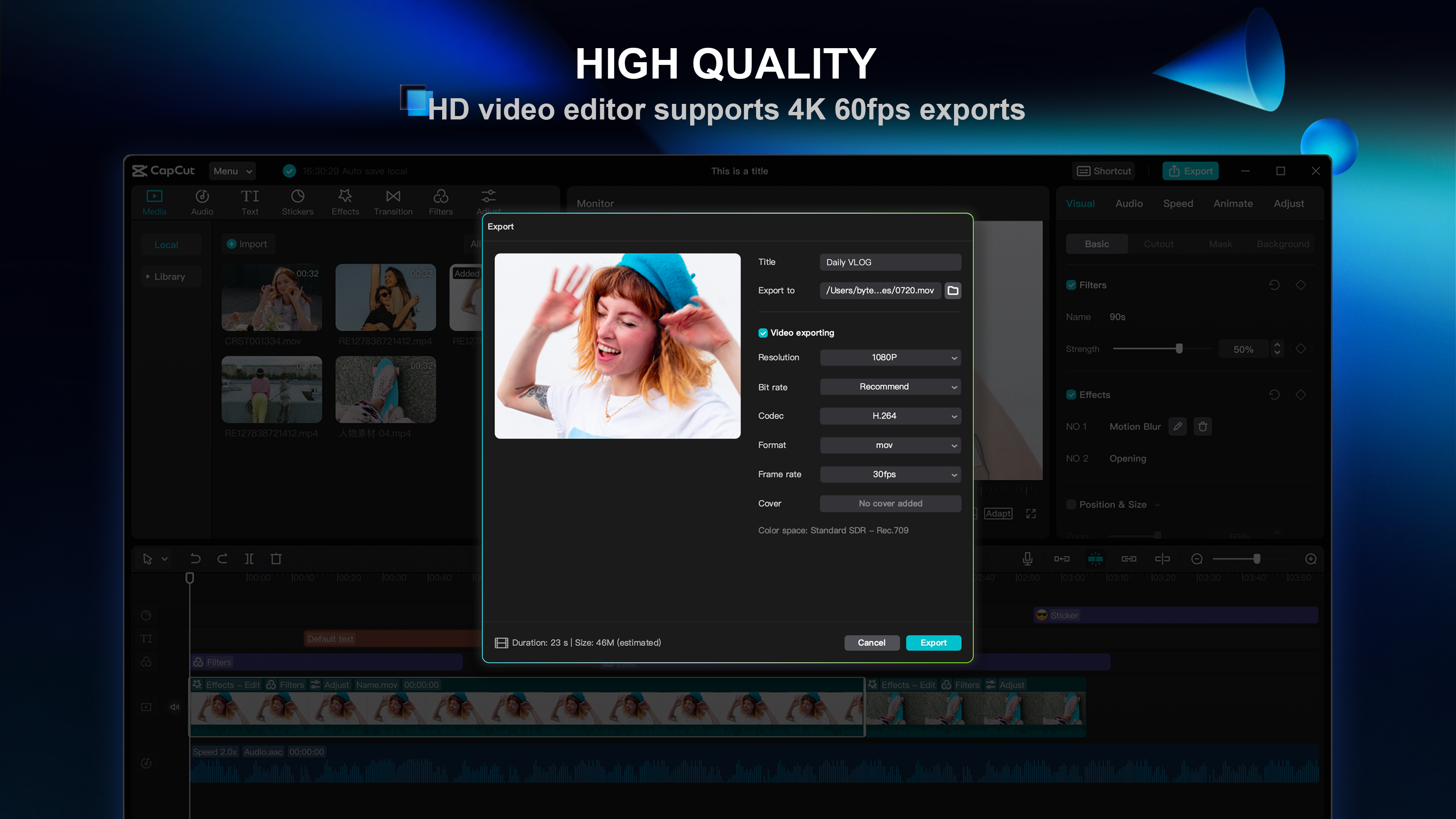
- High-quality export options
- Free to use
- Regular updates and improvements
Cons
- Limited advanced editing features
- Occasional performance lag on older devices
- Watermark added in free version
- Limited export formats
- Occasional trial bugs related to audio synchronization