- Name HEIC+
- Category Photo & video
- Developer WunderApps GmbH
- Available on PC, Surface Hub, HoloLens
- OS Windows 10 version 17763.0 or higher
- languages English (United States)
Introducing HEIC+ for Windows: Your Handy HEIC Image Companion
If you're tired of juggling complicated software just to view or convert HEIC images, HEIC+ for Windows offers a streamlined and user-friendly alternative. Designed to handle Apple's High Efficiency Image Format seamlessly, this app promises to make managing HEIC files as smooth as a gentle breeze on a spring day.
Meet the Developer and Core Features
Developed by WunderApps GmbH and published by Tim Grabinat, HEIC+ for Windows aims to simplify the process of viewing and converting HEIC images for everyday users and professionals alike. Its main highlights include high-speed image preview and effortless conversion, integrated batch processing, and a clutter-free interface.
- Fast HEIC Viewing and Conversion: Experience lightning-fast previewing of HEIC images and convert them to widely supported formats without fuss.
- Batch Processing Capabilities: Convert multiple images at once, saving you time and effort, especially useful for photographers or content managers dealing with large media libraries.
- Intuitive User Interface: Clean, minimalistic design ensures even novices can navigate confidently, reducing the learning curve to a matter of minutes.
Targeting users from casual smartphone users to professionals needing quick image conversions, HEIC+ adapts well to various demands, making it a versatile addition to your Windows toolset.
A Closer Look: Core Functionalities in Action
Effortless Image Preview and Conversion
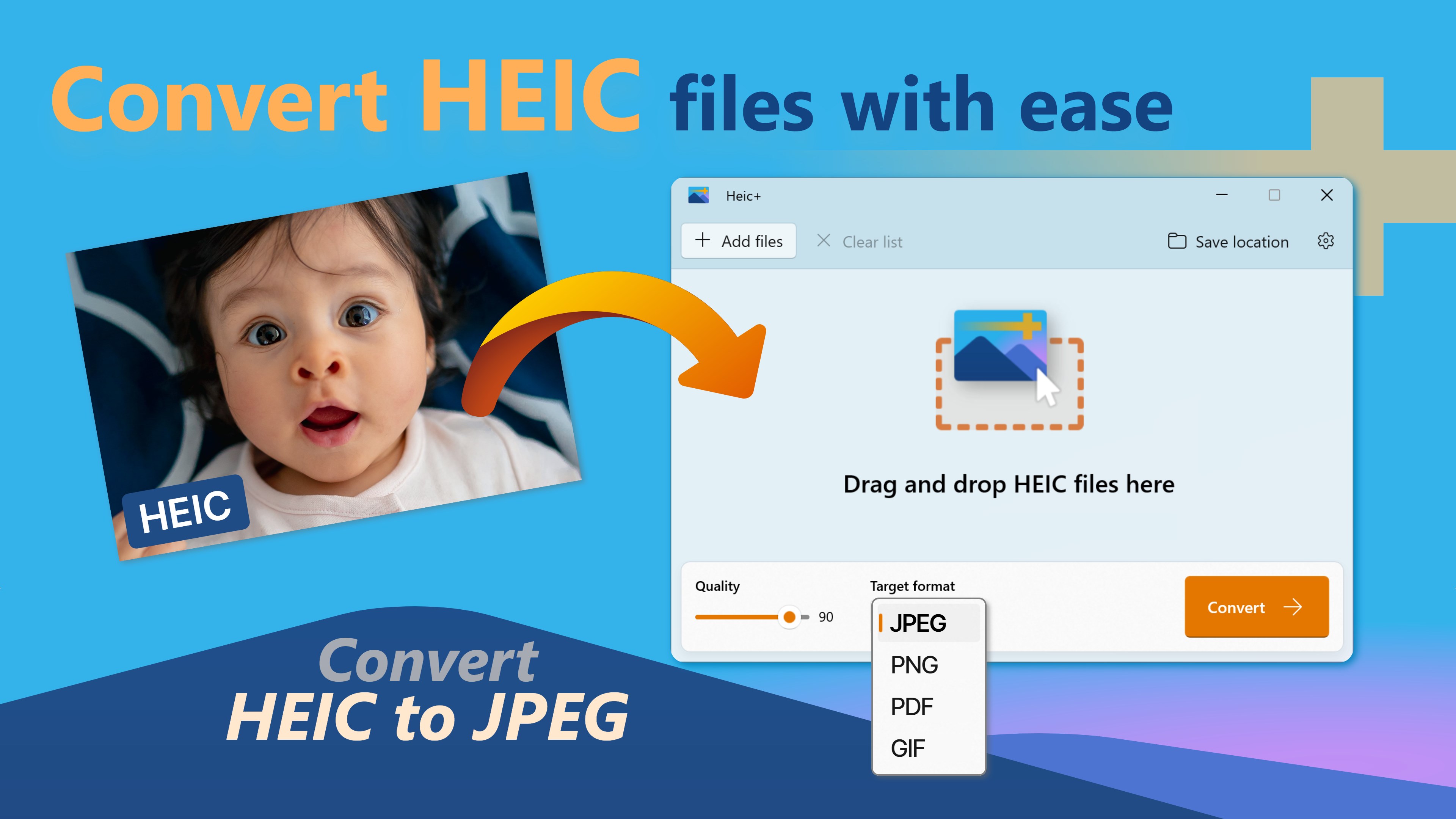
Imagine opening a folder full of HEIC photos on your Windows PC—HEIC+ instantly renders thumbnails with crisp clarity, much like flipping through a photo album. The app's speed is impressive, with smooth rendering that keeps the flow natural. When you need to convert, it offers a straightforward toggle—just a few clicks transform your HEIC files into JPEG or PNG, formats recognized across almost every device and platform. This core function eliminates the need for bulky third-party converters, making your workflow less about hassle and more about capturing memories.
Batch Processing: Handling Large Volumes with Ease
If you've ever felt overwhelmed by dozens or hundreds of images sitting on your desktop, HEIC+'s batch processing feature is a real time-saver. Drag-and-drop multiple files, select your output format, and let the app work its magic. It's like having a diligent assistant working behind the scenes as you sit back and relax. This feature is especially valuable for photographers, content creators, or anyone needing to streamline their image management—transforming what could be a tiresome chore into a simple, almost enjoyable task.
Design and User Experience: A Delightful Minimalism
The interface strikes a perfect balance—clean, modern, and easy to navigate. Think of it like a well-organized workspace: nothing distracts from the task at hand. The app operates smoothly, with lightning-fast response times and minimal lag, making it feel responsive and reliable. The learning curve is gentle; even users with minimal tech experience can start converting images within minutes, thanks to intuitive icons and straightforward workflows. This simplicity is a notable advantage over more complex photo editors that often come with unnecessary features or clutter.
What Sets HEIC+ Apart? Unique Selling Points
Compared to other photo viewing or conversion applications, HEIC+ distinguishes itself through its dedicated focus on HEIC files combined with simplicity. Its ability to handle batch conversions neatly and efficiently, coupled with a straightforward interface, makes it particularly appealing. Unlike certain free tools that might come with ads or limited features, HEIC+ offers a clean, focused experience tailored to users who need quick, reliable HEIC management without unexpected interruptions.
Furthermore, its seamless integration into Windows makes it feel like a natural extension of your desktop environment—no complicated installations or workarounds needed. For those seeking a dedicated HEIC solution that does its job well without unnecessary bells and whistles, HEIC+ stands out as a practical choice.
Final Verdict and Recommendations
HEIC+ for Windows earns a solid recommendation for users who frequently handle HEIC images and need a quick, straightforward tool. Its core strengths lie in rapid previewing and batch conversion—features most appreciated by photographers, marketers, or casual users. The intuitive interface and efficient performance ensure minimal learning curve, making it accessible to all levels of expertise.
If you're looking for a no-nonsense app to manage HEIC images, HEIC+ is certainly worth trying out. It may not have all the bells and whistles of full-fledged photo editors, but for its niche purpose, it excels—delivering what you need with minimal fuss. I suggest giving it a shot if your workflow involves a lot of HEIC files and you value speed and simplicity.
Pros
- User-friendly HEIC conversion
- High-quality image processing
- Batch processing support
- Intuitive interface
- Lightweight and fast
Cons
- Limited to HEIC format support
- Lack of editing tools
- Occasional compatibility issues
- No cloud integration
- Limited platform availability