- Name VLC
- Category Photo & video
- Developer VideoLAN
- Available on PC
- OS Windows 10 version 0.0 or higher
- Keyboard Integrated Keyboard
- Mouse Integrated Mouse
- Memory 300 MB
- DirectX Version 9
- languages Arabic, Chinese, English, French, Italian, Portuguese, Spanish
VLC for Windows: A Robust Media Player at Your Fingertips
VLC for Windows, developed by VideoLAN, stands out as a versatile and reliable media player capable of handling almost any audio or video format. Its open-source nature and rich feature set make it a favorite among casual users and media enthusiasts alike.
Meet the Developer: VideoLAN's Legacy of Excellence
Founded as a non-profit organization, VideoLAN has built a reputation for creating free, open-source multimedia solutions. VLC, their flagship product, has become a household name in media playback thanks to its extensive format support and platform independence.
Key Features That Shine
- Universal Format Support: Play virtually any multimedia file without the need for additional codecs—mqagic for those who get frustrated with incompatible formats.
- Streaming and Network Playback: Easily stream content from local networks or the internet, turning your PC into a multimedia hub.
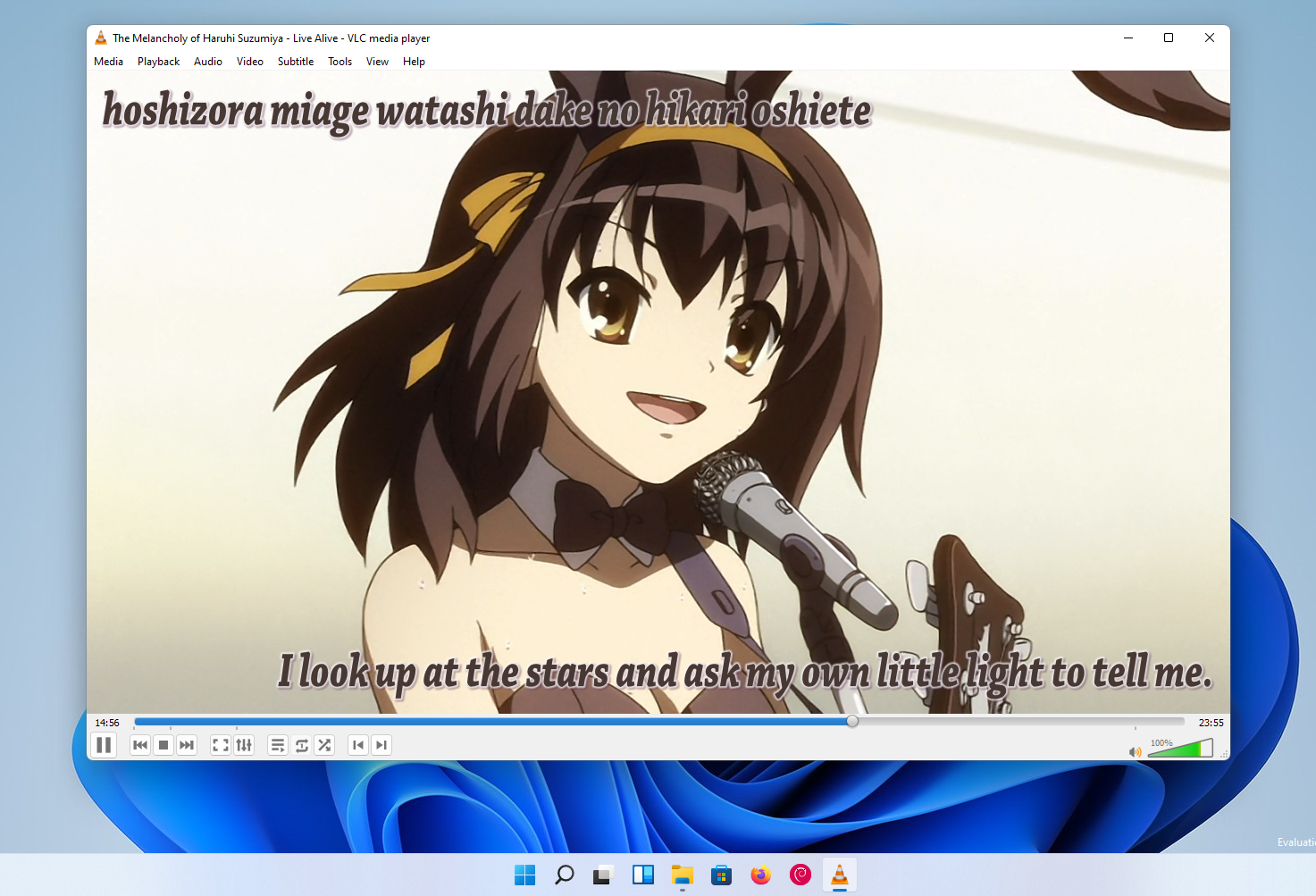
- Advanced Playback Controls: Includes features like subtitle synchronization, equalizer, and video filters catering to power users.
- Lightweight Yet Powerful: Despite its comprehensive features, VLC remains lightweight, ensuring minimal resource use and smooth operation.
First Impressions: Navigating Media Heaven
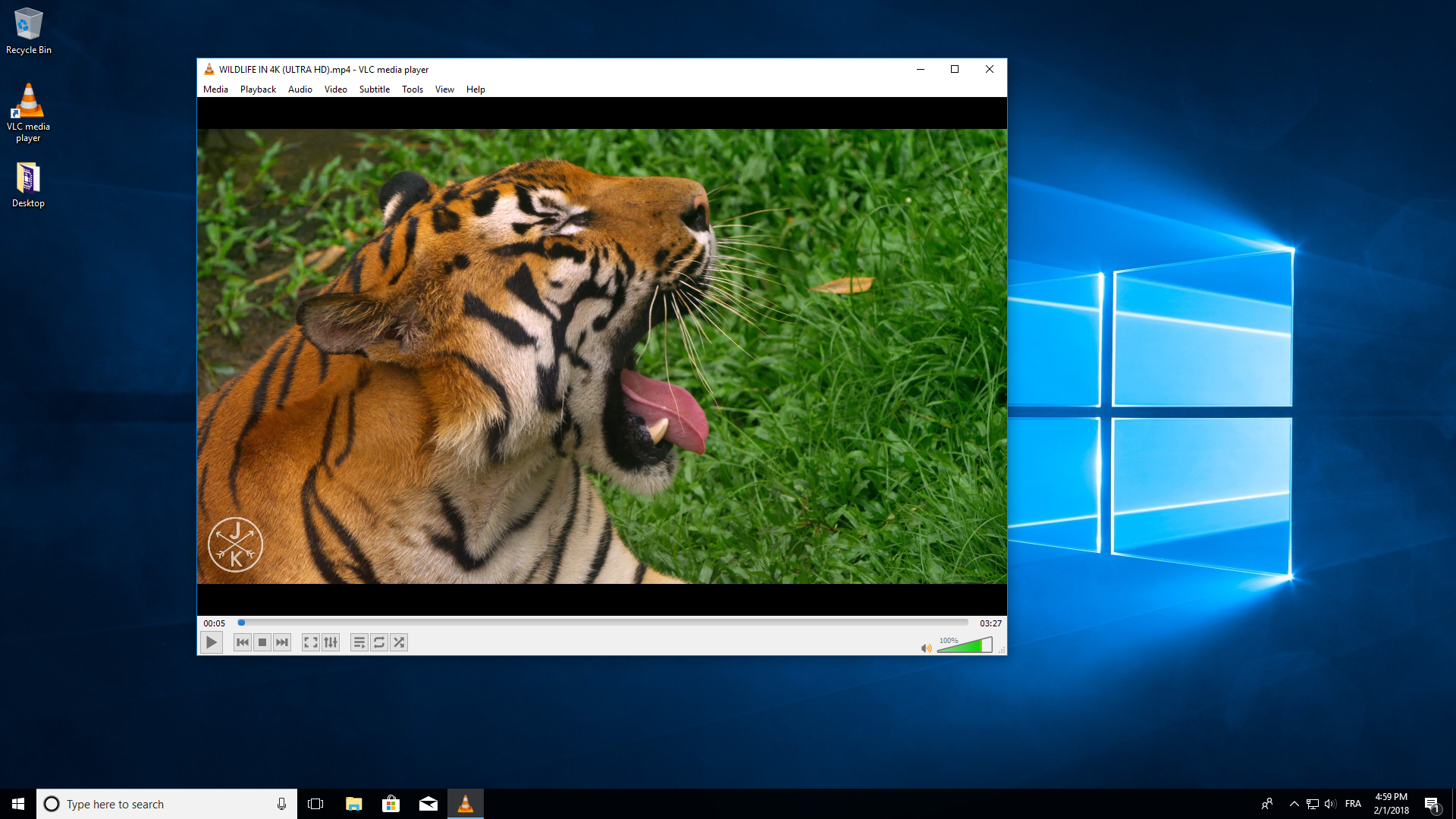
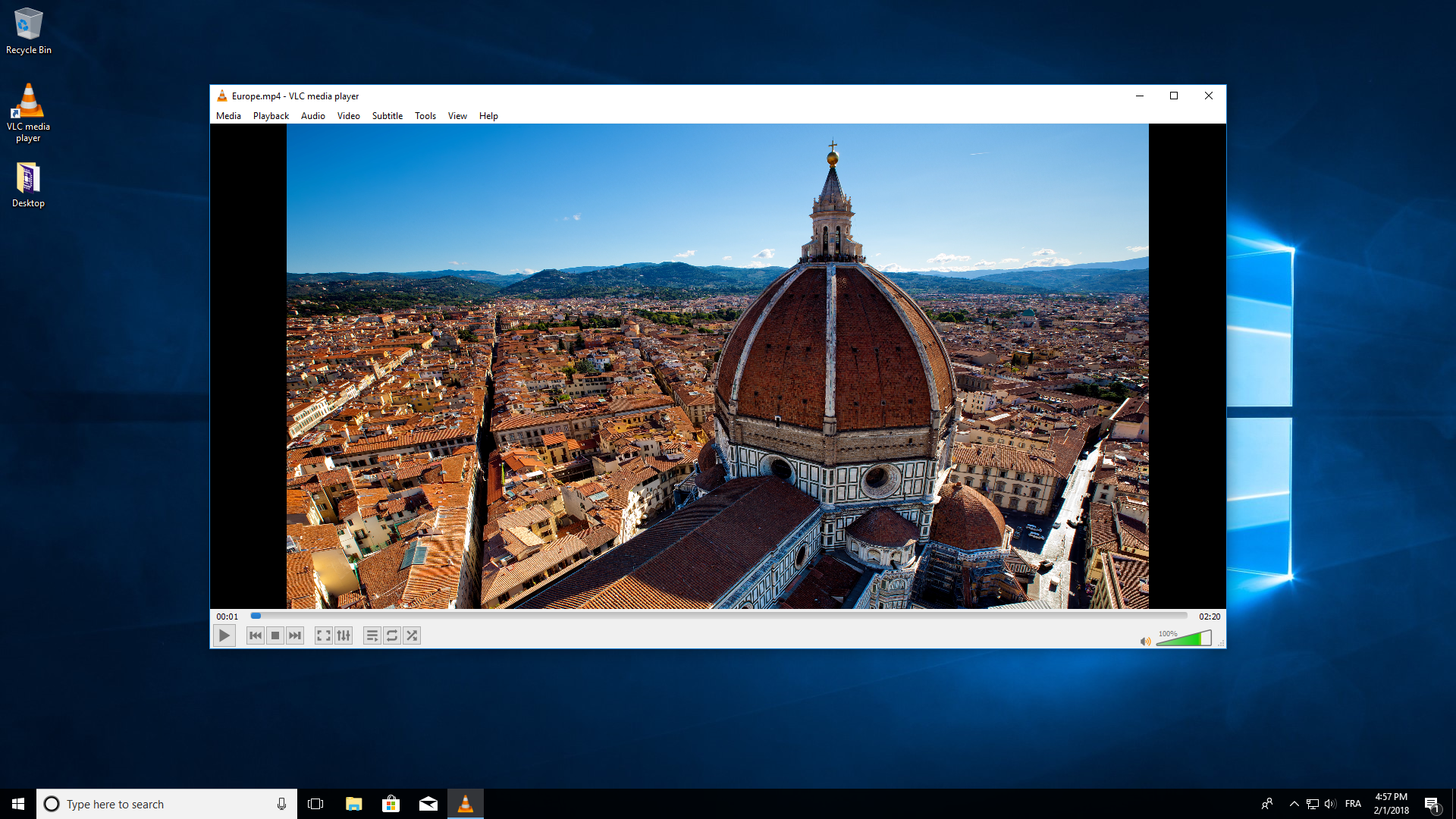
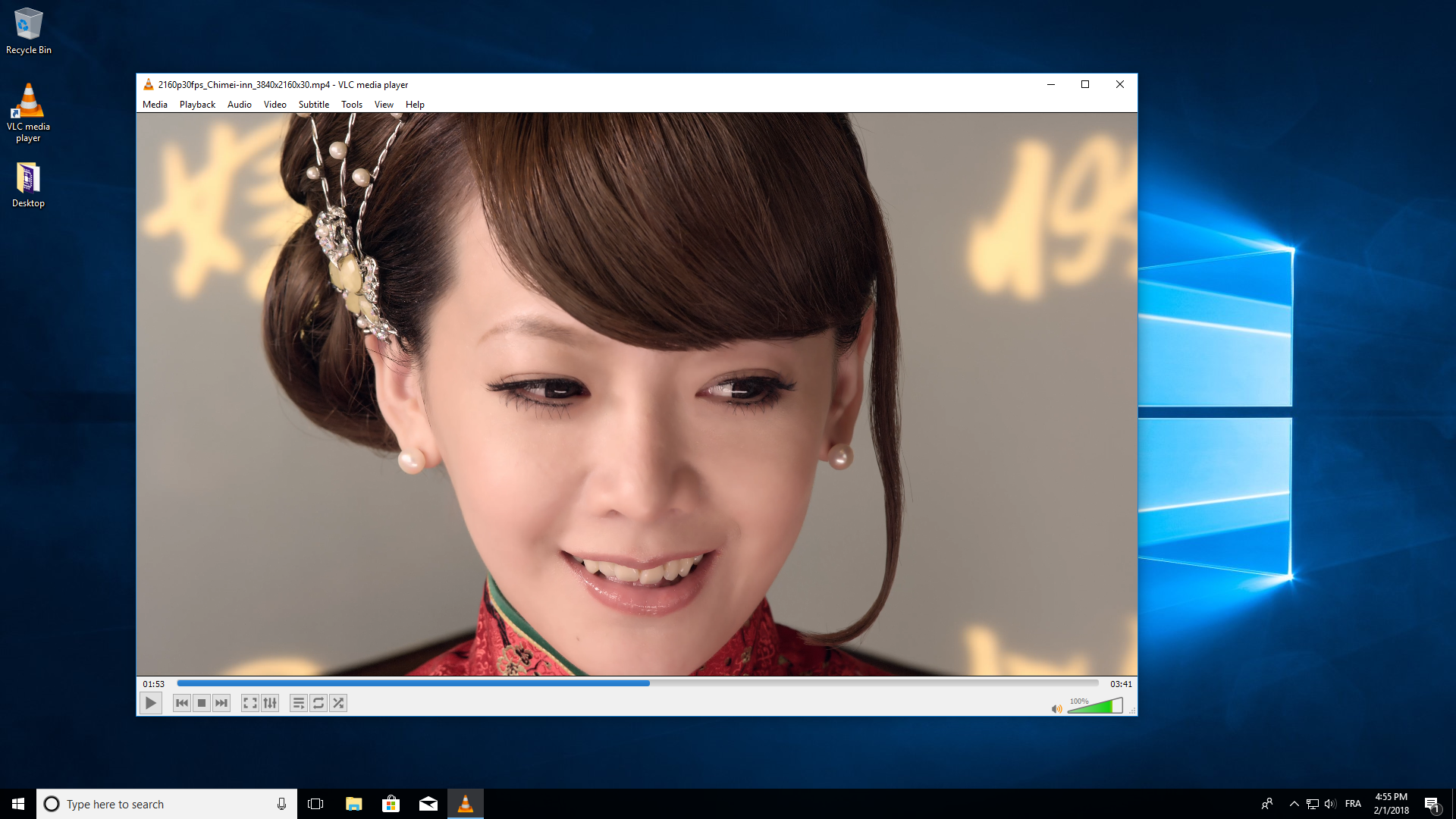
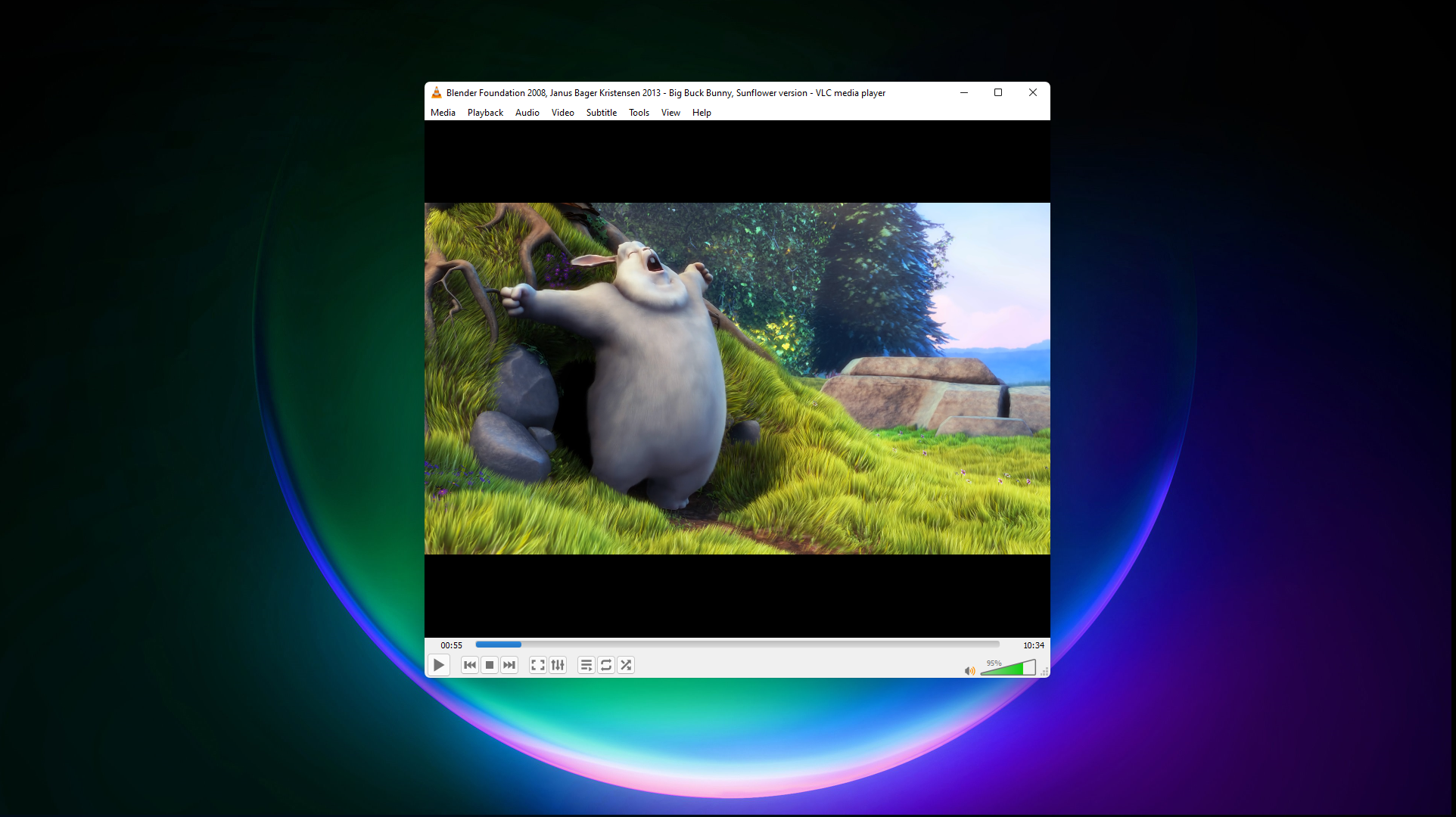
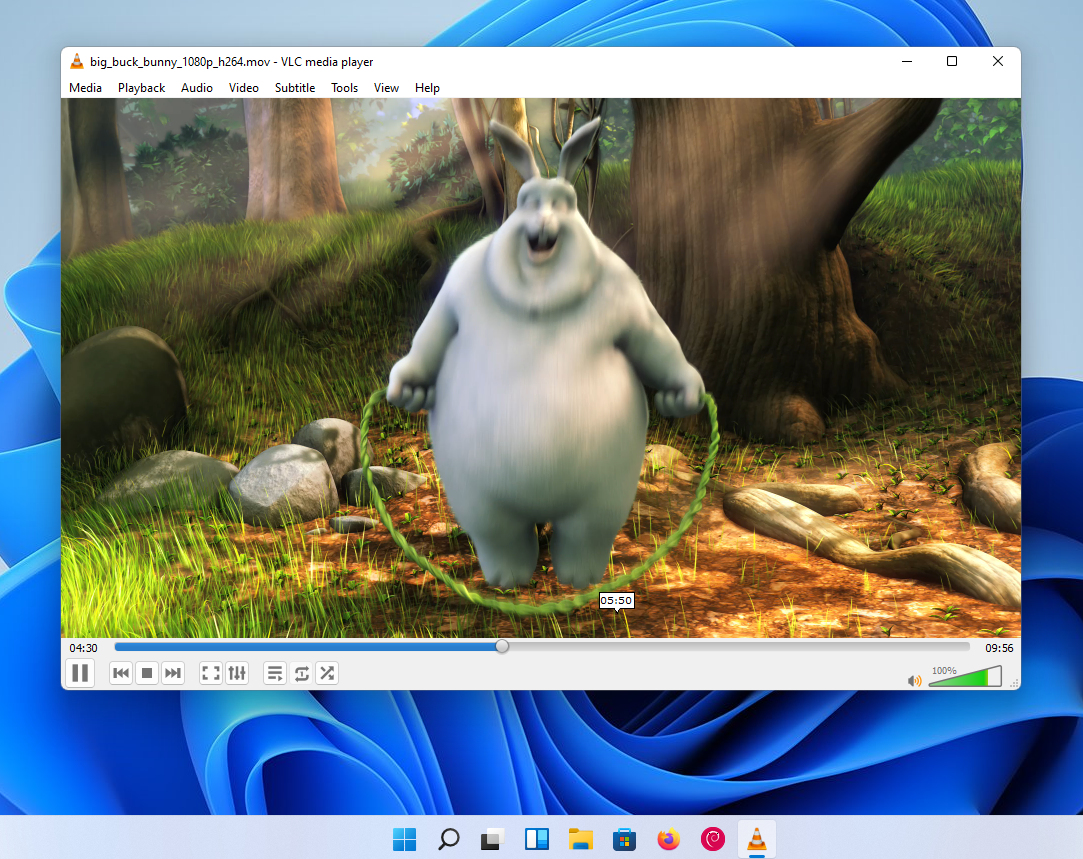
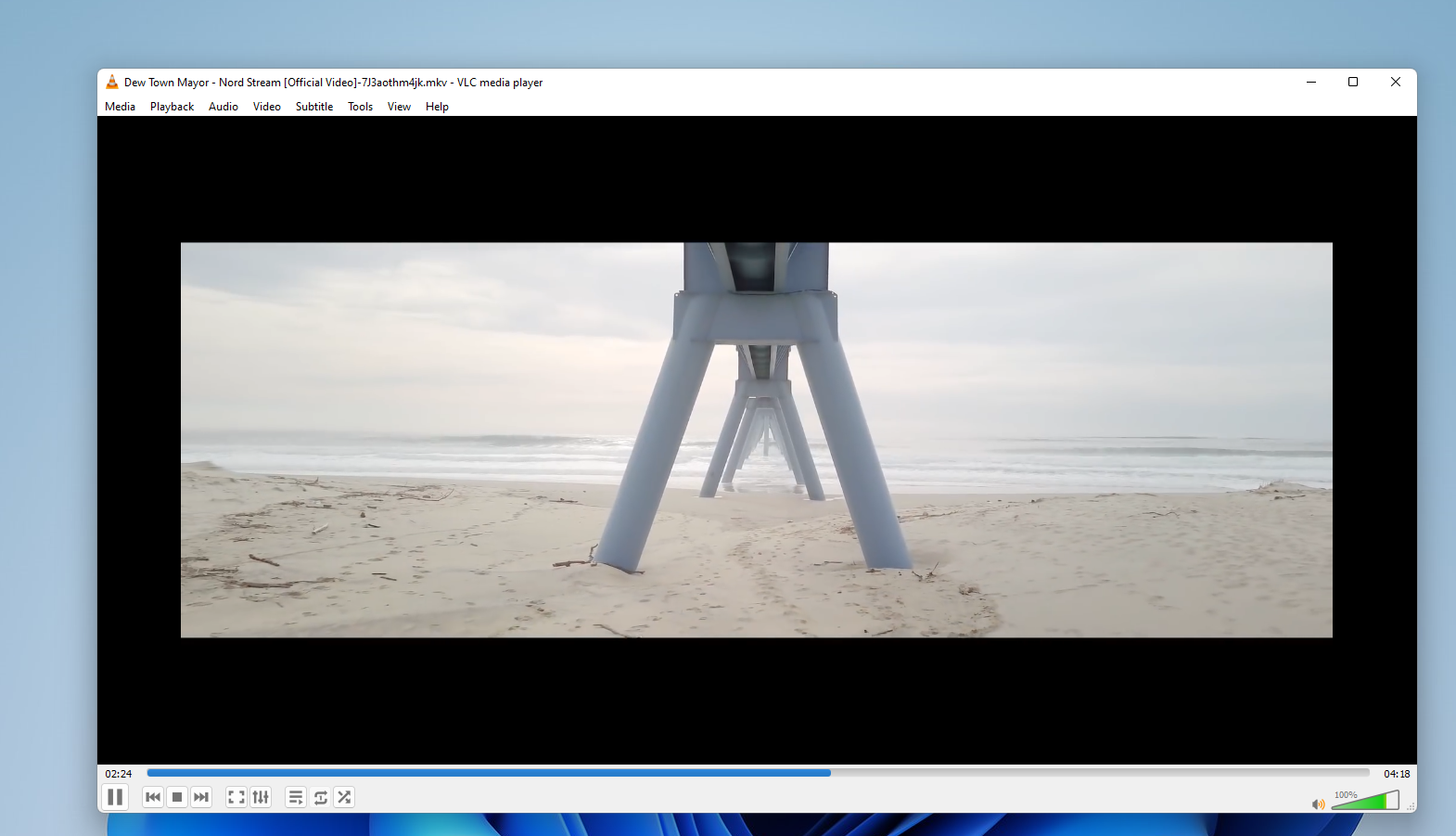
Launching VLC for Windows feels like stepping into a familiar yet refreshed media lounge. The interface is clean, straightforward, and easy to navigate—imagine walking into a well-organized media closet where every piece of content is just a click away. The dark theme adds a sleek, modern touch, making it comfortable for long viewing sessions. Overall, VLC strikes an excellent balance between simplicity and advanced functionality, making it accessible for newcomers while still satisfying tech-savvy users.
Streamlined Media Management
VLC's media library is minimal yet effective. You can drag and drop files directly into the interface or use the menu options to browse folders. The app also supports playlist creation, allowing you to queue up your favorite videos or music effortlessly. Its ability to read network streams means you can access online content seamlessly, turning your Windows device into a mini media server.
Core Functionality: Viewing and Customization
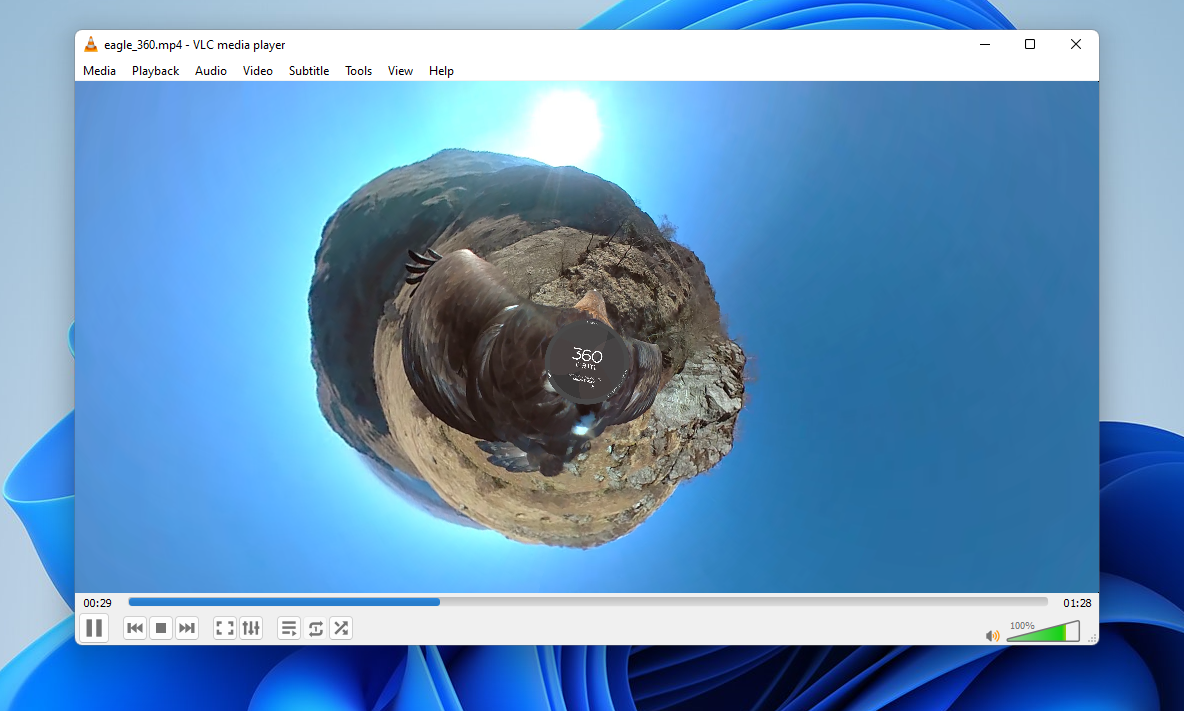
This is where VLC truly shines. The playback engine is remarkably robust—supporting 4K, 8K, and even 360-degree videos with smoothness and clarity. Users can fine-tune playback with an array of options, from adjusting subtitles to applying real-time video filters. The built-in equalizer and visualizations cater to audiophiles and those who want to tweak their listening experience. Overall, the interface feels intuitive, with controls easily accessible yet non-intrusive, making the user experience fluid and frustration-free.
Special Features That Set VLC Apart
One of VLC's standout features is its ability to play damaged or incomplete media files—think of it as a skilled chef who can salvage a dish others might discard. Additionally, its media conversion capabilities allow users to convert files into various formats directly within the app, saving time and external software. These features, combined with support for DVDs and streaming protocols, make VLC a comprehensive media toolkit.
Final Verdict: Is VLC for Windows a Must-Have?
Overall, VLC for Windows offers a balanced mix of power, simplicity, and versatility. Its ability to handle virtually any media format, coupled with advanced playback features and an uncluttered design, makes it a top recommendation for everyday users and professionals alike. While it may lack some of the polished multimedia editing tools found in specialized applications, its primary role as a reliable playback tool is unquestioned.
If you're searching for a media player that just works without fuss and can handle your entire media library effortlessly, VLC is definitely worth trying. For those who enjoy tinkering with media settings or streaming content, VLC's customizable features will keep you engaged without overwhelming you with complexity.
Pros
- Open-source and free
- Supports a wide range of formats
- Lightweight and fast
- Extensive customization options
- Cross-platform compatibility
Cons
- User interface can be cluttered
- Limited advanced streaming features
- Occasional stability issues with certain codecs
- Official app lacks integrated cloud syncing
- Some features require technical knowledge to optimize