- Name Camo Studio
- Category Photo & video
- Developer Reincubate
- Available on PC
- OS Windows 10 version 19041.0 or higher
- DirectX Not specified
- languages Arabic, Basque, Bulgarian, Catalan, Chinese (Simplified), Chinese (Traditional), Croatian, Czech, Danish, Dutch, English (United Kingdom), English (United States), Estonian, Finnish, French, Galician, German, Greek, Hebrew, Hindi, Hungarian, Italian, Japanese, Korean, Latvian, Lithuanian, Norwegian (Bokmål), Polish, Portuguese, Portuguese (Brazil), Romanian, Russian, Serbian (Cyrillic), Serbian (Latin), Slovak, Slovenian, Spanish, Swedish, Thai, Turkish, Ukrainian
Introducing Camo Studio for Windows: Your Gateway to Perfect Video Background Removal
If you've ever dreamed of transforming your webcam recordings into slick, professional-looking videos without sweating over complex editing software, Camo Studio might just be your new best friend. Designed with creators, gamers, and remote workers in mind, this app promises to simplify the process of background replacement and webcam customization, delivering studio-quality results right from your PC.
Developer and Core Highlights
Developed by Reincubate, a company renowned for innovative solutions in hardware and software integration, Camo Studio stands out for its user-centric approach. Its key features include real-time background removal, flexible visual customization, and seamless integration with popular streaming platforms. Whether you're streaming, recording, or simply video chatting, Camo Studio aims to elevate your visual presentation effortlessly.
Engaging and Practical User Experience
Imagine sitting comfortably in your home office, ready to jump on a video call, but suddenly needing a professional-looking background—Camo Studio acts like a magic wand, transforming your cluttered room into a sleek studio with just a few clicks. The app boasts an intuitive interface that welcomes new users, guiding them smoothly through setup and customization. Despite its powerful capabilities, the learning curve is gentle; you'll find yourself up and running faster than brewing a morning cup of coffee, making professional-grade video production accessible for everyone.
Powerful Core Feature #1: Real-Time Green Screen Replacement
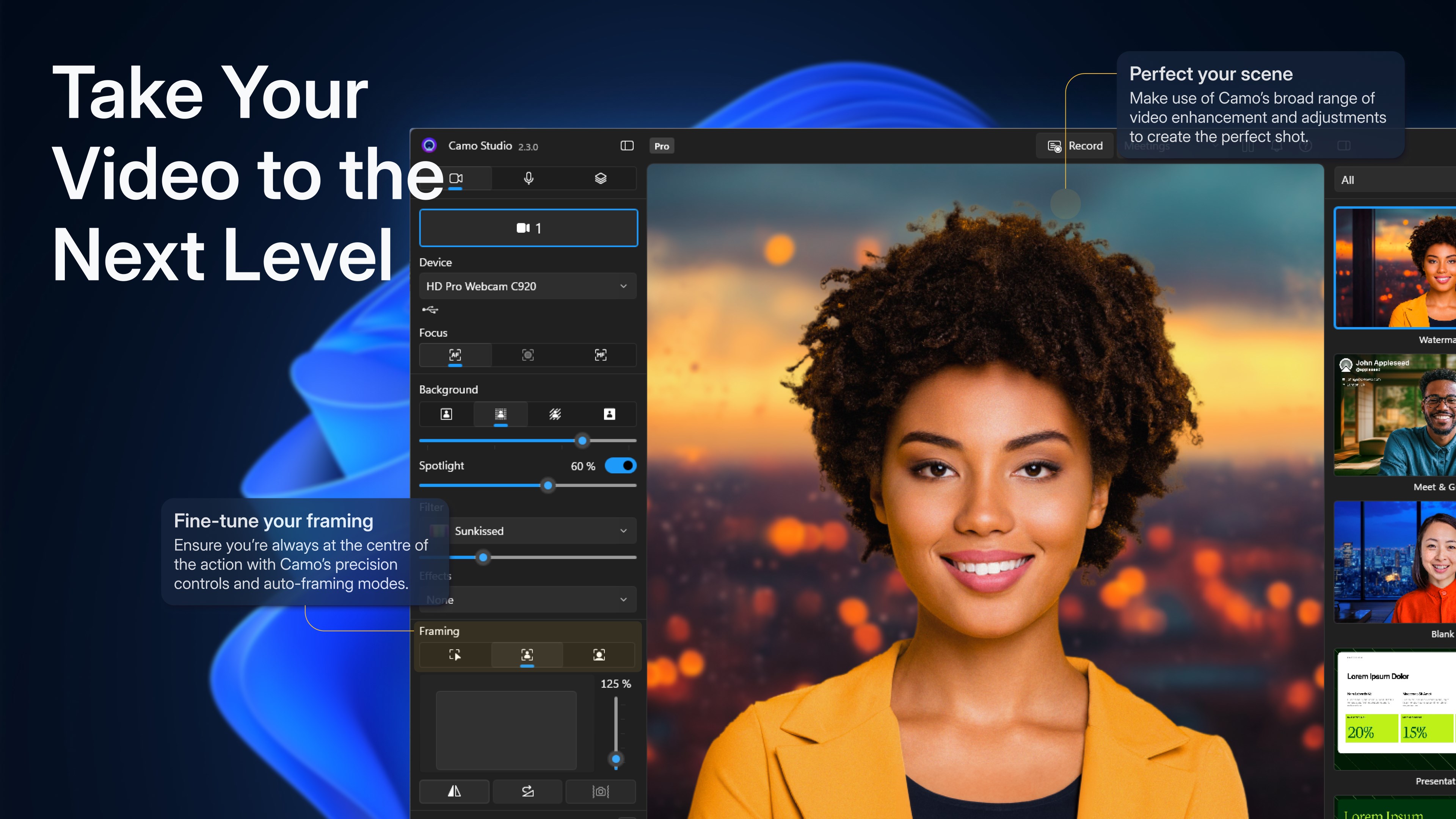
The crown jewel of Camo Studio is its advanced live background removal, often likened to having a personal green screen wizard at your fingertips. Unlike other applications that rely heavily on dedicated hardware or complex setup, Camo's software algorithm processes your webcam feed in real time, providing a clean, sharp background replacement without lag or artifacting. This feature is particularly invaluable for streamers and remote professionals who want to instantly conceal messy backgrounds or replace them with branded images, scenic views, or corporate logos—think of it as your virtual studio behind-the-scenes crew.
Core Feature #2: High-Quality Visual Customization
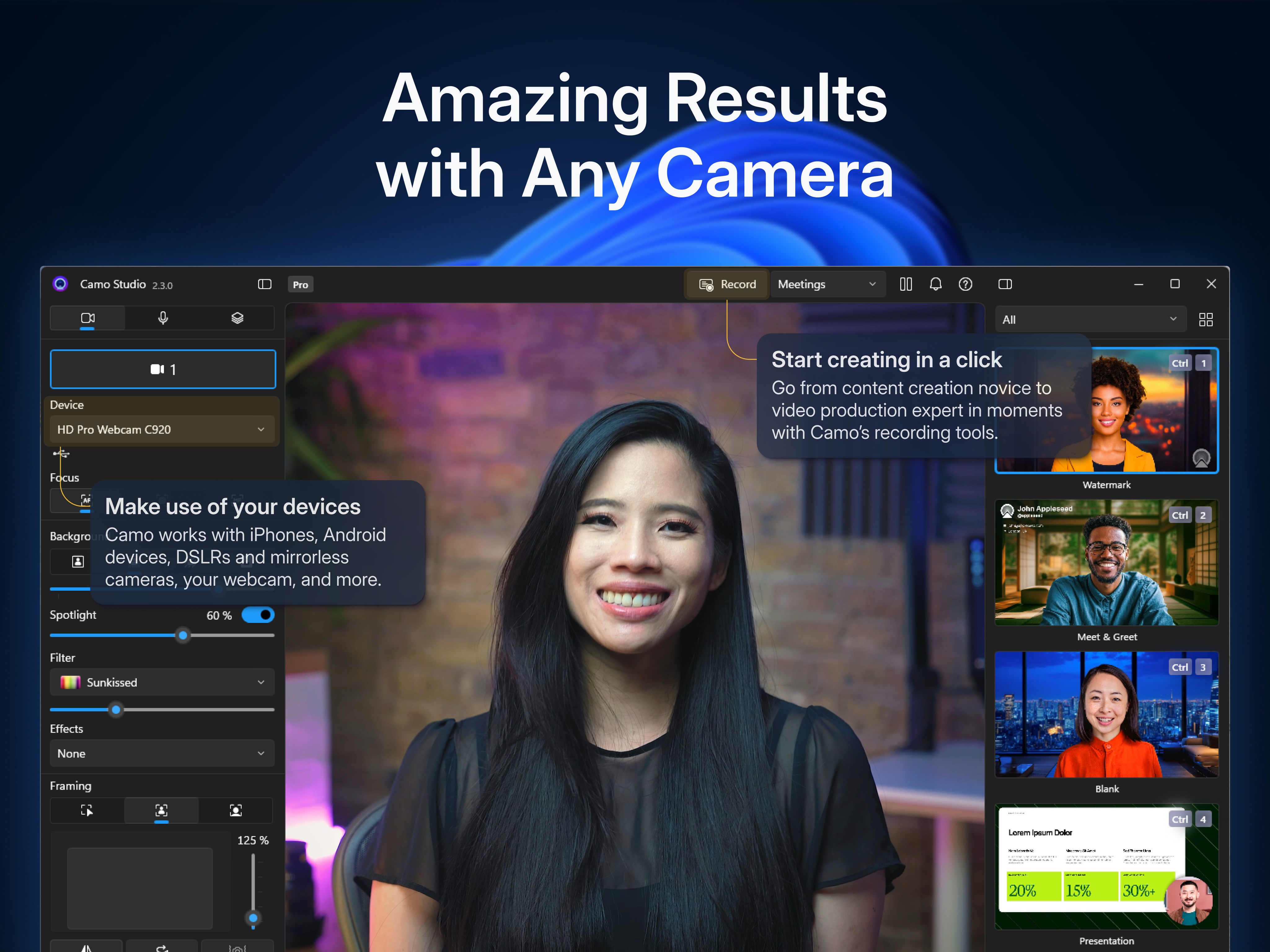
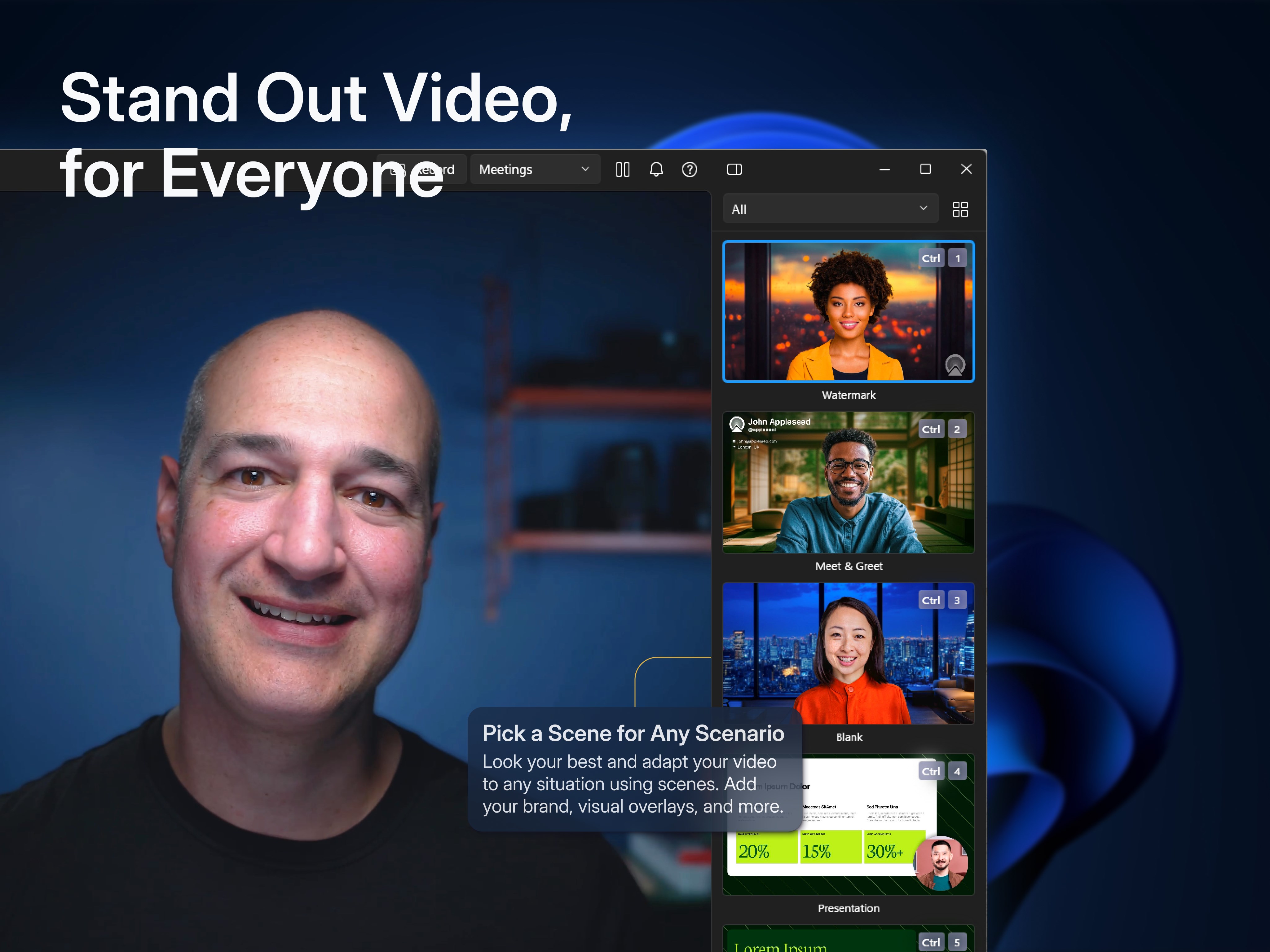
Beyond just background removal, Camo Studio offers a suite of customization options—adding overlays, filters, and dynamic scene switching. It's akin to personalizing a digital stage for your presentation, allowing you to choose from a variety of themes or create your own. The interface makes it straightforward to resize, position, and tweak elements, ensuring your video output aligns with your style. What makes this stand out is its versatility; whether you're aiming for a formal professional look or a fun, casual vibe, Camo accommodates your needs without requiring advanced graphic skills.
Design, Usability, and Unique Advantages
The app boasts a sleek and modern UI, reminiscent of a well-organized workspace—clear menus, drag-and-drop features, and instant previews. Operation is remarkably smooth; even on modest hardware, the real-time processing remains stable and responsive, demonstrating impressive optimization. While many similar apps demand a steep learning curve, Camo Studio's approach is more like chatting with a knowledgeable friend—informative but approachable. It's particularly notable for its reliance solely on software processing, avoiding the need for expensive green screens or hardware upgrades, which democratizes high-quality webcam effects for everyday users.
What Sets Camo Studio Apart?
Unlike many competitors that focus solely on background removal, Camo Studio emphasizes seamless integration with popular streaming and video conferencing platforms. Its ability to work with all major apps without cumbersome workarounds gives it a clear edge. Moreover, its real-time capabilities combined with high visual fidelity mean you get a broadcast-quality look without expensive gear or elaborate setups. This makes Camo not just a tool, but a comprehensive virtual studio solution for a variety of use cases—from gaming streams to remote job interviews.
Recommendations and Usage Suggestions
Considering its robust feature set, user-friendly design, and impressive adaptability, I give Camo Studio a solid thumbs-up for anyone looking to enhance their video presence with minimal fuss. It's especially ideal for content creators seeking quick, professional effects, or professionals aiming for polished virtual backgrounds. However, for heavy-duty video editing or post-recording effects, it's best to view Camo as a real-time enhancement tool rather than a comprehensive editing suite.
In summary, Camo Studio offers an accessible yet powerful way to elevate your webcam videos to the next level. Its standout feature—the real-time background removal—is a game-changer that sets it apart from similar applications. If seamless, high-quality virtual presentation is your goal, this app deserves a top spot in your toolkit.
Pros
- High-quality real-time camera overlay
- User-friendly interface
- Customizable AR effects
- Stable performance during streaming
- Compatibility with various devices
Cons
- Limited editing features in the app
- Occasional connection interruptions
- Learning curve for advanced features
- Resource consumption on lower-end devices
- Lack of comprehensive tutorial content