
- Name Webcam Motion Detector Recorder
- Category Security
- Available on PC
- OS Windows 10 version 14393.0 or higher
- languages English
A Fresh Take on Home Security: Webcam Motion Detector Recorder for Windows
If you're tired of clunky security setups that complicate your life, the Webcam Motion Detector Recorder for Windows by EvlarSoft LLC offers a sleek, user-friendly solution that combines simplicity with reliable motion detection. Designed to turn your ordinary webcam into a vigilant guard, this app promises to keep an eye on your space without draining your resources or overcomplicating your workflow.
Basic Information: Setting the Scene
At its core, the Webcam Motion Detector Recorder is a lightweight yet powerful app that transforms your Windows device into a real-time security monitor through intelligent motion detection. Developed by EvlarSoft LLC, a company dedicated to creating intuitive and effective security tools, the app's strengths lie in simplicity and practicality.
- Main Features: Advanced motion detection with customizable sensitivity, automatic recording and alerts, and a user-friendly interface that requires no advanced technical skills.
- Target Users: Homeowners seeking an easy DIY surveillance solution, small business owners wanting basic security, and tech enthusiasts interested in customizing their security setup without investing in expensive hardware.
Engaging the Sense of Vigilance: First Impressions and Overall Experience
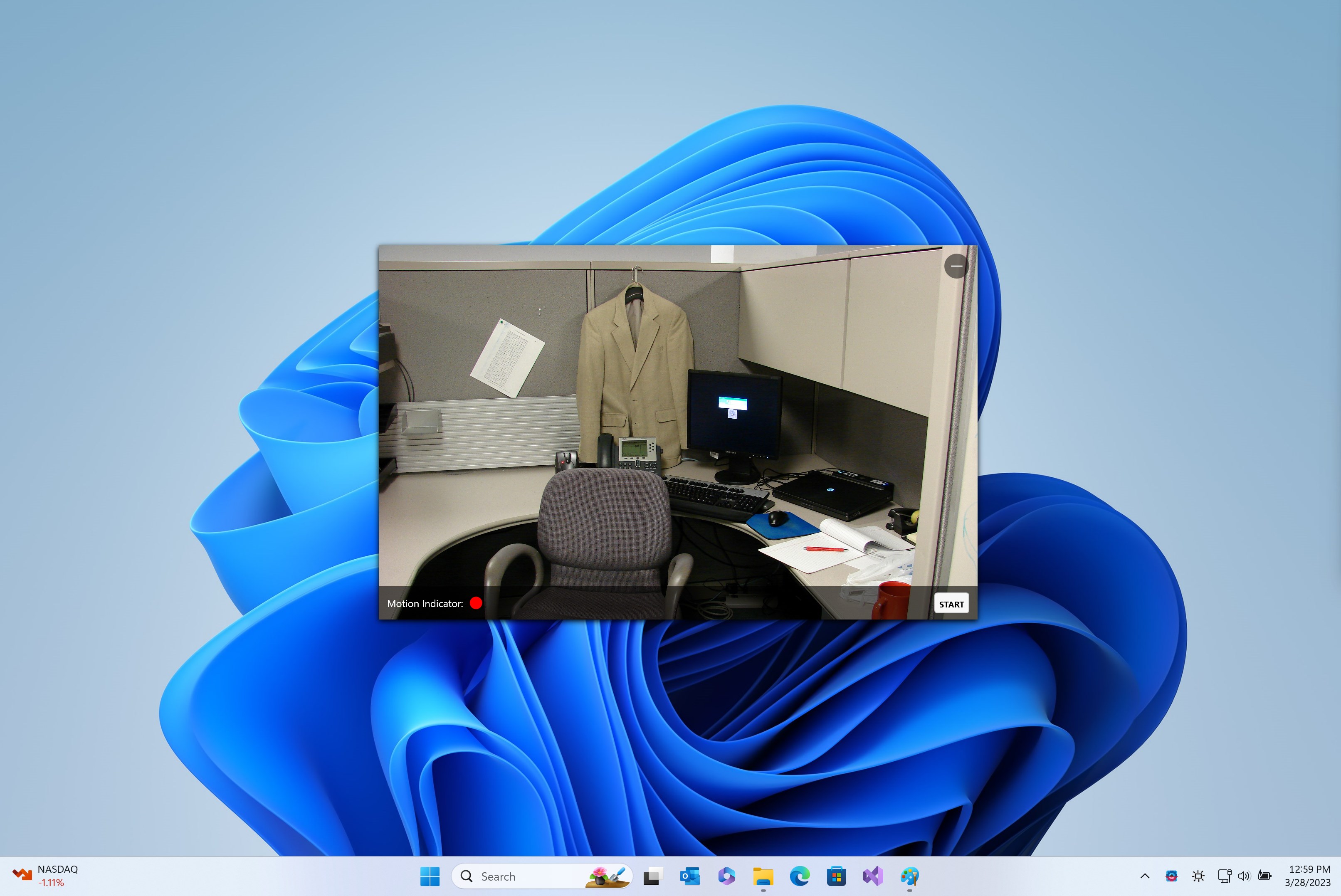
Imagine waking up to the gentle hum of your computer, but instead of a mundane desktop, it's quietly working as a security sentinel—detecting movement like a watchful guardian. That's the vibe this app brings: simple, unobtrusive, and effective. Its interface resembles a sleek control panel rather than a cluttered dashboard, making navigation feel natural—almost like chatting with a tech-savvy friend who knows exactly how to get things done without fuss.
Transitions between different functions are smooth, with minimal lag, whether you're adjusting the sensitivity or reviewing recorded footage. The learning curve is gentle—most users will be up and running within minutes, thanks to clear prompts and intuitive controls. This accessibility lowers the barrier for users unfamiliar with advanced security tools, making it more than just another app—it's a practical companion in your home or office security toolkit.
Core Functional Highlights: Precision and Usability
Smart Motion Detection & Customization
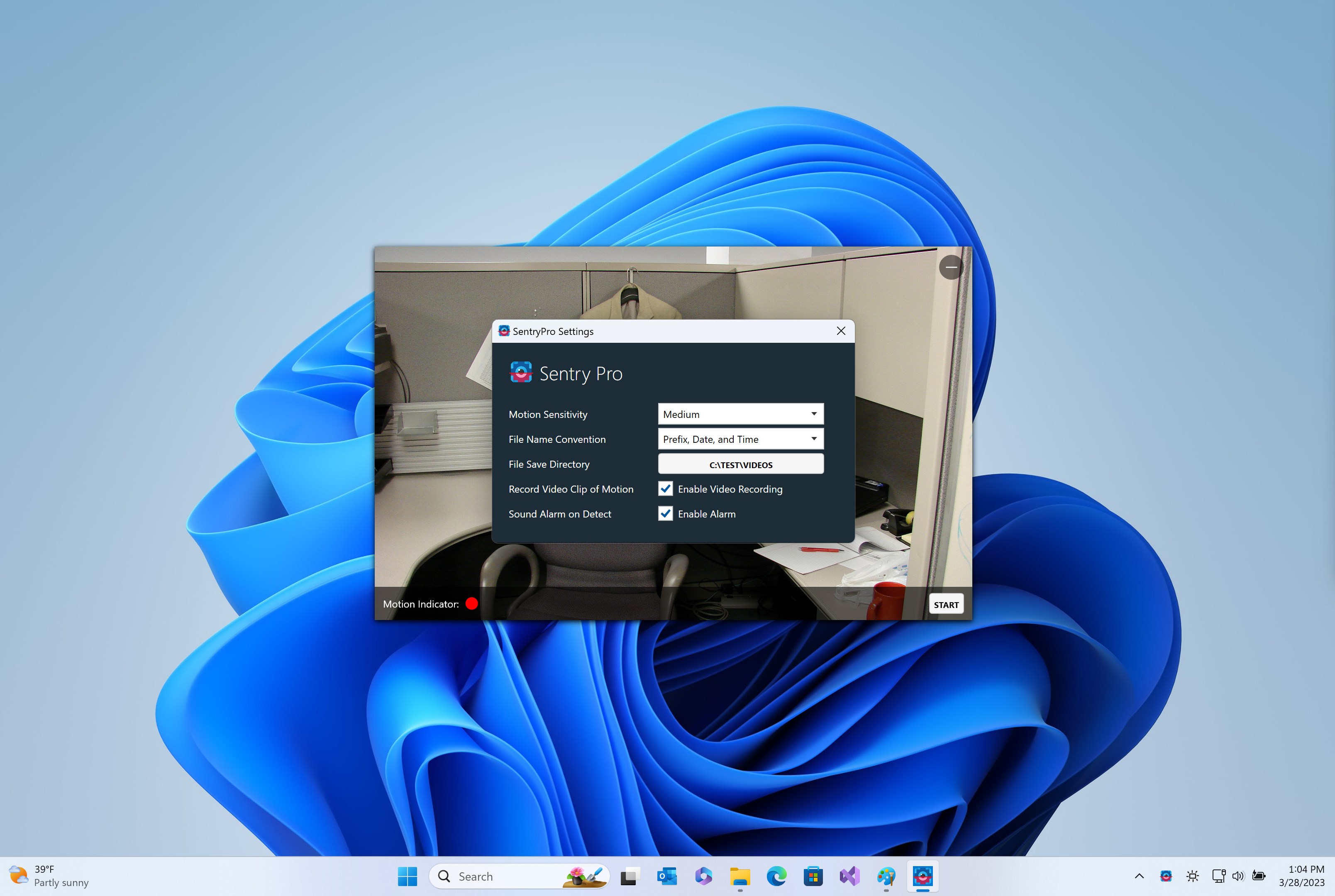
The standout feature of this app is its ability to detect motion intelligently. Instead of bombarding you with false alarms, the app allows nuanced adjustments—think of it as fine-tuning a sensitive musical instrument. You can set detection zones and sensitivity thresholds, ensuring the camera focus on what truly matters, be it a suspicious movement or your pet wandering into the frame. This level of customization makes it more than just a passive recorder; it's a perceptive sentinel that reduces unnecessary alerts, saving your time and energy.
Automatic Recording & Alert System
Once motion is detected, the app springs into action, automatically starting to record and optionally sending you notifications—like a vigilant friend nudging you when something unusual happens. The recordings are saved locally, with timestamps and easy access, forming an accessible security log. This feature is particularly handy for quick reviews or if you need to present evidence later, making the app indispensable for those who value prompt, automatic responses without manual intervention.
Intuitive User Interface & Ease of Use
The interface resembles a modern smart home control panel—clean, straightforward, and designed for quick understanding. Common tasks like switching cameras, adjusting detection zones, or reviewing recordings can be accomplished with just a few clicks. From a user experience standpoint, the app exhibits minimal lag and provides helpful prompts, ensuring both beginners and seasoned users find it accessible. Its simplicity doesn't come at the expense of power; rather, it streamlines complex procedures into an elegant flow.
What Sets It Apart? Unique Advantages
While many security applications flood the market with features and options, this app's real strength lies in its focus on simplicity paired with reliable performance. Unlike bulkier apps that require extensive setup or hardware investments, Webcam Motion Detector Recorder offers an almost plug-and-play experience—think of it as a trusty alarm clock that just works, every time, without fuss.
Additionally, its customizable detection zones make it stand out. You can designate specific areas of the camera view to monitor, reducing false alarms triggered by irrelevant movements. This targeted approach mirrors how a security guard might focus on critical points rather than scanning an entire field blindly. For those who want an effective yet low-maintenance security setup, these features are invaluable.
Final Verdict and Usage Recommendations
I'd recommend this app to users seeking a straightforward, reliable webcam security tool that doesn't require advanced technical knowledge. Its intuitive design and core features make it great for basic home monitoring or small business surveillance—especially if you want to avoid the complexity and expense of professional systems.
While it might not replace comprehensive, multi-camera security solutions for larger setups, its efficiency and precision make it an excellent choice for personal use or as a supplementary monitor. For best results, ensure you calibrate detection zones and sensitivity settings according to your environment—this will maximize its accuracy and utility.
Overall, Webcam Motion Detector Recorder for Windows is a practical, no-nonsense tool that quietly works in the background, providing peace of mind without the headaches—definitely worth trying if you want reliable security with minimal fuss.
Pros
- Easy Setup and User-Friendly Interface
- Real-Time Motion Detection Alerts
- High-Quality Video Recording
- Supports Multiple Cameras
- Free Basic Version Available
Cons
- Limited Customization Options
- Occasional False Alerts
- Requires Continuous Power Supply
- No Cloud Storage Integration
- Performance May Lag on Older PCs