- Name G Authenticator - For (Google) Service
- Category Security
- Developer Apppre Mobile
- Available on PC, Mobile, Surface Hub, HoloLens
- OS Windows 10 version 17763.0 or higher
- languages English
Quick Overview: Your Reliable Windows TOTP Authenticator
G Authenticator - For (Google) Service for Windows is a straightforward yet powerful app designed to help users generate time-based one-time passwords (TOTPs) efficiently within the Windows environment, ensuring seamless and secure multi-factor authentication.
Meet the Developer and Core Highlights
Developed and published by Apppre Mobile, this application aims to bring the trusted Google Authenticator experience to Windows users who prefer desktop management of their 2FA codes. Its main features include an intuitive interface tailored for easy setup, fast and reliable code generation, and a focus on data privacy without cloud dependency. It's ideal for users who want to keep their 2FA tokens accessible directly from their PCs, especially those who handle multiple accounts.
A Bright New Way to Secure Your Digital Life
Imagine sitting comfortably at your desk, with all your precious passwords stored safely in your mind—and your 2FA codes right in your Windows menu, ready to authenticate in a blink. That's the kind of peace of mind G Authenticator offers: a clean, clutter-free interface that turns complex security routines into a simple, almost conversational process. Whether you're managing work accounts or personal services, this app acts as your trusted sidekick, quietly ensuring your digital fortress remains impenetrable.
Core Functionality: Simplified and Efficient TOTP Management
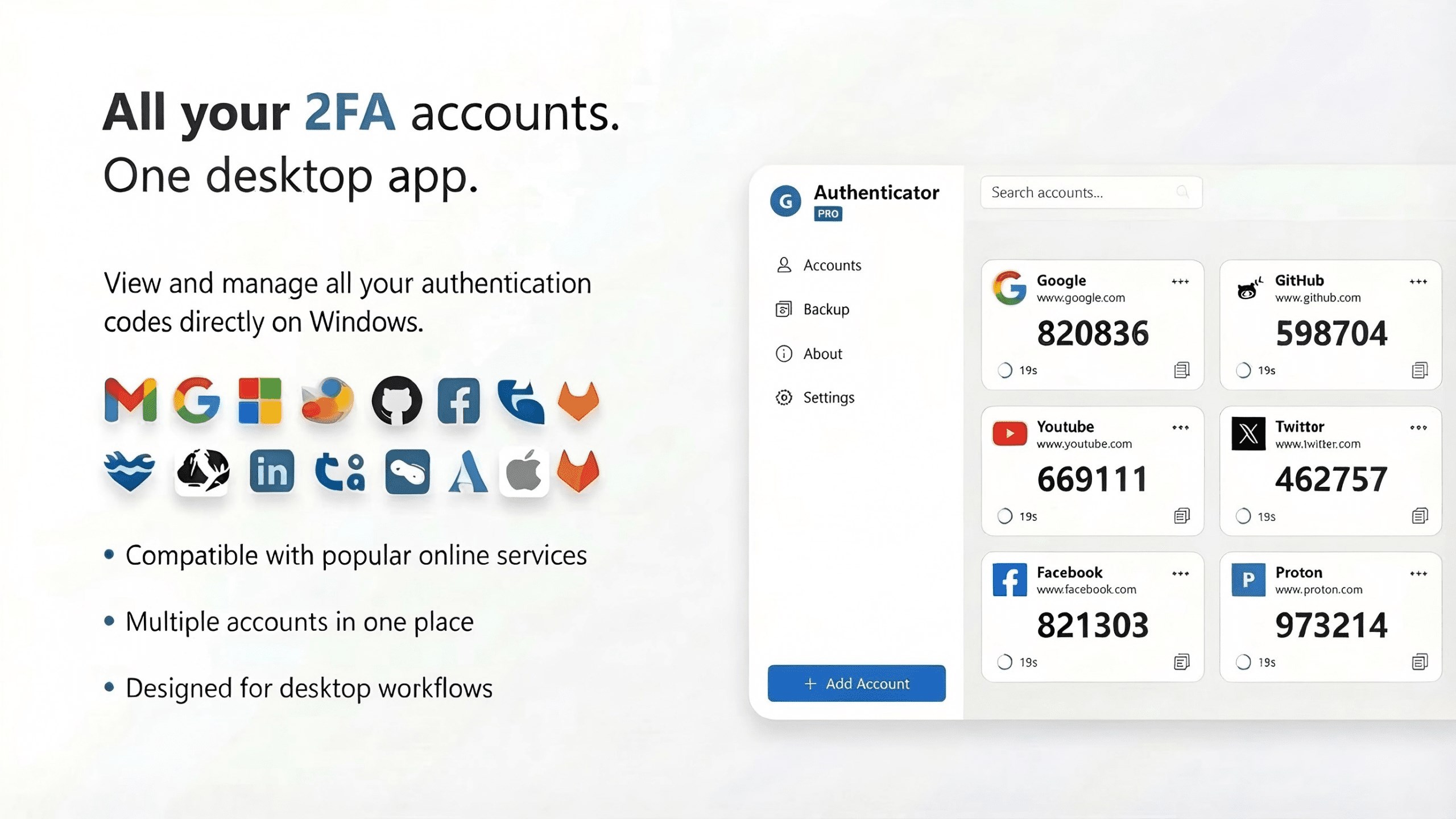
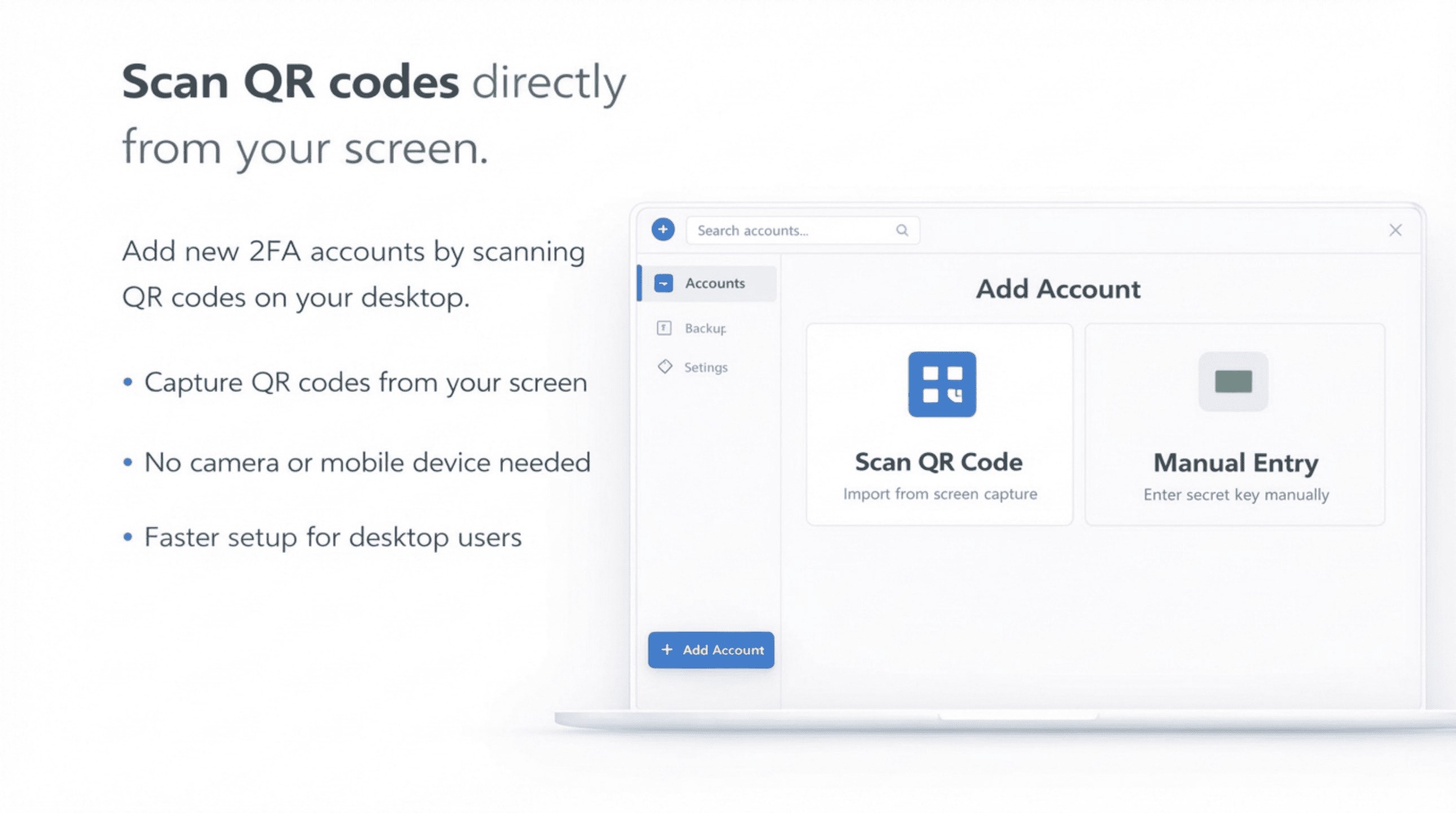
The core appeal of G Authenticator lies in its ability to generate accurate time-based codes for your Google services or any compatible applications. The setup process is straightforward—simply scan QR codes or input secret keys manually. Once configured, it provides instant code refreshes every 30 seconds, keeping all your accounts synchronized without lag or hiccup. Its minimalistic design means you're not drowning in unnecessary options; instead, everything is neatly organized and easily accessible, which is perfect for rapid logins in a busy workflow.
Elegant User Interface & Smooth User Experience
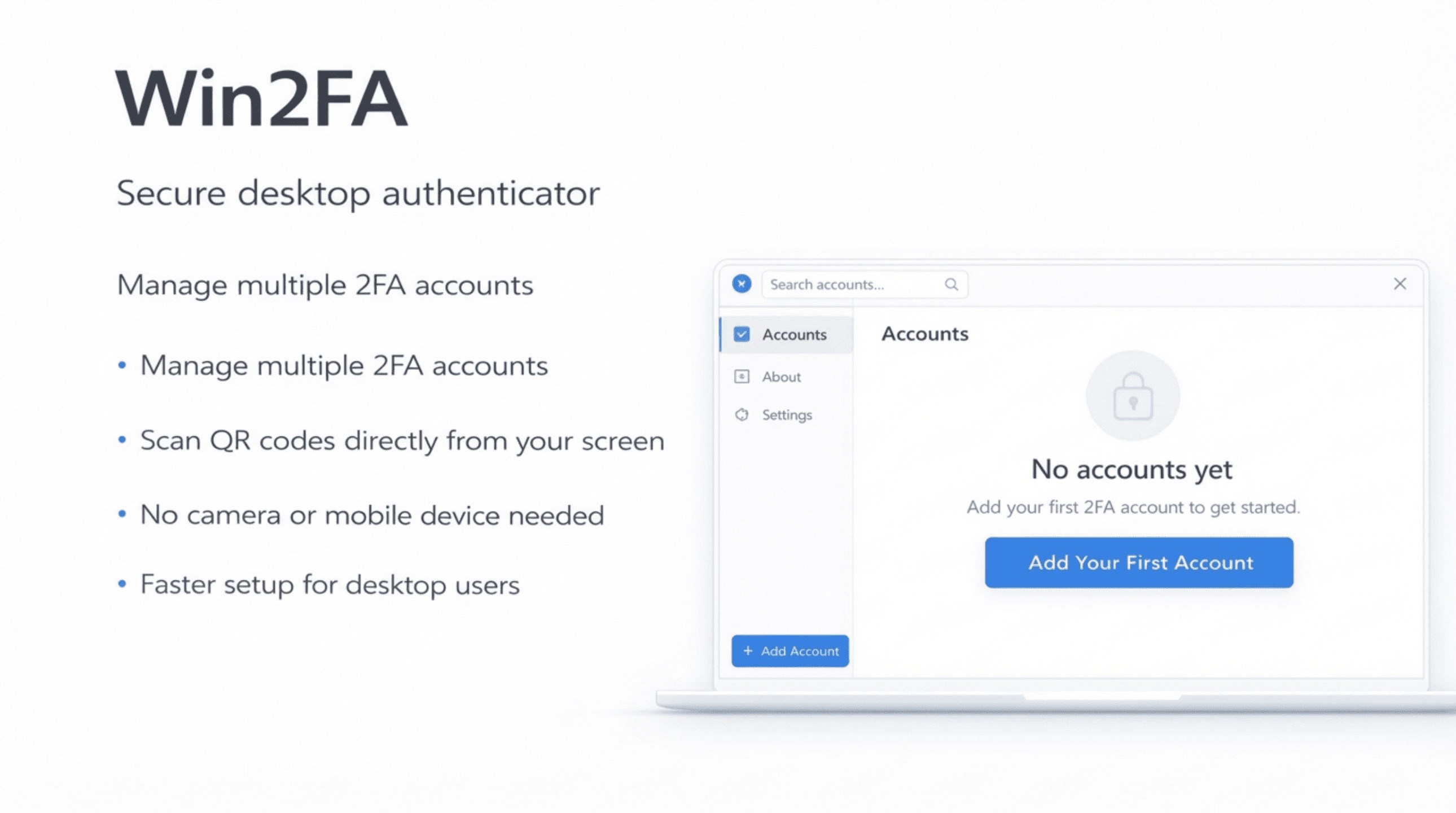
Navigating G Authenticator feels like stepping into a well-designed workspace—clear, simple, and intuitive. The app's interface mimics the familiar layout of mobile authenticator apps, but optimized for desktop use. It's snappy and responsive, with no discernible lag, making the operation seamless. The learning curve? Mild as a gentle breeze. Even newcomers to 2FA management find themselves up and running within minutes, thanks to succinct instructions and logical organization. This thoughtful UI design transforms what could be a daunting task into a pleasant experience.
Unique Advantages & Differentiators
What sets G Authenticator apart from other security tools is its dedicated focus on being a lightweight, offline-native app—no cloud storage, no extra dependencies. Notably, its **most distinctive feature** is the ability to run independently on Windows, allowing users to generate 2FA codes directly on their desktops without relying on mobile apps. This provides a higher level of data control and quick, on-demand access—perfect for power users or those concerned with privacy. Additionally, its straightforward interface and simplicity make it more accessible than some of the overly complex enterprise-grade security apps, making it suitable for individuals rather than only organizations.
Conclusion: A Solid Choice for Desktop 2FA
If you're seeking a reliable, easy-to-use authenticator that fits seamlessly into your Windows lifestyle, G Authenticator is a commendable pick. Its focus on core functionality, minimalist design, and offline independence make it stand out among similar apps, especially for users who prefer desktop-based solutions over mobile apps. While it may lack some advanced features of larger security platforms, its simplicity and directness are its greatest assets. For anyone wanting a secure, no-fuss way to manage their 2FA tokens on Windows, this app comes highly recommended—think of it as your trusty security guard, right at your fingertips.
Pros
- User-friendly interface
- Strong security features
- Offline functionality
- Multi-device sync
- Quick setup process
Cons
- Limited customization options
- Occasional sync delays
- No in-app backup for tokens
- Requires account login
- Limited to Google services