- Name Visual Studio Code
- Category Developer tools
- Developer Microsoft
- Available on PC
- OS Windows 10 version 0.0 or higher
- Keyboard Integrated Keyboard
- Mouse Integrated Mouse
- languages English (United States)
A Powerhouse for Code: Visual Studio Code for Windows Reviewed
If you're a developer or a tech enthusiast seeking a versatile yet user-friendly code editor, Visual Studio Code (VS Code) might be your new best friend. Designed to streamline coding workflows and support a vast array of programming languages, VS Code offers a compelling combination of simplicity and depth — akin to a Swiss Army knife for developers.
A Glimpse Behind the Curtain
Developed and published by Microsoft, Visual Studio Code for Windows is a free, open-source code editor tailored to enhance productivity and collaboration. Its core mission is to provide a lightweight, fast, and customizable environment for coding, debugging, and version control, all within an intuitive interface.
- Main Features: In-built Git integration, extensive plugin ecosystem, live debugging, and intelligent code completion.
- Target Users: From seasoned software engineers and web developers to coding newcomers seeking a flexible platform for multiple languages (JavaScript, Python, C++, etc.).
A Fun, Functional Dive into VS Code
Imagine opening the toolbox of a talented craftsman: every tool within reach, ready to help you build your digital masterpiece. That's what VS Code feels like—a seamless blend of power and approachability. Whether you're writing complex algorithms or editing simple scripts, this editor adapts effortlessly to your needs.
Intuitive Interface and Seamless User Experience
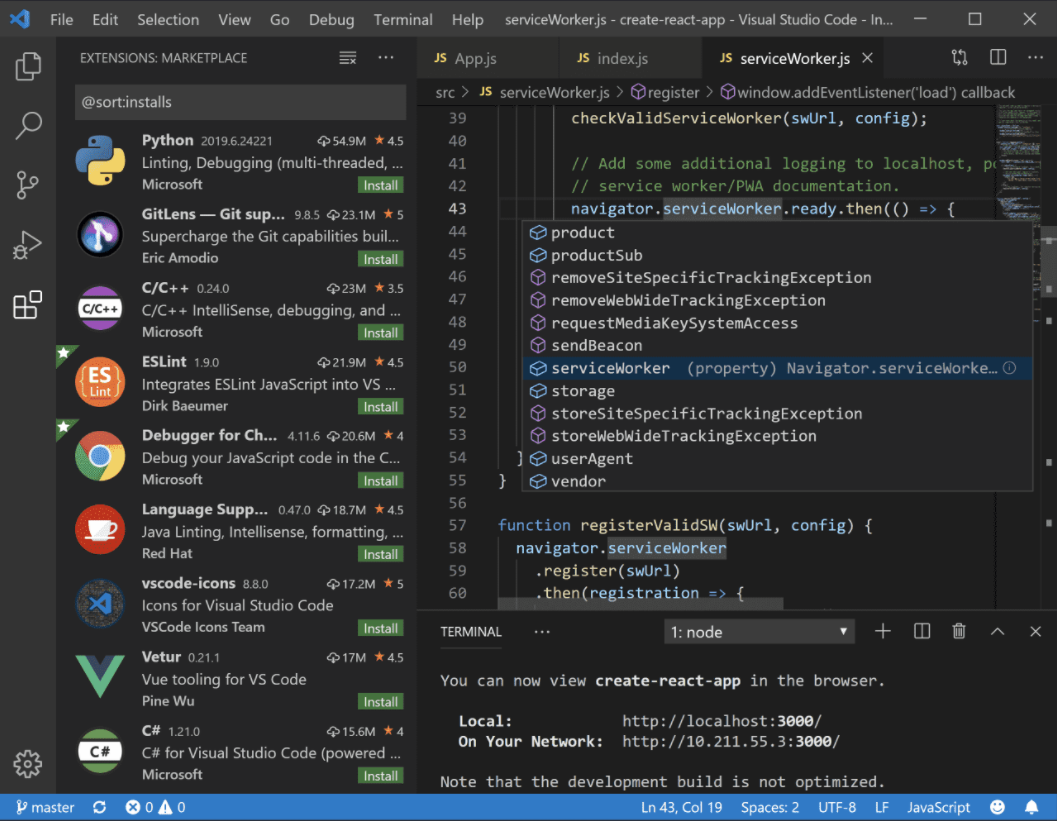
The moment you launch VS Code, you're greeted with a clean, modern interface that's easy on the eyes but packed with functionality. Its layout resembles a sleek workspace, with sidebar panels for files, search, and extensions, plus a code editor that's both spacious and customizable. The design philosophy focuses on minimizing clutter while keeping essential tools at your fingertips. Responsiveness is notably smooth; even large projects with thousands of lines of code don't cause lag or stuttering, thanks to efficient resource management.
Learning curve? Fairly gentle. New users can navigate the interface quickly, while seasoned developers appreciate the depth of customization and extension support that ensures the tool grows with their needs. The integrated terminal, for example, turns your editor into an command-line oasis, eliminating the need to shuffle between multiple applications.
Core Features: The Heart of Productivity
1. Intelligent Code Assistance: One of VS Code's standout features is its intelligent code completions—powered by language servers—which feel like having a seasoned co-pilot whispering suggestions. Whether you're working with Python, JavaScript, or C++, the auto-completion and syntax highlighting are precise, helping reduce errors and speed up your workflow.
2. Robust Debugging Tools: Debugging can often feel like trying to find a needle in a haystack, but VS Code simplifies it considerably. Its integrated debugging interface supports breakpoints, watch variables, call stacks, and real-time editing while debugging. Plus, it supports remote debugging, which is a game-changer for web developers working across different environments.
3. Extensions and Customization Ecosystem: Perhaps the most unique aspect of VS Code is its vast library of extensions—over 20,000 and counting. From theme packs to language support and productivity tools, there's an extension for nearly every need. This ecosystem transforms VS Code from a simple text editor into a bespoke development environment, tailored precisely to your project requirements.
What Sets VS Code Apart?
While competitors like Sublime Text or Atom offer lightweight editing solutions, VS Code's true strength lies in its tight integration of debugging, source control, and customization—all in one free package. Its collaboration-friendly features, like Live Share, allow multiple developers to work on code simultaneously, making teamwork more fluid, much like a virtual whiteboard shared among colleagues.
Moreover, the depth of its plugin ecosystem enables it to support niche programming languages and workflows that other editors might not handle as gracefully. The regular updates from Microsoft ensure VS Code evolves continuously, integrating latest technologies and user feedback swiftly.
Final Verdict: A Highly Recommended Tool for Modern Developers
Overall, Microsoft's Visual Studio Code for Windows stands out as a versatile, reliable, and highly customizable code editor suitable for a wide range of programming tasks. Its blend of powerful core features—particularly its intelligent assistance and extension ecosystem—sets it apart from other free editors.
If you're looking for an environment that feels accessible yet can handle serious workloads, VS Code is definitely worth trying out. Its versatility makes it a solid choice whether you're working on web apps, data analysis scripts, or even embedded systems. Just remember to explore its extensions early—you might find your ideal setup requires a few tweaks, but that's where VS Code truly shines.
Recommended level: Highly recommended for both beginners eager to learn and experienced developers seeking a flexible workspace. Dive in and see how it can streamline your coding journey.
Pros
- Lightweight and Fast
- Extensive Extension Ecosystem
- Built-in Git Integration
- Cross-Platform Compatibility
- Customizable Interface
Cons
- Resource Intensive Extensions
- Occasional Stability Issues
- Limited Built-in Debugging for Certain Languages
- Default Settings May Require Tuning
- Complex Extension Management