- Name VideoPad
- Category Photo & video
- Developer NCH Software
- Available on PC
- OS Windows 10 version 15063.0 or higher
- Mouse Integrated Mouse
- Memory 4 GB
- Keyboard Not specified
- languages English (United States)
A Crisp Tool for All Your Video Editing Needs
VideoPad for Windows emerges as a user-friendly yet surprisingly versatile video editing software, designed to cater to both beginners and intermediate editors looking to craft polished videos without wading through complex interfaces or expensive subscriptions.
About the Developer and Core Features
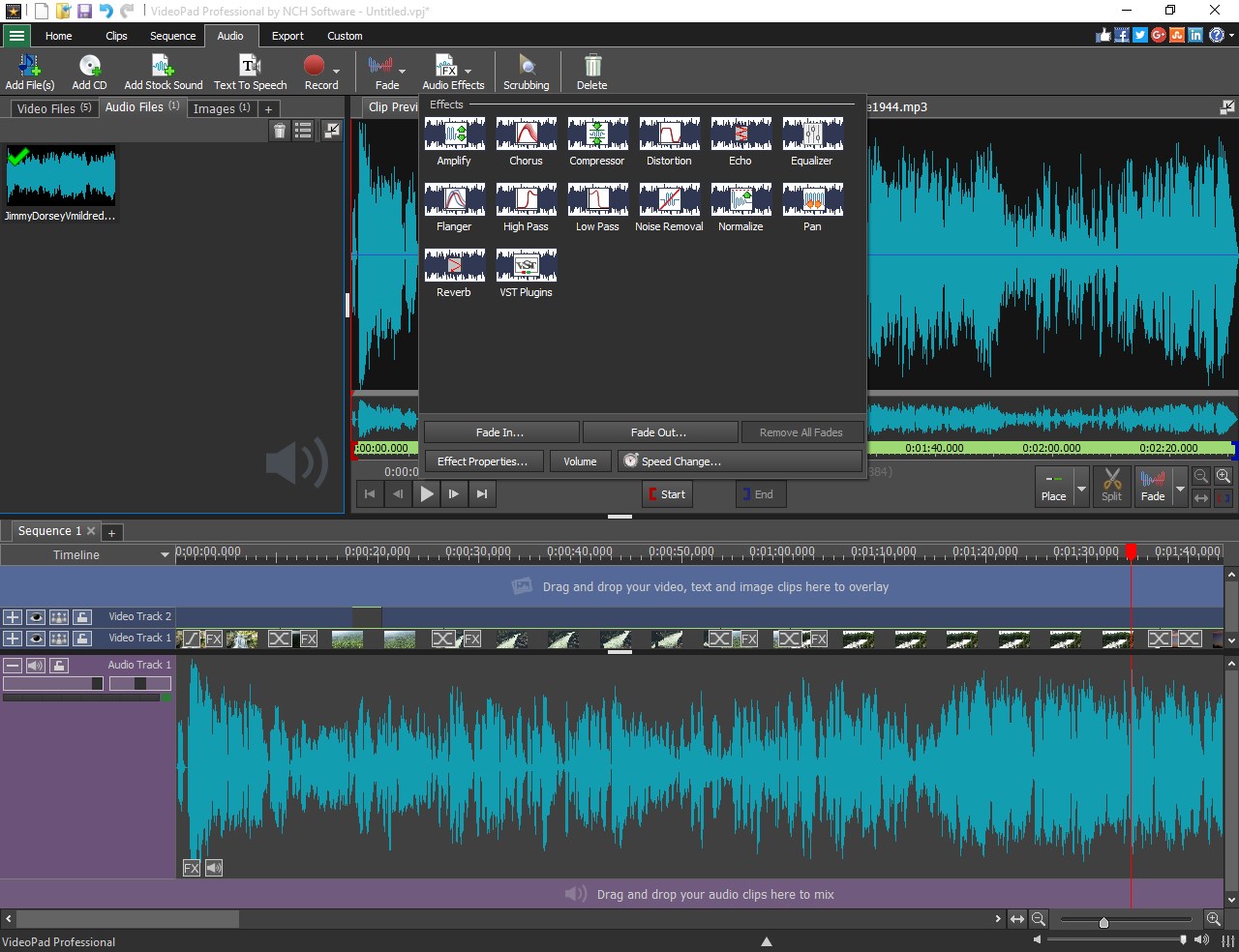
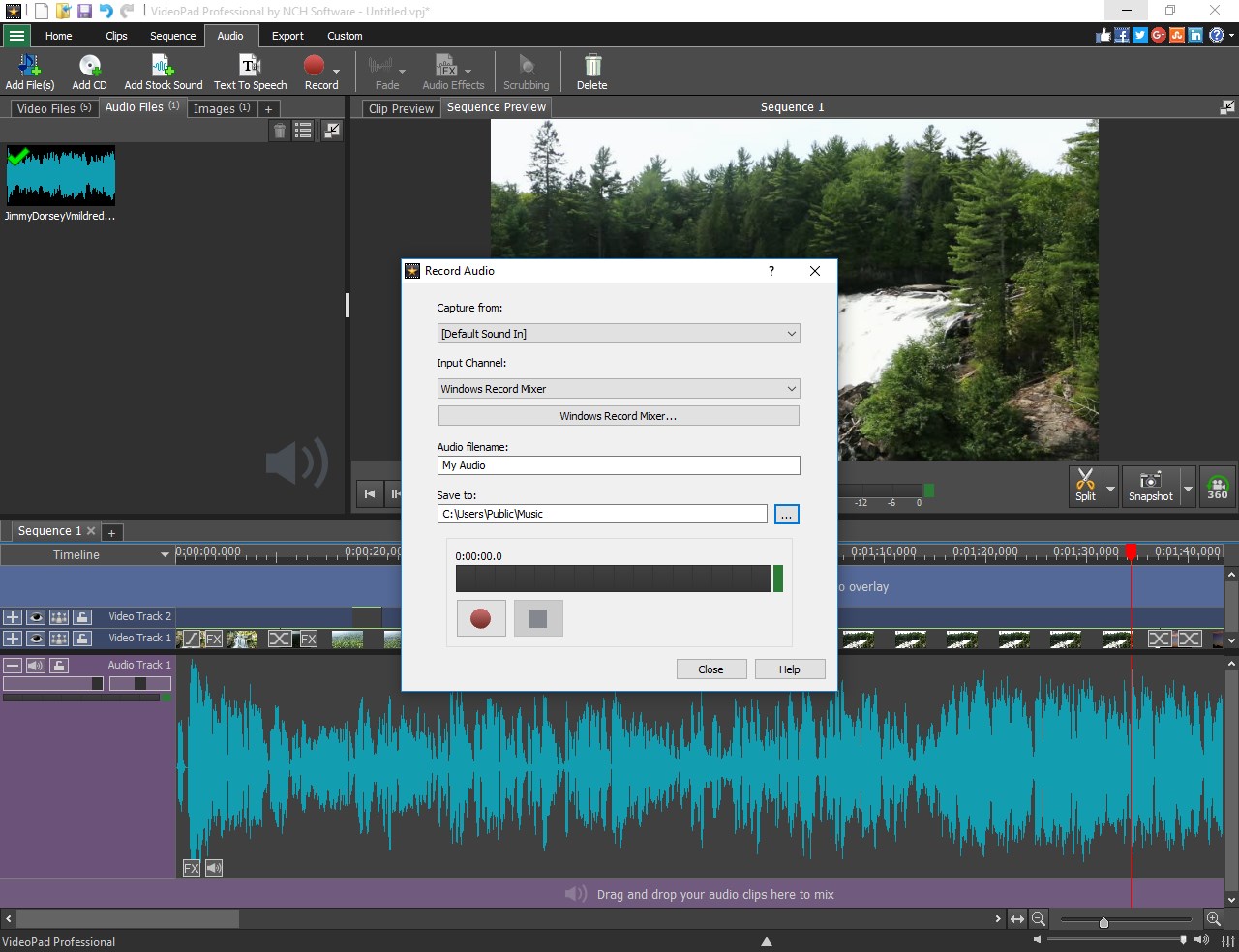
Published by NCH Software, a well-established player in multimedia solutions, VideoPad offers a streamlined approach to video editing that balances functionality and accessibility. Its main features include multi-track editing with an intuitive timeline, a rich library of effects and transitions, and support for a broad range of media formats, making it a solid choice for versatile projects. Additionally, it includes embedded audio editing tools and export options suited for different platforms, from YouTube to DVD.
An Entertaining Dive into VideoPad's Capabilities
Imagine sitting at your desk, ready to turn your raw clips into a cinematic story—VideoPad acts like a friendly assistant guiding you through each step. Its interface feels approachable, where even snippets of learning curve are smooth sailing. Whether you're a hobbyist looking to spice up vacation footage or an aspiring filmmaker with ambitious visions, this software offers a surprisingly enjoyable editing experience.
Intuitive Multi-Track Editing and Effect Suite
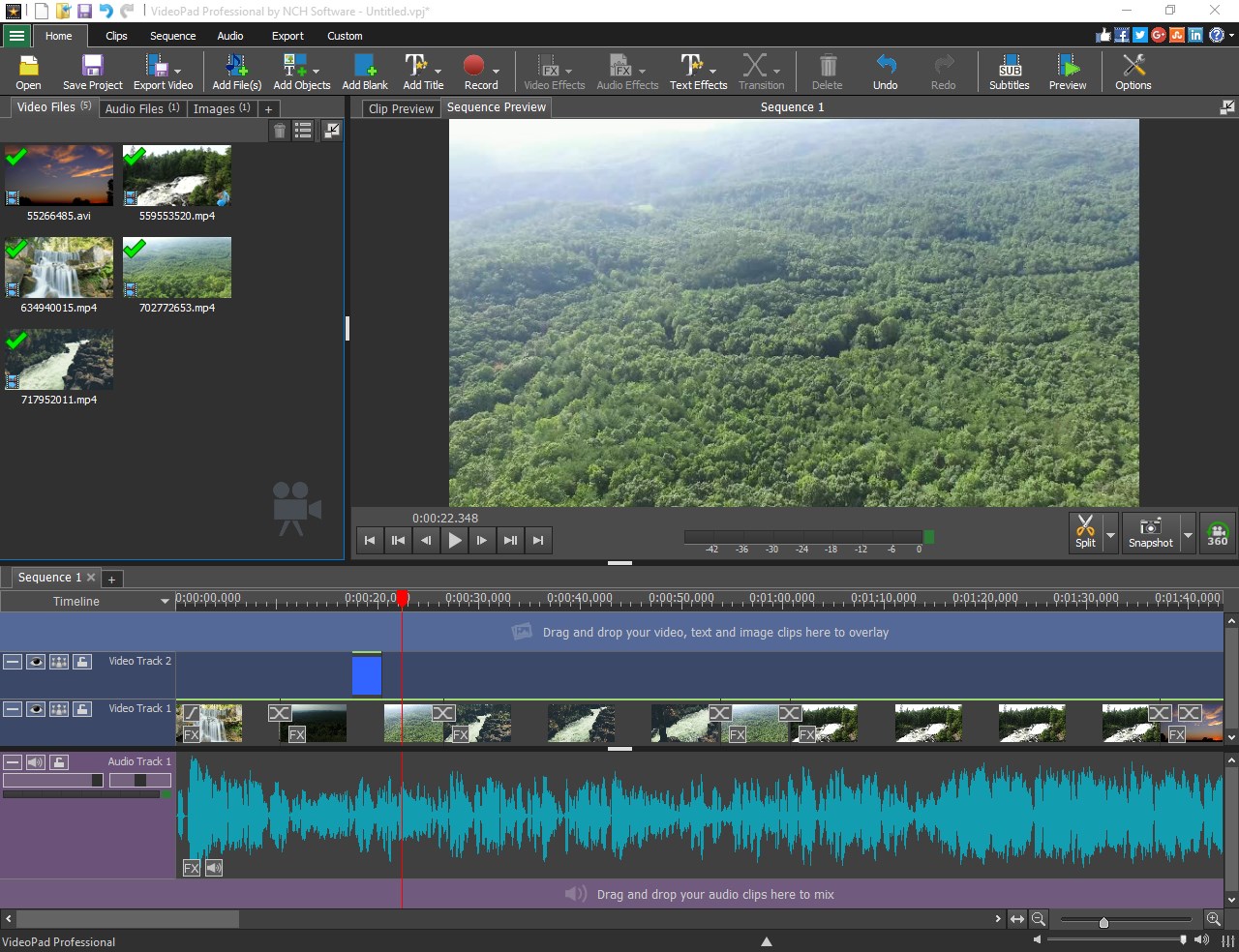
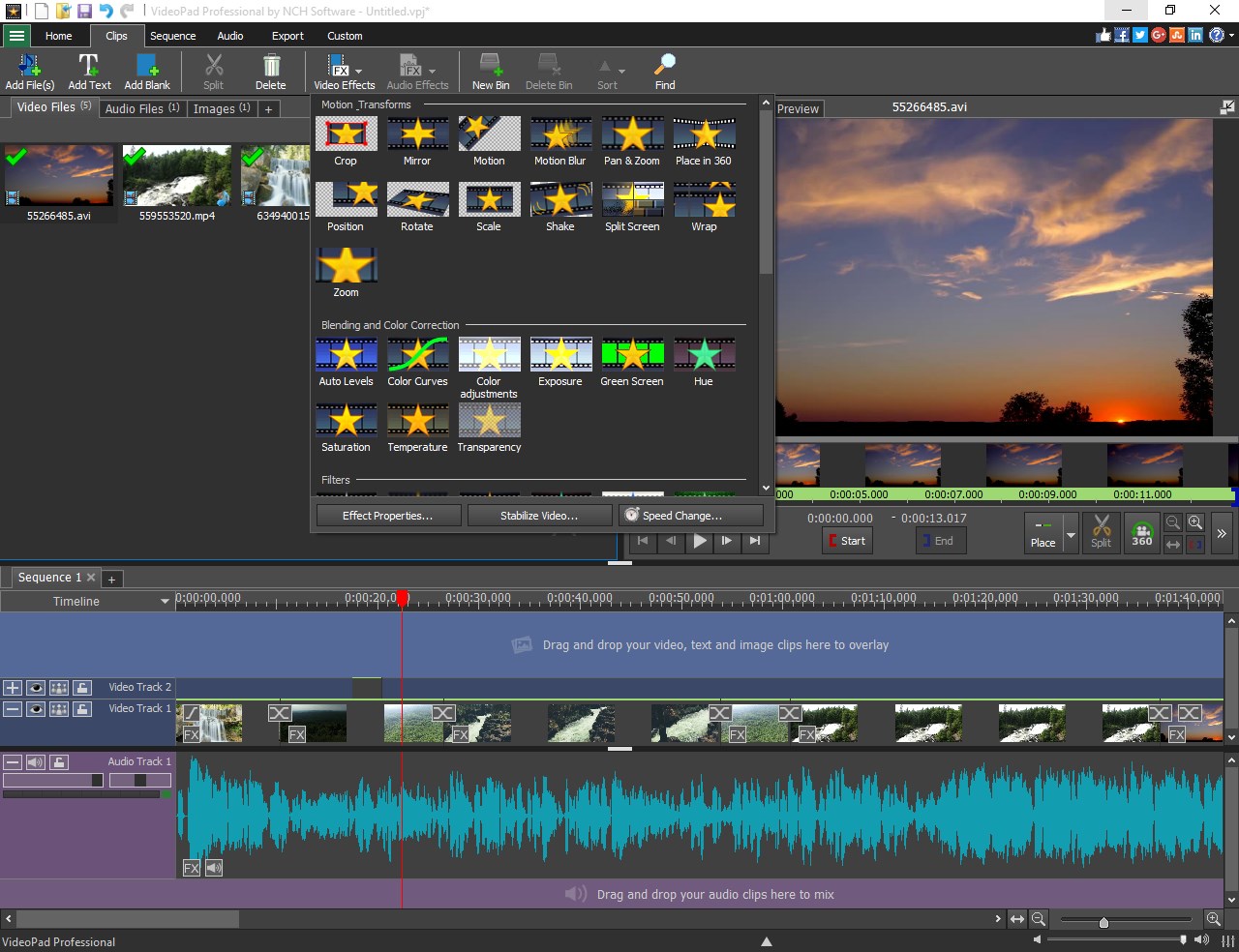
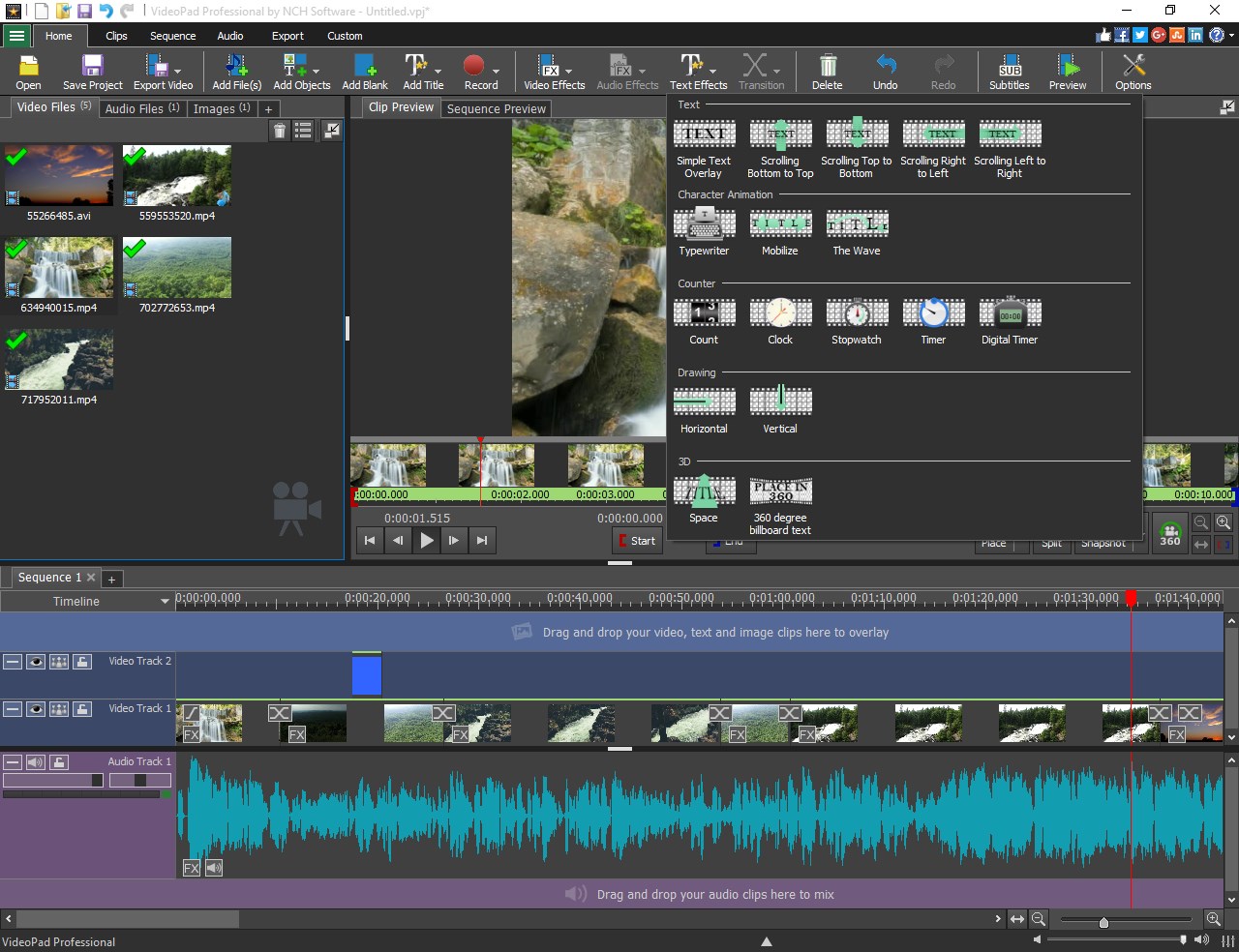
One of VideoPad's standout features is its multi-track timeline, allowing users to layer video and audio seamlessly—think of it as assembling a digital scrapbook with endless space for creativity. Adding effects, transitions, and overlays is as simple as drag-and-drop, making the process feel fluid rather than a chore. The built-in library of effects, including color correction and 3D text, ensures your videos look professional without needing external plugins. For those seeking to give footage a cinematic touch, the real-time preview feature is a boon, letting you see adjustments instantly.
Format Support and Export Flexibility
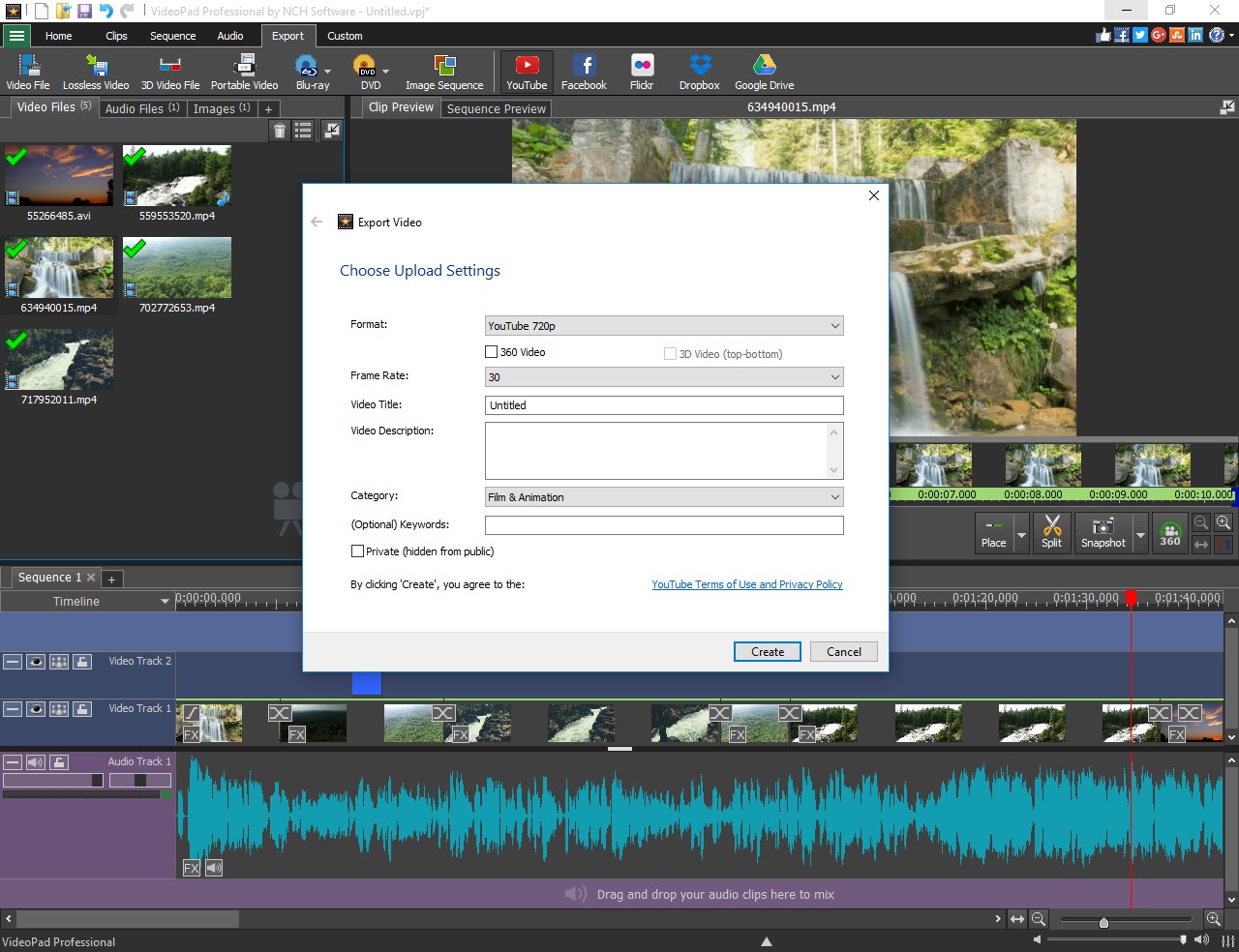
Ever been frustrated by a software that refuses to recognize your camera's footage? VideoPad alleviates that headache with extensive format support, accommodating everything from common MP4s to high-definition formats. Export options are equally broad—save directly to your device, upload straight to social media platforms, or burn DVDs. This flexibility ensures your creative projects can reach audiences across multiple channels without fuss.
User Experience and Unique Advantages
From an ergonomic standpoint, VideoPad scores high in usability. Its layout resembles a well-organized workspace, with clear icons and neatly arranged panels. Beginners will appreciate the guided tutorials, while seasoned editors can quickly harness advanced tools like keyframe animations and chroma keying. Compared to similar apps, VideoPad's prime differential lies in its balance—rich features wrapped in a clean, approachable package. It avoids the overwhelming complexity of high-end software yet offers enough depth to handle reasonably complex edits, positioning itself as a reliable intermediary.
Final Verdict and Recommendations
Overall, VideoPad for Windows stands out as a solid, dependable choice for those seeking straightforward video editing with room for growth. Its user interface ensures that learning curves are gentle, but it doesn't compromise on essential editing features. For hobbyists, educators, and content creators looking for a tool that's both accessible and capable of delivering professional-looking results, VideoPad earns a warm recommendation. It's especially beneficial if you value format flexibility and multi-track editing without the steep price or steep complexity found in premium editors.
Pros
- User-Friendly Interface
- Wide Range of Export Options
- Real-Time Video Previews
- Supports 4K Video Editing
- Extensive Audio Editing Tools
Cons
- Limited Advanced Features
- Occasional Software Crashes
- Slow Rendering Speeds on Low-End PCs
- Limited Green Screen (Chroma Key) Support
- Missing Collaboration Tools